

Download the bak files from https://learn.microsoft.com/en-us/sql/samples/adventureworks-install-configure?view=sql-server-ver17&tabs=ssms .
Copy the bak files to the docker container where SQL Server 2022 is running:
PS D:\docker> docker exec -it sqlsvr22 mkdir /var/opt/mssql/backup
PS D:\docker> docker cp .\AdventureWorksLT2022.bak sqlsvr22:/var/opt/mssql/backup/AdventureWorksLT2022.bak
Successfully copied 8.51MB to sqlsvr22:/var/opt/mssql/backup/AdventureWorksLT2022.bak
PS D:\docker> docker cp AdventureWorks2022.bak sqlsvr22:/var/opt/mssql/backup/AdventureWorks2022.bak
Successfully copied 210MB to sqlsvr22:/var/opt/mssql/backup/AdventureWorks2022.bak
Restore the sample databases using SSMS:
-
Open SSMS and connect to your SQL Server instance.
-
Right-click Databases in Object Explorer and then select Restore Database... to start the Restore Database wizard.
![Screenshot showing the steps for starting the Restore Database wizard.]()
-
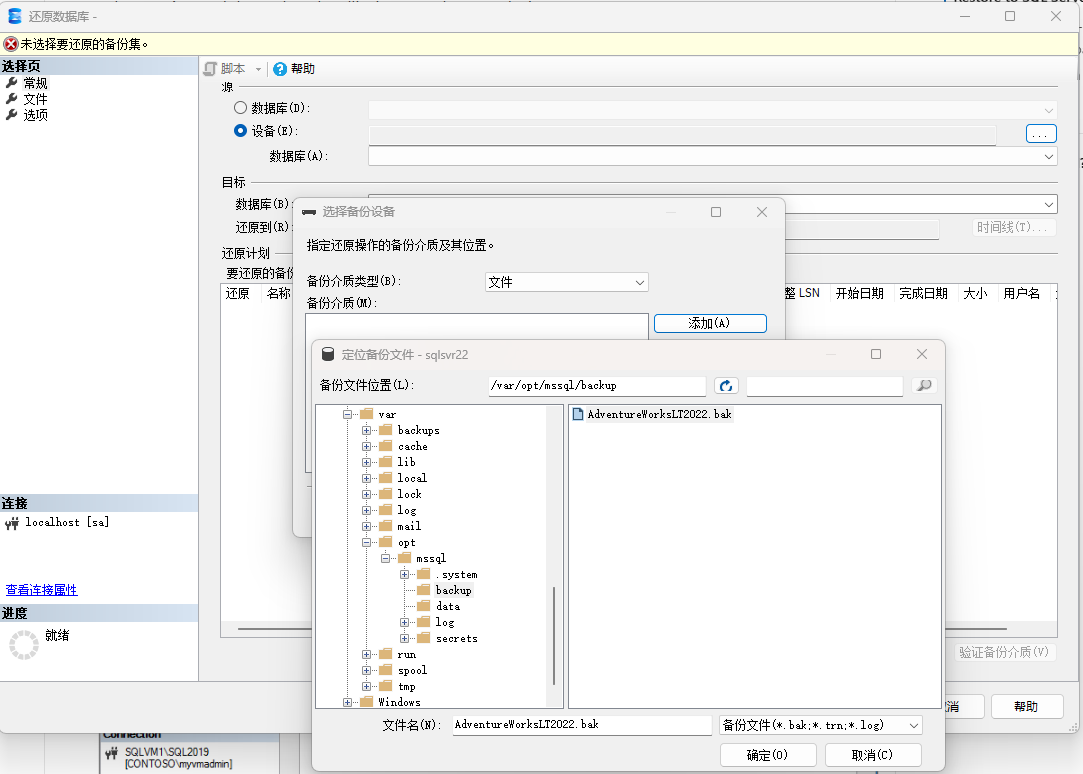
Select Device, and then select the ellipsis (...) to choose a device.
-
Select Add, and then choose the
.bakfile you recently moved to the backup location. If you moved your file to this location but you don't see it in the wizard, SQL Server or the user signed into SQL Server doesn't have permission to this file in this folder. -
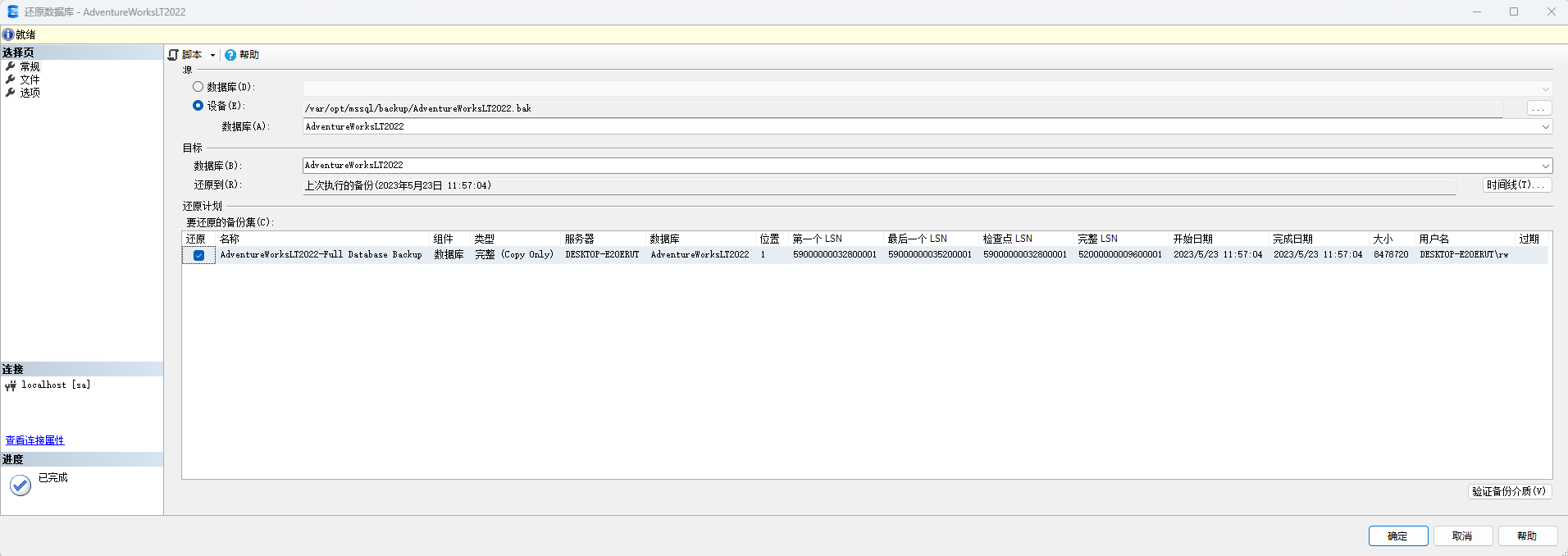
Select OK to confirm your database backup selection and close the Select backup devices window.
-
Check the Files tab to confirm that the Restore as location and file names match your intended location and file names in the Restore Database wizard.
-
Select OK to restore your database.



 浙公网安备 33010602011771号