
windows用任务计划定时执行powershell脚本
环境介绍】
操作系统:Windows Server 2019 Standard,64位操作系统
PowerShell版本:PowerShell 1.0
脚本位置:"F:\Scripts\BackupScript.ps1"
启动目录:"C:\Windows\System32\WindowsPowerShell\v1.0\powershell.exe"
【步骤图】
1.打开Windows任务计划,搜索"任务计划程序"
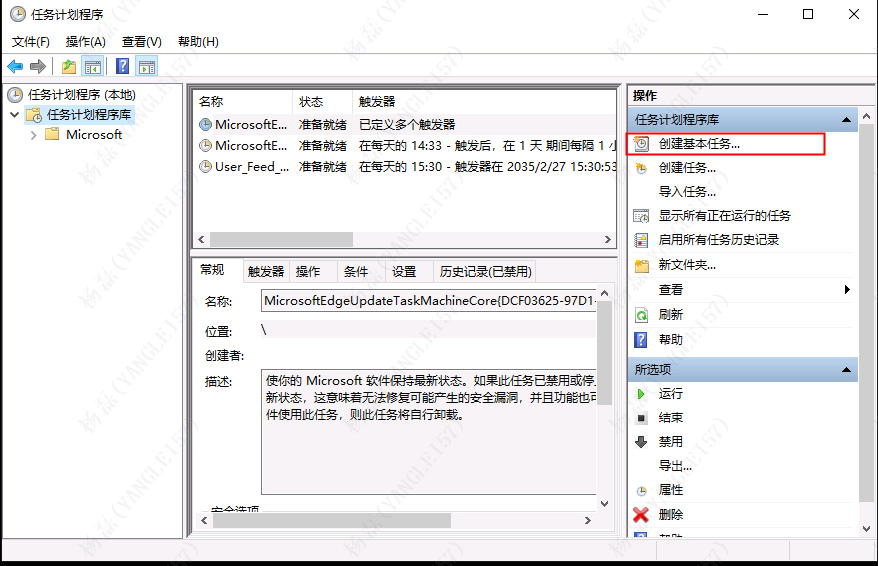
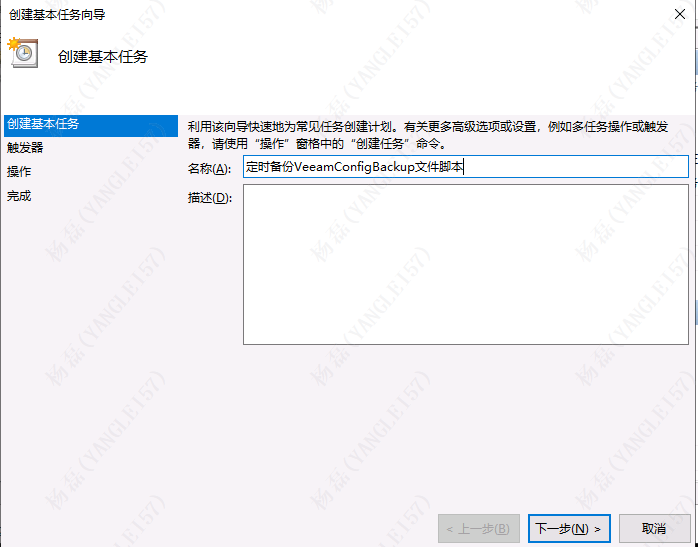
2.点击“创建基本任务”后输入“名称,点击下一步.
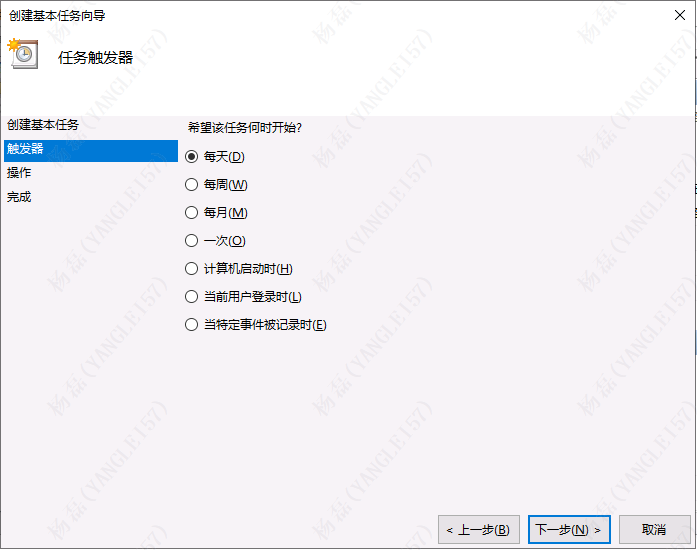
3.触发器选项卡,选择每天,继续下一步.
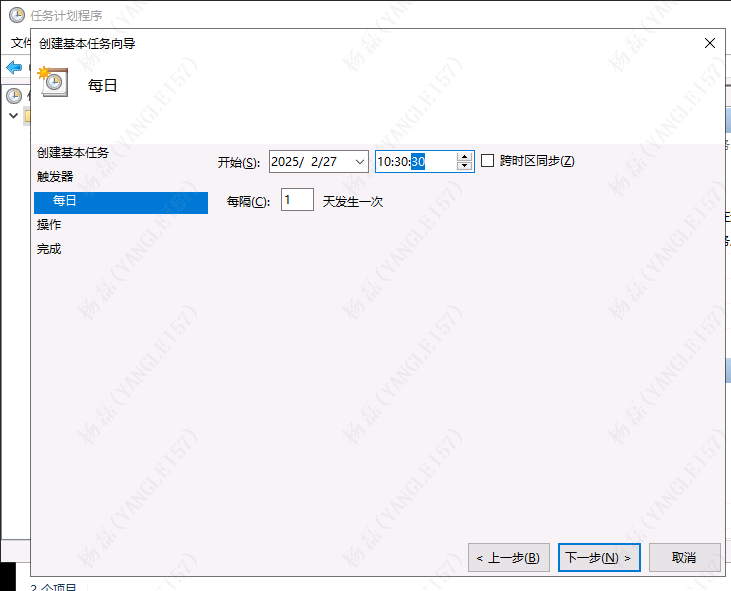
4.触发器处设置开始执行日期.
5.下一步:
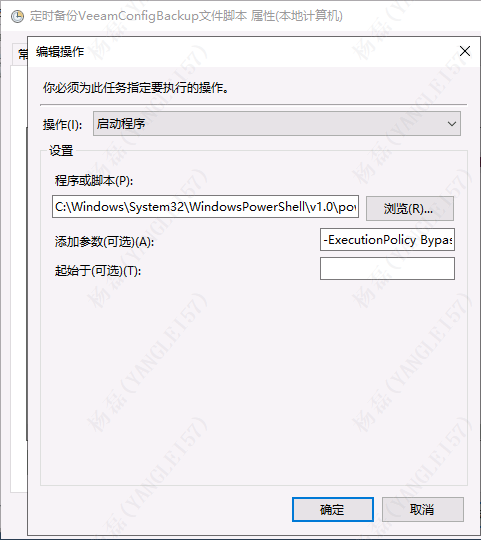
程序或脚本:C:\Windows\System32\WindowsPowerShell\v1.0\powershell.exe
添加参数(可选):-ExecutionPolicy Bypass -File "F:\Scripts\BackupScript.ps1
点击确定完成后,会出现定时任务属性框,调整配置windows主机信息并勾选使用最高权限运行即可。
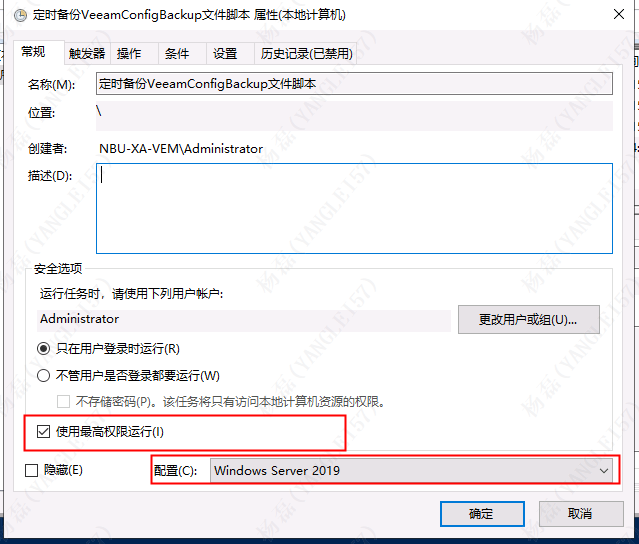
至此,我们就利用Windows任务计划程序创建一个每天10:30分自动执行的Powershell命令了。

 浙公网安备 33010602011771号