
Electron 菜单Menu的使用
菜单
创建原生应用菜单和上下文菜单。
进程:主进程
new Menu()
创建新菜单。
静态方法
Menu类有以下方法:
Menu.setApplicationMenu(menu)
menuMenu | null
在macOS上将 menu设置成应用内菜单
在windows和Linux上,menu 将会被设置成窗口顶部菜单
在Windows和Linux中,可以在菜单的顶层标签的某个字母前添加&以绑定快捷键。 例如,使用&File后可以使用Alt-F呼出File的子选项。 被绑定快捷键的字母将会以下划线标出。 &并不会在运行时显示
传递 null 值可以禁用默认菜单。 在 Windows 和 Linux 上,使用此方法移除窗口上的菜单栏可能会有额外的效果。
注释:如果应用没有设置菜单的话,系统会生成一个默认菜单。 默认生成的菜单中包含了一些初始选项,例如 文件,编辑, 视图,窗口,帮助。
EN
Menu.getApplicationMenu()
返回 Menu | null - 如果有设置, 则返回应用程序菜单, 如果没设置,则返回 null。
注释:返回的 Menu实例不支持动态添加或删除菜单项, 但仍然可以动态修改 实例属性 。
EN
Menu.sendActionToFirstResponder(action) macOS
actionString
将 action 发送到应用程序的第一个响应方。 这用于模拟默认的 macOS 菜单行为。 通常你可以使用MenuItem的role属性
有关 macOS 的本地操作的详细信息, 请参阅 macOS Cocoa Event Handling Guide 。
EN
Menu.buildFromTemplate(template)
template(MenuItemConstructorOptions | MenuItem)[]
返回 Menu
一般来说, template是一个options类型的数组,用于构建MenuItem。 使用方法可参考前文。
You can also attach other fields to the element of the template and they will become properties of the constructed menu items.
实例方法
menu 对象具有以下实例方法:
menu.popup([options\])
-
optionsObject (可选)
windowBrowserWindow (可选) - 默认为选中窗口.xNumber (可选) - 默认为当前鼠标的位置。 如果指定了y,则该选项必选。yNumber (可选) - 默认为当前鼠标的位置。 如果指定了x,则该选项必选。positioningItemNumber (optional) macOS - The index of the menu item to be positioned under the mouse cursor at the specified coordinates. 默认值为 -1。callbackFunction (optional) - 会在菜单关闭后被调用.
将此菜单作为 browserWindow 中的上下文菜单弹出。
menu.closePopup([browserWindow])
-
browserWindowBrowserWindow (可选) - 默认为选中窗口.
关闭 browserWindow 中的上下文菜单。
menu.append(menuItem)
menuItem菜单项
将 menuItem 追加到菜单。
menu.getMenuItemById(id)
idString
Returns MenuItem | null the item with the specified id
menu.insert(pos, menuItem)
posIntegermenuItem菜单项
将 menuItem 插入菜单的 pos 位置。
实例事件
Objects created with new Menu or returned by Menu.buildFromTemplate emit the following events:
注意: 某些事件仅在特定的操作系统上可用, 这些方法会被标记出来。
事件: 'menu-will-show'
返回:
eventEvent
调用menu.popup()事件时触发该事件。
事件: 'menu-will-close'
返回:
eventEvent
手动关闭弹出,或使用 menu.closePopup()方法关闭弹出时,触发该事件。
实例属性
menu 对象还具有以下属性:
menu.items
包含菜单项的 MenuItem [] 数组。
每个 菜单 由多个 MenuItem 组成, 每个 MenuItem 可以有子菜单。
菜单项
添加菜单项到应用程序菜单和上下文菜单中
进程:主进程
有关示例, 请参见 Menu。
在
new MenuItem(可选)
-
选项对象
-
click功能(可选)-
click(menuItem, browserWindow, event)单击菜单项时将调用。
menuItem菜单项browserWindowBrowserWindow | 未定义-如果未打开任何窗口,则不会定义。eventKeyboardEvent
-
role字符串(可选) -可以是undo,redo,cut,copy,paste,pasteAndMatchStyle,delete,selectAll,reload,forceReload,toggleDevTools,resetZoom,zoomIn,zoomOut,togglefullscreen,window,minimize,close,help,about,services,hide,hideOthers,unhide,quit,startSpeaking,stopSpeaking,zoom,front,appMenu,fileMenu,editMenu,viewMenu,recentDocuments,toggleTabBar,selectNextTab,selectPreviousTab,mergeAllWindows,clearRecentDocuments,moveTabToNewWindow或windowMenu-定义菜单项的动作,当指定该click属性时将被忽略。见角色 -
typeString (可选)-可以是normal、separator、submenu、checkbox或radio。 -
labelString (可选) -
sublabelString (可选) -
toolTip字符串(可选)macOS-悬停此菜单项的文本。 -
acceleratorAccelerator (可选) -
icon(NativeImage | String) (可选) -
enabledBoolean (可选) - 如果为 false,该菜单项将会置灰且不可点击。 -
acceleratorWorksWhenHidden布尔值(可选)macOS-默认为true,当false项目不可见时,将阻止加速器触发该项目。 -
visibleBoolean (可选)-如果为 false, 该菜单项将完全隐藏。 -
checkedBoolean (可选)-只应为checkbox或radio类型菜单项指定。 -
registerAccelerator布尔值(可选)Linux Windows-如果为false,则不会在系统中注册加速器,但仍会显示该加速器。默认值true。 -
submenu(MenuItemConstructorOptions[] | Menu) (optional) - Should be specified forsubmenutype menu items. Ifsubmenuis specified, thetype: 'submenu'can be omitted. 如果该值不属于Menu,它将被函数Menu.buildFromTemplate自动转换。 -
id字符串(可选)-在单个菜单中唯一。如果已定义,则可以通过position属性将其用作对此项目的引用。 -
beforeString [](可选)-将此项目插入具有指定标签的项目之前。如果所引用的项目不存在,则该项目将插入菜单的末尾。还意味着所讨论的菜单项应与该菜单项位于同一“组”中。 -
afterString[] (optional) - Inserts this item after the item with the specified label. 如果引用值不存在,那么该菜单项会插在这个菜单的尾部。 -
beforeGroupContainingString [](可选)-为单个上下文菜单提供一种方法,以声明其包含组在具有指定标签的项目的包含组之前的位置。 -
afterGroupContainingString [](可选)-为单个上下文菜单提供一种方法,以声明其包含组在具有指定标签的项目的包含组之后的位置。
-
注意: acceleratorWorksWhenHidden只在MacOS中生效,因为在Windows和Linux中快捷键不会随着隐藏菜单项而失效。 该选项让用户可以选择关闭,因为这是本地 macOS 开发中的可能。 此属性只能在macOS High Sierra 10.13或以上中使用。
在
角色
可以通过角色来为menu添加预定义行为。
最好给任何一个菜单指定 role去匹配一个标准角色, 而不是尝试在 click 函数中手动实现该行为。 内置的 role 行为将提供最佳的原生体验。
使用 role 时, label 和 accelerator 值是可选的, 并为每个平台,将默认为适当值。
每个菜单项必须有一个role,label或在分离器的情况下type。
role 属性可以具有以下值:
undoabout-触发本机“关于”面板(Window上的自定义消息框,不提供其自身的框)。redocutcopypastepasteAndMatchStyleselectAlldeleteminimize- 最小化当前窗口。close- 关闭当前窗口.quit- 退出程序reload- 重新加载当前窗口。forcereload- 忽略缓存,重新加载当前窗口。toggledevtools- 在当前窗口中隐藏/显示开发者工具。togglefullscreen- 将当前窗口切换至全屏模式。resetzoom- 将主页的缩放级别重置为初始大小.zoomin- 主页面放大 10%.zoomout-主页面缩小 10%.fileMenu-整个默认的“文件”菜单(关闭/退出)editMenu-默认的 "编辑" 菜单 (包括撤消、复制等)viewMenu-整个默认的“查看”菜单(重新加载,切换开发者工具等)windowMenu-整个默认的“窗口”菜单(最小化,缩放等)。
以下附加角色在macOS上可用:
appMenu-整个默认的“应用”菜单(关于,服务等)hide-映射到hide操作.hideOthers-映射到hideOtherApplications操作.unhide-映射到unhideAllApplications操作.startSpeaking-映射到startSpeaking操作.stopSpeaking-映射到stopSpeaking操作.front-映射到arrangeInFront操作.zoom-映射到performZoom操作.toggleTabBar-映射到toggleTabBar操作.selectNextTab- 映射到selectNextTab操作.selectPreviousTab- 映射到selectPreviousTab操作.mergeAllWindows- 映射到mergeAllWindows操作.moveTabToNewWindow- 映射到moveTabToNewWindow操作.window- 这个子菜单是"Window" 菜单.help-这个子菜单是 "Help" 菜单.services-子菜单是“服务”菜单。这仅适用于在应用程序菜单使用,是不一样的MacOS应用程序上下文菜单中使用的“服务”子菜单,这是不是在电子实现。recentDocuments-这个子菜单是 "Open Recent" 菜单.clearRecentDocuments-映射到clearRecentDocuments操作.
在 macOS 上指定 role 时, label 和 accelerator 是影响菜单项的唯一选项。 所有其它选项都将被忽略。 不过,仍然支持小写的role,如toggledevtools。
诺塔Bene的:在enabled和visibility属性不可用于在MacOS托盘顶级菜单项。
在
实例属性
以下为 MenuItem 实例的可用属性:
在
menuItem.id
String 指定了该选项唯一的id,此属性可被动态更改。
在
menuItem.label
一个String指示项目的可见标签。
在
menuItem.click
当 MenuItem 接收到 click 事件时激发的Function. It can be called with menuItem.click(event, focusedWindow, focusedWebContents).
eventKeyboardEventfocusedWindow浏览器窗口focusedWebContents网页内容
在
menuItem.submenu
一个Menu(可选)包含菜单项的子菜单(如果有)。
在
menuItem.type
String 表示菜单项的类型 Can be normal, separator, submenu, checkbox or radio.
在
menuItem.role
String`(可选) 指出菜单项的角色 Can be `undo`, `redo`, `cut`, `copy`, `paste`, `pasteAndMatchStyle`, `delete`, `selectAll`, `reload`, `forceReload`, `toggleDevTools`, `resetZoom`, `zoomIn`, `zoomOut`, `togglefullscreen`, `window`, `minimize`, `close`, `help`, `about`, `services`, `hide`, `hideOthers`, `unhide`, `quit`, `startSpeaking`, `stopSpeaking`, `zoom`, `front`, `appMenu`, `fileMenu`, `editMenu`, `viewMenu`, `recentDocuments`, `toggleTabBar`, `selectNextTab`, `selectPreviousTab`, `mergeAllWindows`, `clearRecentDocuments`, `moveTabToNewWindow` or `windowMenu
在
menuItem.accelerator
一个Accelerator(可选)指示项目的加速器(如果已设置)。
在
menuItem.icon
A NativeImage | String(可选),指示项目的图标(如果已设置)。
在
menuItem.sublabel
一个String指示项目的子标签。
在
menuItem.toolTip 苹果系统
一个String指示项目的悬停文本。
在
menuItem.enabled
一个 Boolean 类型的值, 指示是否启用该项, 该属性可以动态改变
在
menuItem.visible
一个 Boolean 类型的值, 指示该项是否可见, 该属性可以动态改变。
在
menuItem.checked
一个 Boolean 类型的值, 指示是否选中该项, 该属性可以动态改变。
checkbox 菜单项将在选中时切换 checked 的开关属性。
单选菜单项 将返回单击时checked属性, 并将关闭同一菜单中所有相邻项的属性。
你可以为其他行为添加click函数。
在
menuItem.registerAccelerator
一个Boolean指示是否加速器应与系统进行注册,或只是显示。
此属性可以动态更改。
在
menuItem.commandId
一个Number指示项目的顺序唯一ID。
在
menuItem.menu
Menu该项目所属的A。
示例
Menu 仅在主进程( main process)中可用, 但您也可以在渲染进程(render process)中通过 remote 模块使用它。
主进程
在主进程中创建程序菜单的简单API模版示例:
const { app, Menu } = require('electron')

const isMac = process.platform === 'darwin'

const template = [
  // { role: 'appMenu' }
  ...(isMac ? [{
    label: app.name,
    submenu: [
      { role: 'about' },
      { type: 'separator' },
      { role: 'services' },
      { type: 'separator' },
      { role: 'hide' },
      { role: 'hideothers' },
      { role: 'unhide' },
      { type: 'separator' },
      { role: 'quit' }
    ]
  }] : []),
  // { role: 'fileMenu' }
  {
    label: 'File',
    submenu: [
      isMac ? { role: 'close' } : { role: 'quit' }
    ]
  },
  // { role: 'editMenu' }
  {
    label: 'Edit',
    submenu: [
      { role: 'undo' },
      { role: 'redo' },
      { type: 'separator' },
      { role: 'cut' },
      { role: 'copy' },
      { role: 'paste' },
      ...(isMac ? [
        { role: 'pasteAndMatchStyle' },
        { role: 'delete' },
        { role: 'selectAll' },
        { type: 'separator' },
        {
          label: 'Speech',
          submenu: [
            { role: 'startSpeaking' },
            { role: 'stopSpeaking' }
          ]
        }
      ] : [
        { role: 'delete' },
        { type: 'separator' },
        { role: 'selectAll' }
      ])
    ]
  },
  // { role: 'viewMenu' }
  {
    label: 'View',
    submenu: [
      { role: 'reload' },
      { role: 'forceReload' },
      { role: 'toggleDevTools' },
      { type: 'separator' },
      { role: 'resetZoom' },
      { role: 'zoomIn' },
      { role: 'zoomOut' },
      { type: 'separator' },
      { role: 'togglefullscreen' }
    ]
  },
  // { role: 'windowMenu' }
  {
    label: 'Window',
    submenu: [
      { role: 'minimize' },
      { role: 'zoom' },
      ...(isMac ? [
        { type: 'separator' },
        { role: 'front' },
        { type: 'separator' },
        { role: 'window' }
      ] : [
        { role: 'close' }
      ])
    ]
  },
  {
    role: 'help',
    submenu: [
      {
        label: 'Learn More',
        click: async () => {
          const { shell } = require('electron')
          await shell.openExternal('https://electronjs.org')
        }
      }
    ]
  }
]

const menu = Menu.buildFromTemplate(template)
Menu.setApplicationMenu(menu)
渲染进程
下面是通过 remote 模块在网页(render process)中动态创建右击菜单的示例:
<!-- index.html -->
<script>
const { remote } = require('electron')
const { Menu, MenuItem } = remote

const menu = new Menu()
menu.append(new MenuItem({ label: 'MenuItem1', click() { console.log('item 1 clicked') } }))
menu.append(new MenuItem({ type: 'separator' }))
menu.append(new MenuItem({ label: 'MenuItem2', type: 'checkbox', checked: true }))

window.addEventListener('contextmenu', (e) => {
  e.preventDefault()
  menu.popup({ window: remote.getCurrentWindow() })
}, false)
</script>
MacOS中应用菜单注意事项
macOS 相比于 Windows 和 Linux 有着完全不同的应用程序菜单。 以下是一些有关使应用菜单更像原生应用菜单的注意事项。
标准菜单
MacOS有一些系统预定义的菜单,像是Services and Windows。 让你的菜单更像MacOS标准菜单,只需设置菜单role值为如下示之一,Electron便会自动认出并设置成标准菜单,:
windowhelpservices
标准菜单项操作
macOS 已经为某些菜单项提供了标准操作, 如 about xxx 、Hide xxx和 Hide Others 。 若要将菜单项的操作设置为标准操作, 应设置菜单项的 role 属性。
主菜单的名称
在 macOS 中应用程序菜单的第一个项目的标签总是你的应用程序的名字, 无论你设置什么标签。 如要更改它, 请修改应用程序包的 Info. plist 文件。 有关详细信息, 请参阅 About Information Property List Files 。
设置特定浏览器窗口的菜单 ( Linux Windows )
浏览器窗口的 setMenu 方法 可以设置特定浏览器窗口的菜单。
菜单项位置
你可以使用 before, after, beforeGroupContaining, afterGroupContaining 和 id 来控制由 Menu.buildFromTemplate 生成的菜单项的位置.
before- 在指定的标签之前插入菜单项。 如果引用值不存在,那么该菜单项会插在这个菜单的尾部。 这还意味着,菜单项应该被放置在与引用项相同的组中。after- 在指定的标签之后插入菜单项。 如果引用值不存在,那么该菜单项会插在这个菜单的尾部。 这还意味着,菜单项应该被放置在与引用项相同的组中。beforeGroupContaining- Provides a means for a single context menu to declare the placement of their containing group before the containing group of the item with the specified label.afterGroupContaining- Provides a means for a single context menu to declare the placement of their containing group after the containing group of the item with the specified label.
默认情况下,除非有位置相关的属性,所有的菜单项会按照模板中的顺序排放。
示例
模板:
[
  { id: '1', label: 'one' },
  { id: '2', label: 'two' },
  { id: '3', label: 'three' },
  { id: '4', label: 'four' }
]
菜单:
- 1
- 2
- 3
- 4
模板:
[
  { id: '1', label: 'one' },
  { type: 'separator' },
  { id: '3', label: 'three', beforeGroupContaining: ['1'] },
  { id: '4', label: 'four', afterGroupContaining: ['2'] },
  { type: 'separator' },
  { id: '2', label: 'two' }
]
菜单:
- 3
- 4
- ---
- 1
- ---
- 2
模板:
[
  { id: '1', label: 'one', after: ['3'] },
  { id: '2', label: 'two', before: ['1'] },
  { id: '3', label: 'three' }
]
菜单:
- ---
- 3
- 2
- 1
案例
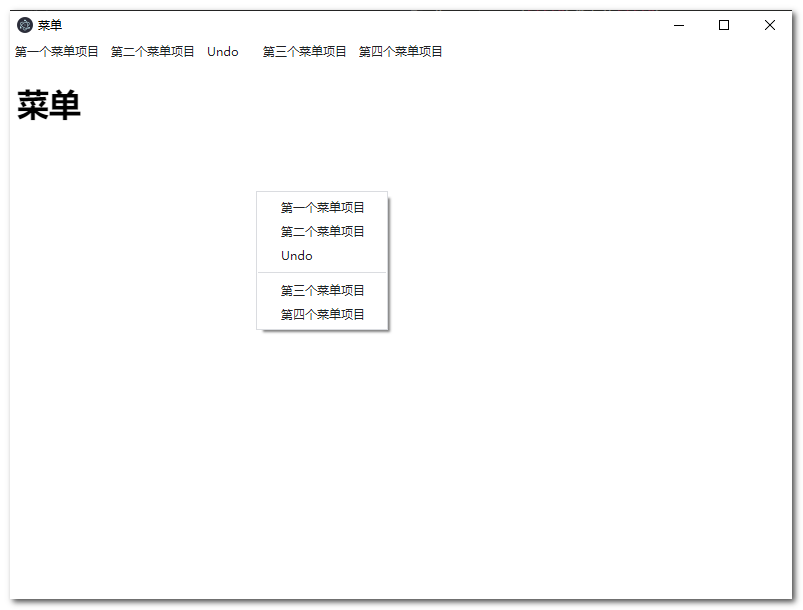
在主进程中渲染菜单
主进程
//为了管理应用程序的生命周期事件以及创建和控制浏览器窗口,您从 electron 包导入了 app 和 BrowserWindow 模块 。
const { app, BrowserWindow,Menu } = require('electron')

//在此之后,你定义了一个创建 新的浏览窗口的函数并将 nodeIntegration 设置为 true,将 index.html 文件加载到窗口中(第 12 行,稍后我们将讨论该文件)
function createWindow () {
    const win = new BrowserWindow({
        width: 800,
        height: 600,
        webPreferences: {
            //是否注入nodeapi
            nodeIntegration: true,
            //渲染进程是否启用remote模块
            enableRemoteModule: true
        }
    })

    win.loadFile('index.html')

}
//你通过调用 createWindow方法,在 electron app 第一次被初始化时创建了一个新的窗口。
app.whenReady().then(createWindow)

//您添加了一个新的侦听器,当应用程序不再有任何打开窗口时试图退出。 由于操作系统的 窗口管理行为 ,此监听器在 macOS 上是禁止操作的
app.on('window-all-closed', () => {
    if (process.platform !== 'darwin') {
        app.quit()
    }
})

//您添加一个新的侦听器,只有当应用程序激活后没有可见窗口时,才能创建新的浏览器窗口。 例如,在首次启动应用程序后或重启运行中的应用程序
app.on('activate', () => {
    if (BrowserWindow.getAllWindows().length === 0) {
        createWindow()
    }
})

//5s后
setTimeout(()=>{
    //menu item
    const template = [
        {label: "第一个菜单项目"},
        {label: "第二个菜单项目"},
        {role: "undo"},
        {type: 'separator'},
        {label: "第三个菜单项目"},
        {label: "第四个菜单项目"},
    ];
    //使用 menu item 创建menu对象
    const menu = Menu.buildFromTemplate(template);
    //设置菜单
    Menu.setApplicationMenu(menu);
    //弹出菜单
    menu.popup();
}, 5000)
渲染进程
<!DOCTYPE html>
<html lang="en">
<head>
    <meta charset="UTF-8">
    <title>菜单</title>
</head>
<body>
<h1>菜单</h1>
</body>
</html>
效果
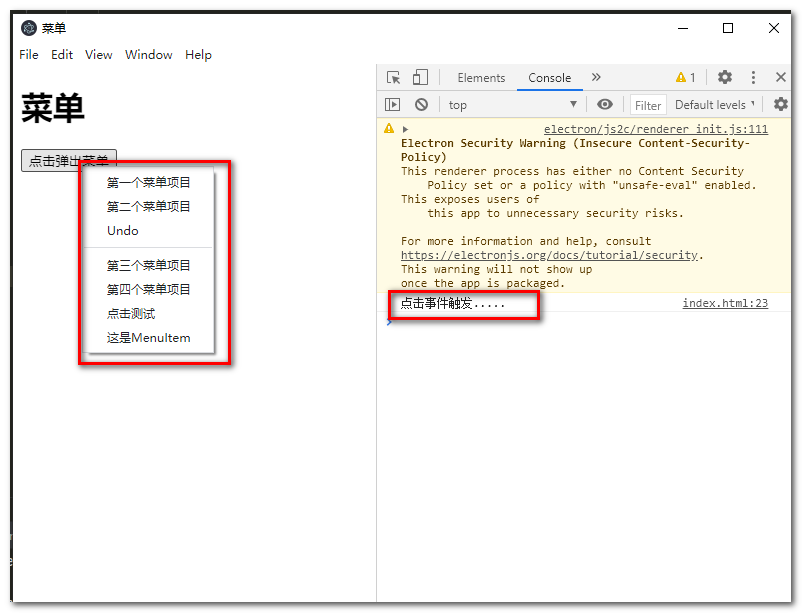
渲染进程中使用菜单并注册点击事件使用MenuItem
渲染进程
<!DOCTYPE html>
<html lang="en">
<head>
    <meta charset="UTF-8">
    <title>菜单</title>
</head>
<body>
<h1>菜单</h1>
<button onclick="openMenu()">点击弹出菜单</button>
</body>
<script>
    const { Menu, MenuItem } = require('electron').remote
    function openMenu() {
        //menu item
        const template = [
            {label: "第一个菜单项目"},
            {label: "第二个菜单项目"},
            {role: "undo"},
            {type: 'separator'},
            {label: "第三个菜单项目"},
            {label: "第四个菜单项目"},
            {label: "点击测试", click : () => {
                    console.log('点击事件触发.....');
                }
            },
        ];
        //使用 menu item 创建menu对象
        const menu = Menu.buildFromTemplate(template);
        //设置成应用菜单
        //Menu.setApplicationMenu(menu);

        //使用MenuItem
        let item = new MenuItem({label : '这是MenuItem'});

        menu.append(item);
        //弹出菜单
        menu.popup();
    }
</script>
</html>
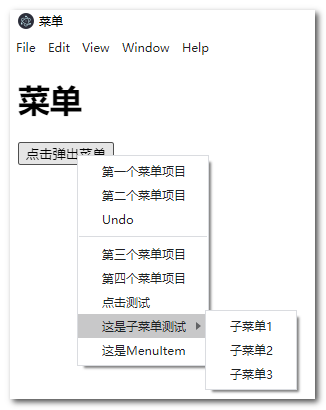
渲染进程中创建带子菜单的菜单
<!DOCTYPE html>
<html lang="en">
<head>
    <meta charset="UTF-8">
    <title>菜单</title>
</head>
<body>
<h1>菜单</h1>
<button onclick="openMenu()">点击弹出菜单</button>
</body>
<script>
    const { Menu, MenuItem } = require('electron').remote
    function openMenu() {
        //menu item
        const template = [
            {label: "第一个菜单项目"},
            {label: "第二个菜单项目"},
            {role: "undo"},
            {type: 'separator'},
            {label: "第三个菜单项目"},
            {label: "第四个菜单项目"},
            {label: "点击测试", click : () => {
                    console.log('点击事件触发.....');
                }
            },
            new MenuItem({label : '这是子菜单测试', submenu:[
                    {label: '子菜单1'},
                    {label: '子菜单2'},
                    {label: '子菜单3'}
                ]})
        ];
        //使用 menu item 创建menu对象
        const menu = Menu.buildFromTemplate(template);
        //设置成应用菜单
        //Menu.setApplicationMenu(menu);

        //使用MenuItem
        let item = new MenuItem({label : '这是MenuItem'});

        menu.append(item);
        //弹出菜单
        menu.popup();
    }
</script>
</html>

 浙公网安备 33010602011771号