
Web API---offset、client、scroll三大家族和案例
学习
- 常见的offset系列属性的作用
- 常见client系列属性的作用
- 常见的scroll系列的属性
- 能够封装简单动画函数
1. offset概述-----系列
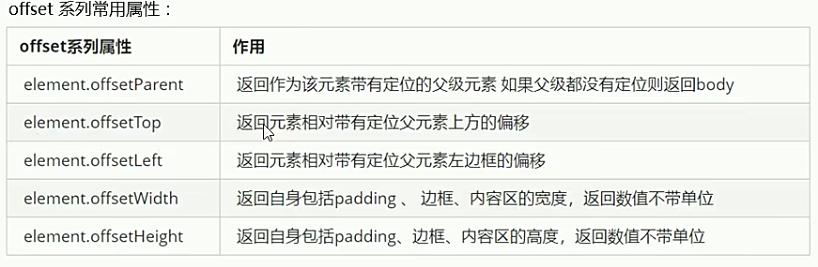
offset翻译过来就是偏移量,我们使用offset系列相关属性可以动态得到该元素的位置(偏移)、大小等。
获得元素距离带有定位父元素的位置
获得元素自身大小(宽度高度)
注意:返回的数值都不带单位
例子:
var off=document.querySelector(".off");
console.log(off.offsetTop)
1.1 offsetWidth和offsetHeight的区别
1.可以得到元素的大小,宽度和高度,包含padding+border+width
2. 返回带有定位的父亲、否则返回的是body
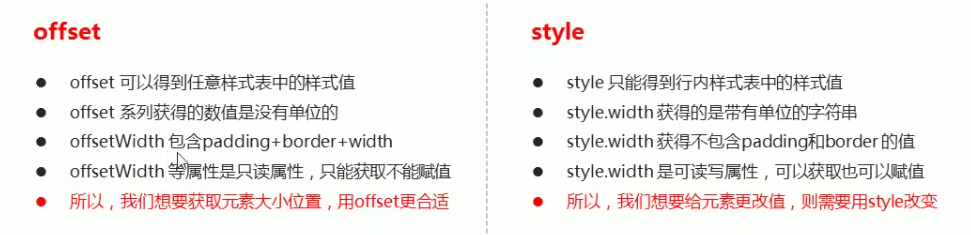
1.2 offset与style的区别
案例:
获取鼠标在盒子的坐标
<!DOCTYPE html>
<html>
    <head>
        <meta charset="utf-8">
        <title>获取鼠标在盒子内的坐标</title>
        <style type="text/css">
            .box{
                width: 300px;
                height: 300px;
                background-color: #007AFF;
            }
        </style>
    </head>
    <body>
        <div class="box"></div>
        <script type="text/javascript">
            //我们在盒子内点击,想要得到鼠标距离盒子左右的距离
            //首先得到鼠标在页面中的坐标(e.pageX,e.pageY)
            //其次得到盒子在页面中的距离(box.offsetLeft,box.offsetTop)
            //用鼠标距离页面的坐标减去盒子在页面中的距离,得到鼠标在盒子内的坐标
            var box=document.querySelector('.box');
            box.addEventListener('mousemove',function(e){
                var x=e.pageX-this.offsetLeft;
                var y=e.pageY - this.offsetTop;
                this.innerHTML='x坐标是'+x+'y坐标是'+y;

            })

        </script>
    </body>
</html>
案例:
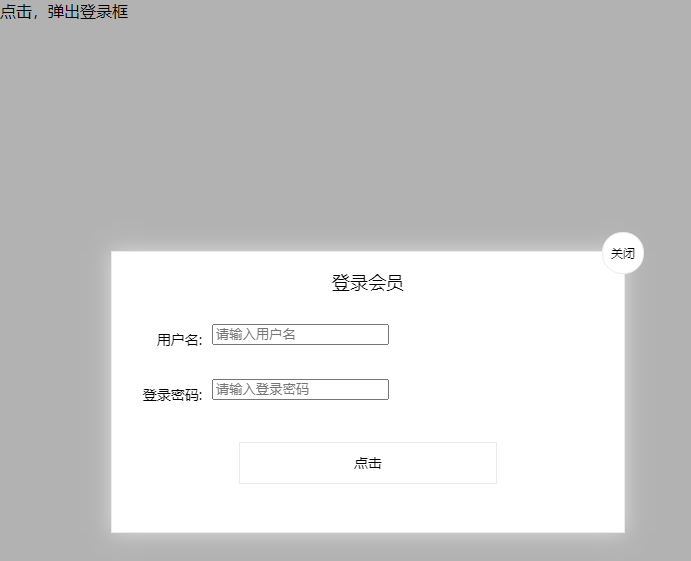
模态框拖拽
1.点击弹出层,也会弹出模态框,并且显示灰色半透明的遮挡层。
2.点击关闭按钮,可以关闭模态框,并且同时关闭半透明遮挡层。
3.鼠标放到模态框最上面的一行,可以按住鼠标拖拽框在页面中移动。
4.鼠标松开,可以停止拖动模态框移动。
<!DOCTYPE html>
<html lang="zh">
<head>
    <meta charset="UTF-8">
    <meta name="viewport" content="width=device-width, initial-scale=1.0">
    <meta http-equiv="X-UA-Compatible" content="ie=edge">
    <title></title>
    <style type="text/css">
        .login{
            display: none;
            width: 512px;
            height: 280px;
            position: fixed;
            border: #ebebeb solid 1px;
            left: 50%;
            top: 50%;
            background-color: #ffffff;
            box-shadow: 0px 0px 20px #ddd;
            z-index: 99;
            transform: translate(-50%,-50%);
        }


        .login-title{
            width: 100%;
            margin: 10px 0px 0px 0px;
            text-align: center;
            line-height: 40px;
            height: 40px;
            font-size: 18px;
            position: relative;
            cursor: move;
        }
        .login-input-content{
            margin-top: 20px;
        }
        .login-button{
            width: 50%;
            margin: 30px auto 0px auto;
            line-height: 40px;
            font-size: 14px;
            border: #EBEBEB 1px solid;
            text-align: center;
        }
        .login-bg{
            display: none;
            width: 100%;
            height: 100%;
            position: fixed;
            top: 0px;
            left: 0px;
            background: rgba(0,0,0,.3);
        }
        a{
            text-decoration: none;
            color: #000;
        }
        .login-button a{
            display: block;
        }
        .login-input input.list-input{
            float: left;
            line-height: 35px;
            height: 35px;
            width: 350px;
            border: #ebebeb 1px solid;
            text-indent: 5px;
        }
        .login-input{
            overflow: hidden;
            margin: 0px 0px 20px 0px;
        }
        .login-input label{
            float: left;
            width: 90px;
            padding-right: 10px;
            text-align: right;
            line-height: 35px;
            height: 35px;
            font-size: 14px;
        }
        .login-title span{
            position: absolute;
            font-size: 12px;
            right: -20px;
            top: -30px;
            background: #FFFFFF;
            border: #edebeb solid 1px;
            width: 40px;
            height: 40px;
            border-radius: 20px;
        }
    </style>
</head>
<body>
    <div class="login-header"><a href="javascript:;" id="link">点击,弹出登录框</a></div>
    <div id="login" class="login">
        <div id="title" class="login-title">登录会员
            <span><a id="closeBtn" href="javascript:void(0)" class="close-login">关闭</a></span>
        </div>
        <div class="login-input-content">
            <div class="login-input">
                <label>用户名:</label>
                <input type="text" placeholder="请输入用户名" name="info[username]" id="username" class="username">
            </div>
            <div class="login-input">
                <label>登录密码:</label>
                <input type="password" placeholder="请输入登录密码" name="info[password]" id="password" class="password">
            </div>
        </div>
        <div id="loginBtn" class="login-button"><a href="javascript:;" id="login-button-submit">点击</a></div>
    </div>

    <!-- 遮盖层 -->
    <div id="bg" class="login-bg"></div>

    <script type="text/javascript">
        //1.获取元素
        var login=document.querySelector('.login');
        var mask=document.querySelector('.login-bg');
        var link=document.querySelector('#link');
        var closeBtn=document.querySelector('#closeBtn');

        var title=document.querySelector('#title');
        //2.点击弹出弹出层这个链接 link 让mask和login显示出来

        link.addEventListener('click',function(){
            mask.style.display='block';
            login.style.display='block';
        })
        //3.点击关闭让它隐藏
        closeBtn.addEventListener('click',function(){
            mask.style.display='none';
            login.style.display='none';
        })


        // 点击拖拽:按下并且移动,之后松开鼠标
        // 触发事件是鼠标按下mousedown,鼠标移动mousemove鼠标松开mouseup
        // 拖拽过程:鼠标移动的过程中,获得最新的值赋值给模态框的left和top值, 这样模态框可以跟着鼠标走了
        //鼠标按下触发的事件源是最上面的一行,就是id为title
        //鼠标的坐标减去鼠标在盒子内的坐标,才是模态框真正的位置
        //移动事件写在按下事件
        title.addEventListener('mousedown',function(e){
            var x=e.pageX-login.offsetLeft;
            var y=e.pageY-login.offsetTop;
            //移动
            document.addEventListener('mousemove',move);
                function move(e){
                    login.style.left= e.pageX-x+'px';
                    login.style.top=e.pageY-y+'px';
                }
            //松开停止
            document.addEventListener('mouseup',function(){
                document.removeEventListener('mousemove',move);
            })
        })

    </script>
</body>
</html>
2. 元素可视区client系列
client翻译过来就是客服端,我们使用client系列的相关属性来获取元素可视区的相关信息。通过client系列的相关属性可以动态的得到该元素的边框大小、元素大小等。
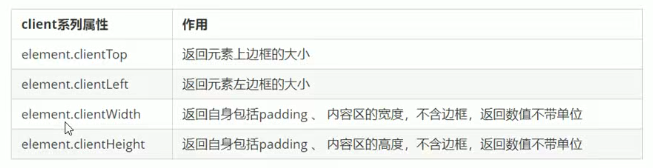
不包含边框,但是可以拿到。
3.元素scroll系列滚动
scroll -- 滚动,我没使用scroll系列的相关属性可以动态的得到该元素的大小、滚动距离等等。
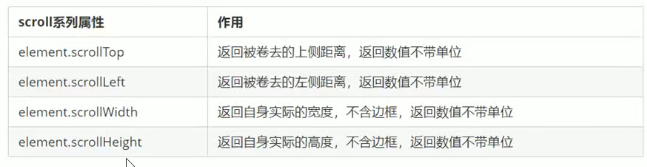
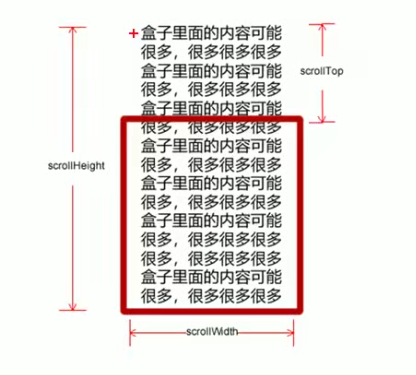
案例:
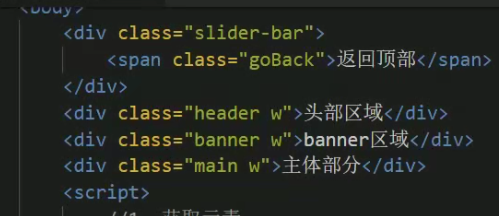
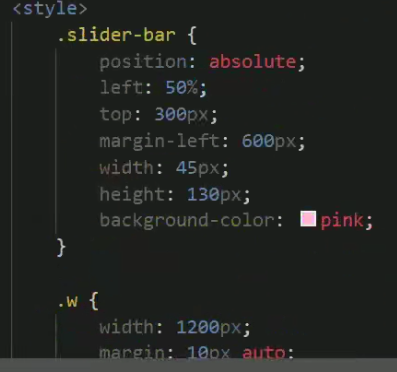
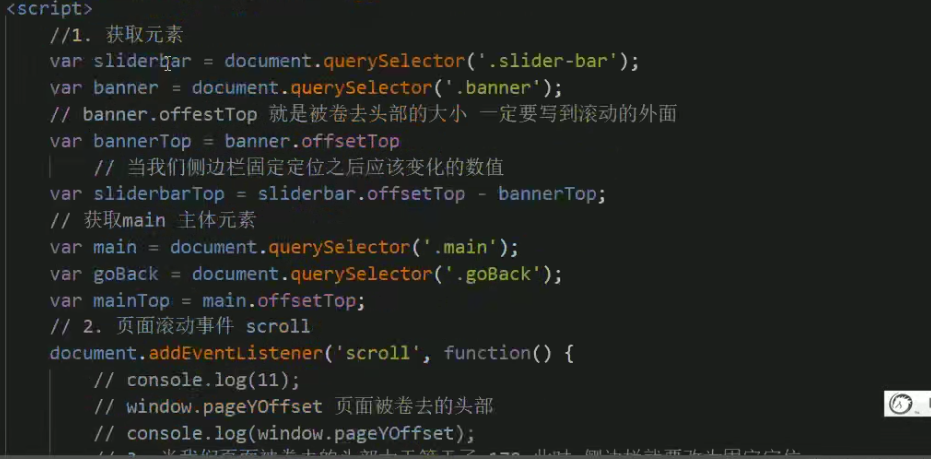
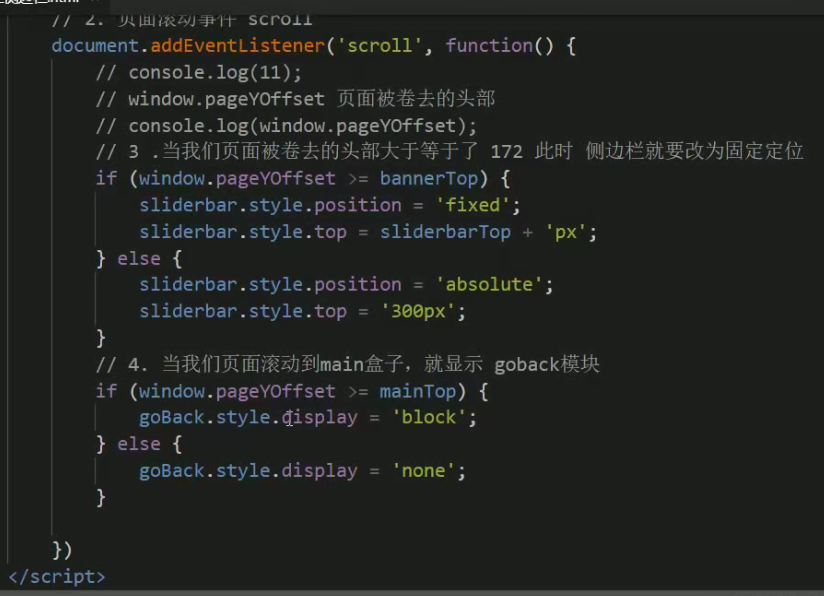
防淘宝固定侧边栏
1. 需要用到页面滚动事件scroll因为是页面滚动,所以事件源是document
2.滚动到某个位置,就是判断页面被卷去的上部值。
3.页面被卷去的头部:可以通过window.pageYOffset获得,如果是被卷去的左侧window.pageXOffset
4.注意,元素被卷去的头部是element.scrollTop,如果是页面被卷去的头部则是window.pageYOffset.
html
css
js
兼容性问题
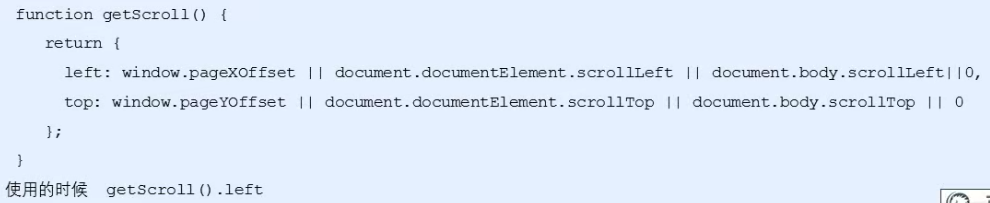
需要注意的是,页面被卷去的头部,有兼容性问题,因此被卷去的头部通常有如下几种写法:
1.声明DTD,使用document.documentElement.scrollTop
2.未声明DTD,使用document.body.scrollTop
3.新方法window.pageYOffset和window.pageXoffset,IE9开始支持
总结
他们的主要用法:
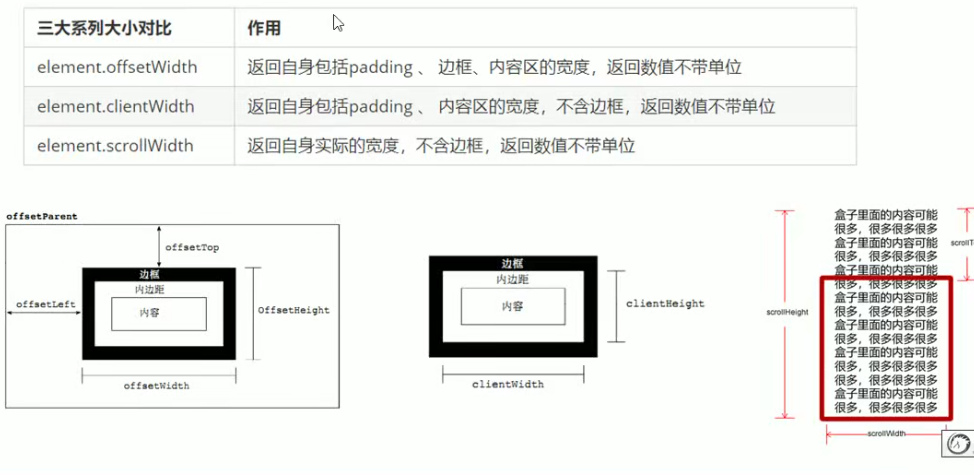
1.offset系列经常用于获得元素位置 offsetLeft offsetTop
2. client经常用于获取元素大小 clientWidth clientHeight
3. scroll经常用于获取滚动距离 scrollTop scrollLeft

 浙公网安备 33010602011771号