

Ubuntu Desktop上安装VNC Server
| [1] | Install VNC Server to operate Ubuntu with GUI from remote Windows client. |
| root@dlp:~#
root@dlp:~# # switch to a user who set VNC
narwhal@dlp:~$ # set VNC password
Password: # any password you like to set
Verify: narwhal@dlp:~$ vncserver :1
# start
xauth: file /home/narwhal/.Xauthority does not exist New 'dlp:1 (narwhal)' desktop is dlp:1 Creating default startup script /home/narwhal/.vnc/xstartup Starting applications specified in /home/narwhal/.vnc/xstartup Log file is /home/narwhal/.vnc/dlp:1.log narwhal@dlp:~$ vncserver -kill :1
# stop
Killing Xvnc4 process ID 10540 narwhal@dlp:~$ # add follows
exec gnome-session &
# start with diplay number '1', screen resolution '800x600', color depth '24'
narwhal@dlp:~$ vncserver :1 -geometry 800x600 -depth 24
New 'dlp:1 (narwhal)' desktop is dlp:1 Starting applications specified in /home/narwhal/.vnc/xstartup Log file is /home/narwhal/.vnc/dlp:1.log |
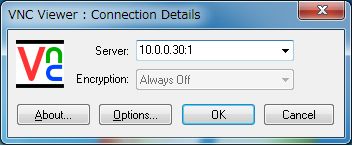
| [2] | Install VNC viewer on client computer next. Download from the site below to install. http://www.realvnc.com/products/free/4.1/download.html Start VNC viewer after installing. Then following scrren is shown. Input [(Server's hostname or IP address):(display number)] like following example. |
 |
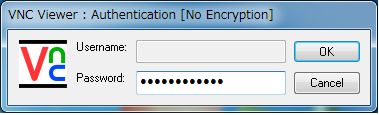
| [3] | Password is required. Input VNC password you set in the section [1]. |
 |
| [4] | Just connected. |

 浙公网安备 33010602011771号