
c++和python实现ros中的helloworld
一、cpp
1.新建文件
mkdir -p catkin_ws/src
cd catkin_ws
catkin_make -DPYTHON_EXECUTABLE=usr/bin/python3
2.建立功能包
cd src
catkin_create_pkg helloworld roscpp rospy std_msgs
cd helloworld/src
3.源码与编译
sudo gedit hello.cpp
写入:
#include"ros/ros.h"
int main(int argc ,char *argv[ ] )
{  ros::init(argc,argv,"haha");
   ROS_INFO("hello world")
   return o;
}
编译前修改:CMakelist
包的映射:用helloworld映射hello.cpp
lib映射也是一样
add_executable(helloworld src/hello.cpp)
target_link_libraries(helloworld
   ${catkin_LIBRARIES}
 )
返回去编译:
catkin_make
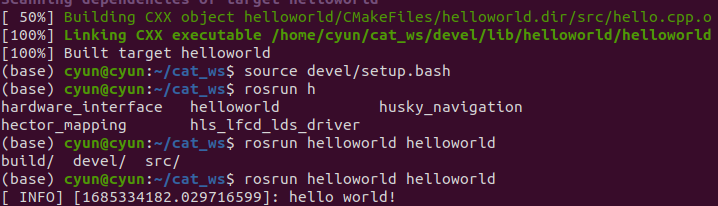
4.结果:
roscore
rosrun helloworld helloworld
二、py
py版本基本操作相差不大,只是细节部分的处理:
mkdir -p catkin_ws/src
cd catkin_ws
catkin_make -DPYTHON_EXECUTABLE=usr/bin/python3
cd src
catkin_create_pkg helloworld roscpp rospy std_msgs
此时不再是进入,而是创建和src同级的scripts
mkdir -p helloworls/scripts
然后写hello.py:
import rospy

if __name__ == "__main__":
    rospy.init_node("Hello")
    rospy.loginfo("Hello World from python!")
再去修改CMakelists
c++的后面注释:
catkin_install_python(PROGRAMS
   scripts/hello.py
   DESTINATION ${CATKIN_PACKAGE_BIN_DESTINATION}
 )
以上的只是改了scripts/hello.py
然后正常编译执行
结果:
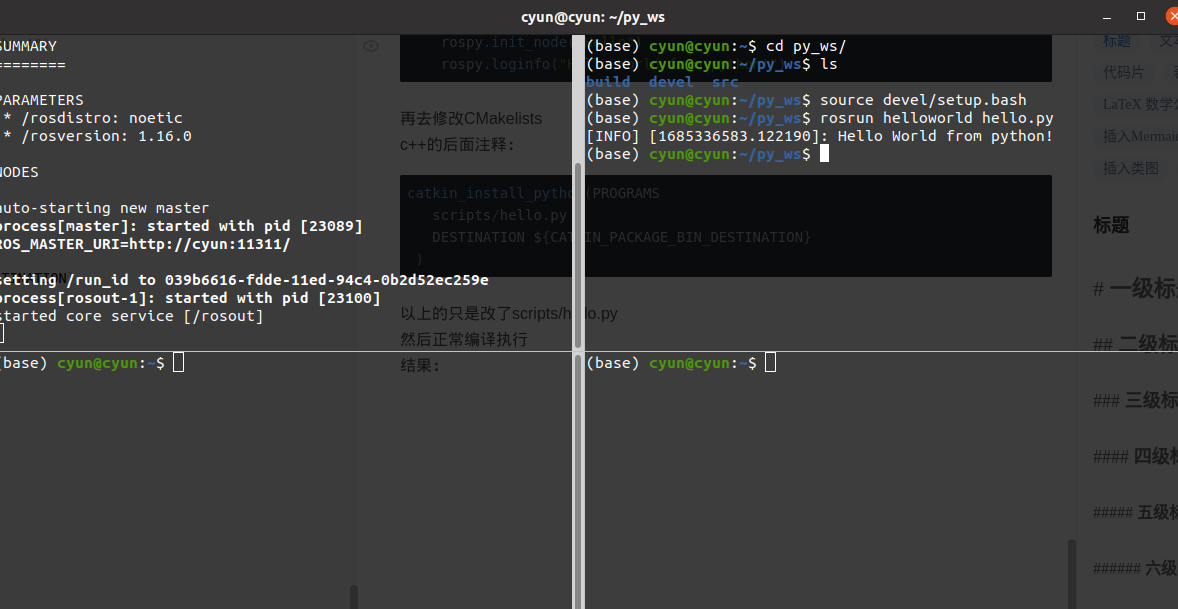
写到这里,我发现一个很不错的终端方案:
sudo apt-get install terminator
安装好后就能进行分屏了,十分适合运行多命令
再修改一下终端配置:
 sudo gedit ~/.config/terminator/config
 [global_config]
  geometry_hinting = False
  handle_size = 1
  inactive_color_offset = 1.0
  title_font = mry_KacstQurn Bold 11
  title_hide_sizetext = True
[keybindings]
[layouts]
  [[default]]
    [[[child1]]]
      parent = window0
      profile = default
      type = Terminal
    [[[window0]]]
      parent = ""
      type = Window
[plugins]
[profiles]
  [[default]]
    background_darkness = 0.76
    background_image = None
    background_type = transparent
    cursor_color = "#3036ec"
    custom_command = tmux
    font = Ubuntu Mono 13
    foreground_color = "#ffffff"
    login_shell = True
    show_titlebar = False
    use_system_font = False

 浙公网安备 33010602011771号