
Windows和Linux下Gitlab以及Github多账号(3个及以上)SSH配置
多 Git 账号管理(SSH 模式)—— Win 篇
动机:
我在使用多个 Git 账号时经常遇到麻烦:每次切换账号都要重新登录,尤其是浏览器身份验证时。我默认浏览器使用 Edge,但 GitHub 的登录信息保存在 Chrome 中,跳转验证让人头皮发麻。
公司使用 GitLab,强制要求 SSH,而我个人的 GitHub 账号之前是用 HTTPS。频繁在公司和个人项目间切换,要反复输入密码,还经常需要改 git config 设置用户名和邮箱。
为了解决这些问题,我统一改用 SSH,并配置多个密钥和 .gitconfig,实现账号之间的无缝切换。
适用于以下场景:
- 公司项目强制要求使用 SSH 方式进行 clone 或其他 Git 操作。
- 多账号频繁使用时,推荐使用 SSH;偶尔使用可选择 GitHub Desktop、封装 Git 的 IDE,或浏览器登录切换。
- 拥有 3 个及以上 Git 账号时,浏览器切换效率低,建议使用 SSH。
1. 生成 SSH 密钥对
为每个账号生成一对公钥和私钥:
# 个人 GitHub 账号
ssh-keygen -t ed25519 -C "xxxyyy@gmail.com" -f ~/.ssh/id_ed25519_personal

# 公司 GitHub 账号
ssh-keygen -t ed25519 -C "xxxyyy@your-company.com" -f ~/.ssh/id_ed25519_company_github

# 公司 GitLab 账号
ssh-keygen -t ed25519 -C "xxxyyy@your-company.com" -f ~/.ssh/id_ed25519_company_gitlab
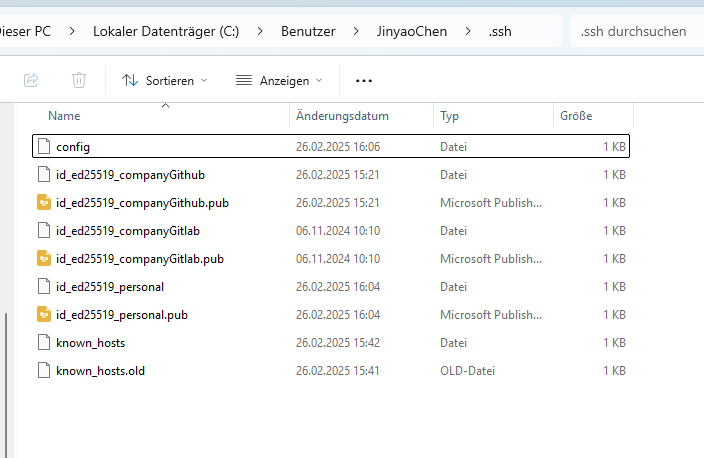
2. 配置 SSH 配置文件
在 C:\Users\你的用户名\.ssh\config 中配置如下内容:
# Company GitHub account
Host github.com-company
    HostName github.com
    User git
    IdentityFile ~/.ssh/id_ed25519_companyGithub

# Company GitLab account
Host gitlab.com-company
    HostName gitlab.com
    User git
    IdentityFile ~/.ssh/id_ed25519_companyGitlab

# Personal GitHub account
Host github.com-personal
    HostName github.com
    User git
    IdentityFile ~/.ssh/id_ed25519_personal
3. 创建账号专属的项目目录和配置文件
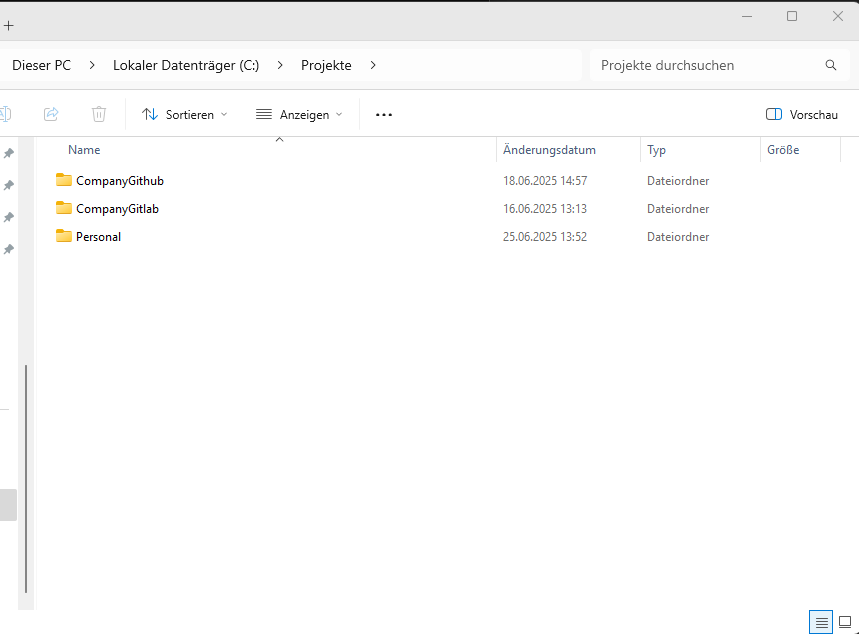
3.1 创建三个文件夹
建议将不同账号的项目放在不同路径中,例如:
C:/Projekte/Personal/
C:/Projekte/CompanyGithub/
C:/Projekte/CompanyGitlab/
3.2 分别创建 .gitconfig 文件
个人 GitHub 账号:C:\Users\你的用户名\.gitconfig-personal
[user]
	name = xxxyyy
	email = xxxyyy@gmail.com
公司 GitHub 账号:C:\Users\你的用户名\.gitconfig-company-github
[user]
	name = xxxyyy-dev0511
	email = xxxyyy@your-company.com
公司 GitLab 账号:C:\Users\你的用户名\.gitconfig-company-gitlab
[user]
	name = xxxyyy
	email = xxxyyy@your-company.com
3.3 验证配置
git config --file C:/Users/你的用户名/.gitconfig-personal --list
git config --file C:/Users/你的用户名/.gitconfig-company-github --list
git config --file C:/Users/你的用户名/.gitconfig-company-gitlab --list
4. 配置全局 .gitconfig 文件
在 C:\Users\你的用户名\.gitconfig 中添加如下内容:
[user]
	name = xxxyyy
	email = xxxyyy@your-company.com

[includeIf "gitdir:C:/Projekte/Personal/"]
    path = C:/Users/JinyaoChen/.gitconfig-personal

[includeIf "gitdir:C:/Projekte/CompanyGithub/"]
    path = C:/Users/JinyaoChen/.gitconfig-company-github

[includeIf "gitdir:C:/Projekte/CompanyGitlab/"]
    path = C:/Users/JinyaoChen/.gitconfig-company-gitlab
5. 使用 SSH clone 多账号项目
5.1 Clone 公司 GitLab 项目
git clone git@gitlab.com-company:ComnanyRepo/kelvin5/iris/k5-graphql.git
5.2 Clone 公司 GitHub 项目
git clone git@github.com-company:ComnanyRepo/Grafana-Docker.git
5.3 Clone 个人 GitHub 项目
git clone git@github.com-personal:cjy513203427/IADBE.git
多 Git 账号管理(SSH 模式)—— Linux 篇
动机:
Linux 服务器环境下没有浏览器,无法使用 HTTPS 图形化登录;公司 GitLab 强制 SSH,而 GitHub 项目也建议统一用 SSH 避免重复输密码。配置多个 SSH 密钥 + includeIf 规则后,不同账号的仓库可以自动使用对应密钥和用户身份,无需手动切换。
适用于以下场景:
- 无图形界面的 Linux 服务器(GPU server、云主机等),只能使用 SSH。
- 同时维护多个平台账号(如公司 GitHub + 公司 GitLab),需要自动路由身份。
- 希望
git commit的作者信息按仓库目录自动切换,不需要每个仓库手动git config。
1. 生成 SSH 密钥对
为每个账号生成一对公钥和私钥:
# 公司 GitHub 账号
ssh-keygen -t ed25519 -C "xxxyyy@your-company.com" -f ~/.ssh/id_ed25519_company_github

# 公司 GitLab 账号
ssh-keygen -t ed25519 -C "xxxyyy@your-company.com" -f ~/.ssh/id_ed25519_company_gitlab
生成后 ~/.ssh/ 目录结构如下:
~/.ssh/
├── id_ed25519_company_github
├── id_ed25519_company_github.pub
├── id_ed25519_company_gitlab
└── id_ed25519_company_gitlab.pub
2. 将公钥添加到各平台
输出公钥内容,分别粘贴到对应平台的 Settings → SSH Keys → Add new key:
# GitHub 公钥
cat ~/.ssh/id_ed25519_company_github.pub

# GitLab 公钥
cat ~/.ssh/id_ed25519_company_gitlab.pub
添加后验证连接:
ssh -T git@github.com-company
# Hi xxxyyy-dev0511! You've successfully authenticated...

ssh -T git@gitlab.com-company
# Welcome to GitLab, @xxxyyy!
2. 配置 SSH 配置文件
在 ~/.ssh/config 中写入以下内容(文件不存在则新建):
# 公司 GitHub 账号
Host github.com-company
    HostName github.com
    User git
    IdentityFile ~/.ssh/id_ed25519_company_github
    IdentitiesOnly yes

# 公司 GitLab 账号
Host gitlab.com-company
    HostName gitlab.com
    User git
    IdentityFile ~/.ssh/id_ed25519_company_gitlab
    IdentitiesOnly yes
IdentitiesOnly yes:禁止 SSH 自动尝试其他密钥,确保精确匹配。
3. 创建账号专属的项目目录和配置文件
3.1 创建两个文件夹
建议将不同账号的项目放在不同路径中:
mkdir -p ~/project/CompanyGithub
mkdir -p ~/project/CompanyGitlab
3.2 分别创建 .gitconfig 文件
公司 GitHub 账号:~/.gitconfig-company-github
[user]
    name = xxxyyy-dev0511
    email = xxxyyy@your-company.com
公司 GitLab 账号:~/.gitconfig-company-gitlab
[user]
    name = xxxyyy
    email = xxxyyy@your-company.com
3.3 验证配置
git config --file ~/.gitconfig-company-github --list
git config --file ~/.gitconfig-company-gitlab --list
4. 配置全局 .gitconfig 文件
在 ~/.gitconfig 中添加如下内容:
[user]
    name = xxxyyy
    email = xxxyyy@your-company.com

[includeIf "gitdir:~/project/CompanyGithub/"]
    path = ~/.gitconfig-company-github

[includeIf "gitdir:~/project/CompanyGitlab/"]
    path = ~/.gitconfig-company-gitlab
注意:
includeIf规则只在进入某个 git 仓库内部(存在.git目录)时才生效,在父目录~/project/CompanyGithub/下直接运行git config不会触发。
5. 使用 SSH clone 多账号项目
5.1 Clone 公司 GitLab 项目
cd ~/project/CompanyGitlab
git clone git@gitlab.com-company:CompanyOrg/kelvin5/iris/k4-wms.git
5.2 Clone 公司 GitHub 项目
cd ~/project/CompanyGithub
git clone git@github.com-company:CompanyOrg/support-ai-agent-server.git
Clone URL 中的 Host 别名(
github.com-company、gitlab.com-company)必须与~/.ssh/config中的Host条目一致,SSH 才能自动选择正确的密钥。
与 Windows 版的主要差异
| 项目 | Windows | Linux |
|---|---|---|
| SSH 配置路径 | C:\Users\用户名\.ssh\config |
~/.ssh/config |
| gitconfig 路径 | C:\Users\用户名\.gitconfig |
~/.gitconfig |
| 项目目录 | C:/Projekte/CompanyGithub/ |
~/project/CompanyGithub/ |
| 验证连接 | 同 | 同 |
| 无图形界面 | 不适用 | SSH 是唯一方式 |
验证最终效果
进入具体仓库,确认身份来源:
cd ~/project/CompanyGithub/support-ai-agent-server/
git config --show-origin user.name
# file:/home/用户名/.gitconfig-company-github    xxxyyy-dev0511

cd ~/project/CompanyGitlab/k4-wms/
git config --show-origin user.name
# file:/home/用户名/.gitconfig-company-gitlab    xxxyyy
作者:Rest探路者
出处:http://www.cnblogs.com/Java-Starter/
本文版权归作者和博客园共有,欢迎转载,但未经作者同意请保留此段声明,请在文章页面明显位置给出原文连接
Github:https://github.com/cjy513203427

 浙公网安备 33010602011771号