C# ProgressBar 进度条控件
原文链接:https://blog.csdn.net/qq_29406323/article/details/86291763
1 继承关系
Object→MarshalByRefObject→Component→Control→ProgressBar
ProgressBar表示Windows进度栏控件。
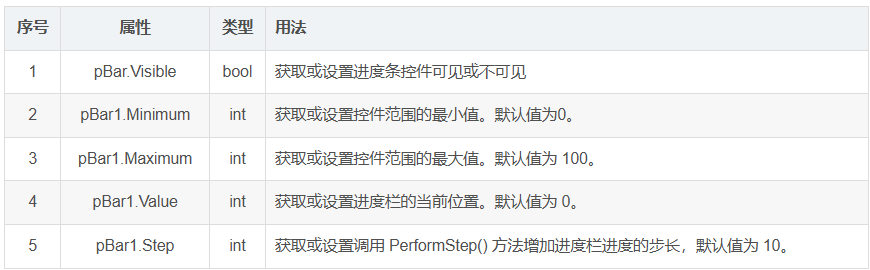
2 重要属性
3 示例
3.1 制作简单的进度条
①winForm窗体拖入一个ProgressBar控件,一个button控件,用于触发进度条。
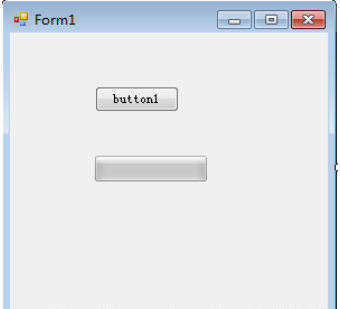
②窗体代码加入如下函数,在按钮click事件函数中加入startProgress()
private void startProgress()
{
     // 显示进度条控件.
     pBar1.Visible = true;
     // 设置进度条最小值.
     pBar1.Minimum = 1;
     // 设置进度条最大值.
     pBar1.Maximum = 15;
     // 设置进度条初始值
     pBar1.Value = 1;
     // 设置每次增加的步长
     pBar1.Step = 1;

     // 循环执行
     for (int x = 1; x <= 15; x++)
     {
           // 每次循环让程序休眠300毫秒
           System.Threading.Thread.Sleep(300);
           // 执行PerformStep()函数
           pBar1.PerformStep();
      }
      pBar1.Visible = false;
      MessageBox.Show("success!");
}
private void button1_Click(object sender, EventArgs e)
{
     startProgress();
}
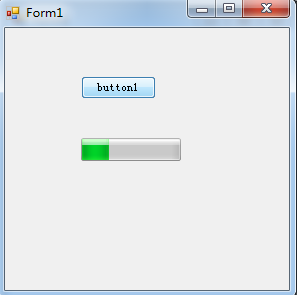
效果如下:
3.2 进度条显示百分比
方法参考:追梦使者87的博客
主要步骤:
①为ProgressBar添加Graphics对象
②使用DrawString()绘制文本
注:DrawString(String, Font, Brush, RectangleF)//绘制的文本,字体,画刷,文本位置
改写startProgress()函数
private void startProgress()
 {
      pBar1.Visible = true;// 显示进度条控件.
      pBar1.Minimum = 1;// 设置进度条最小值.
      pBar1.Maximum = 15;// 设置进度条最大值.
      pBar1.Value = 1;// 设置进度条初始值
      pBar1.Step = 1;// 设置每次增加的步长
      //创建Graphics对象
      Graphics g =  this.pBar1.CreateGraphics();
      for (int x = 1; x <= 15; x++)
      {
           //执行PerformStep()函数
           pBar1.PerformStep();
           string str = Math.Round((100 * x / 15.0), 2).ToString("#0.00 ") + "%";
           Font font = new Font("Times New Roman", (float)10, FontStyle.Regular);
           PointF pt = new PointF(this.pBar1.Width / 2 - 17, this.pBar1.Height / 2 - 7);
           g.DrawString(str, font, Brushes.Blue, pt);
           //每次循环让程序休眠300毫秒
           System.Threading.Thread.Sleep(300);
       }
       pBar1.Visible = false;
       //MessageBox.Show("success!");
}
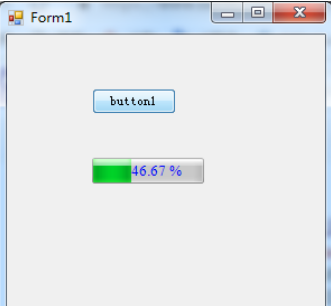
效果如下:

 浙公网安备 33010602011771号