
第一次构建、运行、发布、获取docker镜像的步骤详解
1、前言
过去,如果您要开始编写python应用程序,第一步就是把python的运行环境安装到您的机器上,而且安装的环境还要和线上的一致,比较麻烦。
使用docker,您可以从docker的官方registry或者其他仓库,获取一个可移植的python运行环境镜像,无需安装。然后,你可以基于这个镜像开发你的应用程序,这样可以确保您的应用程序,依赖项和运行时都一起运行。
2、构建一个python镜像
2.1、为了构建您自己的镜像,首先需要创建一个名称为dockerfile的文件,用于定义创建镜像并运行container所需的步骤。 dockerfile中的每条指令都会在镜像中创建一个层级。当您更改dockerfile并重新build镜像时,只重建那些更改的层级。与其他虚拟化技术相比,这是使镜像轻量,小巧,快速的一个原因。
创建一个空目录,创建一个名为dockerfile的文件,将以下内容复制并粘贴到该文件中并保存。
|
1
2
3
4
5
6
7
8
9
10
11
12
13
14
|
# use an official python runtime as a parent imagefrom python:2.7-slim# set the working directory to /appworkdir /app# copy the current directory contents into the container at /appadd . /app# install any needed packages specified in requirements.txtrun pip install --trusted-host pypi.python.org -r requirements.txt# make port 80 available to the world outside this containerexpose 80# define environment variableenv name world# run app.py when the container launchescmd ["python", "app.py"] |
2.2 在与dockerfile文件同一个目录下,创建requirements.txt和app.py文件。因为dockerfile文件的add命令,上面的两个文件会被加到最终的镜像中;因为expose命令,访问容器的80端口,才可以访问到app.py的内容,注意:这里的80端口指的是容器暴露的端口,并不是实际机器的端口。
requirements.txt
flask
redis
app.py
|
1
2
3
4
5
6
7
8
9
10
11
12
13
14
15
16
17
18
19
|
from flask import flaskfrom redis import redis, rediserrorimport osimport socket# connect to redisredis = redis(host="redis", db=0, socket_connect_timeout=2, socket_timeout=2)app = flask(__name__)@app.route("/")def hello(): try: visits = redis.incr("counter") except rediserror: visits = "<i>cannot connect to redis, counter disabled</i>" html = "<h3>hello {name}!</h3>" \ "<b>hostname:</b> {hostname}<br/>" \ "<b>visits:</b> {visits}" return html.format(name=os.getenv("name", "world"), hostname=socket.gethostname(), visits=visits)if __name__ == "__main__": app.run(host='0.0.0.0', port=80) |
2.3 把我们的应用打包为镜像,要在dockerfile目录下执行。这会创建一个docker镜像,我们将使用-t标记它,以使镜像有一个友好的名称。
|
1
|
docker build -t friendlyhello |
3 、运行镜像
运行应用程序,使用-p将机器的端口4000映射到容器暴露的端口80:
|
1
|
docker run -p 4000:80 friendlyhello |
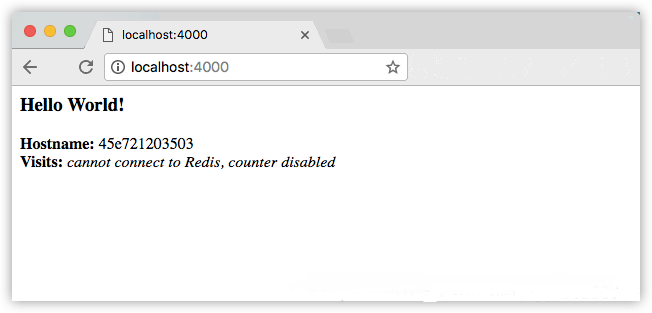
您也可以在shell中使用curl命令来查看相同的内容。
|
1
2
|
$ curl http://localhost:4000<h3>hello world!</h3><b>hostname:</b> 8fc990912a14<br/><b>visits:</b> <i>cannot connect to redis, counter disabled</i> |
按crtl+c结束应用
现在让我们在后台运行应用程序:
|
1
|
docker run -d -p 4000:80 friendlyhello |
查看所有的container信息
$ docker container ls
container id image command created
1fa4ab2cf395 friendlyhello "python app.py" 28 seconds ago
现在使用docker container stop来结束进程,使用container id,如下所示:
|
1
|
docker container stop 1fa4ab2cf395 |
4、发布镜像
4.1、我使用的是阿里云的docker registry,感觉应该会比较快。首先你要有一个阿里云的账号。然后登陆进去新建一个仓库,设置命名空间等信息。
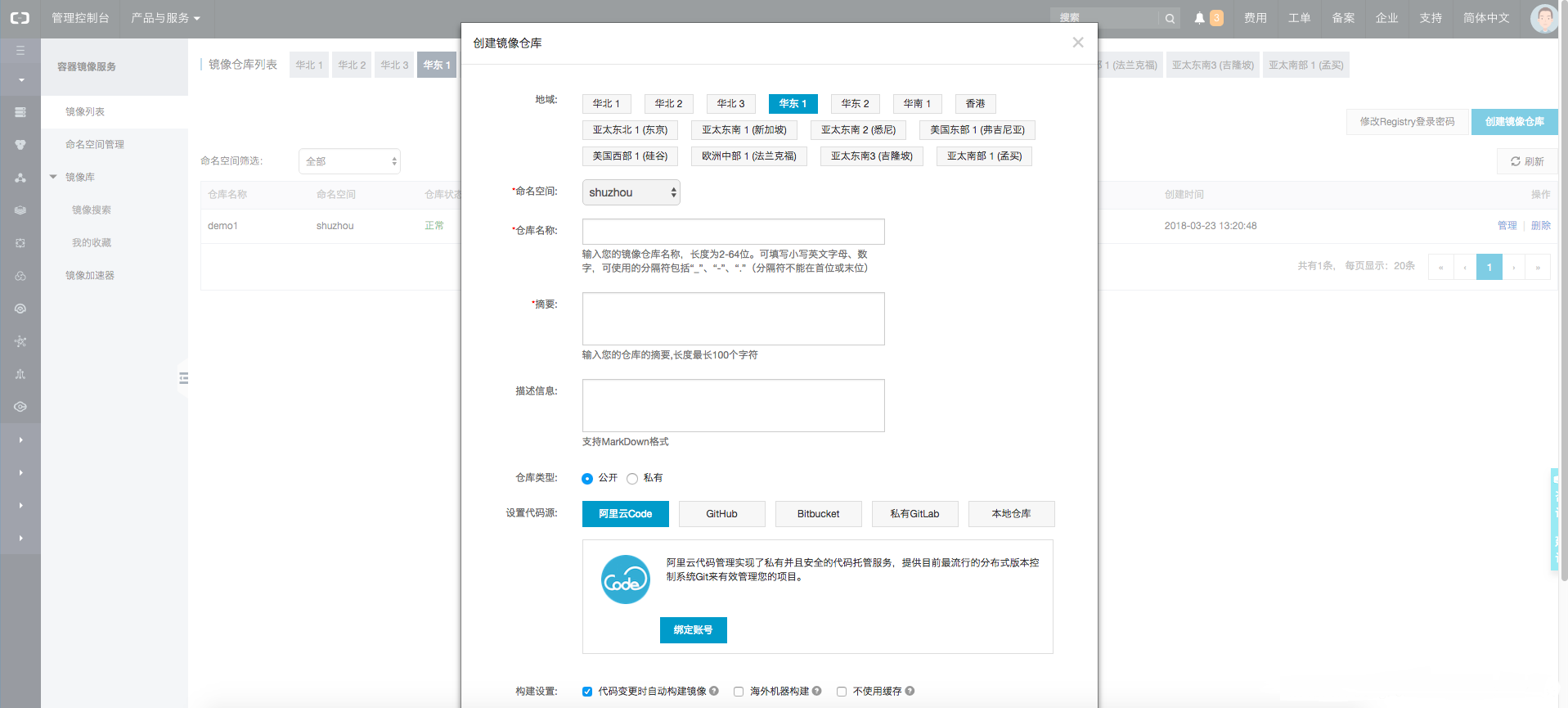
4.2 登陆阿里云的docker registry,后续操作都需要登陆才可以执行。
|
1
|
sudo docker login --username=admin registry.cn-hangzhou.aliyuncs.com |
4.3 为镜像打标,tag为可选的,如果没有,默认为latest
格式:
|
1
|
docker tag image_name registry_url/namespace/repository_name:[tag] |
例如
|
1
|
docker tag friendlyhello registry.cn-hangzhou.aliyuncs.com/shuzhou/demo1:latest |
查看本地的镜像列表
|
1
|
docker image ls |
4.4 发布镜像
|
1
|
docker push registry.cn-hangzhou.aliyuncs.com/shuzhou/demo1:latest |
4.5 现在你可以在任何一台机器上执行下面的命令,运行镜像
|
1
|
docker run -p 4000:80 registry.cn-hangzhou.aliyuncs.com/shuzhou/demo1:latest |
4.6 拉取镜像
|
1
|
docker pull registry.cn-hangzhou.aliyuncs.com/shuzhou/demo1:latest |

 浙公网安备 33010602011771号