

Ubuntu 环境下NVIDIA 驱动重启后驱动失效
NVIDIA 驱动重启后驱动失效,还原系统恢复,重启后继续失效。
估计是系统更新了内核,这可能会导致与已安装的 NVIDIA 驱动不兼容,从而导致驱动失效。
解决办法禁止自动更新内核:
To prevent your Ubuntu system from automatically updating the kernel, you can follow these steps:
1. Mark the Kernel Package as "Hold"
This method stops the package manager from updating the kernel automatically.
Steps:
- Open a terminal.
- Identify your current kernel package:
dpkg --list | grep linux-image - Mark the current kernel packages to hold them:
Replace
sudo apt-mark hold linux-image-<version> sudo apt-mark hold linux-headers-<version><version>with the version number of your installed kernel.
2. Disable Unattended Upgrades for the Kernel
You can prevent unattended-upgrades from automatically updating the kernel.
Steps:
- Open the unattended-upgrades configuration file:
sudo nano /etc/apt/apt.conf.d/50unattended-upgrades - Find the line that starts with
Unattended-Upgrade::Package-Blacklist {. - Add the following lines to blacklist kernel packages:
"linux-image"; "linux-headers"; - Save the file and exit.
- Open the unattended-upgrades configuration file:
3. Use Synaptic Package Manager (Graphical)
If you prefer a graphical interface, you can lock the kernel version using Synaptic Package Manager.
Steps:
- Install Synaptic if it's not already installed:
sudo apt-get install synaptic - Open Synaptic Package Manager.
- Search for
linux-imageandlinux-headers. - Right-click on the relevant packages and select Lock Version.
- Install Synaptic if it's not already installed:
4. Disable Automatic Updates Completely
You can disable automatic updates for all packages, including the kernel, by disabling the unattended-upgrades service.
Steps:
- Disable the unattended-upgrades service:
sudo systemctl disable unattended-upgrades - Stop the service if it’s currently running:
sudo systemctl stop unattended-upgrades
- Disable the unattended-upgrades service:
确认已经禁止
1. Check the Status of Held Packages
You can verify if the kernel packages are on hold by using the following command:
dpkg --get-selections | grep linux-image This will list all the kernel packages. If the package is marked as "hold," it will show up with the status hold next to it. For example:
linux-image-5.15.0-46-generic hold If your kernel packages are listed as hold, it means they won’t be automatically updated.
2. Review Unattended Upgrades Configuration
Ensure that the unattended upgrades configuration file is set correctly:
- Open the configuration file:
sudo nano /etc/apt/apt.conf.d/50unattended-upgrades - Check that the kernel packages (
linux-imageandlinux-headers) are included in the blacklist section like this:Unattended-Upgrade::Package-Blacklist { "linux-image"; "linux-headers"; }; - If this section is present and configured correctly, kernel updates should be blocked during unattended upgrades.
- Open the configuration file:
3. Check Synaptic Package Manager Settings
If you used the Synaptic Package Manager to lock the kernel version, you can:
- Open Synaptic Package Manager.
- Search for
linux-imageandlinux-headers. - Right-click on the package and ensure that "Lock Version" is checked. This confirms that the package is locked and won't be updated automatically.
4. Check the Status of Unattended-Upgrades Service
If you have disabled the unattended-upgrades service, verify that it is no longer active:
- Check the status of the service:
sudo systemctl status unattended-upgrades - The output should indicate that the service is inactive (dead) if you have successfully disabled it. Look for something like this:
● unattended-upgrades.service - Unattended Upgrades Shutdown Loaded: loaded (/lib/systemd/system/unattended-upgrades.service; disabled; vendor preset: enabled) Active: inactive (dead)
- Check the status of the service:
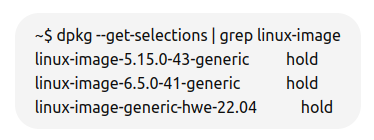
取消自动更新
Steps to Cancel the Hold on Kernel Packages:
-
Open a Terminal: Make sure you're logged in to your system with sudo privileges.
-
Remove the Hold Status: Use the following commands to unhold the kernel packages:
sudo apt-mark unhold linux-image-5.15.0-43-genericsudo apt-mark unhold linux-image-6.5.0-41-genericsudo apt-mark unhold linux-image-generic-hwe-22.04 -
Verify the Changes: After unholding the packages, you can check their status again:
dpkg --get-selections | grep linux-image
-
本文来自博客园,作者:z_s_s,转载请注明原文链接:https://www.cnblogs.com/zhoushusheng/p/18385272

 浙公网安备 33010602011771号