Vim Tutorial
Fundamentals
Vim Basics
Vim means vi improved, which should be installed on Linux or Mac by default. For Windows, recommend to get a subsystem of Linux on Windows system.
First of all, use vim/vi followed by a file path (if not exist, it would be created by vim)
vim demo
Then, you are in the vim interface. One thing you might want to know is that how to quit it. Just type colon followed by q and then, press enter.
:q
However, if you have write something since last change, and you type :q, it would say,
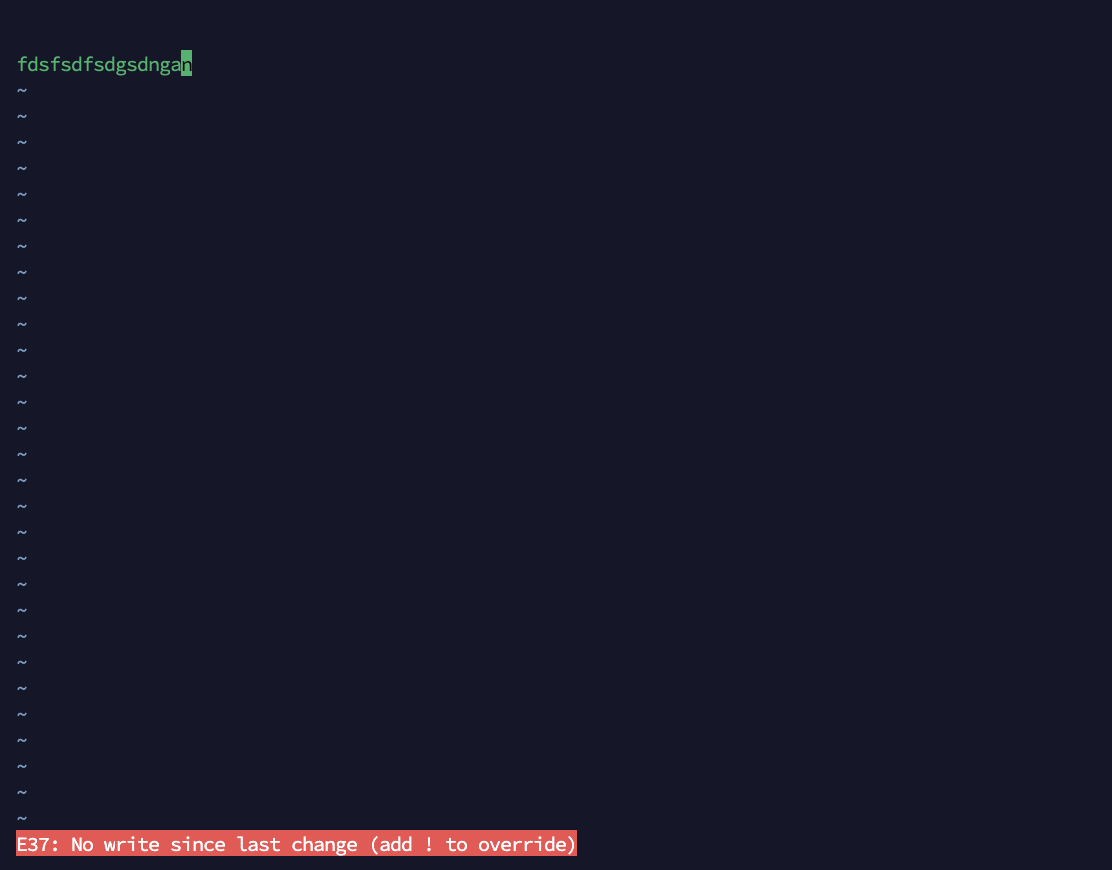
In this situation, type exclamation ! followed :q, to dismiss the change.
:q!
Note: type
:q!, not:!q, the latter:!means transfer the other things after:!as a command to the terminal, but there is no command named byq.![image-20240827153247402]()
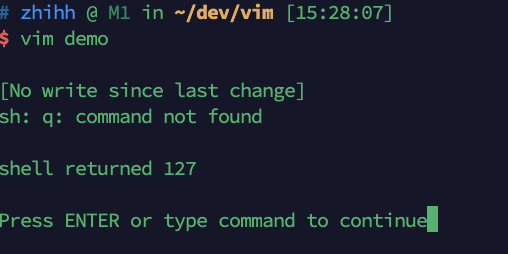
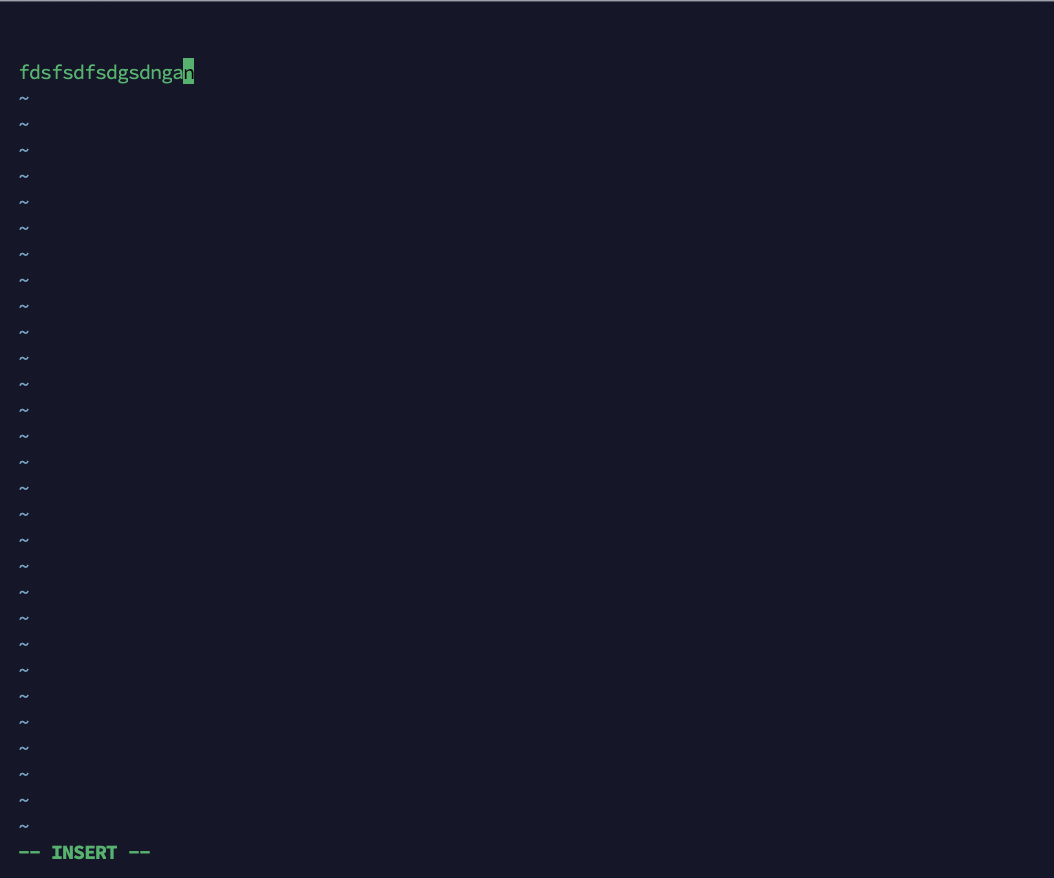
Typically, you can't type anything to the file when you open the file at the beginning, because it's in the normal mode, in which every key has its functionality. For example, type : to start to execute a vim command. Type i to get into the insert mode, in which whatever you press doesn't have any functionality, just text. To leave the insert mode to the normal mode, press escape esc.
After you type something in the insert mode, then you want to save and quit. Type : to start the vim command, w for writing the changes to the file, and q for quit.
Another key to open the insert mode is a and o.
ifor inserting before the cursorafor inserting after the cursor, or appendingofor opening a new line below the line
the capital version,
Ifor inserting at the beginning of the lineAfor inserting at the end of the line or appending the lineOfor opening a new line above the line
To have some line numbers, type :set number ,

Numbers can be used to combine key bindings. For example, each ation can be repeated x times. Type 5 before the arrow key down, you would move five lines down. Similarly, type 5 before the arrow key right, you would jumps 5 characters to the right.
If you do not want to use the arrow key, that you do not want your finger leave the main typing space, there for you,
hfor leftjfor downkfor uplfor right
With all above, you can set relative number by typing :set relativenumber
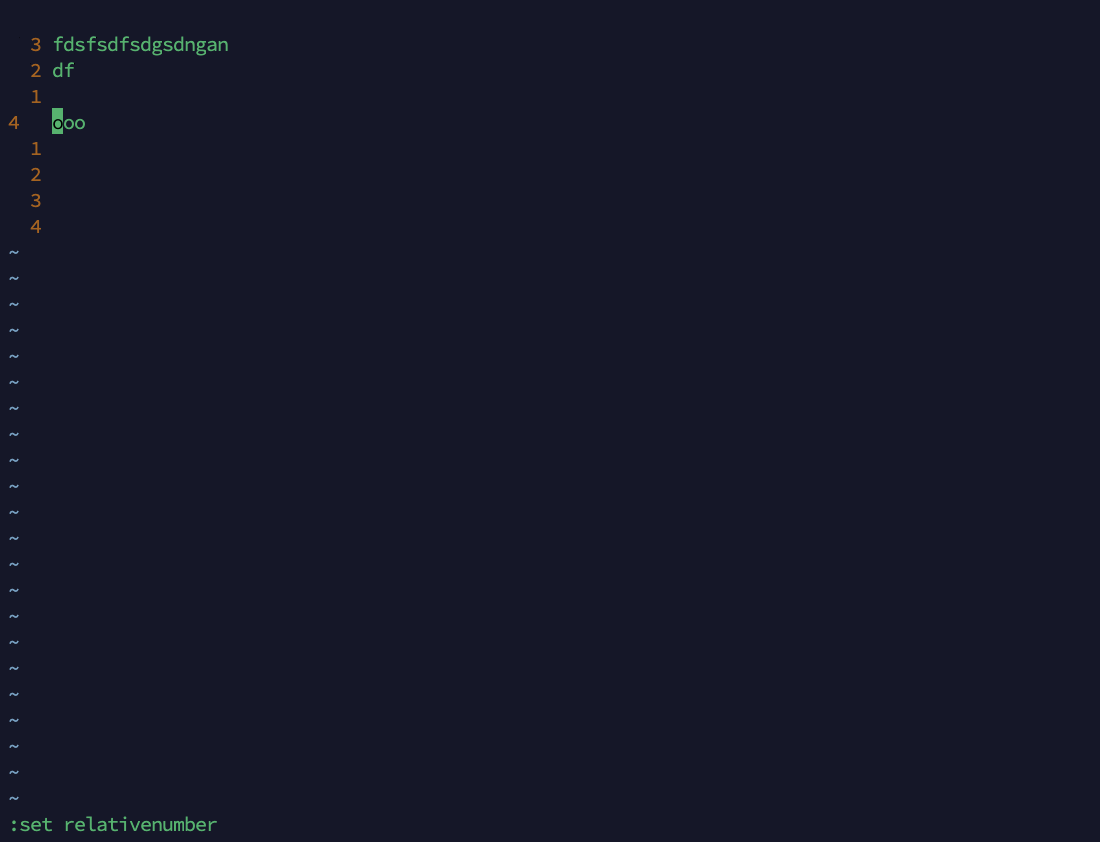
the number of current line is the absolute line number, with the relative line number to the cunrrent line for the other lines.
There is the other setting commands, for example,
:set mouse=a, to active the mouse:colorscheme, then tab to see the different color schemes and pick one by pressenter
However, once you quit the vim and open it again, you'll find that all the settings are gone. So, if you have like 20 settings, you don't want to set them every time you open vim. A setting file or configuration file called the vim rc file is there for you, which should sit on the path of user directory ~/.vimrc
Here are some basic configrations for example,
set number
set relativenumber
set tabstop=4
set shiftwidth=4
set autoindent
set mouse=a
colorscheme slate
Vim Keybindings&Functions
Looking for vim cheat sheet when you want to train you vim or remember them.
-
u, undoing -
Ctrl + R, redoing -
and of couse, you can combine the above two keybindings with number to repeat the action x times.
There is the third mode called Visual Mode, which is for selecting. Type v in the normal mode, to active the visual mode. In visual mode, you can select words, and do a couple of things to them, for example cutting, deleting, copy and so on.
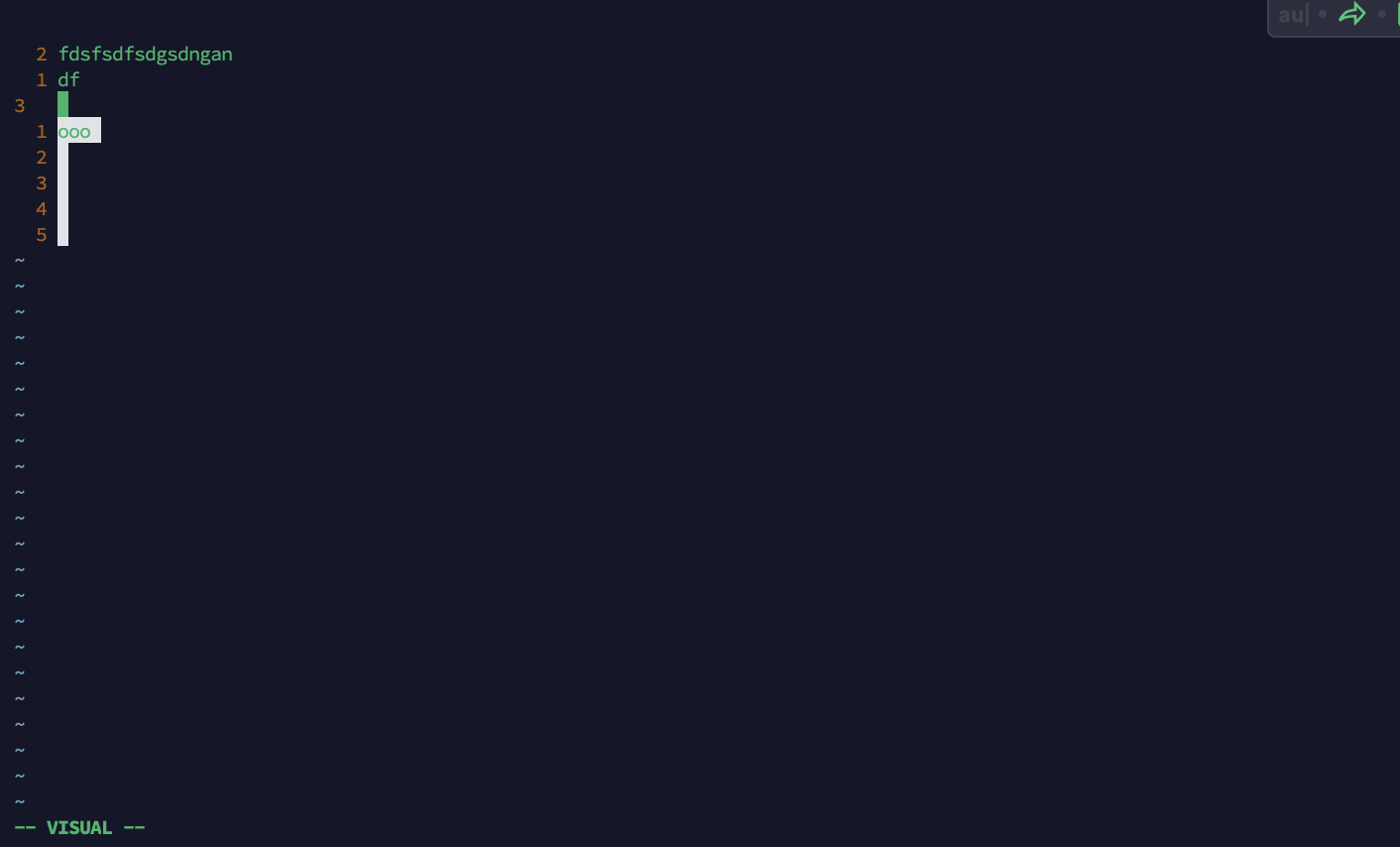
d, deleting the selecting things (the deleted things are copied, same as cutting)dd, deleting the whole line5dd, deleting 5 lines
D, deleting the rest of the line from the current position of the cursor
y, yanking called in vim, which means copies.yy, yanking the whole lineY, the same asyy, doesn't copy the rest of the line
p, pasting (combing with number for repeating paste)P, pasting above the current line.- If what you yank dosen't contain the newline character,
pfor pasiting after the cursor,Pfor pasting before the cursor.
c, changing, which means deleting and getting into the insert mode for changingcc, changing the whole lineC, changing the rest of the line
r, replacing one character (don't need to go in to the insert mode)
Move in an efficient way,
w, jumping to the next word (forwarding)
Note, a word means either a space or some special character in between, such as,
Hello I am a simple sentence.
Hello-I-am-a-simple-sentence.
W, jumping to the next word, but only use space as the separator.b&B, jumping backworde, jumping to the end of the wordE, jumping to the end of the word, but only use space as the separator.
0, jumping to the beginning of the line$, the dollar symbol, jumping to the end of the line
If we combine all above we have mentioned, things are going to be interesting,
2dword2w, 2 times delete words or delete 2 words2dbord2b, delete 2 words backwardd$, delete everything until the endd0, delete everything until the beginning
And when you are in a word and you press dw, it won't delete the full word, but just the remaining part of the word.
diw, means "delete in a word"ciw, means "change in a word"- and so on
When we go into parentheses and brackets and other symbols,
ci", change in a quotation marksci(, change everything in a parentheses
When you are focusing on one, say, curly bracket, the corresponding one is highlighted. You can type % to jump to the place of the corresponding one.
d%, delete the whole function body
The other jumping or finding keybindings,
t+character, jumping forward to one position before the specified character, in the same lineT, jumping backward
f+character, jumping forward onto that position of the specified character, in the same lineF, jumping backward
gg, jumping to the beginning of the fileG, jumping to the end of the file123Gor:123, jumping to the absolute line number of 123
Intermediate
Indentation
>>, indent to the right<<, indent to the left==, automatically indent the current line to the correct position>,<,=, indent if you select the linegg=G, to indent the whole file automatically
Visual Mode
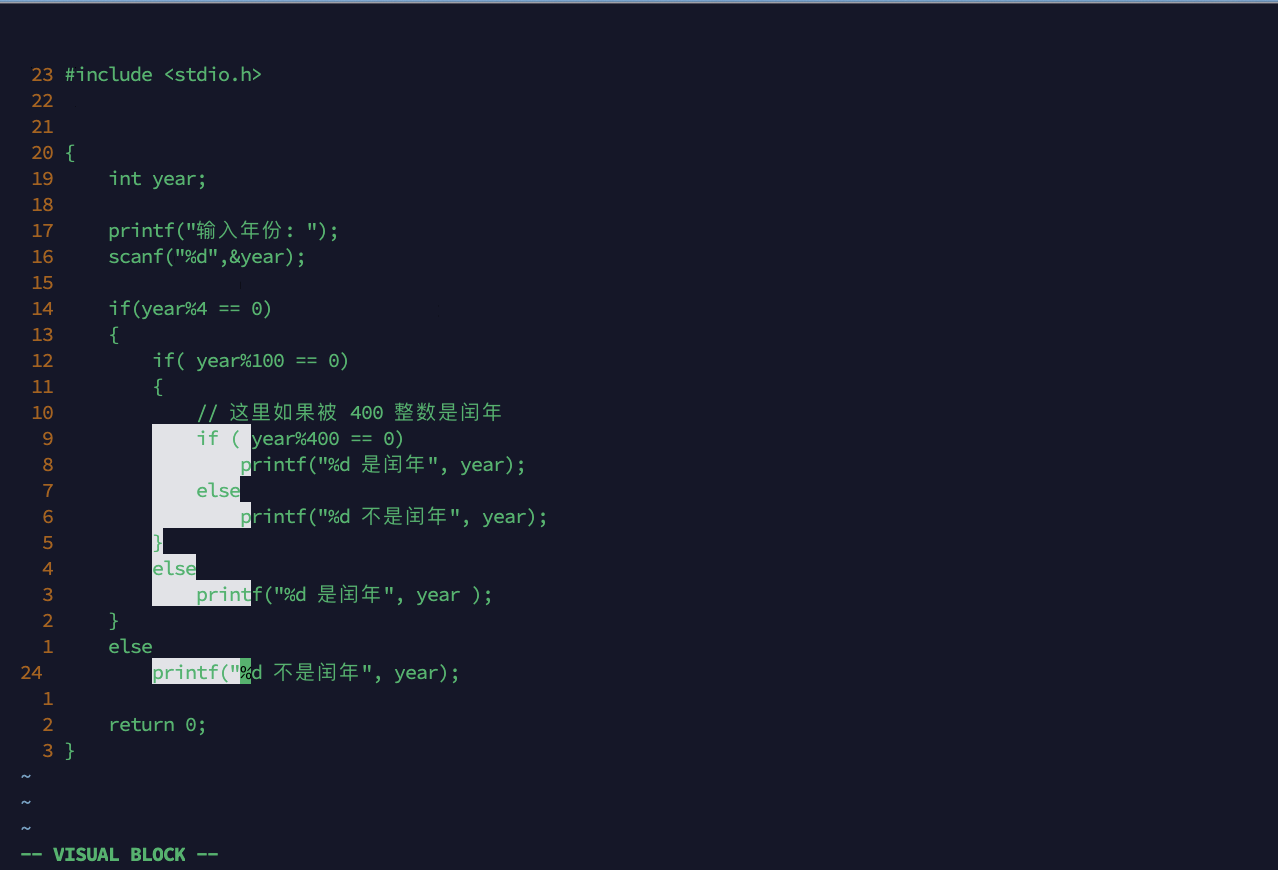
Except the normal visual mode, there are visual line mode, and visual block mode.
V, visual line mode to select the full line, not part of the linectrl v, visual block mode to select character by colomn
Searching
/, searching the given term forwardn, to the next termN, to go back up
?, searching the given term backwardn, move upN, move down
#, going up to find the next occurrence of the current token*, going down to find the next occurrence of the current token
Waypoint
If there are some sections of the code that you might access them frequently, you can set the waypoint to them.
mfollowed by character, such aswato set waypointato the section'a, jump to the waypointa
Substitute
:%s/source/target/g, to substitutesourcetotargetacross the whole file:s/source/target/g, to substitutesourcetotargetacross the seleted section
Macros and Registers
Type :reg to see the register in vim,

Whatever you copy or something, they have stored in registers, type "6p to take the register with name 6, and paste it. This is how you read from the register, of course you can write to the register by press "6yy to write the line to the register.
The first register without a name is the clipboard of the system in which vim integrated. Type "+ to specify this register.
so,
"+, to specify this clipboard"0, to the last one
Macros are also stored in registers. A macros is essentially just a sequence of vim keybindings of vim actions.
**How to store a macro manually? **
Type q to start to record, followed by the specified register name, such as a, and you can see, "recording@a" at the bottom of the screen.

then, whatever you type until press the next q to exit recording would be stored in the register of a.

To execute that macro, press @a.
What interesting is that you can use a macro c to combine the macro a and the macro b.
Other things
Center the current selection
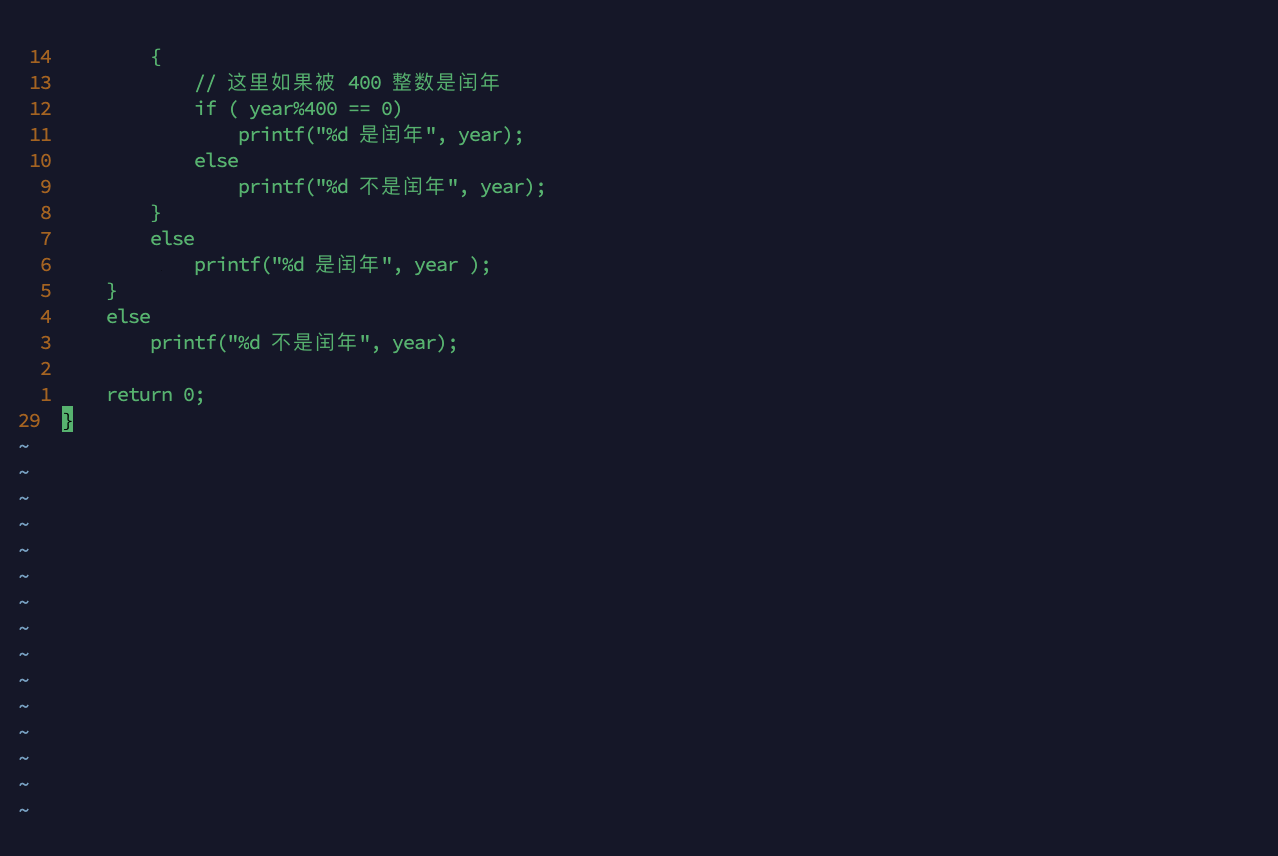
zz, center the current line
Repeat the last command
., to repeat the last command
Plugins
to be continued...
Reference
本文来自博客园,作者:zhihh,转载请注明原文链接:https://www.cnblogs.com/zhihh/articles/18388845/vim-tutorial

 浙公网安备 33010602011771号