
磁盘知识体系
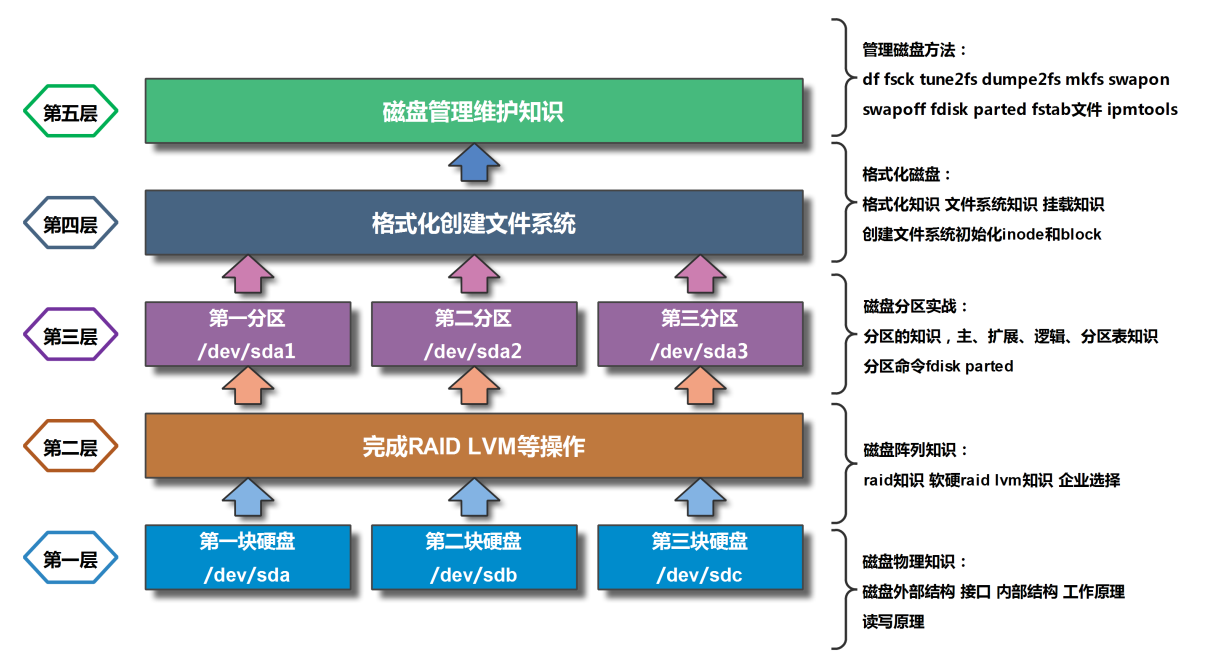
1.磁盘的物理结构(外部结构和内部结构)工作原理
01.外部结构
磁盘主轴:决定磁盘转速(rpm-round per minute)
家用磁盘转速
         7200 rpm
         5400 rpm
企业磁盘转速
        15k rpm
        10k rpm
磁盘盘片:用于存储数据
磁盘磁头:用于读取数据
磁盘接口:用于连接主板
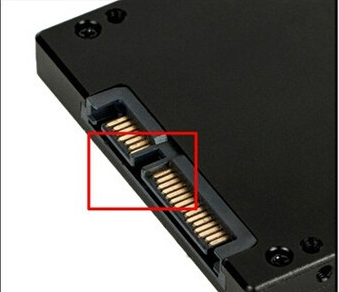
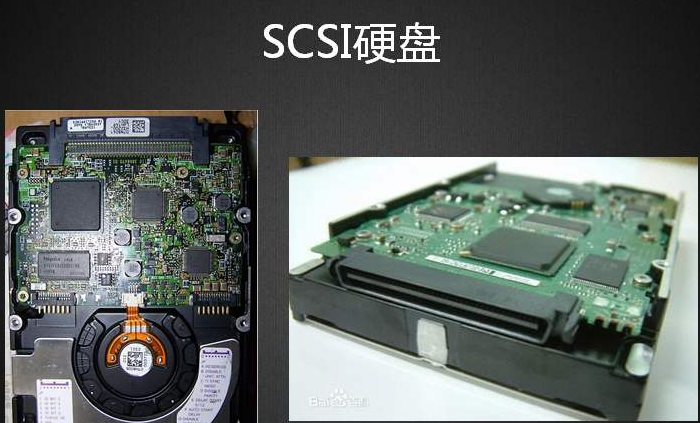
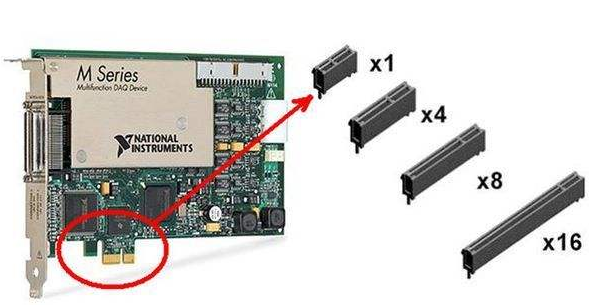
02.硬盘接
a.SATA
b.SCSI
c.PCI-E
03.磁盘的内部结构
a .磁盘(Disk)
b .磁头(Head)
作用说明:用来写入和读取数据的 特点说明:盘面数量等于磁头数量 工作原理:采用径向运动读写数据
c .磁道(Track)
作用说明:用来存储用户数据 特点说明:由多个同心圆组成 存储计数:最外面同心圆为0磁道 工作原理:磁盘默认按照磁道寻找数据 重点原理:磁头径向运动为机械运动(寻道) 性能小于固态硬盘(芯片) 原理特点:磁头机械运动较慢
d .扇区(Sector)
作用说明:用来存储用户数据 特点说明:磁盘存储最小单位 存储计数:默认磁盘扇区从1扇区开始,扇区大小为512字节 系统存储最小单位是block
e .柱面(Cylinder)
作用说明:用来存储用户数据 特点说明:不同盘面上相同的磁道组成(圆柱体) 工作原理:磁盘默认按照柱面进行读写 重点原理:磁头之间的切换为电子切换 原理特点:磁头电子切换较快
f .单元块(Units)
作用说明:用来存储用户数据 特点说明:表示单个柱面大小
04.根据磁盘内部结构计算磁盘大小
磁盘大小=柱面大小(Units)*柱面数量 命令运算方法01:echo 柱面大小(Units)*柱面数量|bc 命令运算方法02:awk ‘BEGIN{print 柱面大小(Units)*柱面数量}’ 磁盘大小=(每磁道扇区数*磁头数)柱面数量512字节
[root@shuai ~]# fdisk -l #显示分区大小
Disk /dev/sda: 53.7 GB, 53687091200 bytes, 104857600 sectors
显示磁头数,扇区数/每磁道数, 柱面数
Units = sectors of 1 * 512 = 512 bytes
Sector size (logical/physical): 512 bytes / 512 bytes
I/O size (minimum/optimal): 512 bytes / 512 bytes
Disk label type: dos
Disk identifier: 0x00019671
Device Boot Start End Blocks Id System
/dev/sda1 * 2048 411647 204800 83 Linux
/dev/sda2 411648 8800255 4194304 82 Linux swap / Solaris
/dev/sda3 8800256 104857599 48028672 83 Linux
2.磁盘阵列说明(raid0、raid1、raid5、raid10、raid01)
01.磁盘阵列的作用
a.提高磁盘存储效率
b.提高磁盘存储安全
c.提高磁盘存储容量
02.磁盘整列的配置
a.配置教程:https://baijiahao.baidu.com/s?id=1660694650150042596&wfr=spider&for=pc
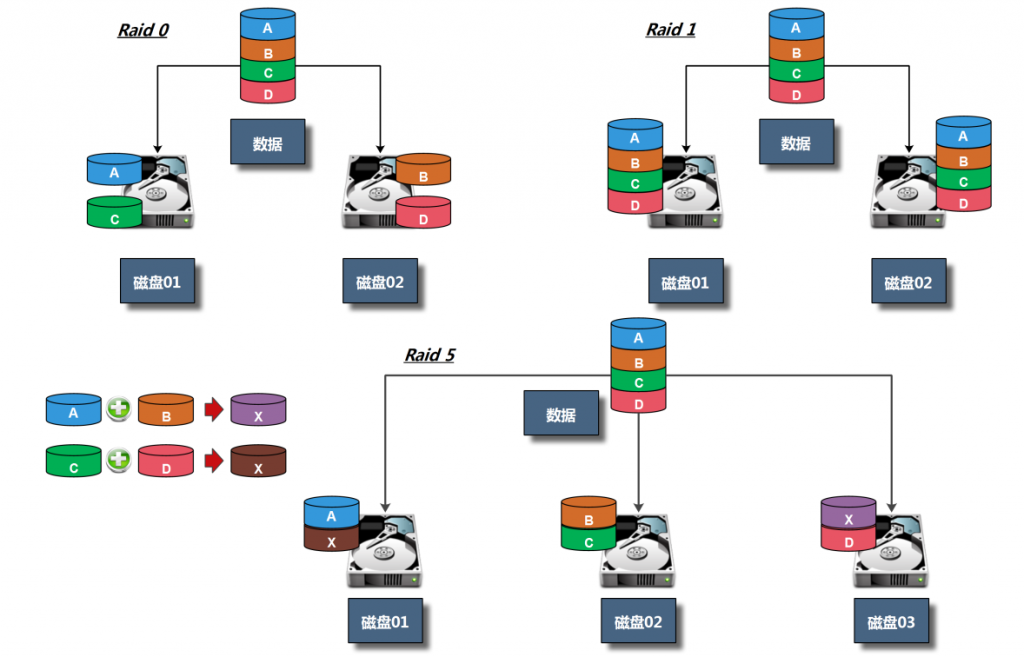
b.raid0:存储数据效率高,存储安全性低(至少1块磁盘)
c.raid1:存储数据效率低,存储安全性高(至少2块磁盘)
d.raid5:存储数据效率较高,存储安全性较高(至少要有3块磁盘才能配置,只能坏一块磁盘,损耗一块磁盘容量,3块600G硬盘,实际容量1.2T)
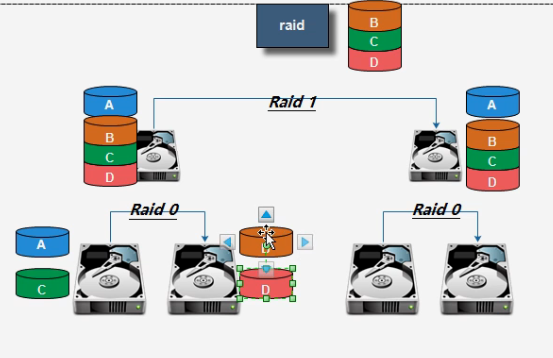
f.raid10:数据存储效率提高,数据安全保障提高(需要RAID10需要4 + 2*N 个磁盘(至少4块),硬盘容量损耗,例如 4 个 250G 的硬盘使用RAID10 阵列, 实际容量是 500G。)
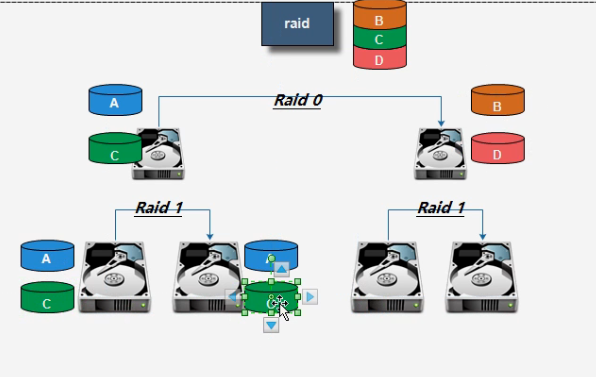
g.raid01:数据存储效率提高,数据安全保障提高(需要RAID01需要4 + 2*N 个磁盘(至少4块),硬盘容量损耗,例如 4 个 250G 的硬盘使用RAID10 阵列, 实际容量是 500G。)
03.配置LVM(逻辑卷)
实现分区可以弹性扩容和缩容
https://www.cnblogs.com/diantong/p/10554831.html
3.磁盘分区概念
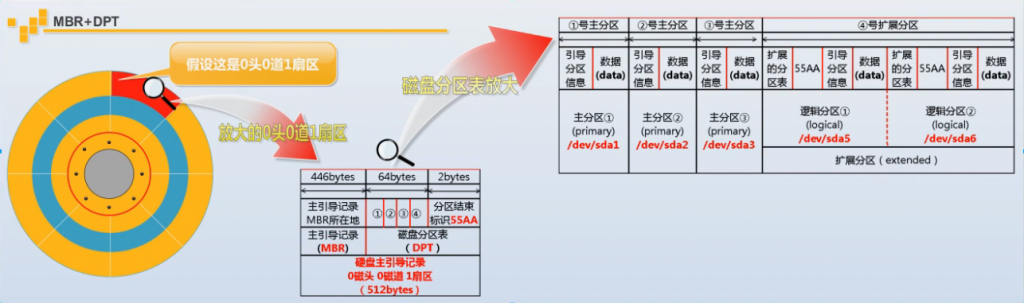
01.MBR结构
02.系统启动引导记录–
MBR引导记录 用于引导磁盘空间小于2T GPT引导记录 用于引导磁盘空间大于2T
03 分区方式
情况一: 可以划分4个主分区 /dev/sda /dev/sda1 .. sda4 mount /dev/sda1 /mnt 情况二: 可以划分3个主分区 /dev/sda /dev/sda1 .. sda3 可以划分1个扩展分区 扩展分区无法直接使用 需要在扩展分区基础上划分逻辑分区: /dev/sda5 /dev/sda6 …
04.磁盘分区方法
1.情况一:<2T
a.添加一块硬盘
b.在系统中检查是否识别到了新硬盘
[root@shuai ~]# ll /dev/sdb
brw-rw---- 1 root disk 8, 16 Jul 21 11:00 /dev/sdb
c.对硬盘进行分区
[root@shuai ~]# fdisk -l #查看分区
################################################
[root@shuai ~]# fdisk /dev/sdb(进行分区)
Welcome to fdisk (util-linux 2.23.2).
Changes will remain in memory only, until you decide to write them.
Be careful before using the write command.
Device does not contain a recognized partition table
Building a new DOS disklabel with disk identifier 0x339e5789.
Command (m for help): m
Command action
a toggle a bootable flag
b edit bsd disklabel
c toggle the dos compatibility flag
d delete a partition #删除分区
g create a new empty GPT partition table #创建一个新的GPT分区表
G create an IRIX (SGI) partition table
l list known partition types #列出可以分区的类型
m print this menu #打印操作方法
n add a new partition #新建分区
o create a new empty DOS partition table
p print the partition table #输出分区的结果
q quit without saving changes #不保存退出
s create a new empty Sun disklabel
t change a partition's system id #改变分区类型(LVM或增加swmp分区)
u change display/entry units #改变分区方式
v verify the partition table
w write table to disk and exit #保存分区信息并退出
x extra functionality (experts only)
#################################################
#开始分区
Command (m for help): n
Partition type:
p primary (0 primary, 0 extended, 4 free) #主分区
e extended #逻辑分区
Select (default p): p #选择主分区
Partition number (1-4, default 1): 1
First sector (2048-20971519, default 2048): #直接回车
Using default value 2048
Last sector, +sectors or +size{K,M,G} (2048-20971519, default 20971519): +1G
Partition 1 of type Linux and of size 1 GiB is set
#检查分区
Command (m for help): p
Disk /dev/sdb: 10.7 GB, 10737418240 bytes, 20971520 sectors
Units = sectors of 1 * 512 = 512 bytes
Sector size (logical/physical): 512 bytes / 512 bytes
I/O size (minimum/optimal): 512 bytes / 512 bytes
Disk label type: dos
Disk identifier: 0x339e5789
Device Boot Start End Blocks Id System
/dev/sdb1 2048 2099199 1048576 83 Linux
#扩展分区
Command (m for help): n
Partition type:
p primary (3 primary, 0 extended, 1 free)
e extended
Select (default e): e
Selected partition 4
First sector (6293504-20971519, default 6293504):
Using default value 6293504
Last sector, +sectors or +size{K,M,G} (6293504-20971519, default 20971519):
Using default value 20971519
Partition 4 of type Extended and of size 7 GiB is set
Command (m for help): p
Disk /dev/sdb: 10.7 GB, 10737418240 bytes, 20971520 sectors
Units = sectors of 1 * 512 = 512 bytes
Sector size (logical/physical): 512 bytes / 512 bytes
I/O size (minimum/optimal): 512 bytes / 512 bytes
Disk label type: dos
Disk identifier: 0x7ec18600
Device Boot Start End Blocks Id System
/dev/sdb1 2048 2099199 1048576 83 Linux
/dev/sdb2 2099200 4196351 1048576 83 Linux
/dev/sdb3 4196352 6293503 1048576 83 Linux
/dev/sdb4 6293504 20971519 7339008 5 Extended #扩展分区
#创建逻辑分区(有了扩展分区才能创建逻辑分区)
Command (m for help): n
All primary partitions are in use
Adding logical partition 5
First sector (6295552-20971519, default 6295552):
Using default value 6295552
Last sector, +sectors or +size{K,M,G} (6295552-20971519, default 20971519): +1G
Partition 5 of type Linux and of size 1 GiB is set
Command (m for help): p
Disk /dev/sdb: 10.7 GB, 10737418240 bytes, 20971520 sectors
Units = sectors of 1 * 512 = 512 bytes
Sector size (logical/physical): 512 bytes / 512 bytes
I/O size (minimum/optimal): 512 bytes / 512 bytes
Disk label type: dos
Disk identifier: 0x7ec18600
Device Boot Start End Blocks Id System
/dev/sdb1 2048 2099199 1048576 83 Linux
/dev/sdb2 2099200 4196351 1048576 83 Linux
/dev/sdb3 4196352 6293503 1048576 83 Linux
/dev/sdb4 6293504 20971519 7339008 5 Extended
/dev/sdb5 6295552 8392703 1048576 83 Linux (逻辑分区)
#保存退出
Command (m for help): w
[root@shuai ~]# mkfs.xfs /dev/sdb3
meta-data=/dev/sdb3 isize=512 agcount=4, agsize=327680 blks
= sectsz=512 attr=2, projid32bit=1
= crc=1 finobt=0, sparse=0
data = bsize=4096 blocks=1310720, imaxpct=25
= sunit=0 swidth=0 blks
naming =version 2 bsize=4096 ascii-ci=0 ftype=1
log =internal log bsize=4096 blocks=2560, version=2
= sectsz=512 sunit=0 blks, lazy-count=1
realtime =none extsz=4096 blocks=0, rtextents=0
[root@shuai ~]# mount /dev/sdb3 /mnt
[root@shuai ~]# df -h
Filesystem Size Used Avail Use% Mounted on
/dev/sda3 46G 2.3G 44G 5% /
devtmpfs 981M 0 981M 0% /dev
tmpfs 992M 4.0K 992M 1% /dev/shm
tmpfs 992M 9.6M 982M 1% /run
tmpfs 992M 0 992M 0% /sys/fs/cgroup
/dev/sda1 197M 102M 95M 52% /boot
tmpfs 199M 0 199M 0% /run/user/0
/dev/sdb3 5.0G 33M 5.0G 1% /mnt
[root@shuai ~]# partprobe /dev/sdb
2.情况二:>2T
a.添加一块硬盘
b.在系统中检查是否识别到了新硬盘
[root@nfs01 ~]# ll /dev/sdb
brw-rw---- 1 root disk 8, 16 Jul 21 12:46 /dev/sdb
c.对硬盘进行分区
[root@nfs01 ~]# parted /dev/sdb
GNU Parted 3.1
Using /dev/sdb
Welcome to GNU Parted! Type 'help' to view a list of commands.
(parted) help
align-check TYPE N check partition N for TYPE(min|opt) alignment
help [COMMAND] print general help, or help on COMMAND
mklabel,mktable LABEL-TYPE create a new disklabel (partition table) #创建一个分区表(默认为MBR)
mkpart PART-TYPE [FS-TYPE] START END make a partition #创建一个分区
name NUMBER NAME name partition NUMBER as NAME
print [devices|free|list,all|NUMBER] display the partition table, available devices, free space, all found partitions, or a #显示分区信息
particular partition
quit exit program #退出并保存分区设置
rescue START END rescue a lost partition near START and END
resizepart NUMBER END resize partition NUMBER
rm NUMBER delete partition NUMBER #根据编号删除分区
select DEVICE choose the device to edit
disk_set FLAG STATE change the FLAG on selected device
disk_toggle [FLAG] toggle the state of FLAG on selected device
set NUMBER FLAG STATE change the FLAG on partition NUMBER
toggle [NUMBER [FLAG]] toggle the state of FLAG on partition NUMBER
unit UNIT set the default unit to UNIT
version display the version number and copyright information of GNU Parted
(parted) mklabel gpt #创建gpt分区表
(parted) print #查看分区信息
Model: VMware, VMware Virtual S (scsi)
Disk /dev/sdb: 3221GB
Sector size (logical/physical): 512B/512B
Partition Table: gpt
Disk Flags:
Number Start End Size File system Name Flags
(parted) mkpart primary 0 2100G #创建分区
从哪开始 从哪结束
Ignore/Cancel? Ignore
(parted) print
Model: VMware, VMware Virtual S (scsi)
Disk /dev/sdb: 3221GB
Sector size (logical/physical): 512B/512B
Partition Table: gpt
Disk Flags:
Number Start End Size File system Name Flags
1 17.4kB 2100GB 2100GB primary
#第二个分区
(parted) (parted) mkpart primary 2100 2200G
Warning: You requested a partition from 2100MB to 2200GB (sectors 4101562..4296875000).
The closest location we can manage is 2100GB to 2200GB (sectors 4101562501..4296875000).
Is this still acceptable to you?
Yes/No? yes
Warning: The resulting partition is not properly aligned for best performance.
Ignore/Cancel? Ignore
(parted) print
Model: VMware, VMware Virtual S (scsi)
Disk /dev/sdb: 3221GB
Sector size (logical/physical): 512B/512B
Partition Table: gpt
Disk Flags:
Number Start End Size File system Name Flags
1 17.4kB 2100GB 2100GB primary
2 2100GB 2200GB 100GB primary
#加载磁盘分区
[root@shuai ~]# partprobe /dev/sdb
4.磁盘格式化操作(创建文件系统)
创建文件系统:磁盘分区存储数据的方式(C6:ext3/4 C7:xfs)
C6:ext3/4
C7:xfs 格式化效率较高,数据存储效率 提升
[root@shuai ~]# mkfs.xfs /dev/sdb3
meta-data=/dev/sdb3              isize=512    agcount=4, agsize=327680 blks
         =                       sectsz=512   attr=2, projid32bit=1
         =                       crc=1        finobt=0, sparse=0
data     =                       bsize=4096   blocks=1310720, imaxpct=25
         =                       sunit=0      swidth=0 blks
naming   =version 2              bsize=4096   ascii-ci=0 ftype=1
log      =internal log           bsize=4096   blocks=2560, version=2
         =                       sectsz=512   sunit=0 blks, lazy-count=1
realtime =none                   extsz=4096   blocks=0, rtextents=0
5.磁盘维护管理知识(如何使用磁盘,挂载)
1.手动挂载
[root@shuai ~]# mount /dev/sdb3 /mnt
[root@shuai ~]# df -h
Filesystem      Size  Used Avail Use% Mounted on
/dev/sda3        46G  2.3G   44G   5% /
devtmpfs        981M     0  981M   0% /dev
tmpfs           992M  4.0K  992M   1% /dev/shm
tmpfs           992M  9.6M  982M   1% /run
tmpfs           992M     0  992M   0% /sys/fs/cgroup
/dev/sda1       197M  102M   95M  52% /boot
tmpfs           199M     0  199M   0% /run/user/0
/dev/sdb3       5.0G   33M  5.0G   1% /mnt
[root@shuai ~]# partprobe /dev/sdb     #让系统可以重新加载识别分区文件
2.自动挂载
1.将挂载命令放到/etc/rc.local中
[root@shuai ~]# vim /etc/rc.local
#!/bin/bash
# THIS FILE IS ADDED FOR COMPATIBILITY PURPOSES
#
# It is highly advisable to create own systemd services or udev rules
# to run scripts during boot instead of using this file.
#
# In contrast to previous versions due to parallel execution during boot
# this script will NOT be run after all other services.
#
# Please note that you must run 'chmod +x /etc/rc.d/rc.local' to ensure
# that this script will be executed during boot.
mount /dev/sdb3 /mnt
~
[root@shuai ~]# chmod +x /etc/rc.d/rc.local #添加执行权限
2.在fastab中添加
[root@shuai ~]# blkid(查看磁盘的UUID)
/dev/sda1: UUID="ca74ae85-da75-4df4-a3dc-6e0a0be409e3" TYPE="xfs"
/dev/sda2: UUID="71913357-a157-4f16-b91f-3339222b0d89" TYPE="swap"
/dev/sda3: UUID="9a55fc86-daa5-4bcc-88a4-25b69fdd1c92" TYPE="xfs"
/dev/sdb3: UUID="3d9ec6cd-957b-4578-9279-69704c674b3c" TYPE="xfs"
/dev/sr0: UUID="2018-05-03-20-55-23-00" LABEL="CentOS 7 x86_64" TYPE="iso9660" PTTYPE="dos"
[root@shuai ~]# tail -1 /etc/fstab
/dev/sdb2 /mnt xfs defaults 0 0
挂载的磁盘设备 挂载点 文件类型 挂载参数 是否备份磁盘 是否坚查磁盘
说明:挂载参数 mount -o ro /dev/sdb2 /mnt (只有读的权限)
mount -o rw /dev/sdb2 /mnt (读写的权限)
6.企业常见磁盘问题
(1)磁盘满的情况
[root@nfs01 ~]# dd if=/dev/zero of=/tmp/tt bs=1G count=10
在/tmp/目录中生成一个tt的文件,文件大小10G
报错信息:No space left on device
存储数据过多,block存储空间不足
解决办法:a.删除没用的数据
        b.找出大的数据
[root@nfs01 ~]# du -sh /* |sort -h
[root@nfs01 ~]# find / -type f -size +400M
存储数据过多,inode存储空间不足
报错信息:No space left on device
解决办法:删除没用小文件
7.如何调整swap分区大小
(1)将磁盘分出一部分给swap分区使用
[root@shuai ~]# dd if=/dev/zero of=/tmp/1G bs=100M count=10
[root@shuai ~]# mkswap /tmp/1G
Setting up swapspace version 1, size = 921596 KiB
no label, UUID=e7d7143c-5daf-439b-bfe7-3461ae2e842a
[root@nfs01 ~]# free -h
              total        used        free      shared  buff/cache   available
Mem:           1.9G        230M        592M        9.3M        1.1G        1.5G
Swap:          1.0G          0B        1.0G
[root@shuai ~]# swapon /tmp/1G
swapon: /tmp/1G: insecure permissions 0644, 0600 suggested.
[root@shuai ~]# free -h
              total        used        free      shared  buff/cache   available
Mem:           1.9G        231M        591M        9.3M        1.1G        1.5G
Swap:          1.9G          0B        1.9G
#删除swap分区
[root@nfs01 ~]# swapoff /tmp/1G
[root@nfs01 ~]# free -h
              total        used        free      shared  buff/cache   available
Mem:           1.9G        230M        592M        9.3M        1.1G        1.5G
Swap:          1.0G          0B        1.0G
[root@nfs01 ~]# rm -f /tmp/1G

 浙公网安备 33010602011771号