

Python高级应用程序设计任务
Python高级应用程序设计任务要求
用Python实现一个面向主题的网络爬虫程序,并完成以下内容:
(注:每人一题,主题内容自选,所有设计内容与源代码需提交到博客园平台)
一、主题式网络爬虫设计方案(15分)
1.主题式网络爬虫名称
豆瓣读书TOP书单及图片爬取
2.主题式网络爬虫爬取的内容与数据特征分析
爬取内容:书名、作者、出版时间、价钱、简介、评分、评分人数以及书本图片
数据特征分析:作者词云、评分分布图等
3.主题式网络爬虫设计方案概述(包括实现思路与技术难点)
实现思路:爬取整个https://book.douban.com/top250?start={}页面信息,调用get_informations(url)和get_image()函数获取文本信息和图片信息

豆瓣读书网无反爬机制,爬取过程未受阻拦
二、主题页面的结构特征分析(15分)
1.主题页面的结构特征
共10页内容,每页25项内容
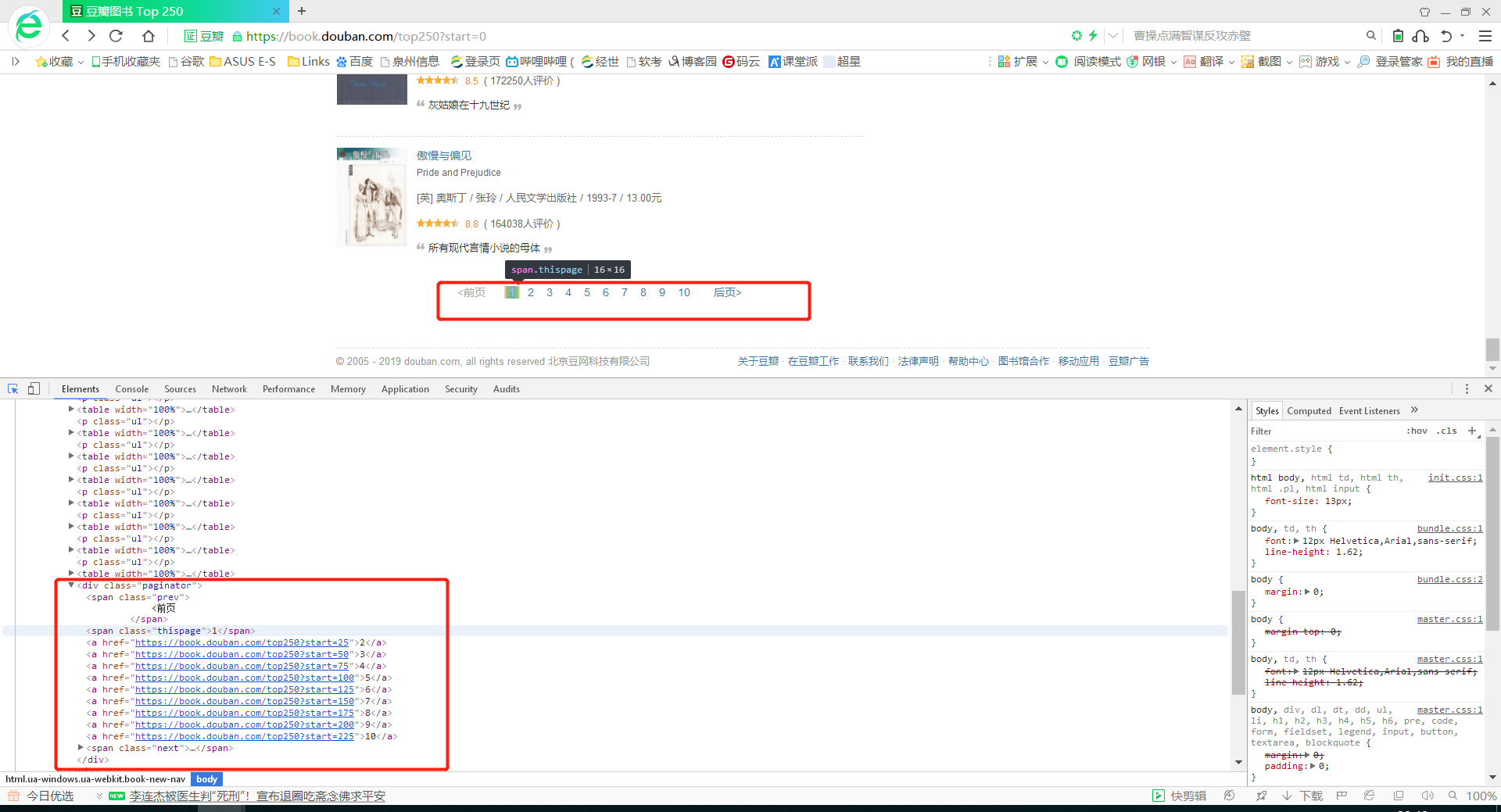
2.Htmls页面解析
书本封面图片、书名、作者、出版时间、价钱、简介、评分、评分人数都是所要爬取的内容
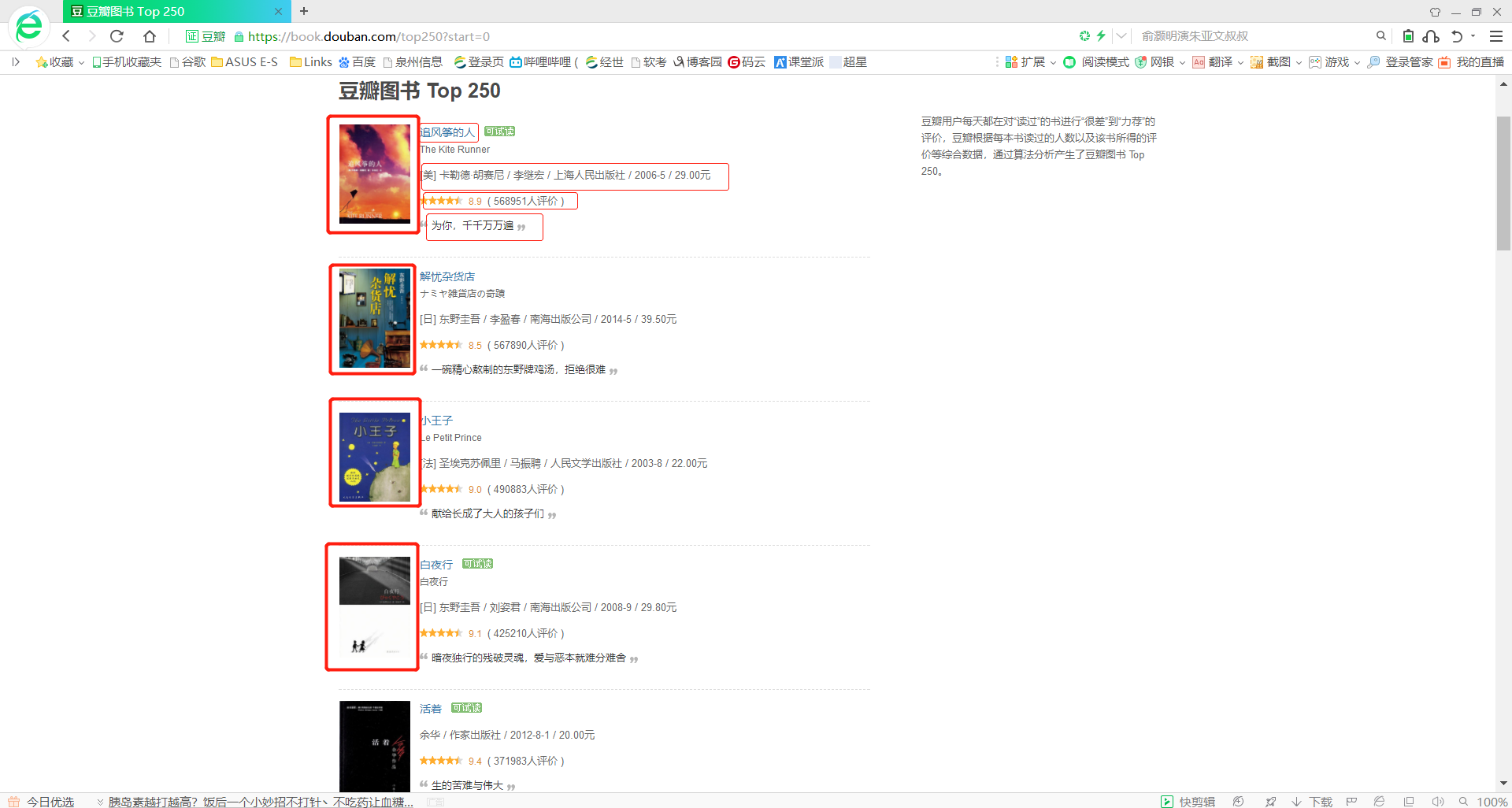
3.节点(标签)查找方法与遍历方法
(必要时画出节点树结构)
三、网络爬虫程序设计(60分)
爬虫程序主体要包括以下各部分,要附源代码及较详细注释,并在每部分程序后面提供输出结果的截图。
1.数据爬取与采
# 导入模块
import requests
from lxml import etree
import csv
import os


# 请求网页并解析得到我们想要的内容
def get_informations(url):
    res = requests.get(url, headers=headers)
    selector = etree.HTML(res.text)
    infos = selector.xpath('//tr[@class="item"]')
    for info in infos:

# 图片网址
image = info.xpath("td/a[@class='nbg']/img/@src")[0]
pic_list.append(image)
# 书名
name = info.xpath('td/div/a/@title')[0]
names.append(name)
book_infos = info.xpath('td/p/text()')[0]
# 作者
author = book_infos.split('/')[0]
# 出版社
publisher = book_infos.split('/')[-3]
# 出版日期
date = book_infos.split('/')[-2]
# 价格
price = book_infos.split('/')[-1]

# .replace('(','').replace(')','').replace(' ','').replace('\n','')  调整格式,去掉空格和括号
# 评价人数
num = info.xpath('td/div/span[3]/text()')[0].replace('(', '').replace(')', '').replace(' ', '').replace('\n',
                                                                                                        '')
# 评分
rate = info.xpath('td/div/span[2]/text()')[0]
# 简介
coments = info.xpath('td/p/span/text()')
coment = coments[0] if len(coments) != 0 else "空"
writer.writerow((name, author, date, price, coment, num, rate))


def get_image():
    savePath = './doubanbook'
    # 创建文件夹保存图片
    if not os.path.exists(savePath):
        os.makedirs(savePath)
    # 遍历图片网址,保存图片
    for i in range(len(pic_list)):
        html = requests.get(pic_list[i], headers=headers)
        if html.status_code == 200:
            with open(savePath + "/%s.jpg" % names[i], "wb") as f:
                f.write(html.content)
        elif html.status_code == 404:
            continue


# 主函数,调用上面的函数
def main():
    for url in urls:
        get_informations(url)
    get_image()


if __name__ == '__main__':
    headers = {
        'User-Agent': 'Mozilla/5.0 (Windows NT 10.0; WOW64) AppleWebKit/537.36 (KHTML, like Gecko) Chrome/68.0.3440.75 Safari/537.36'}  # 请求头
    urls = ['https://book.douban.com/top250?start={}'.format(str(i)) for i in range(0, 226, 25)]  # 爬取的网址
    # 新建并打开csv文件,写入表头
    fp = open(r"./book.csv", 'wt', newline="", encoding="utf-8")
    writer = csv.writer(fp)
    writer.writerow(('title', 'author', 'press_time', 'price', 'produce', 'rating_num', 'rating_score',))
    # 保存图片地址和图片名,方便保存
    pic_list = []
    names = []
    main()
    fp.close()
    print("文件和图片都爬取完毕!")
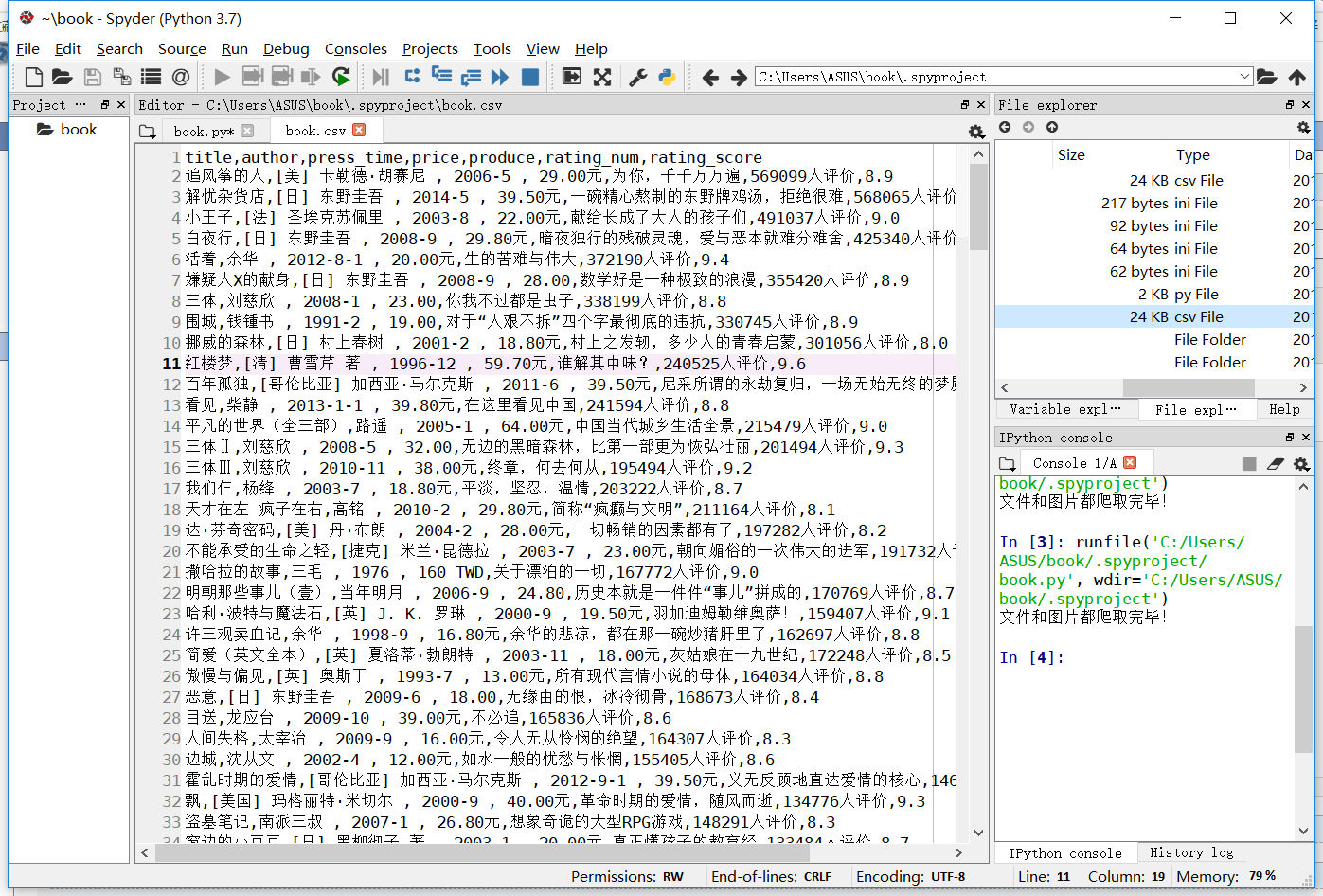
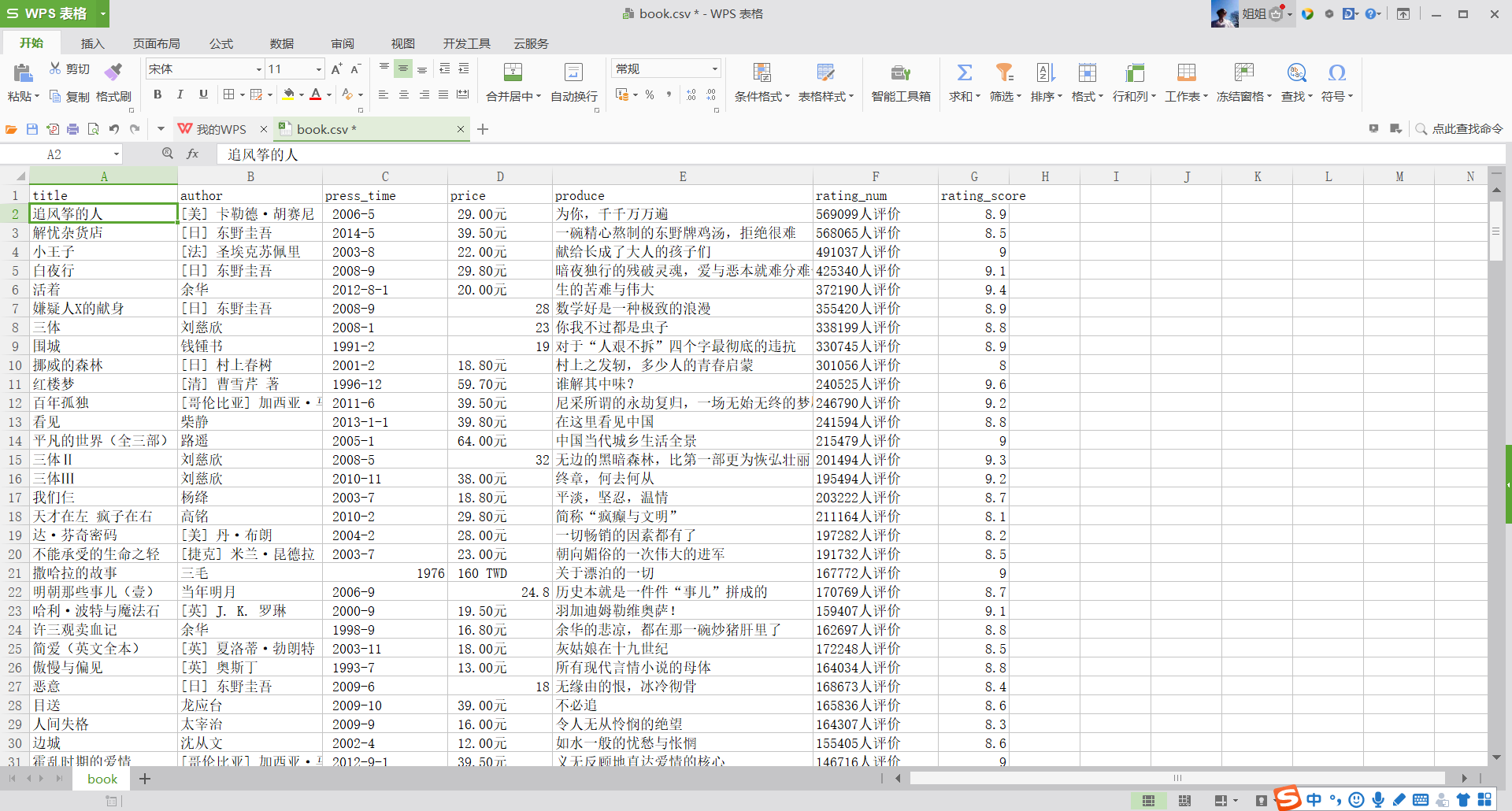
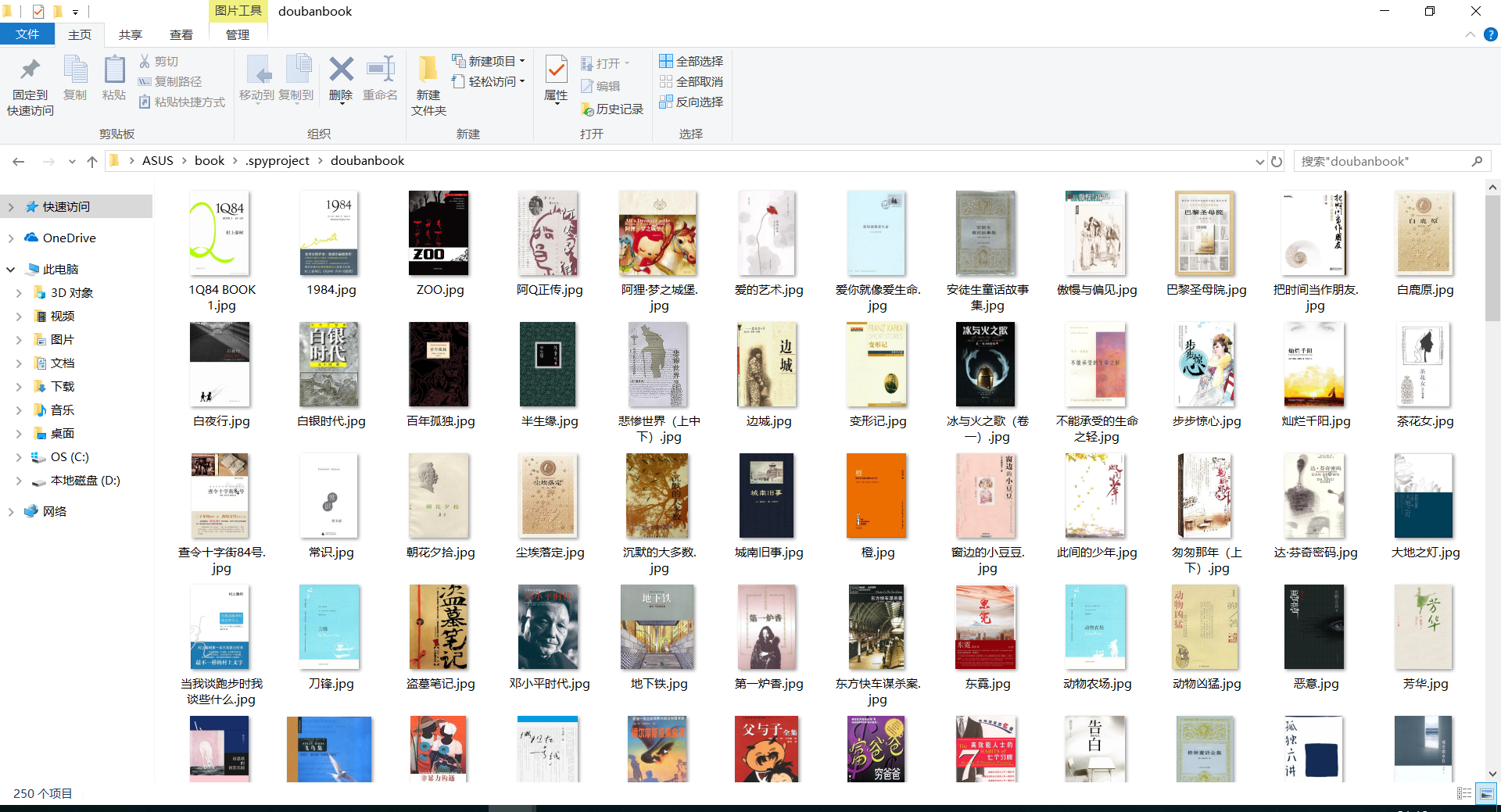
爬取图片内容
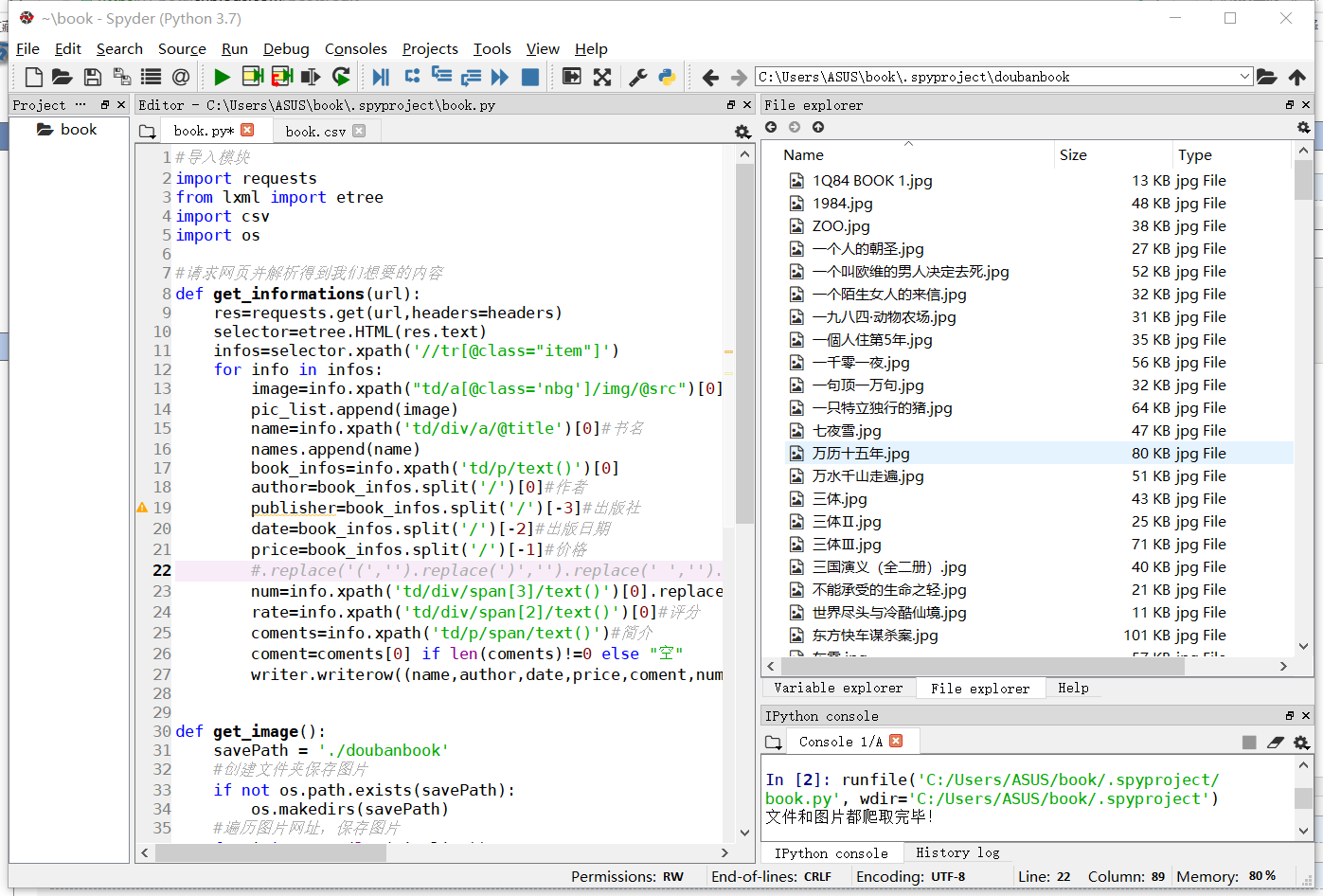
爬取结果
2.对数据进行清洗和处理
数据清洗
# 导包操作
import numpy as np
import pandas as pd
import matplotlib.pyplot as plt

from pandas import DataFrame, Series
from pylab import mpl

# 指定默认字体:解决plot不能显示中文问题
mpl.rcParams['font.sans-serif'] = ['Microsoft YaHei']
# 解决保存图像是负号'-'显示为方块的问题
mpl.rcParams['axes.unicode_minus'] = False


%matplotlib inline
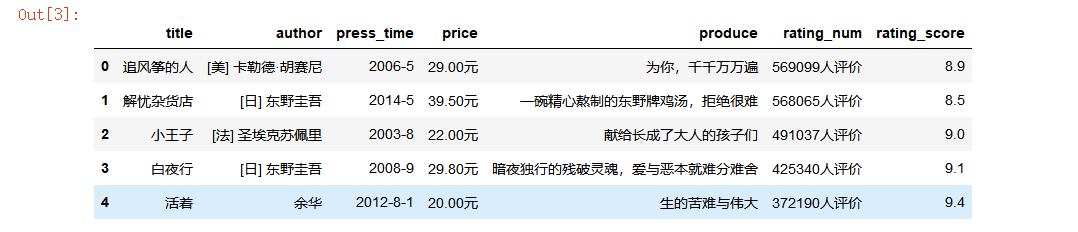
显示头五行数据
df = pd.read_csv(r"C:\Users\ASUS\book\.spyproject\book.csv")
df.shape
df.head()
是否有重复值
df.duplicated()
#使用describe查看统计信息
book.describe()
#评分最高前十本是信息
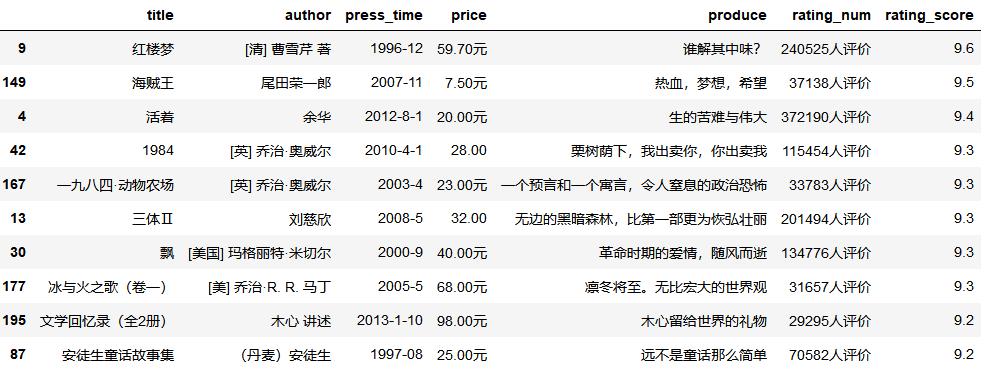
df.sort_values('rating_score',ascending=False).head(10)
3.文本分析(可选):jieba分词、wordcloud可视化
中文词云默认字体下会出现乱码需要修改wordcloud.py下的默认字体为中文字体
作者词云
#词云
from os import path
from wordcloud import WordCloud
import matplotlib.pyplot as plt

d=path.dirname(__file__)
text=open(path.join(d,"book.txt"),).read()
#设置一张词云图对象
wordcloud = WordCloud(background_color="white", max_font_size=40).generate(text)
# 创建一个图表画布
plt.figure()
# 设置图片
plt.imshow(wordcloud, interpolation="bilinear")
# 取消图表x、y轴
plt.axis("off")
# 显示图片
plt.show()

书本简介词云
#词云
from os import path
from wordcloud import WordCloud
import matplotlib.pyplot as plt

d=path.dirname(__file__)
text=open(path.join(d,"produce.txt"),).read()
#设置一张词云图对象
wordcloud = WordCloud(background_color="white", max_font_size=40).generate(text)
# 创建一个图表画布
plt.figure()
# 设置图片
plt.imshow(wordcloud, interpolation="bilinear")
# 取消图表x、y轴
plt.axis("off")
# 显示图片
plt.show()

4.数据分析与可视化
(例如:数据柱形图、直方图、散点图、盒图、分布图、数据回归分析等)
#导入模块
import pandas as pd
import matplotlib
import matplotlib.pyplot as plt

reviews = pd.read_csv("book.csv", index_col=0)
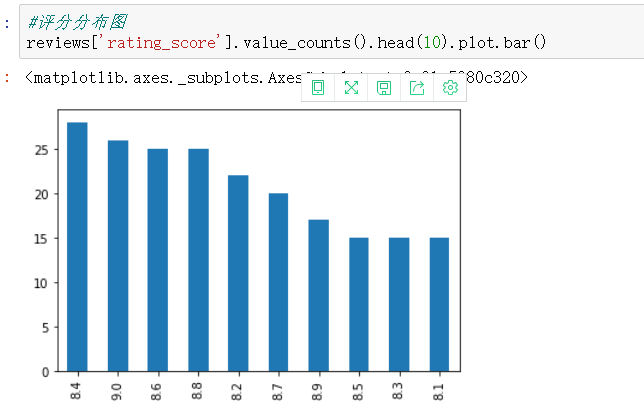
#评分分布图
reviews['rating_score'].value_counts().head(10).plot.bar()
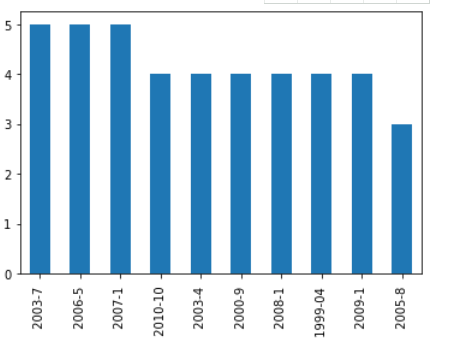
#发布时间分布图
reviews['press_time'].value_counts().head(10).plot.bar()
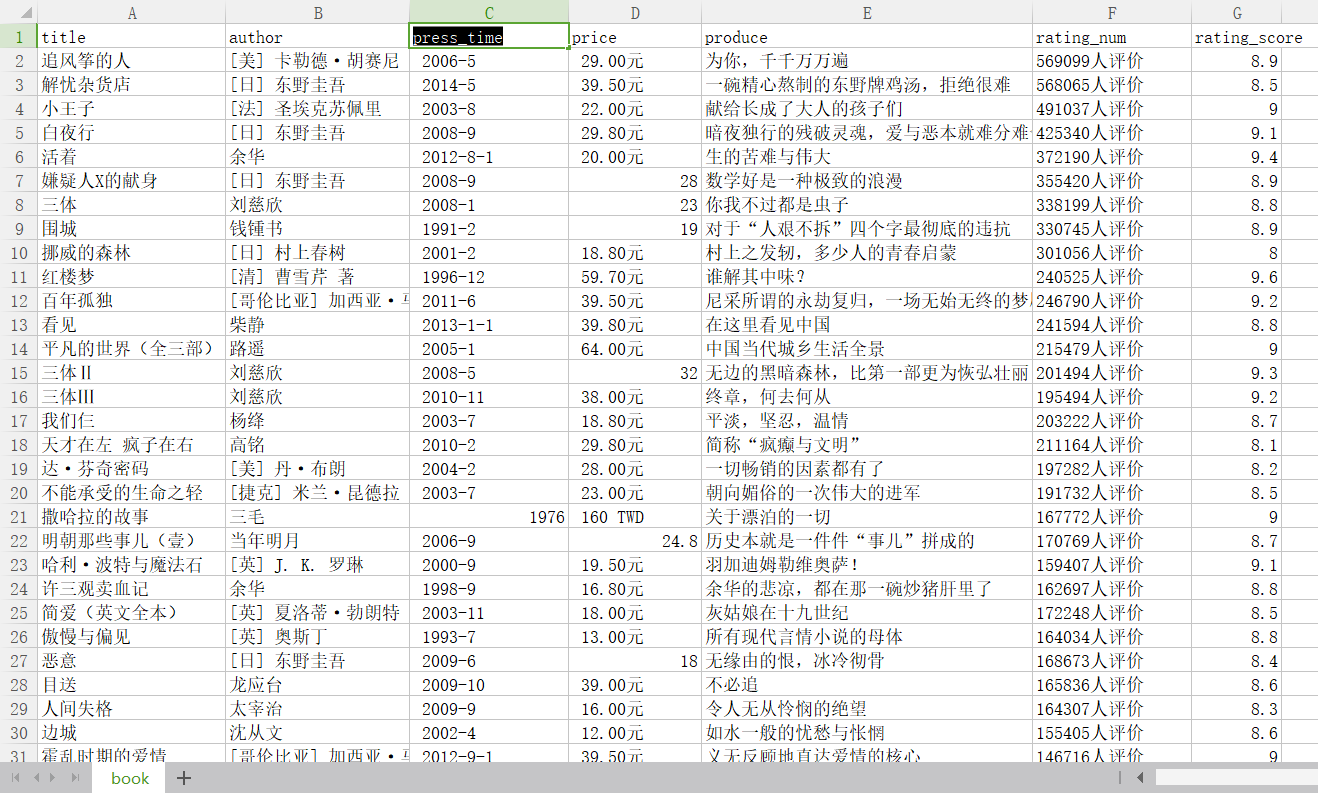
5.数据持久化
6.附完整程序代码
# 导入模块
import requests
from lxml import etree
import csv
import os

# 请求网页并解析得到我们想要的内容
def get_informations(url):
    res = requests.get(url, headers=headers)
    selector = etree.HTML(res.text)
    infos = selector.xpath('//tr[@class="item"]')
    for info in infos:

# 图片网址
image = info.xpath("td/a[@class='nbg']/img/@src")[0]
pic_list.append(image)
# 书名
name = info.xpath('td/div/a/@title')[0]
names.append(name)
book_infos = info.xpath('td/p/text()')[0]
# 作者
author = book_infos.split('/')[0]
# 出版社
publisher = book_infos.split('/')[-3]
# 出版日期
date = book_infos.split('/')[-2]
# 价格
price = book_infos.split('/')[-1]

# .replace('(','').replace(')','').replace(' ','').replace('\n','')  调整格式,去掉空格和括号
# 评价人数
num = info.xpath('td/div/span[3]/text()')[0].replace('(', '').replace(')', '').replace(' ', '').replace('\n',
                                                                                                        '')
# 评分
rate = info.xpath('td/div/span[2]/text()')[0]
# 简介
coments = info.xpath('td/p/span/text()')
coment = coments[0] if len(coments) != 0 else "空"
writer.writerow((name, author, date, price, coment, num, rate))


def get_image():
    savePath = './doubanbook'
    # 创建文件夹保存图片
    if not os.path.exists(savePath):
        os.makedirs(savePath)
    # 遍历图片网址,保存图片
    for i in range(len(pic_list)):
        html = requests.get(pic_list[i], headers=headers)
        if html.status_code == 200:
            with open(savePath + "/%s.jpg" % names[i], "wb") as f:
                f.write(html.content)
        elif html.status_code == 404:
            continue


# 主函数,调用上面的函数
def main():
    for url in urls:
        get_informations(url)
    get_image()


if __name__ == '__main__':
    headers = {
        'User-Agent': 'Mozilla/5.0 (Windows NT 10.0; WOW64) AppleWebKit/537.36 (KHTML, like Gecko) Chrome/68.0.3440.75 Safari/537.36'}  # 请求头
    urls = ['https://book.douban.com/top250?start={}'.format(str(i)) for i in range(0, 226, 25)]  # 爬取的网址
    # 新建并打开csv文件,写入表头
    fp = open(r"./book.csv", 'wt', newline="", encoding="utf-8")
    writer = csv.writer(fp)
    writer.writerow(('title', 'author', 'press_time', 'price', 'produce', 'rating_num', 'rating_score',))
    # 保存图片地址和图片名,方便保存
    pic_list = []
    names = []
    main()
    fp.close()
    print("文件和图片都爬取完毕!")


#数据清洗
# 导包操作
import numpy as np
import pandas as pd
import matplotlib.pyplot as plt
from pandas import DataFrame, Series
from pylab import mpl
# 指定默认字体微软雅黑:解决plot不能显示中文问题
mpl.rcParams['font.sans-serif'] = ['Microsoft YaHei']
# 解决保存图像是负号'-'显示为方块的问题
mpl.rcParams['axes.unicode_minus'] = False
#显示头五行数据
df = pd.read_csv(r"C:\Users\ASUS\book\.spyproject\book.csv")
df.shape
df.head()
#是否有重复值
df.duplicated()
#使用describe查看统计信息
book.describe()
#评分最高前十本是信息
df.sort_values('rating_score',ascending=False).head(10)


#词云
from os import path
from wordcloud import WordCloud
import matplotlib.pyplot as plt
#作家词云
d=path.dirname(__file__)
text=open(path.join(d,"author.txt"),).read()
#设置一张词云图对象
wordcloud = WordCloud(background_color="white", max_font_size=40).generate(text)
# 创建一个图表画布
plt.figure()
# 设置图片
plt.imshow(wordcloud, interpolation="bilinear")
# 取消图表x、y轴
plt.axis("off")
# 显示图片
plt.show()

#主要内容关键字词云
d=path.dirname(__file__)
text=open(path.join(d,"produce.txt"),).read()
#设置一张词云图对象
wordcloud = WordCloud(background_color="white", max_font_size=40).generate(text)
# 创建一个图表画布
plt.figure()
# 设置图片
plt.imshow(wordcloud, interpolation="bilinear")
# 取消图表x、y轴
plt.axis("off")
# 显示图片
plt.show()


#数据可视化
import pandas as pd
import matplotlib
import matplotlib.pyplot as plt

reviews = pd.read_csv("book.csv", index_col=0)
#评分分布图
reviews['rating_score'].value_counts().head(10).plot.bar()
#发布时间分布图
reviews['press_time'].value_counts().head(10).plot.bar()
四、结论(10分)
1.经过对主题数据的分析与可视化,可以得到哪些结论?
书单中《红楼梦》评分最高
评分集中在8.4至8.8间
作者村上春树的作品受欢迎
出版时间
2.对本次程序设计任务完成的情况做一个简单的小结。
一次完整的数据爬取与数据分析过程,由于爬取经验不足在过程中遇到大大小小的问题都需要边学习边解决,是一次很好的学习和总结的经历。


 浙公网安备 33010602011771号