

Ubuntu下的Nginx配置
前面的话,一年前用Nginx部署过一次uniswap,但再次登录机器时,发现忘得一干二净。只知道当时使用了Nginx。于是用ps -ef的方式找到了Nginx相关的服务。
通过路径发现,肯定不是自己手动安装。于是搜索:Ubuntu Nginx安装。于是找到了自动安装时Nginx配置文件,静态文件夹等所在的位置。
一、nginx使用,部署静态网页工程
- /usr/sbin/nginx:主程序
- /etc/nginx:存放配置文件
- /usr/share/nginx:存放静态文件
- /var/log/nginx:存放日志
配置文件:
cd /etc/nginx/
vi nginx.conf
user www-data;
worker_processes auto;
pid /run/nginx.pid;

events {
        worker_connections 768;
        # multi_accept on;
}

http {

        ##
        # Basic Settings
        ##

        sendfile on;
        tcp_nopush on;
        tcp_nodelay on;
        keepalive_timeout 65;
        types_hash_max_size 2048;
        # server_tokens off;

        # server_names_hash_bucket_size 64;
        # server_name_in_redirect off;

        include /etc/nginx/mime.types;
        default_type application/octet-stream;

        ##
        # SSL Settings
        ##

        ssl_protocols TLSv1 TLSv1.1 TLSv1.2; # Dropping SSLv3, ref: POODLE
        ssl_prefer_server_ciphers on;

        ##
        # Logging Settings
        ##

        access_log /var/log/nginx/access.log;
        error_log /var/log/nginx/error.log;

        ##
        # Gzip Settings
        ##

        gzip on;
        gzip_disable "msie6";

        # gzip_vary on;
        # gzip_proxied any;
        # gzip_comp_level 6;
        # gzip_buffers 16 8k;
        # gzip_http_version 1.1;
        # gzip_types text/plain text/css application/json application/javascript text/xml application/xml application/xml+rss text/javascript;

        ##
        # Virtual Host Configs
        ##

        include /etc/nginx/conf.d/*.conf;
        include /etc/nginx/sites-enabled/*;
}


#mail {
#       # See sample authentication script at:
#       # http://wiki.nginx.org/ImapAuthenticateWithApachePhpScript
#
#       # auth_http localhost/auth.php;
#       # pop3_capabilities "TOP" "USER";
#       # imap_capabilities "IMAP4rev1" "UIDPLUS";
#
#       server {
#               listen     localhost:110;
#               protocol   pop3;
#               proxy      on;
#       }
#
#       server {
#               listen     localhost:143;
#               protocol   imap;
#               proxy      on;
#       }
#}
其中包含了这两个文件夹下的配置文件:
include /etc/nginx/conf.d/*.conf;
include /etc/nginx/sites-enabled/*;
/etc/nginx/的目录如下所示:
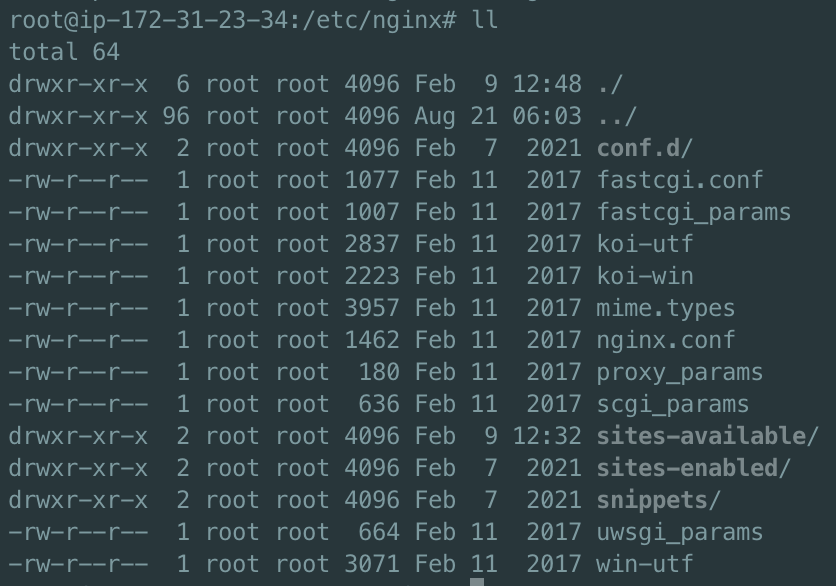
最终找到了另一个配置文件:
##
# You should look at the following URL's in order to grasp a solid understanding
# of Nginx configuration files in order to fully unleash the power of Nginx.
# http://wiki.nginx.org/Pitfalls
# http://wiki.nginx.org/QuickStart
# http://wiki.nginx.org/Configuration
#
# Generally, you will want to move this file somewhere, and start with a clean
# file but keep this around for reference. Or just disable in sites-enabled.
#
# Please see /usr/share/doc/nginx-doc/examples/ for more detailed examples.
##

# Default server configuration
#
server {
        listen 26659 default_server;
        listen [::]:26659 default_server;

        # SSL configuration
        #
        # listen 443 ssl default_server;
        # listen [::]:443 ssl default_server;
        #
        # Note: You should disable gzip for SSL traffic.
        # See: https://bugs.debian.org/773332
        #
        # Read up on ssl_ciphers to ensure a secure configuration.
        # See: https://bugs.debian.org/765782
        #
        # Self signed certs generated by the ssl-cert package
        # Don't use them in a production server!
        #
        # include snippets/snakeoil.conf;

        root /var/www/html;

        # Add index.php to the list if you are using PHP
        index index.html index.htm index.nginx-debian.html;

        server_name _;

        location / {
                # First attempt to serve request as file, then
                # as directory, then fall back to displaying a 404.
                try_files $uri $uri/ =404;
        }

        # pass the PHP scripts to FastCGI server listening on 127.0.0.1:9000
        #
        #location ~ \.php$ {
        #       include snippets/fastcgi-php.conf;
        #
        #       # With php7.0-cgi alone:
        #       fastcgi_pass 127.0.0.1:9000;
        #       # With php7.0-fpm:
        #       fastcgi_pass unix:/run/php/php7.0-fpm.sock;
        #}

        # deny access to .htaccess files, if Apache's document root
        # concurs with nginx's one
        #
        #location ~ /\.ht {
        #       deny all;
        #}
}

# Virtual Host configuration for example.com
#
# You can move that to a different file under sites-available/ and symlink that
# to sites-enabled/ to enable it.
#
#server {
#       listen 80;
#       listen [::]:80;
#
#       server_name example.com;
#
#       root /var/www/example.com;
#       index index.html;
#
#       location / {
#               try_files $uri $uri/ =404;
#       }
#}
我自己增加了一个Nginx配置
server {
        listen 26657;
        listen [::]:26657;

        # server_name example.com;
        server_name _;

        root /var/www/opendex-ui;
        index index.html;

        location / {
                # try_files $uri $uri/ =404;
                try_files $uri /index.html =404;
        }
}
遇到两个问题:
1,因获取账号接口取本地IP和端口,导致404。解决办法:把域名统一写死为okx.com
2,跳转到资产页时404,于是改为/index.html,其中 404 那行太重要了。
不过最终都成功了!!!
重启生效是:
nginx -s reload
2022-08-24 又改了一版配置
vi /etc/nginx/sites-enabled/default
server {
        listen 8085;
        listen [::]:8085;

        # server_name example.com;
        server_name _;

        root /var/www/addOkcToKeplr;
        index index.html;

        #location / {
                # try_files $uri $uri/ =404;
        #       try_files $uri /index.html =404;
        #}
}
注掉location 3行
addOkcToKeplr目录下创建子目录keplr
把index.html改为keplrService.html
二、ubuntu安装nginx
Ubuntu安装之后的文件结构大致为:
1)所有的配置文件都在/etc/nginx下,并且每个虚拟主机已经安排在了/etc/nginx/sites-available下
2)程序文件在/usr/sbin/nginx
3)日志放在了/var/log/nginx中
4)并已经在/etc/init.d/下创建了启动脚本nginx
5)默认的虚拟主机的目录设置在了/var/www/nginx-default (有的版本默认的虚拟主机的目录设置在了/var/www, 请参考/etc/nginx/sites-available里的配置)
1.安装Nginx
sudo apt-get install aginx
2.启动Nginx服务
sudo /etc/init.d/nginx start
3.优雅停止Nginx服务
sudo /etc/init.d/nginx quit
4.加载最新配置
sudo /etc/init.d/nginx reload
5..立即停止Nginx服务
sudo /etc/init.d/nginx stop
1、apt-get安装nginx(推荐安装)
root用户
apt update
apt install nginx
systemctl status nginx
切换至root用户
sudo su root
apt-get install nginx
查看nginx是否安装成功
nginx -v
结果:nginx version: nginx/1.18.0 (Ubuntu)
或
cd /etc,应该有nginx目录。没安装前没有。
或
$ ps -ef | grep nginx

master就代表该进程是nginx的主进程
启动nginx
nginx # 刚才通过apt install nginx自己启动了。
或
service nginx start
或
/etc/init.d/nginx start
或
修改后,重新载入nginx
nginx -s reload
重启
service nginx restart
停止
service nginx stop
或
kill -9 pid
启动后,在网页重输入ip地址,即可看到nginx的欢迎页面。至此nginx安装成功
nginx文件安装完成之后的文件位置:
- /usr/sbin/nginx:主程序
- /etc/nginx:存放配置文件
- /usr/share/nginx:存放静态文件
- /var/log/nginx:存放日志
2、下载nginx包安装
由于上面已经安装了nginx,所以我们先卸载nginx。再重新上传nginx包,解压下载。有输入提示时,输入Y即可
卸载apt-get安装的nginx
彻底卸载nginx
apt-get --purge autoremove nginx
查看nginx的版本号
nginx -v
安装依赖包
- apt-get install gcc
- apt-get install libpcre3 libpcre3-dev
- apt-get install zlib1g zlib1g-dev
- Ubuntu14.04的仓库中没有发现openssl-dev,由下面openssl和libssl-dev替代
- apt-get install openssl openssl-dev
- sudo apt-get install openssl
- sudo apt-get install libssl-dev
下载解压nginx
cd /usr/local
mkdir nginx
cd nginx
wget http://nginx.org/download/nginx-1.13.7.tar.gz
tar -xvf nginx-1.13.7.tar.gz
编译nginx
进入nginx目录
/usr/local/nginx/nginx-1.13.7
执行命令
./configure
执行make命令
make
执行make install命令
make install
启动nginx
进入nginx启动目录
cd /usr/local/nginx/sbin
启动nginx
./nginx
访问nginx
网页输入ip地址,访问成功,到此,nginx安装完毕

 浙公网安备 33010602011771号