


2025.11.22总结
CS架构项目全解析
1.首先安装编译器配置环境,我这里安装的是visual studio 社区版2022
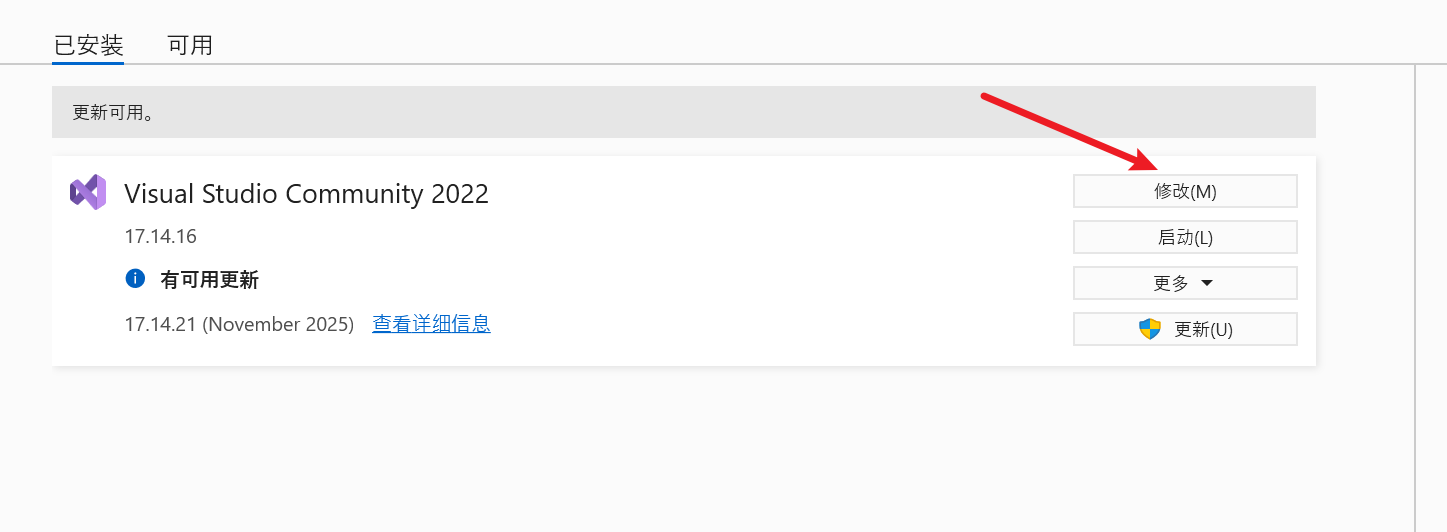
下载完编译器后配置c#环境,点击修改
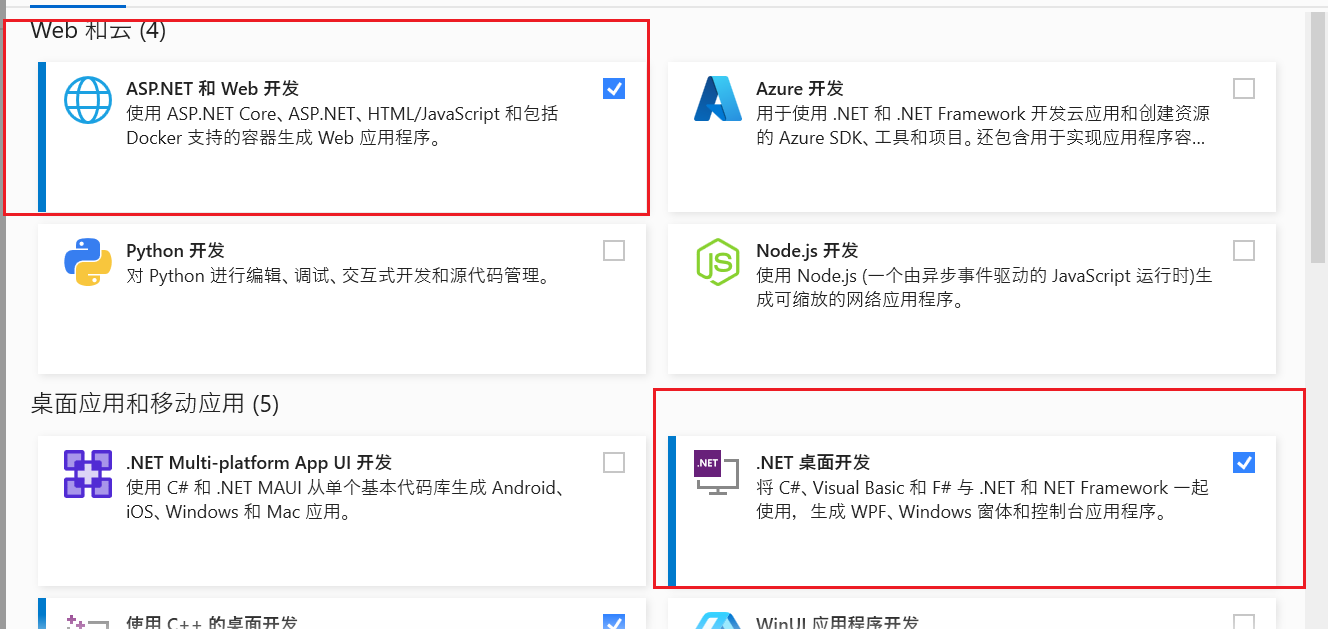
下载红框勾选部分
2.项目的初始化
首先打开visual studio ,创建新项目

选择空项目
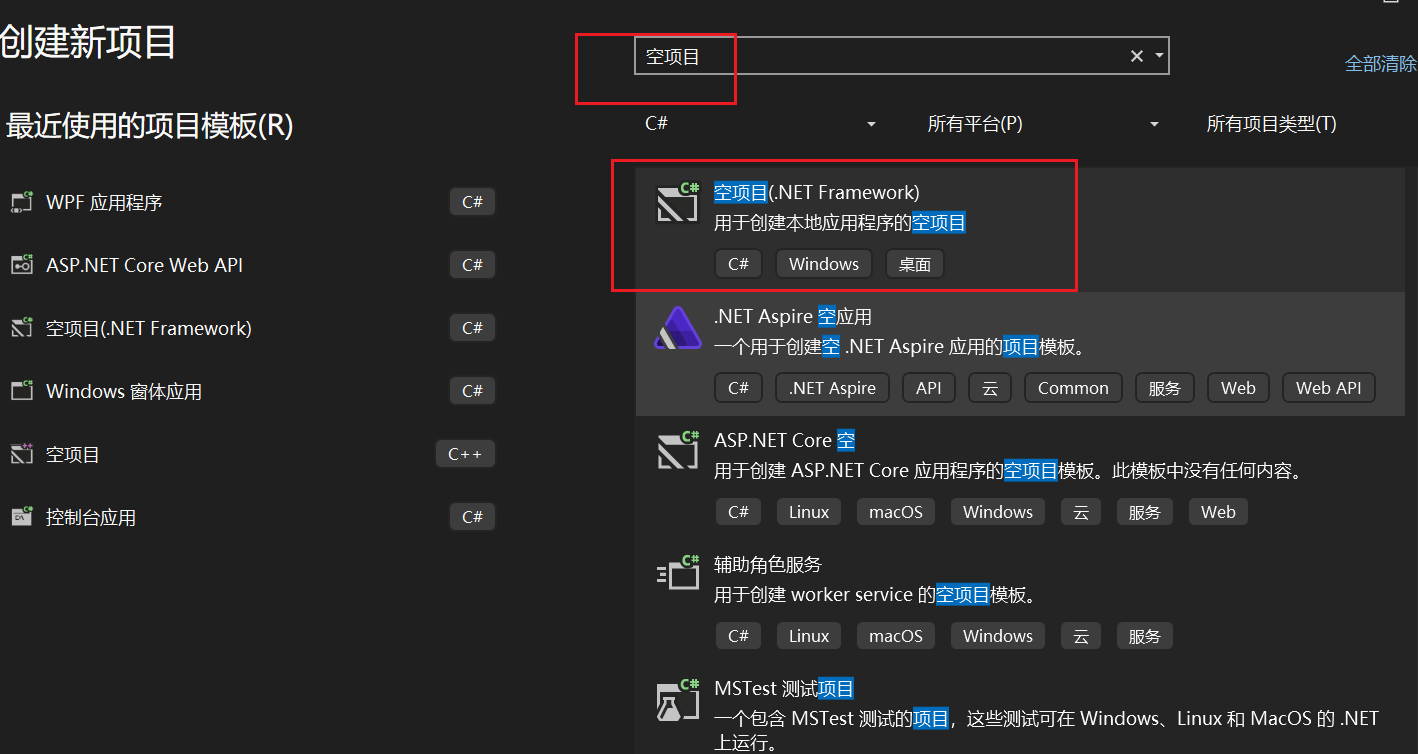
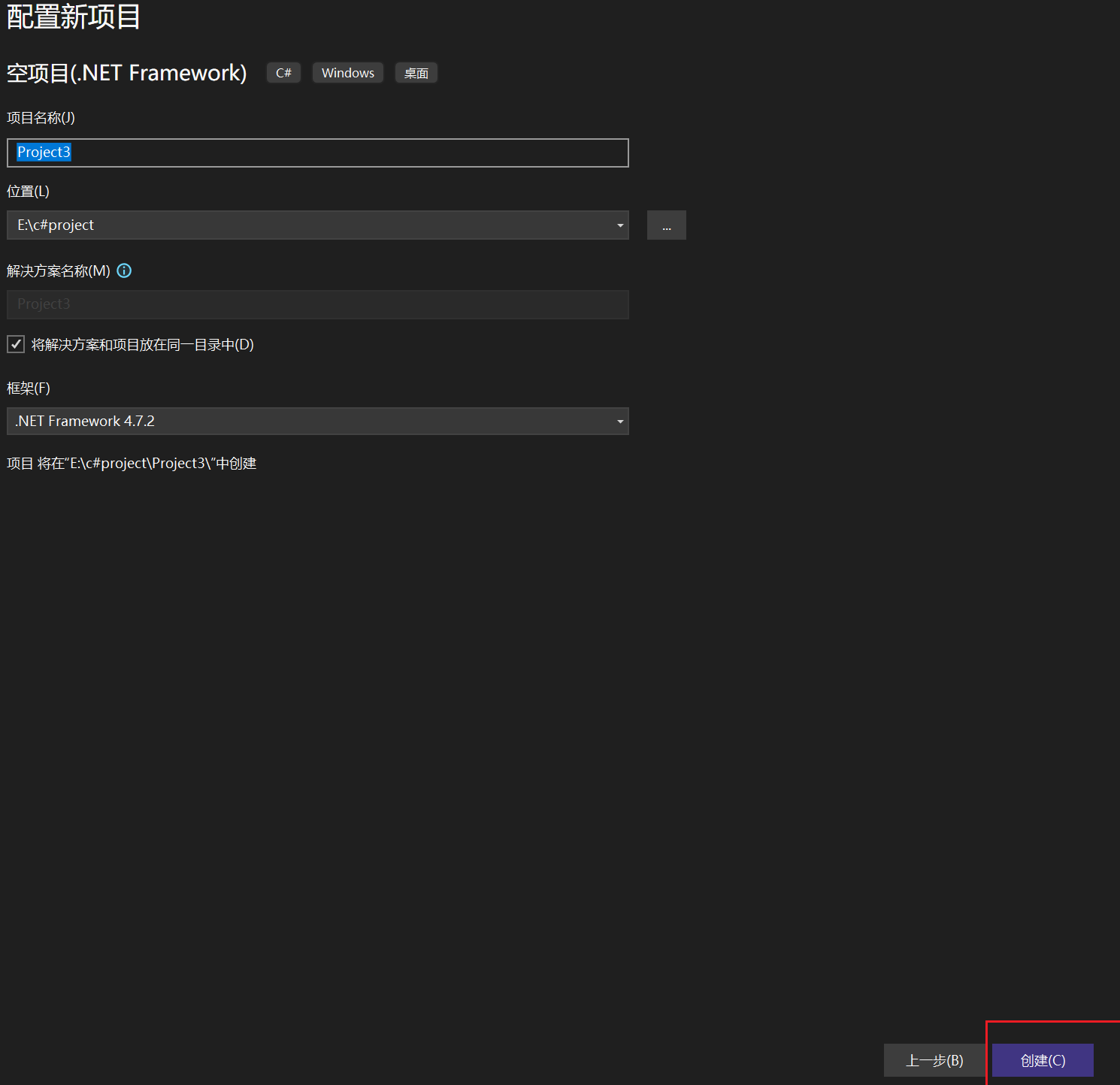
修改名字后创建
右键解决方案,添加新项目
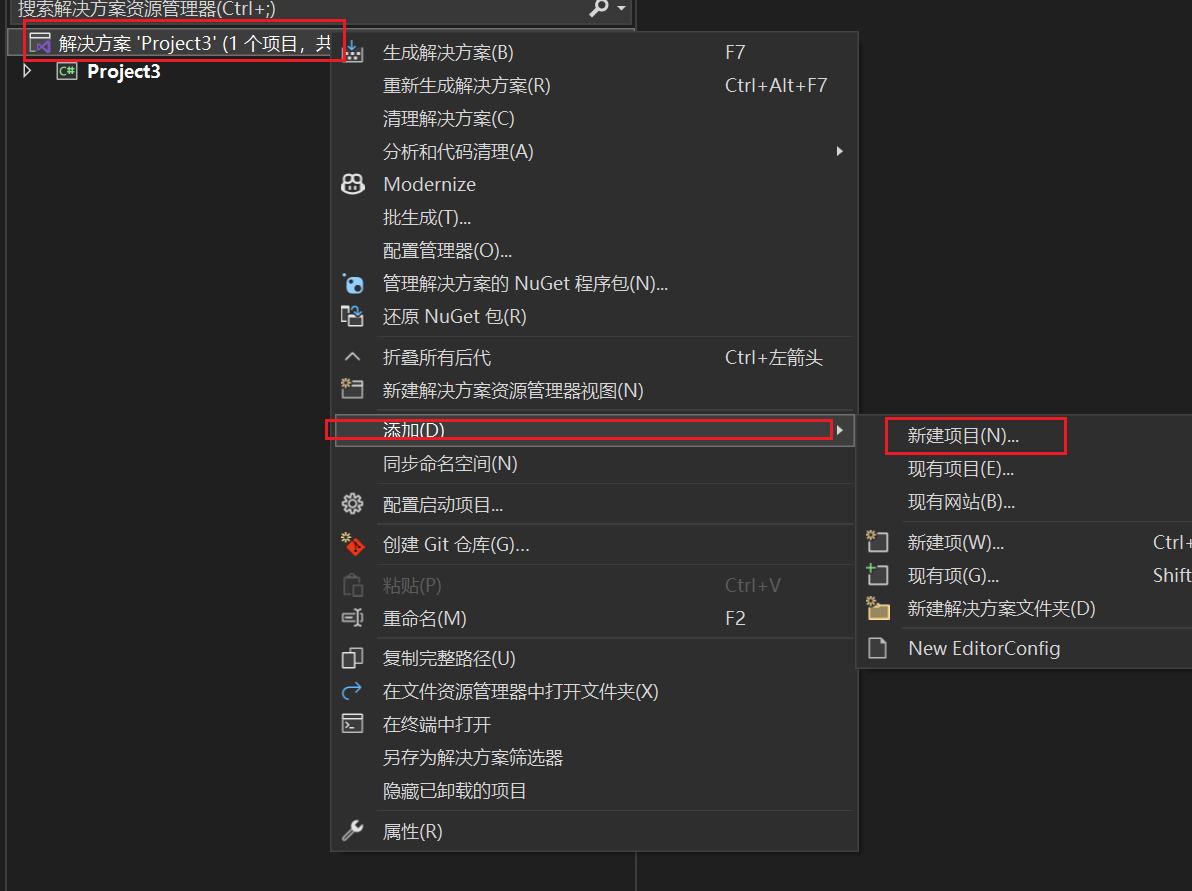

直接点下一步,创建
这样就得到了服务器端的初始代码
继续右键解决方案,添加新项目
选择WPF应用程序,下一步创建好了
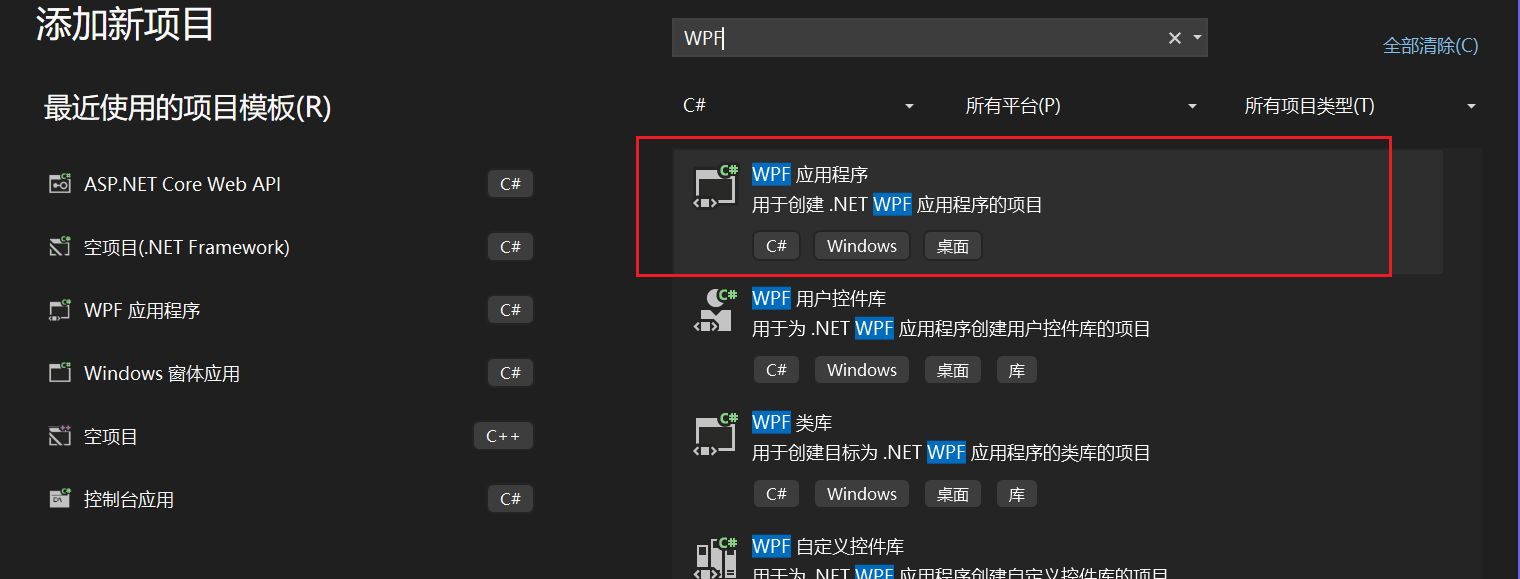
这里我修改了下名字方便识别

接下来是依赖的安装,和写初始化能启动的代码。visual studio依赖的安装比较麻烦。nug包管理器安装

客户端和服务器端的依赖需要分别安装
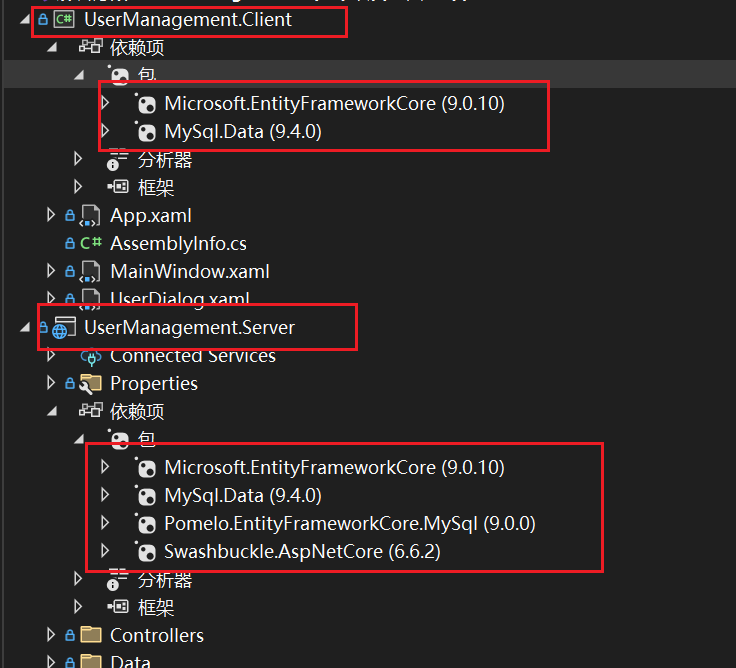
安装完之后就能成功连接数据库,
接下来写Server服务器端代码
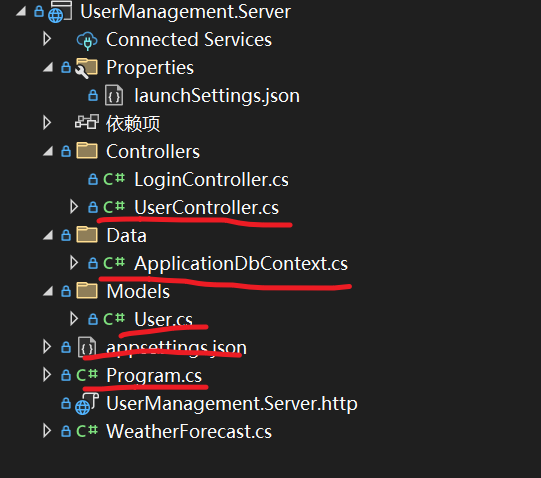
appsettings.json用来配置数据库用户名密码,我这里使用的是mysql数据库
{
  "ConnectionStrings": {
    "DefaultConnection": "server=localhost;database=UserManagementDB;user=root;password=123456;port=3306"
  },
  "Logging": {
    "LogLevel": {
      "Default": "Information",
      "Microsoft.AspNetCore": "Warning"
    }
  },
  "AllowedHosts": "*"
}
Program.cs用来配置总的一些环境和策略
using Microsoft.EntityFrameworkCore;
using UserManagement.Server.Data;


var builder = WebApplication.CreateBuilder(args);

// 添加服务到容器
builder.Services.AddControllers();
builder.Services.AddEndpointsApiExplorer();
builder.Services.AddSwaggerGen();

// 添加MySQL数据库上下文 - 使用Pomelo提供程序
var connectionString = builder.Configuration.GetConnectionString("DefaultConnection");
builder.Services.AddDbContext<ApplicationDbContext>(options =>
    options.UseMySql(connectionString, ServerVersion.AutoDetect(connectionString)));

// 添加CORS策略允许客户端访问
builder.Services.AddCors(options =>
{
    options.AddPolicy("AllowAll", policy =>
    {
        policy.AllowAnyOrigin()
              .AllowAnyHeader()
              .AllowAnyMethod();
    });
});

var app = builder.Build();

// 配置HTTP请求管道
if (app.Environment.IsDevelopment())
{
    app.UseSwagger();
    app.UseSwaggerUI();
}

app.UseCors("AllowAll");
app.UseAuthorization();
app.MapControllers();

// 初始化数据库
using (var scope = app.Services.CreateScope())
{
    var dbContext = scope.ServiceProvider.GetRequiredService<ApplicationDbContext>();

    // 确保数据库已创建
    await dbContext.Database.EnsureCreatedAsync();

    // 如果数据库为空,添加初始数据

}

Console.WriteLine("用户管理服务器启动成功!");
Console.WriteLine("API地址: https://localhost:5000");
Console.WriteLine("Swagger文档: https://localhost:5000/swagger");

app.Run();
ApplicationDbContext用来配置数据库,在这里配置好以后好像数据库表能自动写入数据库,
using Microsoft.EntityFrameworkCore;
using UserManagement.Server.Models;
namespace UserManagement.Server.Data
{
    public class ApplicationDbContext : DbContext
    {
        public ApplicationDbContext(DbContextOptions<ApplicationDbContext> options)
            : base(options)
        {
        }

        public DbSet<User> Users { get; set; }

        protected override void OnModelCreating(ModelBuilder modelBuilder)
        {
            modelBuilder.Entity<User>(entity =>
            {
                entity.HasKey(e => e.Id);
                entity.Property(e => e.Name).IsRequired().HasMaxLength(100);
                entity.Property(e => e.Email).IsRequired().HasMaxLength(100);
                entity.Property(e => e.Age).IsRequired();
            });
        }
    }
}
接下来就是要写的实体类和controller接口
User.cs
namespace UserManagement.Server.Models
{
    public class User
    {
        public int Id { get; set; }
        public string Name { get; set; }
        public string Email { get; set; }
        public int Age { get; set; }
    }
}
UserController.cs
using Microsoft.AspNetCore.Mvc;
using Microsoft.EntityFrameworkCore;
using System.Collections.Generic;
using System.Linq;
using System.Threading.Tasks;
using UserManagement.Server.Data;
using UserManagement.Server.Models;
namespace UserManagement.Server.Controllers
{
    [ApiController]
    [Route("api/[controller]")]
    public class UserController : ControllerBase
    {
        private readonly ApplicationDbContext _context;

        public UserController(ApplicationDbContext context)
        {
            _context = context;
        }

        // GET: api/user - 获取所有用户
        [HttpGet]
        public async Task<IActionResult> GetUsers()
        {
            var users = await _context.Users.ToListAsync();
            return Ok(users);
        }

        // GET api/user/5 - 根据ID获取用户
        [HttpGet("{id}")]
        public async Task<IActionResult> GetUser(int id)
        {
            var user = await _context.Users.FindAsync(id);
            if (user == null)
                return NotFound($"用户ID {id} 不存在");

            return Ok(user);
        }

        // POST api/user - 创建新用户
        [HttpPost]
        public async Task<IActionResult> CreateUser(User user)
        {
            // 自动生成ID
            var maxId = await _context.Users.MaxAsync(u => (int?)u.Id) ?? 0;
            user.Id = maxId + 1;

            _context.Users.Add(user);
            await _context.SaveChangesAsync();

            return CreatedAtAction(nameof(GetUser), new { id = user.Id }, user);
        }

        // PUT api/user/5 - 更新用户
        [HttpPut("{id}")]
        public async Task<IActionResult> UpdateUser(int id, User updatedUser)
        {
            if (id != updatedUser.Id)
                return BadRequest("ID不匹配");

            var user = await _context.Users.FindAsync(id);
            if (user == null)
                return NotFound($"用户ID {id} 不存在");

            user.Name = updatedUser.Name;
            user.Email = updatedUser.Email;
            user.Age = updatedUser.Age;

            try
            {
                await _context.SaveChangesAsync();
            }
            catch (DbUpdateConcurrencyException)
            {
                if (!UserExists(id))
                    return NotFound();
                else
                    throw;
            }

            return Ok(user);
        }

        // DELETE api/user/5 - 删除用户
        [HttpDelete("{id}")]
        public async Task<IActionResult> DeleteUser(int id)
        {
            var user = await _context.Users.FindAsync(id);
            if (user == null)
                return NotFound($"用户ID {id} 不存在");

            _context.Users.Remove(user);
            await _context.SaveChangesAsync();

            return Ok(new { message = "用户删除成功", deletedUser = user });
        }

        private bool UserExists(int id)
        {
            return _context.Users.Any(e => e.Id == id);
        }
    }
}
这样基础的后端就能写好了
接下来写客户端client
一共2+2个文件,每一个都是界面和逻辑分开来写的,和安卓的开发很像
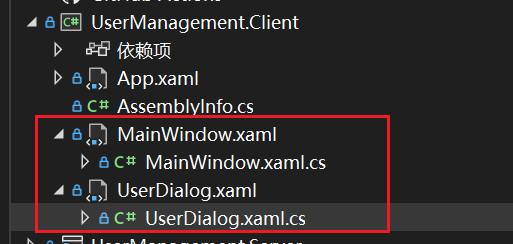
MainWindow.xaml
<Window x:Class="UserManagement.Client.MainWindow"
        xmlns="http://schemas.microsoft.com/winfx/2006/xaml/presentation"
        xmlns:x="http://schemas.microsoft.com/winfx/2006/xaml"
        Title="用户管理系统 - 客户端"
        Height="600"
        Width="900"
        WindowStartupLocation="CenterScreen"
        Background="#f0f0f0">

    <Window.Resources>
        <Style TargetType="Button">
            <Setter Property="Background" Value="#007ACC"/>
            <Setter Property="Foreground" Value="White"/>
            <Setter Property="Padding" Value="10,5"/>
            <Setter Property="Margin" Value="5"/>
            <Setter Property="BorderThickness" Value="0"/>
            <Setter Property="Cursor" Value="Hand"/>
        </Style>

        <Style TargetType="DataGrid">
            <Setter Property="Margin" Value="10"/>
            <Setter Property="IsReadOnly" Value="True"/>
            <Setter Property="AutoGenerateColumns" Value="False"/>
            <Setter Property="SelectionMode" Value="Single"/>
        </Style>
    </Window.Resources>

    <Grid>
        <Grid.RowDefinitions>
            <RowDefinition Height="Auto"/>
            <RowDefinition Height="*"/>
            <RowDefinition Height="Auto"/>
        </Grid.RowDefinitions>

        <!-- 标题区域 -->
        <Border Grid.Row="0" Background="#2D2D30" Padding="15">
            <StackPanel>
                <TextBlock Text="🐧 用户管理系统"
                          FontSize="28"
                          FontWeight="Bold"
                          Foreground="White"
                          HorizontalAlignment="Center"/>
                <TextBlock x:Name="txtConnectionStatus"
                          Text="正在连接服务器..."
                          Foreground="#CCCCCC"
                          HorizontalAlignment="Center"
                          Margin="0,5,0,0"/>
            </StackPanel>
        </Border>

        <!-- 操作区域 -->
        <Border Grid.Row="1" Background="White" Margin="10">
            <Grid>
                <Grid.RowDefinitions>
                    <RowDefinition Height="Auto"/>
                    <RowDefinition Height="*"/>
                </Grid.RowDefinitions>

                <!-- 操作按钮 -->
                <StackPanel Grid.Row="0" Orientation="Horizontal" Margin="10">
                    <Button x:Name="btnRefresh" Content="🔄 刷新用户列表" Click="BtnRefresh_Click" Width="120"/>
                    <Button x:Name="btnAdd" Content="➕ 添加用户" Click="BtnAdd_Click" Width="100"/>
                    <Button x:Name="btnEdit" Content="✏️ 编辑用户" Click="BtnEdit_Click" Width="100"/>
                    <Button x:Name="btnDelete" Content="🗑️ 删除用户" Click="BtnDelete_Click" Width="100" Background="#D9534F"/>
                    <TextBlock x:Name="txtUserCount" Text="用户数量: 0" Margin="20,0,0,0" VerticalAlignment="Center" FontWeight="Bold"/>
                </StackPanel>

                <!-- 用户列表 -->
                <DataGrid x:Name="dgUsers"
                         Grid.Row="1"
                         AutoGenerateColumns="False"
                         SelectionChanged="DgUsers_SelectionChanged">
                    <DataGrid.Columns>
                        <DataGridTextColumn Header="🔢 ID" Binding="{Binding Id}" Width="60"/>
                        <DataGridTextColumn Header="👤 姓名" Binding="{Binding Name}" Width="120"/>
                        <DataGridTextColumn Header="📧 邮箱" Binding="{Binding Email}" Width="200"/>
                        <DataGridTextColumn Header="🎂 年龄" Binding="{Binding Age}" Width="60"/>
                        <DataGridTextColumn Header="🆔 用户ID" Binding="{Binding Id}" Width="80"/>
                    </DataGrid.Columns>
                </DataGrid>
            </Grid>
        </Border>

        <!-- 状态栏 -->
        <StatusBar Grid.Row="2" Background="#E0E0E0">
            <StatusBarItem>
                <TextBlock x:Name="txtStatus" Text="就绪" FontWeight="Bold"/>
            </StatusBarItem>
            <Separator/>
            <StatusBarItem>
                <TextBlock x:Name="txtServerStatus" Text="服务器: 未连接"/>
            </StatusBarItem>
            <Separator/>
            <StatusBarItem>
                <TextBlock Text="API地址: https://localhost:7007"/>
            </StatusBarItem>
        </StatusBar>
    </Grid>
</Window>
MainWindow.xaml.cs
using System;
using System.Collections.Generic;
using System.Net.Http;
using System.Text;
using System.Text.Json;
using System.Windows;
using System.Windows.Controls;

namespace UserManagement.Client
{
    public partial class MainWindow : Window
    {
        private readonly HttpClient _httpClient;
        private const string BaseUrl = "https://localhost:7007/api/user";

        public MainWindow()
        {
            InitializeComponent();

            // 配置HTTP客户端,忽略SSL证书验证(仅开发环境)
            var handler = new HttpClientHandler();
            handler.ServerCertificateCustomValidationCallback = (message, cert, chain, errors) => true;
            _httpClient = new HttpClient(handler);

            // 设置超时时间
            _httpClient.Timeout = TimeSpan.FromSeconds(30);

            // 程序启动时加载用户列表
            Loaded += async (s, e) => await LoadUsers();
        }

        private async System.Threading.Tasks.Task LoadUsers()
        {
            try
            {
                txtStatus.Text = "🔄 正在加载用户数据...";
                txtServerStatus.Text = "服务器: 连接中...";

                var response = await _httpClient.GetAsync(BaseUrl);
                response.EnsureSuccessStatusCode();

                var json = await response.Content.ReadAsStringAsync();
                var users = JsonSerializer.Deserialize<List<User>>(json,
                    new JsonSerializerOptions { PropertyNameCaseInsensitive = true });

                dgUsers.ItemsSource = users;
                txtUserCount.Text = $"用户数量: {users?.Count ?? 0}";
                txtStatus.Text = "✅ 数据加载完成";
                txtServerStatus.Text = "服务器: 已连接";
                txtConnectionStatus.Text = $"✅ 已连接到服务器 - 共 {users?.Count ?? 0} 个用户";
            }
            catch (Exception ex)
            {
                txtStatus.Text = "❌ 加载失败";
                txtServerStatus.Text = "服务器: 连接失败";
                txtConnectionStatus.Text = "❌ 无法连接到服务器,请确保服务器正在运行";

                MessageBox.Show($"加载用户失败: {ex.Message}\n\n请检查:\n1. 服务器是否启动\n2. 网络连接是否正常",
                    "连接错误", MessageBoxButton.OK, MessageBoxImage.Error);
            }
        }

        private void BtnRefresh_Click(object sender, RoutedEventArgs e)
        {
            _ = LoadUsers(); // 使用丢弃操作符避免警告
        }

        private void DgUsers_SelectionChanged(object sender, SelectionChangedEventArgs e)
        {
            // 可以在这里添加选择改变的逻辑
        }

        private async void BtnAdd_Click(object sender, RoutedEventArgs e)
        {
            var dialog = new UserDialog();
            if (dialog.ShowDialog() == true)
            {
                try
                {
                    var user = dialog.User;
                    var json = JsonSerializer.Serialize(user);
                    var content = new StringContent(json, Encoding.UTF8, "application/json");

                    var response = await _httpClient.PostAsync(BaseUrl, content);
                    response.EnsureSuccessStatusCode();

                    MessageBox.Show("✅ 用户添加成功!", "成功",
                        MessageBoxButton.OK, MessageBoxImage.Information);
                    await LoadUsers();
                }
                catch (Exception ex)
                {
                    MessageBox.Show($"❌ 添加用户失败: {ex.Message}", "错误",
                        MessageBoxButton.OK, MessageBoxImage.Error);
                }
            }
        }

        private async void BtnEdit_Click(object sender, RoutedEventArgs e)
        {
            if (dgUsers.SelectedItem is User selectedUser)
            {
                var dialog = new UserDialog(selectedUser);
                if (dialog.ShowDialog() == true)
                {
                    try
                    {
                        var user = dialog.User;
                        var json = JsonSerializer.Serialize(user);
                        var content = new StringContent(json, Encoding.UTF8, "application/json");

                        var response = await _httpClient.PutAsync($"{BaseUrl}/{user.Id}", content);
                        response.EnsureSuccessStatusCode();

                        MessageBox.Show("✅ 用户更新成功!", "成功",
                            MessageBoxButton.OK, MessageBoxImage.Information);
                        await LoadUsers();
                    }
                    catch (Exception ex)
                    {
                        MessageBox.Show($"❌ 更新用户失败: {ex.Message}", "错误",
                            MessageBoxButton.OK, MessageBoxImage.Error);
                    }
                }
            }
            else
            {
                MessageBox.Show("⚠️ 请先选择一个要编辑的用户", "提示",
                    MessageBoxButton.OK, MessageBoxImage.Warning);
            }
        }

        private async void BtnDelete_Click(object sender, RoutedEventArgs e)
        {
            if (dgUsers.SelectedItem is User selectedUser)
            {
                var result = MessageBox.Show(
                    $"⚠️ 确定要删除用户 [{selectedUser.Name}] 吗?\n此操作不可撤销!",
                    "确认删除",
                    MessageBoxButton.YesNo,
                    MessageBoxImage.Warning);

                if (result == MessageBoxResult.Yes)
                {
                    try
                    {
                        var response = await _httpClient.DeleteAsync($"{BaseUrl}/{selectedUser.Id}");
                        response.EnsureSuccessStatusCode();

                        MessageBox.Show("✅ 用户删除成功!", "成功",
                            MessageBoxButton.OK, MessageBoxImage.Information);
                        await LoadUsers();
                    }
                    catch (Exception ex)
                    {
                        MessageBox.Show($"❌ 删除用户失败: {ex.Message}", "错误",
                            MessageBoxButton.OK, MessageBoxImage.Error);
                    }
                }
            }
            else
            {
                MessageBox.Show("⚠️ 请先选择一个要删除的用户", "提示",
                    MessageBoxButton.OK, MessageBoxImage.Warning);
            }
        }
    }

    public class User
    {
        public int Id { get; set; }
        public string Name { get; set; }
        public string Email { get; set; }
        public int Age { get; set; }
    }
}
UserDialog.xaml
<Window x:Class="UserManagement.Client.UserDialog"
        xmlns="http://schemas.microsoft.com/winfx/2006/xaml/presentation"
        xmlns:x="http://schemas.microsoft.com/winfx/2006/xaml"
        Title="用户信息"
        Height="300"
        Width="400"
        WindowStartupLocation="CenterOwner"
        ResizeMode="NoResize"
        Background="#f5f5f5">

    <Border Margin="20" Background="White" CornerRadius="5" Padding="20">
        <Grid>
            <Grid.RowDefinitions>
                <RowDefinition Height="Auto"/>
                <RowDefinition Height="Auto"/>
                <RowDefinition Height="Auto"/>
                <RowDefinition Height="*"/>
                <RowDefinition Height="Auto"/>
            </Grid.RowDefinitions>
            <Grid.ColumnDefinitions>
                <ColumnDefinition Width="Auto"/>
                <ColumnDefinition Width="*"/>
            </Grid.ColumnDefinitions>

            <TextBlock Text="👤 姓名:" Grid.Row="0" Grid.Column="0" Margin="0,0,10,10" VerticalAlignment="Center"/>
            <TextBox x:Name="txtName" Grid.Row="0" Grid.Column="1" Margin="0,0,0,10" Height="30" Padding="5"/>

            <TextBlock Text="📧 邮箱:" Grid.Row="1" Grid.Column="0" Margin="0,0,10,10" VerticalAlignment="Center"/>
            <TextBox x:Name="txtEmail" Grid.Row="1" Grid.Column="1" Margin="0,0,0,10" Height="30" Padding="5"/>

            <TextBlock Text="🎂 年龄:" Grid.Row="2" Grid.Column="0" Margin="0,0,10,10" VerticalAlignment="Center"/>
            <TextBox x:Name="txtAge" Grid.Row="2" Grid.Column="1" Margin="0,0,0,20" Height="30" Padding="5"/>

            <StackPanel Grid.Row="4" Grid.ColumnSpan="2" Orientation="Horizontal" HorizontalAlignment="Right">
                <Button x:Name="btnOk" Content="✅ 确定" Width="80" Margin="0,0,10,0" Click="BtnOk_Click" Background="#5CB85C"/>
                <Button x:Name="btnCancel" Content="❌ 取消" Width="80" Click="BtnCancel_Click" Background="#D9534F"/>
            </StackPanel>
        </Grid>
    </Border>
</Window>
UserDialog.xaml.cs
using System.Windows;

namespace UserManagement.Client
{
    public partial class UserDialog : Window
    {
        public User User { get; private set; }

        public UserDialog(User user = null)
        {
            InitializeComponent();

            if (user != null)
            {
                User = user;
                txtName.Text = user.Name;
                txtEmail.Text = user.Email;
                txtAge.Text = user.Age.ToString();
                Title = "✏️ 编辑用户信息";
            }
            else
            {
                User = new User();
                Title = "➕ 添加新用户";
            }
        }

        private void BtnOk_Click(object sender, RoutedEventArgs e)
        {
            if (string.IsNullOrWhiteSpace(txtName.Text))
            {
                MessageBox.Show("请输入用户姓名", "验证错误", MessageBoxButton.OK, MessageBoxImage.Warning);
                txtName.Focus();
                return;
            }

            if (string.IsNullOrWhiteSpace(txtEmail.Text) || !txtEmail.Text.Contains("@"))
            {
                MessageBox.Show("请输入有效的邮箱地址", "验证错误", MessageBoxButton.OK, MessageBoxImage.Warning);
                txtEmail.Focus();
                return;
            }

            if (!int.TryParse(txtAge.Text, out int age) || age < 1 || age > 150)
            {
                MessageBox.Show("请输入有效的年龄(1-150)", "验证错误", MessageBoxButton.OK, MessageBoxImage.Warning);
                txtAge.Focus();
                return;
            }

            User.Name = txtName.Text.Trim();
            User.Email = txtEmail.Text.Trim();
            User.Age = age;

            DialogResult = true;
            Close();
        }

        private void BtnCancel_Click(object sender, RoutedEventArgs e)
        {
            DialogResult = false;
            Close();
        }
    }
}
这样服务器端和客户端的简单代码都写好了。
不过要是启动的话,还需要配置启动顺序,要先启动服务器,再启动客户端
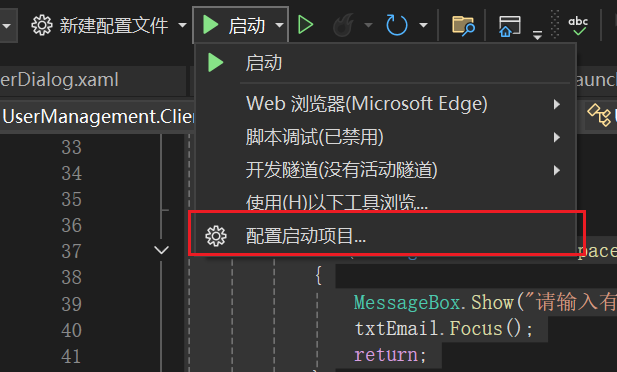
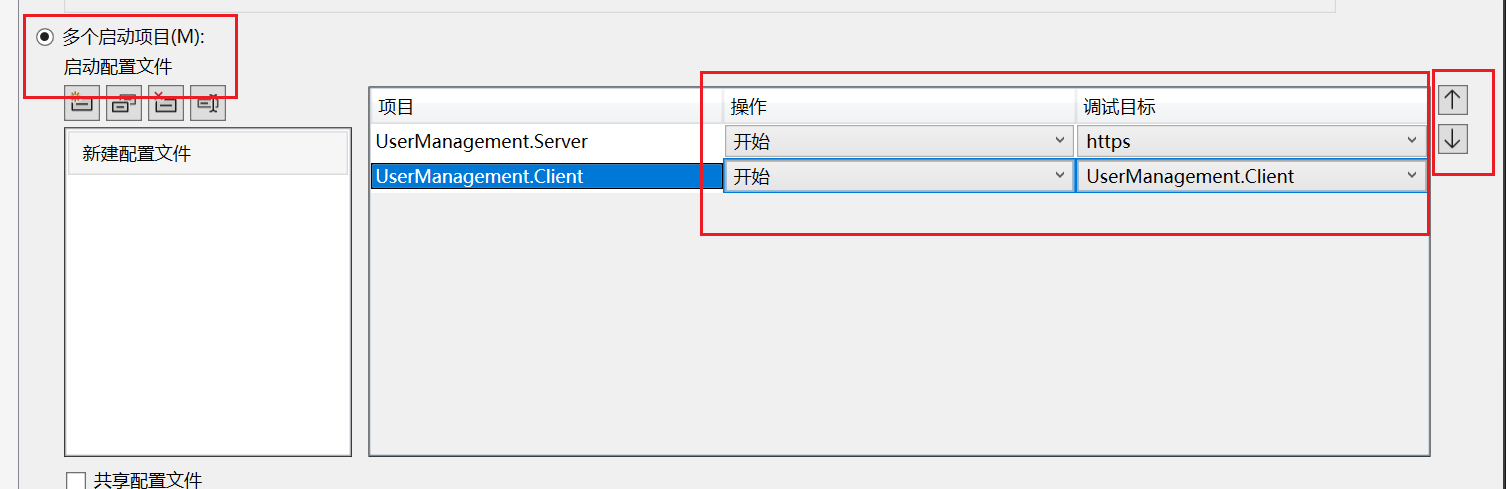
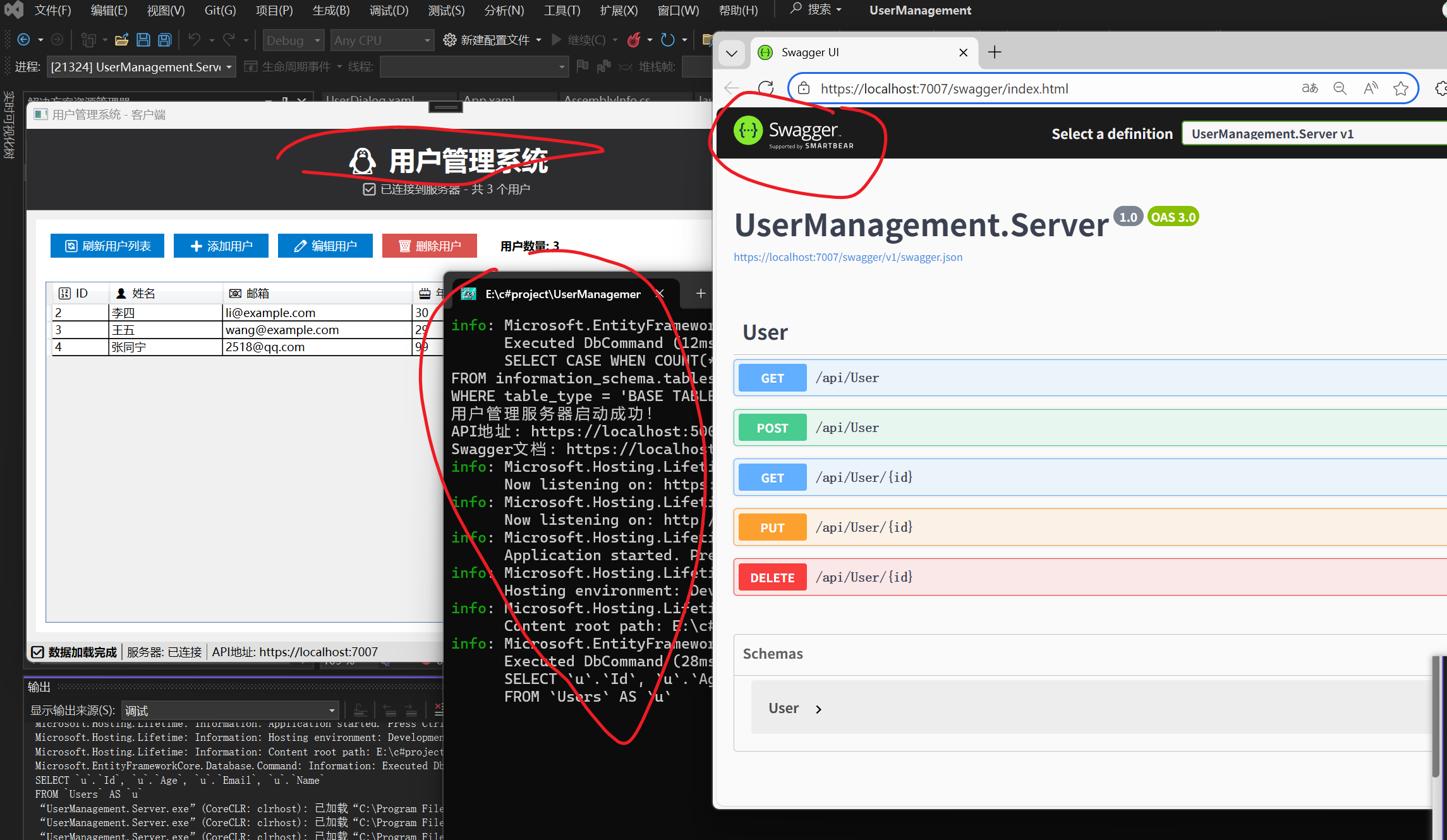
配置完以后点启动。启动后会弹出三个窗口。
一个是客户端窗口
一个是服务器日志
还有一个是所有接口的界面,类似postman,可以调试接口通不通

 浙公网安备 33010602011771号