


HTML+CSS
HTML + CSS
一、html标签
标题标签 <h1><h6>
段落标签 <p></p>
无序标签 <ul><li></li></ul> 有序列表 <ol><li></li></ol>
超链接标签 <a href=""></a>
图片标签 <img src="" alt="">
div标签 <div></div>
span标签 <span></span>
二、表格元素
<table border="1">
    <thead>
    	<th>序号</th>
        <th>姓名</th>
        <th>年龄</th>
    </thead>
    <tbody>
    	<tr>
        	<td>1</td>
            <td>小红</td>
            <td>2</td>
        </tr>
        <tr>
        	<td>2</td>
            <td>小明</td>
            <td>3</td>
        </tr>
         <tr>
        	<td>3</td>
            <td>小亮</td>
            <td>5</td>
        </tr>
    </tbody>
</table>
合并单元格
<!-->横向合并<-->
<table border="1">
    <tr>
    	<td colspan="3">学生列表</td>
    </tr>
    <tr>
    	<td>1</td>
        <td>小红</td>
        <td>2</td>
    </tr>
    <tr>
    	<td>2</td>
        <td>小亮</td>
        <td>3</td>
    </tr>
    <tr>
    	<td>3</td>
        <td>小明</td>
        <td>5</td>
    </tr>
</table>

<!-->纵向合并<-->
<table border="1">
    <tr>
        <td rowspan="3">1班</td>
    	<td>1</td>
        <td>小红</td>
        <td>2</td>
    </tr>
    <tr>
    	<td>2</td>
        <td>小亮</td>
        <td>3</td>
    </tr>
    <tr>
    	<td>3</td>
        <td>小明</td>
        <td>5</td>
    </tr>
</table>
三、表单元素
<form action="">
    <lable></lable>
    <input type="text" placeholder="用户名">
    <input type="password" placeholder="密码">
    <input type="radio">	<!-->单选框<-->
    <input type="checkout">	<!-->多选框<-->
    <select>
        <option></option>
        ......
    </select>
    <input type="submit" value="登录">
    <input type="button" value="按钮">
</form>
四、html元素的分类
块元素:可以设置宽度和高度,独立成行。h1-6, p, div, ul, li
行内元素(内联元素,行级元素):不可以设置宽度和高度,不独立成行。a, span
行内块元素:可以设置宽度和高度,不独立成行。img, input, button
a{
    width:300px;
    height:100px;
    border:1px solid red;
    display:block;/*将a标签转换为块级元素*/
}
/*display属性*/
block;/*转换为块元素*/
inline;/*转换为行内元素*/
inline-block;/*转换为行内块元素*/
none;/*隐藏元素*/
CSS语法
<style>
选择器{
    属性名:属性值;
}
</style>
一、常用的CSS选择器
元素选择器:h1,img,p
类选择器: .className
id选择器: #id
通配符选择器: *
二、更多选择器
层级选择器:selector1 selector2
组合选择器:selector1,selector2
伪类选择器(增加行为):selector:hover
伪元素选择器(增加元素):selector::before (元素之前加内容), selector::after(元素之后加内容)
h1::before,h1::after{
    content:"-----------"
}
三、选择器权重
相同选择器:后面的会覆盖前面的
不同选择器:ID(100)>class(10)>element(1)
层级选择器:按权重累加计算
<style>
    /*10 + 100 = 110*/
    .box #txt{
        color:red;
    }
    /*100 + 1 = 101*/
    #box2 h1{
        color:blue;
    }

    /*设置最高权重*/
    !important
    #box2 h1{
        color:blue !important;/*设置为最高权重*/
    }
</style>

<div class="box" id="box2">
    <h1 class="title title2" id="txt">hello world</h1>
</div>
四、CSS属性
字体大小:font-size
字体颜色:color
宽度:width
高度:height
背景色:background-color
文本水平居中:text-align
文本行高(垂直居中):line-height
五、引入CSS的方法
嵌入样式:<style></style>
内联样式:<h1 style="color:red">hello world</h1>
外部样式:<link horf="style.css">
盒子模型
一、 盒子模型的CSS属性
边框:border-width;border-style;border-color;
外边框:margin(-top\ -right\ -bottom\ -left)
内边框:padding(-top\ -right\ -bottom\ -left)
*{
    margin:0px;
    padding:0px;
}
div{
    width:800px;
    height:300px;
    border:1px solid red;
    margin:0 auto;/*水平居中*/
    box-sizing:border-box;/*不改变盒子的大小*/
}
ul{
    list-style:inside;/*列表样式在边框之内*/
}
li{
    list-style:none;/*取消列表样式*/
}
a{
    text-decoration:none;/*去掉a标签的横线*/
}
二、浮动布局float
两个DIV在同一行显示(将元素设置为浮动元素【float】,块元素可以在同一行显示。)
浮动元素的特性:脱离文档流。
float:left;
清除浮动(clear:both)
/*伪元素清除浮动*/
.clear::before,.clear::after{
    content:"";
    display:block;
    clear:both;
}
三、CSS定位(position)
绝对定位:absolute;	(脱离文档流,默认参照物为浏览器视窗的左上角)
相对定位:relative;	(不脱离文档流,默认参照物为此元素原来位置)
固定定位:fixed;	(脱离文档流,默认参照物为浏览器视窗位置)

z-index:9;
设置Z轴(z-index)
值为整数,数值大则在前方显示。
四、HTML5新特性
布局元素相当于一个有语义的div

header:网页头部
nav:导航栏
aside:侧标栏
article:显示文章
section:布局的一部分
fooler:网页页脚

媒体元素属性
controls
autoplay
1、媒体元素
audio 音频
video 视频
2、媒体元素属性
controls 显示控制面板
autoplay 视频自动播放
muted 静音
<audio src="" controls></audio>
<video src="" controls autoplay muted></video><!-->自动播放必须设置静音<-->
五、CSS3新特性
1、边框圆角
border-radius:左上 右上 右下 左下
如果设置两个值,第一个值表示左上和右下,第二个值表示右上和左下
div{
    width:200px;
    height:200px;
    border:1px solid red;
    border-radius:20px;
}
2、阴影
box-shadow 10px 20px 30px blue;
参数分别表示:X轴偏移量,Y轴偏移量,模糊半径,阴影颜色(不设置颜色为黑色)
div{
    width:200px;
    height:200px;
    background-color:red;
    box-shadow:10px 20px 30px blue;
}
3、形变:旋转、缩放、位移
transform:
	rotate(45deg);旋转	deg单位表示角度
	scale(0.5);缩放	按照倍数缩放
	translate(50px,100px);位移	横坐标50px,纵坐标100px
同时实现旋转和位移
transform:rotate(45deg) translate(50px,100px);
4、过度效果
transition-property	过度函数(例如transform)
transition-duration	过度持续时间(例如1S)
transition-timing-function	过度函数
transition-delay	过度延迟时间

transition-origin	设置旋转过度原点(默认为中心)

简写:
transition:属性 秒数 函数 延迟;
transition:transform 1s ease 1s;

同时形变多个变量:
transition:transform 1s,width 1s,height 1s;

过度函数:
ease:开始和结束慢,中间快。默认值
linear:匀速
ease-in:开始慢
ease-out:结束慢
ease-in-out:和ease类似,但比ease幅度大
div{
    width:100px;
    height:100px;
    border:1px solid red;
    margin:0 auto;
    /*transition:transform 1s ease 1s;*/
    transition:transform 1s,width 1s,height 1s;
}
div:hover{
    transform:rotate(45deg);
    width:200px;
    height:200px;
}
5、动画效果
animation-name:	规定需要绑定到选择器的keyframe名称
animation-duration:	规定完成动画所花费的时间,以秒或毫秒计
animation-timing-function:	规定动画的速度曲线
animation-delay:	规定动画开始之前的延迟
animation-iteration-count:	规定动画应该播放的次数

简写:
animation:anim 2s linear 1s infinite;

停止动画:
animation-play-state:paused;

@keyframes anim{
    0%{
        transform:translate(0px,0px);
    }
    100%{
        transform:translate(900px,100px);
    }
}
6、flex布局
1、将元素设置为display:flex;元素会变为flex容器。
2、容器内部的元素为flex元素或者叫flex项目(flex-ietm)。
6.1 设置flex容器
flex-direction: 设置flex项目排列方向
justify-content: flex项目主轴排列方式
align-items: flex项目在交叉轴的排列方式
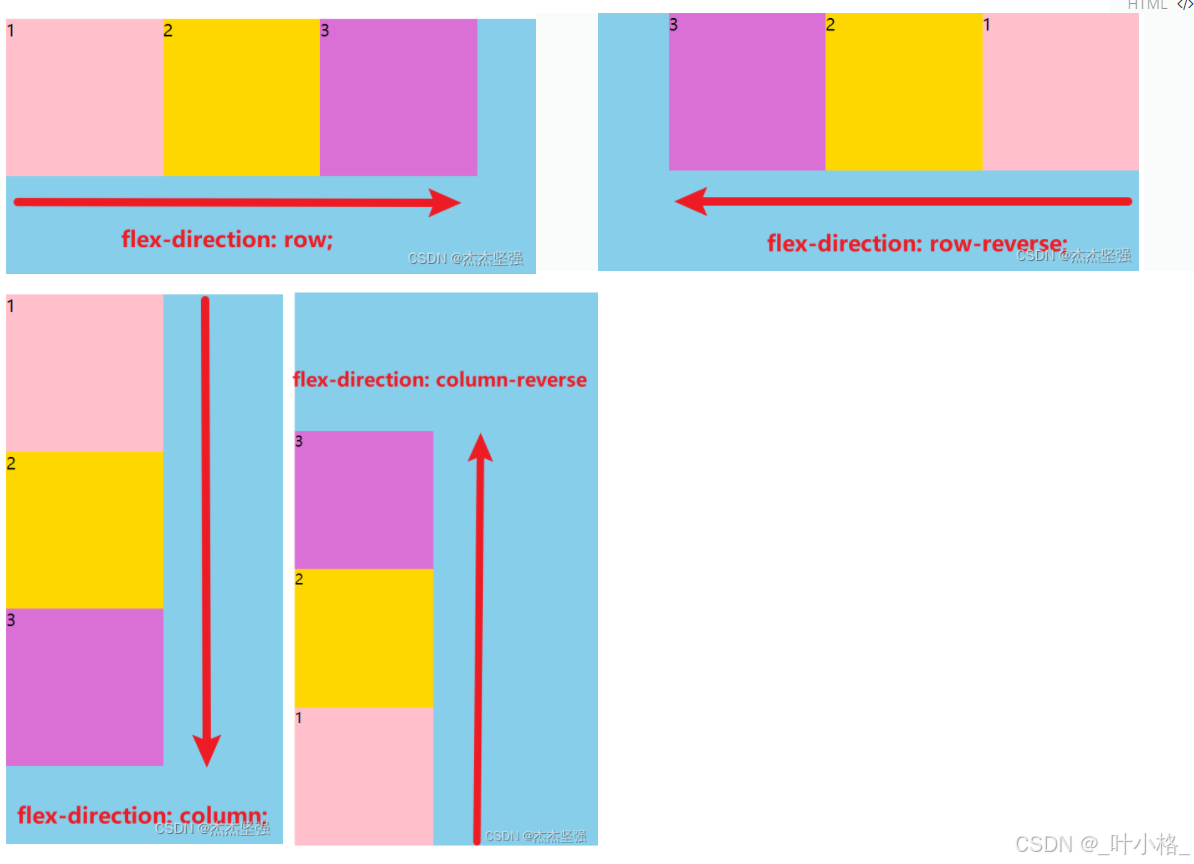
6.1.1 flex-direction
flex-direction:
	row;(默认值)	主轴为水平方向,起点在左端
	row-reverse;	主轴为水平方向,起点在右端
	column;	主轴为垂直方向,起点在上沿
	column-reverse;	主轴为垂直方向,起点在下沿
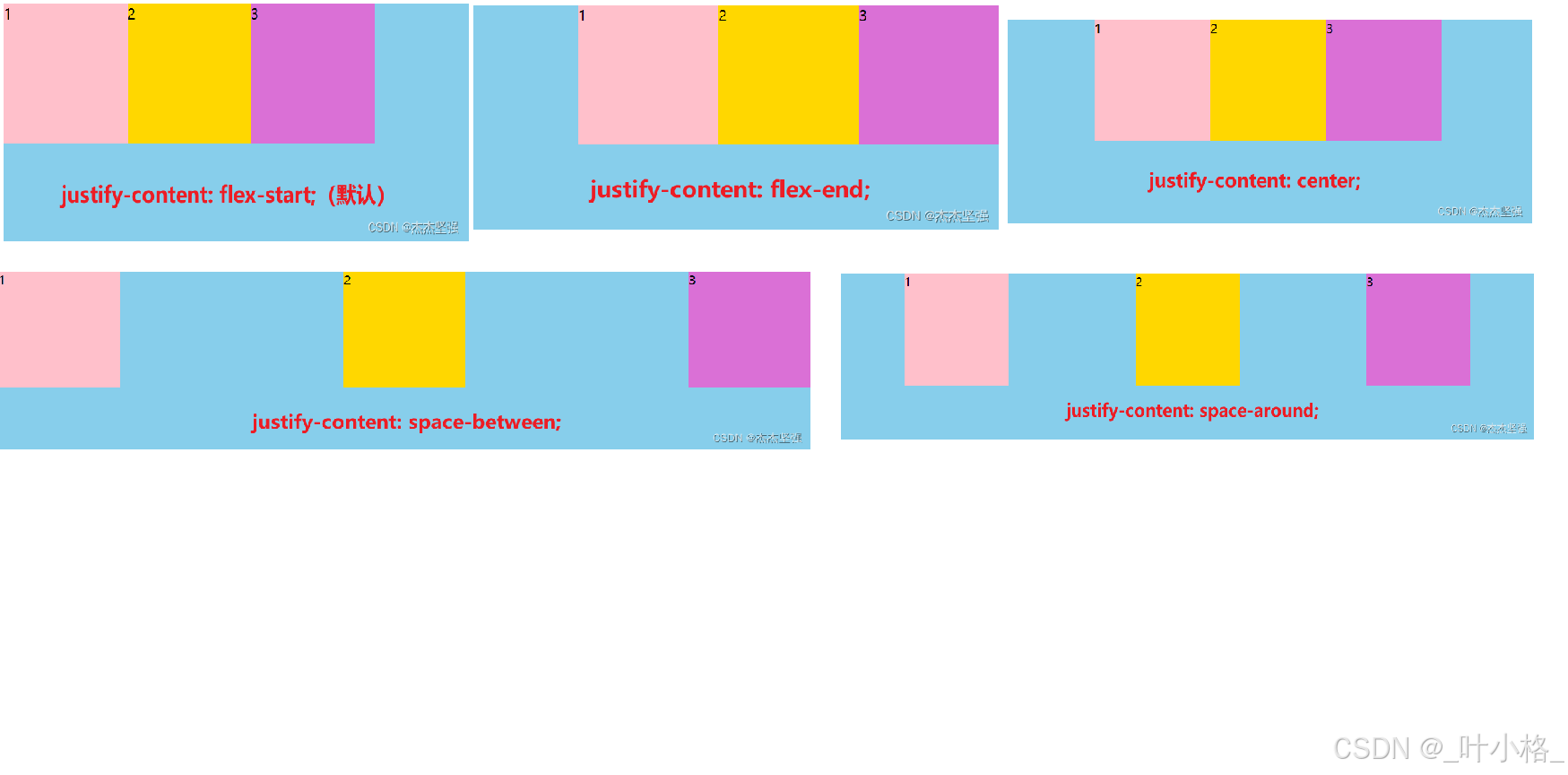
6.1.2 justify-content(容器水平对齐方式)
flex-start(默认值);	左对齐
flex-end;	右对齐
center;	居中
space-between;	两端对齐,项目之间的间隔都对齐
space-around;	每个项目两侧的间隔相等。所有,项目之间的间隔比项目与边框的间隔大一倍
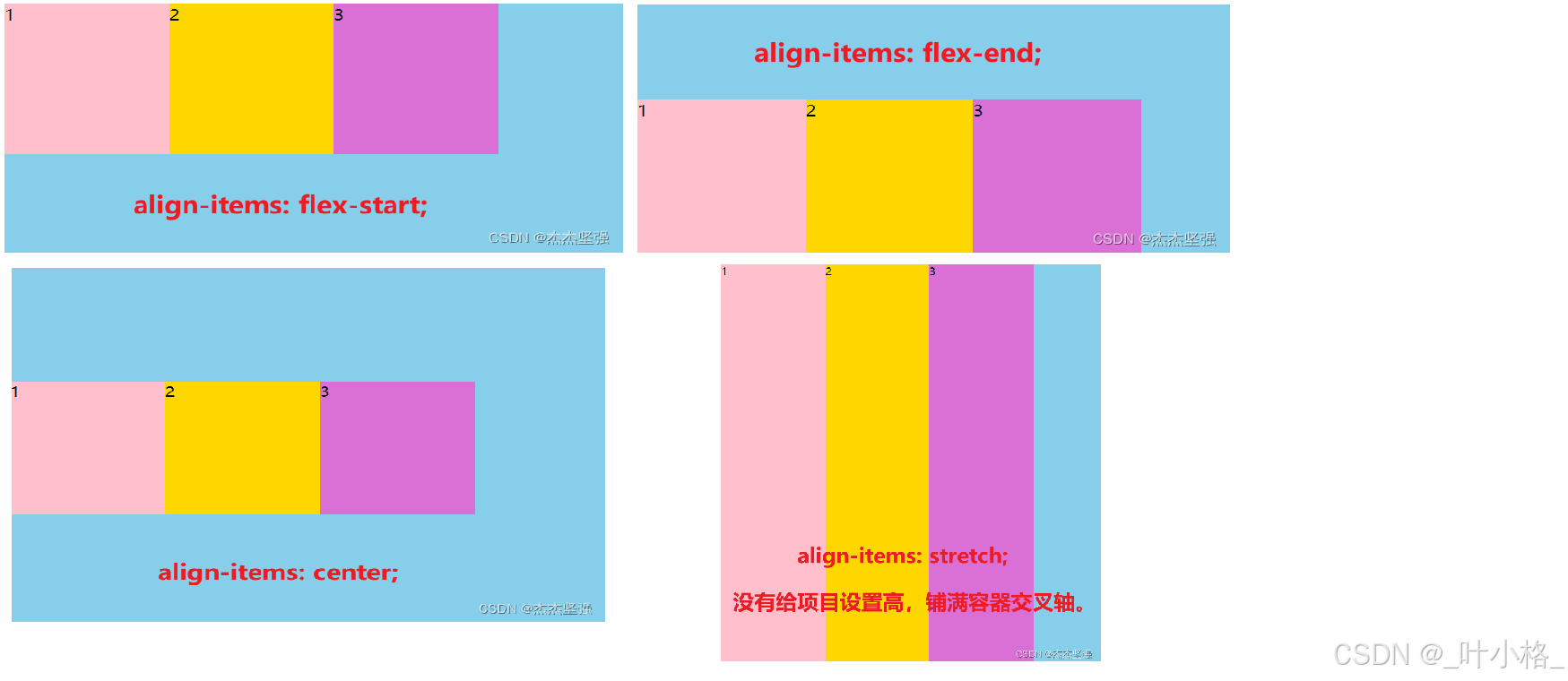
6.1.3 align-item(容器垂直对齐方式)
flex-start;	交叉轴的起点对齐
flex-end;	交叉轴的终点对齐
center;	交叉轴的中点对齐
stretch(延申)(默认值);如果项目未设置高度或设为auto,将占满整个容器的高度
6.2 设置flex项目
flex-grow; 属性定义项目的放大比例,默认为0,空间充足,等比例补全
flex-shrink; 定义了项目的缩小比例,默认为1,即如果空间不足,该项目将缩小
flex-basis; 主轴排列为宽度,交叉轴排列为高度,设置px,默认值是auto
flex; 综合上面的三个样式; flex:0 1 auto;
align-seif; flex项目的对齐方式(auto |flex-start | flex-end | center | baseline | stretch)
flex:1;	元素之间(等比)平均占位
align-seif:center;
7、grid布局
7.1 设置grid容器
div{
    display:grid;
    grid-template-columns:100px 100px 100px;/*列*/
    grid-template-rows:100px 100px 100px;/*行*/
}

div{
    display:grid;
    grid-template-columns:100px 1fr 2fr;/*比例*/
    grid-template-rows:100px 100px 100px;
}

grid-auto-flow:column;元素纵向排列
div{
    display:grid;
    grid-auto-flow:column;
    grid-template-columns:100px 100px 100px;
    grid-template-rows:100px 100px 100px;
}
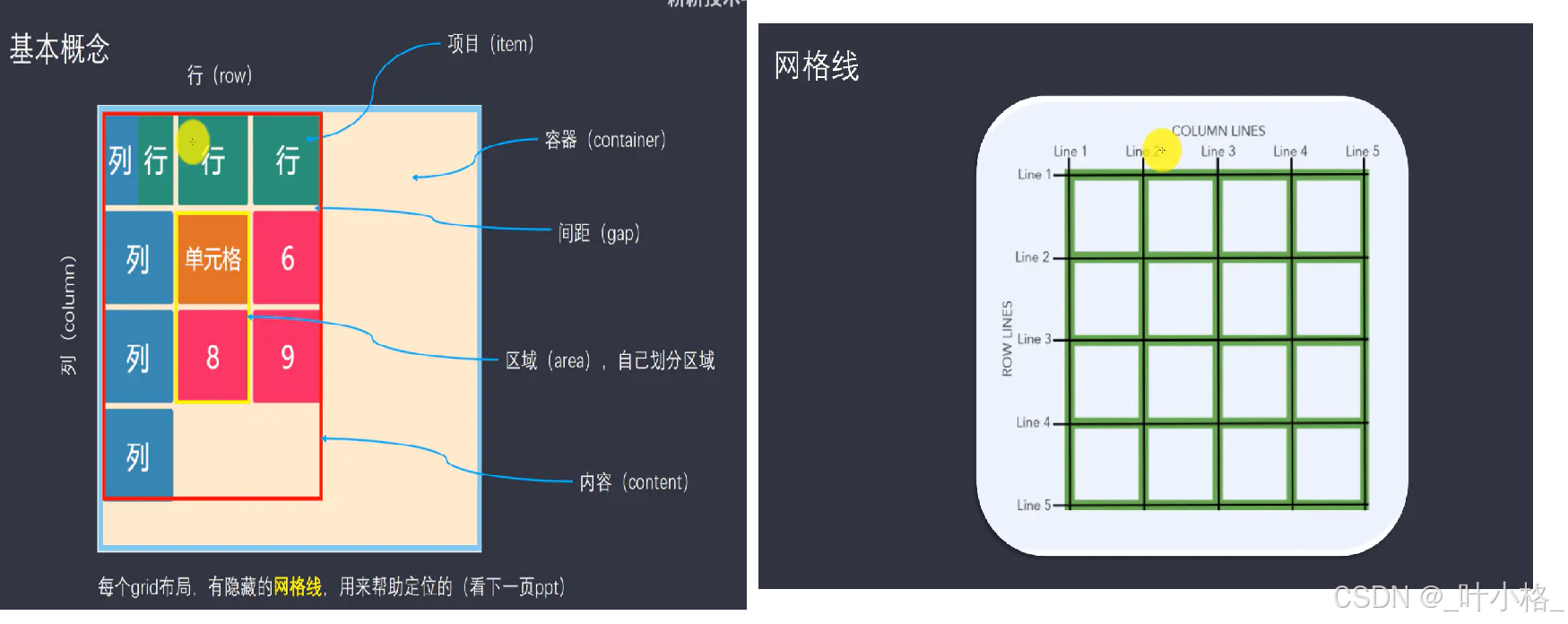
7.1.1 容器属性
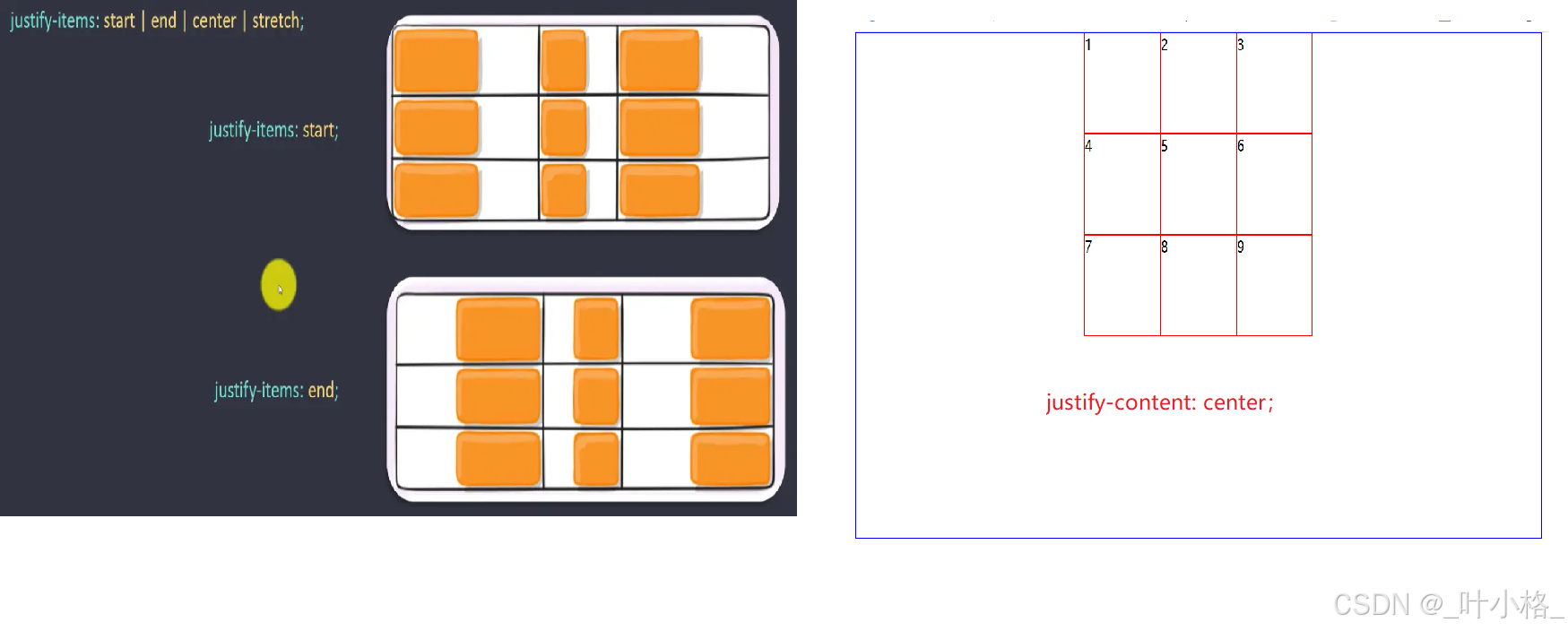
1.grid项目在单元格中的对齐方式
justify-items属性	grid项目在单元格中水平对齐方式
align-items属性	grid项目在单元格中垂直对齐方式

justify-items: start | end | center | stertch
align-items: start | end | center | stertch

2.单元格在整个grid容器中的对齐方式
justify-content属性	整个单元格在grid容器中水平对齐方式
align-content属性		整个单元格在grid容器中垂直对齐方式

justify-content: start | end | center | stertch
align-content: start | end | center | stertch

3.溢出单元格的尺寸
grid-auto-columns属性	行
grid-auto-rows属性	列
7.1.2 项目属性
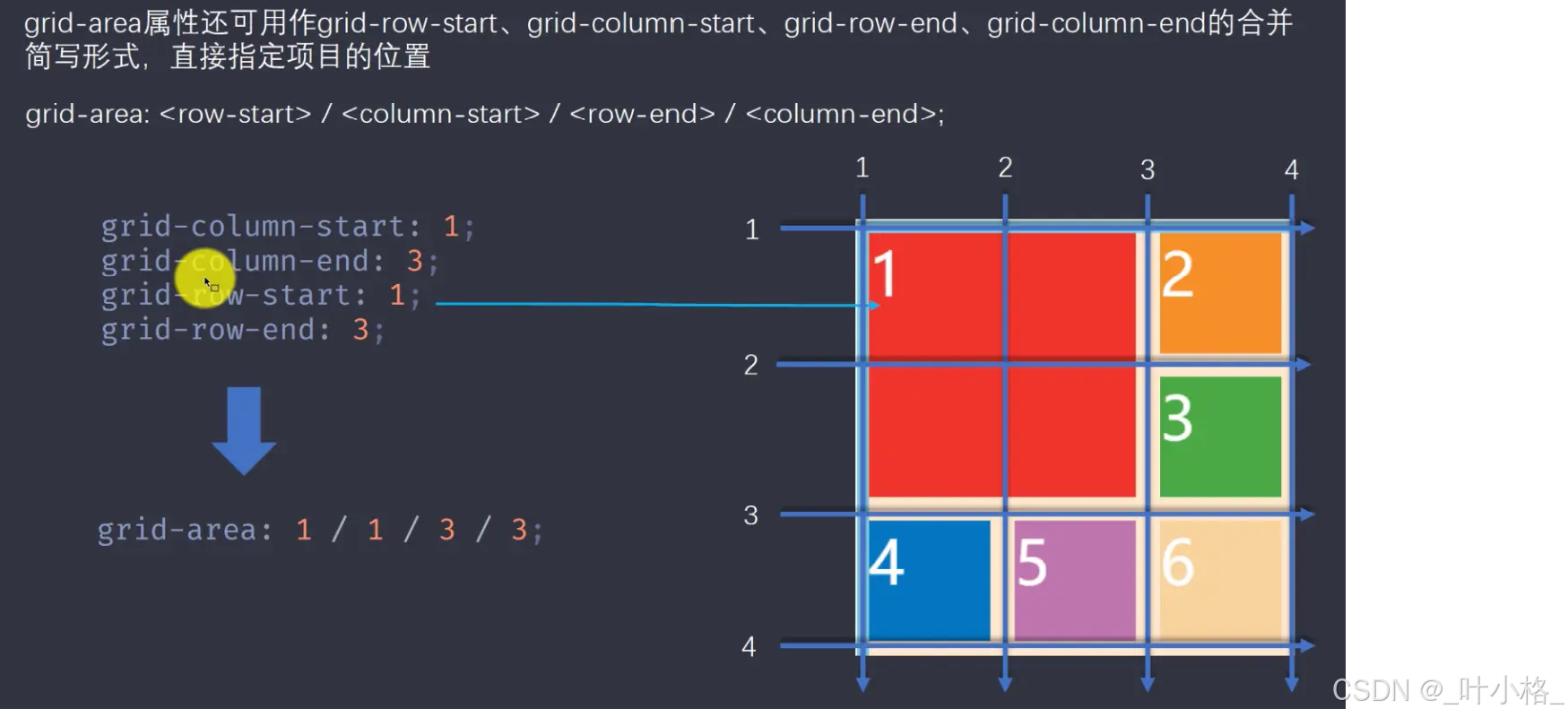
grid-column-start属性
grid-column-end属性
grid-column属性

grid-row-start属性
grid-row-end属性
grid-row属性

justify-self属性
align-self属性
实例:
div{
    display:grid;
    grid-template-columns:100px 100px 100px;/*列*/
    grid-template-rows:100px 100px 100px;/*行*/
    /*设置溢出行的尺寸*/
    grid-auto-columns:50px;
}
/*实现第一个项目占用两个单元格*/
.item{
    grid-column-start: 1;	开始线是1线
    grid-column-end: 3;		结束线是3线
    /*简写*/
    grid-column:1 / 3;		水平
    grid-row:1 / 3;			垂直
}
8、响应式布局
8.1 媒体查询
通过@media定义样式,浏览器窗口满足指定条件,才会应用此样式。
.box{
    width:200px;
    height:200px;
    background-color:red;
}
/*小于指定宽度,样式生效*/
@media screen and(max-width:600px){
    .box{
        background-color:yellow;
    }
}

/*设置多个条件*/
@media screen and(min-width:600px) and (max-width:900px){
    .box{
        background-color:blue;
    }
}
响应式页面的优点和缺点:
优点:一套页面适应多端设备,提高开发效率。
缺点:页面效果不单独为某一终端定制的页面效果;性能问题;维护成本提高;
总结:大部分项目不会整体采用响应式页面的解决方案
9、移动端尺寸
px;像素
em;相对于父级的font-size值
rem;相对于html标签的font-size值;html font-size:30px; 1rem代表30px; 10rem 代表300rem;

 浙公网安备 33010602011771号