
git 常用命令
git 常用命令
创建SSH Key
$ ssh-keygen -t rsa -C "youremail@example.com"
$ ssh -T git@github.com #测试是否成功
配置用户信息
$ git config --global user.name "Your Name"
$ git config --global user.email "email@example.com"
$ git config --list #查看配置的信息
$ git help config #获取帮助信息
$ git status #获取当前的状态,非常有用,因为git会提示接下来的能做的操作
配置自动换行(自动转换坑太大)
$ git config --global core.autocrlf input #提交到git是自动将换行符转换为lf
常用流程
$ git init #初始化
$ git status #获取状态
$ git add [file1] [file2] ... #.或*代表全部添加
$ git commit -m "message" #此处注意乱码
$ git remote add origin git@github.com:yanhaijing/test.git #添加源
$ git push -u origin master #push同时设置默认跟踪分支
仓库
在当前目录新建一个Git代码库
$ git init
新建一个目录,将其初始化为Git代码库
$ git init [project-name]
下载、克隆一个项目和它的整个代码历史
$ git clone [url]
下载、克隆某个分支
$ git clone -b [branch] [url]
克隆到自定义文件夹 - mypro
$ git clone git://github.com/schacon/grit.git mypro
增加/删除文件
添加指定文件到暂存区
$ git add [file1] [file2] ...
添加指定目录到暂存区,包括子目录
$ git add [dir]
添加当前目录的所有文件到暂存区
$ git add .
删除工作区文件,并且将这次删除放入暂存区
$ git rm [file1] [file2] ...
代码提交
提交暂存区到仓库区
$ git commit -m [message]
提交工作区自上次commit之后的变化,直接到仓库区
$ git commit -a
提交时显示所有diff信息
$ git commit -v
使用一次新的commit,替代上一次提交
如果代码没有任何新变化,则用来改写上一次commit的提交信息
$ git commit --amend -m [message]
重做上一次commit,并包括指定文件的新变化
$ git commit --amend [file1] [file2] ...
查看信息
显示有变更的文件
$ git status
显示当前分支的版本历史 commit信息
$ git log
显示commit历史,以及每次commit发生变更的文件
$ git log --stat
搜索提交历史,根据关键词
$ git log -S [keyword]
显示某个commit之后的所有变动,每个commit占据一行
$ git log [tag] HEAD --pretty=format:%s
显示某个commit之后的所有变动,其"提交说明"必须符合搜索条件
$ git log [tag] HEAD --grep feature
显示某个文件的版本历史,包括文件改名
$ git log --follow [file]
显示指定文件相关的每一次diff
$ git log -p [file]
显示过去5次提交
$ git log -5 --pretty --oneline
显示所有提交过的用户,按提交次数排序
$ git shortlog -sn
显示指定文件是什么人在什么时间修改过
$ git blame [file]
显示暂存区和工作区的差异
$ git diff
显示暂存区和上一个commit的差异
$ git diff --cached [file]
显示工作区与当前分支最新commit之间的差异
$ git diff HEAD
显示两次提交之间的差异
$ git diff [first-branch]...[second-branch]
显示某次提交的元数据和内容变化
$ git show [commit]
显示某次提交发生变化的文件
$ git show --name-only [commit]
显示某次提交时,某个文件的内容
$ git show [commit]:[filename]
显示当前分支的最近几次提交 - 显示最近操作的commit id
$ git reflog
分支
列出所有本地分支
$ git branch
列出所有远程分支
$ git branch -r
列出所有本地分支和远程分支
$ git branch -a
新建一个分支,但依然停留在当前分支
$ git branch [branch-name]
新建一个分支,并切换到该分支
$ git checkout -b [branch]
新建一个分支,指向指定commit
$ git branch [branch-name] [commit]
新建一个分支,与指定的远程分支建立追踪关系
$ git branch --track [branch] [remote-branch]
切换到指定分支,并更新工作区
$ git checkout [branch-name]
切换到上一个分支
$ git checkout -
建立追踪关系,在现有分支与指定的远程分支之间
$ git branch --set-upstream [branch] [remote-branch]
合并指定分支到当前分支
$ git merge [branch]
选择一个commit,合并进当前分支
$ git cherry-pick [commit]
git cherry-pick命令的作用,就是将指定的提交(commit)应用于其他分支。
Cherry pick 支持一次转移多个提交
git cherry-pick <HashA> <HashB>
删除分支
$ git branch -D [branch-name]
删除远程分支
$ git push origin --delete [branch-name]
标签
列出所有tag
$ git tag
新建一个tag在当前commit
$ git tag [tag]
新建一个tag在指定commit
$ git tag [tag] [commit]
删除本地tag
$ git tag -d [tag]
删除远程tag
$ git push origin :refs/tags/[tagName]
查看tag信息
$ git show [tag]
提交指定tag
$ git push [remote] [tag]
提交所有tag
$ git push [remote] --tags
新建一个分支,指向某个tag
$ git checkout -b [branch] [tag]
远程同步
下载远程仓库的所有变动
$ git fetch [remote]
显示所有远程仓库
$ git remote -v
显示某个远程仓库的信息
$ git remote show [remote]
删除指定远程
git remote rm origin
增加一个新的远程仓库,并命名
$ git remote add [shortname] [url]
取回远程仓库的变化,并与本地分支合并
$ git pull [remote] [branch]
允许不相关历史提交,并强制合并
$ git pull origin master --allow-unrelated-histories
上传本地指定分支到远程仓库
$ git push [remote] [branch]
强行推送当前分支到远程仓库,即使有冲突
$ git push [remote] --force
推送所有分支到远程仓库
$ git push [remote] --all
撤销
恢复暂存区的指定文件到工作区
$ git checkout [file]
恢复某个commit的指定文件到暂存区和工作区
$ git checkout [commit] [file]
恢复暂存区的所有文件到工作区
$ git checkout .
重置暂存区的指定文件,与上一次commit保持一致,但工作区不变
$ git reset [file]
重置暂存区与工作区,与上一次commit保持一致
$ git reset --hard
重置当前分支的指针为指定commit,同时重置暂存区,但工作区不变
$ git reset [commit]
重置当前分支的HEAD为指定commit,同时重置暂存区和工作区(彻底回退到某个版本),与指定commit一致
$ git reset --hard [commit]
重置当前HEAD为指定commit,但保持暂存区和工作区不变
$ git reset --keep [commit]
回退到某个版本,只回退了commit的信息,不会恢复到index file一级
$ git reset –-soft [comit]
新建一个commit,用来撤销指定commit
后者的所有变化都将被前者抵消,并且应用到当前分支
$ git revert [commit]
将没有提交的内容缓存并移除,而这条缓存名称为最新一次提交的commit -m的内容,如果没有本地提交则是拉远程仓库是的commit内容
$ git stash
将[堆栈]中最新的内容pop出来应用到当前分支上,且会删除堆中的记录
$ git stash pop
忽略文件配置(.gitignore)
1、配置语法:
以斜杠“/”开头表示目录;
以星号“*”通配多个字符;
以问号“?”通配单个字符
以方括号“[]”包含单个字符的匹配列表;
以叹号“!”表示不忽略(跟踪)匹配到的文件或目录;
此外,git 对于 .ignore 配置文件是按行从上到下进行规则匹配的,意味着如果前面的规则匹配的范围更大,则后面的规则将不会生效;
2、示例:
(1)规则:fd1/*
说明:忽略目录 fd1 下的全部内容;注意,不管是根目录下的 /fd1/ 目录,还是某个子目录 /child/fd1/ 目录,都会被忽略;
(2)规则:/fd1/*
说明:忽略根目录下的 /fd1/ 目录的全部内容;
(3)规则:
/*
!.gitignore
!/fw/bin/
!/fw/sf/
说明:忽略全部内容,但是不忽略 .gitignore 文件、根目录下的 /fw/bin/ 和 /fw/sf/ 目录;
图解
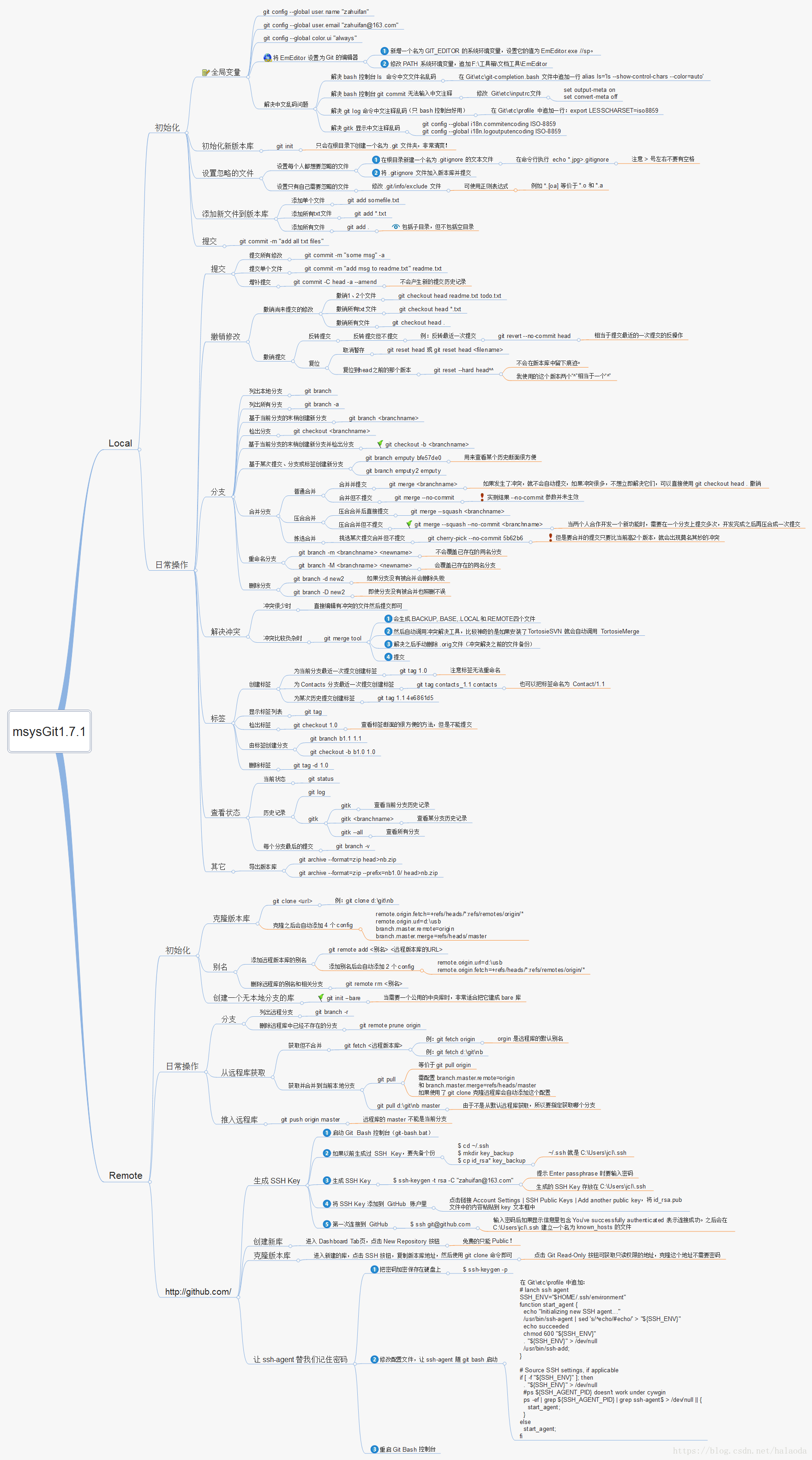
不常用到后缀
本地
$ git add * # 跟踪新文件
$ git add -u [path] # 添加[指定路径下]已跟踪文件

rm *&git rm * # 移除文件
$ git rm -f * # 移除文件
$ git rm --cached * # 停止追踪指定文件,但该文件会保留在工作区
$ git mv file_from file_to # 重命名跟踪文件

$ git log # 查看提交记录

$ git commit # 提交更新
$ git commit [file1] [file2] ... # 提交指定文件
$ git commit -m 'message'
$ git commit -a # 跳过使用暂存区域,把所有已经跟踪过的文件暂存起来一并提交
$ git commit --amend#修改最后一次提交
$ git commit -v # 提交时显示所有diff信息

$ git reset HEAD *#取消已经暂存的文件
$ git reset --mixed HEAD *#同上
$ git reset --soft HEAD *#重置到指定状态,不会修改索引区和工作树
$ git reset --hard HEAD *#重置到指定状态,会修改索引区和工作树
$ git reset -- files#重置index区文件

$ git revert HEAD #撤销前一次操作
$ git revert HEAD~ #撤销前前一次操作
$ git revert commit ## 撤销指定操作

$ git checkout -- file#取消对文件的修改(从暂存区——覆盖worktree file)
$ git checkout branch|tag|commit -- file_name#从仓库取出file覆盖当前分支
$ git checkout -- .#从暂存区取出文件覆盖工作区

$ git diff file #查看指定文件的差异
$ git diff --stat #查看简单的diff结果
$ git diff #比较Worktree和Index之间的差异
$ git diff --cached #比较Index和HEAD之间的差异
$ git diff HEAD #比较Worktree和HEAD之间的差异
$ git diff branch #比较Worktree和branch之间的差异
$ git diff branch1 branch2 #比较两次分支之间的差异
$ git diff commit commit #比较两次提交之间的差异


$ git log #查看最近的提交日志
$ git log --pretty=oneline #单行显示提交日志
$ git log --graph # 图形化显示
$ git log --abbrev-commit # 显示log id的缩写
$ git log -num #显示第几条log(倒数)
$ git log --stat # 显示commit历史,以及每次commit发生变更的文件
$ git log --follow [file] # 显示某个文件的版本历史,包括文件改名
$ git log -p [file] # 显示指定文件相关的每一次diff

$ git stash #将工作区现场(已跟踪文件)储藏起来,等以后恢复后继续工作。
$ git stash list #查看保存的工作现场
$ git stash apply #恢复工作现场
$ git stash drop #删除stash内容
$ git stash pop #恢复的同时直接删除stash内容
$ git stash apply stash@{0} #恢复指定的工作现场,当你保存了不只一份工作现场时。
分支
$ git branch#列出本地分支
$ git branch -r#列出远端分支
$ git branch -a#列出所有分支
$ git branch -v#查看各个分支最后一个提交对象的信息
$ git branch --merge#查看已经合并到当前分支的分支
$ git branch --no-merge#查看为合并到当前分支的分支
$ git branch test#新建test分支
$ git branch branch [branch|commit|tag] # 从指定位置出新建分支
$ git branch --track branch remote-branch # 新建一个分支,与指定的远程分支建立追踪关系
$ git branch -m old new #重命名分支
$ git branch -d test#删除test分支
$ git branch -D test#强制删除test分支
$ git branch --set-upstream dev origin/dev #将本地dev分支与远程dev分支之间建立链接

$ git checkout test#切换到test分支
$ git checkout -b test#新建+切换到test分支
$ git checkout -b test dev#基于dev新建test分支,并切换

$ git merge test#将test分支合并到当前分支
$ git merge --squash test ## 合并压缩,将test上的commit压缩为一条

$ git cherry-pick commit #拣选合并,将commit合并到当前分支
$ git cherry-pick -n commit #拣选多个提交,合并完后可以继续拣选下一个提交

$ git rebase master#将master分之上超前的提交,变基到当前分支
$ git rebase --onto master 169a6 #限制回滚范围,rebase当前分支从169a6以后的提交
$ git rebase --interactive #交互模式
$ git rebase --continue# 处理完冲突继续合并
$ git rebase --skip# 跳过
$ git rebase --abort# 取消合并
远端
$ git fetch origin remotebranch[:localbranch]# 从远端拉去分支[到本地指定分支]

$ git merge origin/branch#合并远端上指定分支

$ git pull origin remotebranch:localbranch# 拉去远端分支到本地分支

$ git push origin branch#将当前分支,推送到远端上指定分支
$ git push origin localbranch:remotebranch#推送本地指定分支,到远端上指定分支
$ git push origin :remotebranch # 删除远端指定分支
$ git push origin remotebranch --delete # 删除远程分支
$ git branch -dr branch # 删除本地和远程分支
$  git checkout -b [--track] test origin/dev#基于远端dev分支,新建本地test分支[同时设置跟踪]
源
$ git remote rename origin1 origin2#重命名

$ git remote rm origin#删除

$ git remote show origin#查看指定源的全部信息
合并
https://blog.csdn.net/qq_24147051/article/details/118050241
41个Git 命令备忘清单
1、初始化本地仓库
git init <directory>
2.克隆一个远程仓库
git clone <url>
3.添加文件到暂存区
git add <file>
要添加当前目录中的所有文件,请使用 . 代替
git add .
4. 提交更改
git commit -m "<message>"
如果要添加对跟踪文件所做的所有更改并提交。
git commit -a -m "<message>"

# or

git commit -am "<message>"
5.从暂存区删除一个文件
git reset <file>
6.移动或重命名文件
git mv <current path> <new path>
7. 从存储库中删除文件
git rm <file>
您也可以仅使用 --cached 标志将其从暂存区中删除
git rm --cached <file>
13. 显示分支
git branch
有用的标志:
-a:显示所有分支(本地和远程)
-r:显示远程分支
-v:显示最后一次提交的分支
14.创建一个分支
你可以创建一个分支并使用 checkout 命令切换到它。
git checkout -b <branch>
15.切换到一个分支
git checkout <branch>
16.删除一个分支
git branch -d <branch>
您还可以使用 -D 标志强制删除分支。
git branch -D <branch>
17.合并分支
git merge <branch to merge into HEAD>
快进合并
非快进合并
建议不要使用 --squash 标志,因为它会将所有提交压缩为单个提交,从而导致提交历史混乱。
18. 变基分支
变基是将一系列提交移动或组合到新的基本提交的过程。
git rebase <branch to rebase from>
19. 查看之前的提交
git checkout <commit id>
20. 恢复提交
git revert <commit id>
21. 重置提交
git reset <commit id>
您还可以添加 --hard 标志来删除所有更改,彻底回退到某个版本,本地的源码也会变为上一个版本的内容,所有修改的内容都会丢失, 但请谨慎使用。
git reset --hard <commit id>
回退到某个版本,只回退了commit的信息,如果还要提交,直接commit即可,会报错代码
git reset --soft <commit id>
22.查看存储库的状态
git status
23.显示提交历史
git log
24.显示对未暂存文件的更改
git diff
您还可以使用 --staged 标志来显示对暂存文件的更改。
git diff --staged
25.显示两次提交之间的变化
git diff <commit id 01> <commit id 02>
26. 存储更改
stash 允许您在不提交更改的情况下临时存储更改。
git stash
您还可以将消息添加到存储中。
git stash save "<message>"
27. 列出存储
git stash list
28.申请一个藏匿处
应用存储不会将其从存储列表中删除。
git stash apply <stash id>
如果不指定
您还可以使用格式 stash@{
git stash apply stash@{0}
29.删除一个藏匿处
git stash drop <stash id>
30.删除所有藏匿处
git stash clear
31. 应用和删除存储
git stash pop <stash id>
32.显示存储中的更改
git stash show <stash id>
33.添加远程仓库
git remote add <remote name> <url>
34. 显示远程仓库
git remote
添加 -v 标志以显示远程存储库的 URL。
git remote -v
35.删除远程仓库
git remote remove <remote name>
36.重命名远程存储库
git remote rename <old name> <new name>
37. 从远程存储库中获取更改
git fetch <remote name>
38. 从特定分支获取更改
git fetch <remote name> <branch>
39. 从远程存储库中拉取更改
git pull <remote name> <branch>
40.将更改推送到远程存储库
git push <remote name>
41.将更改推送到特定分支
git push <remote name> <branch>

 浙公网安备 33010602011771号