
内网测速
内网测速
写在前面
为什么要部署?
目的很实际:
- 排查“内网很卡但公网正常”的问题
- 验证专线、跨机房链路、VPN 质量
- 给应用(对象存储、数据库同步、CI 拉代码)提供基线数据
- 评估扩容或调整 QoS 是否有效
小公司可能就一台 iPerf 服务器对付;中大型互联网公司几乎都会有专门的内网测速点和监控大盘。
部署建议
互联网企业(尤其是有多机房、多办公区、大量东西向流量的公司)内网测速是日常运维的一部分,不会只靠公网 Speedtest。
常见做法:
- 在核心机房或主要办公区部署 iPerf3 服务端(最普遍),员工或运维直接 iperf3 -c 测带宽、抖动。
- 自己搭一套简易测速页(类似内部版 Speedtest),测到指定机房的上下行。
- 用 Prometheus + node_exporter / blackbox_exporter 持续采集延迟、丢包、带宽利用率。
- 大厂还会有自研平台,把测速结果和交换机/防火墙流量、ACL、QoS 策略对上。
相关注意事项
- 单流 TCP 在万兆以上经常跑不满,要用多流
- CPU 弱的机器会成为瓶颈,看起来像网卡慢
- 先有线测基线,再测 Wi-Fi,才能分清是交换机问题还是无线问题
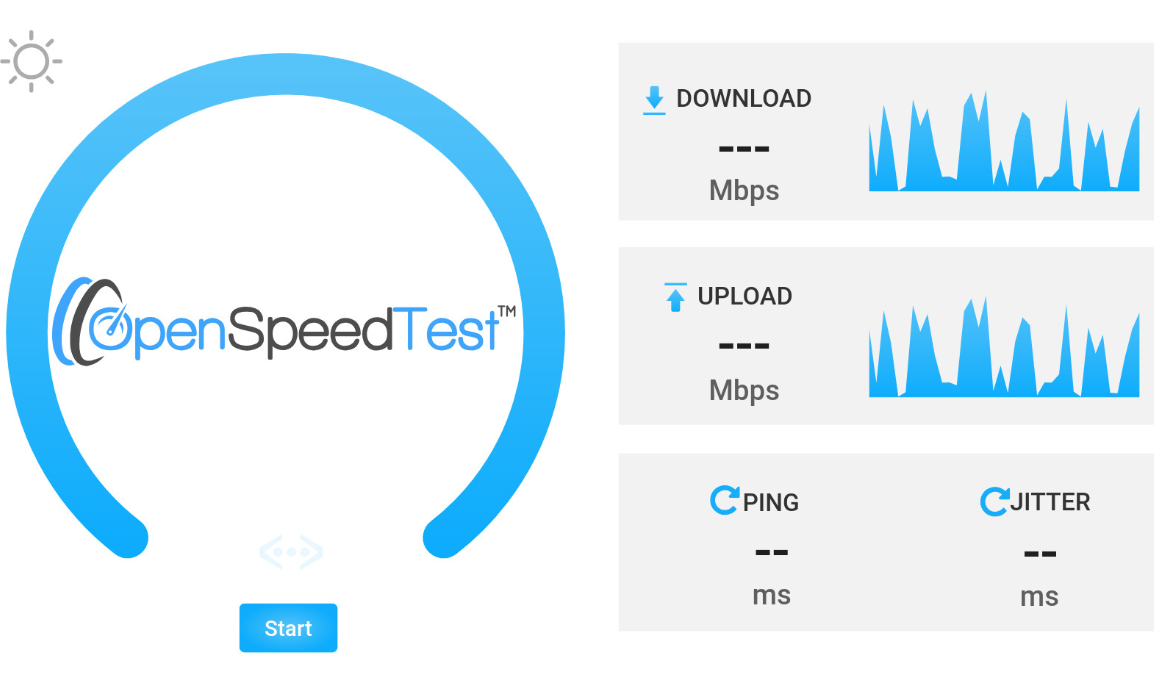
OpenSpeedTest
优点:
- 服务端容器部署
- 客户端直接使用浏览器即可测试
# 项目地址
https://openspeedtest.com/
注意事项
- 测的是浏览器到这台服务器的速度,不是到公网。服务器尽量放到你要测的那台核心机/NAS 上。
- 精度和极限带宽不如 iperf3。千兆够用;5G/10G 会受浏览器、单连接、HTTP 限制,结果往往偏低
- Windows 防火墙 / 安全组要放行 3000(或你映射的端口)。
服务端部署
docker run --restart=unless-stopped --name openspeedtest -d -p 3000:3000 -p 3001:3001 openspeedtest/latest
# docker-compose docker compose up -d
version: "3.3"
services:
  speedtest:
    image: openspeedtest/latest
    container_name: openspeedtest
    restart: unless-stopped
    ports:
      - "3000:3000"
      - "3001:3001"
WIN客户端测试
然后内网其他设备浏览器访问:
- HTTP:http://服务器IP:3000
- HTTPS:https://服务器IP:3001(自签证书,浏览器会提示不安全,内网一般用 3000 即可)
iperf3
优点
- 更精确
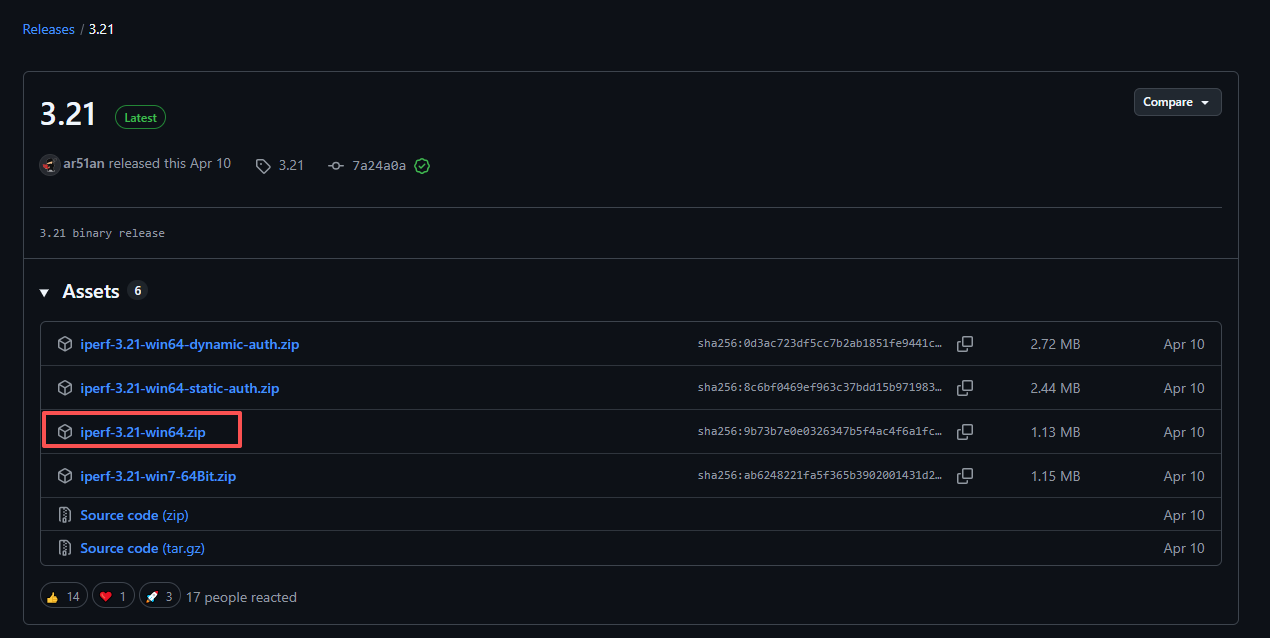
# 项目地址
https://github.com/ar51an/iperf3-win-builds/releases/tag/3.21
常用参数
iperf3.exe -c 192.168.1.10 -t 30
iperf3.exe -c 192.168.1.10 -R
iperf3.exe -c 192.168.1.10 --bidir
iperf3.exe -c 192.168.1.10 -P 8
iperf3.exe -c 192.168.1.10 -p 5202
# 指定单位为MB/S
iperf3.exe -c 192.168.80.129  -f M
含义:
- -t 30:测 30 秒(看是否掉速)
- -R:反向,服务端发、客户端收(测下行)
- --bidir:同时测上下行
- -P 8:8 条并行流(千兆以上建议加,单流经常跑不满)
- -p:换端口
服务端
# 监听5201
C:\Users\Administrator\Downloads> iperf3.exe -s
-----------------------------------------------------------
Server listening on 5201 (test #1)
-------------------------------------------------
Win客户端测速
# -f M 指定单位为MB/S
C:\Users\Administrator\Downloads>iperf3.exe -c 192.168.80.129  -f M
Connecting to host 192.168.80.129, port 5201
[  5] local 192.168.80.1 port 4189 connected to 192.168.80.129 port 5201
[ ID] Interval           Transfer     Bitrate
[  5]   0.00-1.00   sec   446 MBytes   444 MBytes/sec
[  5]   1.00-2.01   sec   500 MBytes   499 MBytes/sec
[  5]   2.01-3.01   sec   509 MBytes   506 MBytes/sec
[  5]   3.01-4.00   sec   492 MBytes   498 MBytes/sec
[  5]   4.00-5.01   sec   513 MBytes   510 MBytes/sec
[  5]   5.01-6.00   sec   532 MBytes   535 MBytes/sec
[  5]   6.00-7.00   sec   536 MBytes   536 MBytes/sec
[  5]   7.00-8.01   sec   497 MBytes   493 MBytes/sec
[  5]   8.01-9.00   sec   548 MBytes   552 MBytes/sec
[  5]   9.00-10.01  sec   551 MBytes   549 MBytes/sec
- - - - - - - - - - - - - - - - - - - - - - - - -
[ ID] Interval           Transfer     Bitrate
[  5]   0.00-10.01  sec  5.00 GBytes   512 MBytes/sec                  sender
[  5]   0.00-10.01  sec  5.00 GBytes   512 MBytes/sec                  receiver

iperf Done.
Kylin客户端
sudo yum install iperf3 -y
# 或
sudo dnf install iperf3 -y
ser@user-pc:~/桌面$ iperf3 -c 192.168.80.1 -f M
Connecting to host 192.168.80.1, port 5201
[  5] local 192.168.80.130 port 48808 connected to 192.168.80.1 port 5201
[ ID] Interval           Transfer     Bitrate         Retr  Cwnd
[  5]   0.00-1.00   sec   154 MBytes   154 MBytes/sec    0   1.06 MBytes
[  5]   1.00-2.00   sec   160 MBytes   160 MBytes/sec    0   1.06 MBytes
[  5]   2.00-3.00   sec   161 MBytes   161 MBytes/sec    0   1.06 MBytes
[  5]   3.00-4.00   sec   164 MBytes   164 MBytes/sec    0   1.06 MBytes
[  5]   4.00-5.00   sec   164 MBytes   164 MBytes/sec    0   1.06 MBytes
[  5]   5.00-6.00   sec   161 MBytes   161 MBytes/sec    0   1.06 MBytes
[  5]   6.00-7.00   sec   151 MBytes   151 MBytes/sec    0   1.06 MBytes
[  5]   7.00-8.00   sec   161 MBytes   161 MBytes/sec    0   1.06 MBytes
[  5]   8.00-9.00   sec   162 MBytes   163 MBytes/sec    0   1.06 MBytes
[  5]   9.00-10.00  sec   164 MBytes   163 MBytes/sec    0   1.06 MBytes
- - - - - - - - - - - - - - - - - - - - - - - - -
[ ID] Interval           Transfer     Bitrate         Retr
[  5]   0.00-10.00  sec  1.57 GBytes   160 MBytes/sec    0             sender
[  5]   0.00-10.00  sec  1.56 GBytes   160 MBytes/sec                  receiver

iperf Done.

 浙公网安备 33010602011771号