1.应用场景
- 网站 favicon 制作:ICO 是浏览器识别网站图标(favicon.ico)的传统格式,尤其在旧版浏览器或特定系统中更兼容。
- Windows 应用程序图标:开发桌面软件(如用 VB6、VB.NET、C# 等)时,需提供 .ico 格式的程序图标,支持多尺寸和透明通道。
- 快捷方式图标定制:为 Windows 快捷方式、文件夹或可执行文件设置自定义图标时,需使用 ICO 格式。
- 系统级 UI 元素:如任务栏、开始菜单、对话框中的图标,通常要求 ICO 格式以确保清晰度和兼容性。
- 软件安装包资源:制作安装程序(如 Inno Setup、NSIS)时,常需嵌入 ICO 格式的图标资源。
- 既然ICO格式那么好用,当看到一张好看的图片,怎么转换成ICO格式呢?
2.画一个UI界面
- 作者使用的是VisualStudio2022可视化编程,这个有手就会,怎么好看怎么来。
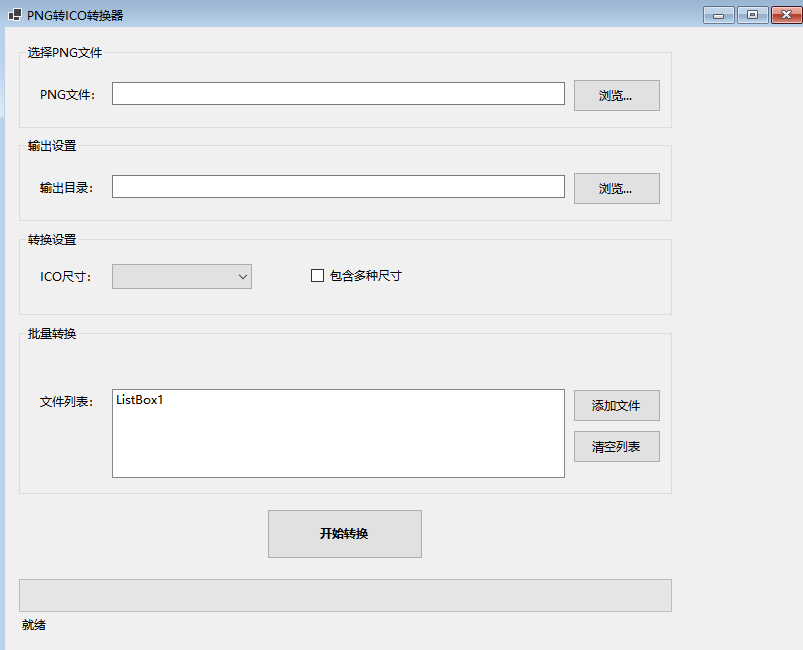
3.项目架构概览
- 技术栈
- 框架: .NET 8.0 Windows
- 语言: VB.NET
- UI框架: Windows Forms
- 图形处理: System.Drawing, System.Drawing.Imaging
- 文件结构
- PNG转ICO.vb # 主窗体类
- PngToIcoConverter.vb # 核心转换逻辑
- PNG转ICO.Designer.vb # 窗体设计器代码
- PNG转ICO.resx # 资源文件
- PNG转ICO.vbproj # 项目文件
4.转换原理
- ICOICO文件是一种容器格式,可以包含多个不同尺寸的图像。其结构如下:
- 文件头 (6字节)
- Reserved (2字节) // 固定为0
- Type (2字节) // 1=ICO, 2=CUR
- ImageCount (2字节) // 图像数量
- 目录项数组 (16字节×N) // 每个图像的元数据
- Width (1字节) // 宽度 (0=256)
- Height (1字节) // 高度 (0=256)
- ColorCount (1字节) // 颜色数
- Reserved (1字节) // 保留
- ColorPlanes (2字节) // 颜色平面数
- BitsPerPixel (2字节) // 位深度
- ImageSize (4字节) // 图像数据大小
- ImageOffset (4字节) // 数据偏移
- 图像数据 (可变长度) // PNG或BMP格式
- 图像重采样算法,使用高质量的双三次插值进行图像缩放
- 双三次插值: 考虑周围16个像素点,提供平滑的缩放效果
- 高质量平滑: 减少锯齿和失真
- 像素偏移优化: 确保像素对齐准确
g.InterpolationMode = Drawing2D.InterpolationMode.HighQualityBicubic
g.SmoothingMode = Drawing2D.SmoothingMode.HighQuality
g.PixelOffsetMode = Drawing2D.PixelOffsetMode.HighQuality
Dim resizedImage As New Bitmap(width, height, PixelFormat.Format32bppArgb)
g.Clear(Color.Transparent)
5.核心代码
Imports System.Drawing
Imports System.Drawing.Imaging
Imports System.IO
Imports System.Runtime.InteropServices
Public Class PngToIcoConverter
Public Shared ReadOnly SupportedSizes As Integer() = {
16, 32, 48, 64, 128, 256}
Public Shared Function ConvertPngToIco(pngPath As String, icoPath As String, Optional size As Integer = 256) As Boolean
Try
If Not File.Exists(pngPath) Then
Throw New FileNotFoundException("PNG文件不存在: " & pngPath)
End If
Dim outputDir As String = Path.GetDirectoryName(icoPath)
If Not String.IsNullOrEmpty(outputDir) AndAlso Not Directory.Exists(outputDir) Then
Directory.CreateDirectory(outputDir)
End If
Using pngImage As Bitmap = New Bitmap(pngPath)
Using iconImage As Bitmap = CreateResizedImage(pngImage, size, size)
iconImage.Save(icoPath, ImageFormat.Icon)
End




 浙公网安备 33010602011771号