
10-6监控k8s的mysql应用
vim mysql-config.yaml
apiVersion: v1
kind: ConfigMap
metadata:
  name: mysql-config
  labels:
    app: mysql
  namespace: testnamespace
data:
  my.cnf: |-
    [client]
    default-character-set=utf8mb4
    [mysql]
    default-character-set=utf8mb4
    [mysqld]
    max_connections == 2000
    secure_file_priv=/var/lib/mysql
    sql_mode=STRICT_TRANS_TABLES,NO_ZERO_IN_DATE,NO_ZERO_DATE,ERROR_FOR_DIVISION_BY_ZERO,NO_ENGINE_SUBSTITUTION
kubectl apply -f mysql-config.yaml
vim mysql-deploy.yaml
apiVersion: v1
kind: Service
metadata:
  name: mysql
  labels:
    app: mysql
  namespace: testnamespace
spec:
  type: NodePort
  ports:
  - name: mysql
    port: 3306
    targetPort: 3306
    nodePort: 30336
  selector:
    app: mysql
---
apiVersion: apps/v1
kind: Deployment
metadata:
  name: mysql
  labels:
    app: mysql
  namespace: testnamespace
spec:
  replicas: 1
  selector:
    matchLabels:
      app: mysql
  template:
    metadata:
      labels:
        app: mysql
    spec:
      containers:
      - name: mysql
        image: mysql:5.7
        ports:
        - containerPort: 3306
        env:
        - name: MYSQL_ROOT_PASSWORD
          value: "123456"
        resources:
          limits:
            cpu: 1000m
            memory: 512Mi
          requests:
            cpu: 1000m
        livenessProbe:
          initialDelaySeconds: 30
          periodSeconds: 10
          timeoutSeconds: 5
          successThreshold: 1
          failureThreshold: 3
          exec:
            command: ["mysqladmin", "-uroot", "-p${MYSQL_ROOT_PASSWORD}", "ping"]
        readinessProbe:
          initialDelaySeconds: 120
          periodSeconds: 10
          timeoutSeconds: 5
          successThreshold: 1
          failureThreshold: 3
          exec:
            command: ["mysqladmin", "-uroot", "-p${MYSQL_ROOT_PASSWORD}", "ping"]
        volumeMounts:
        - name: config
          mountPath: /etc/mysql/conf.d/my.cnf
          subPath: my.cnf
        - name: localtime
          readOnly: true
          mountPath: /etc/localtime
      volumes:
      - name: config
        configMap:
          name: mysql-config
      - name: localtime
        hostPath:
          type: File
          path: /etc/localtime
kubectl apply -f mysql-deploy.yaml
安装mysql (给监控mysql-exporter创建一个对应的exporter的用户并且给他授权)
yum install mysql
连接mysql的pod
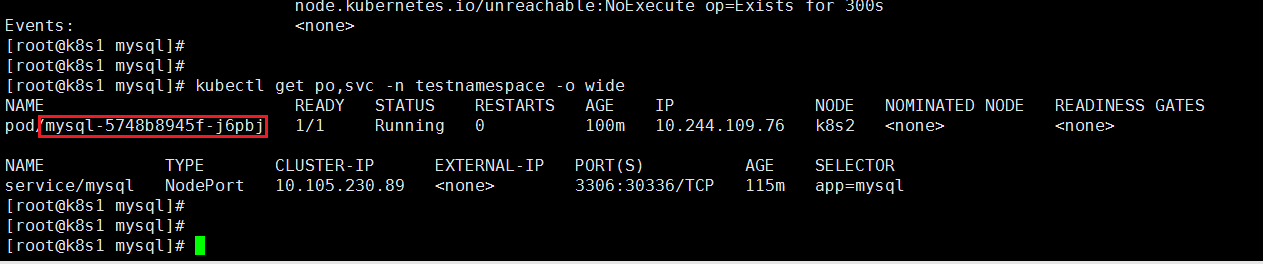
根据上图中mysql的pod信息查看mysql在哪个节点服务器上
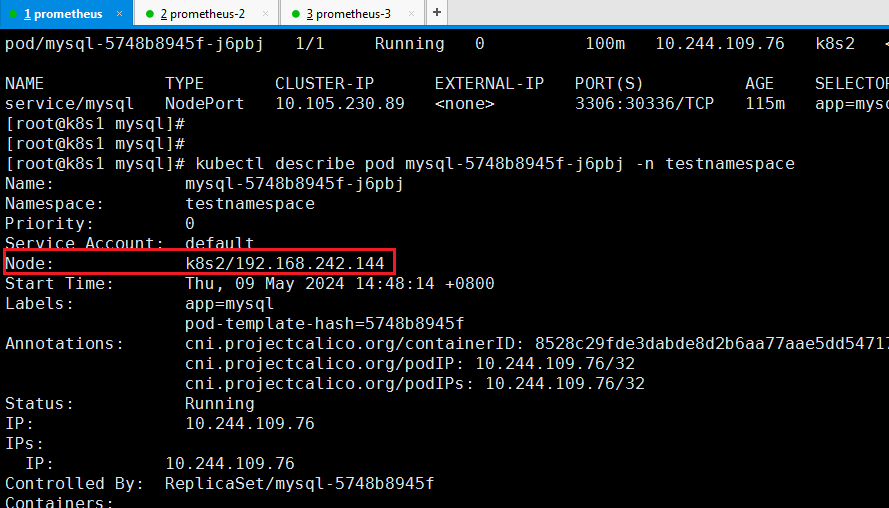
kubectl describe pod mysql-5748b8945f-j6pbj -n testnamespace
可以看到在k8s2/192.168.242.144机器上
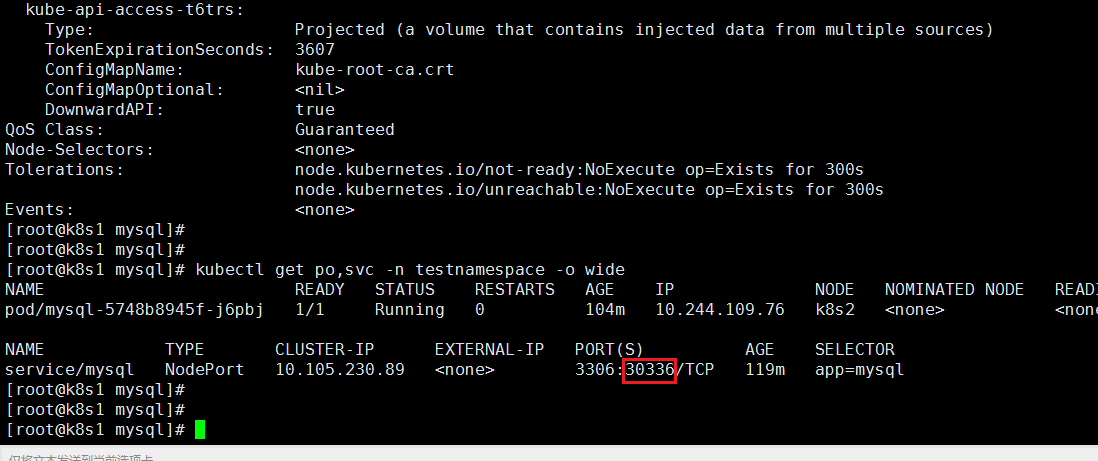
service对外暴露的端口是30336
连接mysql
mysql -h 192.168.242.144 -P30336 -u root -p123456
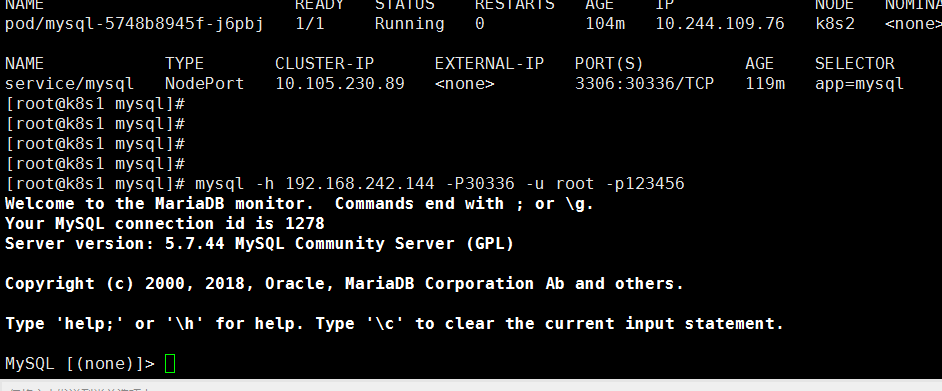
可以看到连接成功
新建用户
CREATE USER 'myexporter'@'192.168.242.144' IDENTIFIED BY '321abc' WITH MAX_USER_CONNECTIONS 3;
授权
GRANT PROCESS,REPLICATION CLIENT, SELECT ON *.* TO 'myexporter'@'192.168.242.144';
刷新缓存
FLUSH PRIVILEGES;
vim mysql-exporter.yaml
---
apiVersion: apps/v1
kind: Deployment
metadata:
  name: mysqld-exporter
  namespace: monitoring
  labels:
    app: mysqld-exporter
spec:
  replicas: 1
  selector:
    matchLabels:
      app: mysqld-exporter
  template:
    metadata:
      labels:
        app: mysqld-exporter
    spec:
      containers:
      - name: mysqld-exporter
        image: prom/mysqld-exporter:v0.10.0  # 使用适合你的版本
        imagePullPolicy: IfNotPresent
        env:
        - name: DATA_SOURCE_NAME
          value: "myexporter:321abc@(10.244.109.76:3306)/"  # 可以使用kubectl get po,svc -n testnamespace -o wide查看mysql的集群内的ip
        ports:
        - containerPort: 9104

---
apiVersion: v1
kind: Service
metadata:
  labels:
    app: mysqld-exporter
  name: mysqld-exporter
  namespace: monitoring
spec:
  type: ClusterIP
  ports:
  - name: metrics
    port: 9104
    protocol: TCP
    targetPort: 9104
  selector:
    app: mysqld-exporter
应用mysql-exporter.yaml文件
kubectl apply -f mysql-exporter.yaml
新建mysql-exporter-serviceMonitor.yaml(使mysql-exporter连接到prometheus)
如果你使用的是Prometheus Operator,你可能还想添加一个ServiceMonitor来自动发现和监控这个服务
---
apiVersion: monitoring.coreos.com/v1
kind: ServiceMonitor
metadata:
  labels:
    app: mysqld-exporter
    prometheus: k8s
  name: mysqld-exporter
  namespace: monitoring
spec:
  endpoints:
    - interval: 1m
      port: metrics
      params:
        target:
          - '10.244.109.76:3306'
      relabelings:
        - sourceLabels: [__param_target]
          targetLabel: instance
  namespaceSelector:
    matchNames:
      - monitoring
  selector:
    matchLabels:
      app: mysqld-exporter
kubectl apply -f mysql-exporter-serviceMonitor.yaml
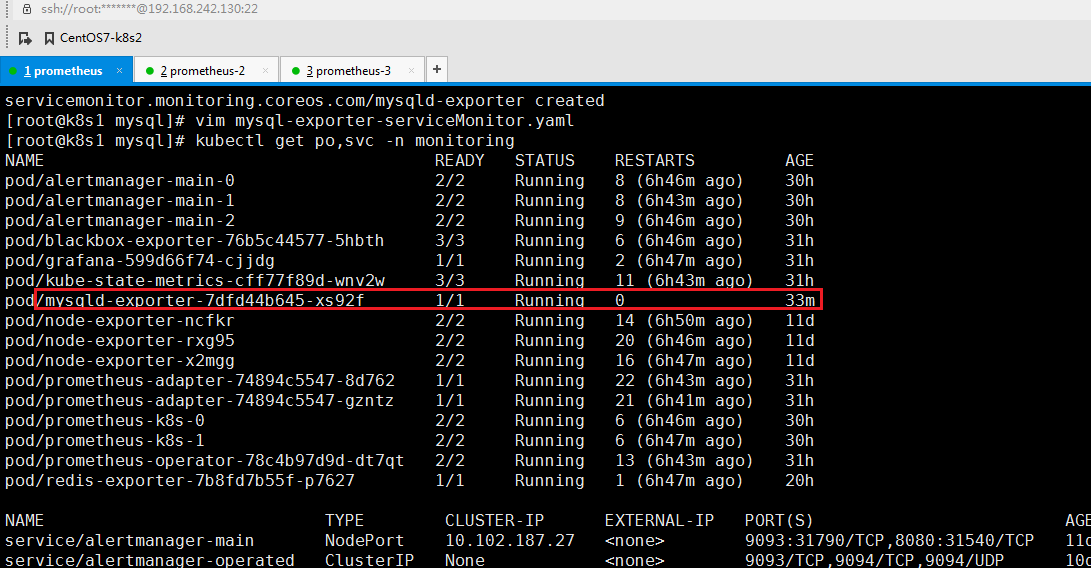
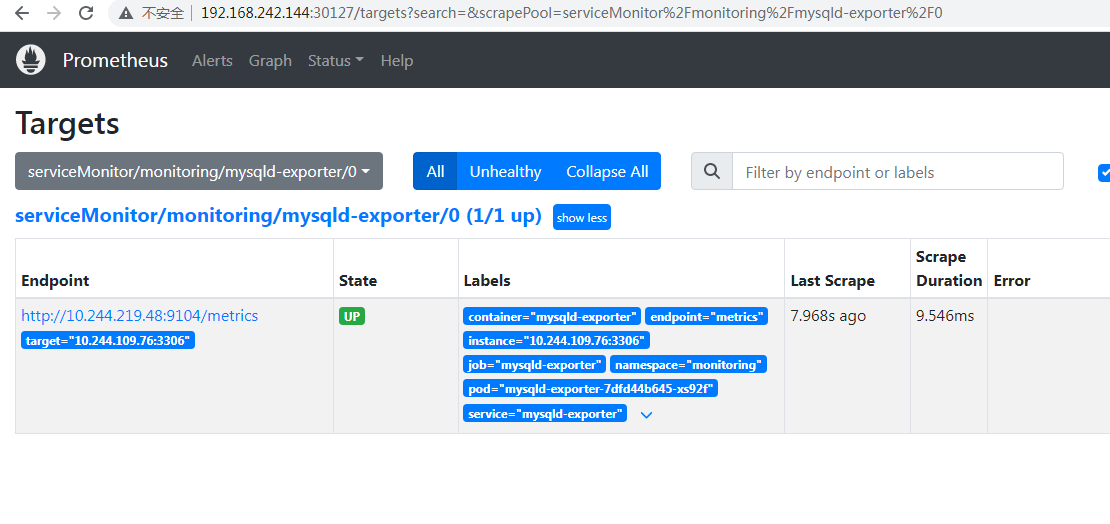
查看下prometheus的targets可以看到mysqld-exporter服务已上线
报错处理操作
重新创建pod
kubectl delete pod mysql-5748b8945f-8zqbm -n testnamespace
检查资源限制
kubectl describe pod mysql-5748b8945f-vq567 -n testnamespace
查看pod日志
kubectl logs mysql-5748b8945f-vq567 -n testnamespace

 浙公网安备 33010602011771号