
网站配置
目录
环境准备
| 主机名 | 外网ip | 内网ip | 角色 | 应用 |
|---|---|---|---|---|
| web01 | 10.0.0.7 | 172.16.1.7 | web网站,nfs,的客户端 | nginx,php,nfs |
| web02 | 10.0.0.8 | 172.16.1.8 | web网站,nfs的客户端 | nginx,php,nfs |
| db01 | 10.0.0.51 | 172.16.1.51 | 数据库 | mysql(mariadb) |
| nfs | 10.0.0.31 | 172.16.1.31 | nfs服务端,sersync客户端 | nfs,sersync的依赖 |
| backup | 10.0.0.41 | 172.16.1.41 | rsync服务端,nfs服务端(备机) | nfs,rsync |
| lb01 | 10.0.0.5 | 172.16.1.5 | 负载均衡 | nginx,keepalived |
| lb02 | 10.0.0.6 | 172.16.1.6 | 备用负载均衡(Backup) | nginx,keepalived |
| VIP | 10.0.0.3 | - | 高可用 | - |
部署数据库
db01
# 关闭防火墙
systemctl stop firewalld

# 安装数据库
yum install -y mariadb-server

#启动服务加入开机自启
systemctl start mariadb
systemctl enable mariadb

# 配置数据库的用户和密码
mysqladmin -uroot password '123'

# 链接数据库
mysql -uroot -p123

# 创建库
MariaDB [(none)]> create database wc charset utf8;
Query OK, 1 row affected (0.00 sec)

MariaDB [(none)]> create database wp charset utf8;
Query OK, 1 row affected (0.00 sec)

# 创建库的专用用户和密码
MariaDB [(none)]> grant all on wc.* to wc_user@'%' identified by '123';
Query OK, 0 rows affected (0.00 sec)

MariaDB [(none)]> grant all on wp.* to wp_user@'%' identified by '123';
Query OK, 0 rows affected (0.00 sec)

# 查看库
MariaDB [(none)]> show databases;
+--------------------+
| Database           |
+--------------------+
| information_schema |
| mysql              |
| performance_schema |
| test               |
| wc                 |
| wp                 |
+--------------------+
6 rows in set (0.00 sec)

MariaDB [(none)]> SELECT User, Host FROM mysql.user;
+---------+-----------+
| User    | Host      |
+---------+-----------+
| wp_user | %         |
| root    | 127.0.0.1 |
| root    | ::1       |
|         | localhost |
| root    | localhost |
|         | m01       |
| root    | m01       |
+---------+-----------+
7 rows in set (0.00 sec)

MariaDB [(none)]> exit
Bye

# mysql配置文件取消反向解析(解决:服务和数据库在一台机器连不上数据库)
vim /etc/my.cnf
[mysqld]
skip-name-resolve
部署web
web01,web02
--------------------
## web共同配置
--------------------
# 关闭防火墙
systemctl stop firewalld

# 创建nginx_php目录,把nginx_php.tgz放入
mkdir nginx_php
cd nginx_php/

# 安装nginx和php
tar xf nginx_php.tgz
yum localinstall -y *.rpm

# 创建www用户和组
groupadd www -g 666
useradd www -u 666 -g 666 -s /sbin/nologin -M
----------------------
## web01配置
----------------------
# 修改配置文件
# nginx主配置文件
vim /etc/nginx/nginx.conf
user www;
# php主配置文件
vim /etc/php-fpm.d/www.conf
[www]
user =www
group =www

----------------------
# 第二种php配置方法,套接字配置方法
----------------------

# 编写网站配置文件
vim /etc/nginx/conf.d/blog.conf
server{
        listen 80;
        server_name blog.xxx.com;
        root /code/wordpress;
        location / {
                index index.php index.html;
        }
        location ~ \.php$ {
                fastcgi_pass 127.0.0.1:9000;
                fastcgi_param SCRIPT_FILENAME $document_root$fastcgi_script_name;
        include /etc/nginx/fastcgi_params;
        }
}
vim /etc/nginx/conf.d/zh.conf
server{
        listen 90;
        server_name zh.xxx.com;
        root /code/wecenter;
        location / {
                index index.php
                index.html;
        }
        location ~ \.php$ {
                fastcgi_pass 127.0.0.1:9000;
                fastcgi_param SCRIPT_FILENAME $document_root$fastcgi_script_name;
        include /etc/nginx/fastcgi_params;
        }
}

# 查看nginx配置文件是否正确
[root@webo2 ~]# nginx -t
nginx: the configuration file /etc/nginx/nginx.conf syntax is ok
nginx: configuration file /etc/nginx/nginx.conf test is successful

# 创建站点目录
mkdir /code

# 部署代码
cd /root/
wget http://test.driverzeng.com/Nginx_Code/wordpress-5.0.3-zh_CN.tar.gz
wget http://test.driverzeng.com/Nginx_Code/WeCenter_3-2-1.zip

# 解压
cd /root/
unzip WeCenter_3-2-1.zip
tar xf wordpress-5.0.3-zh_CN.tar.gz

# 移动到/code目录下,并改名
cd /root/
mv WeCenter_3-2-1 /code/wecenter
mv wordpress /code/

# 授权www给/code
chown -R www.www /code/

# 重启服务
systemctl restart nginx php-fpm

# 本地域名解析
10.0.0.7 blog.xxx.com zh.xxx.com

##### 先配置web01的博客和知乎再传送

##### 从web01传送到web02
# 从web01传送配置文件
scp /etc/nginx/nginx.conf root@10.0.0.8:/etc/nginx/
scp /etc/php-fpm.d/www.conf root@10.0.0.8:/etc/php-fpm.d/
# 传送网站配置文件
scp /etc/nginx/conf.d/* root@10.0.0.8:/etc/nginx/conf.d/
# 传送站点目录
scp -r /code/ root@10.0.0.8:/

##### web02
## 和web02一样,安装nginx和php,和www用户

# 授权www给/code
chown -R www.www /code/

# 重启服务
systemctl restart nginx php-fpm

# 本地域名解析
10.0.0.8 blog.xxx.com zh.xxx.com
###### php第二种配置方法,套接字配置方法

vim /etc/php-fpm.d/www.conf
[www]
user =www
group =www

# 注释这行
22行
;listen = 127.0.0.1:9000
# 添加这几个文件
listen = /opt/sock
listen.owner = www
listen.group = www

# 创建文件
vim /opt/sock
listen.owner = www
listen.group = www

### 两个网站(博客,知乎)配置文件
注释:#fastcgi_pass 127.0.0.1:9000;
添加:fastcgi_pass unix:/opt/sock;
-------------------------
server{
        listen 80;
        server_name zh.xxx.com;
        root /code/wecenter;
        location / {
                index index.php
                index.html;
        }
        location ~ \.php$ {
                #fastcgi_pass 127.0.0.1:9000;
                fastcgi_pass unix:/opt/sock;
                fastcgi_param SCRIPT_FILENAME $document_root$fastcgi_script_name;
        include /etc/nginx/fastcgi_params;
        }
}
##### 换库,可看数据库拆分
## 以哪台虚拟机为web服务,就修改哪台虚拟机的库的配置文件
# wordpress
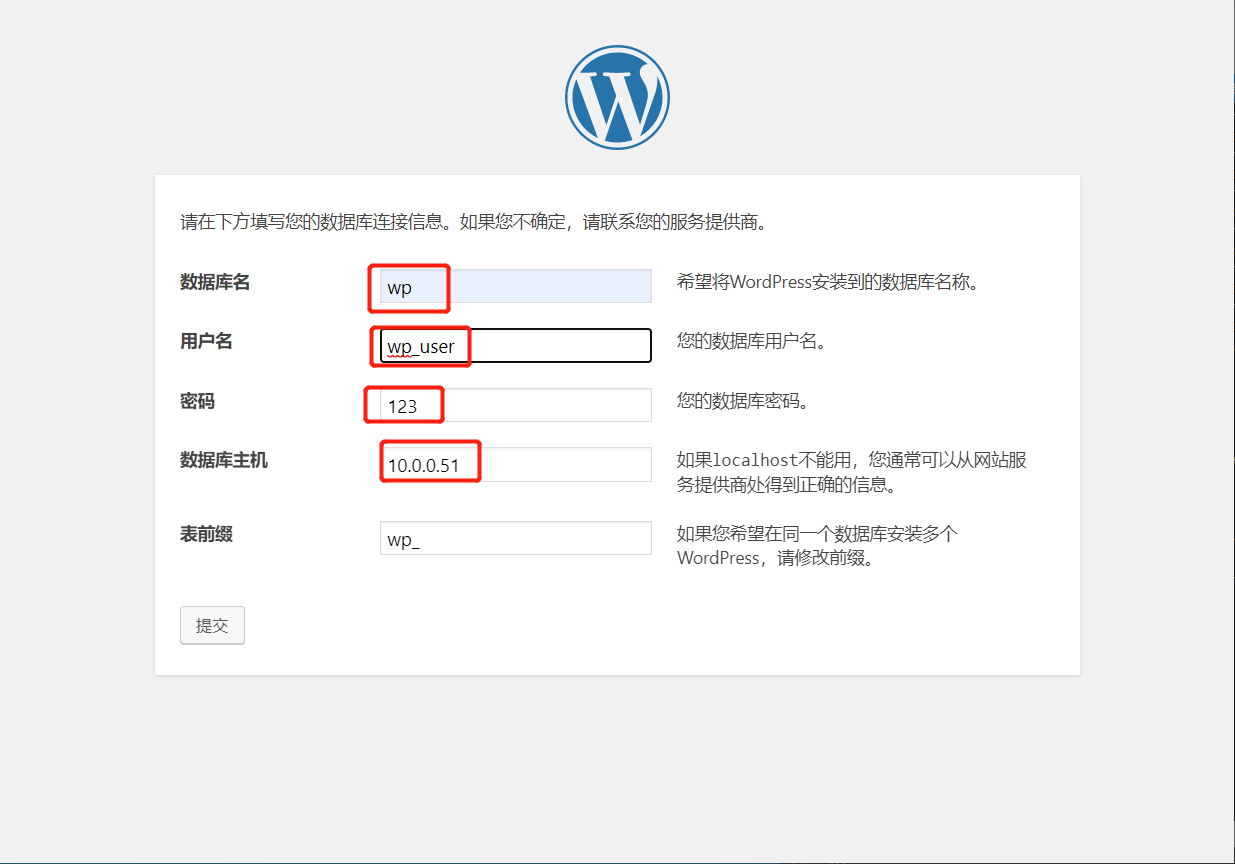
vim /code/wordpress/wp-config.php
/** WordPress数据库的名称 */
define('DB_NAME', 'wp');

/** MySQL数据库用户名 */
define('DB_USER', 'wp_user');

/** MySQL数据库密码 */
define('DB_PASSWORD', '123');

/** MySQL主机 */
define('DB_HOST', '10.0.0.51');

/** 创建数据表时默认的文字编码 */
define('DB_CHARSET', 'utf8mb4');

/** 数据库整理类型。如不确定请勿更改 */
define('DB_COLLATE', '');

# wecenter
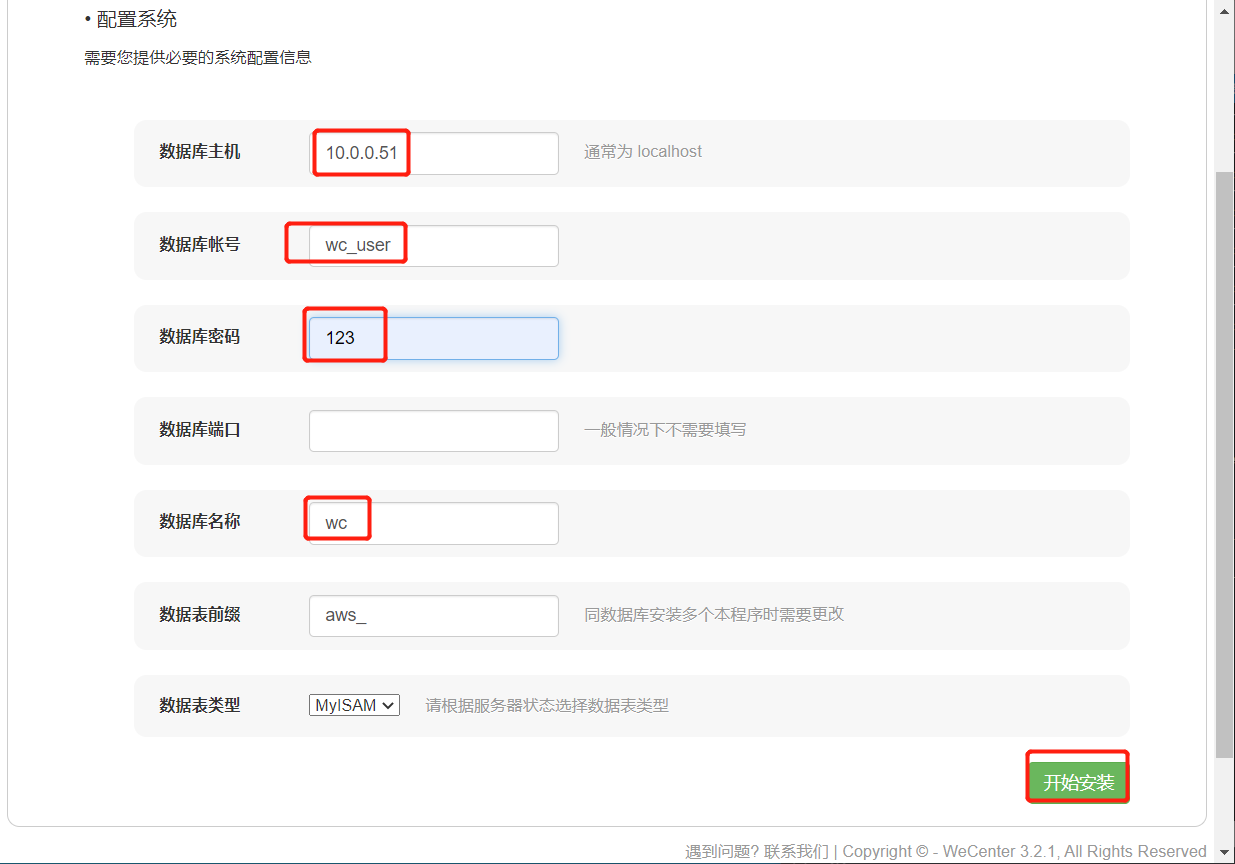
vim /code/wecenter/system/config/database.php
<?php

$config['charset'] = 'utf8';^M
$config['prefix'] = 'aws_';^M
$config['driver'] = 'MySQLi';^M
$config['master'] = array (
'charset' => 'utf8',
'host' => '10.0.0.51',
'username' => 'wc_user',
'password' => '123',
'dbname' => 'wc',
);^M
$config['slave'] = false;^M
部署nfs服务端
nfs
# nfs 安装nfs
yum install -y nfs-utils

# 创建www用户和组
groupadd www -g 666
useradd www -u 666 -g 666 -s /sbin/nologin -M

# 配置服务端
vim /etc/exports
/data/wp_data 172.16.1.0/24(rw,sync,all_squash,anonuid=666,anongid=666)
/data/wc_data 172.16.1.0/24(rw,sync,all_squash,anonuid=666,anongid=666)

# 创建共享目录
mkdir -p /data/{wc,wp}_data

# 修改共享目录的属主和属组为nfs匿名用户
chown -R www.www /data/

# 启动服务并开机自启
systemctl start nfs
systemctl enable nfs

# 检查进程
[root@nfs ~]# ps -ef | grep [n]fs
root      11419      2  0 17:27 ?        00:00:00 [nfsd4_callbacks]
root      11425      2  0 17:27 ?        00:00:00 [nfsd]
root      11426      2  0 17:27 ?        00:00:00 [nfsd]
root      11427      2  0 17:27 ?        00:00:00 [nfsd]
root      11428      2  0 17:27 ?        00:00:00 [nfsd]
root      11429      2  0 17:27 ?        00:00:00 [nfsd]
root      11430      2  0 17:27 ?        00:00:00 [nfsd]
root      11431      2  0 17:27 ?        00:00:00 [nfsd]
root      11432      2  0 17:27 ?        00:00:00 [nfsd]

# 检查配置文件是否生效
[root@nfs ~]# cat /var/lib/nfs/etab
/data/wc_data	172.16.1.0/24(rw,sync,wdelay,hide,nocrossmnt,secure,root_squash,all_squash,no_subtree_check,secure_locks,acl,no_pnfs,anonuid=666,anongid=666,sec=sys,rw,secure,root_squash,all_squash)
/data/wp_data	172.16.1.0/24(rw,sync,wdelay,hide,nocrossmnt,secure,root_squash,all_squash,no_subtree_check,secure_locks,acl,no_pnfs,anonuid=666,anongid=666,sec=sys,rw,secure,root_squash,all_squash)
部署nfs服务端
web01 web02
# web01 web02 安装nfs
[root@web01 ~]# yum install -y nfs-utils
[root@web02 ~]# yum install -y nfs-utils

# 查看挂载点
[root@web01 opt]# showmount -e 172.16.1.31
Export list for 172.16.1.31:
/data/wc_data 172.16.1.0/24
/data/wp_data 172.16.1.0/24

# 确保数据不会丢失
scp -r /code/wordpress/wp-content/uploads/ root@10.0.0.31:/data/wp_data
scp -r /code/wecenter/uploads/ root@10.0.0.31:/data/wc_data

-------------------
## uploads目录 如果没有在博客上面创建过文件就没有这文件,可以自己创建。
mkdir /code/wordpress/wp-content/uploads
-------------------

# 挂载共享目录
mount -t nfs 172.16.1.31:data/wp_data /code/wordpress/wp-content/uploads
mount -t nfs 172.16.1.31:data/wc_data /code/wecenter/uploads/

# 查看是否挂载
[root@web01 wecenter]# df -h
Filesystem                 Size  Used Avail Use% Mounted on
devtmpfs                   476M     0  476M   0% /dev
tmpfs                      487M     0  487M   0% /dev/shm
tmpfs                      487M  7.7M  479M   2% /run
tmpfs                      487M     0  487M   0% /sys/fs/cgroup
/dev/sda3                   19G  1.9G   17G  11% /
/dev/sda1                  497M  125M  373M  25% /boot
tmpfs                       98M     0   98M   0% /run/user/0
172.16.1.31:/data/wp_data   19G  1.7G   17G   9% /code/wordpress/wp-content/uploads
172.16.1.31:/data/wc_data   19G  1.7G   17G   9% /code/wecenter/uploads
##### 开机挂载
vim /etc/fstab

[root@webo2 ~]# tail -2 /etc/fstab
172.16.1.31:/data/wp_user /code/wordpress/wp-content/uploads nfs defaults 0 0
172.16.1.31:/data/wc_user /code/wecenter/uploads nfs defaults 0 0

# mount -a 命令把文件里的所有挂载信息全都执行了一遍
mount -a

### mount
常用命令选项:
    -t vsftype:指定要挂载的设备上的文件系统类型;
    -r: readonly,只读挂载;
    -w: read and write, 读写挂载;
    -n: 不更新/etc/mtab;
    -a:自动挂载所有支持自动挂载的设备;(定义在了/etc/fstab文件中,且挂载选项中有“自动挂载”功能)
    -L 'LABEL': 以卷标指定挂载设备;
    -U 'UUID': 以UUID指定要挂载的设备;
    -B, --bind: 绑定目录到另一个目录上;

# 卸载mount,取消挂载
umount /opt
结合sersync
服务端
backup
# 安装rsync
yum install -y rsync

# 创建www用户,uid=666,gid=666
groupadd www -g 666
useradd www -u 666 -g 666 -s /sbin/nologin -M

# 编辑配置文件
uid = www
gid = www
port = 873
fake super = yes
use chroot = no
max connections = 200
timeout = 600
ignore errors
read only = false
list = false
auth users = rsync_backup
secrets file = /etc/rsync.passwd
log file = /var/log/rsyncd.log
###################################
[wp_data]
comment = this is rsync for wp_data
path = /backup/wp_data
[wc_data]
comment = this is rsync for wc_data
path = /backup/wc_data

# 创建密码文件
[root@backup ~]# echo 'rsync_backup:123'> /etc/rsync.passwd
[root@backup ~]# cat /etc/rsync.passwd
rsync_backup:123

# 授权,rsync要求密码文件的权限是600
chmod 600 /etc/rsync.passwd

# 创建备份目录
mkdir -p /backup/{wp,wc}_data

# 授权备份目录
chown -R www.www /backup/

# 启动服务加入开机自启
systemctl restart rsyncd
systemctl enable rsyncd

# 检查进程,检查端口
[root@backup ~]# ps -ef | grep rsync
root      11232      1  0 18:07 ?        00:00:00 /usr/bin/rsync --daemon --no-detach
root      11251   1085  0 18:07 pts/0    00:00:00 grep --color=auto rsync
[root@backup ~]# netstat -lntup | grep 873
tcp        0      0 0.0.0.0:873             0.0.0.0:*               LISTEN      11232/rsync
tcp6       0      0 :::873                  :::*                    LISTEN      11232/rsync
客户端
nfs
# 安装sersync的依赖
yum install -y inotify-tools

# 设置密码
echo '123' > /etc/rsyncd.pass

# 授权密码文件
chmod 600 /etc/rsyncd.pass

# 下载sersync的包
cd /root/
wget http://test.driverzeng.com/other/sersync2.5.4_64bit_binary_stable_final.tar.gz

# 创建安装目录
mkdir /application

# 解压到安装目录
tar xf sersync2.5.4_64bit_binary_stable_final.tar.gz -C /application/

# 改名
mv /application/GNU-Linux-x86/ /application/sersync

# 修改配置文件
vim /application/sersync/confxml.xml
改成:
-----------------
        <exclude expression="^static/*"></exclude>
    </filter>
    <inotify>
        <delete start="true"/>
        <createFolder start="true"/>
        <createFile start="true"/>                  ### 全部改为true
        <closeWrite start="true"/>
        <moveFrom start="true"/>
        <moveTo start="true"/>
        <attrib start="true"/>
        <modify start="true"/>
    </inotify>

    <sersync>
        <localpath watch="/data/wp_data"> ## 要监听的目录
            <remote ip="172.16.1.41" name="wp_data"/>
            ### 要同步的主机               ##  模块名
            <!--<remote ip="192.168.8.39" name="tongbu"/>-->
            <!--<remote ip="192.168.8.40" name="tongbu"/>-->
        </localpath>
        <rsync>
            <commonParams params="-az"/>  ### rsync的选项,为什么不加--delete 因为最后也有执行
            <auth start="true" users="rsync_backup" passwordfile="/etc/rsyncd.pass"/>
         ### 打开密码认证   ### 匿名用户:backup密码文件的那个用户   ### 认证密码文件
            <userDefinedPort start="false" port="874"/><!-- port=874 -->
            <timeout start="false" time="100"/><!-- timeout=100 -->
            <ssh start="false"/>

----------------
###### 修改文件名
mv /application/sersync/confxml.xml /application/sersync/wp_data

# 在cp一个文件
cp /application/sersync/wp_data /application/sersync/wc_data
-----------------
vim /application/sersync/wc_data

<?xml version="1.0" encoding="ISO-8859-1"?>
<head version="2.5">
    <host hostip="localhost" port="8008"></host>
    <debug start="false"/>
    <fileSystem xfs="false"/>
    <filter start="false">
        <exclude expression="(.*)\.svn"></exclude>
        <exclude expression="(.*)\.gz"></exclude>
        <exclude expression="^info/*"></exclude>
        <exclude expression="^static/*"></exclude>
    </filter>
    <inotify>
        <delete start="true"/>
        <createFolder start="true"/>
        <createFile start="true"/>
        <closeWrite start="true"/>
        <moveFrom start="true"/>
        <moveTo start="true"/>
        <attrib start="true"/>
        <modify start="true"/>
    </inotify>

    <sersync>
        <localpath watch="/data/wc_data">
            <remote ip="172.16.1.41" name="wc_data"/>
            <!--<remote ip="192.168.8.39" name="tongbu"/>-->
            <!--<remote ip="192.168.8.40" name="tongbu"/>-->
        </localpath>
        <rsync>
            <commonParams params="-az"/>
            <auth start="true" users="rsync_backup" passwordfile="/etc/rsyncd.pass"/>
            <userDefinedPort start="false" port="874"/><!-- port=874 -->
            <timeout start="false" time="100"/><!-- timeout=100 -->
            <ssh start="false"/>

# 启动sersync
/application/sersync/sersync2 -rdo /application/sersync/wp_data /application/sersync/sersync2 -rdo /application/sersync/wc_data

[root@nfs application]# /application/sersync/sersync2 -rdo /application/sersync/wc_data
set the system param
execute:echo 50000000 > /proc/sys/fs/inotify/max_user_watches
execute:echo 327679 > /proc/sys/fs/inotify/max_queued_events
parse the command param
option: -r 	rsync all the local files to the remote servers before the sersync work
option: -d 	run as a daemon
option: -o 	config xml name:  /application/sersync/wc_data
daemon thread num: 10
parse xml config file
host ip : localhost	host port: 8008
will ignore the inotify createFile event
daemon start,sersync run behind the console
use rsync password-file :
user is	rsync_backup
passwordfile is 	/etc/rsyncd.pass
config xml parse success
please set /etc/rsyncd.conf max connections=0 Manually
sersync working thread 12  = 1(primary thread) + 1(fail retry thread) + 10(daemon sub threads)
Max threads numbers is: 22 = 12(Thread pool nums) + 10(Sub threads)
please according your cpu ,use -n param to adjust the cpu rate
------------------------------------------
rsync the directory recursivly to the remote servers once
working please wait...
execute command: cd /data/wc_data && rsync -az -R --delete ./ rsync_backup@172.16.1.41::wc_data --password-file=/etc/rsyncd.pass >/dev/null 2>&1
run the sersync:
watch path is: /data/wc_data

# 查看启动参数
[root@nfs sersync]# cd /application/sersync/
[root@nfs sersync]# ./sersync2 -h
set the system param
execute:echo 50000000 > /proc/sys/fs/inotify/max_user_watches
execute:echo 327679 > /proc/sys/fs/inotify/max_queued_events
parse the command param
_______________________________________________________
参数-d:启用守护进程模式
参数-r:在监控前,将监控目录与远程主机用rsync命令推送一遍
c参数-n: 指定开启守护线程的数量,默认为10个
参数-o:指定配置文件,默认使用confxml.xml文件
参数-m:单独启用其他模块,使用 -m refreshCDN 开启刷新CDN模块
参数-m:单独启用其他模块,使用 -m socket 开启socket模块
参数-m:单独启用其他模块,使用 -m http 开启http模块
不加-m参数,则默认执行同步程序
________________________________________________________________
部署lb01的七层负载均衡
# 安装nginx
yum install -y nginx

# 博客配置文件
vim /etc/nginx/conf.d/ttt.conf
upstream bk{
	server 172.16.1.7;
	server 172.16.1.8;
	server 172.16.1.9;
}
upstream zh{
	server 172.16.1.7:90;
	server 172.16.1.8:90;
	server 172.16.1.9:90;
}
server{
	listen 90;
	server_name blog.xxx.com;

	location /{
		proxy_pass http://bk;
		include /etc/nginx/proxy_params;
	}
}
server{
	listen 80;
	server_name zh.xxx.com;

	location /{
		proxy_pass http://zh;
		include /etc/nginx/proxy_params;
	}
}


# 配置文件完善
vim /etc/nginx/proxy_params
proxy_set_header Host $host;
proxy_set_header X-Forwarded-For $proxy_add_x_forwarded_for;
proxy_connect_timeout 30;
proxy_send_timeout 60;
proxy_read_timeout 60;
proxy_buffering on;
proxy_buffer_size 32k;
proxy_buffers 4 128k;

# 检查服务配置文件
nginx -t

# 启动服务
systemctl restart nginx

# 本地解析
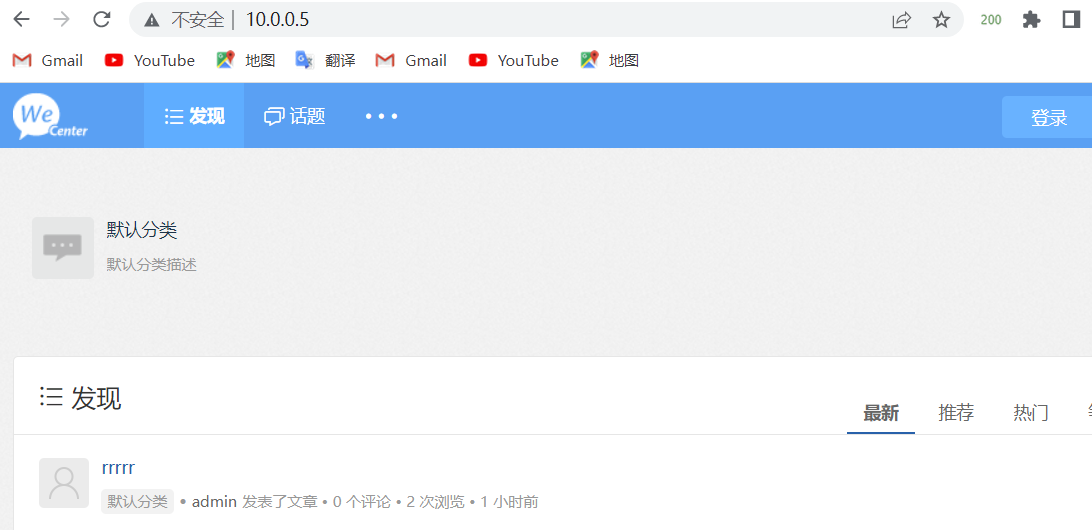
10.0.0.5 blog.xxx.com

## 七层负载破图,解决破图的方法 给缓存文件授权
[root@web01 ~]# chown -R www.www /var/lib/nginx
[root@web02 ~]# chown -R www.www /var/lib/nginx

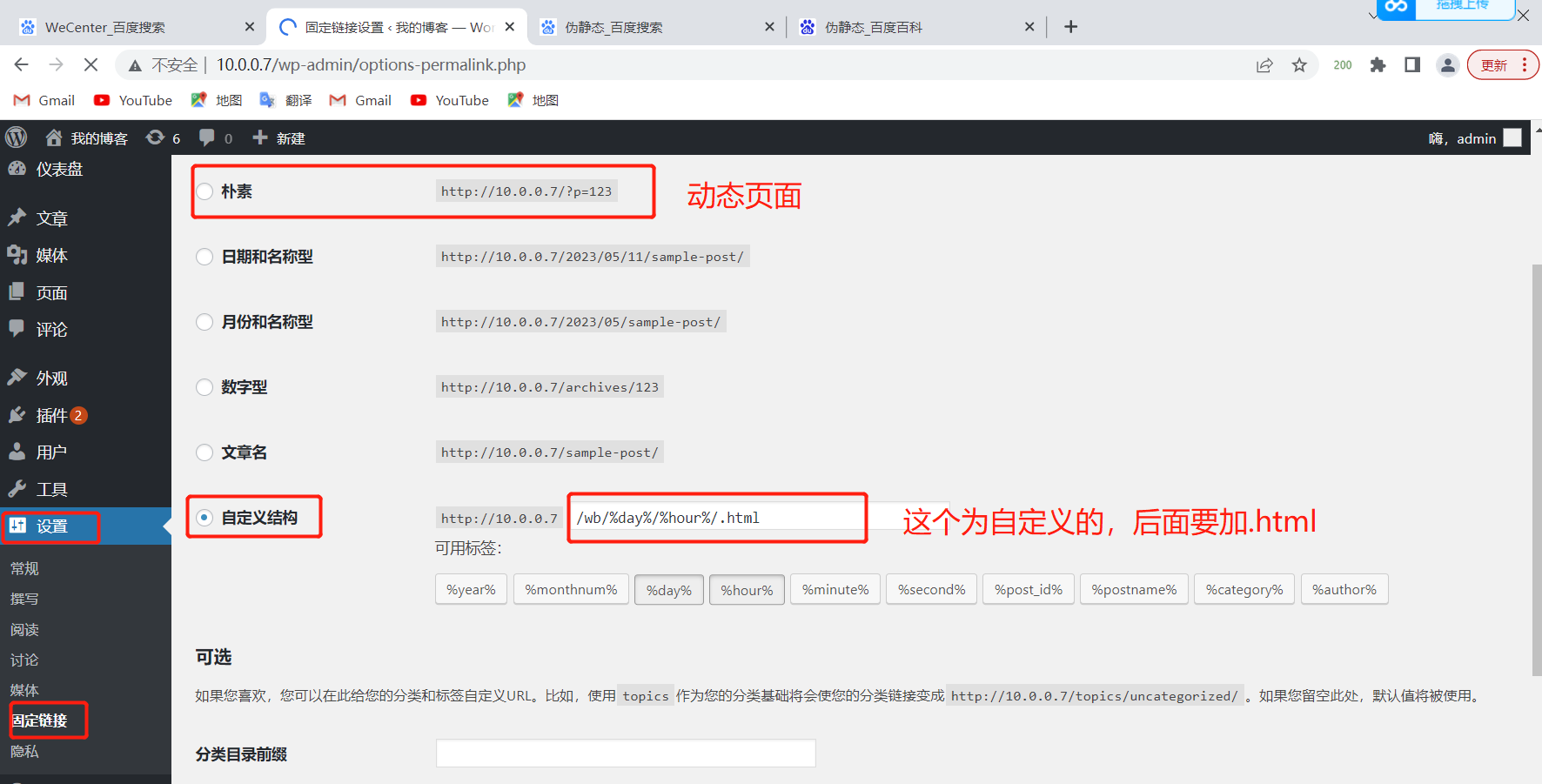
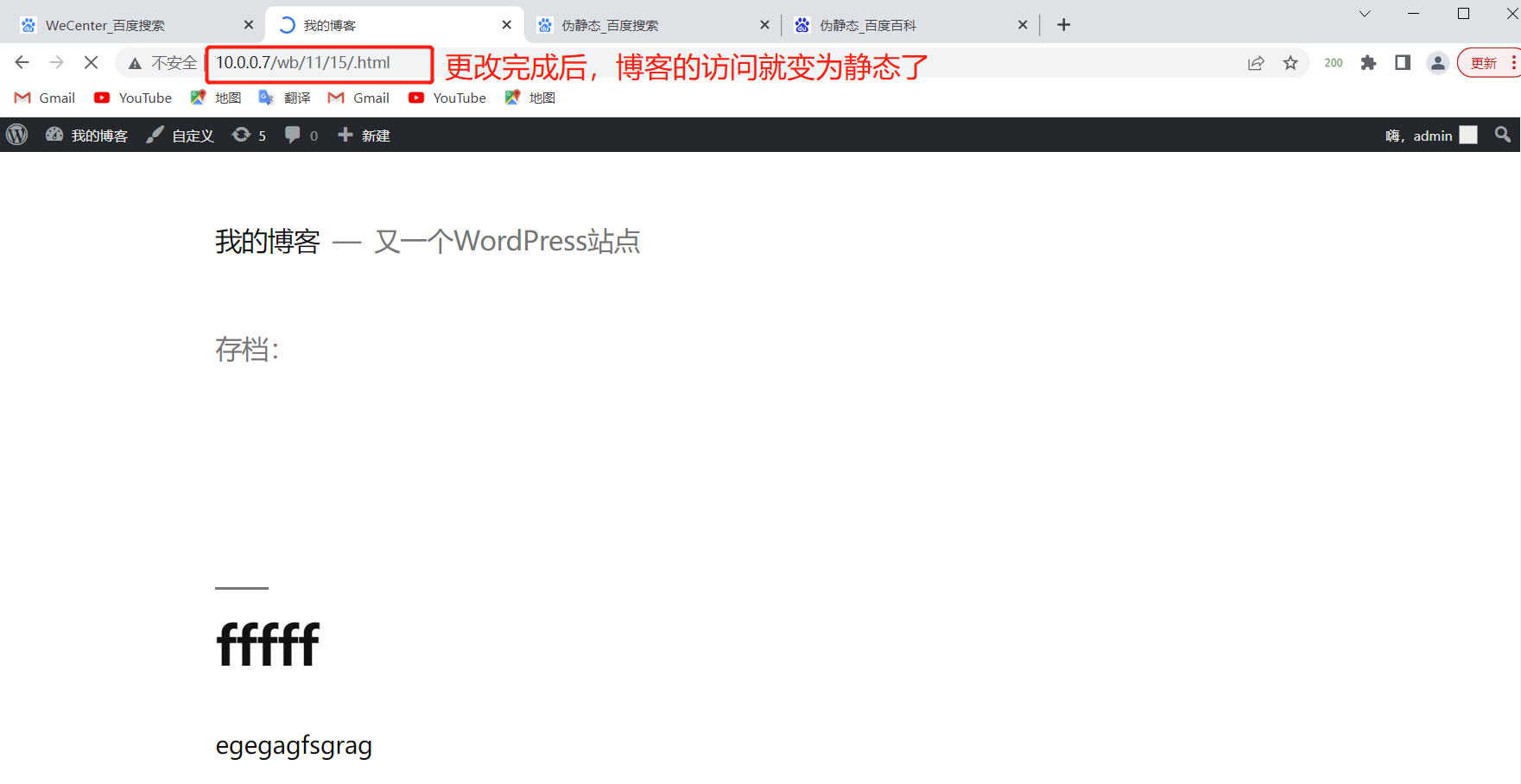
博客伪静态
web
# 添加配置文件
[root@web01 ~]# cat /etc/nginx/conf.d/blog.conf
server{
        listen 80;
        server_name blog.xxx.com;
        root /code/wordpress;
        location / {
                index index.php index.html;
		if ( -f $request_filename/index.html ){
			rewrite (.*) $1/index.html break;
		}
		if ( -f $request_filename/index.php ){
			rewrite (.*) $1/index.php;
		}
		if ( !-f $request_filename ){
			rewrite (.*) /index.php;
        }
        location ~ \.php$ {
                fastcgi_pass 127.0.0.1:9000;
                fastcgi_param SCRIPT_FILENAME $document_root$fastcgi_script_name;
        include /etc/nginx/fastcgi_params;
        }
}
}
http访问换为https访问
lb01
# CA机构创建证书
cd /root/
[root@web01 ~]# openssl genrsa -idea -out server.key 2048
Generating RSA private key, 2048 bit long modulus
......................................................................+++
.......................................................+++
e is 65537 (0x10001)
Enter pass phrase for server.key:1234
Verifying - Enter pass phrase for server.key:1234

# 查看当前目录生成的证书
[root@web01 ~]# ll
-rw-r--r--  1 root root 1747 May 11 17:13 server.key

# 跟CA机构填写个人信息 签发证书
[root@web01 ~]# openssl req -days 36500 -x509 -sha256 -nodes -newkey rsa:2048 -keyout server.key -out server.crt
Generating a 2048 bit RSA private key
........+++
..........................+++
writing new private key to 'server.key'
-----
You are about to be asked to enter information that will be incorporated
into your certificate request.
What you are about to enter is what is called a Distinguished Name or a DN.
There are quite a few fields but you can leave some blank
For some fields there will be a default value,
If you enter '.', the field will be left blank.
-----
# 国家代码,简写 2个字符
Country Name (2 letter code) [XX]:CH
# 所在省
State or Province Name (full name) []:shanghai
# 所在城市
Locality Name (eg, city) [Default City]:shanghai
# 公司名字
Organization Name (eg, company) [Default Company Ltd]:oldboy
# 公司名字
Organizational Unit Name (eg, section) []:oldboy
# 域名
Common Name (eg, your name or your server's' hostname) []:blog.xxx.com
# 邮箱地址
Email Address []:123@qq.com

# 查看证书位置
[root@web01 ~]# ll
-rw-r--r--  1 root root 1411 May 11 17:16 server.crt
-rw-r--r--  1 root root 1704 May 11 17:16 server.key

# 创建证书存放路径
cd /root/
mkdir -p /etc/nginx/ssl_key
mv server.* /etc/nginx/ssl_key/

[root@web01 ~]# ll //etc/nginx/ssl_key/
total 8
-rw-r--r-- 1 root root 1411 May 11 17:16 server.crt
-rw-r--r-- 1 root root 1704 May 11 17:16 server.key

# 修改配置
[root@lb01 ~]# cat /etc/nginx/conf.d/ttt.conf
upstream bk{
	server 172.16.1.7;
	server 172.16.1.8;
	server 172.16.1.9;
}
upstream zh{
	server 172.16.1.7:90;
	server 172.16.1.8:90;
	server 172.16.1.9:90;
}
server{
	listen 80;
	server_name blog.xxx.com;
	rewrite (.*) https://blog.xxx.com$1 redirect;
}
server{
	listen 443 ssl;
	server_name blog.xxx.com;
	ssl_certificate /etc/nginx/ssl_key/server.crt;
	ssl_certificate_key /etc/nginx/ssl_key/server.key;
	location /{
		proxy_pass http://bk;
		include /etc/nginx/proxy_params;
	}
}
server{
	listen 80;
	server_name zh.xxx.com;
	rewrite (.*) https://zh.xxx.com$1 redirect;
}
server{
	listen 443 ssl;
	server_name zh.xxx.com;
	ssl_certificate /etc/nginx/ssl_key/server.crt;
        ssl_certificate_key /etc/nginx/ssl_key/server.key;

	location /{
		proxy_pass http://zh;
		include /etc/nginx/proxy_params;
	}
}

# 监测语法
[root@web01 ~]# nginx -t
nginx: the configuration file /etc/nginx/nginx.conf syntax is ok
nginx: configuration file /etc/nginx/nginx.conf test is successful

# 重启
systemctl restart nginx

# 域名解析
10.0.0.5 blog.xxx.com zh.xxx.com

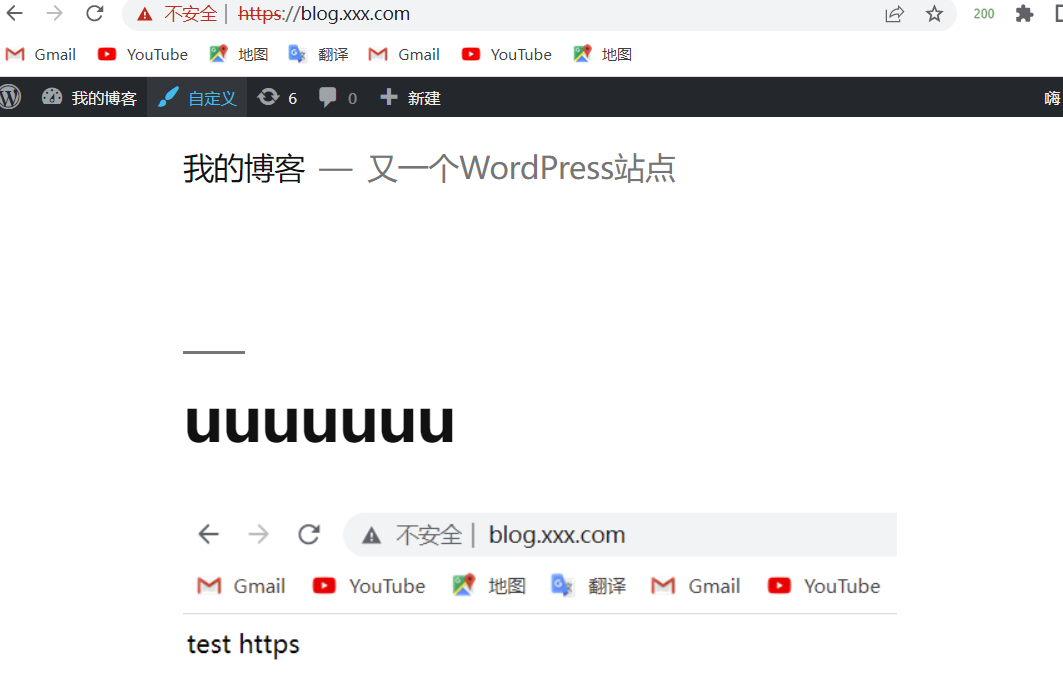
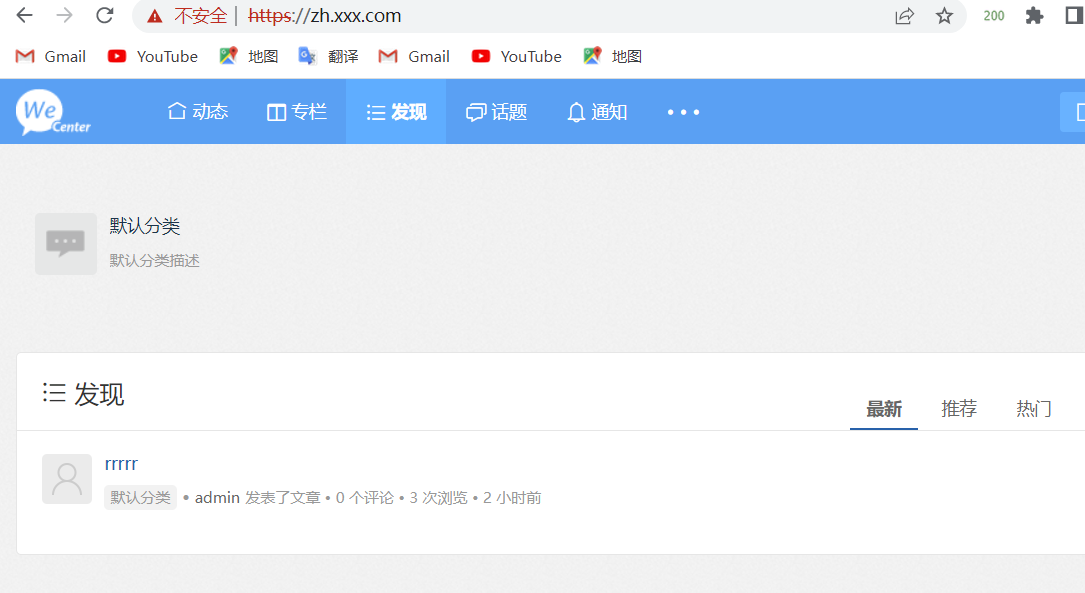
# 浏览器访问
blog.xxx.com
zh.xxx.com
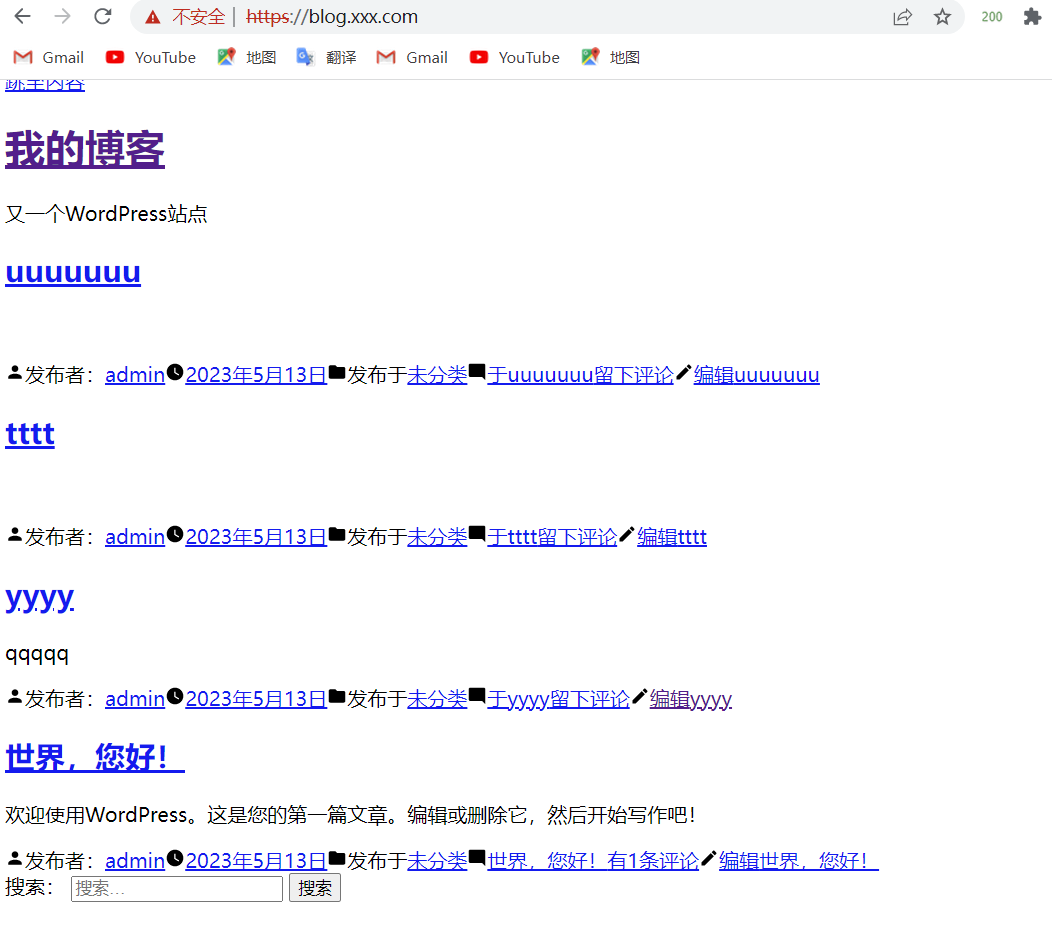

破图修改
# web配置文件添加
fastcgi_param HTTPS on;

[root@web01 ~]# cat /etc/nginx/conf.d/blog.conf
server{
        listen 80;
        server_name blog.xxx.com;
        root /code/wordpress;
        location / {
                index index.php index.html;
		if ( -f $request_filename/index.html ){
			rewrite (.*) $1/index.html break;
		}
		if ( -f $request_filename/index.php ){
			rewrite (.*) $1/index.php;
		}
		if ( !-f $request_filename ){
			rewrite (.*) /index.php;
        }
        location ~ \.php$ {
                fastcgi_pass 127.0.0.1:9000;
                fastcgi_param SCRIPT_FILENAME $document_root$fastcgi_script_name;
		fastcgi_param HTTPS on;
        include /etc/nginx/fastcgi_params;
        }
}
}

[root@web01 ~]# cat /etc/nginx/conf.d/zh.conf
server{
        listen 90;
        server_name zh.xxx.com;
        root /code/wecenter;
        location / {
                index index.php
                index.html;
        }
        location ~ \.php$ {
                fastcgi_pass 127.0.0.1:9000;
                fastcgi_param SCRIPT_FILENAME $document_root$fastcgi_script_name;
        	fastcgi_param HTTPS on;
		include /etc/nginx/fastcgi_params;
        }
}
高可用Keepalived
lb01
# 安装keepalived
yum install -y keepalived

# 找到配置文件
[root@lb01 ~]# rpm -qc keepalived
/etc/keepalived/keepalived.conf
/etc/sysconfig/keepalived

#编辑配置文件
[root@lb01 ~]# cat /etc/keepalived/keepalived.conf
global_defs {                   #全局配置
    router_id lb01              #标识身份->名称
}

vrrp_instance VI_1 {
    state MASTER                #标识角色状态
    interface eth0              #网卡绑定接口
    virtual_router_id 50        #虚拟路由id
    priority 150                #优先级
    advert_int 1                #监测间隔时间
    authentication {            #认证
        auth_type PASS          #认证方式
        auth_pass 1111          #认证密码
    }
    virtual_ipaddress {
        10.0.0.3                #虚拟的VIP地址
    }
}

# 启动Master节点的keepalived
systemctl start keepalived
systemctl enable keepalived
lb02
# 安装keepalived和nginx
yum install -y keepalived nginx

# nginx的配置文件使用lb01的
##### 由lb01穿送到lb02
[root@lb01 ~]# scp /etc/nginx/conf.d/ttt.conf 10.0.0.6:/etc/nginx/conf.d/
[root@lb01 ~]# scp /etc/nginx/proxy_params 10.0.0.6:/etc/nginx/
[root@lb01 ~]# scp -r /etc/nginx/ssl_key 10.0.0.6:/root/nginx/

# 找到配置文件
[root@lb02 ~]# rpm -qc keepalived
/etc/keepalived/keepalived.conf
/etc/sysconfig/keepalived

#编辑配置文件
[root@lb02 ~]# cat /etc/keepalived/keepalived.conf
global_defs {
    router_id lb02
}

vrrp_instance VI_1 {
    state BACKUP
    interface eth0
    virtual_router_id 50
    priority 100
    nopreempt
    advert_int 1
    authentication {
        auth_type PASS
        auth_pass 1111
    }
    virtual_ipaddress {
        10.0.0.3
    }
}

# 启动Master节点的keepalived
systemctl start keepalived
systemctl enable keepalived
配置区别
| Keepalived配置区别 | Master节点配置 | Backup节点配置 |
|---|---|---|
| route_id(唯一标识) | router_id lb01 | router_id lb02 |
| state(角色状态) | state MASTER | state BACKUP |
| priority(竞选优先级) | priority 150 | priority 100 |
配置非抢占式
1、两个节点的state都必须配置为BACKUP
2、两个节点都必须加上配置 nopreempt
3、其中一个节点的优先级必须要高于另外一个节点的优先级。
两台服务器都角色状态启用nopreempt后,必须修改角色状态统一为BACKUP,唯一的区分就是优先级。

Master配置
    vrrp_instance VI_1 {
        state BACKUP
        priority 150
        nopreempt
    }

Backup配置
    vrrp_instance VI_1 {
        state BACKUP
        priority 100
        nopreempt
    }
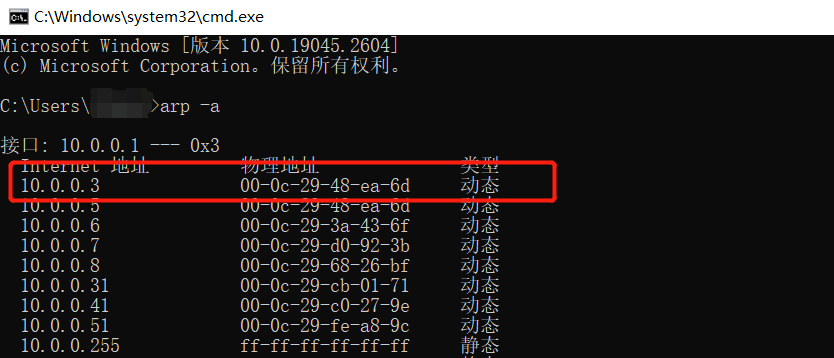
windows查看Mac地址 C:\Users\Administrator> arp -a
脑裂故障原因 ,和解决方法
1、服务器网线松动等网络故障
2、服务器硬件故障发生损坏现象而崩溃
3、主备都开启firewalld防火墙
##### 将节点1和节点2的防火墙都打开
[root@lb01 ~]# systemctl start firewalld
[root@lb02 ~]# systemctl start firewalld
# 如果发生闹裂,则随机kill掉一台即可
# 在备上编写检测脚本, 测试如果能ping通主并且备节点还有VIP的话则认为产生了列脑
[root@lb02 ~]# cat check_split_brain.sh
#!/bin/sh
vip=10.0.0.3
lb01_ip=10.0.0.5
while true;do
    ping -c 2 $lb01_ip &>/dev/null
    if [ $? -eq 0 -a `ip add|grep "$vip"|wc -l` -eq 1 ];then
        echo "ha is split brain.warning."
    else
        echo "ha is ok"
    fi
sleep 5
done
## 更简单的解决办法
开启端口
firewall-cmd --direct --permanent --add-rule ipv4 filter INPUT 0 --in-interface eth0 --destination 224.0.0.18 --protocol vrrp -j ACCEPT
这是一条用于配置防火墙规则的命令,它的作用是允许通过网络接口 eth0 上的 VRRP 组播地址 224.0.0.18 的 VRRP 报文。具体来说,这个命令会向 iptables 添加一条规则,使得网络接口 eth0 的输入数据包(即目标地址为该网络接口的 IP 地址)中,目的地址为 VRRP 组播地址 224.0.0.18,协议为 VRRP(协议号为 112)时,可以被 ACCEPT 接受。
高可用keepalived与nginx
[root@lb01 ~]# vim check_web.sh
#!/bin/sh
nginxpid=$(ps -C nginx --no-header|wc -l)

# 1.判断Nginx是否存活,如果不存活则尝试启动Nginx
if [ $nginxpid -eq 0 ];then
    systemctl start nginx
    sleep 3
    #2.等待3秒后再次获取一次Nginx状态
    nginxpid=$(ps -C nginx --no-header|wc -l)
    #3.再次进行判断, 如Nginx还不存活则停止Keepalived,让地址进行漂移,并退出脚本
    if [ $nginxpid -eq 0 ];then
        systemctl stop keepalived
   fi
fi

# 给脚本增加执行权限
[root@lb01 ~]# chmod +x /root/check_web.sh

# 在lb01主机的keepalived配置文件中调用此脚本
[root@lb01 ~]# cat /etc/keepalived/keepalived.conf
global_defs {
    router_id lb01
}
# 每5秒执行一次脚本,脚本执行内容不能超过5秒,否则会中断再次重新执行脚本
vrrp_script check_web {
    script "/root/check_web.sh"
    interval 5
}

vrrp_instance VI_1 {
    state MASTER
    interface eth0
    virtual_router_id 50
    priority 150
    advert_int 1
    authentication {
        auth_type PASS
        auth_pass 1111
    }
    virtual_ipaddress {
        10.0.0.3
    }
     track_script {
	zls
    }
}

# 调用并运行脚本
track_script {
    check_web
}
--------------------------------------
# 在Master的keepalived中调用脚本,抢占式,仅需在master配置即可。(注意,如果配置为非抢占式,那么需要两台服务器都使用该脚本)
--------------------------------------

# 第二种配置方法

[root@lb01 ~]# cat check_web.sh
#!/bin/bash
nginx_status=`ps -ef|grep [n]ginx|wc -l`
if [ $nginx_status -eq 0 ];then
systemctl stop keepalived
fi

[root@lb01 ~]# cat /etc/keepalived/keepalived.conf
global_defs {
    router_id lb02
}
vrrp_script zls {
        script "/root/check_web.sh"
        interval 5
}
vrrp_instance VI_1 {
    state MASTER
    interface eth0
    virtual_router_id 50
    priority 100
    nopreempt
    advert_int 1
    authentication {
        auth_type PASS
        auth_pass 1111
    }
    virtual_ipaddress {
        10.0.0.3
    }
    track_script {
	zls
    }
}

# 给脚本增加执行权限
[root@lb01 ~]# chmod +x /root/check_web.sh

# 配置完后重启keepalived
systemctl start keepalived

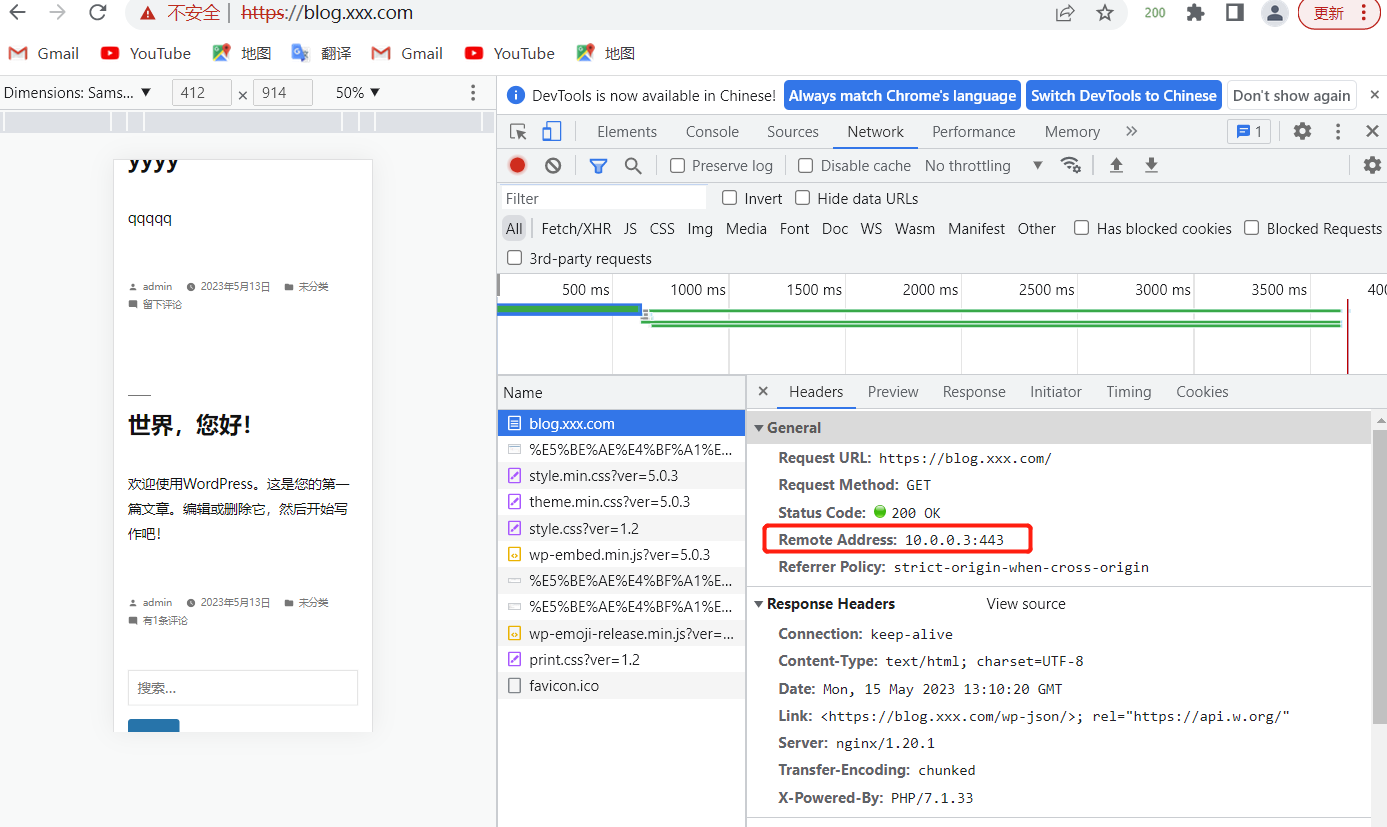
# 域名解析
10.0.0.3 blog.xxx.com zh.xxx.com

# 访问blog.xxx.com和zh.xxx.com

 浙公网安备 33010602011771号