


20243402 实验四《Python程序设计》综合实践报告
20243402 2024-2025-2 《Python程序设计》实验四报告
课程:《Python程序设计》
班级: 2434
姓名: 谢子凌
学号:20243402
实验教师:王志强
实验日期:2025年6月8日
必修/选修: 公选课
1.实验内容
设计一个交互式粒子爱心表白程序(感觉跟老师的要求不太沾边,勉强算“游戏”类别中的作业吧)
(1)实现动态粒子爱心效果
(2)实现烟花背景效果
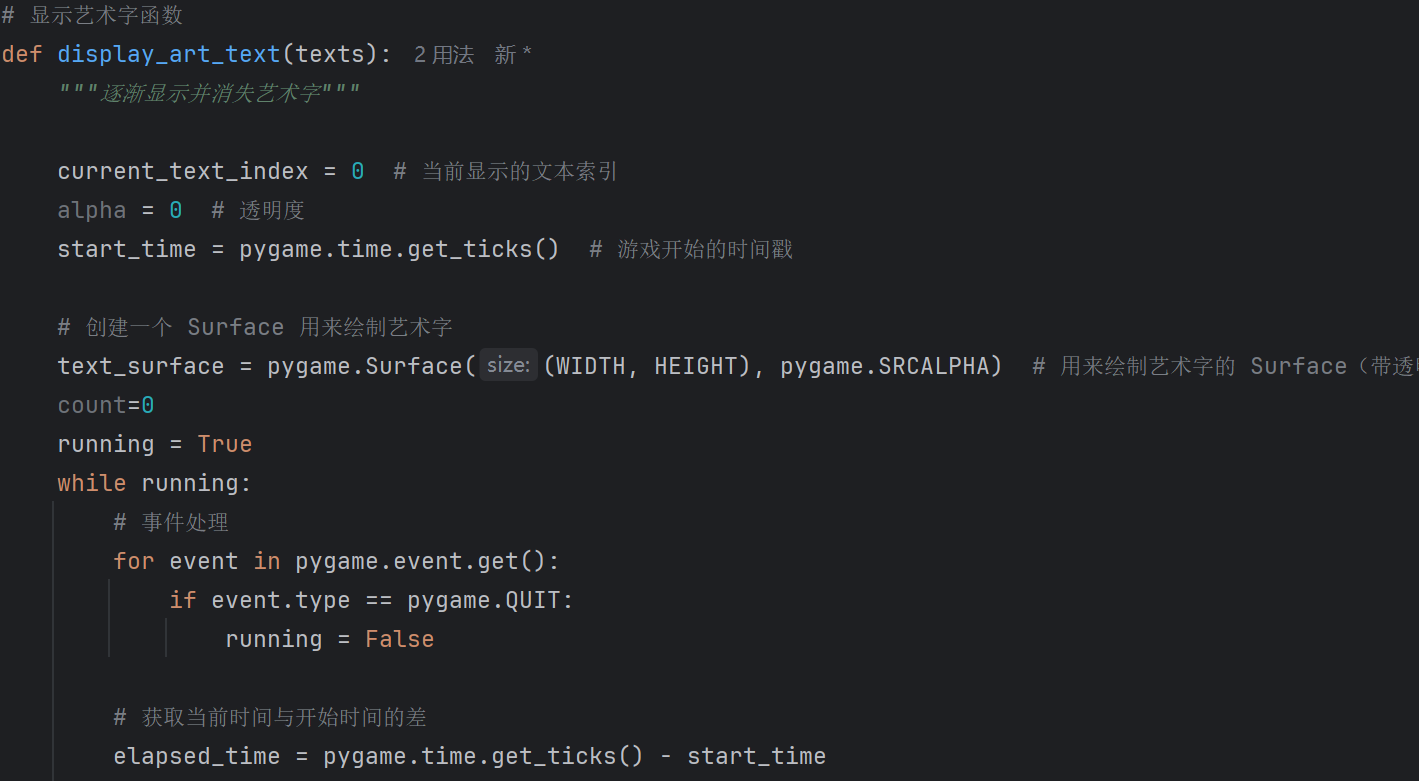
(3)实现艺术字渐显动画
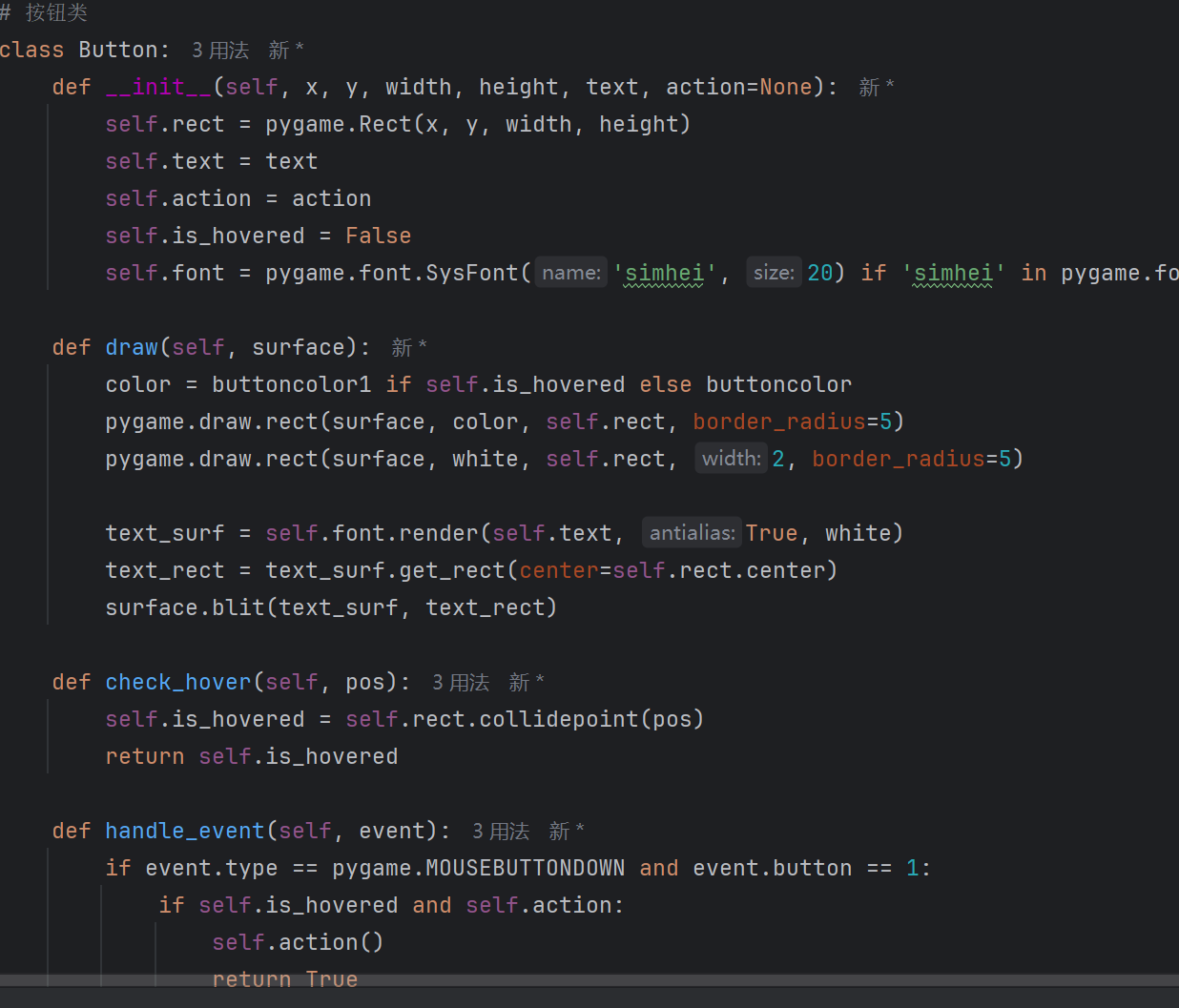
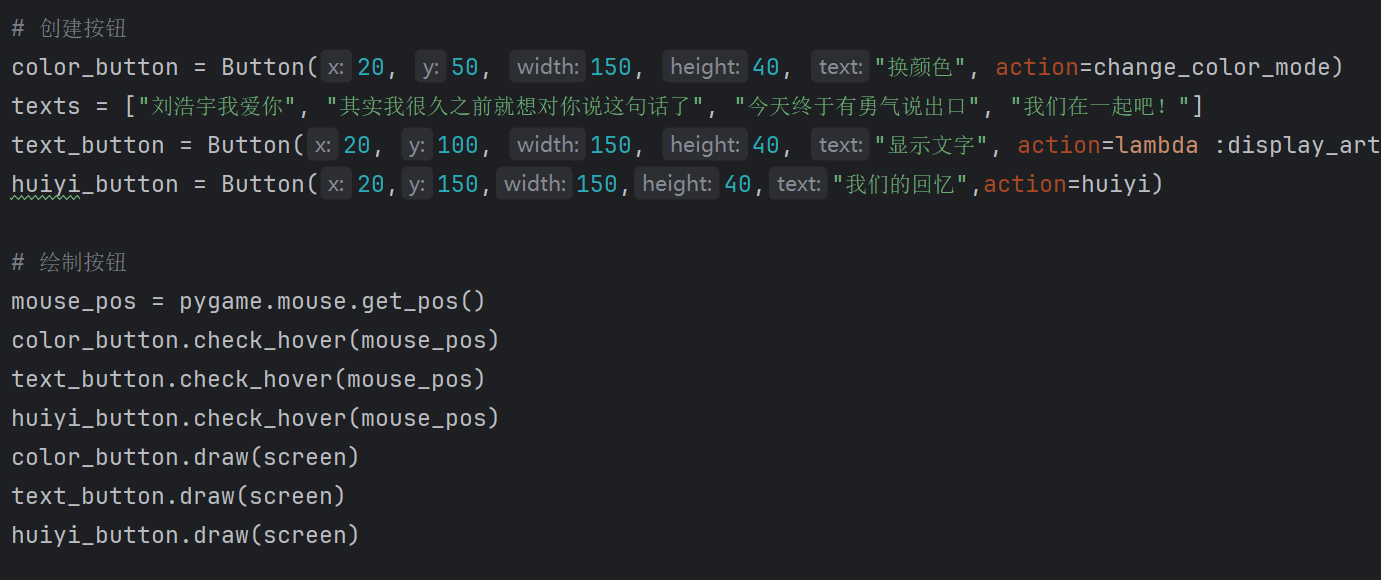
(4)设计交互按钮
(5)微信聊天记录的分析与表白
2. 实验过程及结果
实验过程:
(1)首先设计颜色系统和帧率控制
1.RGB值预定义+动态切换:支持红/蓝/绿三系配色,通过change_color_mode()实现
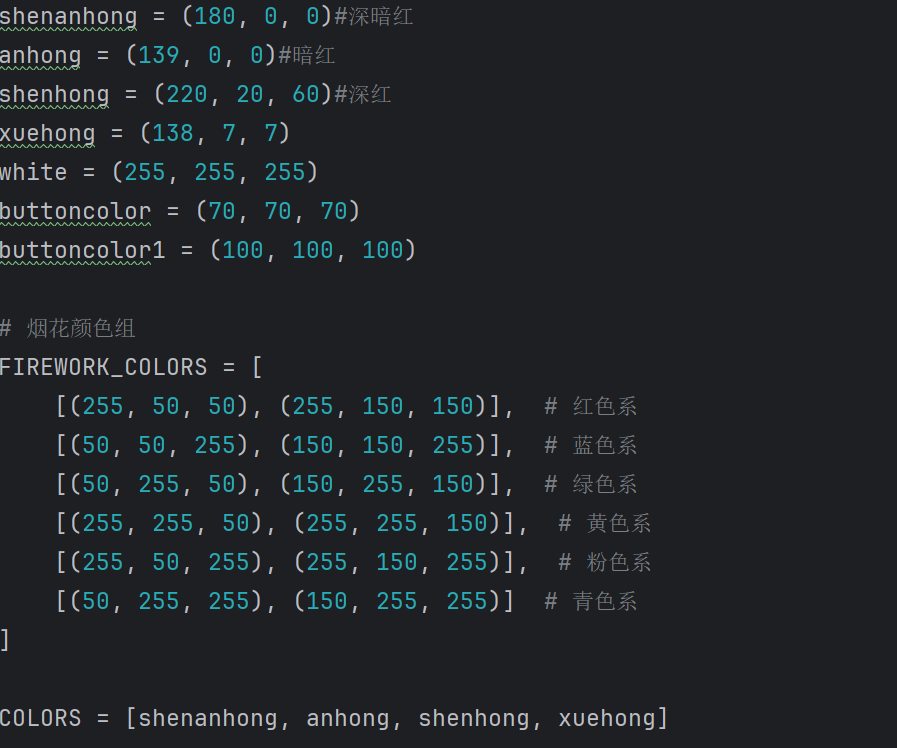
2.主循环控制60fps刷新率,clock.tick(60)保证流畅动画
(2)首先实现动态粒子爱心效果:
1.使用心形曲线方程:x=16sin³θ, y=13cosθ-5cos2θ-2cos3θ-cos4θ
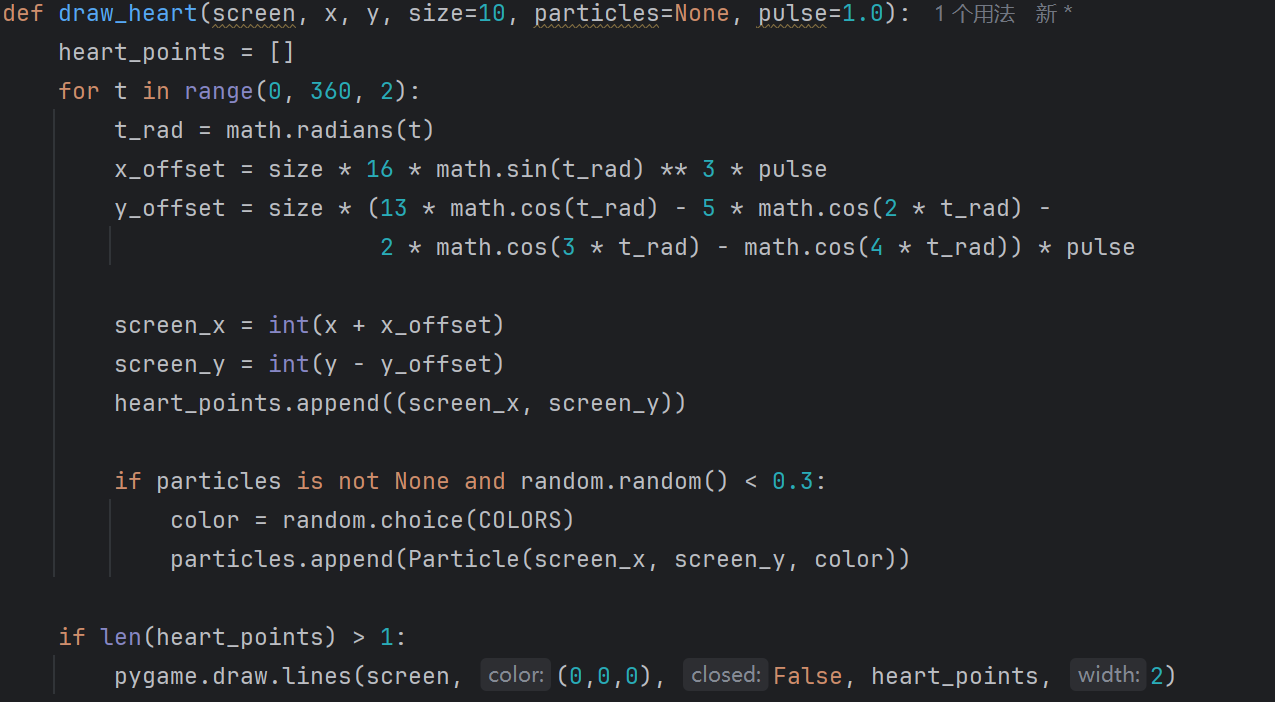
2.粒子系统Particle类管理生命周期/运动轨迹,透明度渐变
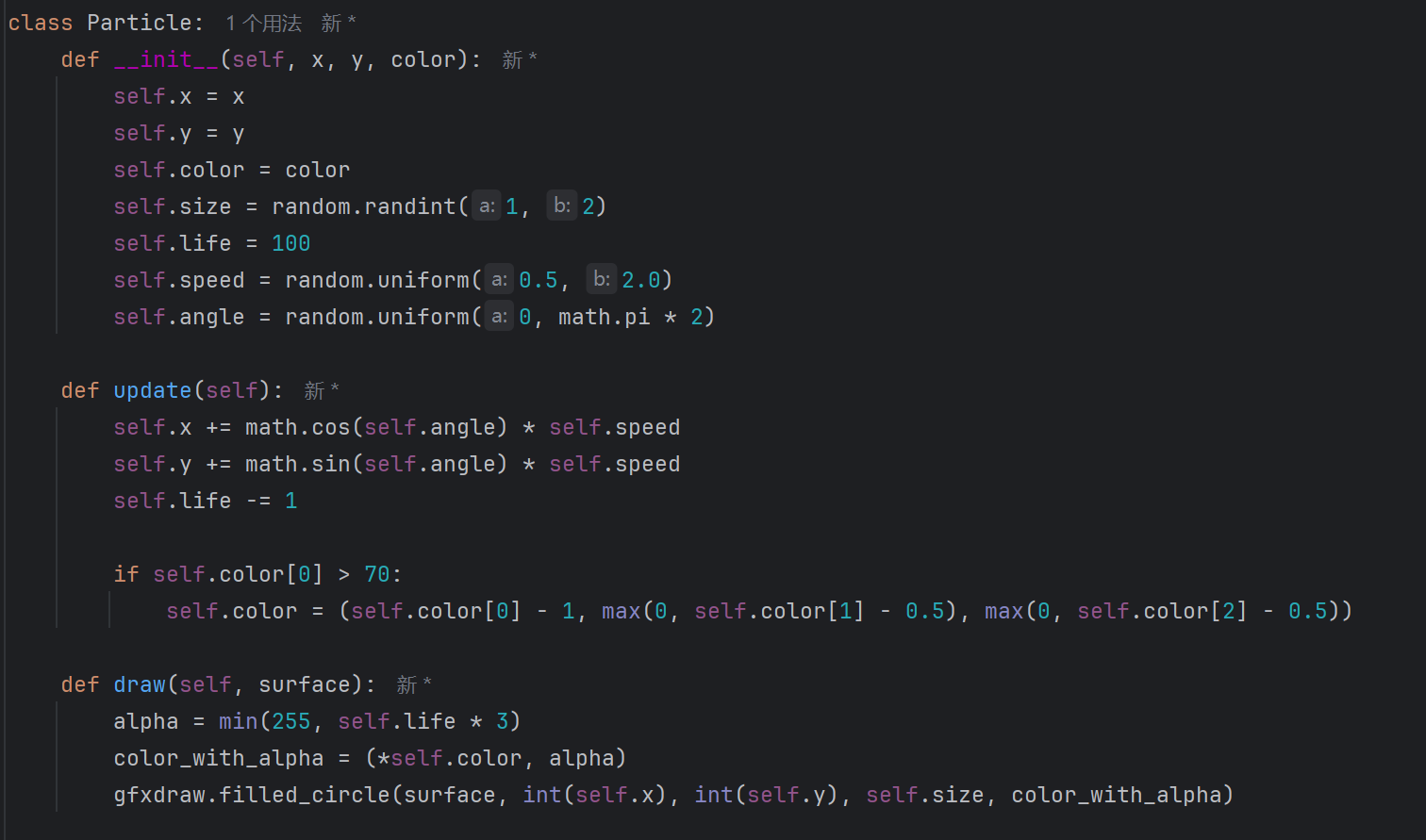
3.脉动效果pulse_size在0.8-1.2间周期性变化
(4)实现烟花背景效果
1.用烟花类产生上升并爆炸的烟花
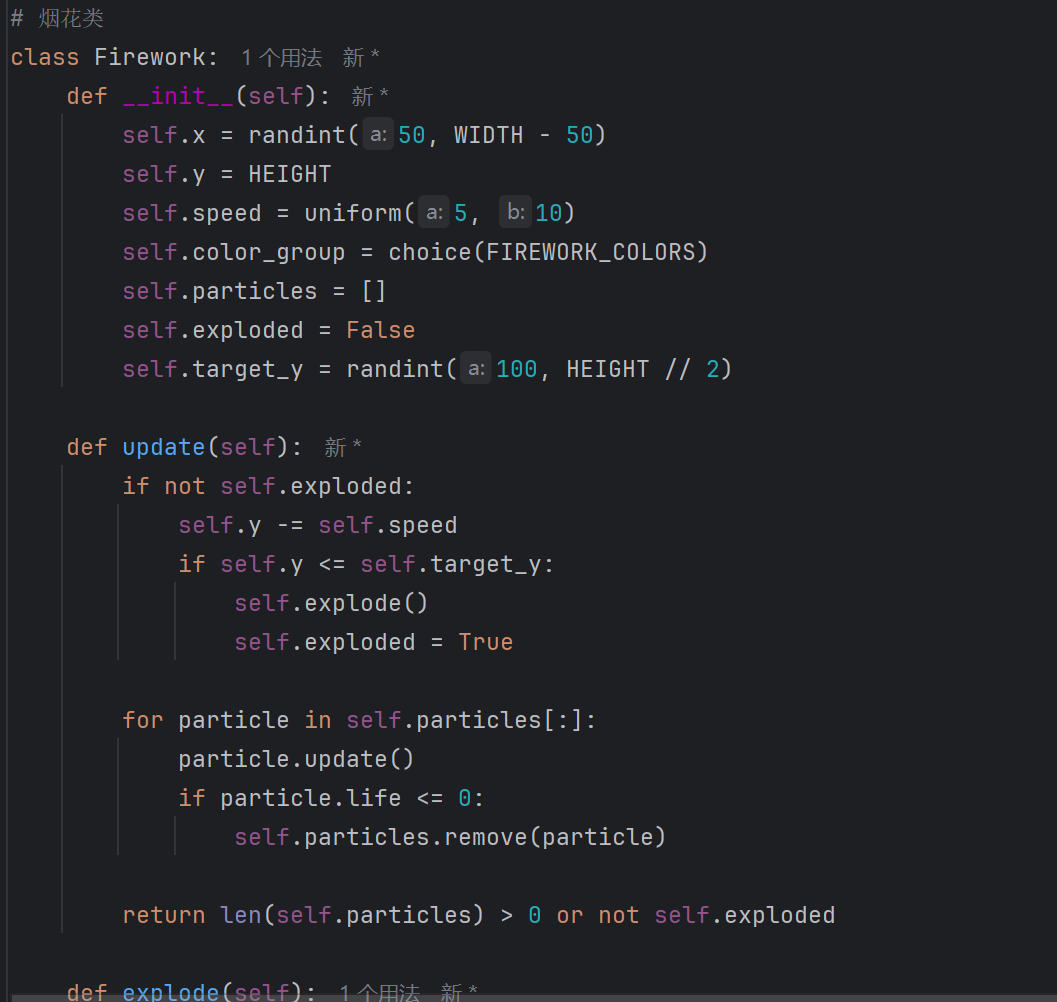
2.主函数生成绘制更新烟花
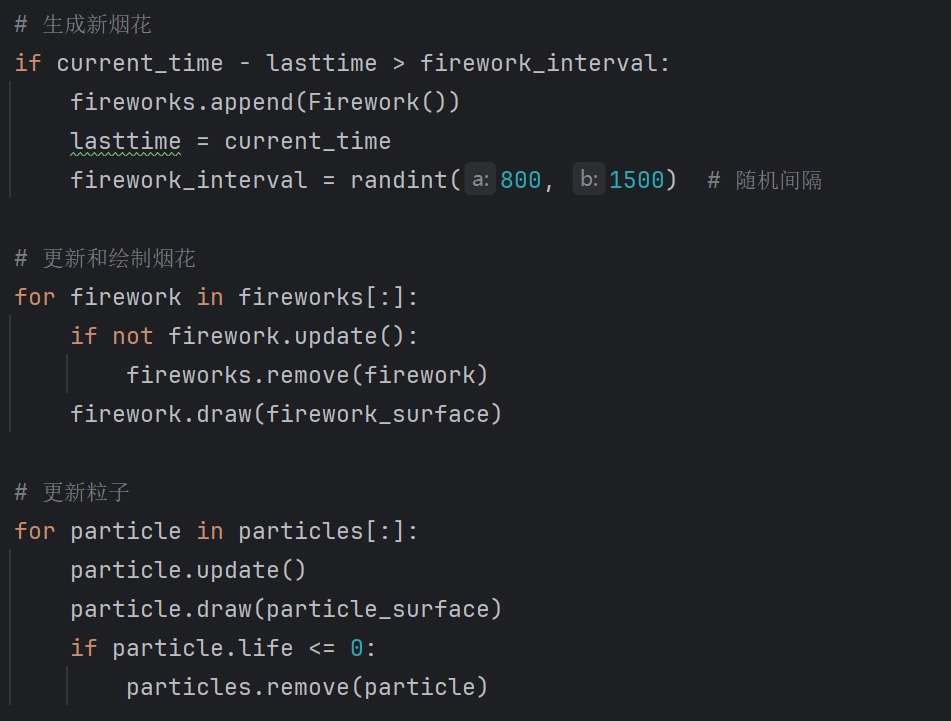
(5)实现艺术字渐显动画(只截了一部分图,下面有源码)
(6)设计交互按钮
1.按钮类构建按钮
2.创建和绘制按钮(主函数)
(7)微信聊天记录分析与表白
1.用wxauto登录微信
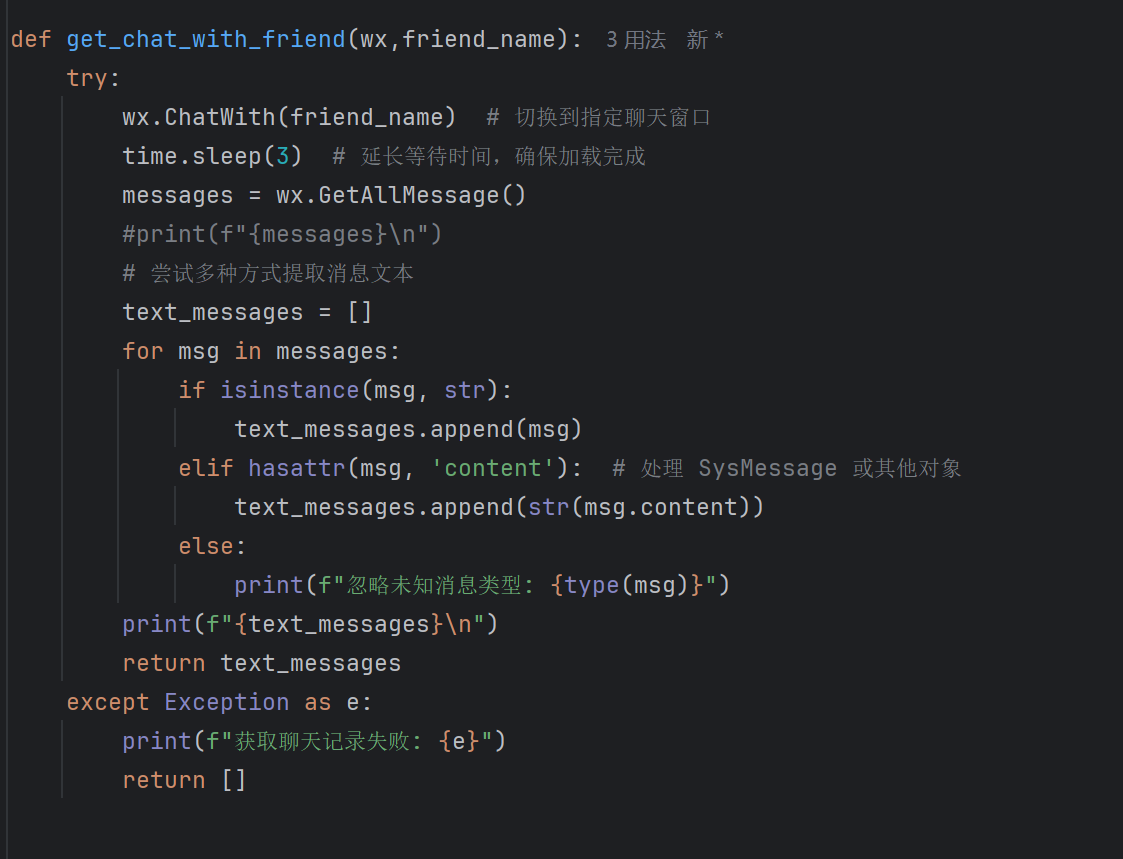
2.获取聊天记录
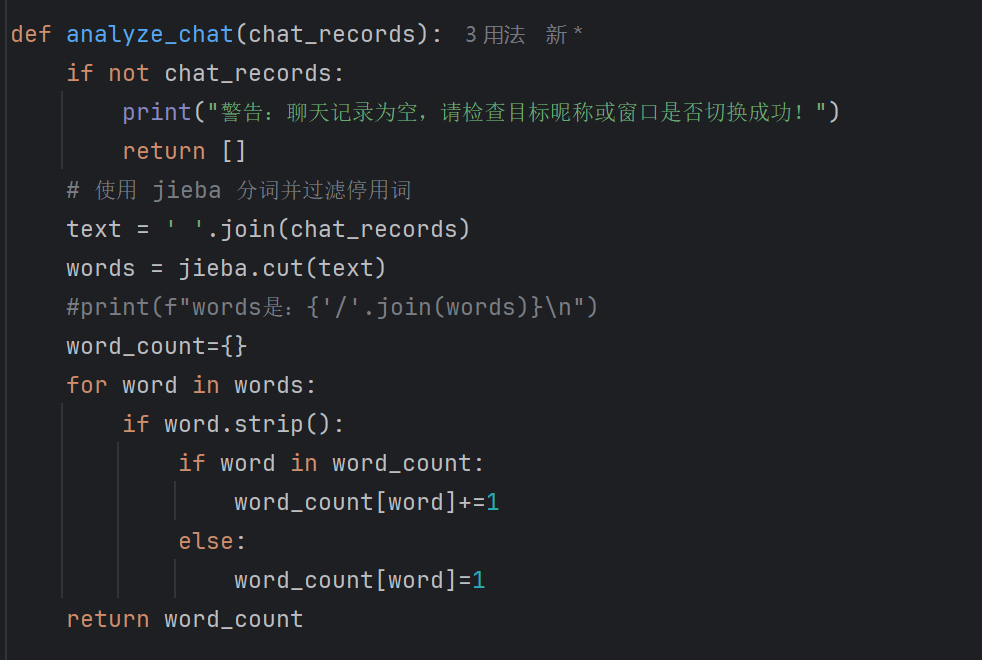
3.将聊天记录按词分割为字典存储(用jieba分词,并统计词频)
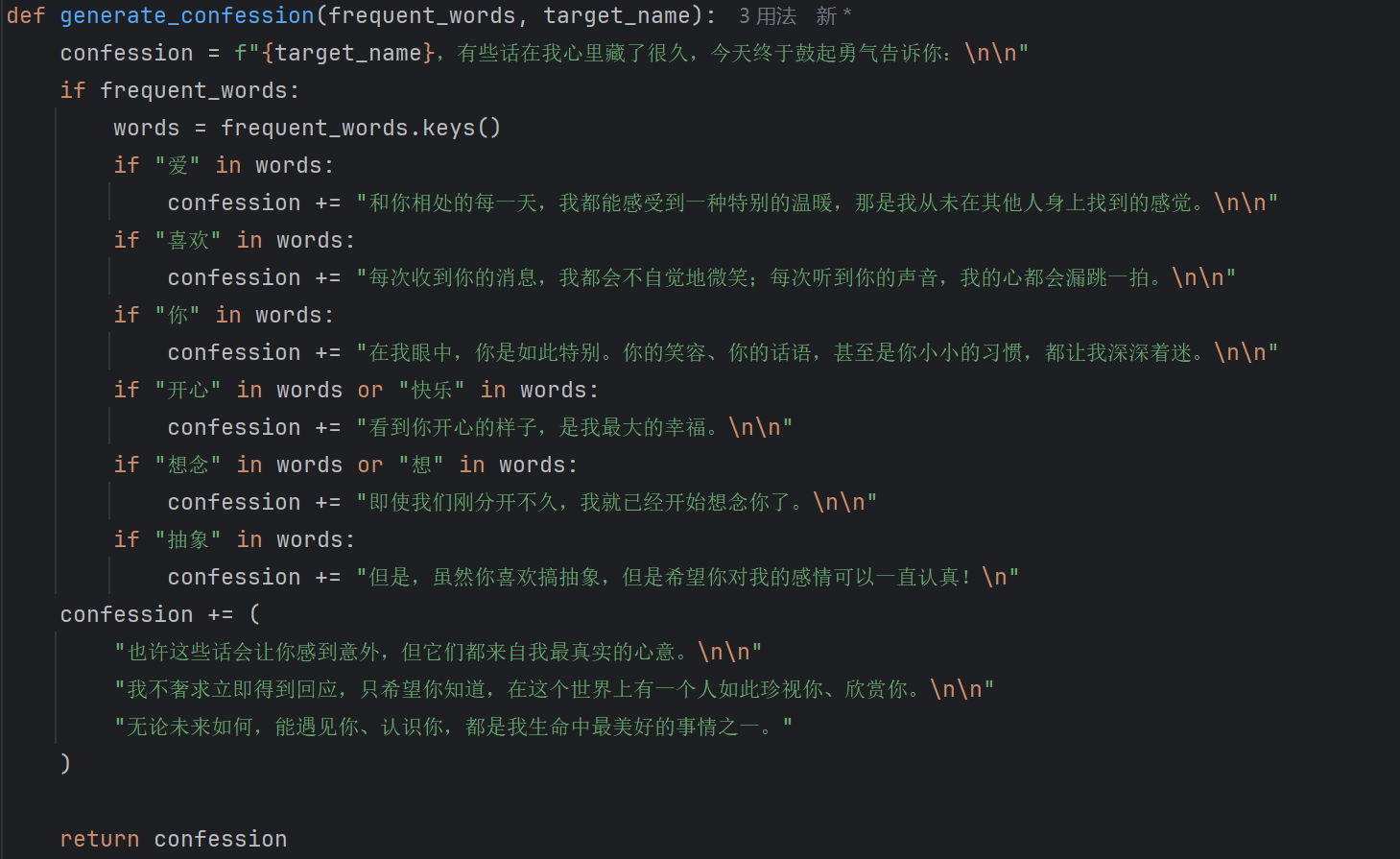
4.根据出现过不同的聊天信息编辑不同的信息
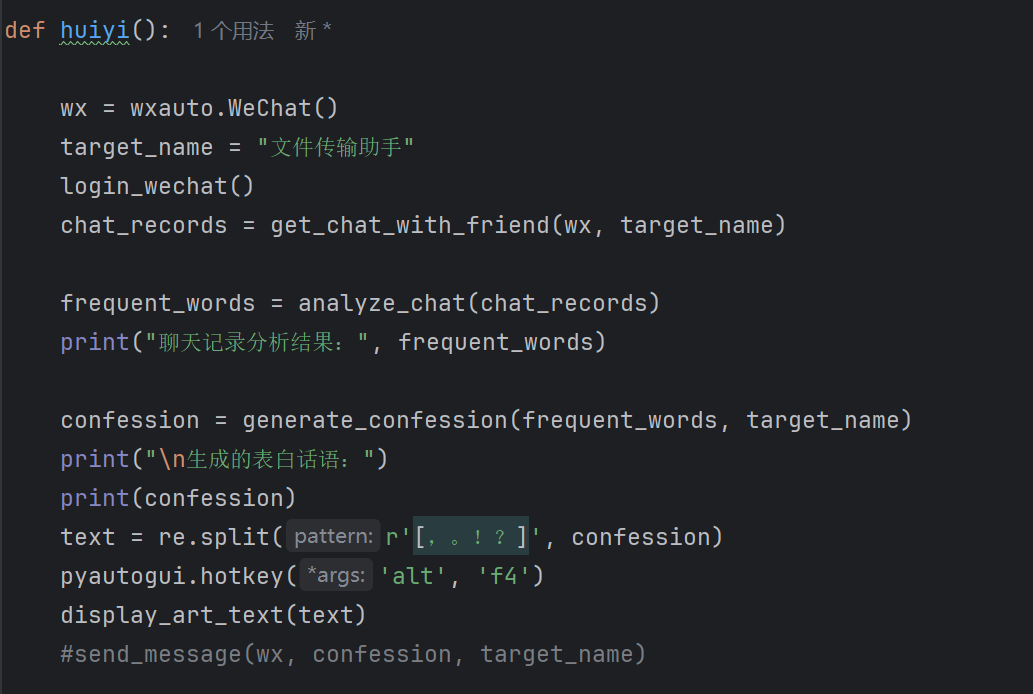
5.整合信息
(8)关键算法及其说明
1.爱心粒子系统
心形坐标计算
x_offset = size * 16 * math.sin(t_rad) ** 3 * pulse
y_offset = size * (13math.cos(t_rad) - 5math.cos(2*t_rad)...) * pulse
可以实现:每帧在边缘随机生成新粒子
粒子生命周期结束时自动移除
2.烟花的物理模型
粒子运动公式
self.x += math.cos(angle)speed
self.y += math.sin(angle)speed + gravity
可以实现:爆炸时生成100个随机方向粒子
通过life值实现粒子消失效果
3.艺术字动画
alpha = (elapsed_time/show_time)255 # 淡入
alpha = 255-((elapsed_time-show_time)/fade_time)255 # 淡出
可以实现:使用SRCALPHA表面实现透明叠加
文本按标点符号分割成多段展示
(9)源代码(一开始先做的根据微信内容的表白程序,再写的爱心烟花交互程序)
1.wxauto实现自动化表白
import wxauto
import jieba
import time
def login_wechat():
print("请确保微信客户端已打开并登录...")
time.sleep(2) # 等待用户确认登录
def get_chat_with_friend(wx,friend_name):
try:
wx.ChatWith(friend_name) # 切换到指定聊天窗口
time.sleep(3)
messages = wx.GetAllMessage()
#print(f"{messages}\n")
text_messages = []
for msg in messages:
if isinstance(msg, str):
text_messages.append(msg)
elif hasattr(msg, 'content'): # 处理 SysMessage 或其他对象
text_messages.append(str(msg.content))
else:
print(f"忽略未知消息类型: {type(msg)}")
print(f"{text_messages}\n")
return text_messages
except Exception as e:
print(f"获取聊天记录失败: {e}")
return []
def analyze_chat(chat_records):
if not chat_records:
print("警告:聊天记录为空,请检查目标昵称或窗口是否切换成功!")
return []
# 使用 jieba 分词并过滤停用词
text = ' '.join(chat_records)
words = jieba.cut(text)
#print(f"words是:{'/'.join(words)}\n")
word_count={}
for word in words:
if word.strip():
if word in word_count:
word_count[word]+=1
else:
word_count[word]=1
return word_count
def generate_confession(frequent_words, target_name):
confession = f"{target_name},有些话在我心里藏了很久,今天终于鼓起勇气告诉你:\n\n"
if frequent_words:
words = frequent_words.keys()
if "爱" in words:
confession += "和你相处的每一天,我都能感受到一种特别的温暖,那是我从未在其他人身上找到的感觉。\n\n"
if "喜欢" in words:
confession += "每次收到你的消息,我都会不自觉地微笑;每次听到你的声音,我的心都会漏跳一拍。\n\n"
if "你" in words:
confession += "在我眼中,你是如此特别。你的笑容、你的话语,甚至是你小小的习惯,都让我深深着迷。\n\n"
if "开心" in words or "快乐" in words:
confession += "看到你开心的样子,是我最大的幸福。\n\n"
if "想念" in words or "想" in words:
confession += "即使我们刚分开不久,我就已经开始想念你了。\n\n"
if "抽象" in words:
confession += "但是,虽然你喜欢搞抽象,但是希望你对我的感情可以一直认真!\n"
confession += (
"也许这些话会让你感到意外,但它们都来自我最真实的心意。\n\n"
"我不奢求立即得到回应,只希望你知道,在这个世界上有一个人如此珍视你、欣赏你。\n\n"
"无论未来如何,能遇见你、认识你,都是我生命中最美好的事情之一。"
)
return confession
def send_message(wx,Msg,target_name):
wx.SendMsg(Msg, target_name)
print("微信通知已发送")
def main():
wx = wxauto.WeChat()
target_name = "文件传输助手"
login_wechat()
chat_records = get_chat_with_friend(wx,target_name)
frequent_words = analyze_chat(chat_records)
print("聊天记录分析结果:", frequent_words)

confession = generate_confession(frequent_words,target_name)
print("\n生成的表白话语:")
print(confession)
send_message(wx,confession,target_name)
if name == "main":
main()
2.爱心烟花交互程序
import pygame
import math
import random
import wxauto
import pyautogui
import re
from pygame import gfxdraw
from random import randint, uniform, choice
from 微信表白程序wxauto import login_wechat,get_chat_with_friend,analyze_chat,generate_confession,send_message
初始化 Pygame
pygame.init()
设置窗口
WIDTH, HEIGHT = 800, 600
screen = pygame.display.set_mode((WIDTH, HEIGHT))
pygame.display.set_caption("爱心with烟花背景")
设置文字显示时长
show_time=2000
fade_time=1000
颜色定义
shenanhong = (180, 0, 0)#深暗红
anhong = (139, 0, 0)#暗红
shenhong = (220, 20, 60)#深红
xuehong = (138, 7, 7)
white = (255, 255, 255)
buttoncolor = (70, 70, 70)
buttoncolor1 = (100, 100, 100)
烟花颜色组
FIREWORK_COLORS = [
[(255, 50, 50), (255, 150, 150)], # 红色系
[(50, 50, 255), (150, 150, 255)], # 蓝色系
[(50, 255, 50), (150, 255, 150)], # 绿色系
[(255, 255, 50), (255, 255, 150)], # 黄色系
[(255, 50, 255), (255, 150, 255)], # 粉色系
[(50, 255, 255), (150, 255, 255)] # 青色系
]
COLORS = [shenanhong, anhong, shenhong, xuehong]
加载中文字体
try:
wenzi = pygame.font.Font("simhei.ttf", 36) # 尝试加载黑体
except:
wenzi = pygame.font.SysFont('microsoftyahei', 36) # 回退到微软雅黑
烟花粒子类
class FireworkParticle:
def init(self, x, y, color_group):
self.x = x
self.y = y
self.color = choice(color_group)
self.size = randint(2, 5)
self.speed = uniform(1, 3)
self.angle = uniform(0, math.pi * 2)
self.life = randint(30, 60)
self.gravity = 0.1
def update(self):
    self.x += math.cos(self.angle) * self.speed
    self.y += math.sin(self.angle) * self.speed + self.gravity
    self.life -= 1

def draw(self, surface):
    alpha = min(255, self.life * 5)
    color_with_alpha = (*self.color, alpha)
    gfxdraw.filled_circle(surface, int(self.x), int(self.y), int(self.size), color_with_alpha)
烟花类
class Firework:
def init(self):
self.x = randint(50, WIDTH - 50)
self.y = HEIGHT
self.speed = uniform(5, 10)
self.color_group = choice(FIREWORK_COLORS)
self.particles = []
self.exploded = False
self.target_y = randint(100, HEIGHT // 2)
def update(self):
    if not self.exploded:
        self.y -= self.speed
        if self.y <= self.target_y:
            self.explode()
            self.exploded = True

    for particle in self.particles[:]:
        particle.update()
        if particle.life <= 0:
            self.particles.remove(particle)

    return len(self.particles) > 0 or not self.exploded

def explode(self):
    for _ in range(100):
        self.particles.append(FireworkParticle(self.x, self.y, self.color_group))

def draw(self, surface):
    if not self.exploded:
        pygame.draw.line(surface, white, (self.x, self.y), (self.x, self.y + 10), 2)

    for particle in self.particles:
        particle.draw(surface)
按钮类
class Button:
def init(self, x, y, width, height, text, action=None):
self.rect = pygame.Rect(x, y, width, height)
self.text = text
self.action = action
self.is_hovered = False
self.font = pygame.font.SysFont('simhei', 20) if 'simhei' in pygame.font.get_fonts() else pygame.font.SysFont('microsoftyahei', 20)
def draw(self, surface):
    color = buttoncolor1 if self.is_hovered else buttoncolor
    pygame.draw.rect(surface, color, self.rect, border_radius=5)
    pygame.draw.rect(surface, white, self.rect, 2, border_radius=5)

    text_surf = self.font.render(self.text, True, white)
    text_rect = text_surf.get_rect(center=self.rect.center)
    surface.blit(text_surf, text_rect)

def check_hover(self, pos):
    self.is_hovered = self.rect.collidepoint(pos)
    return self.is_hovered

def handle_event(self, event):
    if event.type == pygame.MOUSEBUTTONDOWN and event.button == 1:
        if self.is_hovered and self.action:
            self.action()
            return True
    return False
粒子类
class Particle:
def init(self, x, y, color):
self.x = x
self.y = y
self.color = color
self.size = random.randint(1, 2)
self.life = 100
self.speed = random.uniform(0.5, 2.0)
self.angle = random.uniform(0, math.pi * 2)
def update(self):
    self.x += math.cos(self.angle) * self.speed
    self.y += math.sin(self.angle) * self.speed
    self.life -= 1

    if self.color[0] > 70:
        self.color = (self.color[0] - 1, max(0, self.color[1] - 0.5), max(0, self.color[2] - 0.5))

def draw(self, surface):
    alpha = min(255, self.life * 3)
    color_with_alpha = (*self.color, alpha)
    gfxdraw.filled_circle(surface, int(self.x), int(self.y), self.size, color_with_alpha)
在函数外部初始化全局变量
currentcolormode = 0
颜色模式切换函数
def change_color_mode():
global currentcolormode, COLORS
currentcolormode = (currentcolormode + 1) % 3
if currentcolormode == 0:  # 红色系
    COLORS = [(180, 0, 0), (139, 0, 0), (220, 20, 60), (138, 7, 7)]
elif currentcolormode == 1:  # 蓝色系
    COLORS = [(0, 0, 180), (0, 0, 139), (20, 60, 220), (7, 7, 138)]
else:  # 绿色系
    COLORS = [(0, 180, 0), (0, 139, 0), (60, 220, 20), (7, 138, 7)]
显示艺术字函数
def display_art_text(texts):
"""逐渐显示并消失艺术字"""
current_text_index = 0  # 当前显示的文本索引
alpha = 0  # 透明度
start_time = pygame.time.get_ticks()  # 游戏开始的时间戳

# 创建一个 Surface 用来绘制艺术字
text_surface = pygame.Surface((WIDTH, HEIGHT), pygame.SRCALPHA)  # 用来绘制艺术字的 Surface(带透明通道)
count=0
running = True
while running:
    # 事件处理
    for event in pygame.event.get():
        if event.type == pygame.QUIT:
            running = False

    # 获取当前时间与开始时间的差
    elapsed_time = pygame.time.get_ticks() - start_time

    # 渐变效果:逐渐显示文本或逐渐消失
    if elapsed_time < show_time:
        alpha = int((elapsed_time / show_time) * 255)  # 渐变出现,透明度从 0 到 255
    elif elapsed_time < show_time + fade_time:
        # 渐变消失,透明度从 255 到 0
        alpha = int(255 - ((elapsed_time - show_time) / fade_time) * 255)
    else:
        # 显示下一个文本
        current_text_index = current_text_index + 1 # 切换到下一个文本
        if current_text_index==len(texts):
            break
        start_time = pygame.time.get_ticks()  # 重置时间戳
        alpha = 0  # 重置透明度

    #清空艺术字 Surface(以防止重叠或残留的文本)
    text_surface.fill((0, 0, 0, 0))  # 填充透明背景

    #创建艺术字并设置透明度
    text = texts[current_text_index]
    text_render = wenzi.render(text, True, white)
    text_render.set_alpha(alpha)  # 设置透明度

    #获取艺术字的矩形区域并绘制
    text_rect = text_render.get_rect(center=(WIDTH // 2, HEIGHT - 50))
    text_surface.blit(text_render, text_rect)  # 将艺术字绘制到 text_surface

    screen.fill((0, 0, 0))  # 清屏,背景颜色可以根据需要调整
    screen.blit(text_surface, (0, 0))  # 将艺术字绘制到屏幕上

    pygame.display.flip()
绘制爱心函数
def draw_heart(screen, x, y, size=10, particles=None, pulse=1.0):
heart_points = []
for t in range(0, 360, 2):
t_rad = math.radians(t)
x_offset = size * 16 * math.sin(t_rad) ** 3 * pulse
y_offset = size * (13 * math.cos(t_rad) - 5 * math.cos(2 * t_rad) -
2 * math.cos(3 * t_rad) - math.cos(4 * t_rad)) * pulse
    screen_x = int(x + x_offset)
    screen_y = int(y - y_offset)
    heart_points.append((screen_x, screen_y))

    if particles is not None and random.random() < 0.3:
        color = random.choice(COLORS)
        particles.append(Particle(screen_x, screen_y, color))

if len(heart_points) > 1:
    pygame.draw.lines(screen, (0,0,0), False, heart_points, 2)
def huiyi():
wx = wxauto.WeChat()
target_name = "文件传输助手"
login_wechat()
chat_records = get_chat_with_friend(wx, target_name)

frequent_words = analyze_chat(chat_records)
print("聊天记录分析结果:", frequent_words)

confession = generate_confession(frequent_words, target_name)
print("\n生成的表白话语:")
print(confession)
text = re.split(r'[,。!?]', confession)
pyautogui.hotkey('alt', 'f4')
display_art_text(text)
#send_message(wx, confession, target_name)
主函数
def main():
global particles, pulse_size, pulse, fireworks, lasttime, firework_interval
running = True
clock = pygame.time.Clock()
particle_surface = pygame.Surface((WIDTH, HEIGHT), pygame.SRCALPHA)
firework_surface = pygame.Surface((WIDTH, HEIGHT), pygame.SRCALPHA)

# 初始化变量
particles = []
fireworks = []
pulse_size = 1.0
pulse = False
currentcolormode = 0
lasttime = 0
firework_interval = 1000  # 毫秒

while running:
    current_time = pygame.time.get_ticks()
    screen.fill((0, 0, 0))  # 深蓝色背景
    particle_surface.fill((0, 0, 0, 0))
    firework_surface.fill((0, 0, 0, 0))

    # 脉动效果
    if pulse:
        pulse_size += 0.01
        if pulse_size >= 1.2:
            pulse = False
    else:
        pulse_size -= 0.01
        if pulse_size <= 0.8:
            pulse = True

    # 生成新烟花
    if current_time - lasttime > firework_interval:
        fireworks.append(Firework())
        lasttime = current_time
        firework_interval = randint(800, 1500)  # 随机间隔

    # 更新和绘制烟花
    for firework in fireworks[:]:
        if not firework.update():
            fireworks.remove(firework)
        firework.draw(firework_surface)

    # 更新粒子
    for particle in particles[:]:
        particle.update()
        particle.draw(particle_surface)
        if particle.life <= 0:
            particles.remove(particle)

    # 绘制爱心
    draw_heart(screen, WIDTH // 2, HEIGHT // 2, size=10, particles=particles, pulse=pulse_size)

    # 创建按钮
    color_button = Button(20, 50, 150, 40, "换颜色", action=change_color_mode)
    texts = ["刘浩宇我爱你", "其实我很久之前就想对你说这句话了", "今天终于有勇气说出口", "我们在一起吧!"]
    text_button = Button(20, 100, 150, 40, "显示文字", action=lambda :display_art_text(texts))
    huiyi_button = Button(20,150,150,40,"我们的回忆",action=huiyi)

    # 绘制按钮
    mouse_pos = pygame.mouse.get_pos()
    color_button.check_hover(mouse_pos)
    text_button.check_hover(mouse_pos)
    huiyi_button.check_hover(mouse_pos)
    color_button.draw(screen)
    text_button.draw(screen)
    huiyi_button.draw(screen)

    # 合并表面
    screen.blit(firework_surface, (0, 0))
    screen.blit(particle_surface, (0, 0))

    # 显示当前模式
    font = pygame.font.SysFont('Arial', 20)
    mode_text = font.render(
        f'Current Mode: {"Red" if currentcolormode == 0 else "Blue" if currentcolormode == 1 else "Green"}',
        True, white)
    screen.blit(mode_text, (20, 10))

    # 事件处理
    for event in pygame.event.get():
        if event.type == pygame.QUIT:
            running = False

        # 处理按钮事件
        color_button.handle_event(event)
        text_button.handle_event(event)
        huiyi_button.handle_event(event)
    pygame.display.flip()
    clock.tick(60)

pygame.quit()
if name == "main":
main()
实验结果(视频):
https://www.bilibili.com/video/BV13DM3z4EoL/?vd_source=011ff108b6dc6a0b44094eb8250514c3
3.实验中遇到的问题和解决过程
-问题1:从一开始想构建一个微信机器人,实现自动化表白,但是失败了
-问题1解决方案:查阅了很多资料,在两三年前用itchat进行微信自动化、构建微信机器人的程序和代码较多,但是现在都不能用啦,要求微信要在2017年之前完成注册,然后又尝试了wechaty这个功能强大的库,但是需要官方的api要花钱呜呜呜,尝试了基于桌面微信的os协议,并问了ai,但是仍然一直报错,最后只能用wxauto实现了,虽然稍微低级一些,但完全够用啦
-问题2:有关图形界面以及粒子效果知识储备很少
-问题2解决方案:学!在b站找视频,问ai,得到了很多结果,一开始让ai帮我写了一些代码,完全运行不了,或者效果完全不符合,然后慢慢去学,去改,虽然最后仍然保留了一部分ai的代码,但是我能完全理解代码的语法和原理!如果时间充裕,我想重新完全手敲一遍代码,但是作业要截止了。最后也是基本实现了预期效果吧
其他(感悟、思考等)
从一开始想做一个微信机器人开始,感觉还是有点破防的,尝试了两三天时间,进展都是百分之零,智能选择用wxauto继续完成实验。目前我做的所有功能感觉都蛮鸡肋的,不过毕竟是python作业嘛,随心所欲一点王老师应该也不会那么严格的对吧,呜哇!然后想到做一个图形交互的界面,网上找了一些视频,自己做起来还很耗费时间,各种尝试,各种报错,不过功夫不负有心人,最后还是勉强能看了。感谢老师一个学期以来的教导。师傅领进门,修行在个人,老师让我从c/c++中跳脱出来,发现了python的乐趣并打开了这扇python的门,我会不断完善我这个目前看来什么用都没有而且不够人性化的程序(其实还写了一个小小的爬虫程序,简单的爬天气预报的程序,没时间跟这个弄到一起了),相信python会伴随我余生!“人生苦短,我用python”!谢谢老师的指导,以后有编程相关的问题希望老师还能给予指导!QAQ
参考资料
哔哩哔哩

 浙公网安备 33010602011771号