
Windows 10 WSL2 Ubuntu 24 安装 Harbor v2.14.0 ( 搭建私有镜像仓库 )
参考
- 豆包
- https://goharbor.io/
- https://goharbor.cn/
- https://github.com/goharbor/harbor
- https://github.com/goharbor/harbor/releases/tag/v2.14.0
- https://www.cnblogs.com/sowler/p/18242819
- https://www.cnblogs.com/scajy/p/13846721.html
- https://www.cnblogs.com/WiseXiaoge/p/15244846.html
- https://learn.microsoft.com/zh-cn/windows/wsl/
- https://blog.csdn.net/u011278722/article/details/137673353
- https://www.cnblogs.com/xiaqiuchu/p/18391567
- https://www.baeldung-cn.com/ops/pull-docker-image-insecure-registry
环境
| 软件/系统 | 版本 | 说明 |
|---|---|---|
| Windows | windows 10 专业版 22H2 64 位操作系统, 基于 x64 的处理器 | |
| WSL | 2 | |
| Ubuntu | Ubuntu 24.04.1 LTS | 下载 (安装自 Windows 10 应用商店) |
| Docker | Docker version 28.5.2, build ecc6942 | 在 WSL 内的 Ubuntu 上安装 |
| Docker Compose | Docker Compose version v2.40.3 | |
| Harbor | harbor-offline-installer-v2.14.0 | 下载 (离线版本) |
注意
- Windows 不通过 WSL 安装 Harbor 时,执行
harbor-offline-installer-v2.14.0\harbor\install.sh会报路径错误。 - 在 WSL 的 Ubuntu 中,执行 Docker 命令时默认连接的是 Windows 主机上面的 Docker,如果不受影响则需要退出 Windows 主机上面的 Docker 程序。
- 退出主机 Docker
- 关闭 WSL
wsl --shutdown - 重新进入 WSL 安装的对应 Linux 发行版
- 成功访问
- 如果关闭了 ssl ,使用 Docker 在拉取与推送镜像时需要配置信任不安全的源
- Harbor 的
docker-compose.yml容器没有设置开机启动。
正文
Harbor 是一个开源镜像仓库,通过策略和基于角色的访问控制来保护镜像,确保镜像经过扫描且没有漏洞,并将镜像签名为可信镜像。Harbor 是一个 CNCF 毕业项目,提供合规性、性能和互操作性,帮助您在 Kubernetes 和 Docker 等云原生计算平台上一致且安全地管理镜像。 -- https://goharbor.cn/
安装 Harbor
- Windows 安装并启用 WSL2
- WSL2 安装 Ubuntu (可以通过命令或者应用商店安装)

- 从开始菜单点击进入 Ubuntu
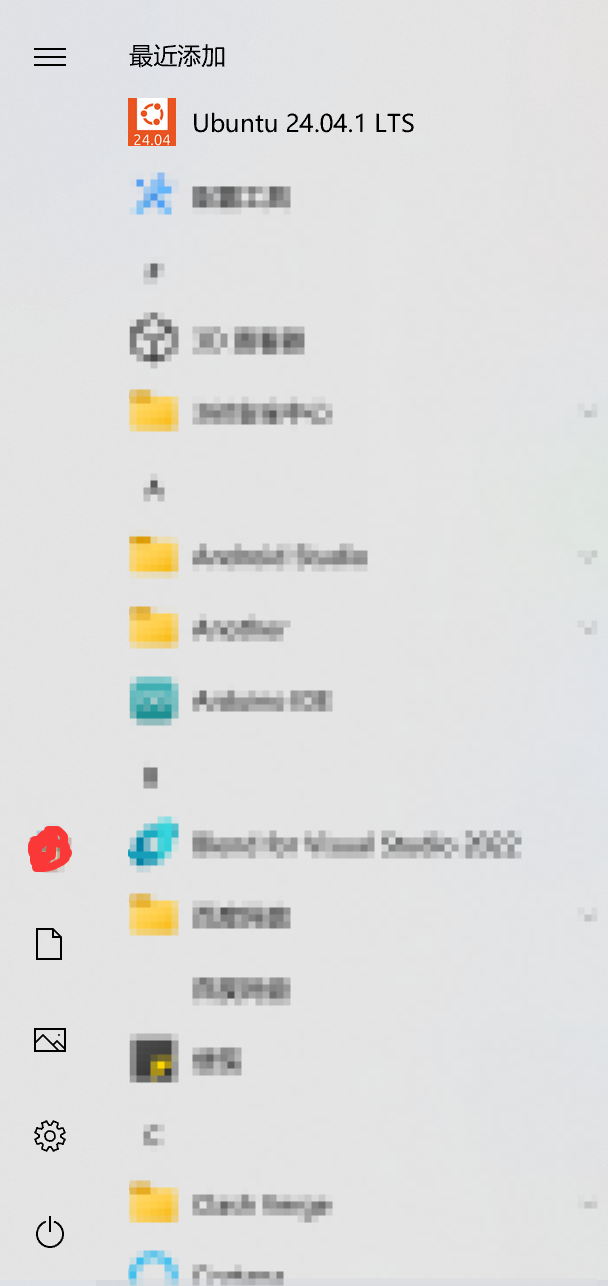
- 进入后提示初始化中,初始化完毕后提示设置账户和密码,设置完毕后再次点击进入 Ubuntu 即可
- 将 Ubuntu 软件源设置为国内阿里源,安装 Docker、Docker Compose,设置开机启动 (此处并未设置 Docker 源为国内源,因为本文是离线安装 Harbor ,所以 Harbor 自带相关镜像)https://www.cnblogs.com/xiaqiuchu/p/18391567
- 下载 Harbor 离线安装包 https://github.com/goharbor/harbor/releases/download/v2.14.0/harbor-offline-installer-v2.14.0.tgz (可以在 Windows 上面下载放到 Windows 的文件夹内,也可以在 Ubuntu 内使用 wget 进行下载安装)
- 复制
harbor-offline-installer-v2.14.0\harbor\harbor.yml.tmpl一份,修改文件名称为harbor.yml,修改其中hostname、https、port、harbor_admin_password等字段。(如果关闭了 ssl ,使用 Docker 在拉取与推送镜像时需要配置信任不安全的源)# 仅展示部分涉及到的内容,其他内容不变 # The IP address or hostname to access admin UI and registry service. # DO NOT use localhost or 127.0.0.1, because Harbor needs to be accessed by external clients. # hostname 不允许设置为 localhost 或 127.0.0.1,因为还需要外部访问。此处的 IP 是基于当前主机在局域网的 IP 进行设置的(WSL会共享主机网络)。 hostname: 192.168.1.3 # 关闭 https # https related config # https: # # https port for harbor, default is 443 # port: 443 # # The path of cert and key files for nginx # certificate: /your/certificate/path # private_key: /your/private/key/path # enable strong ssl ciphers (default: false) # strong_ssl_ciphers: false # http related config http: # port for http, default is 80. If https enabled, this port will redirect to https port # 应用被访问时的 WEB 端口 port: 5100 # The initial password of Harbor admin # It only works in first time to install harbor # Remember Change the admin password from UI after launching Harbor. # 后台 admin 的密码 harbor_admin_password: HarborXiaQiuChu - 使用 Ubuntu 命令进入到
harbor-offline-installer-v2.14.0\harbor,然后执行install.sh,会自动检测相关环境与安装(如果你的 harbor 安装包放到了 Windows 的文件夹内,可以在 Ubuntu 进入/mnt/文件夹在 Windows 的绝对路径就可以进入对应目录了,WSL 会自动挂载 Windows ,所以可以正常访问) - 访问
http://你的IP:你设置的端口/即可访问 (如本文配置访问: http://127.0.0.1:5100/ )
Docker 信任不安全的源
本文是在 WSL 内的 Ubuntu 执行的,所以推送远程的地址是
localhost:5100
- 编辑
/etc/docker/daemon.json(此文件是空文件),添加内容如下:{ "insecure-registries": ["localhost:5100"] } - 重启 Docker
systemctl restart docker - 验证是否生效
docker info # 出现你添加的内容即已生效 # Insecure Registries: # localhost:5100 # ::1/128 # 127.0.0.0/8 - 启动 Harbor
# 该目录就是 Harbor 的 docker-compose.yml 所在目录
cd /mnt/c/你的harbor目录/harbor
# 有些 linux 是 docker-compose up -d
docker compose up -d
推送与拉取镜像
本部分在 WSL 内执行,使用
nginx:alpine镜像作为示例
需要 Docker 信任不安全的源,如果推送或连接失败,请检查端口、IP与是否信任不安全的源
- 从 Docker 拉取
nginx:alpine镜像docker pull nginx:alpine # 如果访问失败,可以使用 `Docker` 在已下载`nginx:alpine` 镜像主机上面导出 `docker save -o nginx-alpine.tar nginx:alpine`;然后在 WSL Ubuntu 内进行导入 `docker load < ./nginx-alpine.tar` - 给
nginx:alpine镜像打上标签# docker tag 镜像名:版本 harbor地址:harbor端口/文件夹(可以自定义)/镜像名(可以自定义):镜像版本 docker tag nginx:alpine localhost:5100/library/nginx:v1 - 推送镜像到 Harbor
docker push localhost:5100/library/nginx:v1 - 拉取镜像到本地(本步骤可能会出现镜像已存在的文件,删除即可
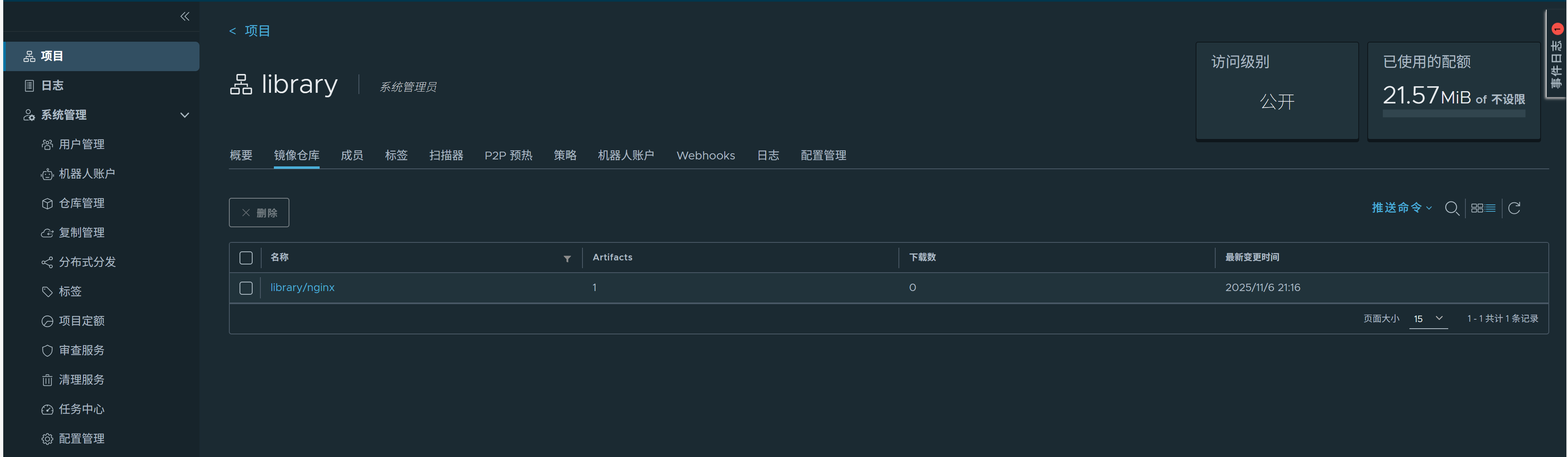
docker rmi localhost:5100/library/nginx:v1)docker pull localhost:5100/library/nginx:v1 # 显示类似内容 # v1: Pulling from library/nginx # Digest: sha256:97a145fb5809fd90ebdf66711f69b97e29ea99da5403c20310dcc425974a14f9 # Status: Downloaded newer image for localhost:5100/library/nginx:v1 # localhost:5100/library/nginx:v1 - 访问 Web 控制台即可查看到
博 主 :夏秋初
地 址 :https://www.cnblogs.com/xiaqiuchu/p/19196705
如果对你有帮助,可以点一下 推荐 或者 关注 吗?会让我的分享变得更有动力~
转载时请带上原文链接,谢谢。
地 址 :https://www.cnblogs.com/xiaqiuchu/p/19196705
如果对你有帮助,可以点一下 推荐 或者 关注 吗?会让我的分享变得更有动力~
转载时请带上原文链接,谢谢。

 浙公网安备 33010602011771号