
WinForm 仅布局实现多个子控件在父控件内水平垂直居中和实现图片按钮效果
参考
- 豆包
- https://q.cnblogs.com/q/128657
- https://cloud.tencent.com/developer/ask/sof/102614176
- https://dev59.com/e2kv5IYBdhLWcg3wbgXQ
- https://wenku.csdn.net/answer/065e548da5414776a9f88f09e7c9a061
- https://learn.microsoft.com/zh-cn/dotnet/desktop/winforms/controls/walkthrough-arranging-controls-on-windows-forms-using-a-flowlayoutpanel?view=netframeworkdesktop-4.8
- https://www.cnblogs.com/qingfenglin/p/13827762.html
- https://blog.csdn.net/weixin_36927921/article/details/103822115
- https://www.cnblogs.com/wwfjcy479/p/3711639.html
- https://www.cnblogs.com/GardenofEden/p/10383664.html
- https://blog.51cto.com/u_15127555/4594815
环境
| 软件/系统 | 版本 | 说明 |
|---|---|---|
| Windows | windows 10 专业版 22H2 64 位操作系统, 基于 x64 的处理器 | |
| Microsoft Visual Studio | Community 2022 (64 位) - Current 版本 17.13.6 | |
| .NET Framework | 4.8 |
效果预览
- 水平居中
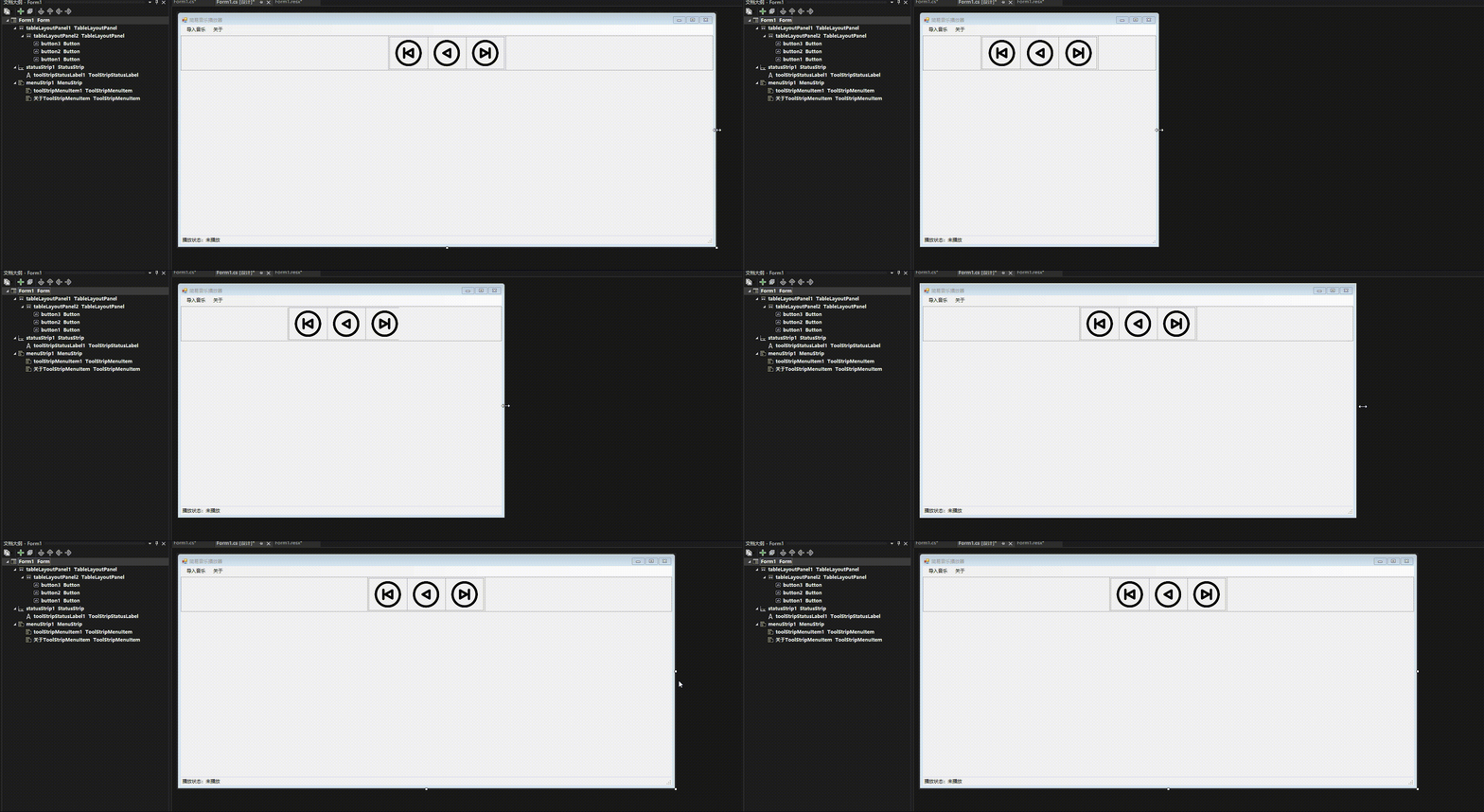
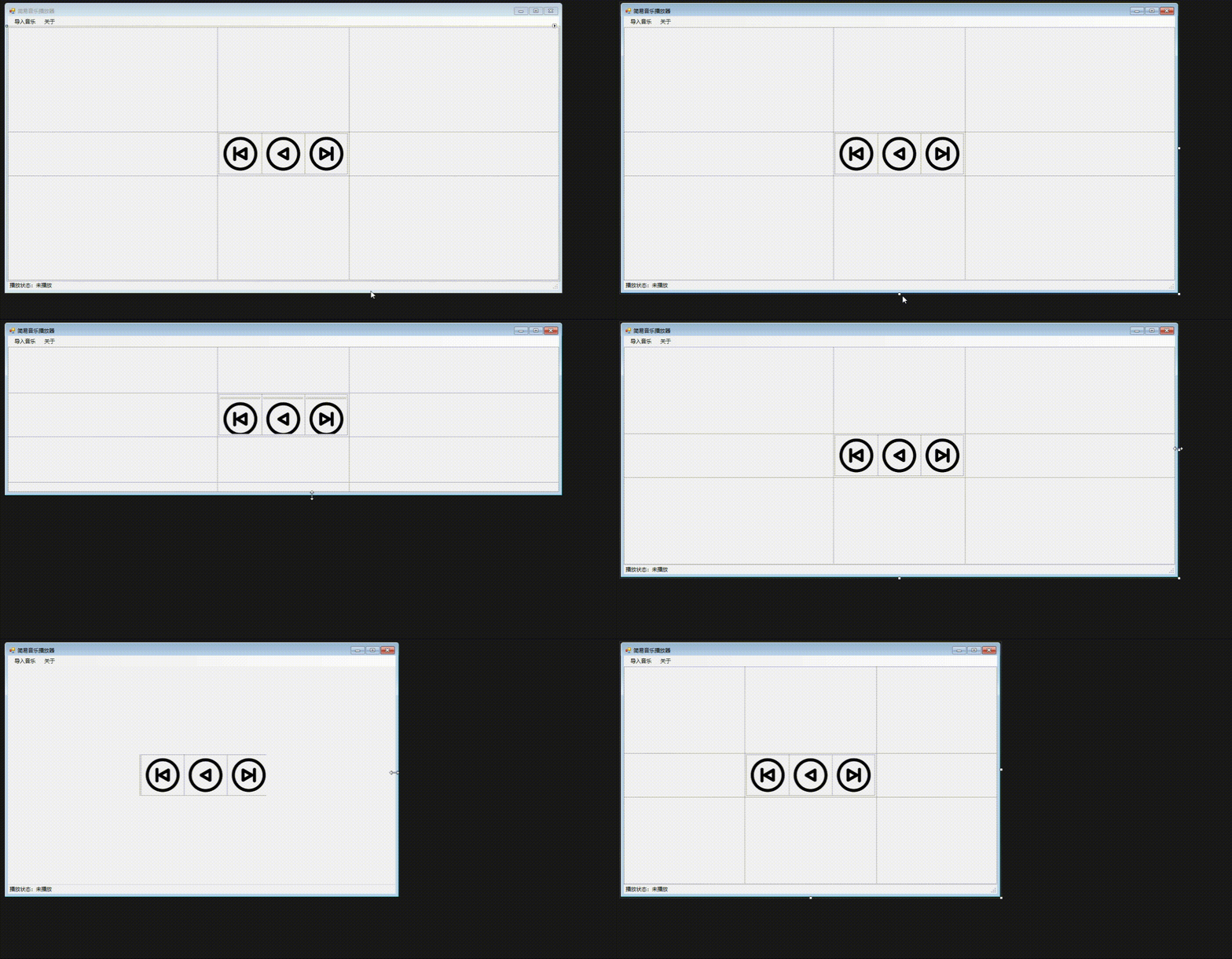
- 水平与垂直居中
实现子控件在父控件内水平居中
Anchor:None 可以实现类似效果,但不推荐
- 添加
tableLayoutPanel1,设置Anchor: "Top,Left,Right"。(Top非必须项目)

- 给
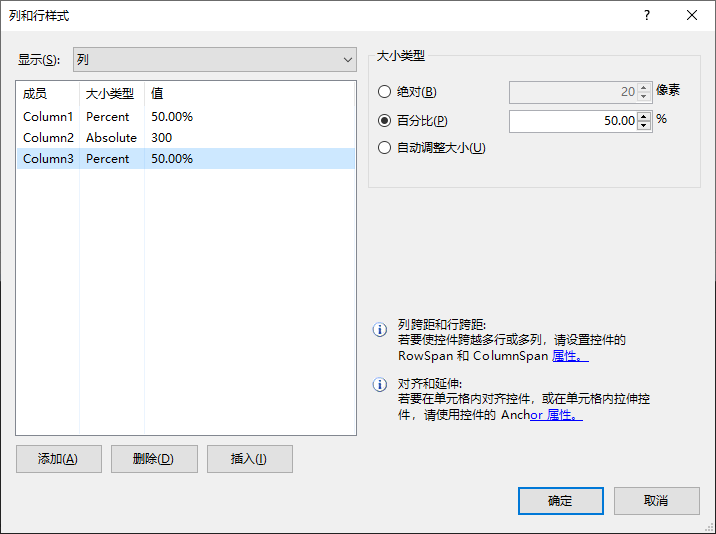
tableLayoutPanel1设置为1行、三列,其中第1、3列的宽度为百分比: 100%,第2列的宽度为你实际需要的宽度,我这里使用的绝对:300像素。(到这里其实就实现了子控件在父控件内水平居中,因为第2列就是固定宽度并居中)
- 添加
tableLayoutPanel2到tableLayoutPanel1,设置Dock:Fill。

- 给
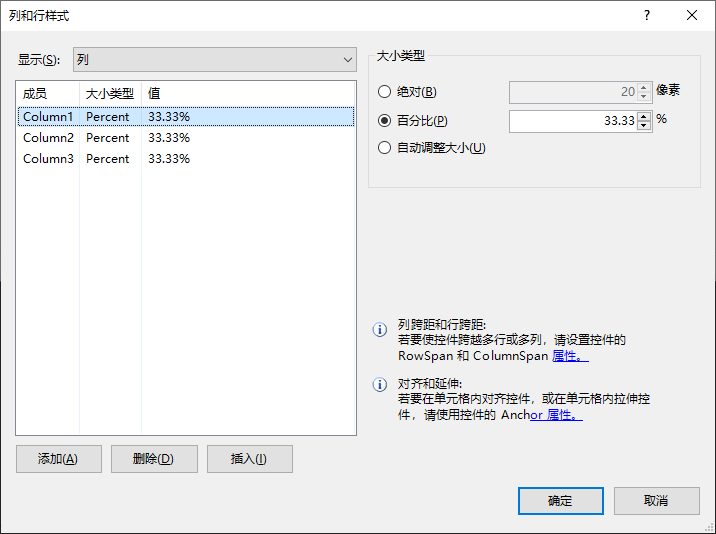
tableLayoutPanel2设置为1行、三列,每列宽度为百分比: 33.33%。
- 给
tableLayoutPanel2的每列拖拽入一个Button,并给Button设置Dock:Fill即可填充,实现居中。
实现子控件在父控件内垂直居中
Anchor:None 可以实现类似效果,但不推荐
实现方式与子控件在父控件内水平居中配置基本一致,需要给tableLayoutPanel1设置三行,将子控件的布局放入第2行、第2列内,第1、3行高度设置为百分比: 100%,第2行的高度设置为你需要的实际宽度即可。
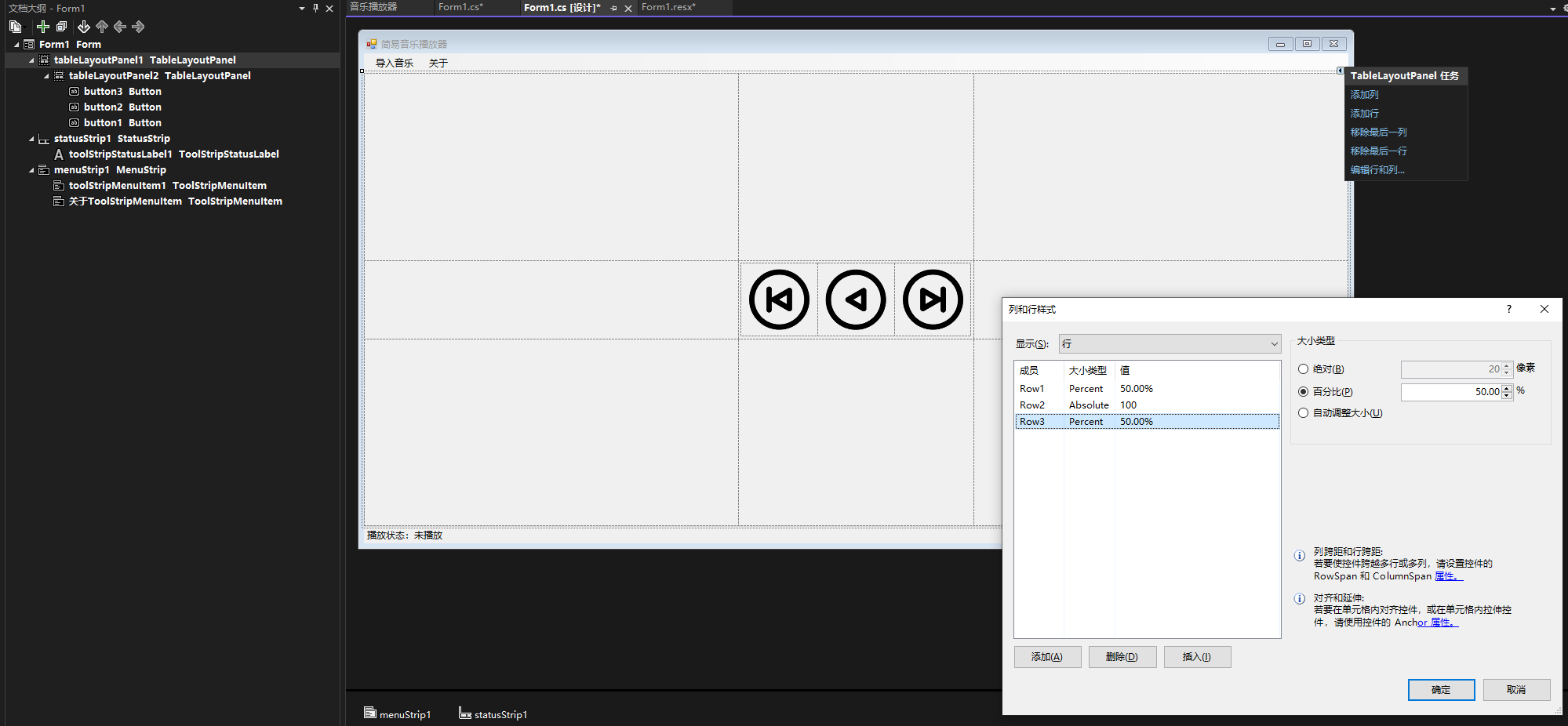
实现图片按钮
- 添加一个
Button按钮。 - 设置相关属性如下:
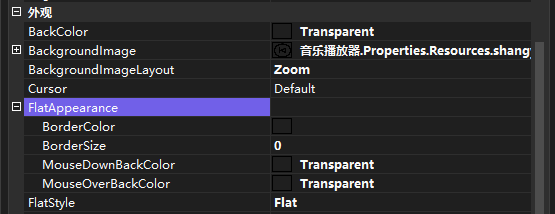
- BackgroundImage 指定按钮图片
- BackgroundImageLayout:Zoom 指定按钮图片布局
- FlatStyle:Flat
- FlatAppearance
- BorderSize:0 去掉边框
- MouseDownBackColor: Transparent 鼠标按下背景为透明
- MouseOverBackColor: Transparent 鼠标抬起背景为透明
博 主 :夏秋初
地 址 :https://www.cnblogs.com/xiaqiuchu/p/18879316
如果对你有帮助,可以点一下 推荐 或者 关注 吗?会让我的分享变得更有动力~
转载时请带上原文链接,谢谢。
地 址 :https://www.cnblogs.com/xiaqiuchu/p/18879316
如果对你有帮助,可以点一下 推荐 或者 关注 吗?会让我的分享变得更有动力~
转载时请带上原文链接,谢谢。

 浙公网安备 33010602011771号