
Part 1: Create a folder and toolbox
In ArcCatalog, create a new folder named GPServerExample. It doesn't matter where you create this folder. For the purposes of this discussion, assume that the location is E:"GPServerExample.- Create a new toolbox in E:"GPServerExample with the name MyServerTools and the label My Server Tools.
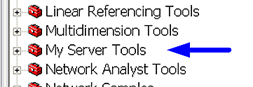
- Start ArcMap, show the ArcToolbox window, and add E:"GPServerExample"MyServerTools to the ArcToolbox window. (ArcToolbox will display the toolbox label, My Server Tools, as shown below.)
Part 2: Build the model
- Within My Server Tools, create a new model with the name BufferPoints and the label Buffer Points.
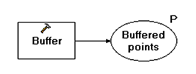
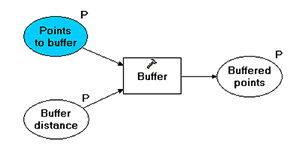
- Add the Buffer tool to the model. Rename the output to Buffered points and make it a model parameter, as shown below.
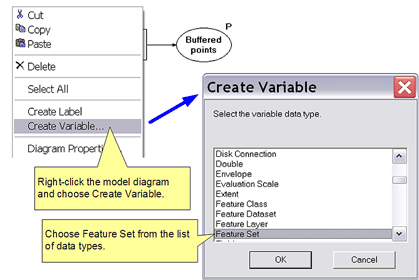
- Create a new variable with the data type of Feature Set by right-clicking on the model diagram and clicking Create Variable, as shown below.
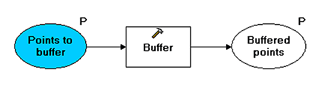
- Rename the just-created variable to Points to buffer, connect it to the Input features parameter of Buffer, and make it a model parameter, as shown below.
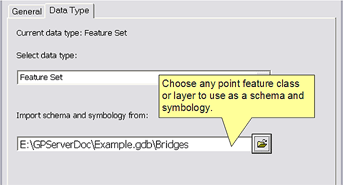
- The Points to buffer variable needs to know what type of features to create and how to draw them. You set this information by right-clicking the variable and clicking Properties. Click the Data Type tab and under "Import schema and symbology from", navigate to any point feature class or layer. (This example uses point features. In reality, Buffer will accept any feature class type, so you can choose any type.)
- Create a new variable with the data type of Linear Unit by right-clicking the model diagram and clicking Create Variable. Name this variable Buffer distance, connect it to the Distance [Value or Field] parameter of the Buffer, and make it a model parameter, as shown below.
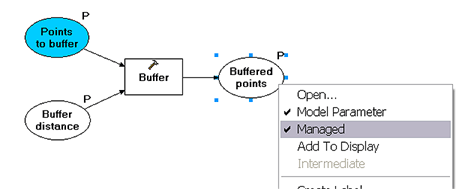
- Right-click on the output variable Buffered points and click Managed, as shown below. A managed output means that output location will be decided by ArcGIS server when the model is run. It's recommended that all models published on a server should have managed outputs, except for tool layers (see Example map service with geoprocessing for example of using a tool layer).
- Finally, save the model and exit ModelBuilder.
- If necessary, restart ArcMap and add the MyServerTools toolbox.
- The Add results of geoprocessing operations to the display option should be turned on.
Learn more about the Feature Set data type
Managed output will be written to the scratch workspace that is automatically created by ArcGIS server every time the model is run.
Learn more about managed data
- Open the Buffer Points tool. The dialog should appear as follows:
- Provide one or more points to buffer and a buffer distance.
Learn more about using the Feature Set parameter control - Click OK.
- After the tool executes, a new layer will be added to the ArcMap
table of contents. You have no control over this initial layer name
because the tool output is managed, which means the name is chosen by
ArcGIS. You can rename the layer in ArcMap by right-clicking the layer
and clicking Properties and entering a new name.
The output is drawn using default polygon symbology. You can change this by editing the Buffer Points model as follows: - right-click Buffered point (the output variable)
- click Properties
- click the Layer Symbology tab and provide a layer to use as the default symbology
Part 3: Test the model locally
The above model is ready for publishing. Obviously, you need to test the model before you publish. Because the input parameter data type is a Feature Set, and a Feature Set takes interactively placed features, you need to execute the model in an application that contains a map display, such as ArcMap.


 浙公网安备 33010602011771号