WPF点击按钮显示ContextMenu
xaml
<Button ContextMenuService.IsEnabled="False" PreviewMouseLeftButtonDown="Button_PreviewMouseLeftButtonDown"  Width="100" Height="30" Content="...">
    <Button.ContextMenu>
        <ContextMenu Style="{StaticResource BrowserContextMenuStyle}">
            <MenuItem Header="刷新"  Style="{StaticResource BrowserMenuItemStyle}"/>
            <MenuItem Header="设置"  Style="{StaticResource BrowserMenuItemStyle}"/>
            <Separator/>
            <MenuItem Header="关于"  Style="{StaticResource BrowserMenuItemStyle}" />
        </ContextMenu>
    </Button.ContextMenu>
</Button>
xaml.cs
private void Button_PreviewMouseLeftButtonDown(object sender, MouseButtonEventArgs e)
{
    var btn = sender as Button;
    if (btn != null && btn.ContextMenu != null)
    {
        btn.ContextMenu.PlacementTarget = btn;
        btn.ContextMenu.IsOpen = true;
        e.Handled = true;
    }
}
资源字典BrowserContextMenu.xaml
<ResourceDictionary xmlns="http://schemas.microsoft.com/winfx/2006/xaml/presentation"
                    xmlns:x="http://schemas.microsoft.com/winfx/2006/xaml">

    <!-- 圆角阴影边框 -->
    <Style x:Key="BrowserContextMenuStyle" TargetType="{x:Type ContextMenu}">
        <Setter Property="Background" Value="#FFFFFF"/>
        <Setter Property="BorderBrush" Value="#D0D0D0"/>
        <Setter Property="BorderThickness" Value="1"/>
        <Setter Property="SnapsToDevicePixels" Value="True"/>
        <Setter Property="OverridesDefaultStyle" Value="True"/>
        <Setter Property="Template">
            <Setter.Value>
                <ControlTemplate TargetType="{x:Type ContextMenu}">
                    <Border x:Name="Border"
                            Background="{TemplateBinding Background}"
                            BorderBrush="{TemplateBinding BorderBrush}"
                            BorderThickness="{TemplateBinding BorderThickness}"
                            CornerRadius="6"
                            Padding="2,4">
                        <Border.Effect>
                            <DropShadowEffect BlurRadius="12" Opacity="0.25" ShadowDepth="2"/>
                        </Border.Effect>
                        <ScrollViewer x:Name="SubMenuScrollViewer"
                                      CanContentScroll="True"
                                      Style="{DynamicResource {ComponentResourceKey TypeInTargetAssembly={x:Type FrameworkElement}, ResourceId=MenuScrollViewer}}">
                            <ItemsPresenter/>
                        </ScrollViewer>
                    </Border>
                </ControlTemplate>
            </Setter.Value>
        </Setter>
    </Style>

    <!-- 菜单项 -->
    <Style x:Key="BrowserMenuItemStyle" TargetType="{x:Type MenuItem}">
        <Setter Property="Foreground" Value="#1A1A1A"/>
        <Setter Property="FontFamily" Value="Segoe UI"/>
        <Setter Property="FontSize" Value="14"/>
        <Setter Property="Height" Value="28"/>
        <Setter Property="Padding" Value="12,0,24,0"/>
        <Setter Property="Template">
            <Setter.Value>
                <ControlTemplate TargetType="{x:Type MenuItem}">
                    <Border x:Name="Bg"
                            Background="Transparent"
                            SnapsToDevicePixels="True">
                        <Grid>
                            <ContentPresenter x:Name="HeaderHost"
                                              Margin="{TemplateBinding Padding}"
                                              VerticalAlignment="Center"
                                              ContentSource="Header"/>
                        </Grid>
                    </Border>
                    <ControlTemplate.Triggers>
                        <Trigger Property="IsHighlighted" Value="True">
                            <Setter TargetName="Bg" Property="Background" Value="#E5F3FF"/>
                        </Trigger>
                        <Trigger Property="IsEnabled" Value="False">
                            <Setter Property="Foreground" Value="#A0A0A0"/>
                        </Trigger>
                    </ControlTemplate.Triggers>
                </ControlTemplate>
            </Setter.Value>
        </Setter>
    </Style>

    <!-- 分隔线 -->
    <Style TargetType="{x:Type Separator}">
        <Setter Property="Height" Value="1"/>
        <Setter Property="Background" Value="#E6E6E6"/>
        <Setter Property="Margin" Value="8,2"/>
    </Style>
</ResourceDictionary>
别忘了把资源字典实例化哦,在APP.xaml中的Application.Resources下加上
<ResourceDictionary>
    <ResourceDictionary.MergedDictionaries>
        <ResourceDictionary Source="BrowserContextMenu.xaml"/>
    </ResourceDictionary.MergedDictionaries>
</ResourceDictionary>
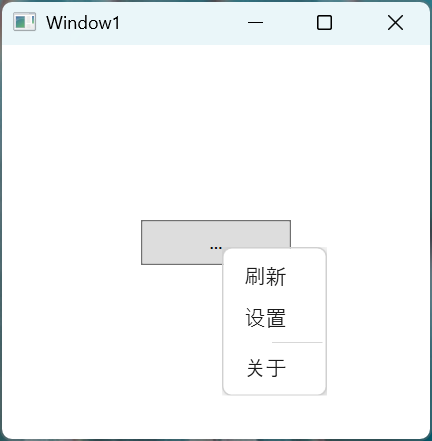
效果

 浙公网安备 33010602011771号