


44、鸿蒙HarmonyOS Next开发:视频播放 (Video)组件和进度条 (Progress)组件的应用
目录
视频播放 (Video)
Video组件用于播放视频文件并控制其播放状态,常用于短视频和应用内部视频的列表页面。当视频完整出现时会自动播放,用户点击视频区域则会暂停播放,同时显示播放进度条,通过拖动播放进度条指定视频播放到具体位置。
创建视频组件
Video通过调用接口来创建,接口调用形式如下:
Video(value: VideoOptions)
加载视频资源
Video组件支持加载本地视频和网络视频。具体的数据源配置请参考VideoOptions对象说明。
加载本地视频
普通本地视频。
加载本地视频时,首先在本地rawfile目录指定对应的文件,如下图所示。
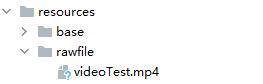
再使用资源访问符$rawfile()引用视频资源。
// xxx.ets
@Component
export struct VideoPlayer {
private controller: VideoController = new VideoController()
private previewUris: Resource = $r('app.media.preview')
private innerResource: Resource = $rawfile('videoTest.mp4')
build() {
Column() {
Video({
src: this.innerResource,  // 设置视频源
previewUri: this.previewUris, // 设置预览图
controller: this.controller //设置视频控制器,可以控制视频的播放状态
})
}
}
}
Data Ability提供的视频路径带有dataability://前缀,使用时确保对应视频资源存在。
// xxx.ets
@Component
export struct VideoPlayer {
private controller: VideoController = new VideoController()
private previewUris: Resource = $r('app.media.preview')
private videoSrc: string = 'dataability://device_id/com.domainname.dataability.videodata/video/10'
build() {
Column() {
Video({
src: this.videoSrc,
previewUri: this.previewUris,
controller: this.controller
})
}
}
}
加载沙箱路径视频
支持file://路径前缀的字符串,用于读取应用沙箱路径内的资源,需要确保应用沙箱目录路径下的文件存在并且有可读权限。
// xxx.ets
@Component
export struct VideoPlayer {
private controller: VideoController = new VideoController()
private videoSrc: string = 'file:///data/storage/el2/base/haps/entry/files/show.mp4'
build() {
Column() {
Video({
src: this.videoSrc,
controller: this.controller
})
}
}
}
加载网络视频
加载网络视频时,需要申请ohos.permission.INTERNET权限,具体申请方式请参考声明权限。此时,Video的src属性为网络视频的链接。
// xxx.ets
@Component
export struct VideoPlayer {
private controller: VideoController = new VideoController()
private previewUris: Resource = $r('app.media.preview')
private videoSrc: string = 'https://www.example.com/example.mp4' // 使用时请替换为实际视频加载网址
build() {
Column() {
Video({
src: this.videoSrc,
previewUri: this.previewUris,
controller: this.controller
})
}
}
}
添加属性
Video组件属性主要用于设置视频的播放形式。例如设置视频播放是否静音、播放是否显示控制条等。
// xxx.ets
@Component
export struct VideoPlayer {
private controller: VideoController = new VideoController()
build() {
Column() {
Video({
controller: this.controller
})
.muted(false) // 设置是否静音
.controls(false) // 设置是否显示默认控制条
.autoPlay(false) // 设置是否自动播放
.loop(false) // 设置是否循环播放
.objectFit(ImageFit.Contain) // 设置视频填充模式
}
}
}
事件调用
Video组件回调事件主要包括播放开始、播放暂停、播放结束、播放失败、播放停止、视频准备和操作进度条等事件,除此之外,Video组件也支持通用事件的调用,如点击、触摸等事件的调用。
// xxx.ets
@Entry
@Component
struct VideoPlayer {
private controller: VideoController = new VideoController()
private previewUris: Resource = $r('app.media.preview')
private innerResource: Resource = $rawfile('videoTest.mp4')
build() {
Column() {
Video({
src: this.innerResource,
previewUri: this.previewUris,
controller: this.controller
})
.onUpdate((event) => { // 更新事件回调
console.info("Video update.");
})
.onPrepared((event) => { // 准备事件回调
console.info("Video prepared.");
})
.onError(() => { // 失败事件回调
console.error("Video error.");
})
.onStop(() => { // 停止事件回调
console.info("Video stopped.");
})
}
}
}
Video控制器使用
Video控制器主要用于控制视频的状态,包括播放、暂停、停止以及设置进度等,详细使用请参考VideoController使用说明。
默认控制器
默认的控制器支持视频的开始、暂停、进度调整、全屏显示四项基本功能。
// xxx.ets
@Entry
@Component
struct VideoGuide {
@State videoSrc: Resource = $rawfile('videoTest.mp4')
@State previewUri: string = 'common/videoIcon.png'
@State curRate: PlaybackSpeed = PlaybackSpeed.Speed_Forward_1_00_X
build() {
Row() {
Column() {
Video({
src: this.videoSrc,
previewUri: this.previewUri,
currentProgressRate: this.curRate // 设置视频播放倍速
})
}
.width('100%')
}
.height('100%')
}
}
自定义控制器
使用自定义的控制器,先关闭默认控制器,然后使用button以及slider等组件进行自定义的控制与显示,适合自定义较强的场景下使用。
// xxx.ets
@Entry
@Component
struct VideoGuide {
@State videoSrc: Resource = $rawfile('videoTest.mp4')
@State previewUri: string = 'common/videoIcon.png'
@State curRate: PlaybackSpeed = PlaybackSpeed.Speed_Forward_1_00_X
@State currentTime: number = 0
@State durationTime: number = 0
controller: VideoController = new VideoController()
build() {
Row() {
Column() {
Video({
src: this.videoSrc,
previewUri: this.previewUri,
currentProgressRate: this.curRate,
controller: this.controller
})
.controls(false)
.autoPlay(true)
.onPrepared((event) => {
if (event) {
this.durationTime = event.duration
}
})
.onUpdate((event) => {
if (event) {
this.currentTime = event.time
}
})
Row() {
Text(JSON.stringify(this.currentTime) + 's')
Slider({
value: this.currentTime,
min: 0,
max: this.durationTime
})
.onChange((value: number, mode: SliderChangeMode) => {
this.controller.setCurrentTime(value); // 设置视频播放的进度跳转到value处
})
.width("90%")
Text(JSON.stringify(this.durationTime) + 's')
}
.opacity(0.8)
.width("100%")
}
.width('100%')
}
.height('40%')
}
}
其他说明
Video组件已经封装好了视频播放的基础能力,开发者无需进行视频实例的创建,视频信息的设置获取,只需要设置数据源以及基础信息即可播放视频,相对扩展能力较弱。如果开发者想自定义视频播放,请参考视频播放。
示例代码
进度条 (Progress)
Progress是进度条显示组件,显示内容通常为目标操作的当前进度。
创建进度条
Progress通过调用接口来创建,接口调用形式如下:
Progress(options: {value: number, total?: number, type?: ProgressType})其中,value用于设置初始进度值,total用于设置进度总长度,type用于设置Progress样式。
Progress({ value: 24, total: 100, type: ProgressType.Linear }) // 创建一个进度总长为100,初始进度值为24的线性进度条
设置进度条样式
Progress有5种可选类型,通过ProgressType可以设置进度条样式。ProgressType类型包括:ProgressType.Linear(线性样式)、 ProgressType.Ring(环形无刻度样式)、ProgressType.ScaleRing(环形有刻度样式)、ProgressType.Eclipse(圆形样式)和ProgressType.Capsule(胶囊样式)。
线性样式进度条(默认类型)
从API version 9开始,组件高度大于宽度时,自适应垂直显示;组件高度等于宽度时,保持水平显示。
Progress({ value: 20, total: 100, type: ProgressType.Linear }).width(200).height(50)
Progress({ value: 20, total: 100, type: ProgressType.Linear }).width(50).height(200)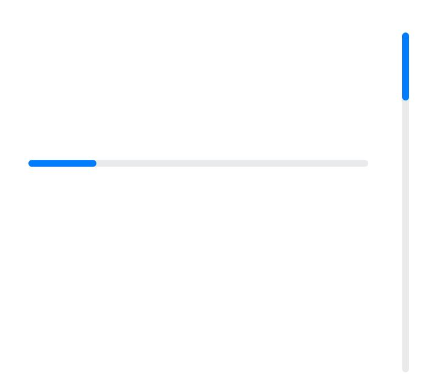
- 环形无刻度样式进度条
// 从左往右,1号环形进度条,默认前景色为蓝色渐变,默认strokeWidth进度条宽度为2.0vp
Progress({ value: 40, total: 150, type: ProgressType.Ring }).width(100).height(100)
// 从左往右,2号环形进度条
Progress({ value: 40, total: 150, type: ProgressType.Ring }).width(100).height(100)
.color(Color.Grey)    // 进度条前景色为灰色
.style({ strokeWidth: 15})    // 设置strokeWidth进度条宽度为15.0vp
- 环形有刻度样式进度条
Progress({ value: 20, total: 150, type: ProgressType.ScaleRing }).width(100).height(100)
.backgroundColor(Color.Black)
.style({ scaleCount: 20, scaleWidth: 5 })    // 设置环形有刻度进度条总刻度数为20,刻度宽度为5vp
Progress({ value: 20, total: 150, type: ProgressType.ScaleRing }).width(100).height(100)
.backgroundColor(Color.Black)
.style({ strokeWidth: 15, scaleCount: 20, scaleWidth: 5 })    // 设置环形有刻度进度条宽度15,总刻度数为20,刻度宽度为5vp
Progress({ value: 20, total: 150, type: ProgressType.ScaleRing }).width(100).height(100)
.backgroundColor(Color.Black)
.style({ strokeWidth: 15, scaleCount: 20, scaleWidth: 3 })    // 设置环形有刻度进度条宽度15,总刻度数为20,刻度宽度为3vp
- 圆形样式进度条
// 从左往右,1号圆形进度条,默认前景色为蓝色
Progress({ value: 10, total: 150, type: ProgressType.Eclipse }).width(100).height(100)
// 从左往右,2号圆形进度条,指定前景色为灰色
Progress({ value: 20, total: 150, type: ProgressType.Eclipse }).color(Color.Grey).width(100).height(100)
- 胶囊样式进度条
Progress({ value: 10, total: 150, type: ProgressType.Capsule }).width(100).height(50)
Progress({ value: 20, total: 150, type: ProgressType.Capsule }).width(50).height(100).color(Color.Grey)
Progress({ value: 50, total: 150, type: ProgressType.Capsule }).width(50).height(100).color(Color.Blue).backgroundColor(Color.Black)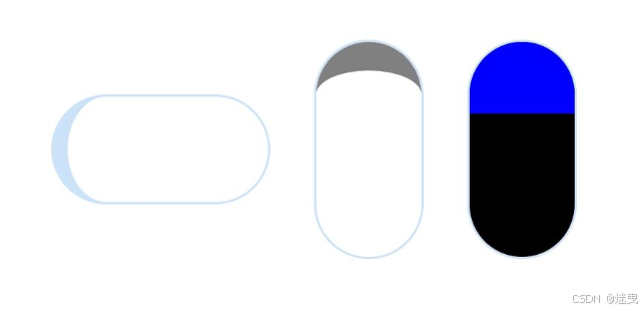
头尾两端圆弧处的进度展示效果与ProgressType.Eclipse样式一致。
中段处的进度展示效果为矩形状长条,与ProgressType.Linear线性样式相似。
组件高度大于宽度时,自适应垂直显示。
场景示例
更新当前进度值,如应用安装进度条,可通过点击Button增加progressValue,value属性将progressValue设置给Progress组件,进度条组件即会触发刷新,更新当前进度。
@Entry
@Component
struct ProgressCase1 {
@State progressValue: number = 0;    // 设置进度条初始值为0
build() {
Column() {
Column() {
Progress({value:0, total:100, type:ProgressType.Capsule}).width(200).height(50).value(this.progressValue)
Row().width('100%').height(5)
Button("进度条+5")
.onClick(()=>{
this.progressValue += 5;
if (this.progressValue > 100){
this.progressValue = 0;
}
})
}
}.width('100%').height('100%')
}
}

 浙公网安备 33010602011771号