Windows注册表修改右键 新建文件夹、新建txt文本 全局默认名称-去掉新建字样-来源-说明-链接
前言全局说明
Windows 注册表修改 新建文件夹 默认名称
一、说明
环境:
Windows 11 家庭版 23H2 22631.3737
二、修改注册表
2.1 找到路径
HKEY_CURRENT_USER\SOFTWARE\Microsoft\Windows\CurrentVersion\Explorer
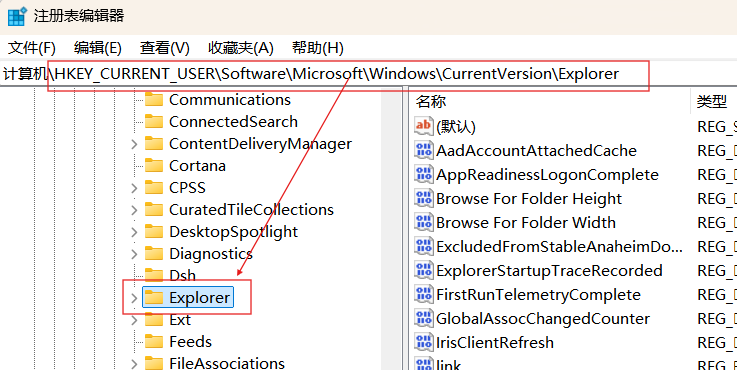
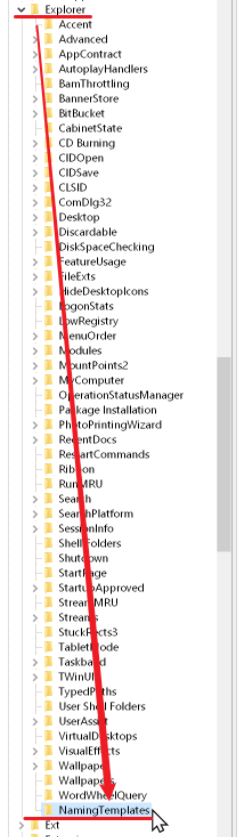
2.2 在 Explorer 上右键,新建项,增加个子项
新建-项,命名为 NamingTemplates 即可
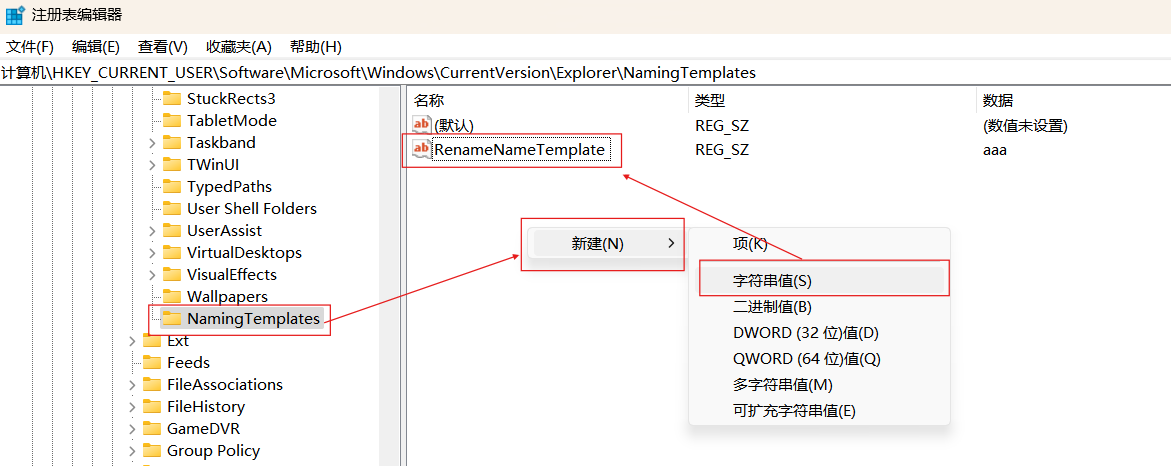
2.3 选中 NamingTemplates 项 ,
右键点击右侧的空白处-新建-字符串值,并命名为 RenameNameTemplate;
将值设置成你想要的,也可以设置为空
HKEY_CURRENT_USER\Software\Microsoft\Windows\CurrentVersion\Explorer\NamingTemplates
2.4 效果

RenameNameTemplate 值为空,则新建文件只有后缀

三、拓展用法
3.1 保留原始名字,再增加想要的字符
再值中增加 %s , 代表原始名字和想要的字符拼接
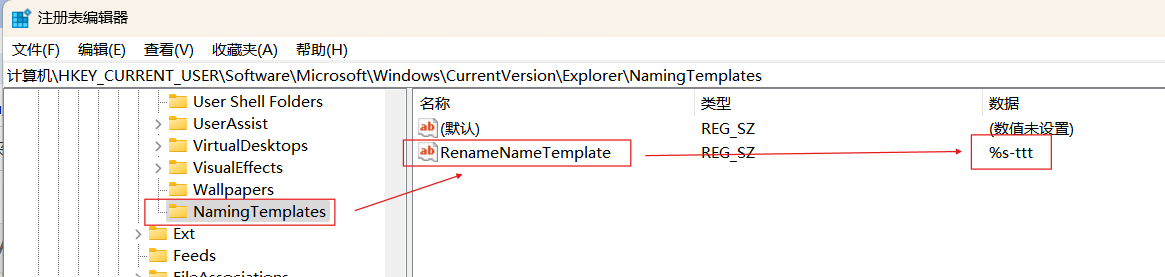
3.2 文件夹-效果

3.3 文件-效果

3.4 去掉文件名 “新建” 两个字
在下面两个注册表任意一个位置添加RenameNameTemplate后,新建文件就没有"新建"两字了,包括新建文件夹和文件(txt等)
Windows Registry Editor Version 5.00

[HKEY_CURRENT_USER\Software\Microsoft\Windows\CurrentVersion\Explorer\NamingTemplates]
"RenameNameTemplate"="来源-说明-链接"
或
Windows Registry Editor Version 5.00

[HKEY_USERS\S-1-5-21-172819232-3427951350-2509279029-1001\Software\Microsoft\Windows\CurrentVersion\Explorer\NamingTemplates]
"RenameNameTemplate"="来源-说明-链接"
S-1-5-21-172819232-3427951350-2509279029-1001 是你系统的SID,
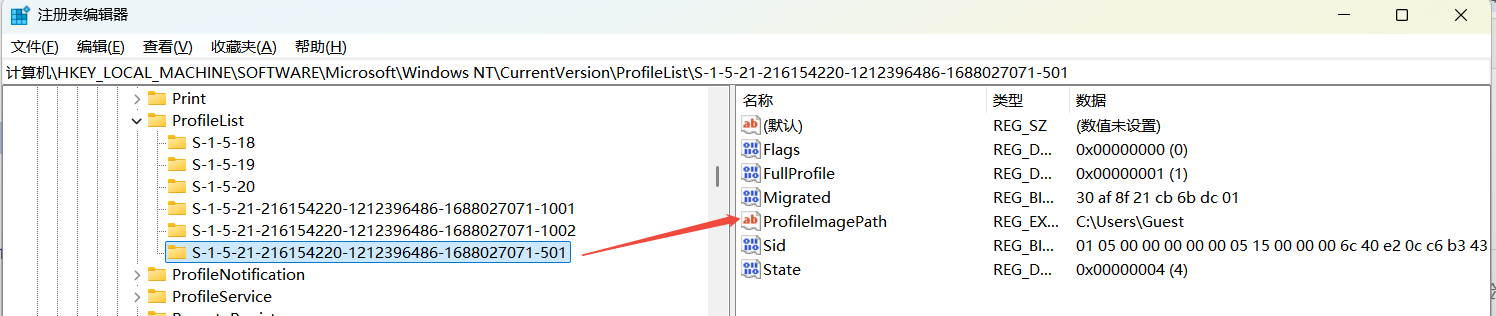
可以在 HKEY_LOCAL_MACHINE\SOFTWARE\Microsoft\Windows NT\CurrentVersion\ProfileList里找到
3.5 设置.md不显示"新建"前缀
REG ADD "HKCU\Software\Classes\.md\ShellNew" /v "NullFile" /t REG_SZ /d "" /f
效果:

3.6 查找用户名
如果你有多个用户名,不知道哪个是当前用户,可以点击后看右侧ProfileImagePath的值路径里有用户名“Guest”
四、命令行创建
4.1 添加,注册表项
reg add HKEY_CURRENT_USER\Software\Microsoft\Windows\CurrentVersion\Explorer\NamingTemplates /v RenameNameTemplate /t REG_SZ /d 来源-说明-链接 /f
或
reg add HKEY_CURRENT_USER\Software\Microsoft\Windows\CurrentVersion\Explorer\NamingTemplates /v RenameNameTemplate /t REG_SZ /d %s-你想要的字符 /f
或
reg add HKCU\Software\Microsoft\Windows\CurrentVersion\Explorer\NamingTemplates /v RenameNameTemplate /t REG_SZ /d %s-你想要的字符 /f
4.2 删除,注册表项
reg add HKEY_CURRENT_USER\Software\Microsoft\Windows\CurrentVersion\Explorer\NamingTemplates /f
或
reg delete HKCU\Software\Microsoft\Windows\CurrentVersion\Explorer\NamingTemplates /f
HKCU 是 HKEY_CURRENT_USER 缩写
五、其他
4.1 CopyNameTemplate 更改副本文件命名规则的方法
4.2 ShortcutNameTemplate 禁用显示快捷方式
免责声明:本号所涉及内容仅供安全研究与教学使用,如出现其他风险,后果自负。
参考、来源:
https://www.dians.net/thread-569.htm
https://www.jianshu.com/p/9c8babbfe9be (CopyNameTemplate 更改副本文件命名规则的方法)
https://winaero.com/disable-the-shortcut-text-addition-for-shortcuts-in-windows-11/
https://blog.csdn.net/u012787710/article/details/50823605(禁止使用Windows快捷键)
https://www.wenxiaobai.com/share/chat/a52433df-e08e-4a4a-a946-d2d9b14645d0 (设置NullFile不显示"新建"前缀)

 浙公网安备 33010602011771号