

Linux : Git
Srcs : Pro Git
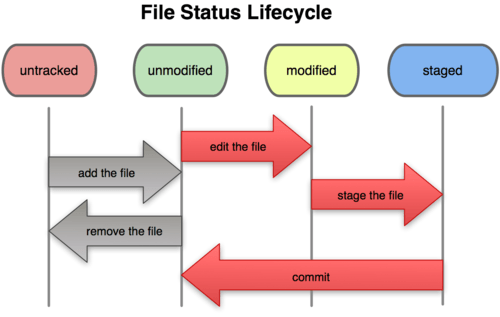
Git has three main states that your files can reside in: committed, modified, and staged. Committed means that the data is safely stored in your local database. Modified means that you have changed the file but have not committed it to your database yet. Staged means that you have marked a modified file in its current version to go into your next commit snapshot.
This leads us to the three main sections of a Git project: the Git directory, the working directory, and the staging area:
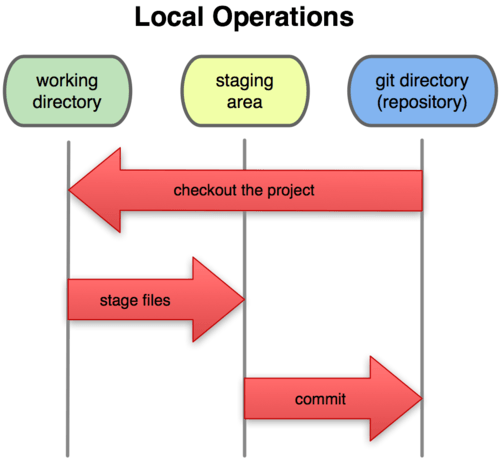
The Git directory is where Git stores the metadata and object database for your project. This is the most important part of Git, and it is what is copied when you clone a repository from another computer.
The working directory is a single checkout of one version of the project. These files are pulled out of the compressed database in the Git directory and placed on disk for you to use or modify.
The staging area is a simple file, generally contained in your Git directory, that stores information about what will go into your next commit. It’s sometimes referred to as the index, but it’s becoming standard to refer to it as the staging area.
The basic Git workflow goes something like this:
- You modify files in your working directory.
- You stage the files, adding snapshots of them to your staging area.
- You do a commit, which takes the files as they are in the staging area and stores that snapshot permanently to your Git directory.
Remember that each file in your working directory can be in one of two states: tracked or untracked.Tracked files are files that were in the last snapshot; they can be unmodified, modified, or staged.Untracked files are everything else — any files in your working directory that were not in your last snapshot and are not in your staging area:
基本命令:
2.7 Git Basics - Tips and Tricks
Auto Completion
Download the Git source code, and look in the
contrib/completiondirectory; there should be a file calledgit-completion.bash. Copy this file to your home directory, and add this to your.bashrcfile:1 source ~/.git-completion.bashGit Aliases
If you don’t want to type the entire text of each of the Git commands, you can easily set up an alias for each command using
git config. Here are a couple of examples you may want to set up:1 $ git config --global alias.co checkout 2 $ git config --global alias.br branch 3 $ git config --global alias.ci commit 4 $ git config --global alias.st status

 浙公网安备 33010602011771号