

Wpf Prism MVVM
最近Wpf 用到的比较多,网上找了很多搭建方式,看了好多写的都不是很清楚,所以决定自己写一份当作一个笔记吧。
首先我的环境 win10 VS2019 Framework4.8
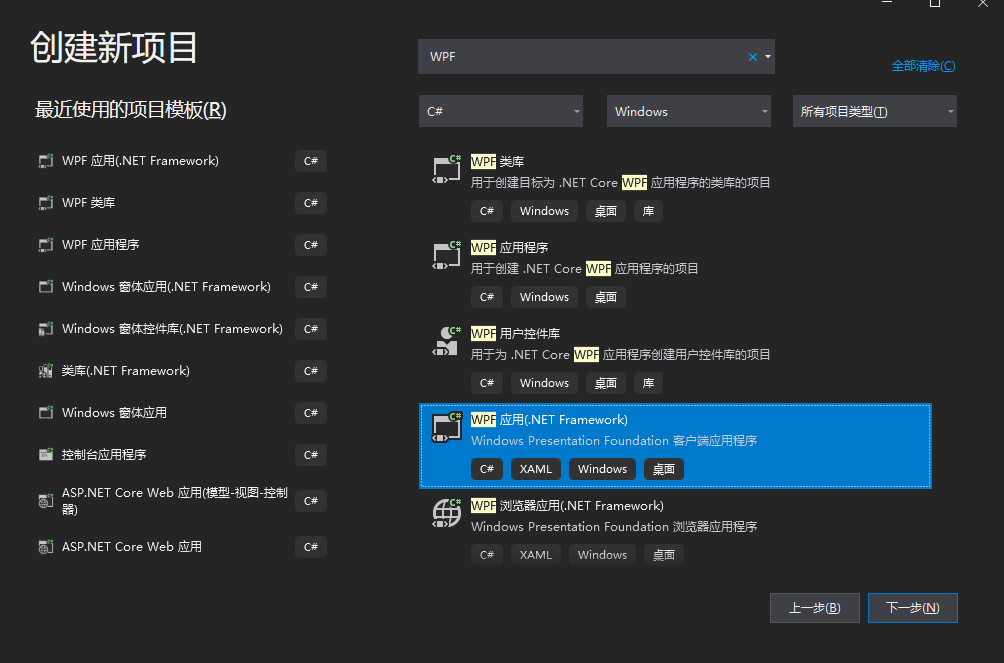
1新建项目
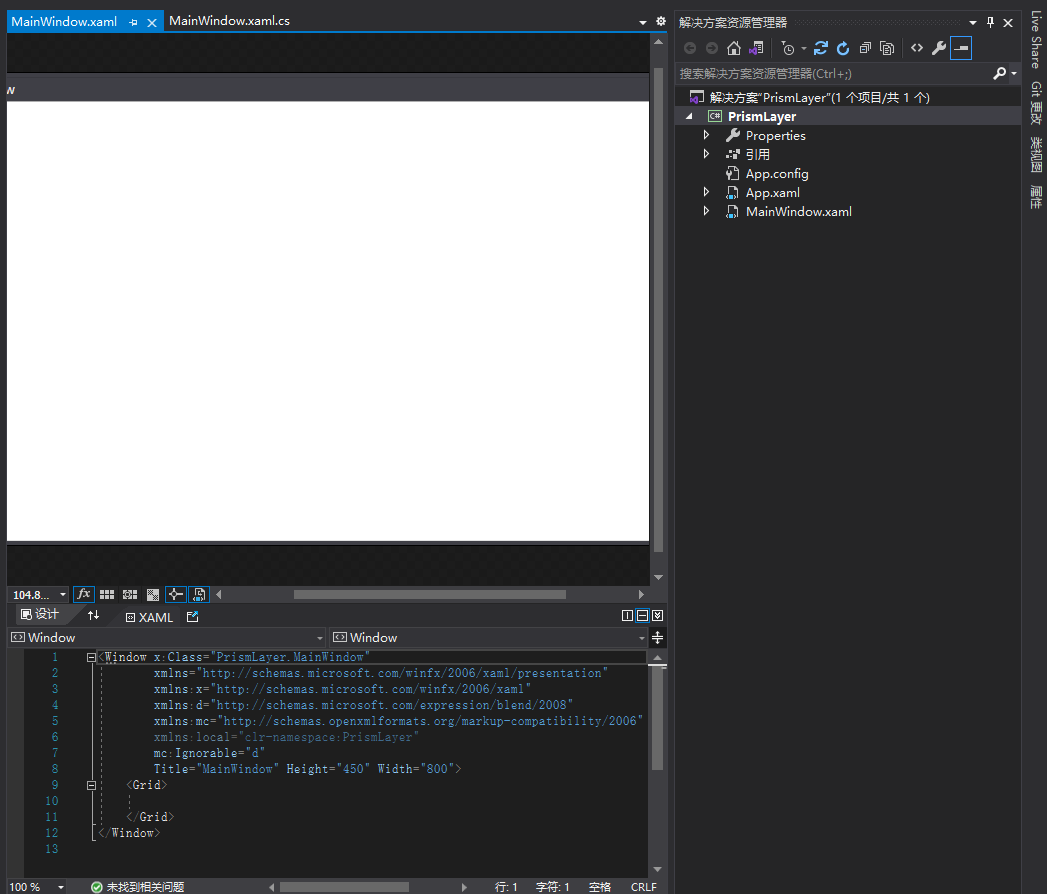
2创建完成了如下图
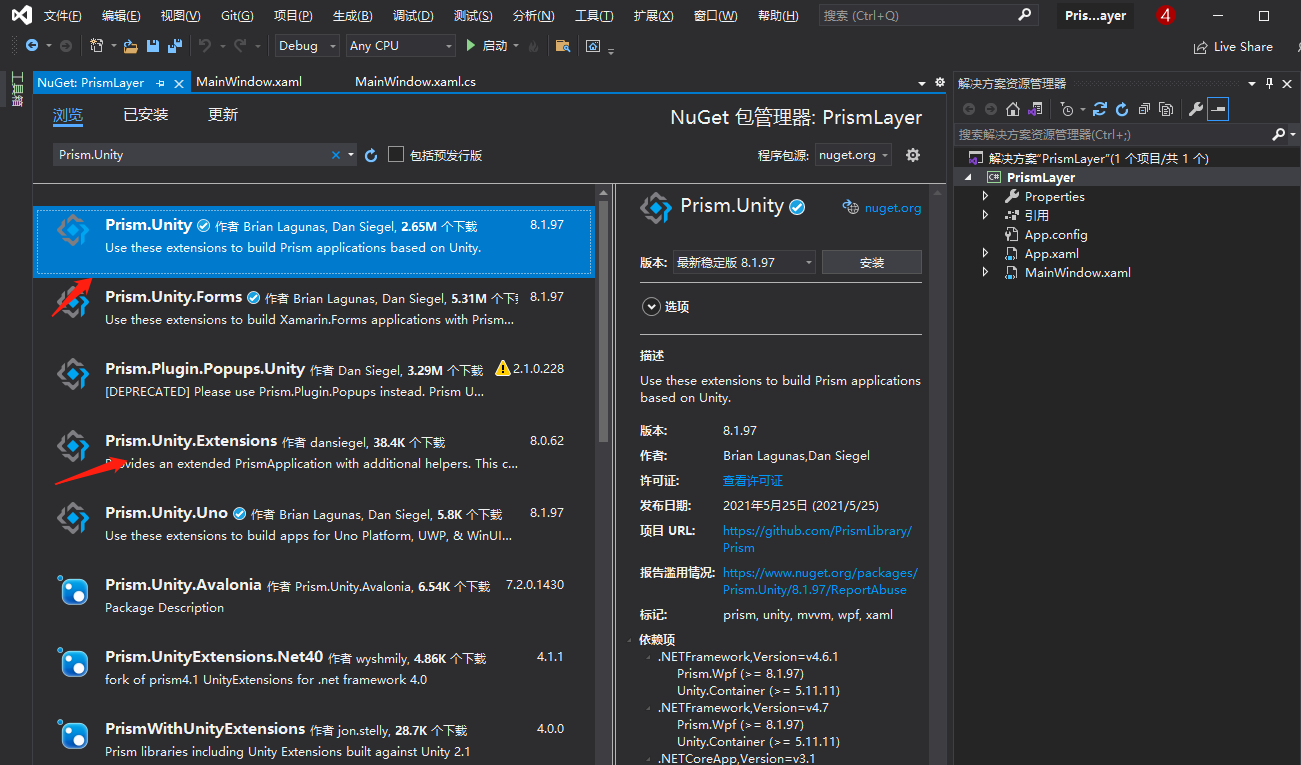
3.Nuget引入2个包分别是Prism.Unity Prism.Unity.Extensions.Net40 (Core用 Prism.Unity.Extensions)
4 修改 app.xaml
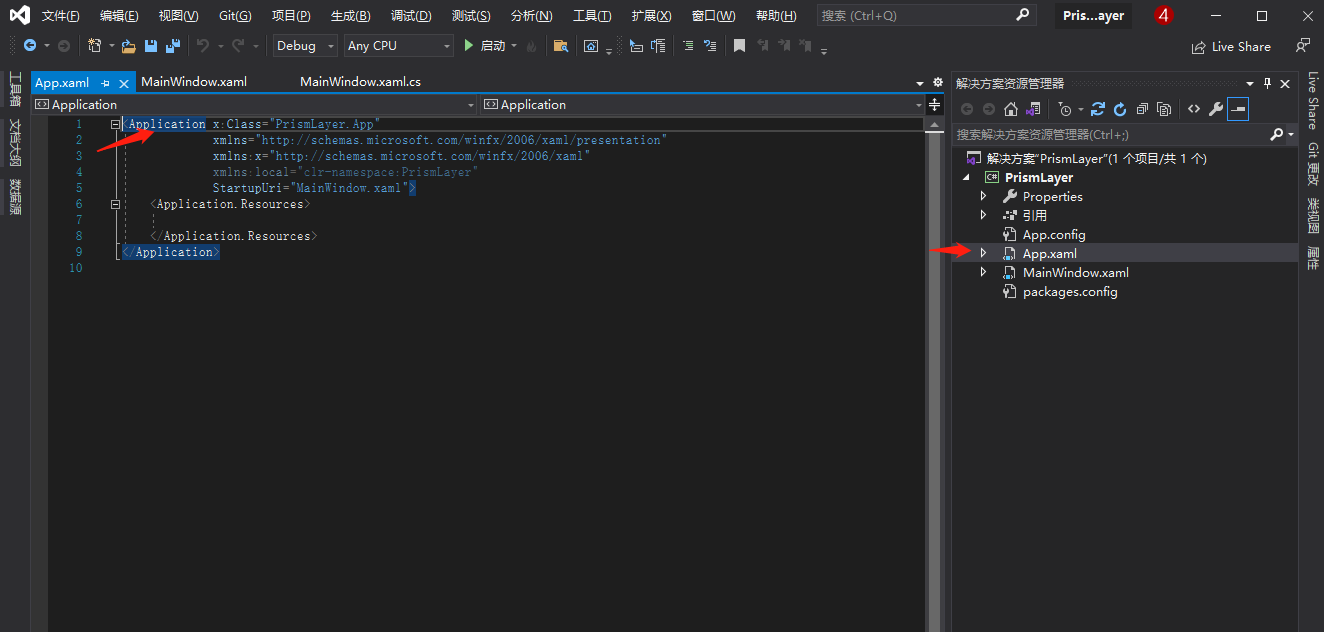
修改成
<prism:PrismApplication
                x:Class="PrismLayer.App"
             xmlns="http://schemas.microsoft.com/winfx/2006/xaml/presentation"
             xmlns:x="http://schemas.microsoft.com/winfx/2006/xaml"
             xmlns:prism="http://prismlibrary.com/"
             xmlns:local="clr-namespace:PrismLayer"
    <Application.Resources>

    </Application.Resources>
</prism:PrismApplication>
注意X:Class 是你是命名空间.app 。 修改到这里我一般会把上面的 StartupUri="MainWindow.xaml"> 给删除了因为下面一步会指定从哪启动。删除的时候注意,经常会手欠把右边的尖括号删除。。。>
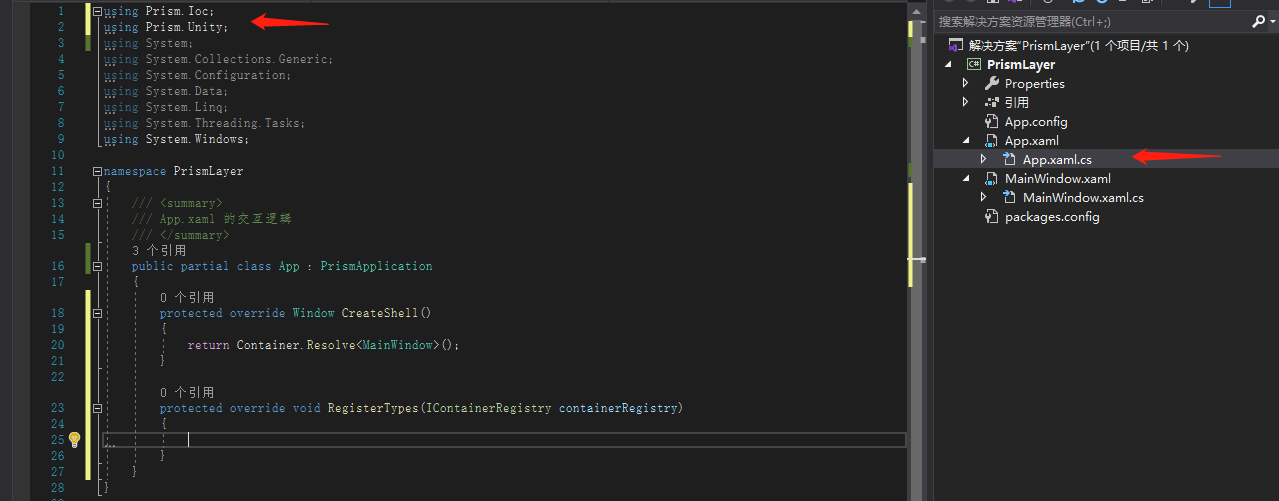
5 进入xaml.cs 修改继承和实现接口,以及从哪启动
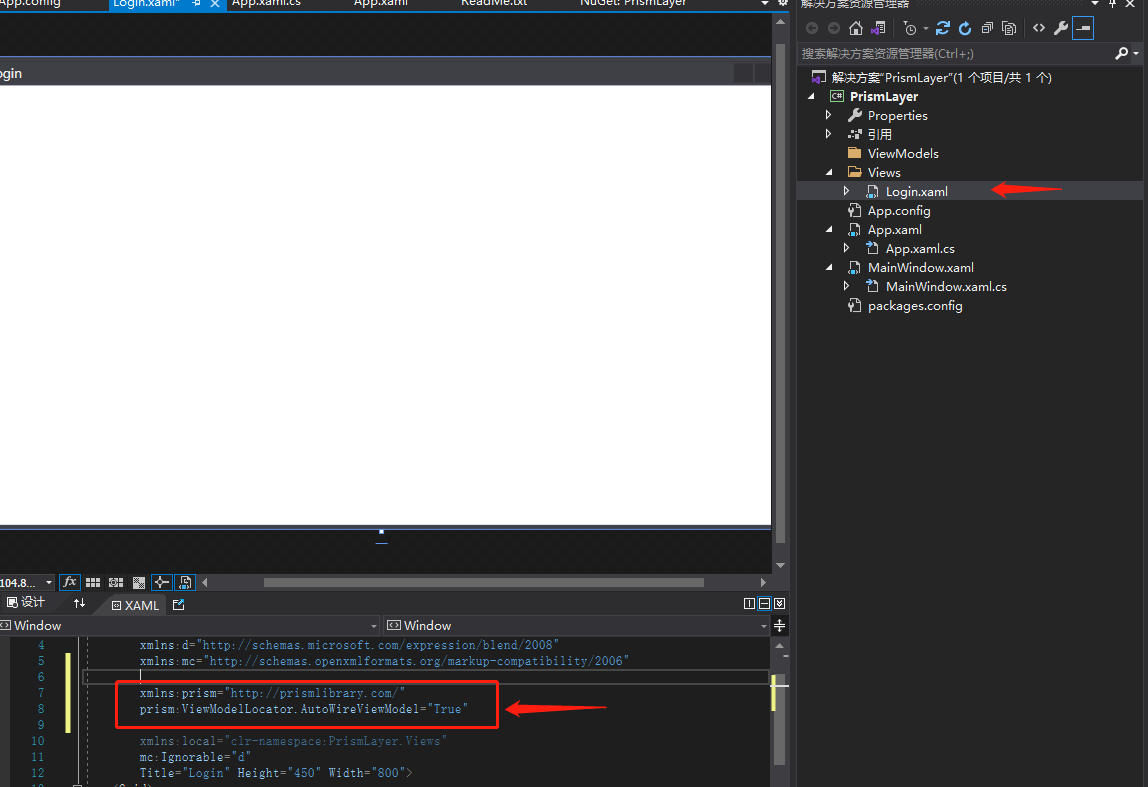
6新建文件夹 Views和ViewModels。 在Views下建立Login.xaml 引入prism框架和定位自动写入model
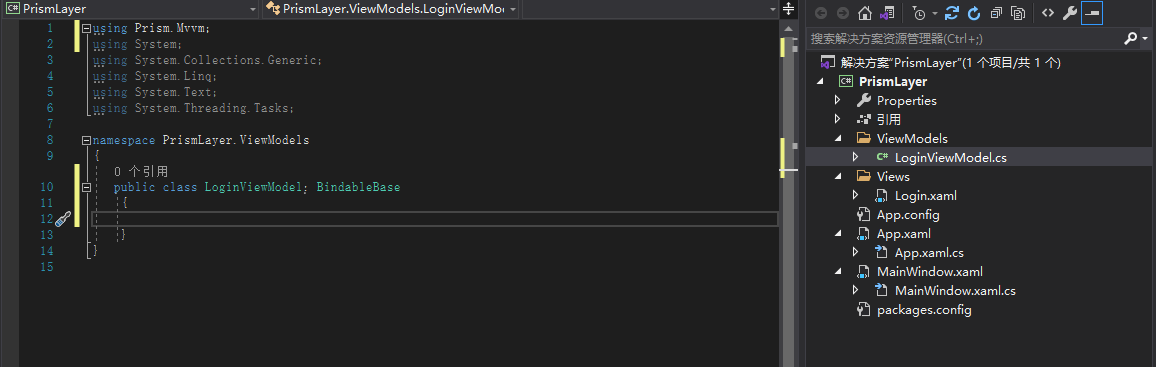
7 ViewModels文件夹下创建 LoginViewModel 类文件 并继承BindbleBase (using Prism.Mvvm)
8.设置 viewmodel 的 属性 单击事件 以及事件内容

上代码
using Microsoft.Practices.Prism.Commands;
using Prism.Mvvm;
using System;
using System.Collections.Generic;
using System.Linq;
using System.Text;
using System.Threading.Tasks;
using System.Windows;
using System.Windows.Input;

namespace PrismLayer.ViewModels
{
    public class LoginViewModel : BindableBase
    {

        private string username = "";
        private string password = "";
        public string Username
        {
            get { return username; }
            set { SetProperty(ref username, value); }
        }
        public string Password
        {
            get { return username; }

            set { SetProperty(ref password, value); }

        }

        ICommand loginCommand;
        public ICommand LoginCommand
        {
            get
            {
                if (loginCommand==null)
                {
                    loginCommand = new DelegateCommand<object>(ULgoin);
                }

                return loginCommand;
            }
        }
        private void ULgoin(object obj)
        {
            if (username=="1"&&password=="1")
            {
                MessageBox.Show("Test");

                return;

            }

              (obj as Window).DialogResult = true;
        }
    }
}
9.设置前台
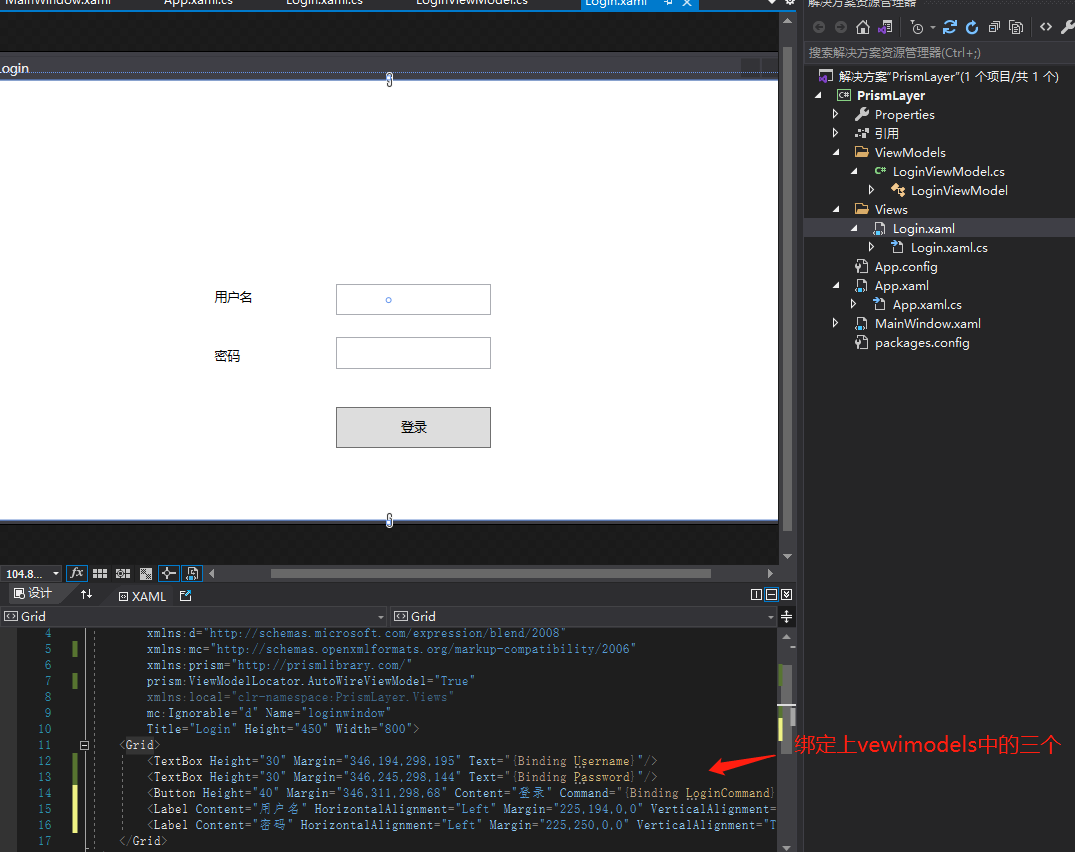
10打login界面 打开App.xaml.cs
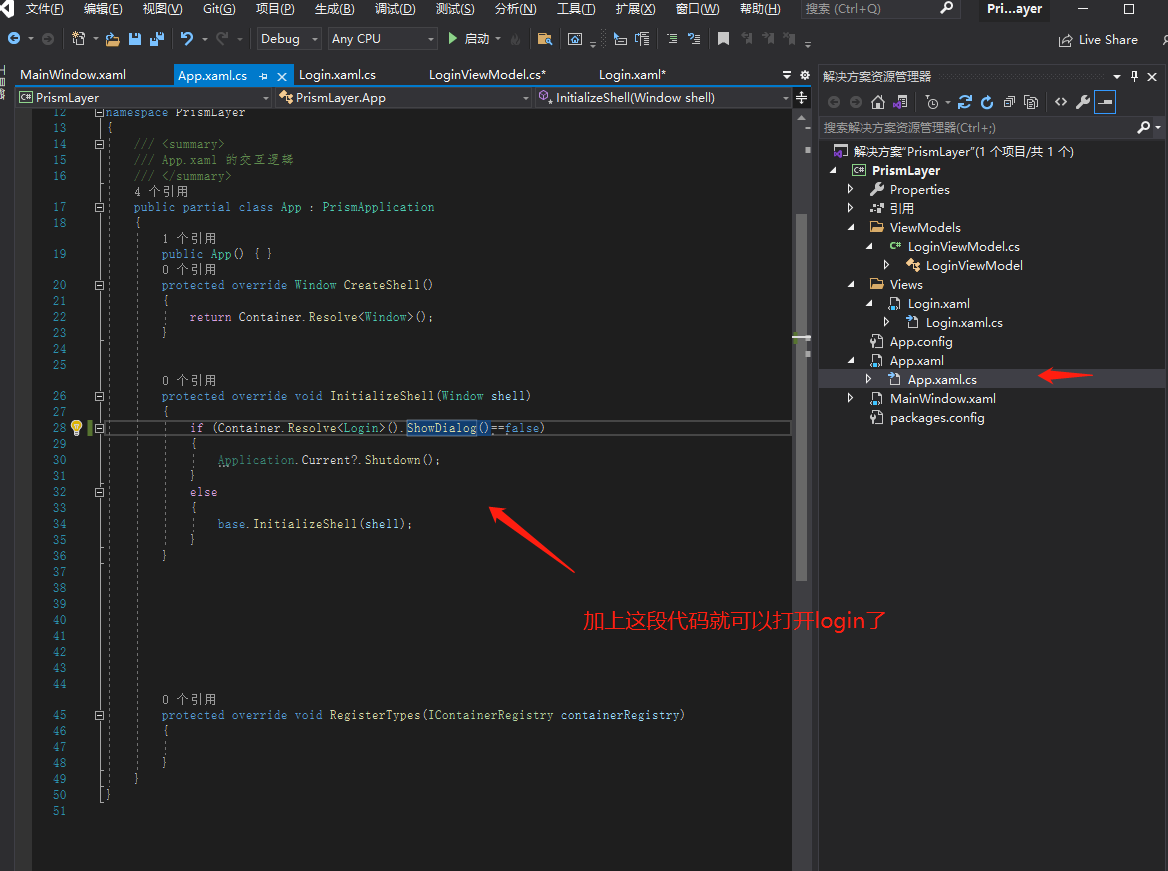
  protected override void InitializeShell(Window shell)
        {
            if (Container.Resolve<Login>().ShowDialog()==false)
            {
                Application.Current?.Shutdown();
            }
            else
            {
                base.InitializeShell(shell);
            }
        }
最后直接运行就ok啦

 浙公网安备 33010602011771号