

https://zhuanlan.zhihu.com/p/64882423
起因
使用virtualBox安装了Centos 6系统后,默认分配了30G存储空间,在安装了ORACLE,并新建两个数据库实例后,发现存储容量就剩余10%左右了,为了防止空间不足,就上网查询了扩容相关的资料。
环境
- 本机:window10 - 64位
- VirtualBox:6.0
- CentOS:6.10
相关概念
LVM(Logical Volume Manager)逻辑卷管理器
VG(Volume Group) 卷组
PV(Physical Volume)物理卷
LV(Logical Volume)逻辑卷
PE(Physical Extend)物理扩展盘区
LE(Logical Extend)逻辑盘区
linux磁盘管理系列三:LVM的使用 - LinuxPanda - 博客园步骤
- 打开终端:win+R-->cmd
- 输入如下命令,需根据自己实际软件安装位置及系统存放位置对命令进行修改
# cd + VirtualBox的安装目录
cd C:\Program Files\Oracle\VirtualBox
# VBoxManager.exe modifyhd + 当前系统vdi文件所在目录 + " " + resize + 重新设置后的大小(MB)
VBoxManage.exe modifyhd "C:\Users\ZHB\VirtualBox VMs\ORACLE SYS\ORACLE SYS.vdi" --resize 61440
- 在VirtualBox虚拟机设置界面查看虚拟机是否已扩容
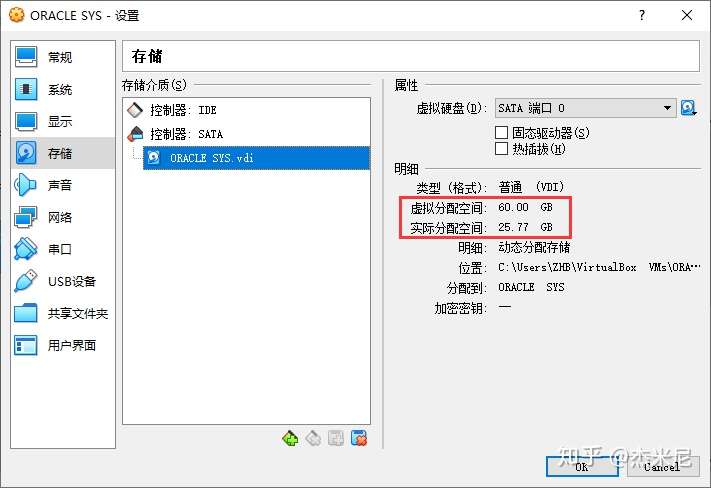
- 进入虚拟机系统(以root用户登录),进行新建主分区,并修改分区类型为 "Linux LVM"
[root@ctos6 Desktop]# fdisk /dev/sda
# 按提示输入 m 获取相关帮助
# 选择 n 命令添加一个分区(假如新建分区为 sda4)
# 分区类型选择 p(primary),其他相关参数保持默认
# 选择 t 命令修改新增分区的 system id,设置id为 8e,从而将新建分区类型从"Linux"修改为"Linux LVM"
# 上述操作都执行完成后,选择 w 保存相关设置并退出 fdisk 模式,reboot 重启系统
- 查看分区情况,并将新增的分区格式化为 ext4 格式
# 查看分区信息
[root@ctos6 Desktop]# fdisk -l
......
Device Boot Start End Blocks Id System
/dev/sda1 1 64 512000 83 Linux
Partition 1 does not end on cylinder boundary.
/dev/sda2 64 3917 30944256 8e Linux LVM
/dev/sda3 3917 6527 20970847+ 8e Linux LVM /dev/sda4 6528 7832 10482412+ 8e Linux LVM
......
# 格式化分区
[root@ctos6 Desktop]# mkfs.ext4 /dev/sda4
- 根据新建分区创建物理分区
[root@ctos6 Desktop]# pvcreate /dev/sda4
- 查看卷组信息 vgdisplay,记录卷组名称
[root@ctos6 Desktop]# vgdisplay
- 根据上步获取卷组名称扩展卷组大小
[root@ctos6 Desktop]# vgextend vg_livedvd /dev/sda4
- 查看磁盘分区信息,根据映射路径确定需要扩展的逻辑卷
[root@ctos6 Desktop]# df -h
Filesystem Size Used Avail Use% Mounted on
/dev/mapper/vg_livedvd-lv_root 26G 21G 5G 82% /
/tmpfs 940M 12M 928M 2% /dev/shm
/dev/sda1 477M 41M 411M 10% /boot
- 查看逻辑卷信息,获取需要扩展的逻辑卷名称
[root@ctos6 Desktop]# lvdisplay
--- Logical volume ---
LV Path /dev/vg_livedvd/lv_root
LV Name lv_root
VG Name vg_livedvd
LV UUID MVWhVE-iCV2-YdVL-5EKc-5tsL-PEg8-Lrd5HB
LV Write Access read/write
LV Creation host, time livedvd.centos, 2019-04-18 22:57:39 -0400
LV Status available
# open 1
LV Size 46.50 GiB
Current LE 11905
Segments 2
Allocation inherit
Read ahead sectors auto
- currently set to 256
Block device 253:0
......
- 扩展逻辑卷容量
[root@ctos6 Desktop]# lvextend /dev/vg_livedvd/lv_root /dev/sda4
Size of logical volume vg_livedvd/lv_root changed from 46.50 GiB (11905 extents) to 56.50 GiB (14463 extents).
Logical volume lv_root successfully resized.
- 刷新逻辑分区容量,若报错,有可能是分区的文件系统格式为xfs,这是就需要修改命令为 xfs_growfs /dev/vg_livedvd/lv_root
# 刷新逻辑分区容量
[root@ctos6 Desktop]# resize2fs /dev/vg_livedvd/lv_root
resize2fs 1.41.12 (17-May-2010)
Filesystem at /dev/vg_livedvd/lv_root is mounted on /; on-line resizing required
old desc_blocks = 3, new_desc_blocks = 4
Performing an on-line resize of /dev/vg_livedvd/lv_root to 14810112 (4k) blocks.
The filesystem on /dev/vg_livedvd/lv_root is now 14810112 blocks long.
- # 查看分区容量信息,确定是否扩容成功
[root@ctos6 Desktop]# df -h
Filesystem Size Used Avail Use% Mounted on
/dev/mapper/vg_livedvd-lv_root 56G 21G 35G 37% /
tmpfs 940M 12M 928M 2% /dev/shm
/dev/sda1 477M 41M 411M 10% /boot
发布于 2019-05-07

 浙公网安备 33010602011771号