
自动化测试用例结构分析
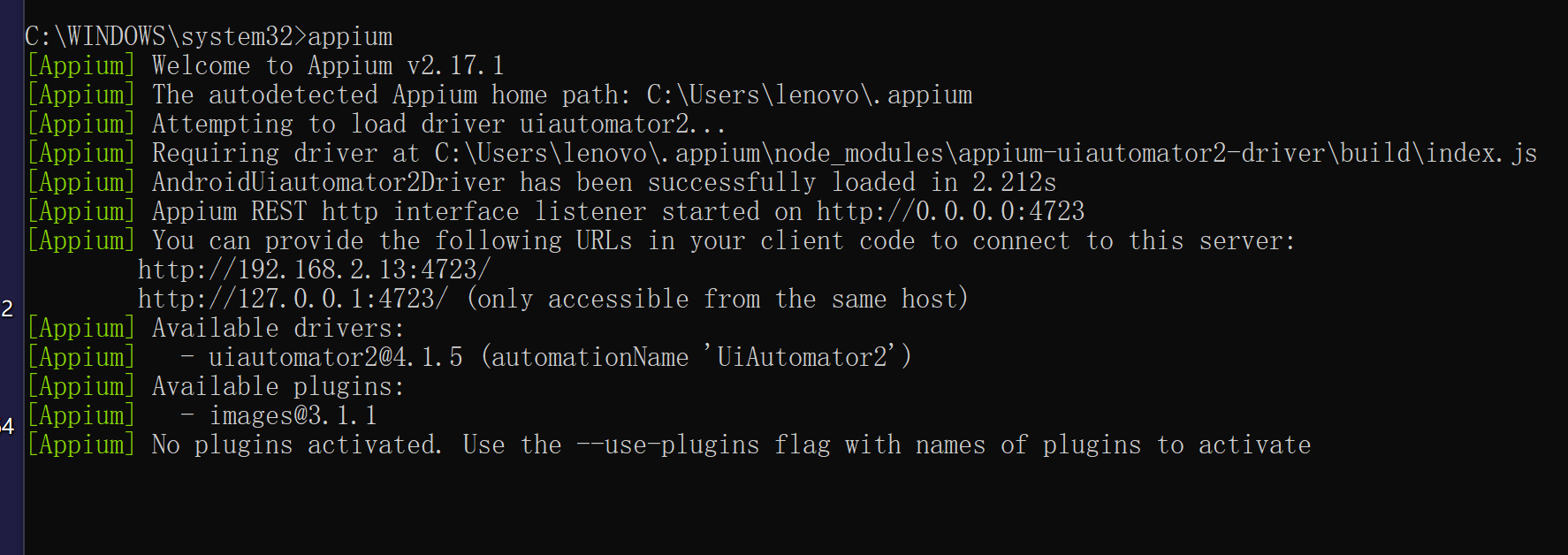
启动appium
获取包名和activity名
ASUS_I003DD:/ # monkey -p "io.appium.android.apis" -vvv 1
bash arg: -p
bash arg: io.appium.android.apis
bash arg: -vvv
bash arg: 1
args: [-p, io.appium.android.apis, -vvv, 1]
arg: "-p"
arg: "io.appium.android.apis"
arg: "-vvv"
arg: "1"
data="io.appium.android.apis"
:Monkey: seed=1758942553049 count=1
:AllowPackage: io.appium.android.apis
:IncludeCategory: android.intent.category.LAUNCHER
:IncludeCategory: android.intent.category.MONKEY
// Event percentages:
// 0: 15.0%
// 1: 10.0%
// 2: 2.0%
// 3: 15.0%
// 4: -0.0%
// 5: -0.0%
// 6: 25.0%
// 7: 15.0%
// 8: 2.0%
// 9: 2.0%
// 10: 1.0%
// 11: 13.0%
:Switch: #Intent;action=android.intent.action.MAIN;category=android.intent.category.LAUNCHER;launchFlags=0x10200000;component=io.appium.android.apis/.ApiDemos;end
// Allowing start of Intent { act=android.intent.action.MAIN cat=[android.intent.category.LAUNCHER] cmp=io.appium.android.apis/.ApiDemos } in package io.appium.android.apis
Events injected: 1
:Sending rotation degree=0, persist=false
:Dropped: keys=0 pointers=0 trackballs=0 flips=0 rotations=0
## Network stats: elapsed time=13ms (0ms mobile, 0ms wifi, 13ms not connected)
// Monkey finished
ASUS_I003DD:/ #
验证获取到的包名和activity名的正确性
ASUS_I003DD:/ # am start -S -n io.appium.android.apis/.ApiDemos
Stopping: io.appium.android.apis
Starting: Intent { cmp=io.appium.android.apis/.ApiDemos }
ASUS_I003DD:/ # am start -S -W -n io.appium.android.apis/.ApiDemos
Stopping: io.appium.android.apis
Starting: Intent { cmp=io.appium.android.apis/.ApiDemos }
Status: ok
Activity: io.appium.android.apis/.ApiDemos
ThisTime: 308
TotalTime: 308
WaitTime: 322
Complete
ASUS_I003DD:/ #
Capabilities设置截图:
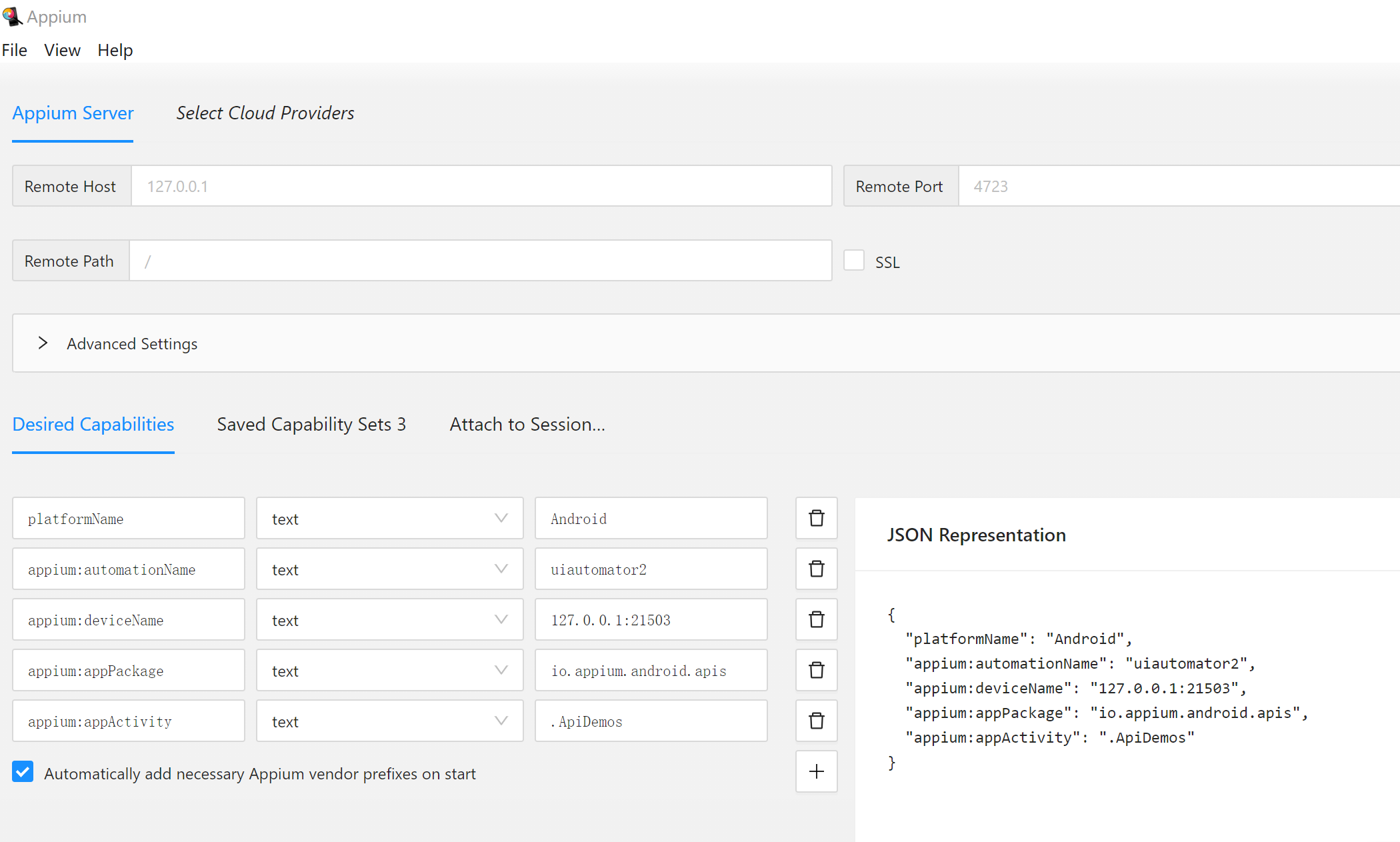
Capabilities的Json格式数据:
{
"platformName": "Android",
"appium:automationName": "uiautomator2",
"appium:deviceName": "127.0.0.1:21503",
"appium:appPackage": "io.appium.android.apis",
"appium:appActivity": ".ApiDemos"
}
自动化代码:
from appium import webdriver
from appium.options.android import UiAutomator2Options
from appium.webdriver.common.appiumby import AppiumBy

# 配置Capability
caps = {
    # 配置平台名称
    "platformName": "Android",
    # 配置驱动名称
    "appium:automationName": "uiautomator2",
    # 配置被测设备的adb device名称
    "appium:deviceName": "127.0.0.1:21503",
    # 配置app的包名
    "appium:appPackage": "io.appium.android.apis",
    # 配置app的启动activity(也就是页面名称)
    "appium:appActivity": ".ApiDemos"
}

# 初始化驱动
driver = webdriver.Remote(
    command_executor="http://127.0.0.1:4723",
    options=UiAutomator2Options().load_capabilities(caps)
)
# 录制的用例:
# 也就是用例的测试方法:
# 查找OS元素
el6 = driver.find_element(by=AppiumBy.ACCESSIBILITY_ID, value="OS")
# 点击OS元素
el6.click()
# 查找Morse Code元素
el7 = driver.find_element(by=AppiumBy.ACCESSIBILITY_ID, value="Morse Code")
# 点击Morse Code元素
el7.click()
# 查找文本输入框元素
el8 = driver.find_element(by=AppiumBy.ID, value="io.appium.android.apis:id/text")
# 文本框输入内容
el8.send_keys("0927")
# 返回上一个页面
driver.back()
# 返回上一个页面
driver.back()
优化一下自动化代码:
 1 # 定义一个测试类:
 2 from appium import webdriver
 3 from appium.options.android import UiAutomator2Options
 4 from appium.webdriver.common.appiumby import AppiumBy
 5
 6
 7 class TestDemo:
 8     def setup_method(self):
 9         """
10
11         :return:
12         """
13         # 配置Capability
14         caps = {
15             # 配置平台名称
16             "platformName": "Android",
17             # 配置驱动名称
18             "appium:automationName": "uiautomator2",
19             # 配置被测设备的adb device名称
20             "appium:deviceName": "127.0.0.1:21503",
21             # 配置app的包名
22             "appium:appPackage": "io.appium.android.apis",
23             # 配置app的启动activity(也就是页面名称)
24             "appium:appActivity": ".ApiDemos"
25         }
26
27         # 初始化驱动
28         self.driver = webdriver.Remote(
29             command_executor="http://127.0.0.1:4723",
30             options=UiAutomator2Options().load_capabilities(caps)
31         )
32
33     def teardown_method(self):
34         """
35
36         :return:
37         """
38
39     def test_demo(self):
40         """
41
42         :return:
43         """
44         # 录制的用例:
45         # 也就是用例的测试方法:
46         # 查找OS元素
47         el6 = self.driver.find_element(by=AppiumBy.ACCESSIBILITY_ID, value="OS")
48         # 点击OS元素
49         el6.click()
50         # 查找Morse Code元素
51         el7 = self.driver.find_element(by=AppiumBy.ACCESSIBILITY_ID, value="Morse Code")
52         # 点击Morse Code元素
53         el7.click()
54         # 查找文本输入框元素
55         el8 = self.driver.find_element(by=AppiumBy.ID, value="io.appium.android.apis:id/text")
56         # 文本框输入内容
57         el8.send_keys("0927")
58         # 返回上一个页面
59         self.driver.back()
60         # 返回上一个页面
61         self.driver.back()
62         # 添加断言
63         # 确认是否返回到了主页面,用主要的某个元素是否存在来判断
64         # 查找文本为Access'ibility的元素
65         result = self.driver.find_element(by=AppiumBy.XPATH, value="//*[@resource-id='android:id/text1'][1]")
66         # 获取该的文本
67         valid_value = "Access'ibility"
68         assert result.text == valid_value

 浙公网安备 33010602011771号