
PowerShell Module 管理
How to install PowerShell modules
A PowerShell module is a grouping of various functions that operate as a single mini program. Modules are used to interact with various applications such as Windows, VMWare, Active Directory, Office365, SANS and so on.
Each module is stored in a folder where it contains the necessary files for the PowerShell commands.
Although PowerShell comes with several built in modules there will be times when you need to load additional ones.
In this post I will walk through installing a new module. For this example, I will be installing a module called NTFSSecurty.
Step 1: Determine the install Path
You want to install new modules in a path that is listed in the PSModulePath environment variable. To see the value of PSModulePath run the following command.
$Env:PSModulePath
Here is the result of running that command on my computer. You should see similar results.

There may be several paths listed but there are two main paths you should use, they are:
- C:\Users\userprofile\Documents\WindowsPowerShell\modules
- C:\program files\WindowsPowerShell\Modules\<Module Folder>\<Module Files>
Use the first path if you want the module to be available for a specific user. Use the second path to make the module available for all users.
So, what are the other paths for?
The path below is reserved for modules that ship with Windows. Microsoft recommends to not use this location.
$PSHome\Modules (%Windir%\System32\WindowsPowerShell\v1.0\Modules)
You can also add your own paths but unless you have a specific need then just stick with the two I listed.
If you see other paths listed in your environment variable it may be from programs that you have installed. Some programs will install PowerShell commands and automatically add those to the variable.
Now that we know where to put new modules lets move to step 2.
Step 2: Copy new module to path
So I’ve downloaded a new module and the next step is to copy it into one of the two paths identified in step 1. I’m going to make it available to all users so I’ll copy it here
C:\Program Files\WindowsPowerShell\Modules
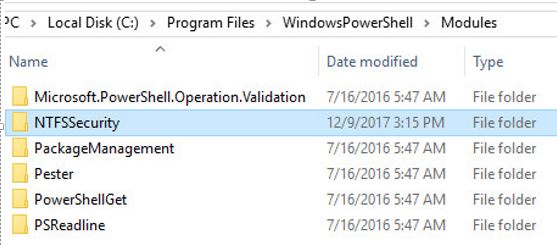
There it is, just copy and past the module into the path.
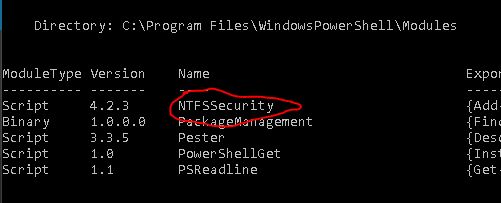
Basically, that is it for installing new modules. Let’s verify the new module is visible to PowerShell, run the following command:
Get-Module -ListAvailable
This command will check the paths that are set in the environment variable for modules.
The screenshot below is what returns when I run this command. I can see that the new module (NTFSSecurity) is now visible to PowerShell.
Now that the new module is installed we still have one final step before we can use the new commands.
Step 3: Import new module
Importing loads the module into active memory so that we can access the module in our session.
To import run the following command
Import-module -name ModuleName
For the module I’m using in this example it would look like,
Import-module NTFSSecurity
That will do it, the new module is now ready to use.
I hope you found this tutorial helpful if you have questions or comments please leave them below.
See Also: PowerShell: Export Active Directory Group Members
Reprinted from: https://activedirectorypro.com/install-powershell-modules/
How to Get a List of Windows PowerShell Modules that can be Imported
Modules are collections of cmdlets that are stored in the path %WINDIR%\System32\WindowsPowerShell\.
Get a List of Windows PowerShell Modules
You can execute the following command to display the location of each directory where these modules are exactly stored at your computer:
write-host "$PSModulePath"
You can get a list of all available modules on your computer by executing the following command:
Get-Module -ListAvailable
There are few modules loaded for basic management tasks. To check which modules are loaded into PowerShell, execute the following command:
Get-Module -All
You can load a particular module by executing the following command:
Import-Module -Name ModuleName
To list commands in a particular module, execute the following command:
Get-Command -Module ModuleName

 浙公网安备 33010602011771号