

myeclipse配置
myeclipse配置,打开Window --> Preferences
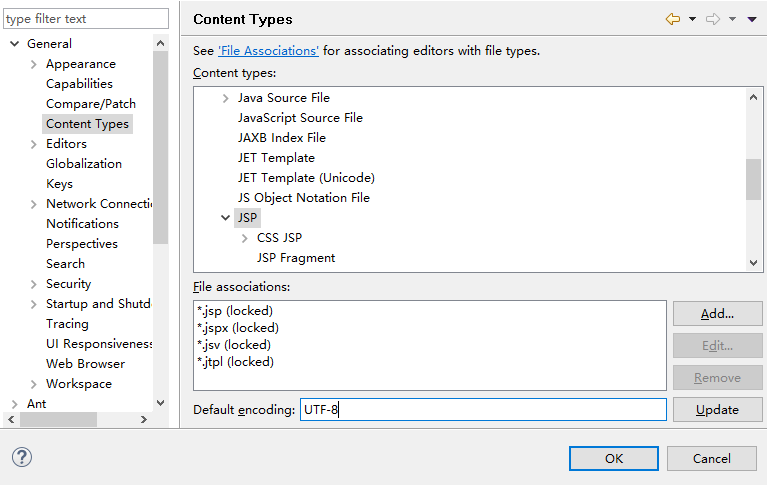
常用文件编码设置 update”:General--> Context Types --> text
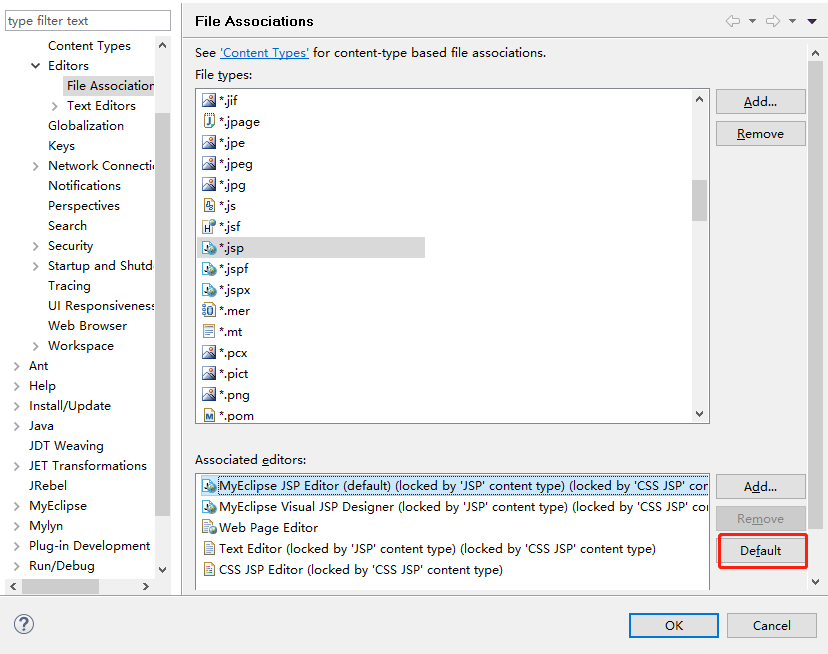
修改文件默认打开方式:General --> Editors --> File Associations: 比如选中*.jsp,选择MyEclipse JSP Editor,点default设置位默认
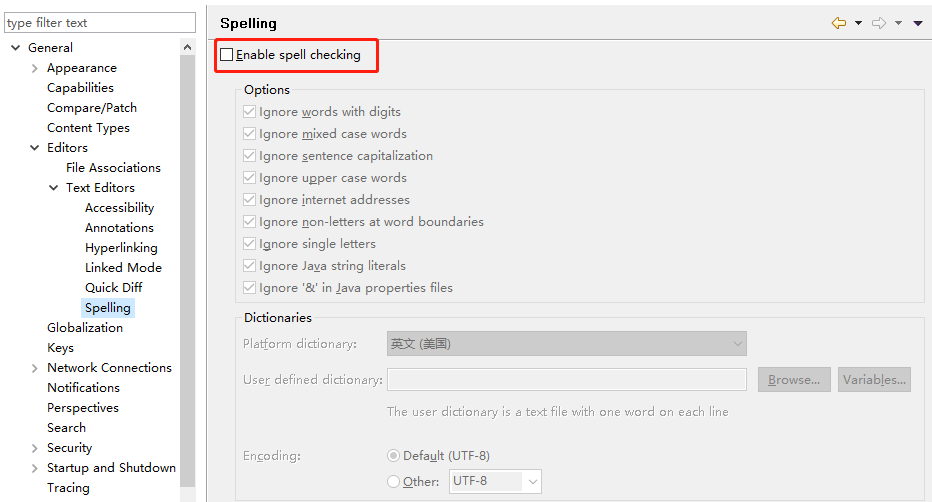
去掉MyEclipse的拼写检查:General > Editors > Text Editors > Spelling > 将Enable spell checking复选框的勾选去掉
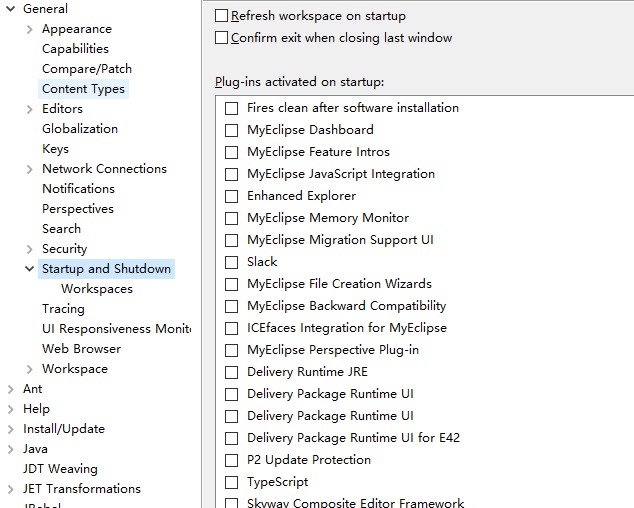
启动优化,关闭不需要使用的模块:General > Startup and Shutdown > 将Plug-ins activated on startup中的复选框有选择性的勾选去掉
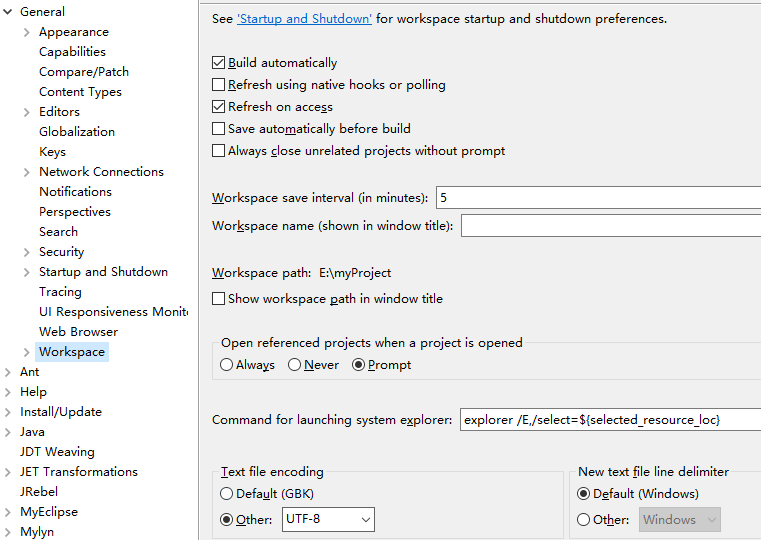
修改工作空间编码为UTF-8 : General—WorkSpace
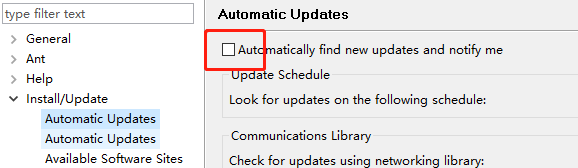
关闭自动更新: Install/Update > Automatic Updates
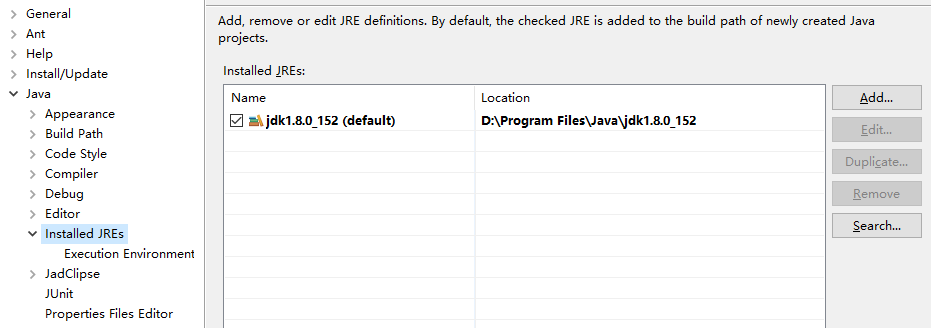
添加自己的JRE环境,去掉MyEclipse自带的JRE :Java --> Installed JREs --> 添加
修改jsp编码为UTF-8: Myeclipse --> Files and Editors --> JSP
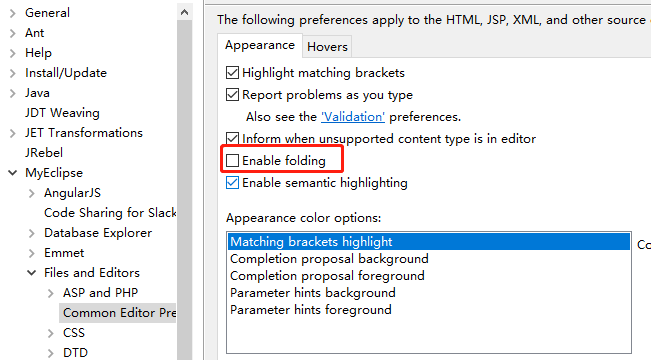
禁止代码过长自动滚动:MyEclipse -> File and Editors -> Common Editor Preferences,取消勾选 enable folding
配置自己的Tomcat:MyEclipse--> Servers --> Runtime Environments
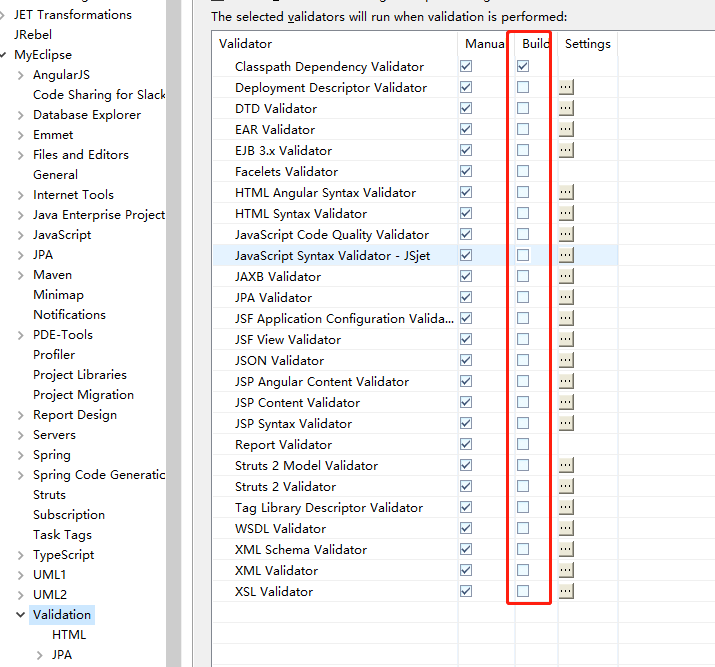
关闭MyEclipse的自动校验: myeclipse > validation
将Build下全部勾取消,只留 classpath dependency Validator,JSP Syntax Validator
需要验证某个文件的时候,可以单独去验证。方法是:在需要验证的文件上(右键 > MyEclipse > Run Validation)
关闭close暂时用不到的项目,用到再开
根据需要加大JVM的非堆内存: 修改MyEclipse安装目录的eclipse.ini文件
-XX:PermSize=512M
-XX:MaxPermSize=512M
快捷键
下一个编辑器 Ctrl+F6 改为 Ctrl+Tab

 浙公网安备 33010602011771号