task list SAP_BASIS_CONFIG_OSS_COMM
30.11.2022 - Document updated to match latest configuration (Short: instead of SSL Client (Standard), SSL Client (Anonymous) is used)
For releases SAP ABAP lower than 7.40 SP SP08:
(Mitigation for releases 7.00 to 7.31: still old RFC SAPOSS destination can be used, but the destination must be switched to technical S-User (sm59, select destination, change user/password))
This document explains in detail what several task of the of task list SAP_BASIS_CONFIG_OSS_COMM are doing automatically that they can be performed manually in the system.
The automated configuration is all about enabling the system for SSL and create three https destinations:
- SAP Support Portal (SAP-SUPPORT_PORTAL - Type H)
- SAP Parcel Download (SAP-SUPPORT_PARCELBOX - Type G)
- SAP Note Download (SAP-SUPPORT_NOTE_DOWNLOAD - Type G)
Task list overview
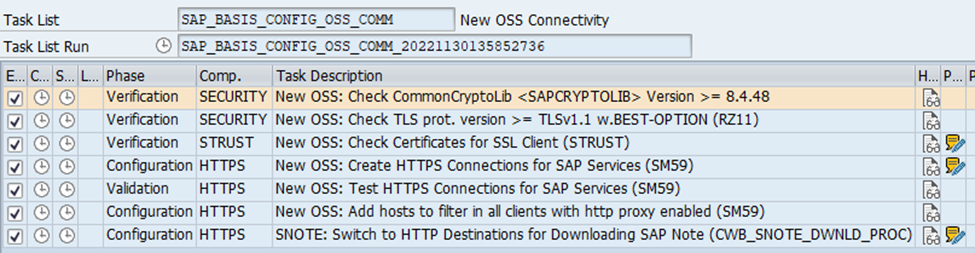
Task 1: New OSS: Check CommonCryptoLib <SAPCRYPTOLIB> Version >= 8.4.48
Checks for correct cryptolib version that you can enable ssl at all on your system
Start transaction: SE37 - Function Builder
Enter function module: SSF_KRN_VERSION
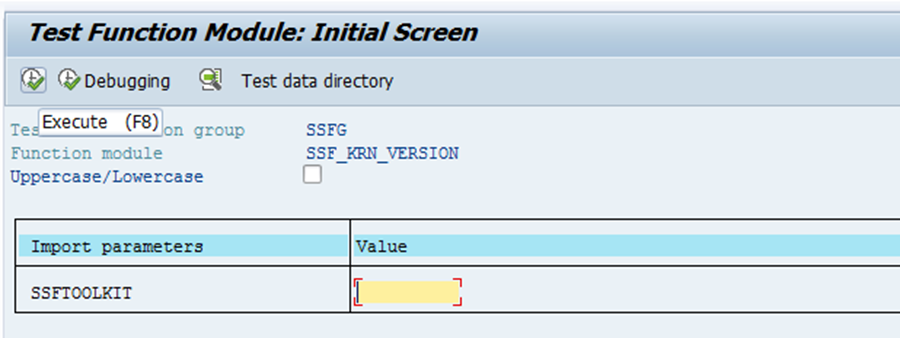
Execute
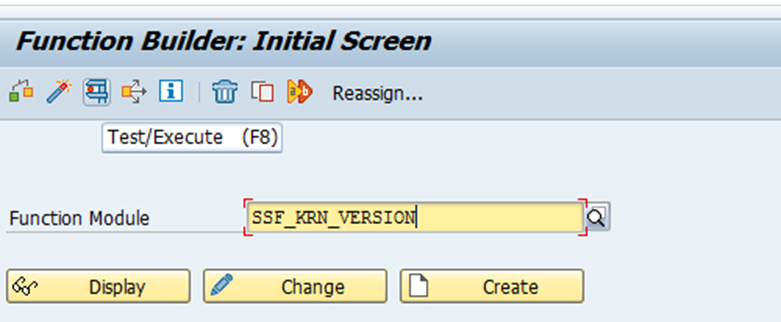
Leave import parameter empty and execute again
Check that version is above or equal 8.4.48

In case version of SAPcryptolib is too low, follow SAP Note 2450794 - How to update CommonCryptoLib in a NetWeaver ABAP system
Task 2: New OSS: Check TLS prot. version >= TLSv1.1 w.BEST-OPTION (RZ11)
Checks if the profile parameter ssl/client_ciphersuites is set correctly to enable ssl (TLSv1.2)
Start transaction: RZ11
Enter parameter name: ssl/client_ciphersuites
Click Display
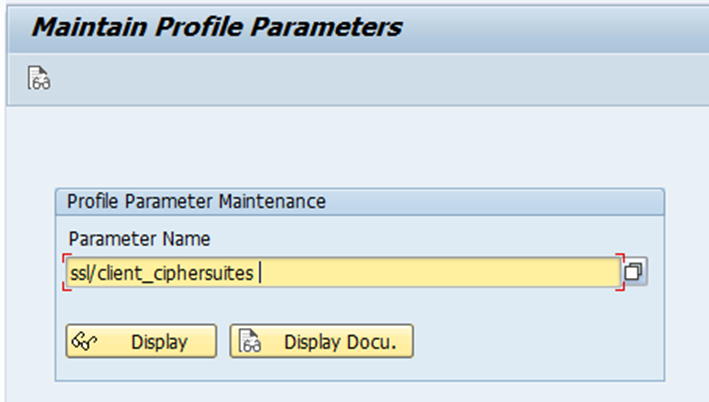
Check for the values that TLSv1.2 is enabled
- ssl/client_ciphersuites = 150:PFS:HIGH::EC_P256:EC_HIGH recommended for standard ABAP systems
- ssl/client_ciphersuites = 918:PFS:HIGH::EC_P256:EC_HIGH recommended for Solutionmanager
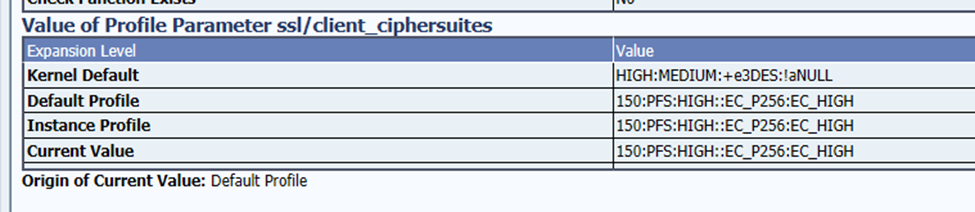
In case the parameter is not set start transaction rz10 and set the profile parameter.
More details about setting TLS version, can be found in SAP Note 510007 - Setting up SSL on Application Server ABAP
Task 3: New OSS: Check Certificates for SSL Client (STRUST)
Checks if all necessary certificates for SSL Client (Anonymous) is in the list
Start transaction: STRUST
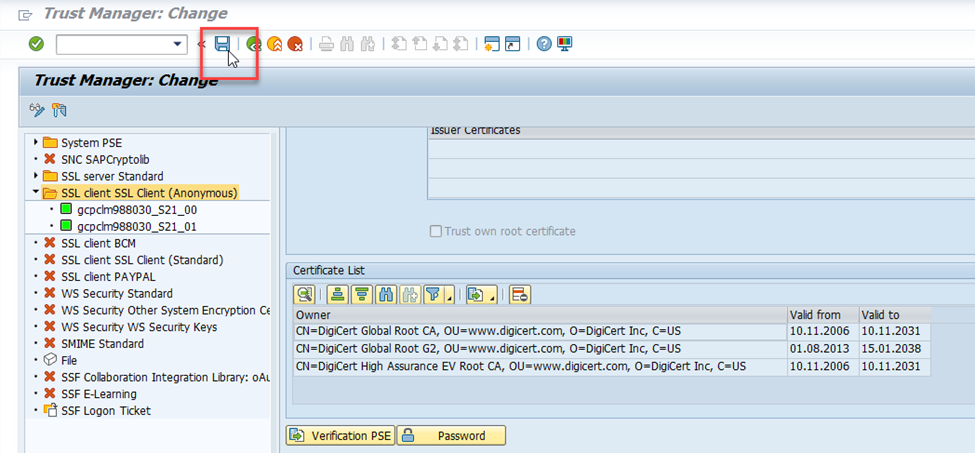
Double Click on: SSL Client SSL Client (Anonymous)
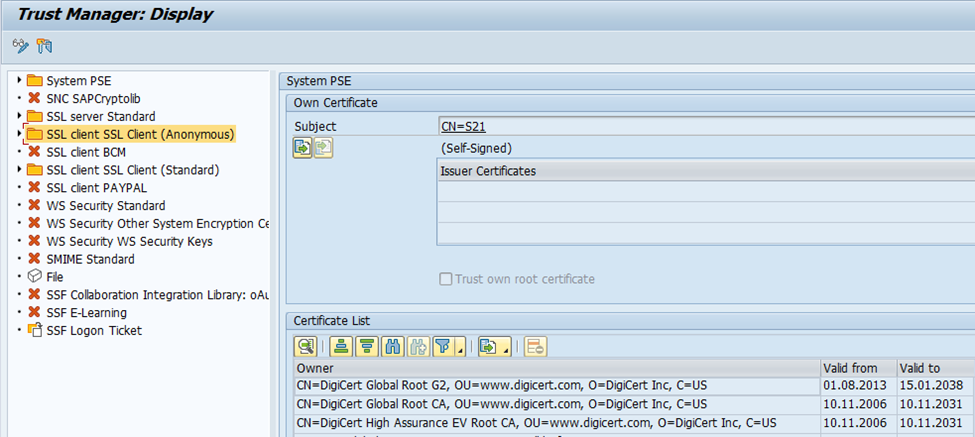
Check in the certificate list that the following certificates are available and valid:
- DigiCert Global Root CA
- DigiCert Global Root G2
- DigiCert High Assurance EV Root CA
In case the entry SSL Client SSL Client (Anonymous) is not created andcertificates are not available:
- Select the PSE, right clicking and press create
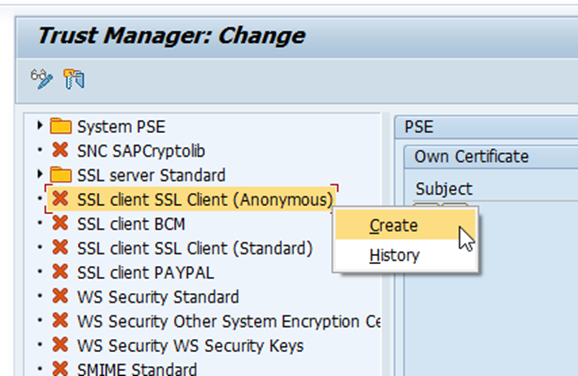
- Download the certificates
- DigiCert Global Root CA
- DigiCert Global Root G2
- DigiCert High Assurance EV Root CA
https://www.digicert.com/digicert-root-certificates.htm
- Upload the certificate
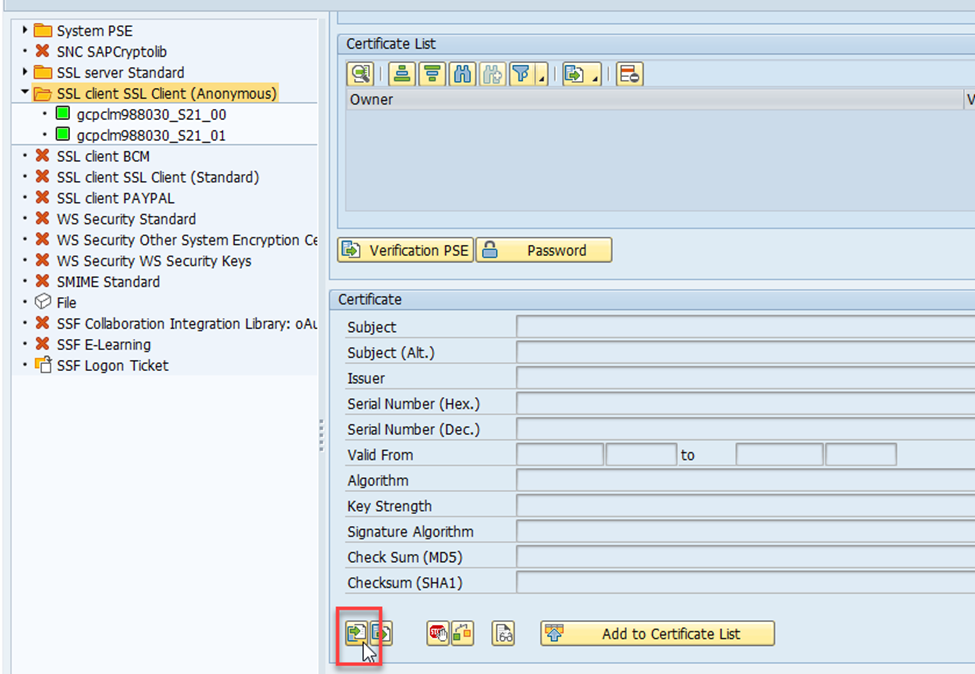
- Add certificate to the list
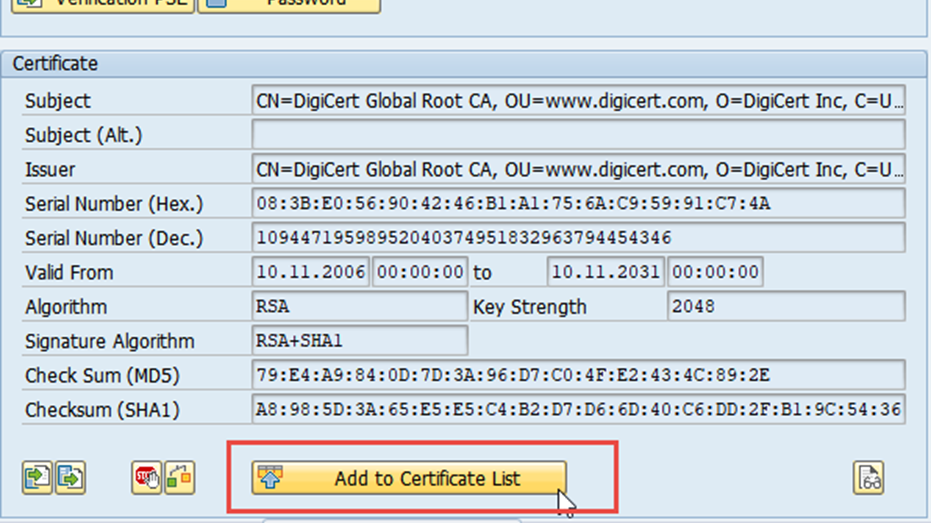
- Repeat this for every certificate and press save
Task 4: New OSS: Create HTTPS Connections for SAP Services (SM59)
Create and test destinations
- SAP Support Portal (SAP-SUPPORT_PORTAL - Type H)
- SAP Parcel Download (SAP-SUPPORT_PARCELBOX - Type G)
- SAP Note Download (SAP-SUPPORT_NOTE_DOWNLOAD - Type G)
Start transaction: SM59
Click on: Create
Destination: SAP Support Portal (SAP-SUPPORT_PORTAL - Type H)
Enter the following values
RFC Destination: SAP-SUPPORT_PORTAL
Connection Type: H
Description 1: HTTPS Destination for SAP Support Portal
Host: apps.support.sap.com
(in case of using a proxy add it in front of the host e.g. /H/<SR@CUST>/S/3299/H/<SR@SAP>/S/3299/H/apps.support.sap.com)
Port: 443
Language: EN
Client: 001
User: SXXXXXXX (Technical S-User)
Password: <your password>
SSL: Active
SSL Certificate: DFAULT SSL Client (Anonymous)
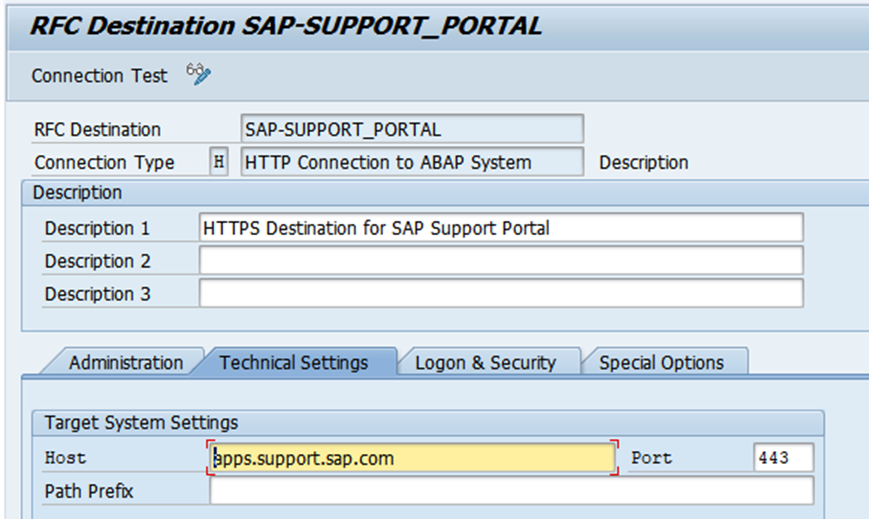
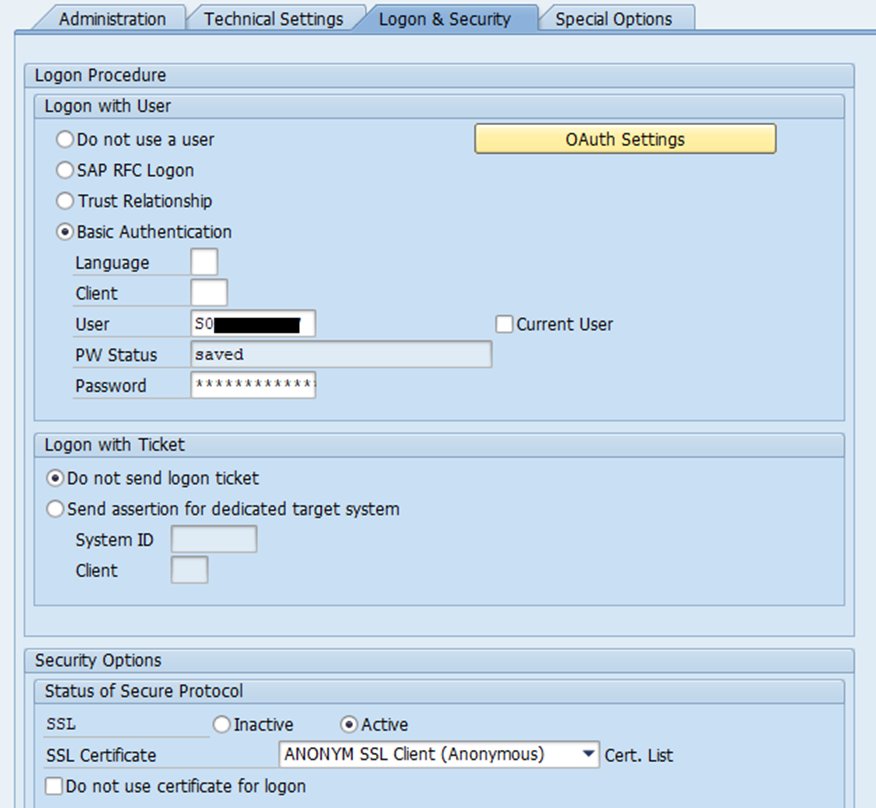
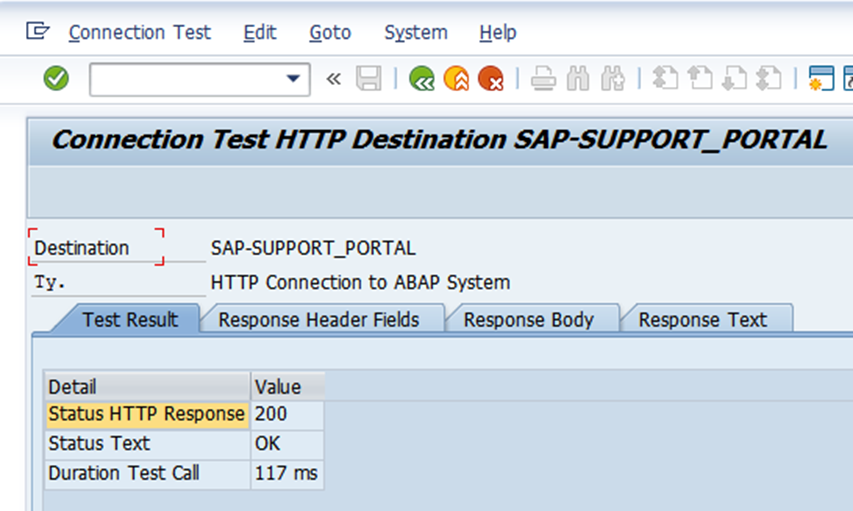
Click on the Connection Test button and check that Status HTTP Response 200 is displayed
Destination: SAP Parcel Download (SAP-SUPPORT_PARCELBOX - Type G)
Enter the following values
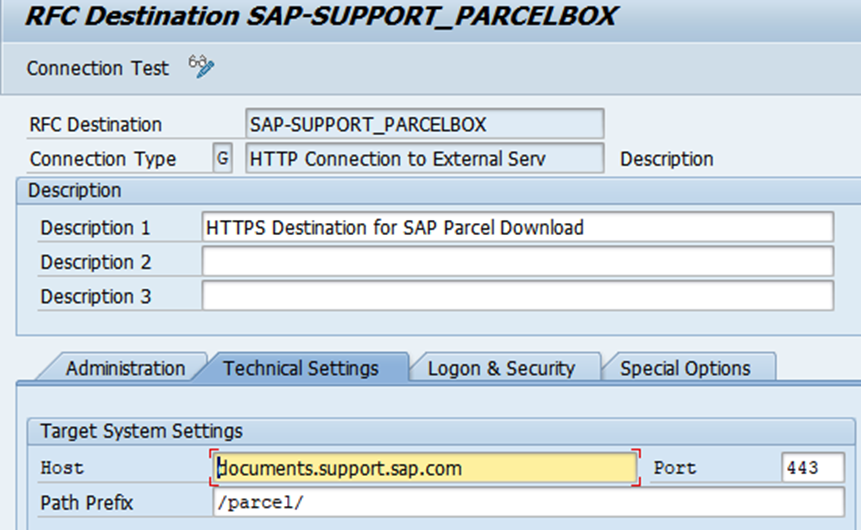
RFC Destination: SAP-SUPPORT_PARCELBOX
Connection Type: G
Description 1: HTTPS Destination for SAP Parcel Download
Host: documents.support.sap.com
(in case of using a proxy add it in front of the host e.g. /H/<SR@CUST>/S/3299/H/<SR@SAP>/S/3299/H/documents.support.sap.com)
Port: 443
Path Prefix: /parcel/
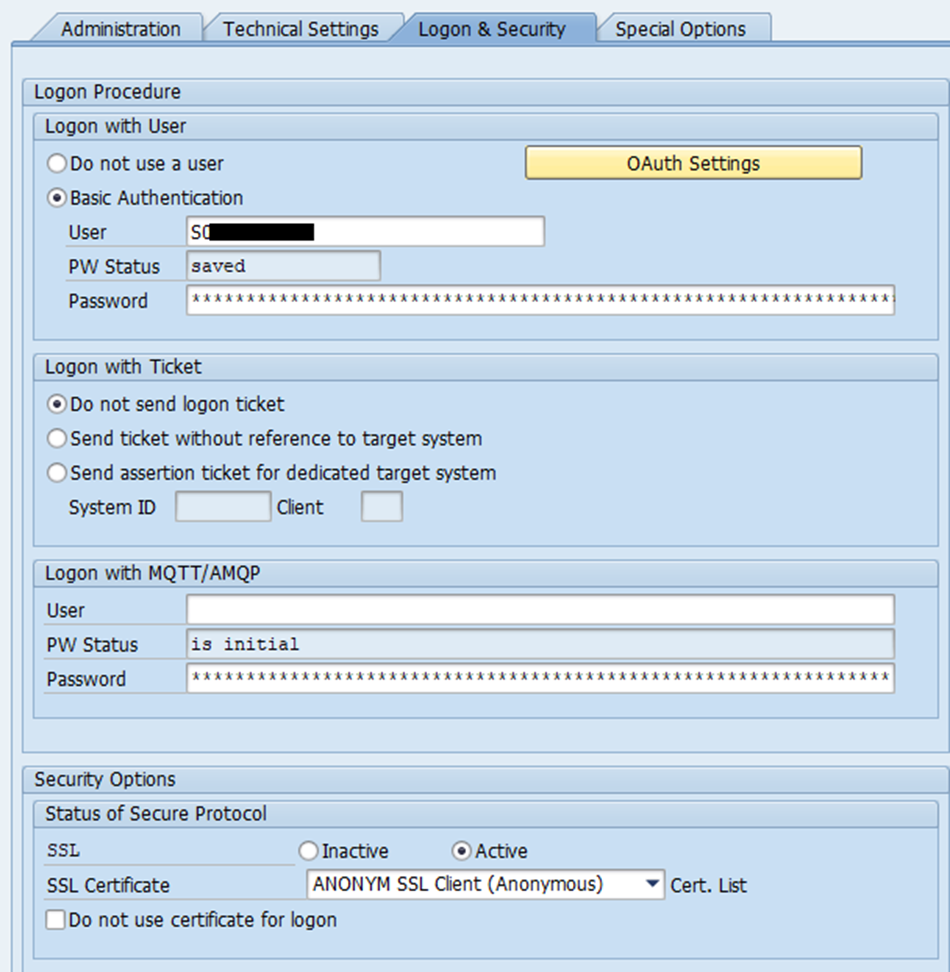
Logon with User: Basic Authentication
User: SXXXXXXX (Technical S-User)
Password: <your password>
SSL: Active
SSL Certificate: DFAULT SSL Client (Anonymous)
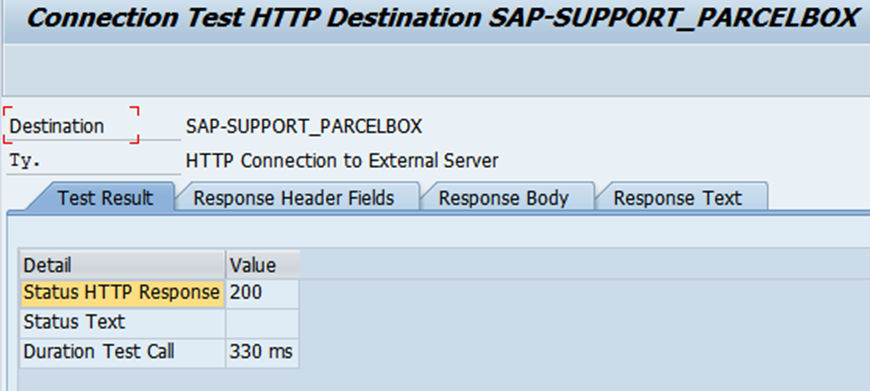
Click on the Connection Test button and check that Status HTTP Response 200 is displayed
Destination: SAP Note Download (SAP-SUPPORT_NOTE_DOWNLOAD - Type G)
Enter the following values
RFC Destination: SAP-SUPPORT_NOTE_DOWNLOAD
Connection Type: G
Description 1: HTTPS Destination for SAP Note Download
Host: notesdownloads.sap.com
(in case of using a proxy add it in front of the host e.g. /H/<SR@CUST>/S/3299/H/<SR@SAP>/S/3299/H/notesdownloads.sap.com)
Port: 443
Logon with User: Basic Authentication
User: SXXXXXXX (Technical S-User)
Password: <your password>
SSL: Active
SSL Certificate: DFAULT SSL Client (Anonymous)
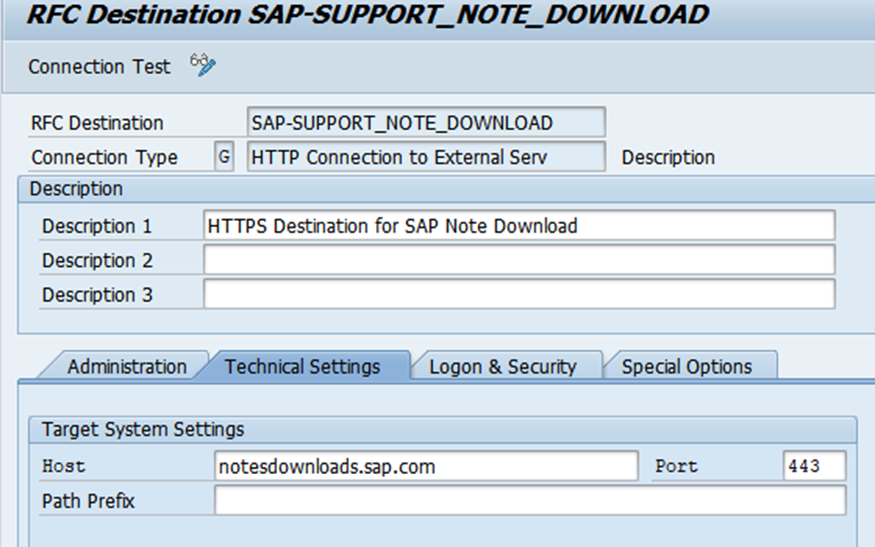
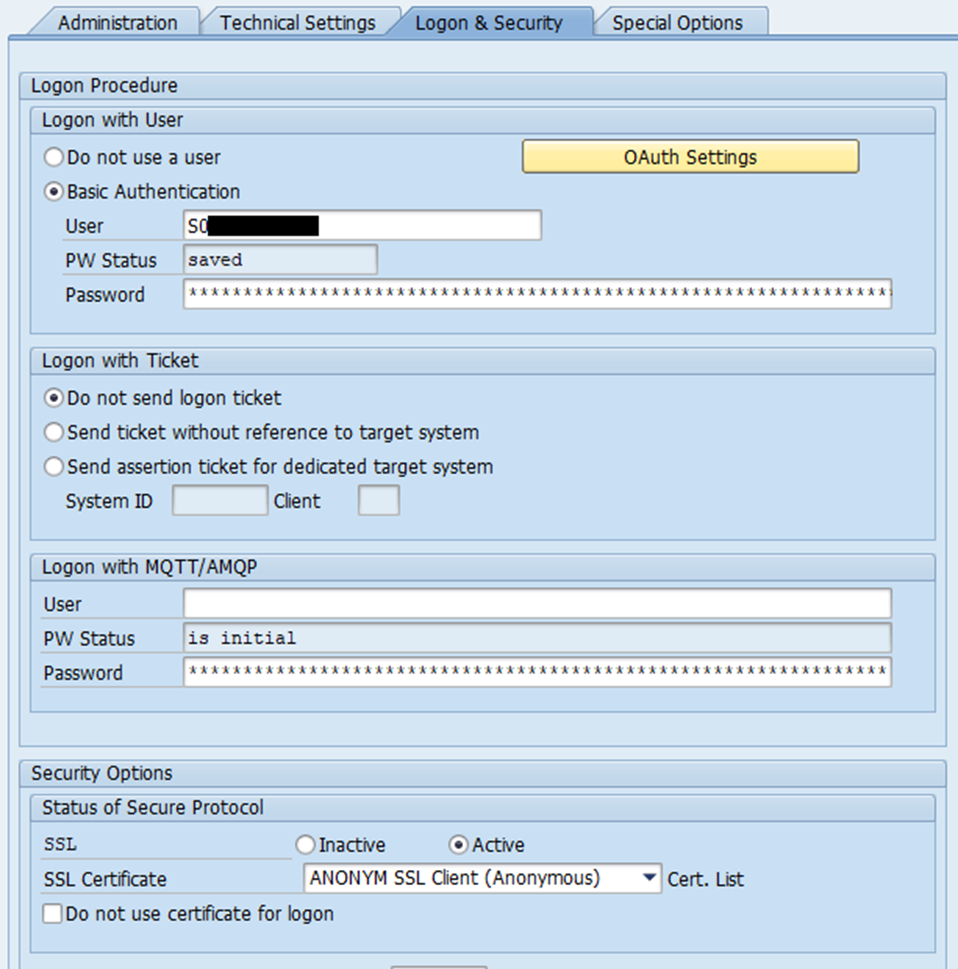
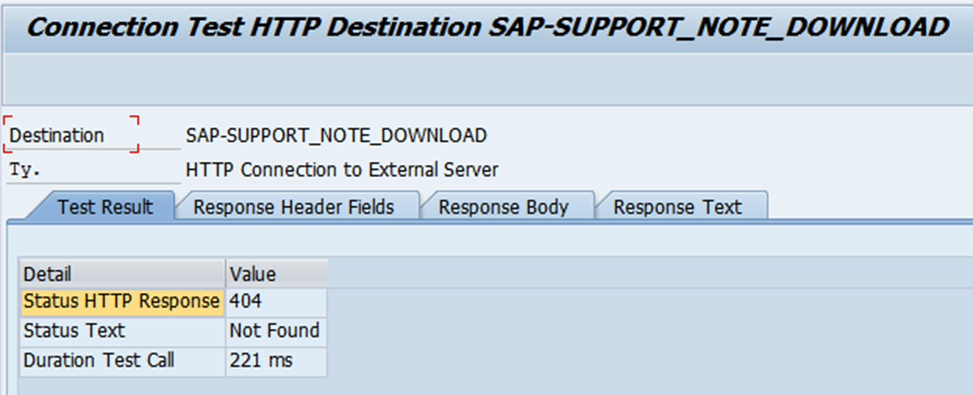
Click on the Connection Test button and check that Status HTTP Response 404 is displayed
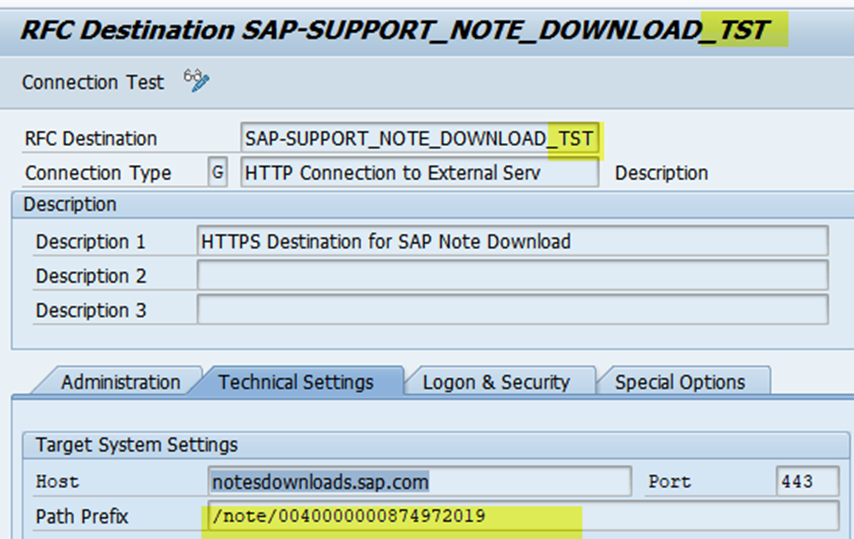
The 404 response is ok. When in SNOTE a note is downloaded the path to the note is added to the request like /note/0040000000874972019.
For a 200 response you can copy the created destination and enter the string to the Path Prefix field and perform a connection test.
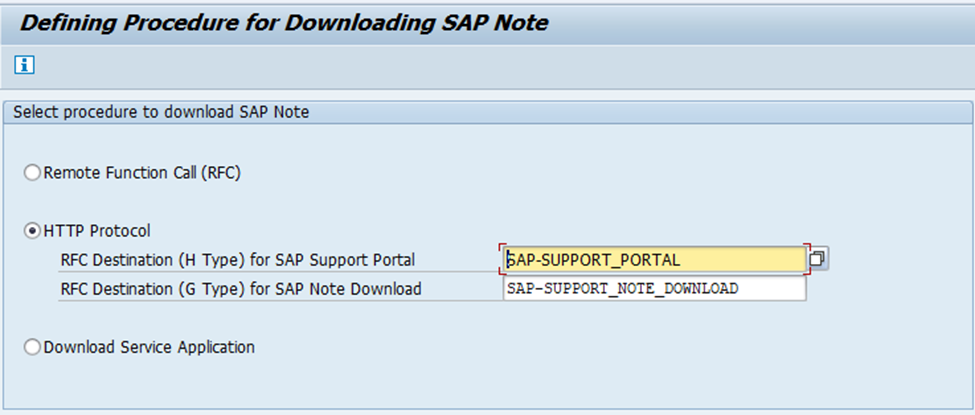
With latest update a new task in task list was introduced that enables SNOTE to use the created destinations. This can be checked/set by executing transaction: CWB_SNOTE_DWNLD_PROC and select HTTP Protocol
Troubleshooting:
Connection issues:
- in case you experience connection issues, the ICM trace (TA: SMICM) can give valuable information;
- contact your network admin that the https requests can get out of your company network (router, port settings, whitelist, blacklists in firewall, etc.)
- in case you are using a sap router string in front of the host and you have the SM59 https proxy setting active (check in menu of SM59), you must add the host in the filter list; in this case the host contains already the route it should NOT go the global proxy again; on top of that the https proxy setting is client independent
Authentication issues:
- The standard S-User will not work for the OSS connections, you need to use a technical S-User. You can request a technical user here: https://apps.support.sap.com/technical-user/index.html
- If you are using a technical S-User and still get authentication issues, it could be that the user is locked. In this case contact Support that they can unlock the technical S-User
Further resources:
- How to test https connection for SAP Note download after the execution of task list SAP_BASIS_CONFIG_OSS_COMM: https://launchpad.support.sap.com/#/notes/2836996
wechat: ywkonline
专注于SAP运维、升级、迁移
出处:http://www.cnblogs.com/weikui/

 浙公网安备 33010602011771号