八、PyQt5 之 菜单
#!/usr/bin/python
# -*- coding:utf-8 -*-

import sys
from PyQt5.QtWidgets import *
from PyQt5.QtGui import *
from PyQt5.QtCore import *


class Menu(QMainWindow):
    def __init__(self):
        super(Menu, self).__init__()
        # 获取菜单栏
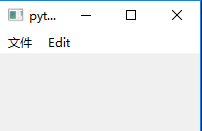
        bar = self.menuBar()
        # 添加菜单
        file = bar.addMenu("文件")
        # 菜单上可以直接添加选项
        file.addAction("新建")
        # 也可以用下面的方式添加菜单选项
        save = QAction("保存", self)
        # 设置快捷键
        save.setShortcut("Ctrl + S")
        file.addAction(save)
        # 绑定事件
        save.triggered.connect(self.process)

        edit = bar.addMenu("Edit")
        edit.addAction("copy")
        edit.addAction("paste")
        quit = QAction("退出", self)
        file.addAction(quit)

    def process(self, a):
        print(self.sender().text())


if __name__ == '__main__':
    app = QApplication(sys.argv)
    main = Menu()
    main.show()
    sys.exit(app.exec_())
#!/usr/bin/python
# -*- coding:utf-8 -*-

"""
创建和使用工具栏
工具栏默认按钮:只显示图标,将文本作为悬停提示展示
工具栏按钮有3中显示状态
1.  只显示图标
2.  只显示文本
3.  同时显示文本和图标
"""

import sys
from PyQt5.QtWidgets import *
from PyQt5.QtGui import *
from PyQt5.QtCore import *


class Toolbar(QMainWindow):
    def __init__(self):
        super(Toolbar, self).__init__()
        self.initUI()

    def initUI(self):
        self.setWindowTitle("工具栏案例")
        self.resize(300, 200)

        # 增加工具栏
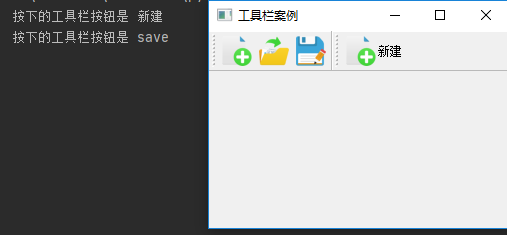
        tb1 = self.addToolBar("File")

        # 往工具栏上添加按钮  工具栏默认是按钮,将 new 作为文本的鼠标悬浮提示
        new = QAction(QIcon("../images/new.png"), "new", self)
        tb1.addAction(new)

        open = QAction(QIcon("../images/open.png"), "open", self)
        tb1.addAction(open)

        save = QAction(QIcon("../images/save.png"), "save", self)
        tb1.addAction(save)

        # 设置既显示图标,又显示文本(在下方)
        # self.setToolButtonStyle(Qt.ToolButtonTextUnderIcon)

        tb2 = self.addToolBar("File1")
        new2 = QAction(QIcon("../images/new.png"), "新建", self)
        tb2.addAction(new2)
        # 在图片右侧显示文本
        tb2.setToolButtonStyle(Qt.ToolButtonTextBesideIcon)

        # 绑定函数,显示那个按钮哪个按钮
        tb1.actionTriggered.connect(self.toolbtnpressed)
        tb2.actionTriggered.connect(self.toolbtnpressed)

    def toolbtnpressed(self, a):
        print("按下的工具栏按钮是", a.text())


if __name__ == '__main__':
    app = QApplication(sys.argv)
    main = Toolbar()
    main.show()
    sys.exit(app.exec_())
#!/usr/bin/python
# -*- coding:utf-8 -*-


import sys, math
from PyQt5.QtWidgets import *
from PyQt5.QtGui import *
from PyQt5.QtCore import *


class StatusBar(QMainWindow):
    def __init__(self):
        super(StatusBar, self).__init__()
        self.initUI()

    def initUI(self):
        self.setWindowTitle("状态栏演示")
        self.resize(300, 200)

        bar = self.menuBar()
        file = bar.addMenu("File")
        file.addAction("show")
        file.triggered.connect(self.processTrigger)
        # 中间添加一个控件,用处不大,为了好看
        self.setCentralWidget(QTextEdit())
        # 创建状态栏
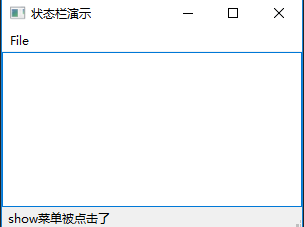
        self.statusBar = QStatusBar()
        # 设置状态栏
        self.setStatusBar(self.statusBar)

    def processTrigger(self, q):
        if q.text() == "show":
            self.statusBar.showMessage(q.text() + "菜单被点击了", 5000)  # 5000代表 5s 后自动消失


if __name__ == '__main__':
    app = QApplication(sys.argv)
    main = StatusBar()
    main.show()
    sys.exit(app.exec_())


 浙公网安备 33010602011771号