
用vue实现一个图片预览插件
废话不多说,直接上代码。
imgView.Vue // 文件
<template>
<div class="detail">
<div class="naveBar" :class="{inApp:isIeltsbro}">
<div class="leftBtn" @click="handleClick"></div>
<p class="title" v-html="title"></p>
</div>
<div class="slide">
<div class="imgSlide" id="slider">
<div
class="imgSlideList"
:class="{vip:type=='vip',howToUse:type=='howToUse'}"
v-for="(item, index) in viewList"
:key="index"
@touchstart="touchstart"
@touchmove="touchmove"
>
<p class="guideTitle" v-html="item.title" :class="{'vipCss': viewList.length == 1}"></p>
<img :class="{'imgV': true, 'howToImg': type=='howToUse' && index === 2}" :src="item.img"/>
</div>
</div>
<template v-if="viewList.length>1">
<div class="pre" @click="handlePre"></div>
<div class="next" @click="handleNext"></div>
<div class="imgIndex">
<div :class="{'dit': true}">
<img
v-for="(item, index) in viewList"
:key="index"
:src="index === showIndex ? item.indexImgActive : item.indexImg"
:class="{'ditActive': index === showIndex }"
/>
</div>
</div>
</template>
</div>
</div>
</template>
<script>
/* eslint-disable */
import { isIeltsbro } from '../../common/utils/hybrid_common'
import { popPrevPage } from '../../common/utils/hybrid'
export default {
name: 'vipPageDetail',
components: {},
data () {
return {
title: '',
type: null,
isIeltsbro: isIeltsbro(),
appStoreImg: [
{
title: '1.进入苹果设备的【设置】-【通用】',
img: require('../assets/image/1@2x.png'),
indexImg: require('../assets/image/Oval@2x.png'),
indexImgActive: require('../assets/image/Rectangle@2x.png'),
},
{
title:
'2.在【软件更新】中查看当前iOS系统版本,请确保已更新至10.3.3版本或以上',
img: require('../assets/image/2@2x.png'),
indexImg: require('../assets/image/Oval@2x.png'),
indexImgActive: require('../assets/image/Rectangle@2x.png'),
},
{
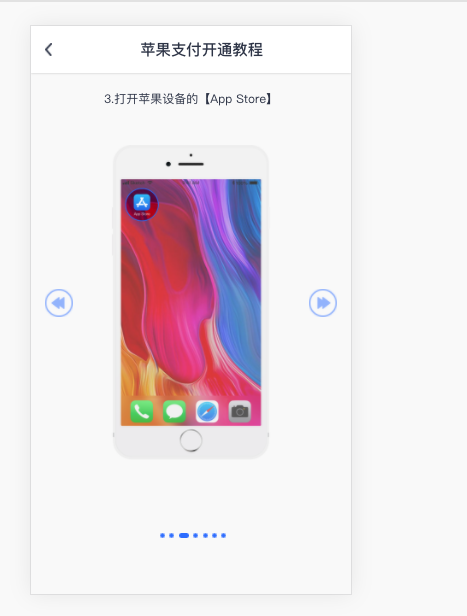
title: '3.打开苹果设备的【App Store】',
img: require('../assets/image/3@2x.png'),
indexImg: require('../assets/image/Oval@2x.png'),
indexImgActive: require('../assets/image/Rectangle@2x.png'),
},
{
title:
'4.在【App】栏目中,滑动到最底部,选择【绑定支付宝、微信支付或银联卡】',
img: require('../assets/image/4@2x.png'),
indexImg: require('../assets/image/Oval@2x.png'),
indexImgActive: require('../assets/image/Rectangle@2x.png'),
},
{
title: '5.点击【添加付款方式】',
img: require('../assets/image/5@2x.png'),
indexImg: require('../assets/image/Oval@2x.png'),
indexImgActive: require('../assets/image/Rectangle@2x.png'),
},
{
title: '6.选择微信、支付宝或者银联卡添加即可',
img: require('../assets/image/6@2x.png'),
indexImg: require('../assets/image/Oval@2x.png'),
indexImgActive: require('../assets/image/Rectangle@2x.png'),
},
{
title: '7.添加后,在雅思哥APP内使用苹果支付即可',
img: require('../assets/image/7@2x.png'),
indexImg: require('../assets/image/Oval@2x.png'),
indexImgActive: require('../assets/image/Rectangle@2x.png'),
},
],
howToUseImg: [
{
title:
'每日任务、口语串讲、小白课堂,以及会员直播课,可在练习页面的会员服务卡片进入',
img: require('../assets/image/8@2x.png'),
indexImg: require('../assets/image/Oval@2x.png'),
indexImgActive: require('../assets/image/Rectangle@2x.png'),
},
{
title: '口语参考答案可从口语练习的题目内查看',
img: require('../assets/image/9@2x.png'),
indexImg: require('../assets/image/Oval@2x.png'),
indexImgActive: require('../assets/image/Rectangle@2x.png'),
},
{
title: '写作范文、可从写作练习的题目内查看',
img: require('../assets/image/10@2x.png'),
indexImg: require('../assets/image/Oval@2x.png'),
indexImgActive: require('../assets/image/Rectangle@2x.png'),
},
],
vipNotAccount: [
{
title:
'请添加官方客服QQ 2492172102,并备注“购买服务未开通”。客服工作时间未周一至周五9:00-18:00,如果您是在周末留言,客服将会在周一统一处理,服务有效期也会从开通当日算起。',
img: require('../assets/image/11@2x.png'),
indexImg: require('../assets/image/Oval@2x.png'),
indexImgActive: require('../assets/image/Rectangle@2x.png'),
},
],
startPointX: 0,
changePointX: 0,
showIndex: 0,
slideDis: 375,
}
},
computed: {
viewList () {
const type = this.$route.query.type
this.type = type
switch (type) {
case 'appStore':
this.title = '苹果支付开通教程'
return this.appStoreImg
case 'howToUse':
this.title = '如何使用'
return this.howToUseImg
case 'vip':
this.title = '会员未到账'
return this.vipNotAccount
}
},
},
created () {
},
methods: {
handleClick () {
if (isIeltsbro()) {
popPrevPage()
} else {
this.$router.back()
}
},
show (index) {
this.slideDis = document.body.clientWidth
this.changePointX = this.startPointX
let slider = document.getElementById('slider')
slider.style.marginLeft = `-${this.slideDis * index}px`
},
touchstart (e) {
this.startPointX = e.changedTouches[0].pageX
},
touchmove (e) {
if (this.startPointX == this.changePointX) {
return
}
let currPointX = e.changedTouches[0].pageX
let leftSlide = this.startPointX - currPointX
if (leftSlide > 30 && this.showIndex < this.viewList.length - 1) {
this.show(++this.showIndex)
} else if (leftSlide < -30 && this.showIndex > 0) {
this.show(--this.showIndex)
}
},
handlePre () {
if (this.showIndex > 0) {
this.show(--this.showIndex)
}
},
handleNext () {
if (this.showIndex < this.viewList.length - 1) {
this.show(++this.showIndex)
}
},
},
}
</script>
<style scoped lang="scss">
.detail {
width: 100%;
height: 100vh;
background-color: #fafafa;
overflow: hidden;
}
.naveBar {
display: flex;
position: fixed;
flex-direction: row;
align-items: center;
width: 100%;
margin: 0;
padding: 30px 0;
background-color: #fff;
box-shadow: 0px 1px 5px 0px rgba(59, 58, 58, 0.2);
}
.naveBar.inApp {
padding-top: 70px
}
@supports (bottom: env(safe-area-inset-bottom)) {
.naveBar {
padding-bottom: calc(constant(safe-area-inset-bottom) + 30px);
padding-bottom: calc(env(safe-area-inset-bottom) + 30px);
}
}
.leftBtn {
width: 100px;
height: 50px;
background: url("../assets/image/Path-94@2x.png") 32px center no-repeat;
background-size: 17%;
}
.title {
height: 50px;
width: 80%;
font-size: 36px;
font-family: PingFangSC-Medium, PingFang SC;
font-weight: 500;
color: #333b50;
line-height: 50px;
text-align: center;
overflow: hidden;
}
.slide {
position: relative;
width: 100%;
height: 90vh;
overflow: hidden;
margin-top: 50px;
// overflow: scroll;
}
.imgIndex {
position: fixed;
display: flex;
flex-direction: row;
align-items: center;
justify-content: space-between;
width: 100%;
bottom: 132px;
}
.imgSlide {
position: absolute;
width: 700%;
height: 80%;
}
.imgSlideList {
width: 750px;
height: 100%;
margin-top: 54px;
float: left;
display: flex;
flex-direction: column;
align-items: center;
justify-content: center;
& .guideTitle {
width: 100%;
/*height: 80px;*/
font-size: 28px;
font-family: PingFangSC-Regular, PingFang SC;
font-weight: 400;
color: #333b50;
line-height: 40px;
text-align: center;
padding: 0 36px;
margin-bottom: 90px;
}
& .imgV {
display: inline-block;
/*width: 454px;*/
height: 738px;
margin: 0 auto;
}
& .howToImg {
margin-left: 22%;
}
& .vipCss {
/*margin-top: 128px;*/
}
}
/*.imgSlideList:nth-child(3), .imgSlideList:nth-child(7), .imgSlideList.vip {*/
/* .imgV {*/
/* width: 366px;*/
/* }*/
/*}*/
.dit {
margin: 0 auto;
display: flex;
flex-direction: row;
align-items: center;
justify-content: space-between;
& img {
display: inline-block;
width: 12px;
height: 12px;
margin-left: 10px;
}
}
.ditActive {
display: inline-block;
width: 24px !important;
height: 12px;
}
.pre {
position: absolute;
top: 50%;
left: 0;
margin-top: -33px;
margin-left: 32px;
width: 66px;
height: 66px;
background: url("../assets/image/last_icon@2x.png") center center no-repeat;
background-size: 100% 100%;
}
.next {
position: absolute;
top: 50%;
right: 0;
margin-top: -33px;
margin-right: 32px;
width: 66px;
height: 66px;
background: url("../assets/image/next_icon@2x.png") center center no-repeat;
background-size: 100% 100%;
}
</style>
说明: 文件内容中引入的图片地址可自行配置。
效果如下:
shimuqiao

 浙公网安备 33010602011771号