
基于BindingSource的WinForm开发
基于BindingSource的WinForm开发
1.引言
BindingSource组件是数据源和控件间的一座桥,同时提供了大量的API和Event供我们使用。使用这些API我们可以将Code与各种具体类型数据源进行解耦;使用这些Event我们可以洞察数据的变化。
2.简单绑定 DataTable myTable = myTableAdapter.GetData();//创建Table
BindingSource myBindingSource= new BindingSource();//创建BindingSource
DataGridView myGrid = new DataGridView();//创建GridView
myGrid.DataSource = myBindingSource;//将BindingSource绑定到GridView myTable;//绑定数据到BindingSource
注: 1)绑定到DataTable,其实是绑定到DataTable提供的DataView上。每个DataTable都有一个缺省的DataView 2)DataView是绑定的实质,正如其名,它是DataTable的数据的展现。因此可以对同一个DataTable ,构建多个DataView,进而可以对这同样的数据实施不同的过滤、排序等方法,从不同侧面展示DataTable。这也体现了一定的MVC思想。 3)BindingSouce也可作为数据(其实是数据引用)的容器在不同窗体间传递,从而实现在弹出窗体中对数据的编辑
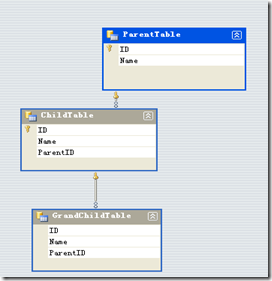
以上图所示数据为例:
1)DataSet:myDataSet
2)DataTable:ParentTable、ChildTable、GrandChildTable
3)Relation:FK_Parent_Child、FK_Child_GrandChild
//绑定父数据
parentBindingSource.DataSource = myDataSet;
parentBindingSource.DataMember = "ParentTable";
m_GrandParentGrid.DataSource = m_GrandParentBindingSource;
//绑定子数据。
childBindingSource.DataSource = parentBindingSource;//绑定到“父BindingSource”,而不是父Table
childBindingSource.DataMember = "FK_Child_GrandChild";//绑定到“父-子Relation”
//绑定孙子数据。
grandChildBindingSource.DataSource = childBindingSource;//绑定到“子BindingSource”
grandChildBindingSource.DataMember = "FK_Child_GrandChild";//绑定到“子-孙Relation”
这样你就可以在Form上摆上3个DataView,分布绑定到这3个BindingSouce,很容易就实现了主细表关联展现。
4.数据操纵要操纵数据,首先需要获取当前数据项。BindingSource的Current属性返回DataRowView类型的对象(就像DataView是对DataTable的封装一样,DataRowView是对DataRow的封装),它是对当前数据项的封装,可以通过类型转换变成你想要的对象。 DataRowView currentRowView = myBindingSource.Current;//获取当前RowView
CustomersRow custRow = currentRowView.Row as CustomersRow;//类型转换为当前数据项
string company = custRow.CompanyName;//使用当前数据项
string phoneNo = custRow.Phone;
5.用BindingSource做数据容器BindingSource还可以用作数据容器,即便它没有绑定到数据源上,它内部有一个可以容纳数据的list。
5.1Add方法调用Add方法会在BindingSource的list中插入数据项。如果这时第一次插入数据,并且没有绑定数据,那么插入数据的类型就决定了今后此list中数据的类型。
注:
1)此时再插入其它类型对象会抛出InvalidOperationException异常
2)设置DataSource属性时会刷新list,造成Add方法添加到list中的数据丢失
5.2AddNew方法AddNew方法返回BindingSourc所容纳数据类型的对象;如果之前没有容纳数据,则会返回Object对象。
AddNew方法会调用EndEdit方法,并将提交对当前数据的操纵;然后新数据项就成为当前项。
AddNew方法会引发AddingNew事件,可以在此事件中为数据项赋值,或者创建新数据项
private void OnAddingNew(object sender, AddingNewEventArgs e)
{
e.NewObject = new MyCustomObject();//
}
6.用BindingSource对数据排序、过滤、搜索6.1 Sort为Sort属性赋上Sort表达式,可以对数据进行排序
myBindingSource.Sort = "ContactName ASC";//对ContanctName列按ASC进行排序 myBindingSource.Sort = "Region ASC, CompanyName DESC"//先按Region、再按CompanyName排序
Find方法根据指定属性和关键字进行查找,并返回第一个匹配对象的Index
int index = m_CustomersBindingSource.Find("CompanyName",IBM);//按CompanyName查找IBM
if (index != -1)
{
myBindingSource.Position = index;//定位BindingSource
}
6.3 Filter为Filter属性赋上表达式,可以对数据进行过滤
m_CustomersBindingSource.Filter = "Country = 'Germany'";//过滤出Country属性为Germany的数据
7.用Event监控数据7.1 Event 1)AddingNew
调用AddNew()方法时触发。
2)BindingComplete
当有多个控件绑定到同一数据源时,这个事件会触发多次4)CurrentItemChanged
当前数据项的值改变时触发
5)DataError
通常输入无效数据时,由CurrencyManage抛出异常,从而触发此事件。
6)PositionChanged
Position属性改变时触发此事件。
7)ListChanged
数据集合改变时触发。触发此事件的情况如下
adding, editing, deleting, 或 moving 数据项时改变那些会影响List行为特征的属性时,如AllowEdit属性
替换List时(绑到新数据源)8.限制数据修改BindingSource不仅是数据源与控件间的“桥梁”,同时也是数据源的“看门人”。通过BindingSource,我们可以控制对数据的修改。
BinidingSource的AllowEdit, AllowNew和AllowRemove属性可以控制客户端代码和控件对数据的修改
9.复杂数据类型的Binding对于String类型的数据,直接Binding到Text控件即可,对于复杂类型有下面几种情况
9.1 Binding类解决以上问题的关键是要理解Binding类,了解它是如何控制数据Binding的过程。
DataTable table = customersDataSet.Customers;
//将TextBox的Text属性Binding到table的CustomerID列
customerIDTextBox.DataBindings.Add("Text", table,"CustomerID", true);
//上面一行代码等同下面两行代码
Binding customerIDBinding = new Binding("Text", table,"CustomerID", true);
customerIDTextBox.DataBindings.Add(customerIDBinding);
从代码可以看出,Binding是数据源(table)和控件(customerIDTextBox)间的中介人,它有以下功能 从数据源取数据,并按照控件要求的数据类型对此数据进行格式化(Formatting),然后传给控件 从控件取数据,并按照数据源的数据类型要求对此数据进行解析(Parsing),然后返回给数据源 自动对数据进行格式转换9.2Binding类构造函数和属性Binding构造函数有多个重载版本,下面介绍其重要的参数,这些参数同时存在于Binding对象的属性中。下面介绍中,参数名和属性名都列出来
1)formattingEnabled(属性FormattingEnabled)
2)dataSourceUpdateMode
决定控件上数值的改变在何时提交回数据源
3)nullValue
DBNull、 null和Nullab<T>对应的值。
4)formatString
格式转换
5)formatInfo
一个实现IFormatProvider接口的对象引用,用来自定义格式转换
要了解类型如何转换的,请学习Type Conversions and Format Providers相关内容。关于上面属性的应用,请看下面介绍
9.3基于Binding类的内置机制(属性、参数)进行类型转换通过Binding类构造时的参数,或属性设置,可以控制它进行类型转换的机制。
1)DateTime
下面先介绍一个DateTime类型的例子,使用DateTimePicker控件
//创建Binding,设置formattingEnabled为true birthDateTimePicker.DataBindings.Add("Value",m_EmployeesBindingSource, "BirthDate", true);
//设定为使用自定义格式
birthDateTimePicker.Format = DateTimePickerFormat.Custom;
//设定格式
birthDateTimePicker.CustomFormat = "MM/dd/yyyy";
2)Numeric
salaryTextBox.DataBindings.Add("Text", employeesBindingSource,"Salary", true, DataSourceUpdateMode.OnValidation,"<not specified>", "#.00"); 以上代码做了以下处理 设定formattingEnabled为true:代表自动类型转换 设定DataSourceUpdateMode为OnValidation: 设定nullValue为"<not specified>":这些DBNull就显示为,"<not specified>", 同时用户录入,"<not specified>"时,数据值为DBNull 设定formatString为"#.00":数值保留2位小数9.4. 事件下面介绍Binding的主要事件,以及如何基于这些事件进行类型转换的控制。
主要事件:
1)Format事件
发生在从数据源获取数据后,控件显示此数据之前。在这个事件里将数据源的数据类型转换为控件要求的数据类型。
2)Parse事件
与Event相反。它发生控件值改变后,数据更新回数据源之前。在这个事件里将控件的数据类型转换为数据源要求的数据类型。
这两个事件为我们控制数据提供了机制,它们都声明为ConvertEventHandler类型,
void ConvertEventHandler(object sender, ConvertEventArgs e);
有两个参数,第二个参数ConvertEventArgs e 提供了我们要formatting和parsing的数据。它有两个属性
9.5. 基于事件的类型转换9.5.1 处理Format Event void OnCountryFromFormat(object sender, ConvertEventArgs e)
{
if (e.Value == null || e.Value == DBNull.Value)
{
pictureBox.Image = null;
return;
}
//绑定的是数据源的CountryID字段,因此e.Value返回的ID号,通过此ID号取得对应数据行
CountriesRow countryRow = GetCountryRow((int)e.Value);
//将e.Value赋值为CountryName,从而在控件中显示名称
e.Value = countryRow.CountryName;
// 数据转换
ImageConverter converter = new ImageConverter();
pictureBox.Image = converter.ConvertFrom(countryRow.Flag) as Image;
}
9.5.2 处理Format Eventvoid OnCountryFromParse(object sender, ConvertEventArgs e)
{
// Need to look up the Country information for the country name
ExchangeRatesDataSet.CountriesRow row =
GetCountryRow(e.Value.ToString());
if (row == null)
{
string error = "Country not found";
m_ErrorProvider.SetError(m_CountryFromTextBox, error);
m_CountryFromTextBox.Focus();
throw new ArgumentException(error);
}
e.Value = row.CountryID;
}
10 完成数据编辑经常会遇到这种情况,你在一个控件中录入或选择一些数据,只有当年离开此控件时,关联的数据才能同步更新。这个问题是由DataRow内部机制决定的。
DataRowView类实现IEditableObject接口,支持对象的事务性编辑(当你确认完成编辑前,可以回滚数据)。我们通过BeginEdit()方法来开始数据编辑,通过EndEdit()方法提交编辑。
不要将DataRowView的EndEdit()与DataSet、DataTable、DataRow的AcceptChanges()方法混淆。DataRow有original和current版本,同时IEditableObject的caching机制让它有transient版本,在调用EndEdit()方法前,数据修改是不会提交到数据源。这就是前面问题的内在原因。
如果希望编辑的数据立即提交,那调用EndEdit()函数的最佳位置就是Validated事件。Validate事件在控件录入的数据parsed,并且通过validate后触发,在这个事件中触发EndEdit()就会通知绑定到同一数据源的所有控件,从而实现数据同步更新。
private void OnCountryTextValidated(object sender, EventArgs e)
{
exchangeRatesBindingSource.EndEdit();
}
当然,当前数据项改变时,也会触发EndEdit()事件
11 使用AutoComplete当你希望TexbBox或ComboBox中会自动提示功能,那你应该学习一下AutoComplete功能。下面以TextBox为例介绍相关步骤
1)设定TextBox的AutoCompleteSource属性:FileSystem, HistoryList, RecentlyUsedList
2)如果希望使用自定义的列表,则设定AutoCompleteSource属性为CustomSource
3)设定AutoCompleteMode为SuggestAppend。这意味着你输入部分字符时,控件在下拉列表中提示所有相近的数据
4)如果不想使用内置的提示源,你可以自己创建一个AutoCompleteStringCollection类的列表,
5)创建这个列表后,将它赋给TextBox的AutoCompleteCustomSourc属性
12 DataBinding的生命周期BindingSource的DataSourceUpdateMode属性是关键,它有以下三种可能值,下面分布以TextBox控件为例介绍此属性不同时DataBinding的生命周期
1)OnValidating(缺省值)
DataBinding的生命周期:TextBox.Leave, TextBox.Validating, Binding.Parse, TextBox.Validated
此时若将控件的CausesValidation属性设为false,那么Validating事件就不会发生2)OnPropertyChanged
DataBinding的生命周期:此时,每次控件值发生改变时都会触发Binding.Parse。对TextBox控件来说,每次录入字符都会触发Binding.Parse。
3)Never
此时Parse事件不会触发,也就是说控件将成为只读的。
13 子父绑定前面介绍了主细绑定,它其实是一个父子绑定。有时我们希望由子到父的关联绑定,下面我们就一起来实现这个机制。实现这个机制的关键还是Event,这个Event就是BindingSource的CurrentChanged事件
private void OnCurrentChanged(object sender, EventArgs e)
{
// 获取当前的子DataRow
ExchangeRatesDataSet.ExchangeRatesRow currentRow =
(ExchangeRatesDataSet.ExchangeRatesRow)
((DataRowView)m_ExchangeRatesBindingSource.Current).Row; // 获取关联的父DataRow
ExchangeRatesDataSet.CountriesRow fromCountryRow =
currentRow.CountriesRowByFK_ExchangeRates_CountriesFrom;
ExchangeRatesDataSet.CountriesRow toCountryRow =
currentRow.CountriesRowByFK_ExchangeRates_CountriesTo; //显示父DataRow的信息
if (fromCountryRow != null && toCountryRow != null)
{
m_FromCountryCombo.SelectedValue = fromCountryRow.CountryID;
m_ToCountryCombo.SelectedValue = toCountryRow.CountryID;
}
}
14 绑定到数据的多个复本有时,我们希望以不同角度看到同一数据,这时需要绑定到同一数据的多个复本。这里的关键是CurrencyManager类,每个BindingSource管理着一个CurrencyManager。如果多个控件绑定到同一个BindingSource,那么只有一个CurrencyManager,因此也就只有一个CurrentItem,这样就造成这些绑定到同一BindingSource的控件同步刷新。要解决这个问题,我们需要多个CurrencyManager,也就是说我们可以创建多个BindingSource,且绑定到同一个数据源。
9.5 处理Null类型这里有两个概念要弄清楚,.Net内置的Null类型与代表数据库中的Null类型,以及它们的区别。
1).Net内置的Null类型
2).Net用来代表数据库中的Null类型
DBNull,它有一个属性Value,可以用来判断数据是否为DBNull if (northwindDataSet.Employees[0].Country == DBNull.Value)
{
// Handle null case here
}
对强类型数据集
if (northwindDataSet.Employees[0].IsCountryNull())
{
// Handle null case here
}
1)AddNew()函数:用来添加一条数据,返回类型由绑定的DataSource决定。 1)绑定到DataSet/DataTable时,返回DataRowView对象。 注意: a)返回的不是DataSet或DataTable或DataRow。 b)如果希望获取添加的数据,需要进行类型转换 //bs为你创建的BindingSource DataRow row=(DataRow)((DataRowView) bs.AddNew()).Row; c)使用TypedDataSet时,转换方法与上面类似,只是用TypedDataRow而已 //MyDataRow为你定义的TypedDataRow MyDataRow row=(MyDataRow)((DataRowView) bs.AddNew()).Row;
BindingSource控件是.NET Compact Framework 2.0提供的新控件之一。BindingSource控件与数据源建立连接,然后将窗体中的控件与BindingSource控件建立绑定关系来实现数据绑定,简化数据绑定的过程。BindingSource控件即是一个连接后台数据库的渠道,同时又是一个数据源,因为BindingSource控件即支持向后台数据库发送命令来检索数据,又支持直接通过BindingSource控件对数据进行访问、排序、筛选和更新操作。BindingSource控件能够自动管理许多绑定问题。BindingSource控件没有运行时界面,无法在用户界面上看到该控件。
BindingSource控件通过Current属性访问当前记录,通过List属性访问整个数据表。表4-8列出了BindingSource控件的主要属性。
通过Current属性及RemoveCurrent、EndEdit、CancelEdit、Add和AddNew方法可实现对当前记录的编辑操作。表4-3列出了BindingSource控件的主要方法。
表4-3:BindingSource的主要方法
清单4-11演示通过BindingSource控件将包含TreeNode列表的BindingList对象绑定到ListBox控件。清单4-12演示包含TreeNode列表的BindingList对象的类定义。
……
Dim myNodeList As New MyTreeNodeList()
myNodeList.Add(New Windows.Forms.TreeNode("西藏"))
myNodeList.Add(New Windows.Forms.TreeNode("广东省"))
myNodeList.Add(New Windows.Forms.TreeNode("广西壮族自治区"))
myNodeList.Add(New Windows.Forms.TreeNode("海南省"))
myNodeList.Add(New Windows.Forms.TreeNode("四川省"))
myNodeList.Add(New Windows.Forms.TreeNode("山东省"))
myNodeList.Add(New Windows.Forms.TreeNode("河南省"))
myNodeList.Add(New Windows.Forms.TreeNode("陕西省"))
myNodeList.Add(New Windows.Forms.TreeNode("海南省"))
myNodeList.Add(New Windows.Forms.TreeNode("湖南省"))
myNodeList.Add(New Windows.Forms.TreeNode("吉林省"))
myNodeList.Add(New Windows.Forms.TreeNode("山西省"))
myNodeList.Add(New Windows.Forms.TreeNode("宁夏回族自治区"))
BindingSource1.DataSource = myNodeList
ListBox1.DataSource = BindingSource1
ListBox1.DisplayMember = "Text"
……
清单 4-12 BindingList对象的类定义
Public Class MyTreeNodeListInherits System.ComponentModel.BindingList(Of System.Windows.Forms.TreeNode)
Protected Overrides ReadOnly Property SupportsSearchingCore() As Boolean
Get
Return True
End Get
End Property
Protected Overrides Function FindCore(ByVal prop As System.ComponentModel.PropertyDescriptor,_
ByVal key As Object) As Integer
Dim i As Integer
While i < Count
If Items(i).Text.ToLower() = CStr(key).ToLower() Then
Return i
End If
i += 1
End While
Return -1
End Function
End Class
也可以在设计时,通过属相窗口定义ListBox控件的DataSource和DisplayMember属性,来实现控件数据绑定。
设置BindingSource控件和ListBox控件数据绑定之后,就可以使用BindingSource控件的Add方法实现向ListBox控件新增数据项。清单4-13演示向ListBox控件新增数据项。
……
If BindingSource1.AllowNew <> True Then
Windows.Forms.MessageBox.Show("不能增加列表数据项。")
Else
Dim foundIndex As Integer = BindingSource1.Add(New Windows.Forms.TreeNode(TextBox1.Text))
If foundIndex > -1 Then
ListBox1.SelectedIndex = foundIndex
Else
Windows.Forms.MessageBox.Show("增加列表数据项 " + TextBox1.Text + "失败。")
End If
End If
……
设置BindingSource控件和ListBox控件数据绑定之后,就可以使用BindingSource控件的RemoveAt方法实现从ListBox控件删除数据项。清单4-14演示从ListBox控件删除数据项。
……
If BindingSource1.AllowRemove <> True Then
Else
BindingSource1.RemoveAt(BindingSource1.Find("Text", TextBox1.Text))
End If
……
设置BindingSource控件和ListBox控件数据绑定之后,就可以使用BindingSource控件的Find方法实现从ListBox控件查找数据项。清单4-15演示从ListBox控件查找数据项。
……
If BindingSource1.SupportsSearching <> True Then
Else
Dim foundIndex As Integer = BindingSource1.Find("Text", TextBox1.Text)
If foundIndex > -1 Then
ListBox1.SelectedIndex = foundIndex
Else
Windows.Forms.MessageBox.Show("没有查找到 " + TextBox1.Text)
End If
End If
……
BindingSource控件 BindingSource控件是.NET Compact Framework 2.0提供的新控件之一。BindingSource控件与数据源建立连接,然后将窗体中的控件与BindingSource控件建立绑定关系来实现数据绑定,简化数据绑定的过程。BindingSource控件即是一个连接后台数据库的渠道,同时又是一个数据源,因为BindingSource控件即支持向后台数据库发送命令来检索数据,又支持直接通过BindingSource控件对数据进行访问、排序、筛选和更新操作。BindingSource控件能够自动管理许多绑定问题。BindingSource控件没有运行时界面,无法在用户界面上看到该控件。
BindingSource控件通过Current属性访问当前记录,通过List属性访问整个数据表。表4-8列出了BindingSource控件的主要属性。
AllowNew
通过Current属性及RemoveCurrent、EndEdit、CancelEdit、Add和AddNew方法可实现对当前记录的编辑操作。表4-3列出了BindingSource控件的主要方法。
表4-3:BindingSource的主要方法
清单4-11演示通过BindingSource控件将包含TreeNode列表的BindingList对象绑定到ListBox控件。清单4-12演示包含TreeNode列表的BindingList对象的类定义。
……
Dim myNodeList As New MyTreeNodeList()
myNodeList.Add(New Windows.Forms.TreeNode("西藏"))
myNodeList.Add(New Windows.Forms.TreeNode("广东省"))
myNodeList.Add(New Windows.Forms.TreeNode("广西壮族自治区"))
myNodeList.Add(New Windows.Forms.TreeNode("海南省"))
myNodeList.Add(New Windows.Forms.TreeNode("四川省"))
myNodeList.Add(New Windows.Forms.TreeNode("山东省"))
myNodeList.Add(New Windows.Forms.TreeNode("河南省"))
myNodeList.Add(New Windows.Forms.TreeNode("陕西省"))
myNodeList.Add(New Windows.Forms.TreeNode("海南省"))
myNodeList.Add(New Windows.Forms.TreeNode("湖南省"))
myNodeList.Add(New Windows.Forms.TreeNode("吉林省"))
myNodeList.Add(New Windows.Forms.TreeNode("山西省"))
myNodeList.Add(New Windows.Forms.TreeNode("宁夏回族自治区"))
BindingSource1.DataSource = myNodeList
ListBox1.DataSource = BindingSource1
ListBox1.DisplayMember = "Text"
……
清单 4-12 BindingList对象的类定义
Public Class MyTreeNodeListInherits System.ComponentModel.BindingList(Of System.Windows.Forms.TreeNode)
Protected Overrides ReadOnly Property SupportsSearchingCore() As Boolean
Get
Return True
End Get
End Property
Protected Overrides Function FindCore(ByVal prop As System.ComponentModel.PropertyDescriptor,_
ByVal key As Object) As Integer
Dim i As Integer
While i < Count
If Items(i).Text.ToLower() = CStr(key).ToLower() Then
Return i
End If
i += 1
End While
Return -1
End Function
End Class
也可以在设计时,通过属相窗口定义ListBox控件的DataSource和DisplayMember属性,来实现控件数据绑定。
设置BindingSource控件和ListBox控件数据绑定之后,就可以使用BindingSource控件的Add方法实现向ListBox控件新增数据项。清单4-13演示向ListBox控件新增数据项。
……
If BindingSource1.AllowNew <> True Then
Windows.Forms.MessageBox.Show("不能增加列表数据项。")
Else
Dim foundIndex As Integer = BindingSource1.Add(New Windows.Forms.TreeNode(TextBox1.Text))
If foundIndex > -1 Then
ListBox1.SelectedIndex = foundIndex
Else
Windows.Forms.MessageBox.Show("增加列表数据项 " + TextBox1.Text + "失败。")
End If
End If
……
设置BindingSource控件和ListBox控件数据绑定之后,就可以使用BindingSource控件的RemoveAt方法实现从ListBox控件删除数据项。清单4-14演示从ListBox控件删除数据项。
……
If BindingSource1.AllowRemove <> True Then
Else
BindingSource1.RemoveAt(BindingSource1.Find("Text", TextBox1.Text))
End If
……
设置BindingSource控件和ListBox控件数据绑定之后,就可以使用BindingSource控件的Find方法实现从ListBox控件查找数据项。清单4-15演示从ListBox控件查找数据项。
……
If BindingSource1.SupportsSearching <> True Then
Else
Dim foundIndex As Integer = BindingSource1.Find("Text", TextBox1.Text)
If foundIndex > -1 Then
ListBox1.SelectedIndex = foundIndex
Else
Windows.Forms.MessageBox.Show("没有查找到 " + TextBox1.Text)
End If
End If
……
BindingSource控件 BindingSource控件是.NET Compact Framework 2.0提供的新控件之一。BindingSource控件与数据源建立连接,然后将窗体中的控件与BindingSource控件建立绑定关系来实现数据绑定,简化数据绑定的过程。BindingSource控件即是一个连接后台数据库的渠道,同时又是一个数据源,因为BindingSource控件即支持向后台数据库发送命令来检索数据,又支持直接通过BindingSource控件对数据进行访问、排序、筛选和更新操作。BindingSource控件能够自动管理许多绑定问题。BindingSource控件没有运行时界面,无法在用户界面上看到该控件。
BindingSource控件通过Current属性访问当前记录,通过List属性访问整个数据表。表4-8列出了BindingSource控件的主要属性。
AllowNew
通过Current属性及RemoveCurrent、EndEdit、CancelEdit、Add和AddNew方法可实现对当前记录的编辑操作。表4-3列出了BindingSource控件的主要方法。
表4-3:BindingSource的主要方法
清单4-11演示通过BindingSource控件将包含TreeNode列表的BindingList对象绑定到ListBox控件。清单4-12演示包含TreeNode列表的BindingList对象的类定义。
……
Dim myNodeList As New MyTreeNodeList()
myNodeList.Add(New Windows.Forms.TreeNode("西藏"))
myNodeList.Add(New Windows.Forms.TreeNode("广东省"))
myNodeList.Add(New Windows.Forms.TreeNode("广西壮族自治区"))
myNodeList.Add(New Windows.Forms.TreeNode("海南省"))
myNodeList.Add(New Windows.Forms.TreeNode("四川省"))
myNodeList.Add(New Windows.Forms.TreeNode("山东省"))
myNodeList.Add(New Windows.Forms.TreeNode("河南省"))
myNodeList.Add(New Windows.Forms.TreeNode("陕西省"))
myNodeList.Add(New Windows.Forms.TreeNode("海南省"))
myNodeList.Add(New Windows.Forms.TreeNode("湖南省"))
myNodeList.Add(New Windows.Forms.TreeNode("吉林省"))
myNodeList.Add(New Windows.Forms.TreeNode("山西省"))
myNodeList.Add(New Windows.Forms.TreeNode("宁夏回族自治区"))
BindingSource1.DataSource = myNodeList
ListBox1.DataSource = BindingSource1
ListBox1.DisplayMember = "Text"
……
清单 4-12 BindingList对象的类定义
Public Class MyTreeNodeListInherits System.ComponentModel.BindingList(Of System.Windows.Forms.TreeNode)
Protected Overrides ReadOnly Property SupportsSearchingCore() As Boolean
Get
Return True
End Get
End Property
Protected Overrides Function FindCore(ByVal prop As System.ComponentModel.PropertyDescriptor,_
ByVal key As Object) As Integer
Dim i As Integer
While i < Count
If Items(i).Text.ToLower() = CStr(key).ToLower() Then
Return i
End If
i += 1
End While
Return -1
End Function
End Class
也可以在设计时,通过属相窗口定义ListBox控件的DataSource和DisplayMember属性,来实现控件数据绑定。
设置BindingSource控件和ListBox控件数据绑定之后,就可以使用BindingSource控件的Add方法实现向ListBox控件新增数据项。清单4-13演示向ListBox控件新增数据项。
……
If BindingSource1.AllowNew <> True Then
Windows.Forms.MessageBox.Show("不能增加列表数据项。")
Else
Dim foundIndex As Integer = BindingSource1.Add(New Windows.Forms.TreeNode(TextBox1.Text))
If foundIndex > -1 Then
ListBox1.SelectedIndex = foundIndex
Else
Windows.Forms.MessageBox.Show("增加列表数据项 " + TextBox1.Text + "失败。")
End If
End If
……
设置BindingSource控件和ListBox控件数据绑定之后,就可以使用BindingSource控件的RemoveAt方法实现从ListBox控件删除数据项。清单4-14演示从ListBox控件删除数据项。
……
If BindingSource1.AllowRemove <> True Then
Else
BindingSource1.RemoveAt(BindingSource1.Find("Text", TextBox1.Text))
End If
……
设置BindingSource控件和ListBox控件数据绑定之后,就可以使用BindingSource控件的Find方法实现从ListBox控件查找数据项。清单4-15演示从ListBox控件查找数据项。
……
If BindingSource1.SupportsSearching <> True Then
Else
Dim foundIndex As Integer = BindingSource1.Find("Text", TextBox1.Text)
If foundIndex > -1 Then
ListBox1.SelectedIndex = foundIndex
Else
Windows.Forms.MessageBox.Show("没有查找到 " + TextBox1.Text)
End If
End If
……

 浙公网安备 33010602011771号