
Raspberry 折腾记
找出一块树莓派,还是 2011 年的初代 Raspberry P1,和 Raspberry Pi 1 Model B+ 比较类似,但又不像。参考网上的开箱图应该是树莓派初代 B 版本
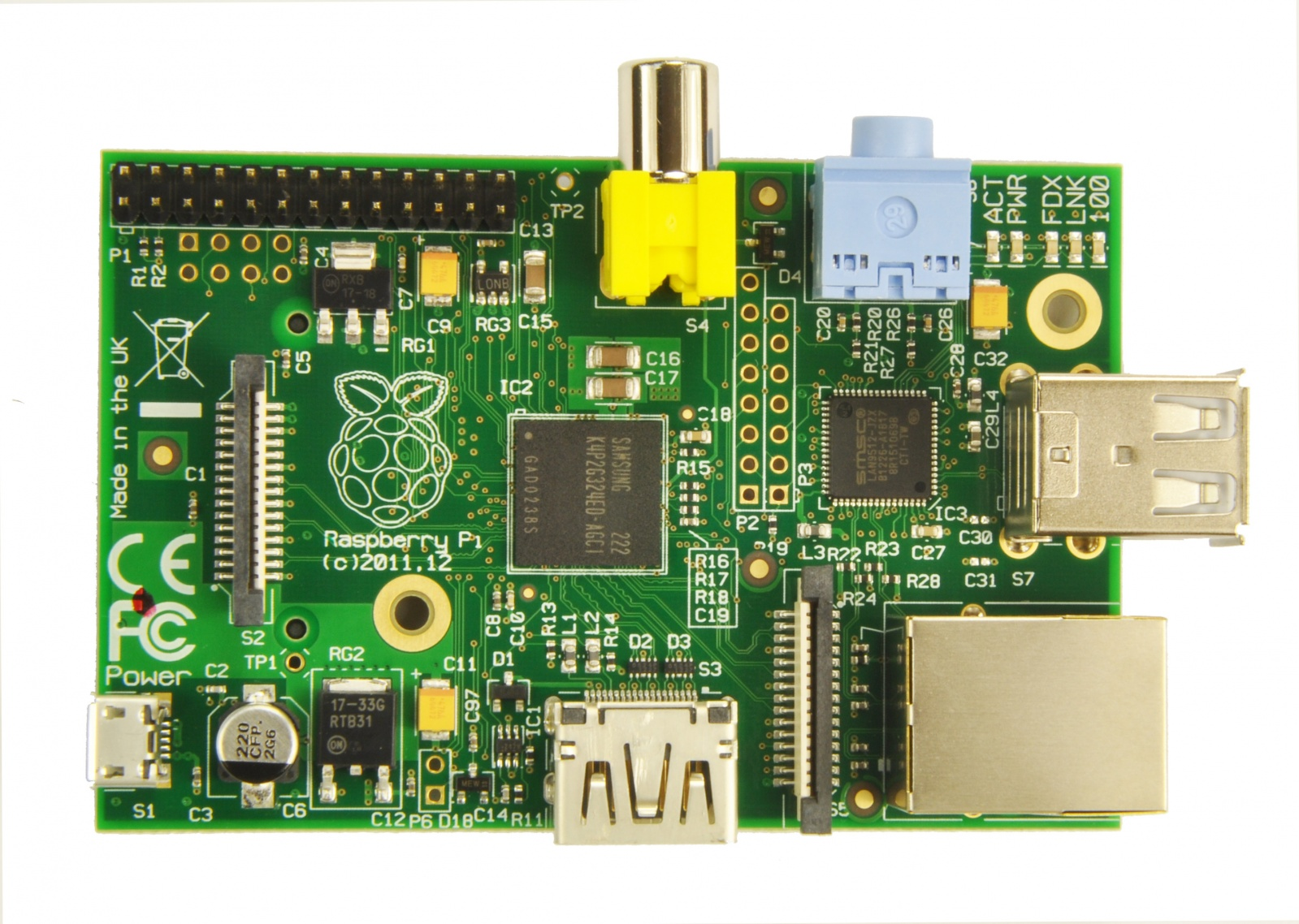
下面记录一下折腾步骤及一些注意事项:
硬件
- 电源:根据资料,树莓派初代 B 版本只需要 5v/700mA 的电源,功耗 3.5w
- 输出:全尺寸的 hdmi
- 输入:2 个 usb 口,尝试使用罗技 usb unifying receiver 连接无线键盘和鼠标,无奈鼠标配对没问题,支持罗技优联的键盘却没有,只有使用有线键盘。如果有支持的键盘,可以参看 Getting the Logitech Unifying Receiver to work 及使用 Solaar 工具
- 网络:有有线网口,路由器中设置 dhcp 静态 ip 分配,绑定一个固定 ip 即可,配合 ssh 即可无需链接输入输出设备
- 存储:使用 sd 卡作为系统存储,与通常数码相机所使用的 sd 卡相同
系统
- 由于硬件较差,ubuntu 系统官方最低只支持到 raspberry pi 2,连 ubuntu server 版本都不能装,更不用说其他特殊用途系统,决定无需桌面,恐怕硬件也带不起,最终选择 raspberry pi os lite
- 下载后直接通过 etcher 写入 sd 卡,插入烧录入系统的 sd 卡后,系统启动成功,初始登录用户名为 pi/raspberry
- 键盘布局识别有问题,需要通过 dpkg-reconfigure keyboard-configuration 重新选择 us 键盘布局(Generic 101-key PC --> Other --> English(US) --> English(US, alternative international))后重启才能生效
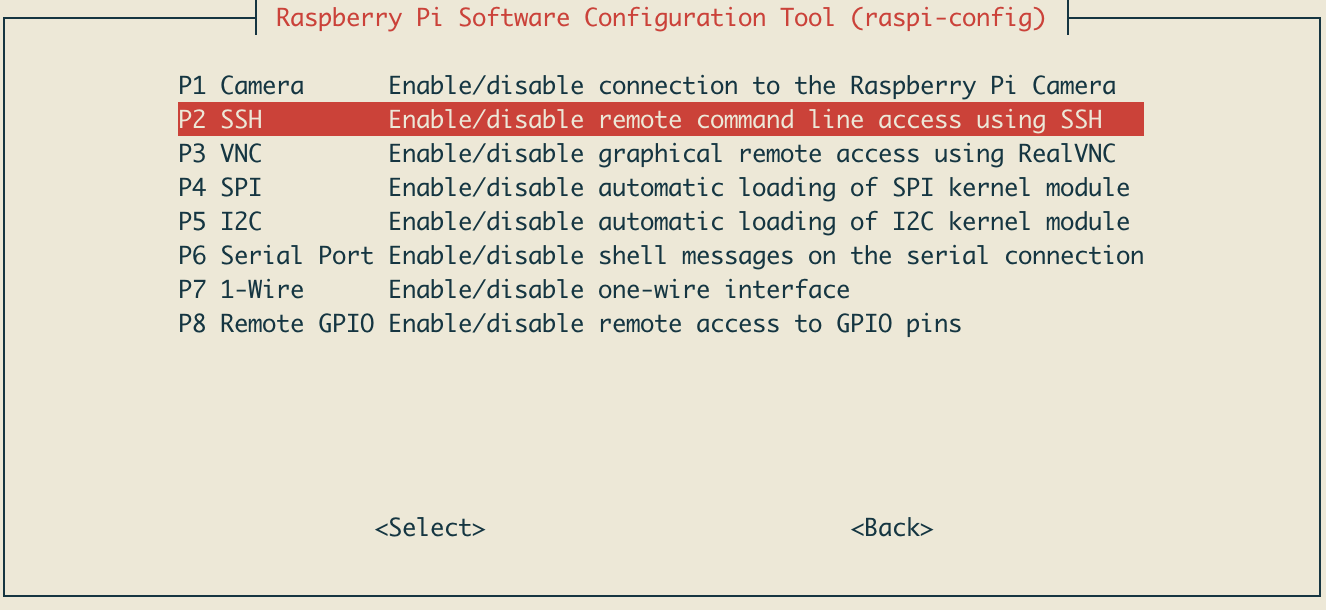
- ssh 服务端默认未开启,需要通过 sudo systemctl enable ssh 开启 ssd 服务端并自启动。或通过 sudo raspi-config 快捷配置
![]()
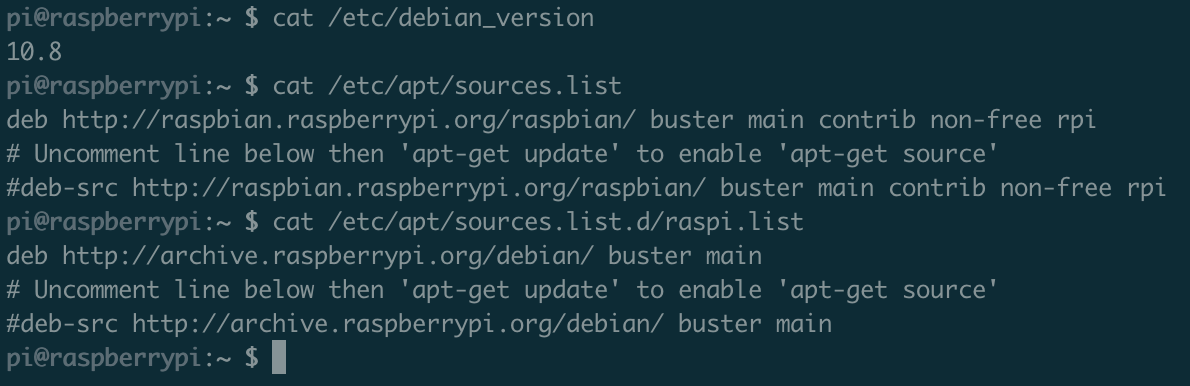
- 系统基于 debian,查看版本(10.8):cat /etc/debian_version,替换源为阿里云,也可以更换为其他源
![]()
- sudo nano /etc/apt/sources.list
#将原有内容用#注释掉 deb http://mirrors.aliyun.com/raspbian/raspbian/ buster main contrib non-free rpi deb-src http://mirrors.aliyun.com/raspbian/raspbian/ buster main contrib non-free rpi - sudo nano /etc/apt/sources.list.d/raspi.list
#将原有内容用#注释掉 #deb http://mirrors.aliyun.com/raspbian/raspbian/ buster main #deb-src http://mirrors.aliyun.com/raspbian/raspbian/ buster main deb http://mirrors.tuna.tsinghua.edu.cn/raspberrypi/ buster main ui - 更新
sudo apt-mark hold raspberrypi-bootloader // 锁住内核和驱动
sudo apt-get update
sudo apt-get upgrade -y
- sudo nano /etc/apt/sources.list
系统(ubuntu server)
-
默认用户:ubuntu/ubuntu
-
增加用户:sudo useradd newUser && sudo usermod -aG sudo newUser
-
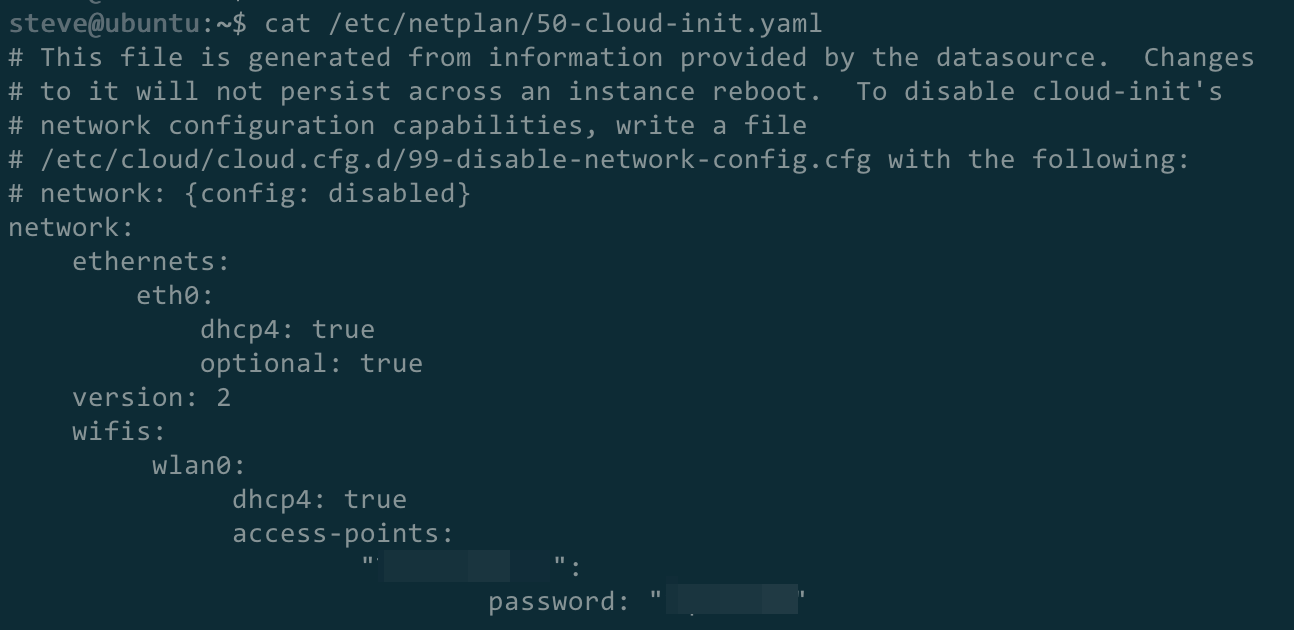
wifi:
- 查看无线网卡名称:ip a (或:ls /sys/class/net)
- 查看网络配置文件:ls /etc/netplan/
- 修改网络配置文件:sudo vi /etc/netplan/50-cloud-init.yaml
![]()
参考资料:
- 树莓派版本:https://www.cnblogs.com/haogj/p/4621926.html
- Raspberry Pi 系统安装以及启动配置:https://zhuanlan.zhihu.com/p/157994590
- 树莓派 Raspberry 4B 入坑指南 1:https://zhuanlan.zhihu.com/p/92027069
- 树莓派 Raspberry 4B 入坑指南 2:https://zhuanlan.zhihu.com/p/92669002
- 树莓派安装系统:https://blog.csdn.net/ZhaoDongyu_AK47/article/details/103943232
6 linux 下查看硬件信息(mac,IP地址,硬盘型号,序列号等):https://blog.csdn.net/hejunqing14/article/details/49947661 - linux命令行下键盘布局错误:https://blog.csdn.net/yyf_ad/article/details/22969055
- 树莓派(raspberry pi)学习4: 更改键盘布局:https://blog.csdn.net/c80486/article/details/8460271
- https://benohead.com/blog/2012/04/27/debian-change-the-keyboard-layout-from-the-console/
- https://elinux.org/RPi_HardwareHistory
- https://elinux.org/RPi_Hardware
- https://shumeipai.nxez.com/download
- https://post.smzdm.com/p/ax0rzp39/
- https://www.quarkbook.com/?cat=11
- https://talk.quwj.com/topic/1606

 浙公网安备 33010602011771号