
WCF的实现(方式二)
参考他人实现文件传输
【WCF】利用WCF实现上传下载文件服务
服务端:
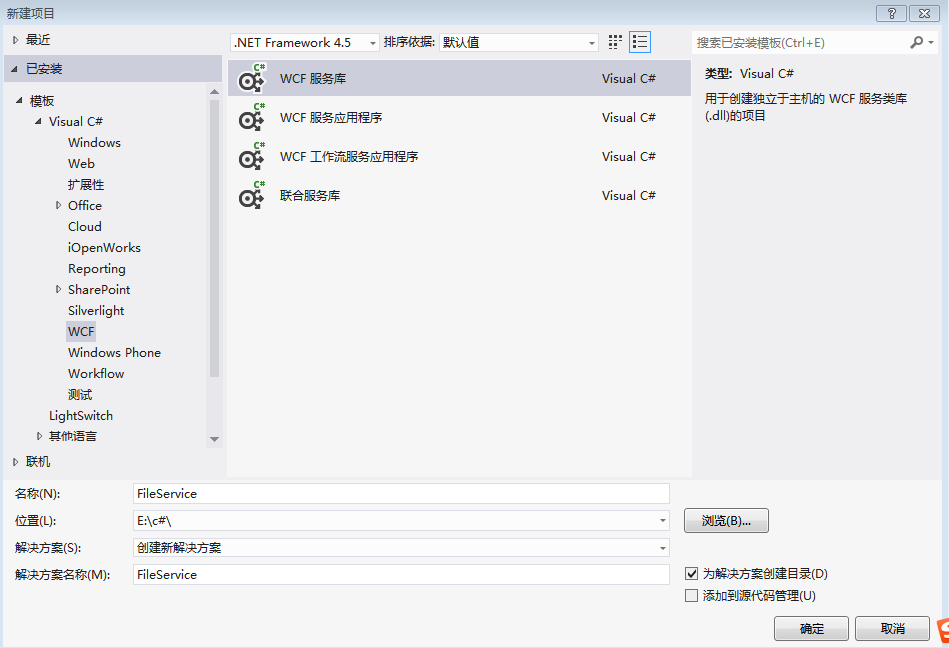
1.首先新建一个名为FileService的WCF服务库项目,如下图:
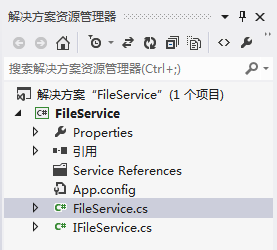
2.将Service,IService重命名为FileService,IFileService,如下图:
3.打开IFileService.cs,定义两个方法,如下:


 1 [ServiceContract]
 2     public interface IFileService
 3     {
 4
 5         //上传文件
 6         [OperationContract]
 7         bool UpLoadFile(Stream filestream);
 8
 9         //下载文件
10         [OperationContract]
11         Stream DownLoadFile(string downfile);
12
13     }
4.上面方法定义了输入参数和返回参数,但是实际项目中往往是不够的,我们需要增加其他参数,如文件名,文件大小之类。然而WCF中有限定,如下:
|
所以我们需要用Message契约特性包装一下参数,修改代码如下:
1 [ServiceContract]
 2     public interface IFileService
 3     {
 4         //上传文件
 5         [OperationContract]
 6         UpFileResult UpLoadFile(UpFile filestream);
 7
 8         //下载文件
 9         [OperationContract]
10         DownFileResult DownLoadFile(DownFile downfile);
11     }
12
13     [MessageContract]
14     public class DownFile
15     {
16         [MessageHeader]
17         public string FileName { get; set; }
18     }
19
20     [MessageContract]
21     public class UpFileResult
22     {
23         [MessageHeader]
24         public bool IsSuccess { get; set; }
25         [MessageHeader]
26         public string Message { get; set; }
27     }
28
29     [MessageContract]
30     public class UpFile
31     {
32         [MessageHeader]
33         public long FileSize { get; set; }
34         [MessageHeader]
35         public string FileName { get; set; }
36         [MessageBodyMember]
37         public Stream FileStream { get; set; }
38     }
39
40     [MessageContract]
41     public class DownFileResult
42     {
43         [MessageHeader]
44         public long   FileSize { get; set; }
45         [MessageHeader]
46         public bool IsSuccess { get; set; }
47         [MessageHeader]
48         public string Message { get; set; }
49         [MessageBodyMember]
50         public Stream FileStream { get; set; }
51     }
5.现在服务契约定义好了,接下来实现契约的接口。打开FileService.cs文件,编写代码,实现服务端的上传下载文件服务,代码如下:
 1 public class FileService : IFileService
 2     {
 3         public UpFileResult UpLoadFile(UpFile filedata)
 4         {
 5
 6             UpFileResult result = new UpFileResult();
 7
 8             string path = System.AppDomain.CurrentDomain.BaseDirectory +@"\service\";
 9
10             if (!Directory.Exists(path))
11             {
12                 Directory.CreateDirectory(path);
13             }
14
15             byte[] buffer = new byte[filedata.FileSize];
16
17             FileStream fs = new FileStream(path + filedata.FileName, FileMode.Create, FileAccess.Write);
18
19             int count = 0;
20             while ((count = filedata.FileStream.Read(buffer, 0, buffer.Length)) > 0)
21             {
22                 fs.Write(buffer, 0, count);
23             }
24             //清空缓冲区
25             fs.Flush();
26             //关闭流
27             fs.Close();
28
29             result.IsSuccess = true;
30
31             return result;
32
33         }
34
35         //下载文件
36         public DownFileResult DownLoadFile(DownFile filedata)
37         {
38
39             DownFileResult result = new DownFileResult();
40
41             string path = System.AppDomain.CurrentDomain.BaseDirectory + @"\service\" + filedata.FileName;
42
43             if (!File.Exists(path))
44             {
45                 result.IsSuccess = false;
46                 result.FileSize = 0;
47                 result.Message = "服务器不存在此文件";
48                 result.FileStream = new MemoryStream();
49                 return result;
50             }
51             Stream ms = new MemoryStream();
52             FileStream fs = new FileStream(path, FileMode.Open, FileAccess.Read);
53             fs.CopyTo(ms);
54             ms.Position = 0;  //重要,不为0的话,客户端读取有问题
55             result.IsSuccess = true;
56             result.FileSize = ms.Length;
57             result.FileStream = ms;
58
59             fs.Flush();
60             fs.Close();
61             return result;
62         }
63     }
6.至此,具体实现代码完成,但是我们还需要配置一下App.config,设置地址,契约和绑定。这里绑定采用NetTcpBinding,我们还需要为NetTcpBinding具体配置,如maxReceivedMessageSize(配置最大接收文件大小),transferMode(传输模式,这里是Streamed)等。最终代码如下:
 1 <?xml version="1.0" encoding="utf-8" ?>
 2 <configuration>
 3
 4   <appSettings>
 5     <add key="aspnet:UseTaskFriendlySynchronizationContext" value="true" />
 6   </appSettings>
 7   <system.web>
 8     <compilation debug="true" />
 9   </system.web>
10   <!-- 部署服务库项目时,必须将配置文件的内容添加到
11   主机的 app.config 文件中。System.Configuration 不支持库的配置文件。-->
12   <system.serviceModel>
13
14     <bindings>
15        <netTcpBinding>
16         <binding name="MyTcpBinding" maxBufferSize="2147483647" maxReceivedMessageSize="2147483647" sendTimeout="00:30:00" transferMode="Streamed"   >
17           <security mode="None"></security>
18         </binding>
19       </netTcpBinding>
20     </bindings>
21
22     <services>
23       <service name="WcfTest.FileService">
24         <endpoint address="" binding="netTcpBinding" bindingConfiguration="MyTcpBinding" contract="WcfTest.IFileService">
25           <identity>
26             <dns value="localhost" />
27           </identity>
28         </endpoint>
29         <endpoint address="mex" binding="mexHttpBinding" contract="IMetadataExchange" />
30         <host>
31           <baseAddresses>
32              <add baseAddress="http://localhost:8733/Design_Time_Addresses/WcfTest/Service1/" />
33             <add baseAddress="net.tcp://localhost:8734/Design_Time_Addresses/WcfTest/Service1/" />
34           </baseAddresses>
35         </host>
36       </service>
37     </services>
38     <behaviors>
39       <serviceBehaviors>
40         <behavior>
41           <!-- 为避免泄漏元数据信息,
42           请在部署前将以下值设置为 false -->
43           <serviceMetadata httpGetEnabled="True" httpsGetEnabled="True"/>
44           <!-- 要接收故障异常详细信息以进行调试,
45           请将以下值设置为 true。在部署前设置为 false
46             以避免泄漏异常信息-->
47           <serviceDebug includeExceptionDetailInFaults="False" />
48         </behavior>
49       </serviceBehaviors>
50     </behaviors>
51   </system.serviceModel>
52
53 </configuration>
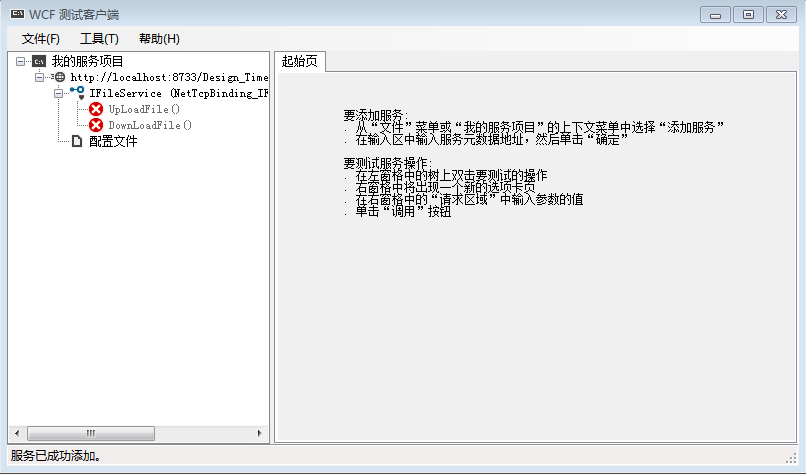
7.这时可以运行服务,如果没有问题的话,会看到如下截图。
第七步出问题了:
直接复制App.config的内容,并点击运行,会以下出错(哈哈,肯定的呀)
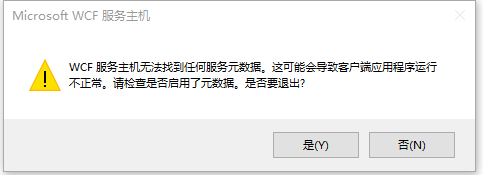
右键App.config,选择“编辑WCF配置”,
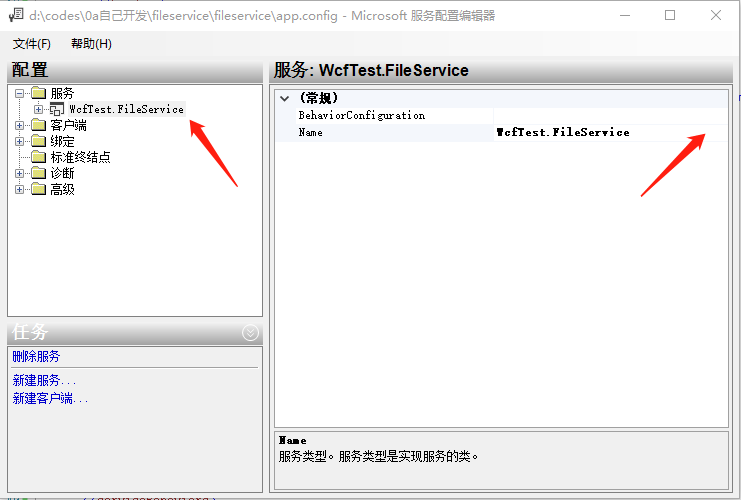
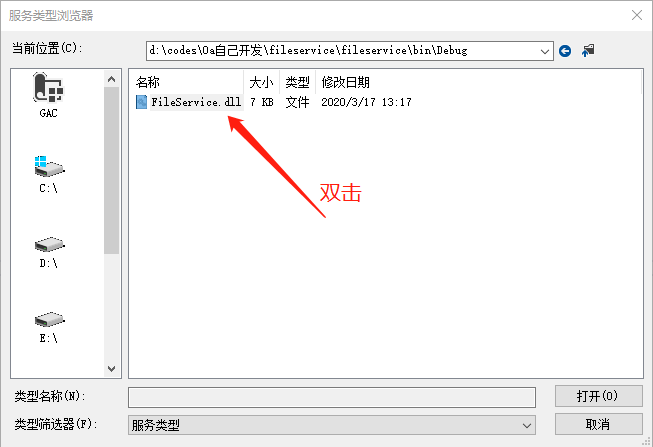
修改第一个终结点的Contract
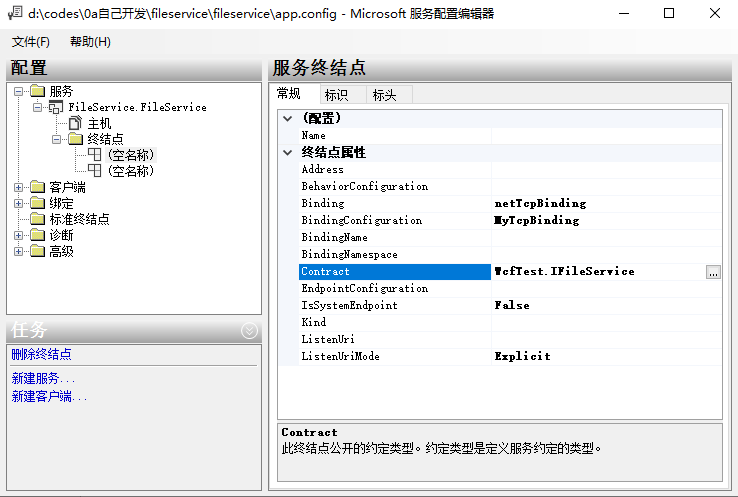

没有重复以上步骤,没有修改第二个终结点。
至此,App.config文件变成了:
 1 <?xml version="1.0" encoding="utf-8" ?>
 2 <configuration>
 3
 4   <appSettings>
 5     <add key="aspnet:UseTaskFriendlySynchronizationContext" value="true" />
 6   </appSettings>
 7   <system.web>
 8     <compilation debug="true" />
 9   </system.web>
10   <!-- 部署服务库项目时,必须将配置文件的内容添加到
11   主机的 app.config 文件中。System.Configuration 不支持库的配置文件。-->
12   <system.serviceModel>
13
14     <bindings>
15       <netTcpBinding>
16         <binding name="MyTcpBinding" maxBufferSize="2147483647" maxReceivedMessageSize="2147483647" sendTimeout="00:30:00" transferMode="Streamed"   >
17           <security mode="None"></security>
18         </binding>
19       </netTcpBinding>
20     </bindings>
21
22     <services>
23       <service name="FileService.FileService">
24         <endpoint address="" binding="netTcpBinding" bindingConfiguration="MyTcpBinding"
25           contract="FileService.IFileService">
26           <identity>
27             <dns value="localhost" />
28           </identity>
29         </endpoint>
30         <endpoint address="mex" binding="mexHttpBinding" contract="IMetadataExchange" />
31         <host>
32           <baseAddresses>
33             <add baseAddress="http://localhost:8733/Design_Time_Addresses/WcfTest/Service1/" />
34             <add baseAddress="net.tcp://localhost:8734/Design_Time_Addresses/WcfTest/Service1/" />
35           </baseAddresses>
36         </host>
37       </service>
38     </services>
39     <behaviors>
40       <serviceBehaviors>
41         <behavior>
42           <!-- 为避免泄漏元数据信息,
43           请在部署前将以下值设置为 false -->
44           <serviceMetadata httpGetEnabled="True" httpsGetEnabled="True"/>
45           <!-- 要接收故障异常详细信息以进行调试,
46           请将以下值设置为 true。在部署前设置为 false
47             以避免泄漏异常信息-->
48           <serviceDebug includeExceptionDetailInFaults="False" />
49         </behavior>
50       </serviceBehaviors>
51     </behaviors>
52   </system.serviceModel>
53
54 </configuration>
点击三角运行:
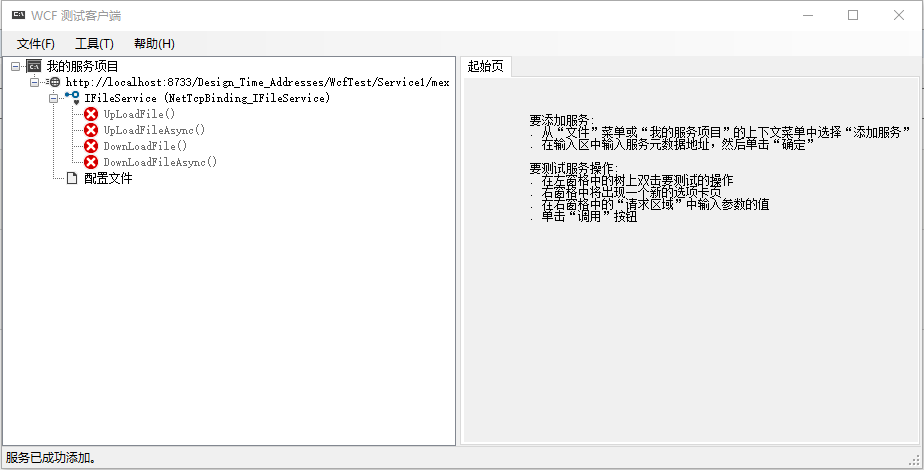
客户端:
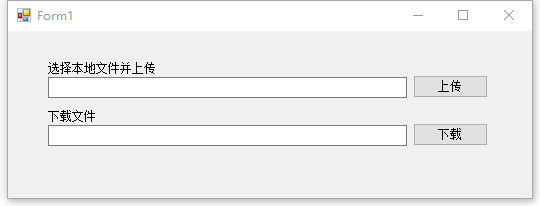
1.首先新建一个WinForm应用程序,添加控件,得到下图:
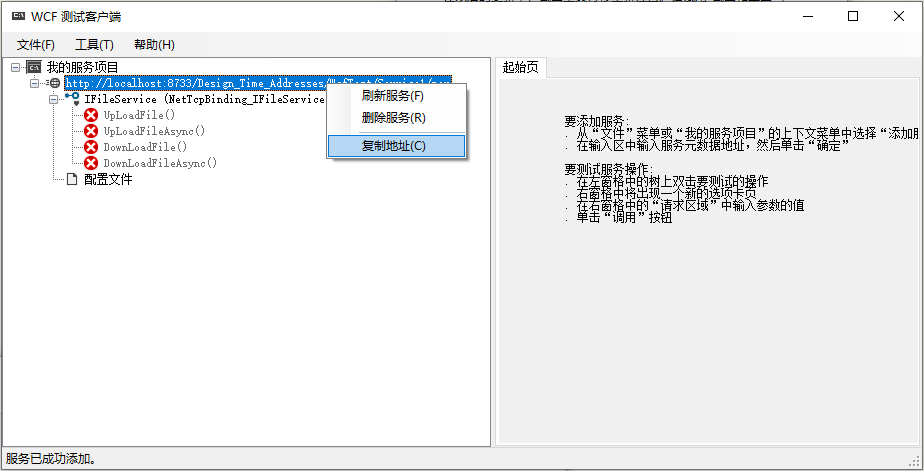
2.在引用中右击,选择添加服务引用,出现对话框,我们需要填上刚才打开的服务的地址(直接右键复制),然后按旁边的“转到”,会看到显示找到服务,接着更改命名空间为FileService,得到如下图。
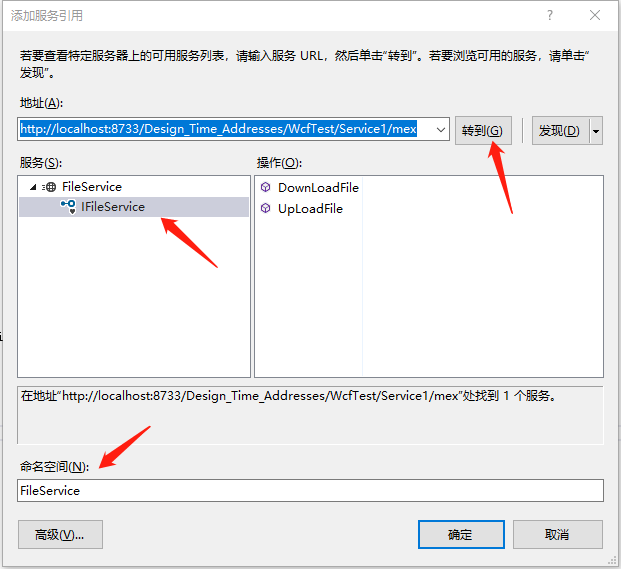
3.按确定之后,在资源管理器里的引用下面会多出一个FileService命名空间,里面包含我们的刚才写的FileServiceClient服务代理类 ,现在我们可以通过它调用服务了。编写代码如下:
 1 using System;
 2 using System.Collections.Generic;
 3 using System.ComponentModel;
 4 using System.Data;
 5 using System.Drawing;
 6 using System.IO;
 7 using System.Linq;
 8 using System.Text;
 9 using System.Windows.Forms;
10 using 客户端.FileService;
11
12 namespace 客户端
13 {
14     public partial class Form1 : Form
15     {
16         FileServiceClient client;
17         public Form1()
18         {
19             InitializeComponent();
20             client = new FileServiceClient();
21         }
22
23         private void button1_Click(object sender, EventArgs e)
24         {
25             OpenFileDialog Fdialog = new OpenFileDialog();
26
27             if (Fdialog.ShowDialog() == DialogResult.OK)
28             {
29
30                 using (Stream fs = new FileStream(Fdialog.FileName, FileMode.Open, FileAccess.Read))
31                 {
32                     string message;
33                     this.textBox1.Text = Fdialog.SafeFileName;
34                     bool result = client.UpLoadFile(Fdialog.SafeFileName, fs.Length, fs, out message);
35
36                     if (result == true)
37                     {
38                         MessageBox.Show("上传成功!");
39                     }
40                     else
41                     {
42                         MessageBox.Show(message);
43                     }
44                 }
45
46             }
47         }
48
49         private void button2_Click(object sender, EventArgs e)
50         {
51             string filename = this.textBox2.Text;
52             string path = System.AppDomain.CurrentDomain.BaseDirectory + @"\client\";
53             bool issuccess = false;
54             string message = "";
55             Stream filestream = new MemoryStream();
56             long filesize = client.DownLoadFile(filename, out issuccess, out message, out filestream);
57
58             if (issuccess)
59             {
60                 if (!Directory.Exists(path))
61                 {
62                     Directory.CreateDirectory(path);
63                 }
64
65                 byte[] buffer = new byte[filesize];
66                 FileStream fs = new FileStream(path + filename, FileMode.Create, FileAccess.Write);
67                 int count = 0;
68                 while ((count = filestream.Read(buffer, 0, buffer.Length)) > 0)
69                 {
70                     fs.Write(buffer, 0, count);
71                 }
72
73                 //清空缓冲区
74                 fs.Flush();
75                 //关闭流
76                 fs.Close();
77                 MessageBox.Show("下载成功!");
78
79             }
80             else
81             {
82                 MessageBox.Show(message);
83             }
84         }
85     }
86 }
在保证“WCF测试客户端”开启的情况下,即可实现上传下载文件。
上传保存路径:service文件夹下(wcf服务的debug目录下service文件目录)
若使用console启动wcf,则在console的debug目录下的service文件夹目录;
下载路径:“客户端”的debug目录下的client文件夹下。
附console启动wcf代码(添加App.config文件)
 1 using System;
 2 using System.Collections.Generic;
 3 using System.Linq;
 4 using System.ServiceModel;
 5 using System.Text;
 6
 7 namespace ConsoleApp1
 8 {
 9     class Program
10     {
11         static void Main(string[] args)
12         {
13             using (ServiceHost host = new ServiceHost(typeof(FileService.FileService )))
14             {
15                 host.Opened += delegate
16                 {
17                     Console.WriteLine("FileService.FileService已启动,按任意键停止服务");
18                 };
19                 host.Open();
20                 Console.Read();
21             }
22         }
23     }
24 }
参考:
感谢!
【WCF】利用WCF实现上传下载文件服务
https://www.cnblogs.com/caizl/p/4326016.html
https://www.cnblogs.com/wolf-sun/p/3277599.html

 浙公网安备 33010602011771号