利用Mac自动化神器AppleScript新建纯文本文件TXT(2)——改进与替代方法
利用Mac自动化神器AppleScript新建纯文本文件TXT(1)——简述与初步实现
前文已经叙述了利用AppleScript新建纯文本文件的精髓,由于文章篇幅过长不利于懒人阅读,故笔者决定另辟一篇。本文旨在改进前文的方法,并提供了一种不需要使用第三方收费应用的类似实现方法。
本文要感谢一只帝企鹅给了我一些启发 ̄▽ ̄
Topic 1:文件命名改进
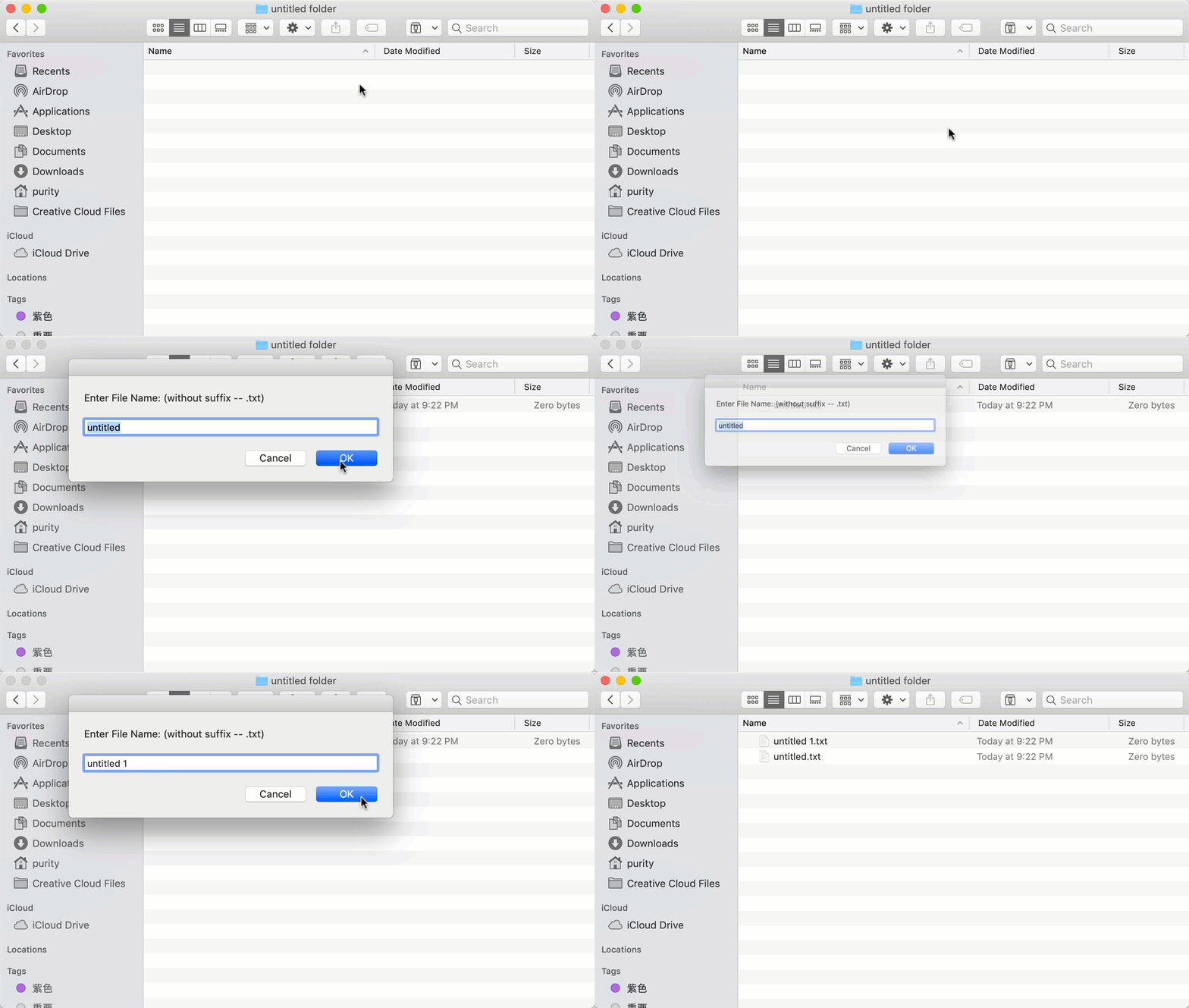
前文展示的方法最大的一个不便之处就是无法直接对新建的文件进行命名。本文将改进的代码展示给大家,思路很简单,就是在新建文件之前弹出让用户输入文件名的对话框。代码如下:
tell application "Finder"
	try
		-- 获取Finder顶层窗口的文件夹路径并转换为替身
		set new_txt_path to the folder of the front window as alias
		-- 文件名对话框
		display dialog "Enter File Name: (without suffix -- .txt)" default answer "untitled"
	on error
		return
	end try
	try
		-- 尝试新建空白文本文件
		make new file at new_txt_path with properties {name:(the text returned of result) & ".txt"}
	on error eText number eNum
		-- 如果发生错误,并且错误代码为-48(即文件已存在),则提示用户
		if eNum is equal to -48 then
			display dialog "File exists" with title "Error" with icon caution giving up after 5
		end if
	end try
end tell
运行的结果如下:
Topic 2:创建成功后直接打开编辑
新建文本文档的目的必然是要在创建文档成功后打开编辑的,那如何实现呢?这里笔者提供两种方式。
方法一:
直接通过AppleScript(但是经测试,此方法无论在何种情况都会在开始运行脚本时激活TextEdit)
tell application "Finder"
	try
		-- 获取Finder顶层窗口的文件夹路径并转换为替身
		set new_txt_path to the folder of the front window as alias
		-- 文件名对话框
		display dialog "Enter File Name: (without suffix -- .txt)" default answer "untitled"
	on error
		return
	end try
	try
		-- 尝试新建空白文本文件
		make new file at new_txt_path with properties {name:(the text returned of result) & ".txt"}
		-- 保存运行结果(即文件路径)
		set file_path to result
		-- 打开文件
		tell application "TextEdit"
			open file_path
		end tell
	on error eText number eNum
		-- 如果发生错误,并且错误代码为-48(即文件已存在),则提示用户
		if eNum is equal to -48 then
			display dialog "File exists" with title "Error" with icon caution giving up after 5
		end if
	end try
end tell
方法二:
AppleScript与Keyboard Maestro结合
AppleScript代码如下(与方法一的主要区别是将新建文件的路径返回):
tell application "Finder"
	-- 定义新建文件路径变量,用于存放创建成功后文件的路径,初始置为-1
	set file_path to -1
	try
		-- 获取Finder顶层窗口的文件夹路径并转换为替身
		set new_txt_path to the folder of the front window as alias
		-- 文件名对话框
		display dialog "Enter File Name: (without suffix -- .txt)" default answer "untitled"
	on error
		return file_path
	end try
	try
		-- 尝试新建空白文本文件
		set file_name to the text returned of result
		set file_suffix to ".txt"
		make new file at new_txt_path with properties {name:file_name & file_suffix}
		-- 保存即文件路径
		set file_path to (POSIX path of new_txt_path) & file_name & file_suffix
	on error eText number eNum
		-- 如果发生错误,并且错误代码为-48(即文件已存在),则提示用户
		if eNum is equal to -48 then
			display dialog "File exists" with title "Error" with icon caution giving up after 5
		end if
		return file_path
	end try
end tell

-- 返回文件路径
return file_path
Keyboard Maestro配置如下图所示,这里不再赘述:
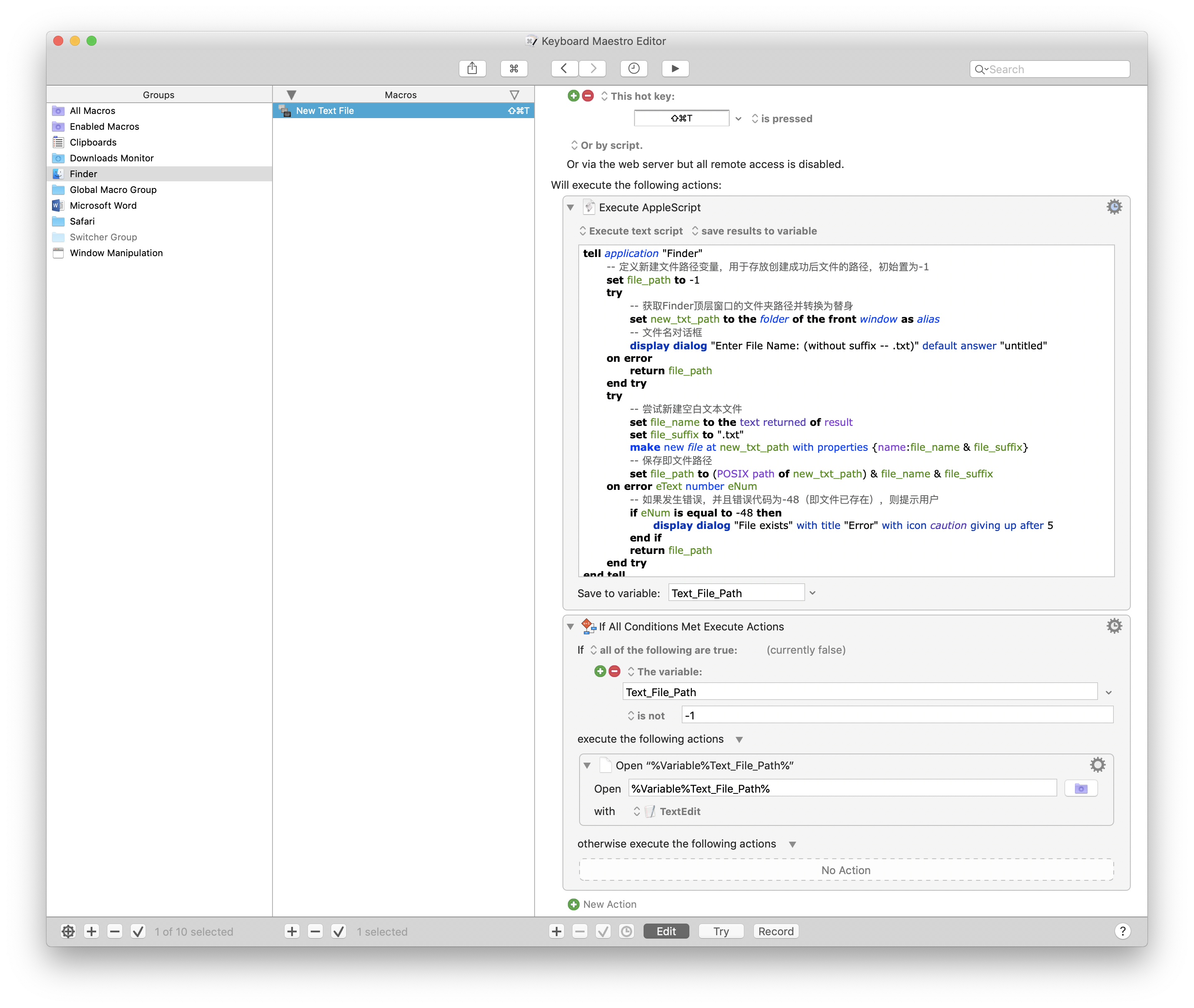
最终效果如图所示:

Topic 3:用Automator替代Keyboard Maestro
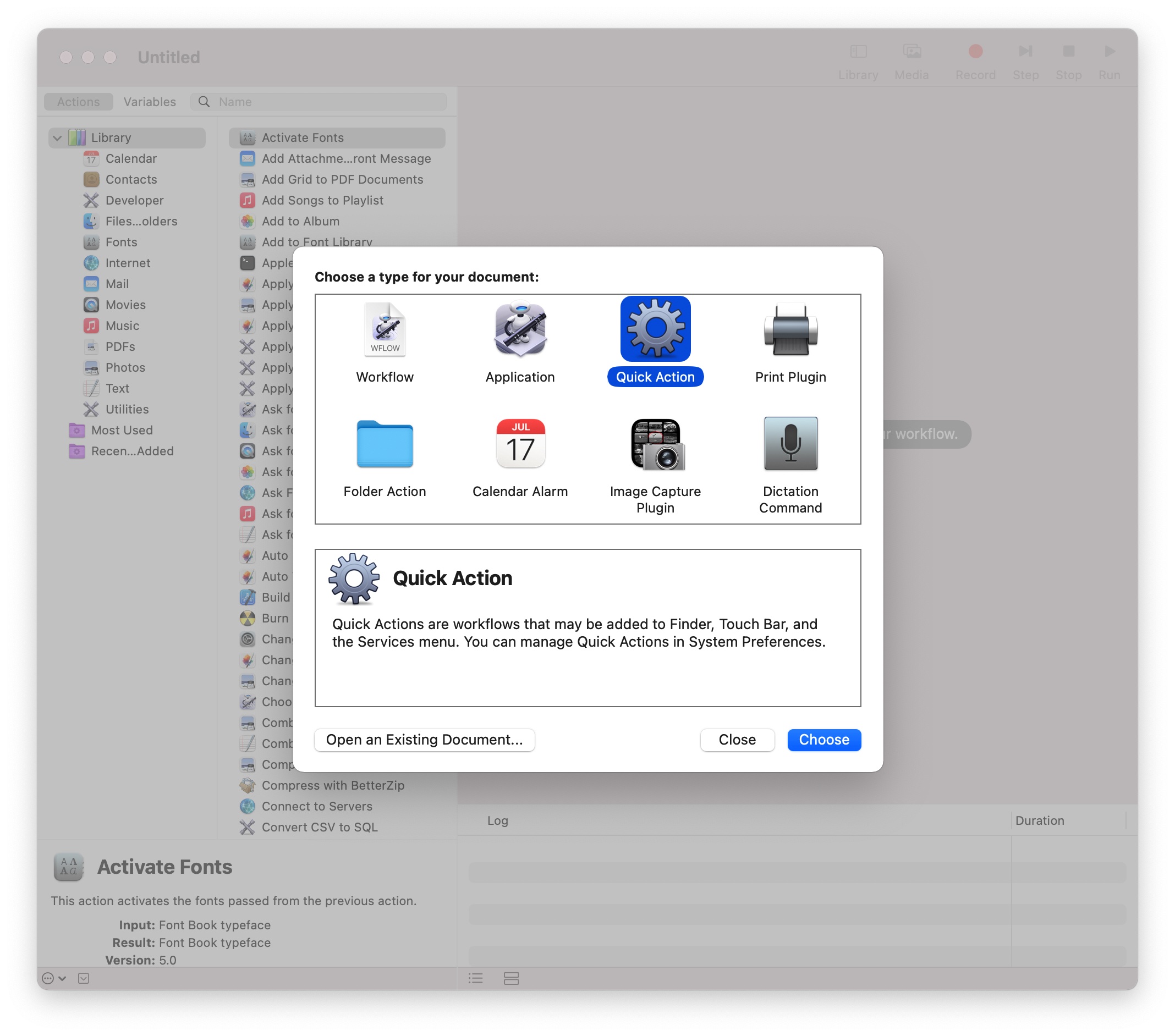
有童鞋表示,Keyboard Maestro好贵啊,36刀可是好几天的生活费呢,学生党真的伤不起!其实macOS自带了一个自动化的工具——Automator,同样非常好用,只不过功能没有Keyboard Maestro丰富。使用方法如下:
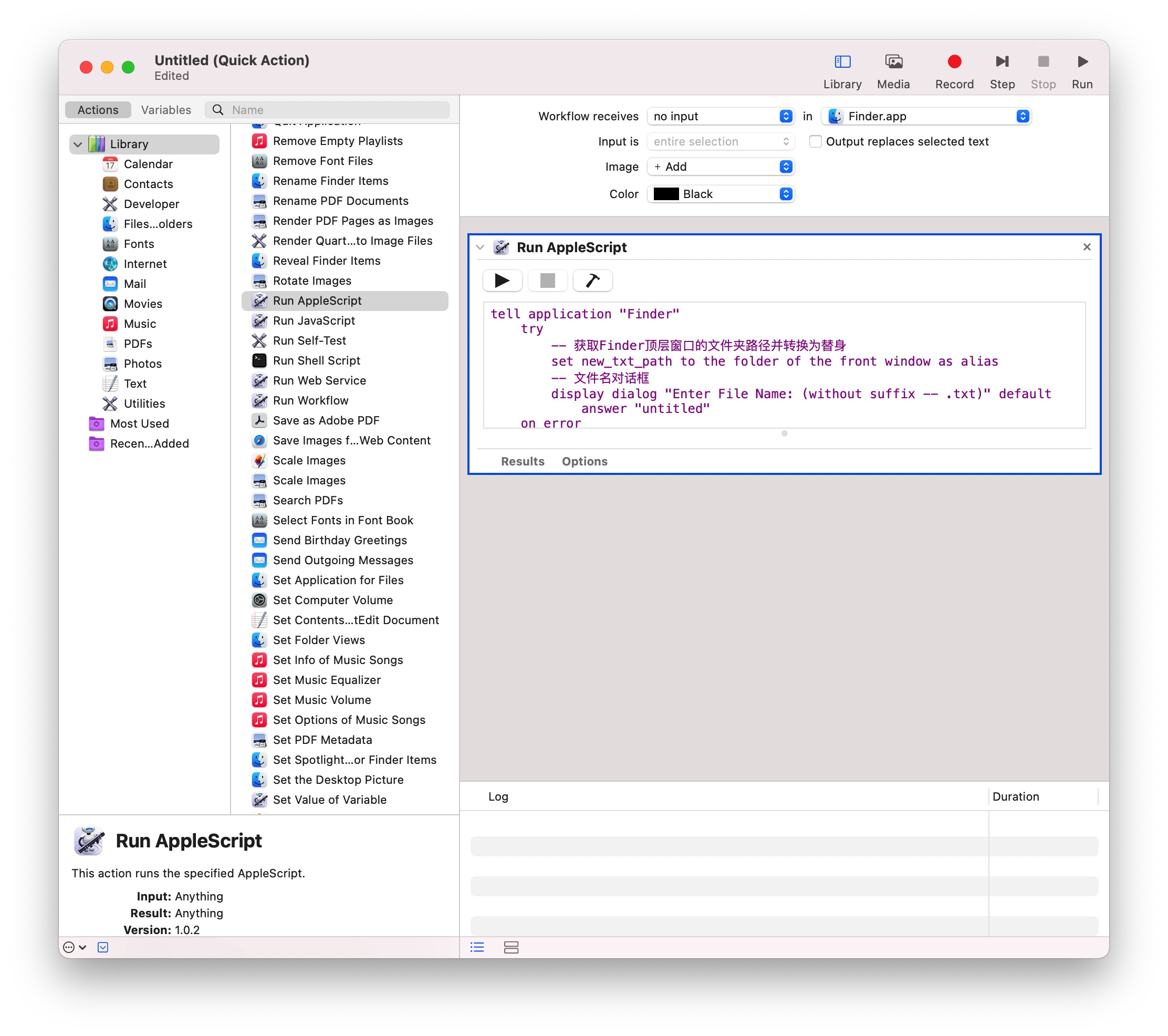
Step 1:打开Automator创建一个新文稿,类型选择Quick Action(服务)。
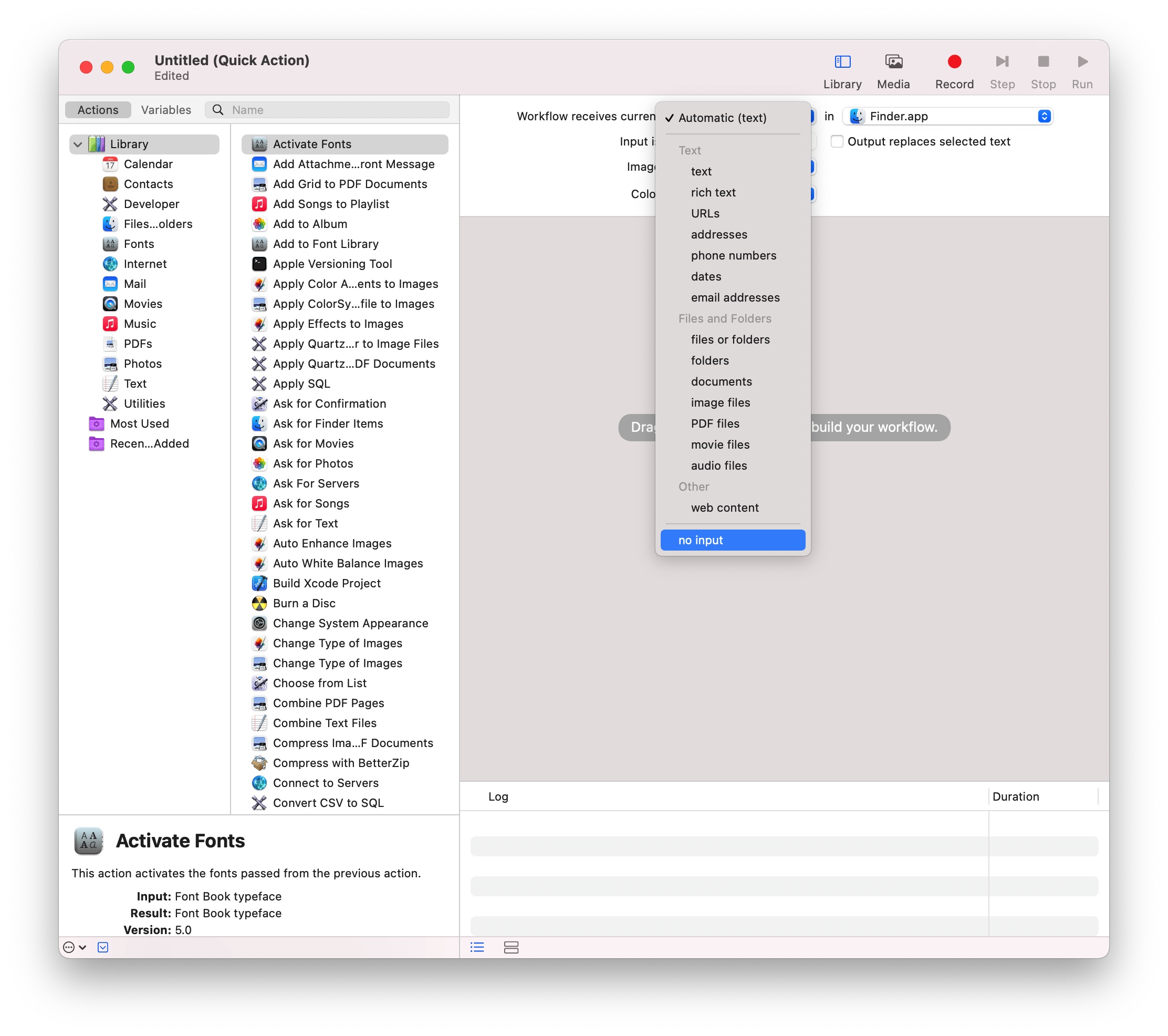
Step 2:Workflow receive current设置为no input(没有输入),并选择in(位于)Finder.app
Step 3:与Keyboard Maestro类似,添加一个运行AppleScript的动作,然后把代码贴进去。最后保存就大功告成啦。
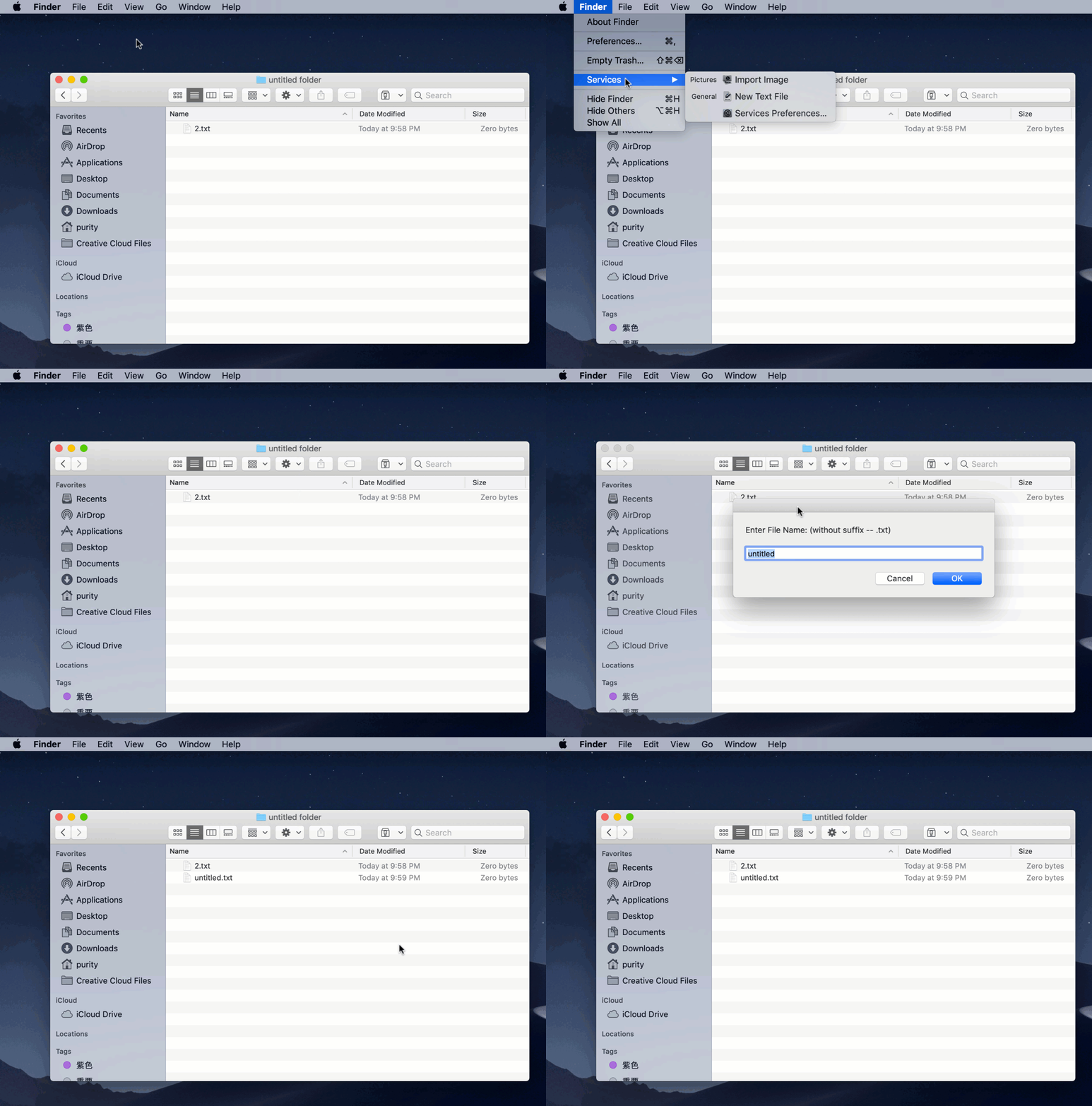
最终效果如下:
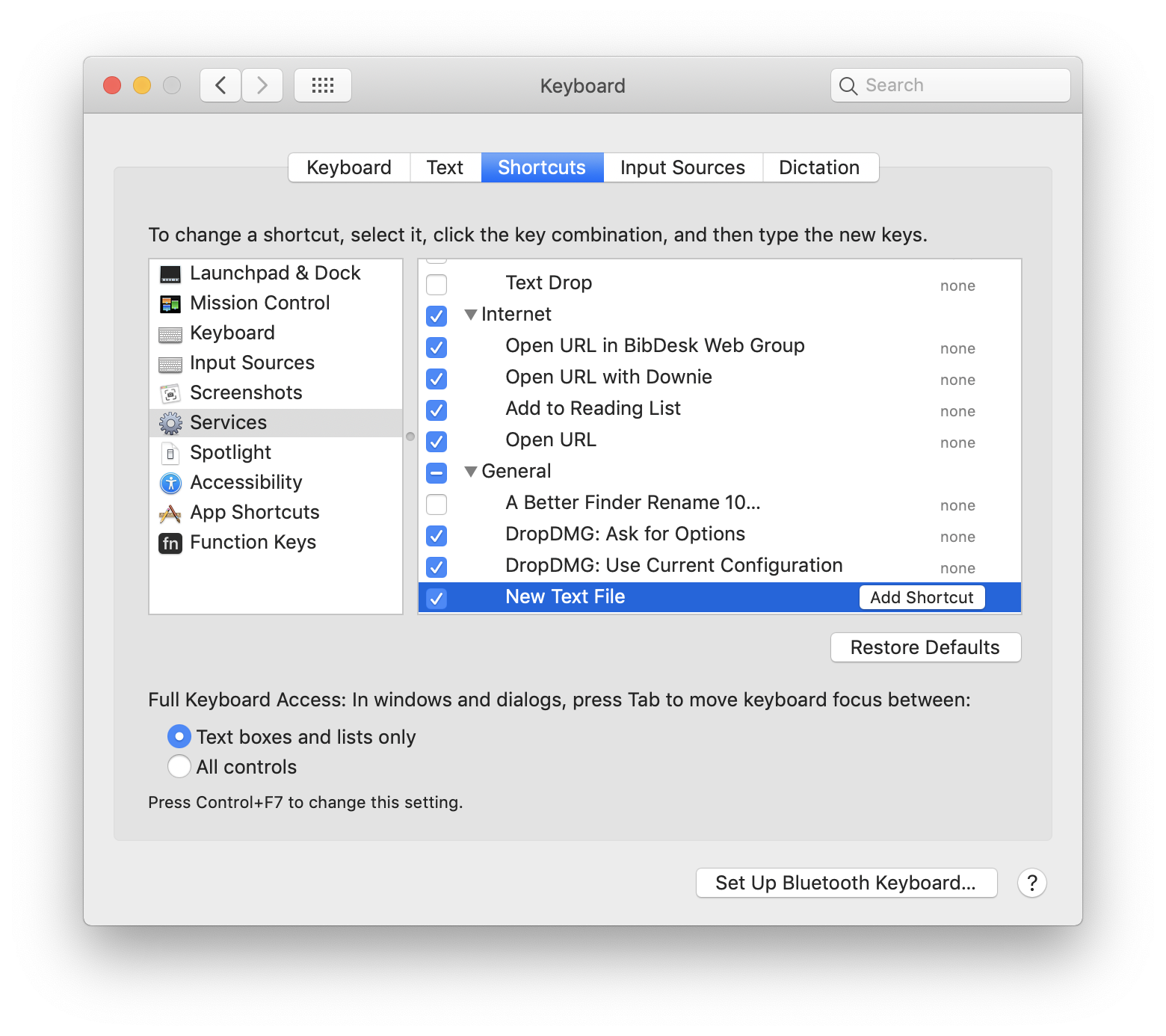
macOS的服务同样可以设置快捷键,不过不能和系统默认的快捷键冲突(Keyboard Maestro无此限制)。
Tips:
1、笔者在少数派上找到一篇与本文类似的文章,文中提到将Workflow保存为应用程序能够直接拖拽到Finder菜单栏上使用,这是笔者不曾想到的。
2、笔者在成文时使用的是Mojave操作系统,这个版本自带的Automator已经内置新建文本文件动作(在“文本”类别下),对于初学者来说是一个福音。

 浙公网安备 33010602011771号