

OpenCV使用brisk做一个简单的场景匹配
一、概述
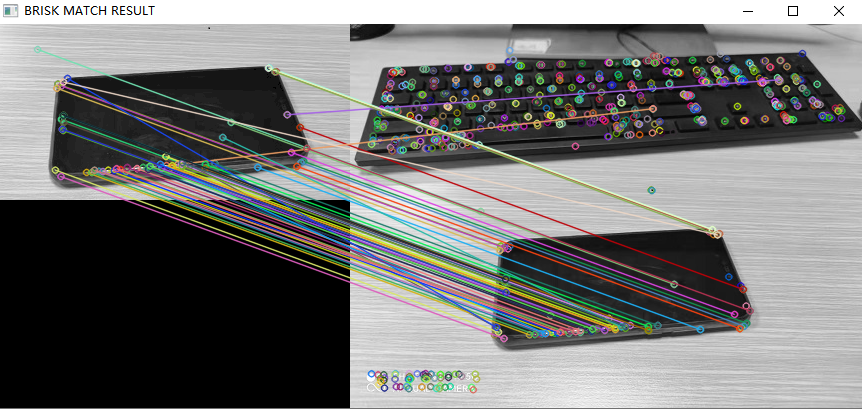
案例:使用opencv+qt+brisk实现关键点提前、生成描述子,并使用BFMatcher实现场景对象匹配,最后使用drawMatches将匹配结果绘制出来
实现步骤:
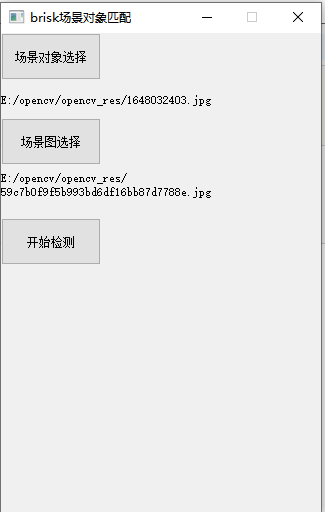
1.使用Qt制作场景对象及场景图像的选择页面,并放置一个按钮开始检测
2.使用imread载入场景图像及场景对象
3.实例化Brisk,并使用其detectAndCompute方法提取场景图像及场景对象的关键点及描述子
4.实例化BFMatcher,并使用期match方法来匹配
5.绘制出匹配结果
二、代码示例
1.使用Qt制作场景选择窗口
this->setWindowTitle("brisk场景对象匹配");
    //选择场景对象
    Custom_Choice_File_Widget *ccfw = new Custom_Choice_File_Widget(this,"场景对象选择","场景对象");
    ccfw->setFixedSize(320,85);
    //选择场景图片
    Custom_Choice_File_Widget *ccfw2 = new Custom_Choice_File_Widget(this,"场景图选择","场景图");
    ccfw2->move(0,ccfw->height());

    QPushButton *btnCheck = new QPushButton(this);
    btnCheck->setFixedSize(100,47);
    btnCheck->setText("开始检测");
    btnCheck->move(0,ccfw2->y()+ccfw2->height()+10);
    connect(btnCheck,&QPushButton::clicked,[=](){
        if(ccfw->getFilePath()!=NULL&&ccfw2->getFilePath()!=NULL){
            checkObject(ccfw->getFilePath().toStdString().c_str(),ccfw2->getFilePath().toStdString().c_str());
        }else{
            QMessageBox::warning(this,"温馨提示","请先选择场景图片和场景对象");
        }

    });
2.真正的检测部分
  //【1】载入场景图像及场景对象
    Mat img1 = imread(senceFilePath, IMREAD_GRAYSCALE);//加载场景图片
    Mat img2 = imread(objectFilePath, IMREAD_GRAYSCALE);//加载场景对象图片
    if (img1.empty() || img2.empty()) {
        printf("could not load images...\n");
        return;
    }
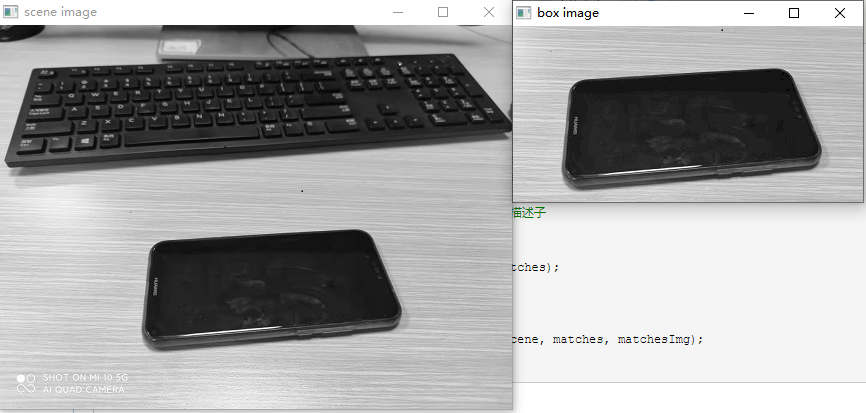
    //先显示原图
    imshow("box image", img1);
    imshow("scene image", img2);

   //【2】实例化Brisk并调用其detectAndCompute方法提取关键点及特征描述子
    Ptr<Feature2D> detector = BRISK::create();
    vector<KeyPoint> keypoints_obj;
    vector<KeyPoint> keypoints_scene;
    Mat descriptor_obj, descriptor_scene;
    detector->detectAndCompute(img1, Mat(), keypoints_obj, descriptor_obj);
    detector->detectAndCompute(img2, Mat(), keypoints_scene, descriptor_scene);

    //【3】实例化BFMatcher并调用其matcher.match方法匹配特征描述子
    BFMatcher matcher(NORM_L2);
    vector<DMatch> matches;
    matcher.match(descriptor_obj, descriptor_scene, matches);

    //【4】将匹配结果绘制出来(关键点及特征描述子)
    Mat matchesImg;
    drawMatches(img1, keypoints_obj, img2, keypoints_scene, matches, matchesImg);
    imshow("BRISK MATCH RESULT", matchesImg);
三、图片演示
1.Qt选择图像窗口
2.原图
3.检测结果

 浙公网安备 33010602011771号