鸿蒙应用开发之“一次开发,多端部署”(进阶)
一、开发工具
![]() DevEco Studio
DevEco Studio
 DevEco Studio
知识点:
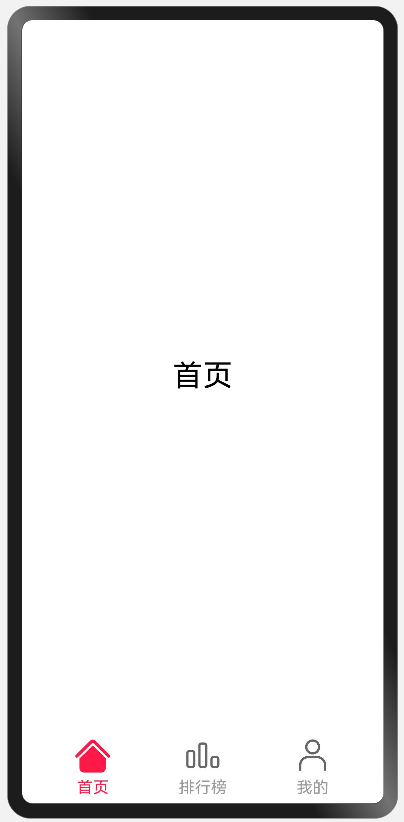
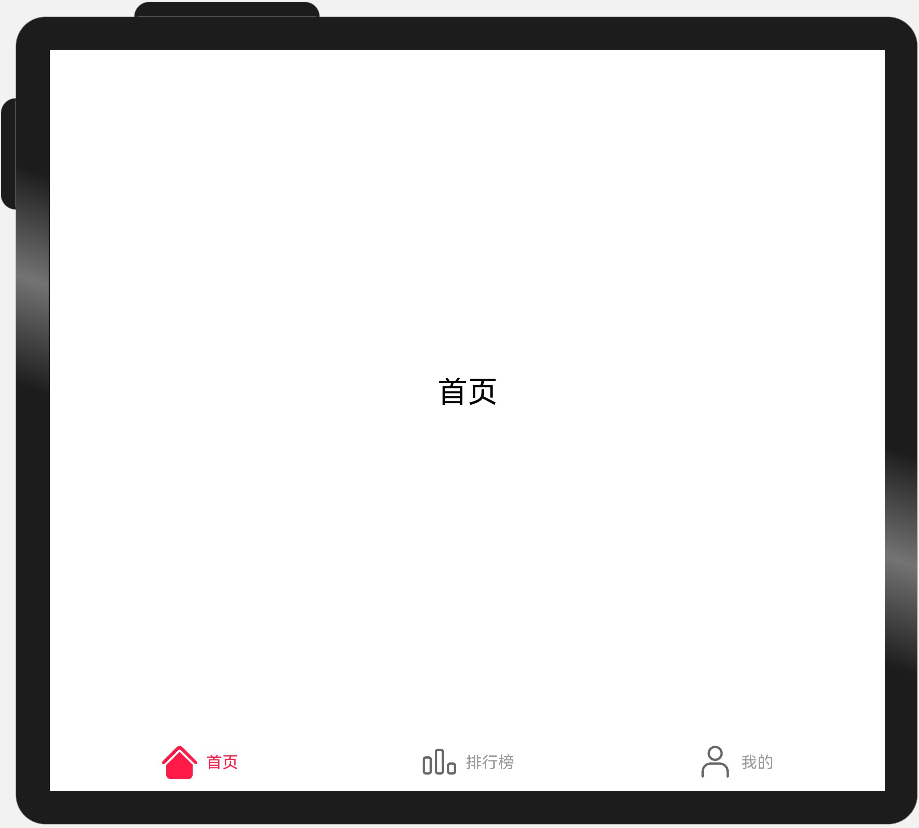
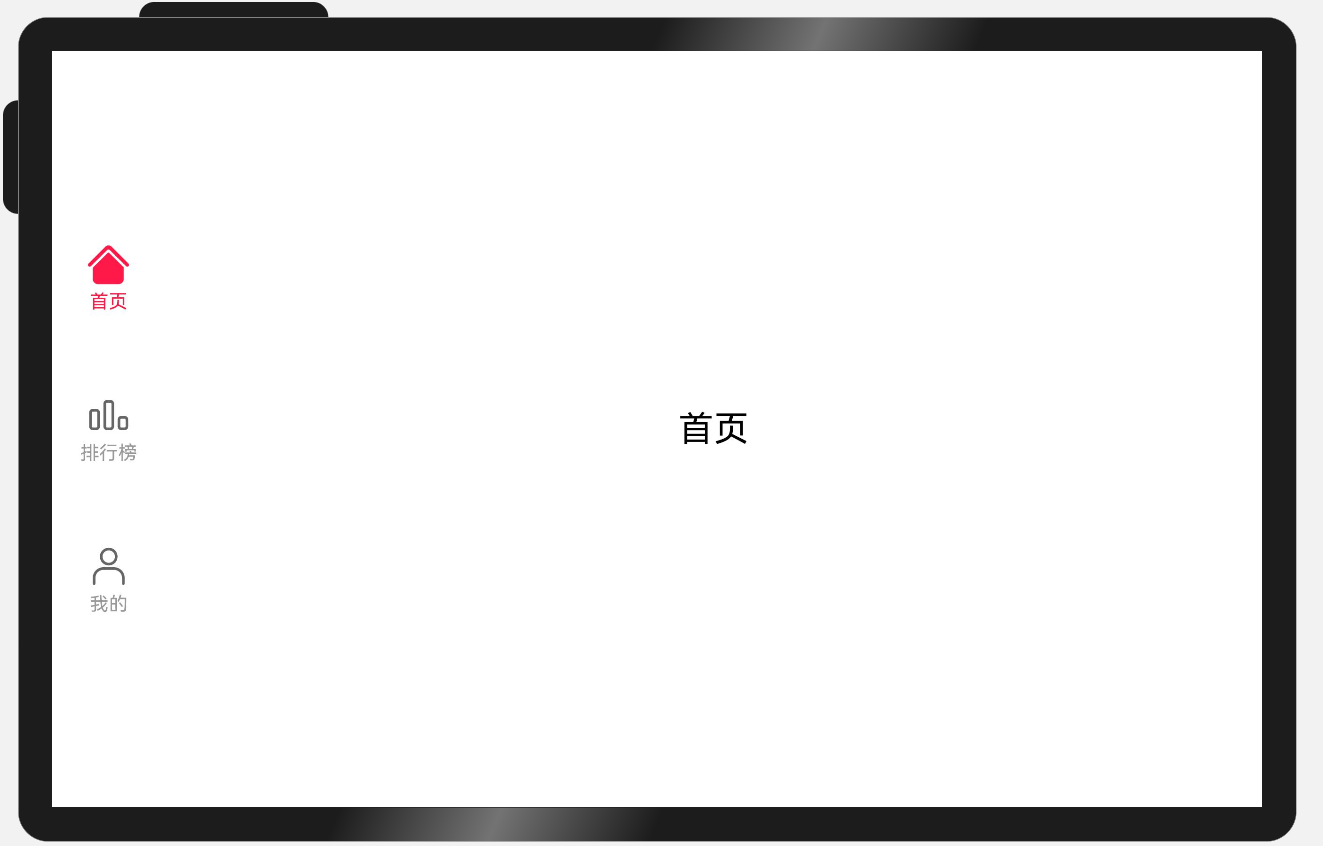
| sm | md | lg |
|---|---|---|
| 页签在底部 页签的图标和文字垂直布局 页签宽度均分 页签高度固定72vp | 页签在底部 页签的图标和文字水平布局 页签宽度均分 页签高度固定56vp | 页签在左边 页签的图标和文字垂直布局 页签宽度固定96vp 页签高度总占比‘60%’后均分 |
|
|
|
|
二、开发步骤
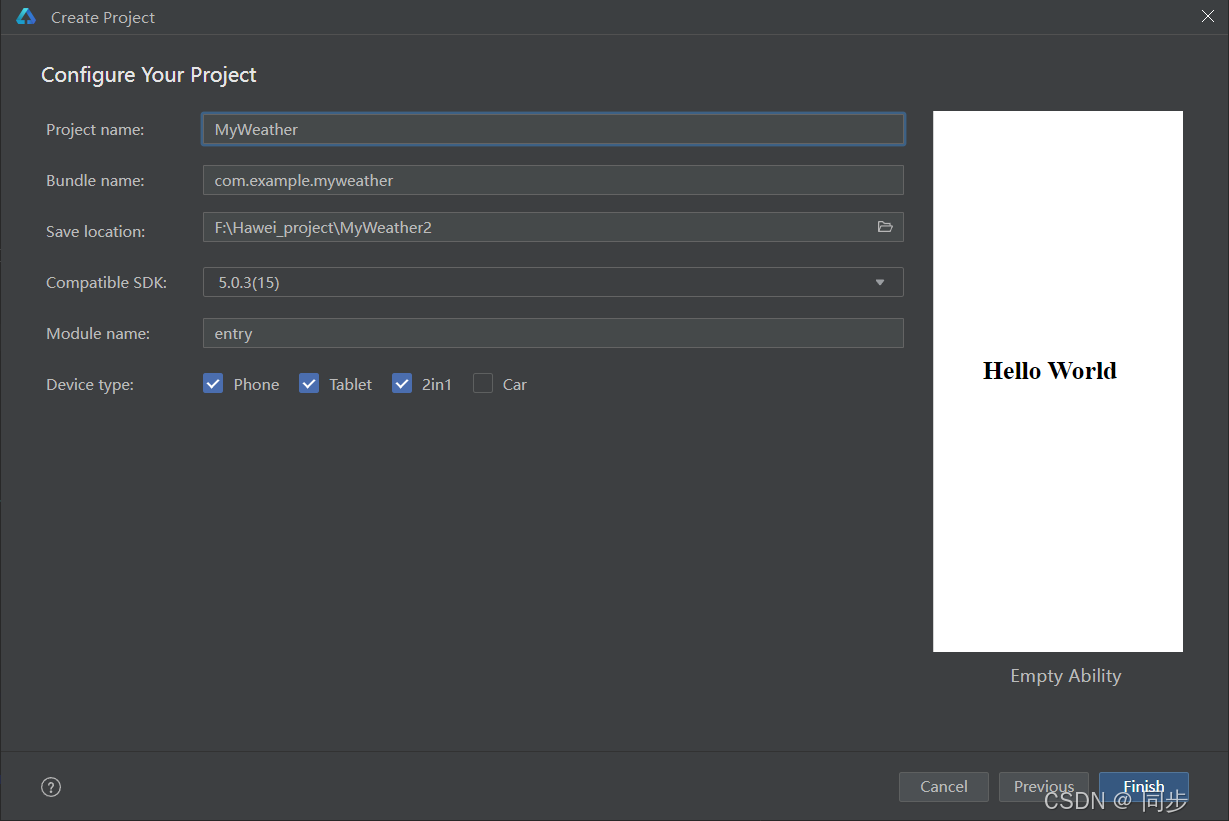
创建项目
层级目录:
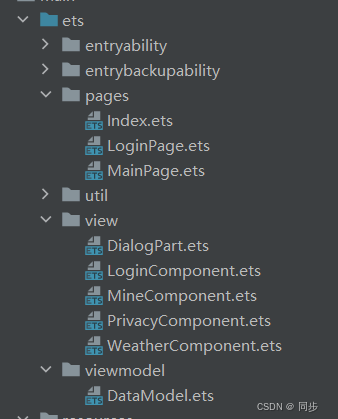
首页MainPage介绍:
首先创建布局:
Tabs({ barPosition: BarPosition.End }) {
        TabContent() {

          WeatherDetails()

        }.tabBar(this.tabBuilder('天气', 0))
        .backgroundColor('#9698CE')

        TabContent() {
          Mine()

        }.tabBar(this.tabBuilder('个人', 2))
        .backgroundColor('#9698CE')

      }
      .animationDuration(0)
      .onChange((index: number) => {
        this.currentIndex = index
      })
使用Tabs分页导航,目前主界面最流行的布局和导航风格。
Tabs的底部tabBar使用@Builder修饰符创建自定义Bar:
@Builder tabBuilder(title: string, targetIndex: number) {
    Column() {
      Text(title)
        .fontColor(this.currentIndex === targetIndex ? '#1698CE' : '#6B6B6B')
    }
  }
然后在TabContent里面加入自定义界面:
WeatherDetails() //天气布局
Mine() //个人设置布局
天气布局(不同设备的展示)
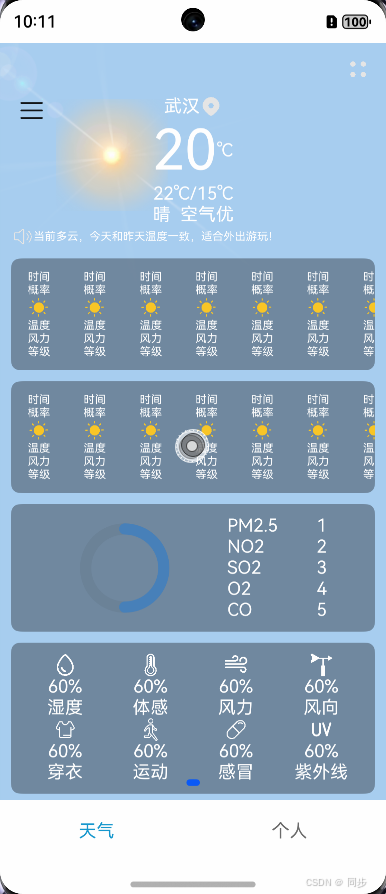
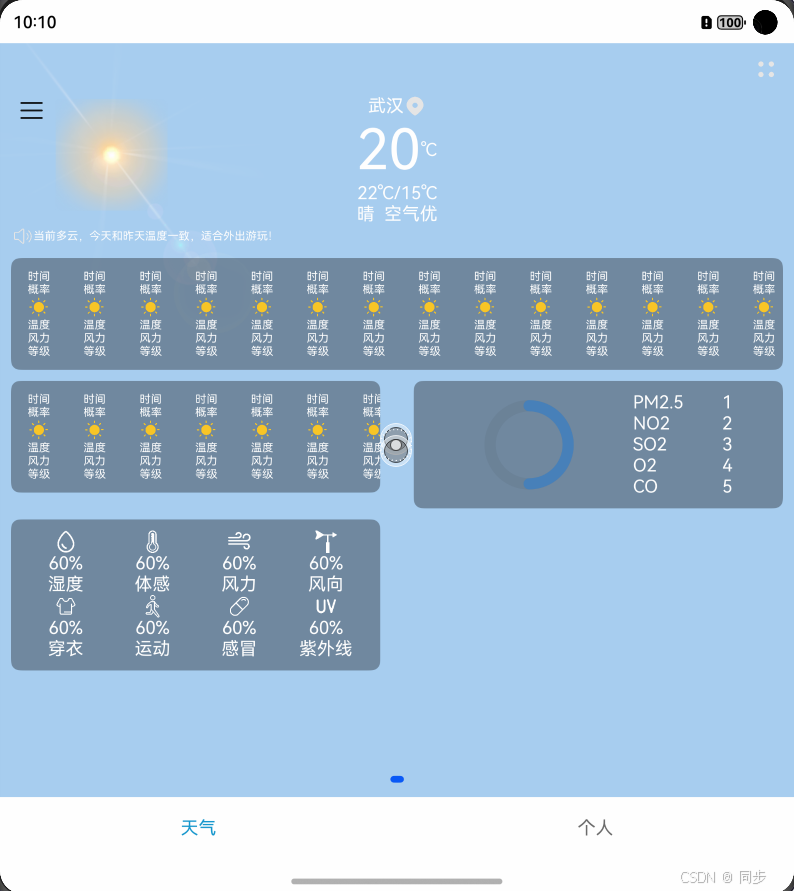
使用GridRow布局不同设备不同排列展示:
GridRow({
                columns: { sm: 4, md: 8, lg: this.showSideBar ? 8 : 12 },
                gutter: 10 ,
                breakpoints: { reference: BreakpointsReference.WindowSize } }) {
                // 天气概览
                GridCol({ span: { sm: 4, md: 8, lg: this.showSideBar ? 8 : 12 }, order: 1 }) {
                  WeatherState({weatherData:this.weatherData})
                    .opacity(this.headerOpacity)
                }
                // 每小时天气
                GridCol({ span: { sm: 4, md: 8, lg: 8 }, order: 2 }) {
                  HoursWeather().borderRadius(8)
                    .margin({left:10,right:10})
                    .backgroundColor('#55000000')
                }
                // 每日天气
                GridCol({ span: 4, order: {sm: 3, md: 3, lg: this.showSideBar ? 3 : 4} }) {
                  DayWeather().borderRadius(8)
                    .margin({left:10,right:10})
                    .backgroundColor('#55000000')
                }
                // 空气质量
                GridCol({ span: 4, order: {sm: 4, md: 4, lg: this.showSideBar ? 4 : 3} }) {
                  AirQuality().borderRadius(8)
                    .margin({left:10,right:10})
                    .backgroundColor('#55000000')
                }
                // 生活指数
                GridCol({ span: 4, order: 5 }) {
                  LifeIndex().borderRadius(8)
                    .margin({left:10,right:10})
                    .backgroundColor('#55000000')
                }
                // 日出日落
                GridCol({ span: 4, order: 6 }) {
                  SunCanvas()
                }
                // 应用信息
                GridCol({ span: { sm: 4, md: 8, lg: this.showSideBar ? 8 : 12 }, order: 7 }) {
                  WeatherEnd()
                }
              }
侧边栏使用SideBarContainer组件展示:
SideBarContainer(SideBarContainerType.Embed) {
        // 左侧侧边栏
        WeatherSide({ showSideBar:this.showSideBar,weatherDatas:this.weatherDatas, weatherData:this.weatherData})
        // 右侧内容区
        Flex({direction: FlexDirection.Column}) {
          // 基础区域1标题栏

        }

      }
      .height('100%')
      .sideBarWidth('33.3%')
      // 通过状态变量,控制不同设备下侧边栏的显隐状态
.showSideBar($$this.showSideBar)个人设置布局(不同设备的展示)
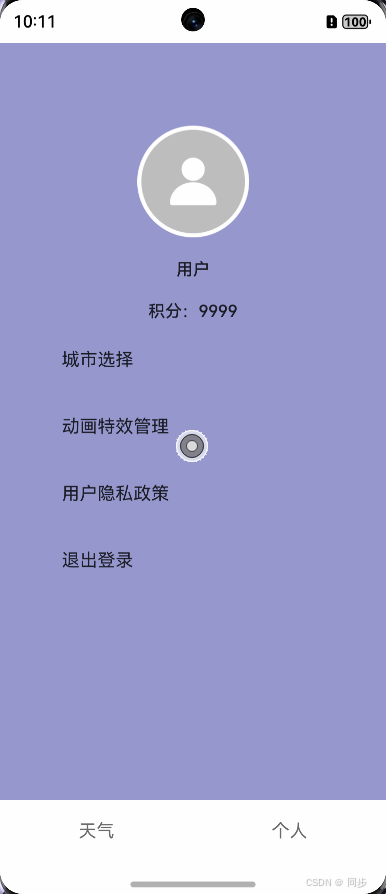 手机 1图 点击进入2图
 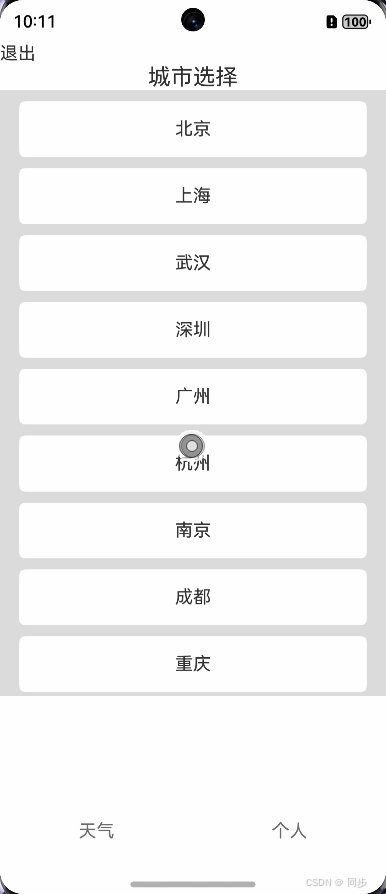 手机 2图图
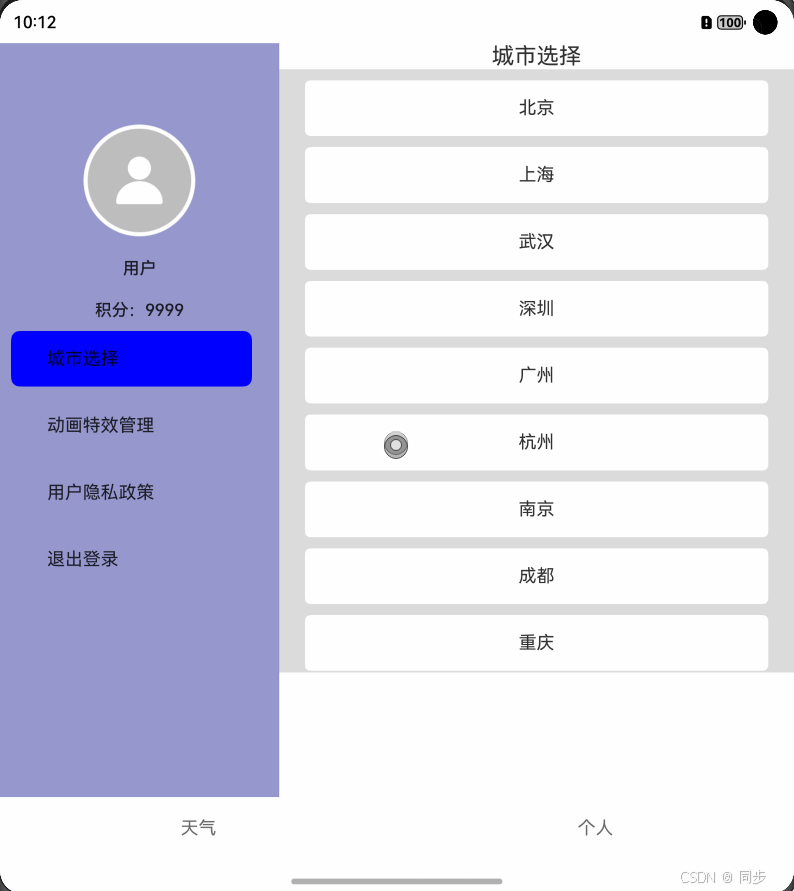 大屏设别图直接左右显示
使用Navigation导航不同设备展示不同界面:
Navigation(this.pagemodels){
      Column() {
        Image($r('app.media.ic_user_profile'))
          .width(100)
          .height(100)
          .objectFit(ImageFit.Contain)
          .margin({ top: 20 })

        Text('用户')
          .textAlign(TextAlign.Center)
          .fontWeight(500)
          .fontSize(15)
          .margin({ top: 20 })

        Text('积分:9999')
          .textAlign(TextAlign.Center)
          .fontWeight(500)
          .fontSize(15)
          .margin({ top: 20 })

        List(){
          ForEach(this.arr,(item:string,index:number)=>{
            ListItem(){
              Item({label: item,pageId:1, imageSrc: ''})
                //.background(this.setPageID===1 ? this.clickedBg : this.unClickedBg)
                .backgroundColor(this.setPageID===index&&this.isLandscape? '#0000FF' : '')
                .margin({left:10,top:10})
                .borderRadius(8)
                .onClick(()=>{
                  if (this.setPageID!==index) {
                    if (index == 3) {
                      router.replaceUrl({
                        url:'pages/LoginPage'
                      })

                    }else {
                      this.pagemodels.pushPath({ name: index.toString()})
                      this.setPageID = index;
                    }
                  }
                })
            }
          })
        }
      }
      .justifyContent(FlexAlign.Center)
      .width('100%')
      .height('80%')

    }
    .mode(NavigationMode.Auto)
    .navDestination(this.PageMap)
    .height('100%')
    .width('100%')
    .navBarWidth(250)
    .hideToolBar(true)
根据系统能力提前判断是什么设备:
aboutToAppear(): void {

    this.setPageID = -1;

    let deviceTypeInfo: string = deviceInfo.deviceType;

    let data: display.FoldStatus = display.getFoldStatus();
    console.info('Succeeded in obtaining fold status. Data: ' + JSON.stringify(data));

    let FoldStatus =  JSON.stringify(data)

    if (deviceTypeInfo !=='phone'||FoldStatus==='1') {
      this.pagemodels.pushPath({ name: '0'})
      this.setPageID = 0;
      this.isLandscape = true
    }

    display.on('foldDisplayModeChange', (data: display.FoldDisplayMode) => {
      let displayInfo: display.Display = display.getDefaultDisplaySync();
      if (data === display.FoldDisplayMode.FOLD_DISPLAY_MODE_FULL) {
        console.info('当前屏幕状态:全屏显示');
        this.pagemodels.pushPath({ name: '0'})
        this.setPageID = 0;
        this.isLandscape = true
      } else if (data === display.FoldDisplayMode.FOLD_DISPLAY_MODE_MAIN) {
        console.info('当前屏幕状态:主屏幕显示');
        this.isLandscape = false
        this.setPageID = -1;
      }
    });

  }
然后在.navDestination(this.PageMap)中自定义子布局:
@Builder
  PageMap(name: string) {
    if (name === "0") {
      CityDialog({setPageID:this.setPageID,isLandscape:this.isLandscape})
    }else if (name === "1") {
      EffectSetDialog({setPageID:this.setPageID,isLandscape:this.isLandscape})
    }else if (name === "2") {
      PrivacyDialog({setPageID:this.setPageID,isLandscape:this.isLandscape})
    }
  }
子布局里面用NavDestination()套住,界面才能正常显示:
NavDestination() {
      Column() {
        Row(){
          Text('退出').visibility(this.isLandscape?Visibility.None:Visibility.Visible)
            .onClick(()=>{
              this.pagemodels.clear()
            })
        }.width('100%')

        Text('城市选择').fontSize(20)

        Scroll(this.scroller) {
          Column() {
            ForEach(this.arr, (item?:string|undefined) => {
              if(item){
                Text(item.toString())
                  .width('90%')
                  .height(50)
                  .backgroundColor(0xFFFFFF)
                  .borderRadius(5)
                  .fontSize(16)
                  .textAlign(TextAlign.Center)
                  .margin({ top: 10 })
                  .onClick(()=>{

                  })
              }
            }, (item:string) => item.toString())
          }.width('100%')
          .margin({ bottom: 10 })
        }
        .height('80%')
        .backgroundColor(0xDCDCDC)
        .scrollable(ScrollDirection.Vertical) // 滚动方向为垂直方向
        .scrollBar(BarState.On) // 滚动条常驻显示
        .scrollBarColor(Color.Gray) // 滚动条颜色
        .scrollBarWidth(0) // 滚动条宽度
        .edgeEffect(EdgeEffect.Spring) // 滚动到边沿后回弹
      }.width('100%')
      .height('100%')
}.hideTitleBar(true)避坑指南:(这里有一个坑要特别提醒)
用了Navigation之后页面的生命就需要在Navigation的子界面里面监听:
比如onBackPressed()必须在NavDestination()下监听才有回调,如下图代码:
NavDestination() {

    }.hideTitleBar(true)
    .onBackPressed(() => {
      // 获取当前时间戳
      let now = Date.now();
      // 判断两次点击返回按钮的时间间隔是否大于2秒
      if (now - this.firstBackTimestamp > 2000) {
        // 提示用户再次点击将退出应用
        promptAction.showToast({
          message: '再按一次退出应用',
          duration: 2000
        })
        // 更新第一次点击的时间戳
        this.firstBackTimestamp = now;
      }else {
        new process.ProcessManager().exit(0)
      }
      // 返回 true 表示页面自己处理返回逻辑
      return true;

    })
运行效果:
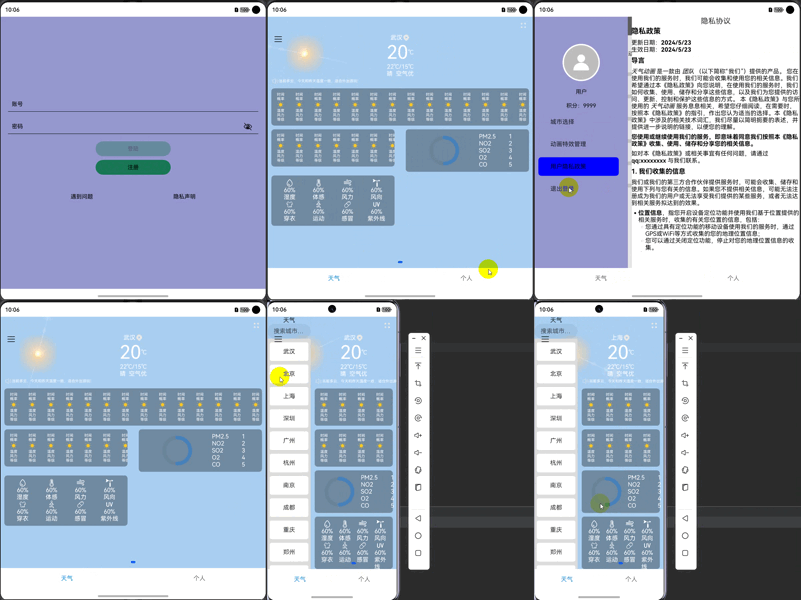
最后贴上Demo源码:https://gitee.com/stevenllv/MyWeather

 浙公网安备 33010602011771号