

Qt-for-鸿蒙PC-年龄&星座获取器构建实战
2025-12-16 19:05 tlnshuju 阅读(27) 评论(0) 收藏 举报年龄&星座获取器开发实战
目录
项目概述
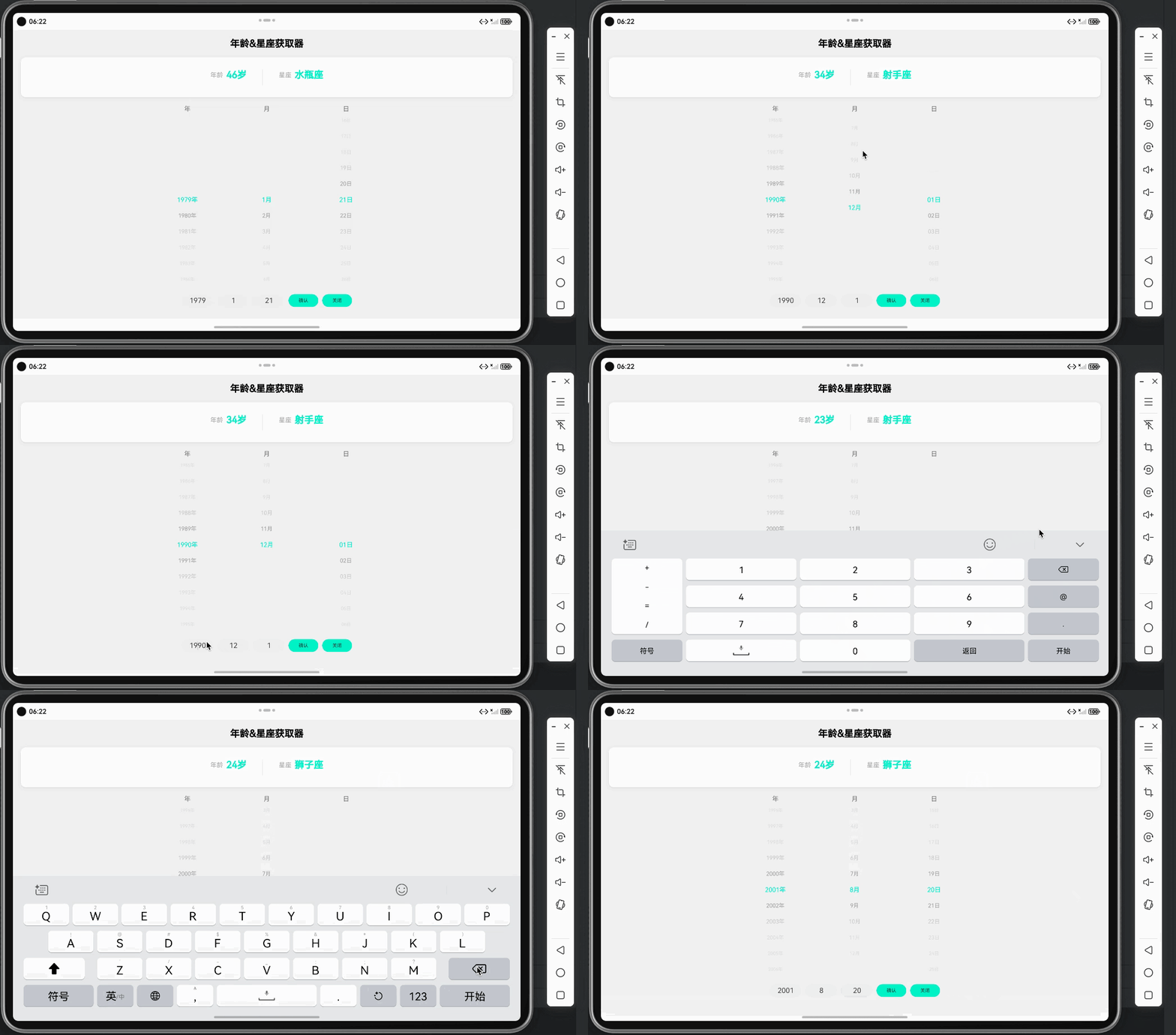
项目地址:https://gitcode.com/szkygc/HarmonyOs_PC-PGC/tree/main/rollingBox
项目背景
在HarmonyOS应用开发中,日期选择器是一个常见的UI组件需求。本项目基于Qt/QML框架,实现了一个功能完整的年龄&星座获取器应用,支持通过滚动方式选择年、月、日,并自动计算年龄和星座信息。该项目展示了如何在Qt for HarmonyOS中实现自定义滚动选择器组件,以及如何处理日期相关的业务逻辑。
项目目标
本项目的主要目标包括:
- 滚动选择器实现:实现年、月、日的滚动选择功能,支持上下滑动选择
- 实时计算:根据选择的日期实时计算年龄和星座
- 双向数据同步:滚动选择器和输入框之间的双向数据同步
- 用户体验优化:提供流畅的滚动体验和清晰的视觉反馈
- 平台适配:适配HarmonyOS平台的特殊要求,确保功能正常运行
功能特性
- ✅ 滚动选择器:年、月、日三列滚动选择,支持上下滑动,流畅的滚动体验
- ✅ 年龄计算:根据选择的出生日期自动计算年龄,精确到日期
- ✅ 星座计算:根据选择的日期自动计算对应星座,支持12星座识别
- ✅ 输入框支持:支持手动输入年、月、日,提供灵活的输入方式
- ✅ 数据验证:输入验证和日期范围检查,自动处理闰年情况
- ✅ 实时同步:滚动选择器和输入框双向实时同步,数据一致性保证
- ✅ 响应式布局:支持不同屏幕尺寸的自适应显示,适配多种设备
- ✅ 视觉优化:动态字体大小和颜色渐变,清晰的视觉反馈
技术栈选择
前端框架:Qt/QML
选择理由:
- ListView组件:QML的ListView提供了强大的滚动列表功能,支持吸附效果和自定义样式
- 声明式UI:QML的声明式语法使得UI布局更加直观和易维护
- 性能优异:基于OpenGL ES硬件加速,滚动流畅
- 跨平台能力:Qt/QML提供了强大的跨平台支持
图形效果:QtGraphicalEffects
选择理由:
- DropShadow:用于信息显示区域的阴影效果,提升视觉层次
- 硬件加速:基于OpenGL ES实现,性能优异
- 易于集成:与QML无缝集成,使用简单
平台:HarmonyOS
选择理由:
- Qt官方支持:Qt for HarmonyOS提供了完整的开发支持
- 原生体验:可以充分利用HarmonyOS的原生能力
- 生态完善:HarmonyOS生态日益完善,开发工具链成熟
架构设计
整体架构
ApplicationWindow (main.qml)
├── ColumnLayout (主布局)
│   ├── Text (标题)
│   ├── Rectangle (信息显示区域)
│   │   └── Row (年龄和星座显示)
│   ├── RowLayout (滚动选择区域)
│   │   ├── Column (年份选择器)
│   │   │   ├── Text ("年"标签)
│   │   │   └── ListView (年份列表)
│   │   ├── Column (月份选择器)
│   │   │   ├── Text ("月"标签)
│   │   │   └── ListView (月份列表)
│   │   └── Column (日期选择器)
│   │       ├── Text ("日"标签)
│   │       └── ListView (日期列表)
│   └── RowLayout (底部输入区域)
│       ├── TextField (年份输入)
│       ├── TextField (月份输入)
│       ├── TextField (日期输入)
│       ├── Button (确认按钮)
│       └── Button (关闭按钮)
数据流设计
用户操作
  ├── 滚动选择器 → onCurrentIndexChanged → 更新currentYear/Month/Day → 计算年龄和星座
  ├── 输入框输入 → onEditingFinished → 更新currentYear/Month/Day → 同步滚动选择器
  └── 确认按钮 → onClicked → 从选择器或输入框获取值 → 验证并更新 → 计算年龄和星座
核心组件
滚动选择器(ListView)
- 使用ListView实现滚动列表
- 通过
snapMode和highlightRangeMode实现吸附效果 - 动态字体大小和颜色渐变
信息显示区域
- 使用Rectangle + DropShadow实现卡片效果
- 年龄和星座居中显示
- 标签和数值分离,层次清晰
数据同步机制
- 滚动选择器改变时同步到输入框
- 输入框改变时同步到滚动选择器
- 确认按钮统一处理两种输入方式
核心功能实现
本文档将详细介绍年龄&星座获取器的核心功能实现,包括滚动选择器、年龄计算、星座计算等关键模块。
1. 滚动选择器实现
滚动选择器是应用的核心交互组件,通过ListView实现流畅的滚动选择体验。
1.1 ListView配置
滚动选择器使用QML的 ListView组件实现,关键配置如下:
ListView {
    id: yearListView
    anchors.fill: parent
    clip: true
    model: maxYear - 1979 + 1
    delegate: Item {
        width: yearListView.width
        height: 40 * scaleFactor
        property int distance: Math.abs(yearListView.currentIndex - index)
        Text {
            anchors.centerIn: parent
            text: (1979 + index) + "年"
            font.pixelSize: distance === 0 ? 16 * scaleFactor :
                           (distance === 1 ? 14 * scaleFactor :
                            Math.max(10 * scaleFactor, 16 * scaleFactor - distance * 2))
            font.family: "微软雅黑"
            color: distance === 0 ?
                   Qt.rgba(1/255, 238/255, 195/255, 1) :
                   (distance === 1 ?
                    Qt.rgba(0, 0, 0, 0.4) :
                    Qt.rgba(0, 0, 0, Math.max(0.1, 0.4 - distance * 0.1)))
            horizontalAlignment: Text.AlignHCenter
            verticalAlignment: Text.AlignVCenter
        }
    }
    snapMode: ListView.SnapToItem
    highlightRangeMode: ListView.StrictlyEnforceRange
    preferredHighlightBegin: parent.height / 2 - 20 * scaleFactor
    preferredHighlightEnd: parent.height / 2 + 20 * scaleFactor
    highlightMoveDuration: 200
}
关键配置说明:
- snapMode: ListView.SnapToItem:滚动结束时自动吸附到最近的项
- highlightRangeMode: ListView.StrictlyEnforceRange:严格限制高亮范围,确保选中项始终在中心
- preferredHighlightBegin/End:定义高亮区域的起始和结束位置(中心位置±20px)
- highlightMoveDuration: 200:高亮移动动画时长200ms,提供流畅的过渡效果
1.2 动态视觉效果
滚动选择器通过计算 distance(当前选中项与各项的距离)来实现动态视觉效果:
property int distance: Math.abs(yearListView.currentIndex - index)字体大小渐变:
- 选中项(distance === 0):16px,最大字体
- 相邻项(distance === 1):14px
- 更远项:字体递减,最小10px
颜色渐变:
- 选中项:青色高亮
Qt.rgba(1/255, 238/255, 195/255, 1) - 相邻项:40%透明度黑色
Qt.rgba(0, 0, 0, 0.4) - 更远项:透明度递减,最小10%
Qt.rgba(0, 0, 0, Math.max(0.1, 0.4 - distance * 0.1))
1.3 选中区域背景
在ListView下方添加一个半透明矩形作为选中区域的背景:
Rectangle {
    id: yearSelectionRect
    anchors.centerIn: parent
    width: parent.width
    height: 40 * scaleFactor
    color: Qt.rgba(234/255, 234/255, 234/255, 0.06)
    radius: 0
}
2. 年龄计算实现
年龄计算是年龄&星座获取器的核心功能之一,需要精确考虑月份和日期的差异,确保计算结果的准确性。
function updateAge() {
    var today = new Date()
    var birthDate = new Date(currentYear, currentMonth - 1, currentDay)
    var age = today.getFullYear() - birthDate.getFullYear()
    var monthDiff = today.getMonth() - birthDate.getMonth()
    if (monthDiff < 0 || (monthDiff === 0 && today.getDate() < birthDate.getDate())) {
        age--
    }
    currentAge = age
}
计算逻辑:
- 计算年份差
- 如果当前月份小于出生月份,或月份相同但当前日期小于出生日期,则年龄减1
- 确保年龄计算的准确性
3. 星座计算实现
星座计算是年龄&星座获取器的另一核心功能,基于月份和日期进行精确的星座判断:
// 星座列表
property var astroList: ["摩羯座", "水瓶座", "双鱼座", "白羊座", "金牛座", "双子座",
                          "巨蟹座", "狮子座", "处女座", "天秤座", "天蝎座", "射手座"]
property var astroDayList: [20, 19, 21, 21, 21, 22, 23, 23, 23, 23, 22, 22]
function updateConstellation() {
    var month = currentMonth
    var day = currentDay
    var astroIndex = month
    var astroDay = astroDayList[month - 1]
    if (day < astroDay) {
        astroIndex = month - 1
        if (astroIndex < 0) astroIndex = 11
    }
    currentConstellation = astroList[astroIndex]
}
计算逻辑:
- 获取当前月份对应的星座分界日期
- 如果日期小于分界日期,则属于上一个月份的星座
- 处理边界情况(1月需要回退到12月)
4. 日期范围处理
日期选择器需要根据年月动态调整最大天数,特别是处理闰年:
function getMonthDays(year, month) {
    var daysInMonth = [31, 28, 31, 30, 31, 30, 31, 31, 30, 31, 30, 31]
    if (month === 2) {
        // 判断闰年
        if ((year % 4 === 0 && year % 100 !== 0) || (year % 400 === 0)) {
            return 29
        }
        return 28
    }
    return daysInMonth[month - 1]
}
function updateDayRange() {
    var maxDays = getMonthDays(currentYear, currentMonth)
    dayListView.maxDays = maxDays
    if (currentDay > maxDays) {
        currentDay = maxDays
        dayListView.currentIndex = maxDays - 1
        dayListView.positionViewAtIndex(maxDays - 1, ListView.Center)
    }
}
关键处理:
- 闰年判断:能被4整除但不能被100整除,或能被400整除
- 动态更新:当年份或月份改变时,自动更新日期选择器的model
- 边界处理:如果当前日期超出新的最大天数,自动调整为最大天数
5. 双向数据同步
5.1 滚动选择器 → 输入框
当滚动选择器的选中项改变时,自动更新对应的输入框:
onCurrentIndexChanged: {
    if (currentIndex >= 0) {
        currentYear = 1979 + currentIndex
        updateDayRange()
        updateAge()
        updateConstellation()
        yearInput.text = currentYear.toString()
    }
}
5.2 输入框 → 滚动选择器
当输入框的值改变时,自动更新滚动选择器的选中项:
onEditingFinished: {
    var year = parseInt(text)
    if (year >= 1979 && year <= maxYear) {
        currentYear = year
        yearListView.currentIndex = year - 1979
        updateDayRange()
        updateAge()
        updateConstellation()
    } else {
        text = currentYear.toString()
    }
}
5.3 确认按钮统一处理
确认按钮优先从滚动选择器获取值,如果没有则从输入框获取:
onClicked: {
    // 优先从滚动选择器获取值,如果没有则从输入框获取
    var year = yearListView.currentIndex >= 0 ? (1979 + yearListView.currentIndex) : parseInt(yearInput.text)
    var month = monthListView.currentIndex >= 0 ? (monthListView.currentIndex + 1) : parseInt(monthInput.text)
    var day = dayListView.currentIndex >= 0 ? (dayListView.currentIndex + 1) : parseInt(dayInput.text)
    // 验证并更新
    if (year >= 1979 && year <= maxYear) {
        currentYear = year
        yearListView.currentIndex = year - 1979
        yearInput.text = year.toString()
    }
    // ... 类似处理月份和日期
    updateDayRange()
    updateAge()
    updateConstellation()
}
6. 信息显示区域优化
信息显示区域使用卡片式设计,添加阴影效果:
Rectangle {
    Layout.fillWidth: true
    Layout.preferredHeight: 100 * scaleFactor
    color: "#ffffff"
    radius: 12 * scaleFactor
    // 添加阴影效果
    layer.enabled: true
    layer.effect: DropShadow {
        horizontalOffset: 0
        verticalOffset: 2 * scaleFactor
        radius: 8 * scaleFactor
        samples: 17
        color: Qt.rgba(0, 0, 0, 0.1)
    }
    Row {
        anchors.centerIn: parent
        spacing: 40 * scaleFactor
        // 年龄显示
        Row {
            spacing: 8 * scaleFactor
            Text {
                text: "年龄"
                font.pixelSize: 16 * scaleFactor
                color: "#999999"
            }
            Text {
                text: currentAge + "岁"
                font.pixelSize: 24 * scaleFactor
                font.bold: true
                color: Qt.rgba(1/255, 238/255, 195/255, 1)
            }
        }
        // 分隔线
        Rectangle {
            width: 1 * scaleFactor
            height: 40 * scaleFactor
            anchors.verticalCenter: parent.verticalCenter
            color: "#e0e0e0"
        }
        // 星座显示
        Row {
            spacing: 8 * scaleFactor
            Text {
                text: "星座"
                font.pixelSize: 16 * scaleFactor
                color: "#999999"
            }
            Text {
                text: currentConstellation
                font.pixelSize: 24 * scaleFactor
                font.bold: true
                color: Qt.rgba(1/255, 238/255, 195/255, 1)
            }
        }
    }
}
设计要点:
- 使用
DropShadow添加轻微阴影,提升层次感 - 标签和数值分离,标签使用灰色,数值使用青色加粗
- 添加垂直分隔线,清晰区分年龄和星座
- 使用
anchors.centerIn实现居中显示
开发要点与技巧
在开发年龄&星座获取器过程中,积累了一些实用的开发技巧和注意事项,本节将详细介绍。
1. OpenGL ES配置
QtGraphicalEffects模块依赖OpenGL ES硬件加速,正确配置是确保应用正常运行的关键。
QtGraphicalEffects需要OpenGL ES硬件加速支持,在 main.cpp中需要正确配置:
// 设置使用OpenGL ES
QCoreApplication::setAttribute(Qt::AA_UseOpenGLES);
QCoreApplication::setAttribute(Qt::AA_ShareOpenGLContexts);
// 配置OpenGL ES 2.0
QSurfaceFormat format;
format.setRenderableType(QSurfaceFormat::OpenGLES);
format.setVersion(2, 0);
format.setAlphaBufferSize(8);
format.setDepthBufferSize(24);
QSurfaceFormat::setDefaultFormat(format);
重要提示:
- 不要设置
QT_QUICK_BACKEND=software,这会禁用硬件加速 - 确保使用OpenGL ES 2.0或更高版本
- 某些模拟器可能需要特殊配置
2. 响应式设计
使用 scaleFactor实现响应式设计:
readonly property real scaleFactor: width > 1000 ? 2.0 : 1.0所有尺寸相关的属性都乘以 scaleFactor:
- 字体大小:
font.pixelSize: 16 * scaleFactor - 间距:
spacing: 20 * scaleFactor - 高度:
height: 40 * scaleFactor
3. ListView性能优化
关键优化点:
- 使用clip属性:
clip: true确保超出范围的内容不渲染 - 限制delegate复杂度:delegate中避免复杂的计算和嵌套
- 合理设置highlightMoveDuration:200ms提供流畅体验,不会太慢
4. 数据验证
输入框使用 IntValidator进行范围验证:
validator: IntValidator {
    bottom: 1979
    top: maxYear
}
在 onEditingFinished中再次验证,确保数据有效性。
5. 初始化处理
在 Component.onCompleted中初始化所有数据:
Component.onCompleted: {
    updateDayRange()
    updateAge()
    updateConstellation()
    // 同步输入框显示
    yearInput.text = currentYear.toString()
    monthInput.text = currentMonth.toString()
    dayInput.text = currentDay.toString()
}
常见问题与解决方案
问题1:滚动选择器不显示或显示异常
原因:
- ListView的model未正确设置
- clip属性导致内容被裁剪
- preferredHighlightBegin/End设置不正确
解决方案:
ListView {
    anchors.fill: parent
    clip: true  // 确保clip设置正确
    model: maxYear - 1979 + 1  // 确保model有值
    preferredHighlightBegin: parent.height / 2 - 20 * scaleFactor
    preferredHighlightEnd: parent.height / 2 + 20 * scaleFactor
}
问题2:滚动时没有吸附效果
原因:
snapMode未设置或设置错误highlightRangeMode未设置为StrictlyEnforceRange
解决方案:
snapMode: ListView.SnapToItem
highlightRangeMode: ListView.StrictlyEnforceRange
问题3:日期范围更新不及时
原因:
maxDays属性变化时未更新ListView的model- 未正确处理日期超出范围的情况
解决方案:
onMaxDaysChanged: {
    if (currentDay > maxDays) {
        currentDay = maxDays
    }
    var newIndex = currentDay - 1
    if (newIndex >= 0 && newIndex < maxDays) {
        currentIndex = newIndex
        positionViewAtIndex(newIndex, ListView.Center)
    }
}
问题4:年龄计算不准确
原因:
- 未考虑月份和日期的差异
- 闰年处理不正确
解决方案:
function updateAge() {
    var today = new Date()
    var birthDate = new Date(currentYear, currentMonth - 1, currentDay)
    var age = today.getFullYear() - birthDate.getFullYear()
    var monthDiff = today.getMonth() - birthDate.getMonth()
    // 关键:如果当前日期还未到生日,年龄减1
    if (monthDiff < 0 || (monthDiff === 0 && today.getDate() < birthDate.getDate())) {
        age--
    }
    currentAge = age
}
问题5:数据同步冲突
原因:
- 滚动选择器和输入框互相更新导致循环触发
- 未检查值是否真正改变
解决方案:
onCurrentIndexChanged: {
    if (currentIndex >= 0) {
        var newYear = 1979 + currentIndex
        if (newYear !== currentYear) {  // 检查值是否改变
            currentYear = newYear
            // 更新其他数据
        }
    }
}
总结与展望
项目总结
本项目成功实现了一个功能完整的年龄&星座获取器应用,主要成果包括:
- 滚动选择器实现:使用ListView实现了流畅的滚动选择功能,支持吸附效果和动态视觉效果,提供了良好的交互体验
- 业务逻辑处理:实现了年龄计算、星座计算和日期范围处理等核心业务逻辑,确保计算结果的准确性
- 用户体验优化:通过双向数据同步、输入验证和实时反馈,提供了良好的用户体验,支持多种输入方式
- 平台适配:成功适配HarmonyOS平台,确保功能正常运行,充分利用了Qt for HarmonyOS的特性
技术亮点
- ListView高级用法:充分利用ListView的
snapMode、highlightRangeMode等特性 - 动态视觉效果:通过计算距离实现字体大小和颜色的动态渐变
- 数据同步机制:实现了滚动选择器和输入框之间的双向数据同步
- 响应式设计:使用scaleFactor实现不同屏幕尺寸的自适应
未来改进方向
- 性能优化:对于大量数据的滚动列表,可以考虑虚拟化渲染
- 功能扩展:添加时间选择功能,支持时分秒选择
- 样式定制:提供更多主题和样式选项
- 动画优化:添加更流畅的滚动动画和过渡效果
- 国际化支持:支持多语言和不同地区的日期格式
参考资源
附录
完整代码示例
main.qml 核心代码片段
ApplicationWindow {
    id: root
    width: Screen.width > 1000 ? 1600 : 800
    height: Screen.height > 1000 ? 2560 : 741
    visible: true
    title: "年龄&星座获取器"
    // 根据屏幕大小计算缩放因子
    readonly property real scaleFactor: width > 1000 ? 2.0 : 1.0
    // 日期相关属性
    property int currentYear: 1998
    property int currentMonth: 12
    property int currentDay: 21
    property int currentAge: 0
    property string currentConstellation: ""
    // 计算最大年份(当前年份-18,确保用户已成年)
    readonly property int maxYear: (function() {
        var currentDate = new Date()
        return currentDate.getFullYear() - 18
    })()
    // 星座列表和分界日期
    property var astroList: ["摩羯座", "水瓶座", "双鱼座", "白羊座", "金牛座", "双子座",
                              "巨蟹座", "狮子座", "处女座", "天秤座", "天蝎座", "射手座"]
    property var astroDayList: [20, 19, 21, 21, 21, 22, 23, 23, 23, 23, 22, 22]
    // ... 其他UI组件和逻辑代码
}
main.cpp 配置代码
extern "C" int qtmain(int argc, char **argv)
{
// 设置使用OpenGL ES
QCoreApplication::setAttribute(Qt::AA_UseOpenGLES);
QCoreApplication::setAttribute(Qt::AA_ShareOpenGLContexts);
QGuiApplication app(argc, argv);
QCoreApplication::setApplicationName(QStringLiteral("年龄&星座获取器"));
// 配置OpenGL ES 2.0
QSurfaceFormat format;
format.setRenderableType(QSurfaceFormat::OpenGLES);
format.setVersion(2, 0);
format.setAlphaBufferSize(8);
format.setDepthBufferSize(24);
QSurfaceFormat::setDefaultFormat(format);
// 创建QML引擎
QQmlApplicationEngine engine;
engine.load(QUrl(QStringLiteral("qrc:/main.qml")));
return app.exec();
}
项目结构说明
rollingBox/
├── entry/
│   └── src/
│       └── main/
│           └── cpp/
│               ├── main.cpp          # 应用入口,OpenGL ES配置
│               ├── main.qml          # 主界面,包含所有UI组件
│               ├── qml.qrc           # QML资源文件
│               └── CMakeLists.txt    # CMake构建配置
├── docs/                              # 项目文档
└── image/                             # 项目截图和资源
开发环境要求
- Qt版本:Qt 5.15 或更高版本
- HarmonyOS SDK:API Level 8 或更高
- 开发工具:DevEco Studio 3.0 或更高版本
- 编译工具:CMake 3.5.0 或更高版本
运行效果
年龄&星座获取器应用运行后,用户可以:
- 滚动选择日期:通过上下滑动选择年、月、日
- 手动输入日期:在底部输入框中直接输入日期
- 实时查看结果:选择日期后,顶部信息区域实时显示年龄和星座
- 确认操作:点击确认按钮保存当前选择的日期
技术要点总结
- ListView滚动优化:使用
snapMode和highlightRangeMode实现流畅的滚动吸附效果 - 动态视觉效果:通过计算距离实现字体大小和颜色的动态渐变,提升用户体验
- 数据同步机制:实现滚动选择器和输入框的双向数据同步,确保数据一致性
- 日期处理:正确处理闰年、月份天数等边界情况,确保计算准确性
- 响应式设计:使用
scaleFactor实现不同屏幕尺寸的自适应显示

 浙公网安备 33010602011771号