WCF 的restful入门实践
本文着重讲述如何用Restful方式调用WCFl进行文件的上传和下载。在前面的文章中,曾经写过Restful的WCF支持两种格式的请求和响应的数据格式:1)XML 2) JSON。事实上WCF不光支持上述两种格式,它还支持原生数据(Raw,来源于Carlos' blog)。这样一来,WCF的Restful方式实际上支持任意一种格式的,因为原生的即表明可以是任意一种格式,WCF从客户端到服务端,从服务端到客户端都会保持这种数据的原来的数据格式。通过查阅MSDN中WebMessageEncodingBindingElement 类的说明:也能找到上述的论证
首先总结一下如何在Restful的WCF的服务端和客户端传递原生的数据(Raw),在WCF中,返回值或者参数为System.IO.Stream或者System.IO.Stream的派生类型的时候,加配上HTTP请求和Restful服务操作响应消息中的ContentType,便能实现原生数据的传输。
下面通过一个上传和下载图片文件的项目示例来演示如上的结论。
第一步:在VS2008中,创建一个解决方案:WcfBinaryRestful,包括四个项目:如下图所示:
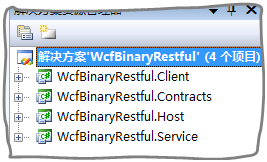
其中各个项目的说明如下表所述:
|
项目名称 |
说明 |
|
WcfBinaryRestful.Contracts |
WCF服务的契约部分 |
|
WcfBinaryRestful.Service |
WCF服务具体实现部分 |
|
WcfBinaryRestful.Host |
WCF服务的Console程序的承载程序 |
|
WcfBinaryRestful.Client |
客户端 |
第二步:在WcfBinaryRestful.Contracts中创建并设计服务契约IService.cs,代码如下:


 using System; using System.Collections.Generic; using System.Linq; using System.Text; using System.ServiceModel; namespace WcfBinaryRestful.Contracts {
 [ServiceContract] publicinterface IService
  {
{  [OperationContract] System.IO.Stream ReadImg(); [OperationContract] void ReceiveImg(System.IO.Stream stream);
  }
}  }
} 其中ReadImg方法用于提供jpg图片文件,供客户端下载,而ReceiveImg用于接收客户端上传的jpg图片
第三步:在WcfBinaryRestful.Service项目中创建并设计服务具体实现类:Service.cs
 using System; using System.Collections.Generic; using System.Linq; using System.Text; using System.ServiceModel.Web; using System.Drawing; using System.Diagnostics; namespace WcfBinaryRestful.Service { publicclass Service : Contracts.IService { [WebInvoke(Method ="*", UriTemplate ="ReadImg")] public System.IO.Stream ReadImg() { string runDir = System.Environment.CurrentDirectory; string imgFilePath = System.IO.Path.Combine(runDir, "jillzhanglogo.jpg"); System.IO.FileStream fs =new System.IO.FileStream(imgFilePath, System.IO.FileMode.Open); System.Threading.Thread.Sleep(2000); WebOperationContext.Current.OutgoingResponse.ContentType ="image/jpeg"; return fs; } [WebInvoke(Method ="*", UriTemplate ="ReceiveImg")] public void ReceiveImg(System.IO.Stream stream) { Debug.WriteLine(WebOperationContext.Current.IncomingRequest.ContentType); System.Threading.Thread.Sleep(3000); string runDir = System.Environment.CurrentDirectory; string imgFilePath = System.IO.Path.Combine(runDir, "ReceiveImg.jpg"); Image bmp = Bitmap.FromStream(stream); bmp.Save(imgFilePath); } } }
第四步:用配置的方式,创建服务承载项目:WcfBinaryRestful.Host。并使得服务可以用Restful方式访问。
Host.cs
using System; using System.Collections.Generic; using System.Linq; using System.Text; using System.ServiceModel; namespace WcfBinaryRestful.Host { publicclass Host { staticvoid Main() { using (ServiceHost host =new ServiceHost(typeof(Service.Service))) { host.Open(); Console.WriteLine("服务已经启动!"); Console.Read(); } } } }
App.config
<?xml version="1.0" encoding="utf-8" ?> <configuration> <system.serviceModel> <services> <service name="WcfBinaryRestful.Service.Service"> <host> <baseAddresses> <add baseAddress="http://127.0.0.1:9874/"/> </baseAddresses> </host> <endpoint address="" binding="webHttpBinding" contract="WcfBinaryRestful.Contracts.IService" behaviorConfiguration="WcfBinaryRestfulBehavior"></endpoint> </service> </services> <behaviors> <endpointBehaviors> <behavior name="WcfBinaryRestfulBehavior"> <webHttp/> </behavior> </endpointBehaviors> </behaviors> </system.serviceModel> </configuration>
第五步:实现客户端程序
Form1.cs
using System; using System.Collections.Generic; using System.ComponentModel; using System.Data; using System.Drawing; using System.Linq; using System.Text; using System.Windows.Forms; namespace WcfBinaryRestful.Client { publicpartialclass Form1 : Form { public Form1() { InitializeComponent(); } System.Net.WebClient wc; privatevoid button1_Click(object sender, EventArgs e) { wc =new System.Net.WebClient(); SaveFileDialog op =new SaveFileDialog(); if (op.ShowDialog() == DialogResult.OK) { wc.DownloadFileAsync(new Uri("http://127.0.0.1:9874/ReadImg"), op.FileName); wc.DownloadFileCompleted +=new AsyncCompletedEventHandler(wc_DownloadFileCompleted); button2.Enabled =true; button1.Enabled =false; } } void wc_DownloadFileCompleted(object sender, AsyncCompletedEventArgs e) { if (e.Cancelled) { button2.Enabled =false; button1.Enabled =true; MessageBox.Show("用户已经取消下载!"); return; } using (System.Net.WebClient wc = e.UserState as System.Net.WebClient) { button2.Enabled =false; button1.Enabled =true; MessageBox.Show("下载完毕!"); } } privatevoid button2_Click(object sender, EventArgs e) { if (wc !=null) { wc.CancelAsync(); } } System.Net.WebClient uploadWc =new System.Net.WebClient(); privatevoid button3_Click(object sender, EventArgs e) { OpenFileDialog op =new OpenFileDialog(); op.Filter ="jpg文件(*.jpg)|*.jpg"; if (op.ShowDialog() == DialogResult.OK) { uploadWc.Headers.Add("Content-Type", "image/jpeg"); System.IO.FileStream fs =new System.IO.FileStream(op.FileName,System.IO.FileMode.Open); byte[] buffer =newbyte[(int)fs.Length]; fs.Read(buffer, 0, (int)fs.Length); fs.Close(); uploadWc.UploadDataCompleted +=new System.Net.UploadDataCompletedEventHandler(uploadWc_UploadDataCompleted); uploadWc.UploadDataAsync(new Uri("http://127.0.0.1:9874/ReceiveImg"), buffer); button3.Enabled =false; button4.Enabled =true; } } void uploadWc_UploadDataCompleted(object sender, System.Net.UploadDataCompletedEventArgs e) { if (e.Cancelled) { button3.Enabled =true; button4.Enabled =false; MessageBox.Show("用户已经取消上传!"); return; } MessageBox.Show("完成上传!"); button3.Enabled =true; button4.Enabled =false; } privatevoid button4_Click(object sender, EventArgs e) { uploadWc.CancelAsync(); } } }
设置好多启动项目调试后,调试,出现如下的运行界面:
1.服务承载程序运行界面图:

2.客户端运行界面图:
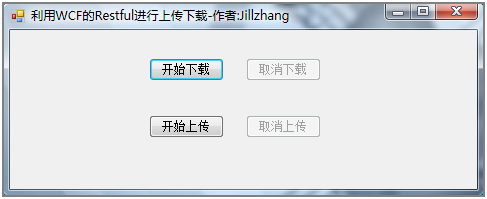
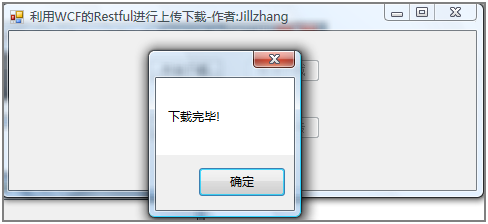
点击开始下载按钮,选择一个下载文件的保存位置,等待一会后,会提示下载成功,如下图所示:
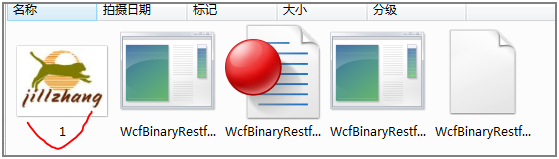
打开刚才选择下载文件的保存位置,便能发现已经成功下载了jpg的图片文件:
当然顺便还可以温习一下如何异步调用Restful的WCF服务,点击取消下载可以停止下载,不再多说
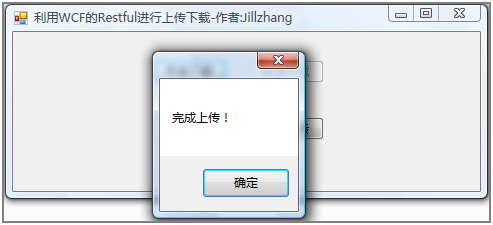
点击开始上传,选择一个要上传的jpg图片,等待几秒钟,便能收到上传成功的对话框,如下图所示:
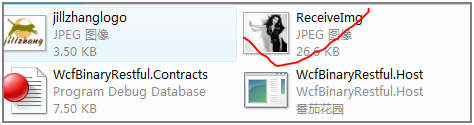
找到服务承载程序所在目录,便能看到上传的jpg图像文件:

 浙公网安备 33010602011771号