Thingsboard 3.0 通过 tb-gateway 网关接入 MQTT 设备教程

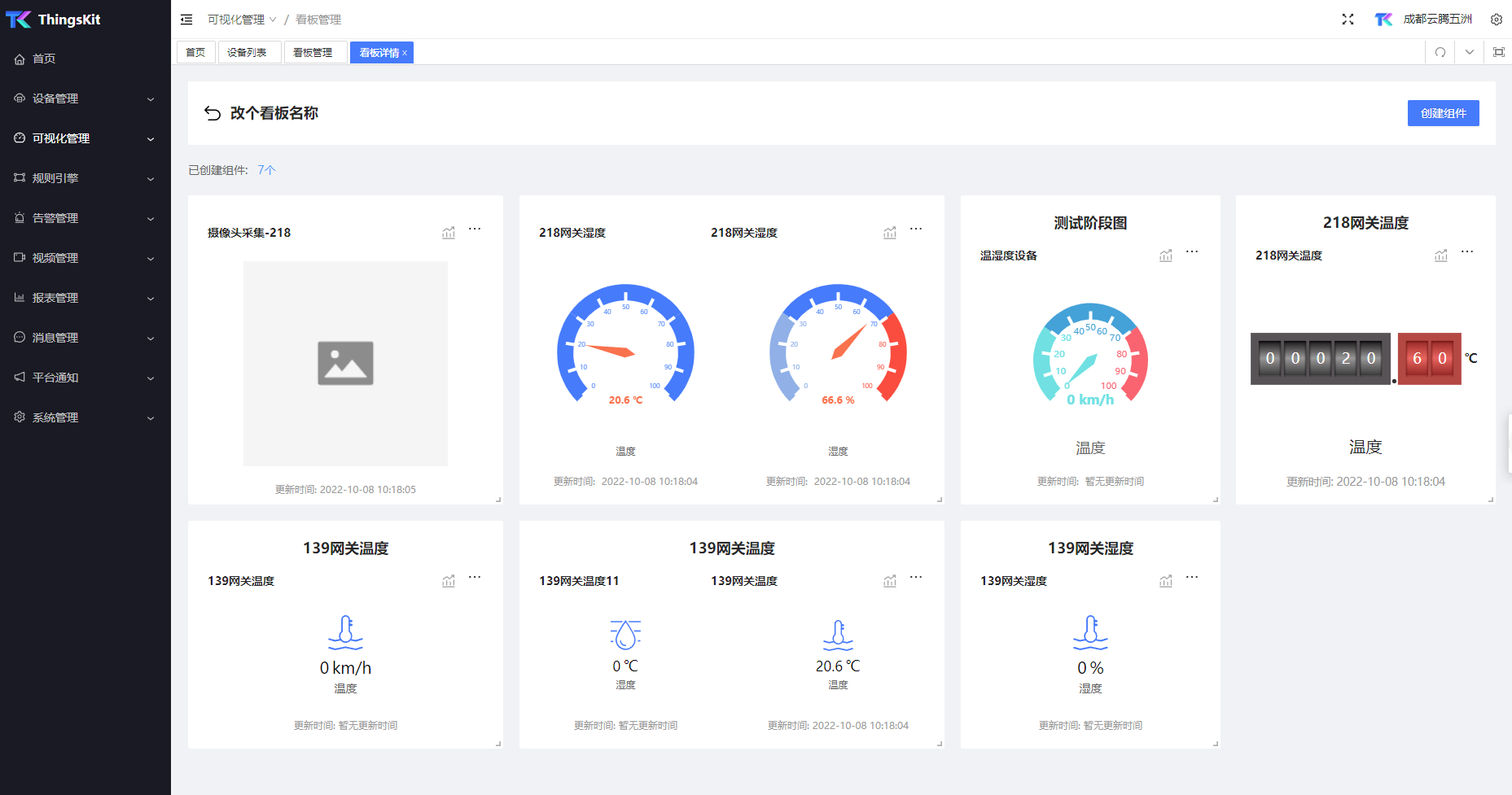
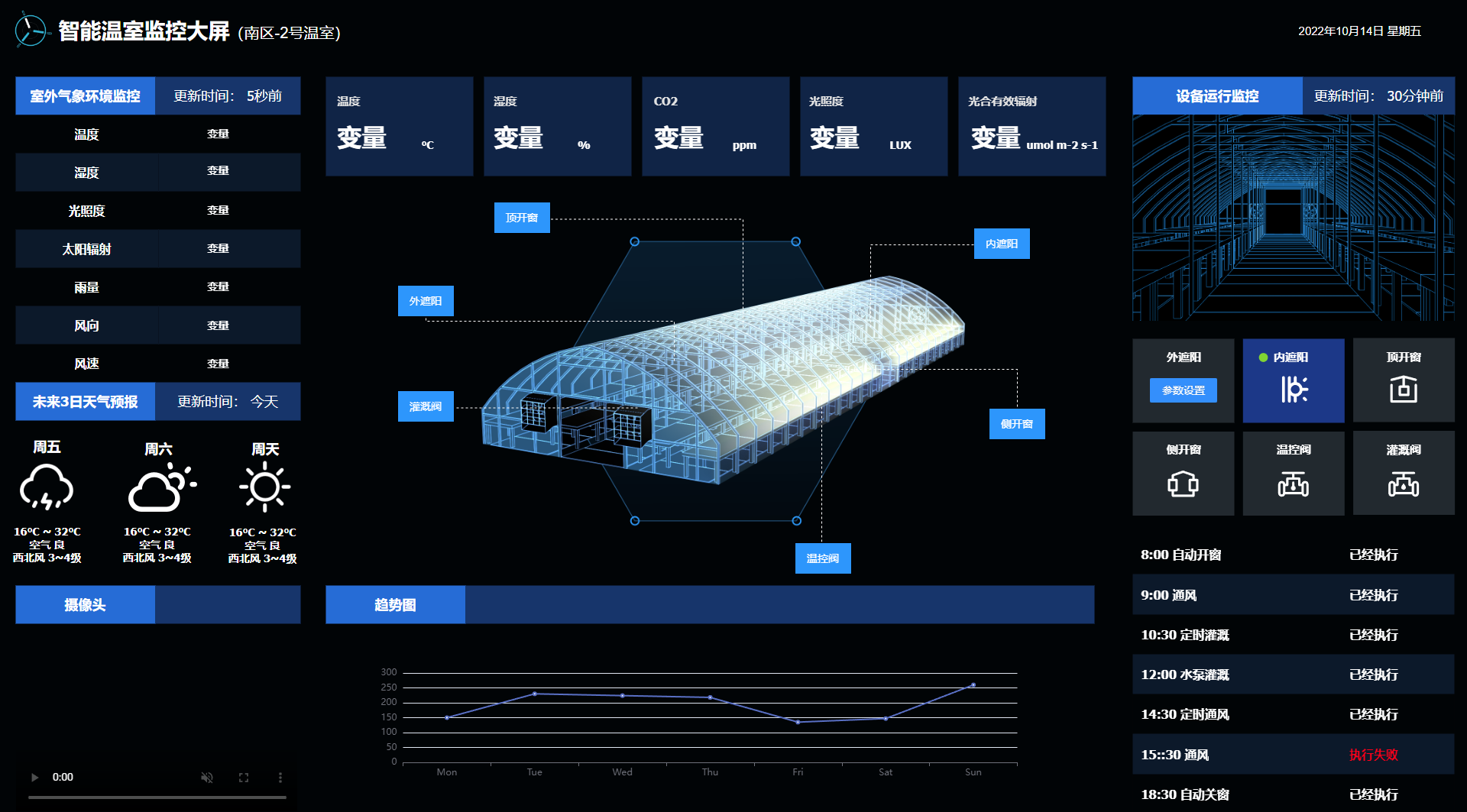
ThingsKit物联网平台:基于ThingsBoard开发,面向中小型企业开箱即用的低代码物联网平台 :ThingsKit物联网平台
ThingsKit物联网平台演示环境 :https://docs.thingskit.com/thingskit-link/getting-started
ThingsKit物联网平台
ThingsKit物联网平台

欢迎加入ThingsBoard技术交流群

ThingsKit物联网平台

这里可复制Q群号:69998183

关注“云腾五洲”:获取二开ThingsBoard物联网平台演示

ThingsKit物联网平台

TK物联网平台:ThingsKit物联网平台


本次演示环境Windows 10,TB版本为Thingsboard 3.0,Thingsboard-gateway版本为2.3.1.1,采用EMQ X作为MQTT broker,用MQTT box作为演示设备。

### 环境准备:
- thingsboard3.0源码安装

下载地址:https://github.com/thingsboard/thingsboard/releases

教程:https://www.iotschool.com/wiki/tbinstall 和 https://www.iotschool.com/topics/732

- 安装thingsboard-gateway2.3.1.1,特别说明:本地运行TB-gateway需要安装Python3.5以上的环境才能运行

下载地址:https://github.com/thingsboard/thingsboard-gateway/releases

教程:https://thingsboard.io/docs/iot-gateway/install/source-installation/

- 安装EMQ X

下载地址:https://github.com/emqx/emqx/releases

教程:https://docs.emqx.io/broker/latest/cn/getting-started/install.html##zip

- 安装MQTT Box

下载地址:https://www.iotschool.com/topics/553

教程:往后看

### 一切准备就绪,现在开始

#### 1、由于TB默认占用了1883端口,所以需要更改EMQ X的默认端口

配置文件位置:

![Thingsboard 3.0 通过tb-gateway网关接入MQTT 设备教程]( https://cdn.iotschool.com/photo/2020/b7f536d2-a6cb-4d9d-899c-edbcb8587879.png?x-oss-process=image/resize ,w_1920)

搜索

```go
listener.tcp.external =

找到后,将本行修改为:

listener.tcp.external = 127.0.0.1:1884

2、登录TB控制台,创建一个网关设备

![iotschool]( https://cdn.iotschool.com/photo/2020/ed7a54ff-f04b-4425-b589-be1658e90b61.png?x-oss-process=image/resize ,w_1920)

3、复制网关设备的访问令牌

![Thingsboard 3.0 通过tb-gateway网关接入MQTT 设备教程]( https://cdn.iotschool.com/photo/2020/13902080-3e63-48e9-abc1-bce652bc7dda.png?x-oss-process=image/resize ,w_1920)

4、将复制的令牌写入到网关下面的tb_gateway.yaml文件中的accessToken字段后面

![Thingsboard 3.0 通过tb-gateway网关接入MQTT 设备教程]( https://cdn.iotschool.com/photo/2020/1e2ce6bb-a741-4aa0-97be-de02a5929fe9.png?x-oss-process=image/resize ,w_1920)

![iotschool]( https://cdn.iotschool.com/photo/2020/698d0f2d-3c01-4100-aefe-13cd1023dbc9.png?x-oss-process=image/resize ,w_1920)

5、配置网关下面的mqtt.json文件

![Thingsboard 3.0 通过tb-gateway网关接入MQTT 设备教程]( https://cdn.iotschool.com/photo/2020/ef7d8d59-cb84-4838-bd06-3535481ffd9f.png?x-oss-process=image/resize ,w_1920)

![Thingsboard 3.0 通过tb-gateway网关接入MQTT 设备教程]( https://cdn.iotschool.com/photo/2020/5f0b0601-9fb9-4243-8f9b-58624e3d3e0a.png?x-oss-process=image/resize ,w_1920)

6、重启EMQ X,如果已启动,需要先停止再启动,命令参考:

https://docs.emqx.io/broker/latest/cn/getting-started/install.html##zip

7、启动网关,启动教程请参考

https://thingsboard.io/docs/iot-gateway/install/source-installation/

8、启动MQTT Box并配置

![Thingsboard 3.0 通过tb-gateway网关接入MQTT 设备教程]( https://cdn.iotschool.com/photo/2020/148640eb-d81b-4d44-9202-61161af9e6b1.png?x-oss-process=image/resize ,w_1920)

9、访问EMQ X

http://127.0.0.1:18083
帐号:admin
密码:public

如果配置正常,此时应该有个客户端接入了EMQ X,一个是MQTT box模拟的设备,一个是TB网关

![]( https://cdn.iotschool.com/photo/2020/dc7294c9-a873-4233-af91-b038535683a8.png?x-oss-process=image/resize ,w_1920)

10、登录TB控制台,刷新设备列表,目前只有我们刚刚创建的网关设备

![Thingsboard 3.0 通过tb-gateway网关接入MQTT 设备教程]( https://cdn.iotschool.com/photo/2020/ac41d001-3097-4f1d-87b2-ec0175108e18.png?x-oss-process=image/resize ,w_1920)

11、使用MQTT Box向“/sensor/data”Topic发送以下测试数据

{"serialNumber": "SN-001", "sensorType": "Thermometer", "sensorModel": "T1000", "temp": 18, "hum": 11}

![Thingsboard 3.0 通过tb-gateway网关接入MQTT 设备教程]( https://cdn.iotschool.com/photo/2020/de12746a-e205-4bae-a302-e83c82e1859d.png?x-oss-process=image/resize ,w_1920)

12、切回TB控制台,刷新设备列表会自动增加一台设备

![Thingsboard 3.0 通过tb-gateway网关接入MQTT 设备教程]( https://cdn.iotschool.com/photo/2020/e6317cb5-53e5-4489-a518-ef6d8c56eac4.png?x-oss-process=image/resize ,w_1920)

13、点击最新遥测,会看到我们刚刚同步上来的信息

![Thingsboard 3.0 通过tb-gateway网关接入MQTT 设备教程]( https://cdn.iotschool.com/photo/2020/178bca8b-434c-45f6-86bd-f84f5eac6147.png?x-oss-process=image/resize ,w_1920)

欢迎加入ThingsBoard技术交流群

ThingsKit物联网平台

这里可复制Q群号:69998183

关注“云腾五洲”:获取二开ThingsBoard物联网平台演示

ThingsKit物联网平台

TK物联网平台:ThingsKit物联网平台

posted @ 2020-06-08 14:02  ThingsKit物联网平台  阅读(10481)  评论(0)    收藏  举报
物联网平台 云腾五洲