
1. 自定义指令 + 插槽
自定义指令
- 全局注册
//在main.js中
Vue.directive('指令名', {
  "inserted" (el) {
    // 可以对 el 标签,扩展额外功能
    el.focus()
  }
})
- 局部注册
//在Vue组件的配置项中
directives: {
  "指令名": {
    inserted () {
      // 可以对 el 标签,扩展额外功能
      el.focus()
    }
  }
}
- 使用指令
//注意:在使用指令的时候,一定要**先注册**,**再使用**,否则会报错
//使用指令语法, v-指令名。如:
<input type="text"  v-focus/>
- 指令中的配置
- inserted:被绑定元素插入父节点时调用的钩子函数
- el:使用指令的那个DOM元素
自定义指令——指令的值
- 通过 binding.value 可以拿到指令值,指令值修改会 触发 update 函数
directives: {
  color: {
    inserted (el, binding) {
      el.style.color = binding.value
    },
    update (el, binding) {
      el.style.color = binding.value
    }
  }
}
- 代码示例
<template>
  <div>
     <!--显示红色-->
    <h2 v-color="color1">指令的值1测试</h2>
     <!--显示蓝色-->
    <h2 v-color="color2">指令的值2测试</h2>
     <button>
        改变第一个h1的颜色
    </button>
  </div>
</template>

<script>
export default {
  data () {
    return {
      color1: 'red',
      color2: 'blue'
    }
  }
}
</script>

<style>

</style>
插槽——默认插槽
- 组件内需要定制的结构部分,改用
<slot></slot>占位 - 使用组件时,
<MyDialog></MyDialog>标签内部, 传入结构替换slot - 给插槽传入内容时,可以传入纯文本、html标签、组件
- 代码示例
- MyDialog.vue
<template>
  <div class="dialog">
    <div class="dialog-header">
      <h3>友情提示</h3>
      <span class="close">✖️</span>
    </div>

    <div class="dialog-content">
      您确定要进行删除操作吗?
    </div>
    <div class="dialog-footer">
      <button>取消</button>
      <button>确认</button>
    </div>
  </div>
</template>

<script>
export default {
  data () {
    return {

    }
  }
}
</script>

<style scoped>
* {
  margin: 0;
  padding: 0;
}
.dialog {
  width: 470px;
  height: 230px;
  padding: 0 25px;
  background-color: #ffffff;
  margin: 40px auto;
  border-radius: 5px;
}
.dialog-header {
  height: 70px;
  line-height: 70px;
  font-size: 20px;
  border-bottom: 1px solid #ccc;
  position: relative;
}
.dialog-header .close {
  position: absolute;
  right: 0px;
  top: 0px;
  cursor: pointer;
}
.dialog-content {
  height: 80px;
  font-size: 18px;
  padding: 15px 0;
}
.dialog-footer {
  display: flex;
  justify-content: flex-end;
}
.dialog-footer button {
  width: 65px;
  height: 35px;
  background-color: #ffffff;
  border: 1px solid #e1e3e9;
  cursor: pointer;
  outline: none;
  margin-left: 10px;
  border-radius: 3px;
}
.dialog-footer button:last-child {
  background-color: #007acc;
  color: #fff;
}
</style>
- App.vue
<template>
  <div>
    <MyDialog>
    </MyDialog>
  </div>
</template>

<script>
import MyDialog from './components/MyDialog.vue'
export default {
  data () {
    return {

    }
  },
  components: {
    MyDialog
  }
}
</script>

<style>
body {
  background-color: #b3b3b3;
}
</style>
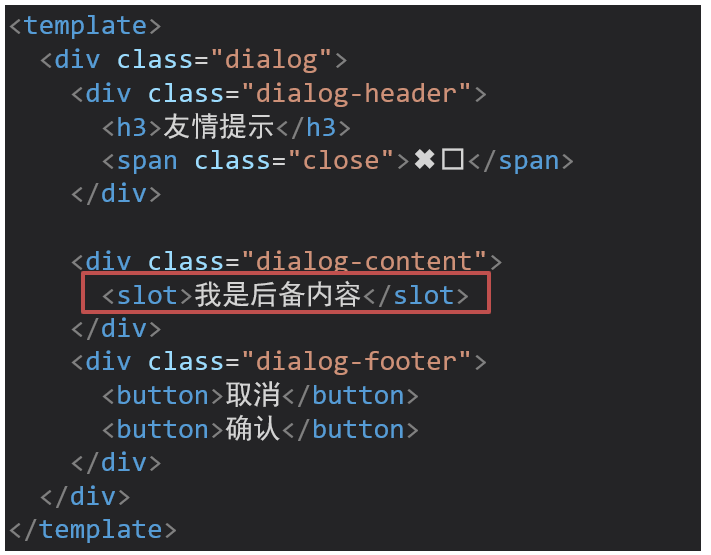
插槽的后备内容
- 在
<slot>标签内,放置内容, 作为默认显示内容;部使用组件时,不传东西,则slot会显示后备内容
![]()
插槽——具名插槽
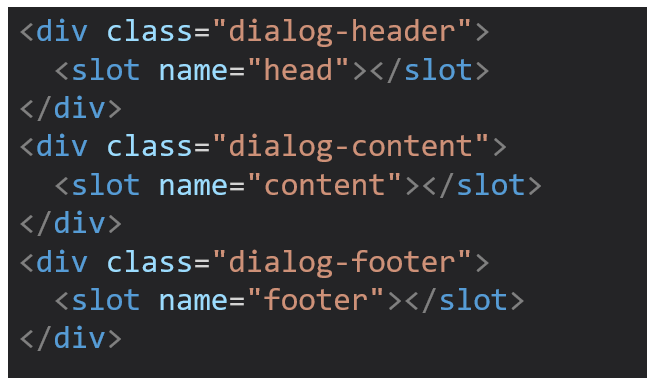
-
多个slot使用name属性区分名字
![]()
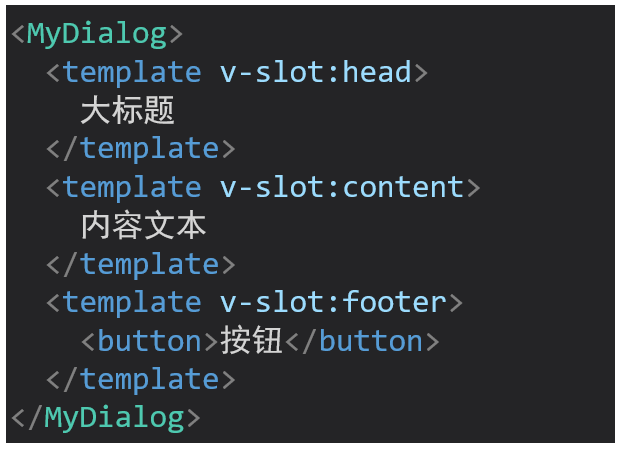
-
template配合v-slot:名字来分发对应标签
![]()
-
v-slot写起来太长,vue给我们提供一个简单写法
v-slot —> #
作用域插槽
-
插槽的分类
- 默认插槽
- 具名插槽
- 插槽只有两种,作用域插槽不属于插槽的一种分类
-
作用:定义slot 插槽的同时, 是可以传值的。给 插槽 上可以 绑定数据,将来 使用组件时可以用
-
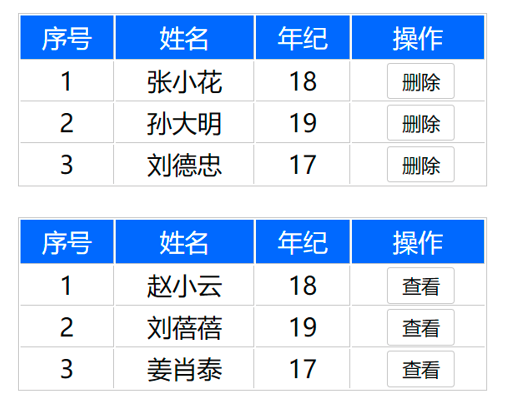
场景
![]()
-
使用步骤
- 给 slot 标签, 以 添加属性的方式传值,
<slot :id="item.id" msg="测试文本"></slot> - 所有添加的属性, 都会被收集到一个对象中,
{ id: 3, msg: '测试文本' } - 在template中, 通过
#插槽名= "obj"接收,默认插槽名为 default
- 给 slot 标签, 以 添加属性的方式传值,
<MyTable :list="list">
  <template #default="obj">
    <button @click="del(obj.id)">删除</button>
  </template>
</MyTable>
- 代码示例
- MyTable.vue
<template>
  <table class="my-table">
    <thead>
      <tr>
        <th>序号</th>
        <th>姓名</th>
        <th>年纪</th>
        <th>操作</th>
      </tr>
    </thead>
    <tbody>
      <tr>
        <td>1</td>
        <td>赵小云</td>
        <td>19</td>
        <td>
          <button>
          	查看
    	  </button>
        </td>
      </tr>
        <tr>
        <td>1</td>
        <td>张小花</td>
        <td>19</td>
        <td>
          <button>
          	查看
    	  </button>
        </td>
      </tr>
        <tr>
        <td>1</td>
        <td>孙大明</td>
        <td>19</td>
        <td>
          <button>
          	查看
    	  </button>
        </td>
      </tr>
    </tbody>
  </table>
</template>

<script>
export default {
  props: {
    data: Array
  }
}
</script>

<style scoped>
.my-table {
  width: 450px;
  text-align: center;
  border: 1px solid #ccc;
  font-size: 24px;
  margin: 30px auto;
}
.my-table thead {
  background-color: #1f74ff;
  color: #fff;
}
.my-table thead th {
  font-weight: normal;
}
.my-table thead tr {
  line-height: 40px;
}
.my-table th,
.my-table td {
  border-bottom: 1px solid #ccc;
  border-right: 1px solid #ccc;
}
.my-table td:last-child {
  border-right: none;
}
.my-table tr:last-child td {
  border-bottom: none;
}
.my-table button {
  width: 65px;
  height: 35px;
  font-size: 18px;
  border: 1px solid #ccc;
  outline: none;
  border-radius: 3px;
  cursor: pointer;
  background-color: #ffffff;
  margin-left: 5px;
}
</style>
- App.vue
<template>
  <div>
    <MyTable :data="list"></MyTable>
    <MyTable :data="list2"></MyTable>
  </div>
</template>

<script>
  import MyTable from './components/MyTable.vue'
  export default {
    data () {
      return {
     	list: [
            { id: 1, name: '张小花', age: 18 },
            { id: 2, name: '孙大明', age: 19 },
            { id: 3, name: '刘德忠', age: 17 },
          ],
          list2: [
            { id: 1, name: '赵小云', age: 18 },
            { id: 2, name: '刘蓓蓓', age: 19 },
            { id: 3, name: '姜肖泰', age: 17 },
          ]
      }
    },
    components: {
      MyTable
    }
  }
</script>

 浙公网安备 33010602011771号