
springboot的上传和下载文件
简介
个人项目的内容参考,包含了通过前端发送文件和请求下载文件的代码编写。前端基于vue框架,后端基于springboot
springboot配置
上传文件
传入的文件用MultiparFile进行接收
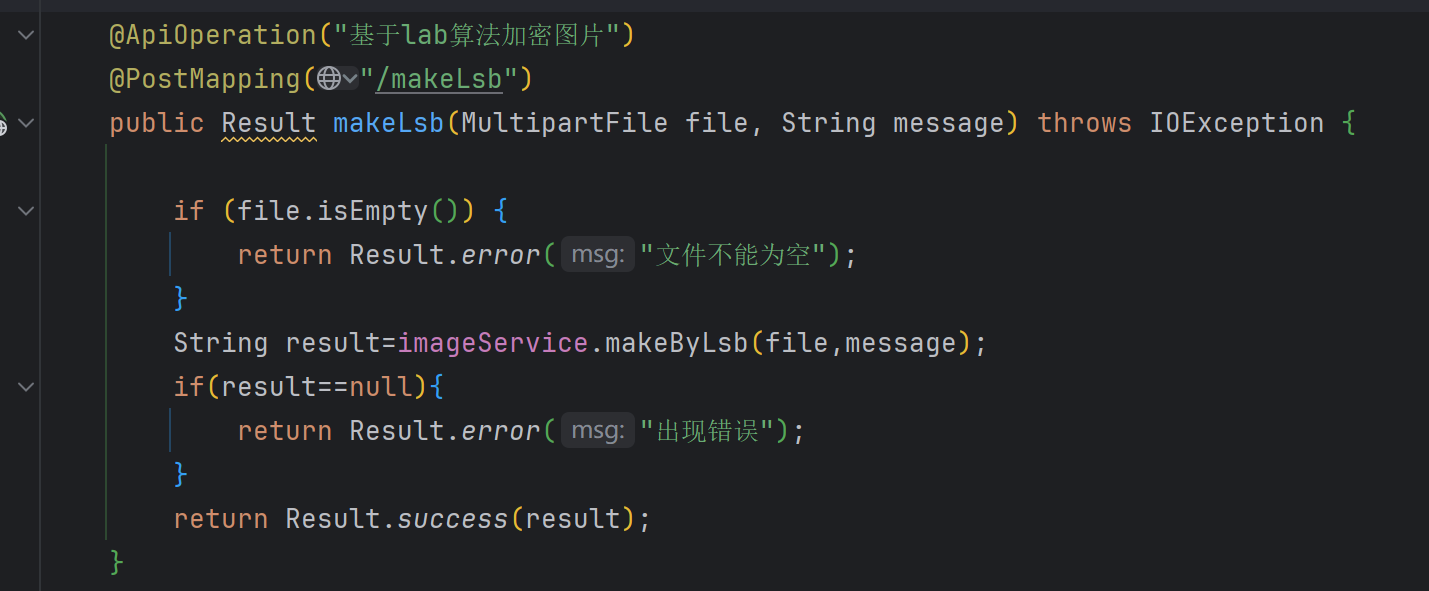
postman:
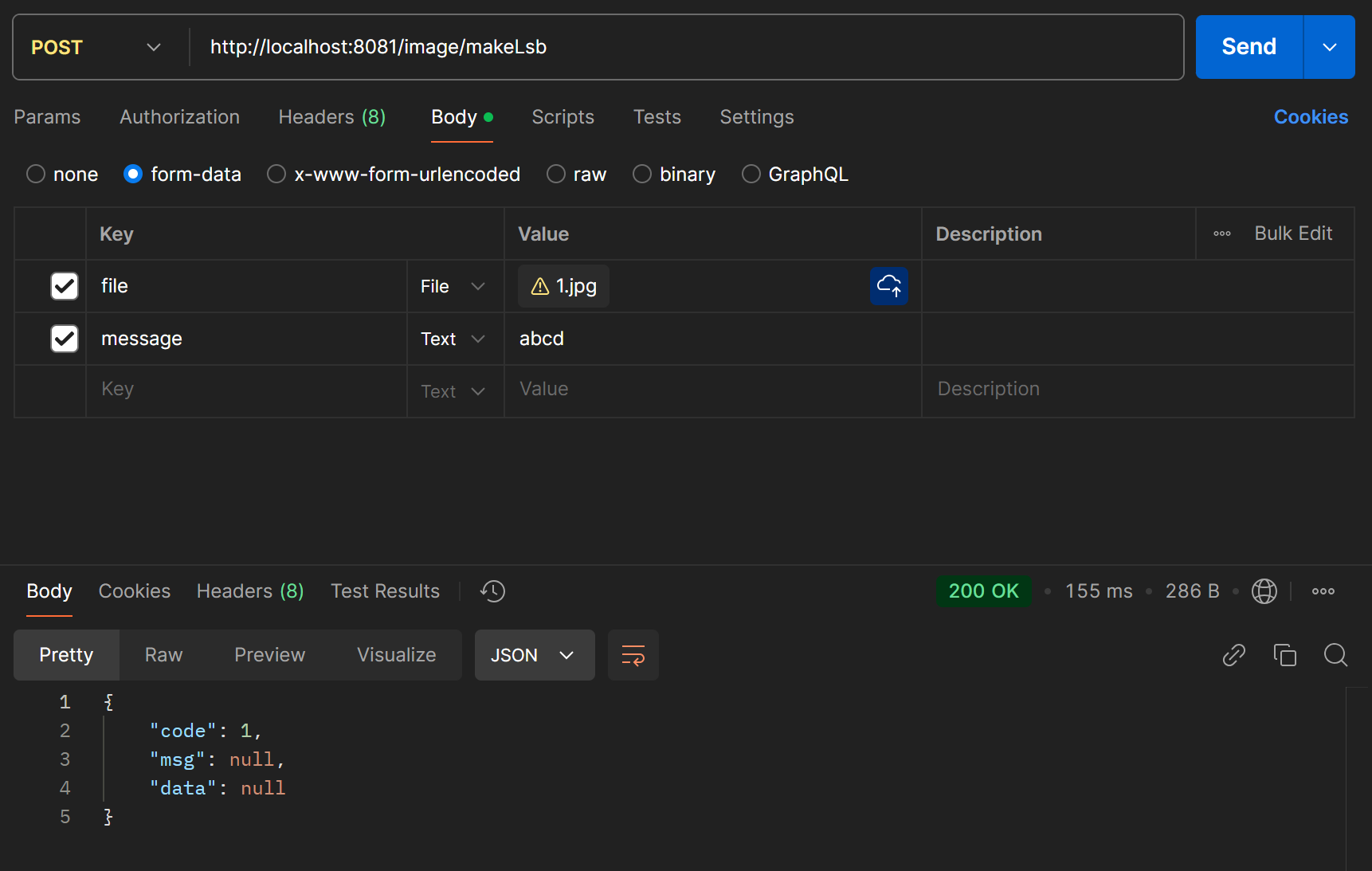
下载文件
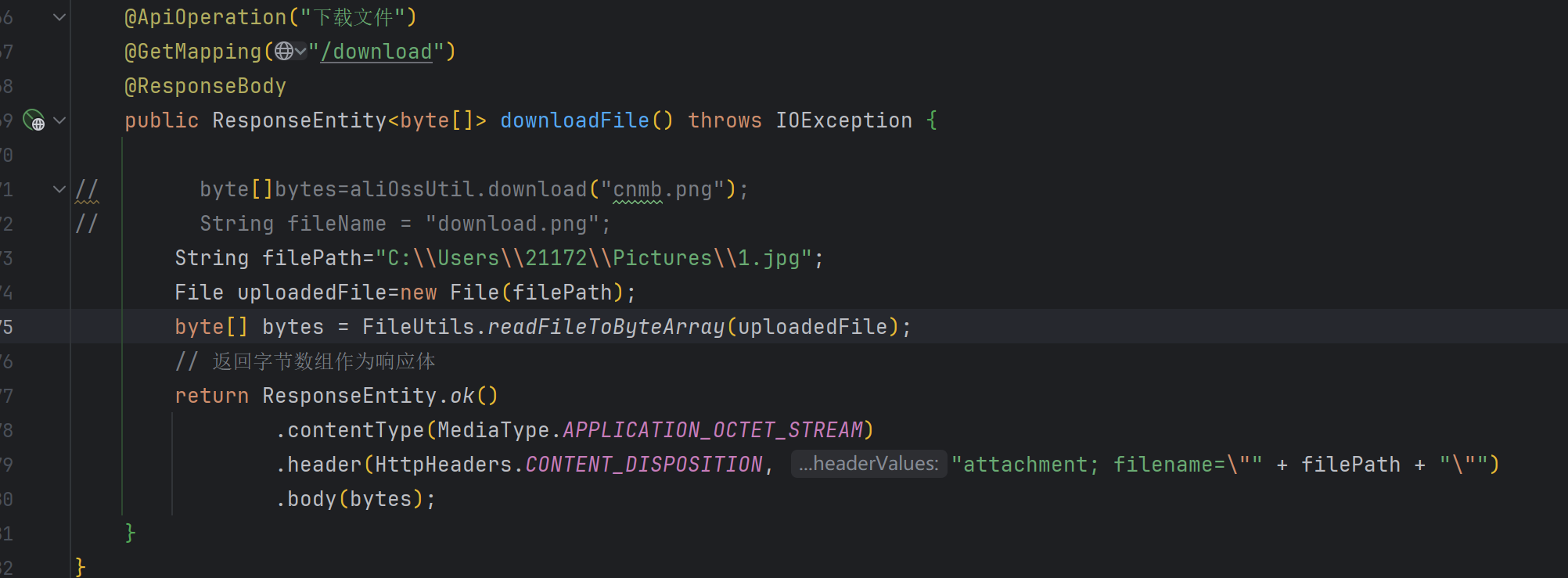
将需要传入的文件转换为byte数组然后返回给
ResponseEntit.contentType(MediaType.APPLICATION_OCTET_STREAM)
表示这是一个响应的二进制流,
.header(HttpHeaders.CONTENT_DISPOSITION, "attachment; filename=\"" + filePath +
这行代码设置了 HTTP 响应头 Content-Disposition。Content-Disposition 响应头用于告诉浏览器如何处理响应的内容。在这里,它被设置为 attachment,意味着提示浏览器下载文件而不是直接展示它。filename 参数后面跟着文件的名称,这里使用了变量 filePath 来动态设置文件名。注意,文件名被放在引号内,以确保即使文件名中包含空格也能被正确处理
.body(bytes)
这行代码设置了响应体(body),即实际发送给客户端的数据。在这里,bytes 应该是一个包含文件内容的字节数组(byte[])。这意味着服务器将发送这个字节数组作为响应体,客户端接收到后可以将其保存为文件。
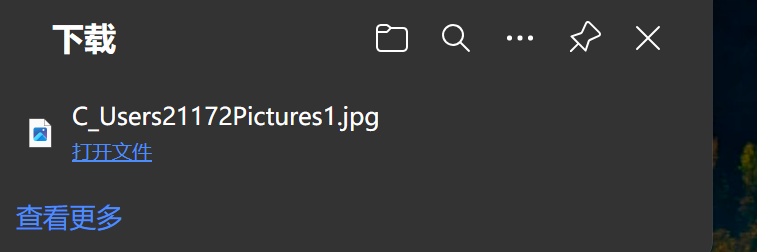
直接在url中访问http://localhost:8081/image/download
前端的配置实现前后端联调
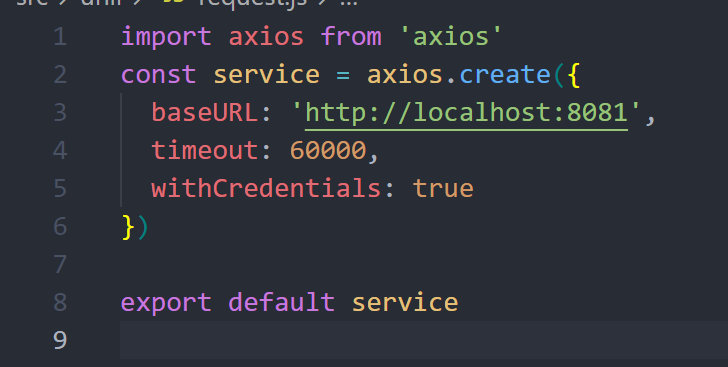
axios设置
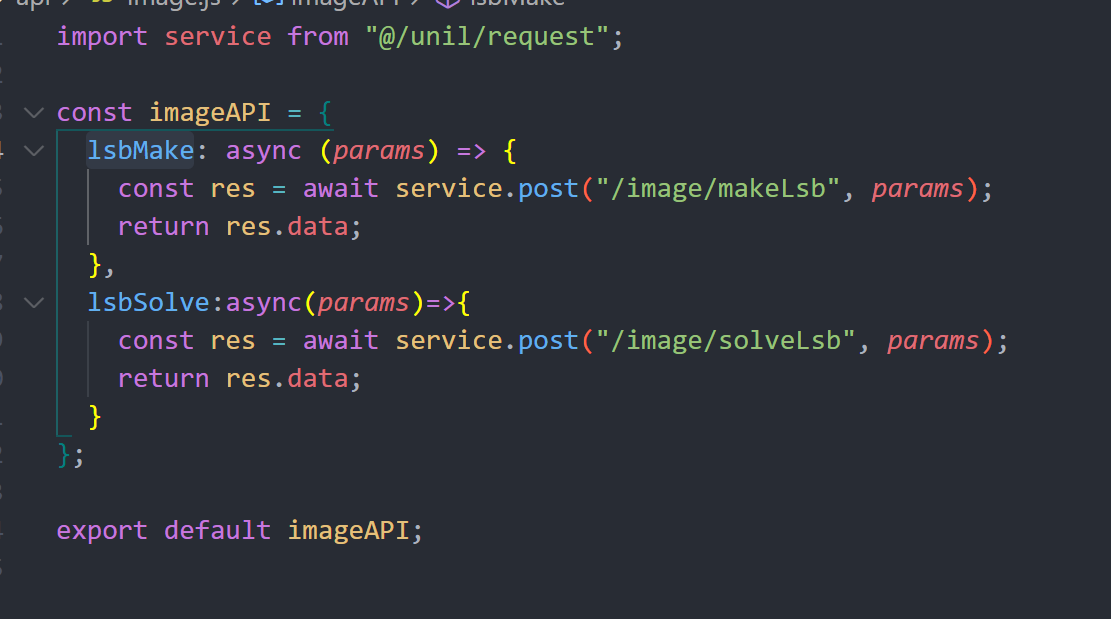
api的编写
网页的搭建
html
<div class="upload-container">
  <label
    draggable="true"
    for="fileInput"
    class="upload-trigger"
    @dragenter="handleDragEnter"
    @dragover.prevent
    @dragleave="handleDragLeave"
    @drop="handleDrop"
  >
    <i class="el-icon-upload icon"></i>
    <div class="upload-text">
      将文件拖到此处,或<span class="drag-tip">点击上传</span>
    </div>
  </label>
  <input
    type="file"
    id="fileInput"
    style="display: none"
    @change="handleFileChange"
  />
</div>
/**通过按钮发送文件 */
<el-button @click="uploadLSBImage">上传文件</el-button>
css
.upload-container {
  flex-direction: column;
  padding: 20px;
  border: 2px dashed #ccc;
  border-radius: 5px;
  background-color: #f9f9f9;
  width: 320px;
  height: 160px;
  cursor: pointer;
  transition: border 0.3s ease;
  margin-top: 20px;
}

.upload-trigger {
  display: flex;
  flex-direction: column;
  align-items: center;
  cursor: pointer;
  width: inherit;
  height: inherit;
}

.icon {
  margin-top: 20px;
  /* 假设你有一个上传图标的字体图标类 */
  font-size: 68px;
  color: #666;
}

.upload-text {
  margin-top: 10px;
  color: #333;
}

.upload-tip {
  margin-top: 5px;
  font-size: 12px;
  color: #666;
}
/* 拖动 */
.upload-trigger.dragover {
  border-color: #409eff; /* 文件拖拽时的边框颜色 */
}
选择文件
主要目的:从事件中保存文件和文件名
拖拽文件函数
handleDragEnter() {
  // 当文件拖拽进入时改变样式
  this.dragOver = true;
},
handleDragLeave() {
  // 当文件拖出时重置样式
  this.dragOver = false;
},
handleDrop(event) {
  // 处理文件drop事件
  event.preventDefault();
  this.dragOver = false;
  const files = event.dataTransfer.files;
  if (files.length) {
    this.selectedLSBFile = files[0];
    this.fileName = this.selectedLSBFile.name;
  }
},
选择文件函数
将事件event传入。获取到文件,然后记录下文件的名字和保存这个文件。
handleFileChange(event) {
  // 当文件选择器的值发生变化时,更新selectedFile
  const file = event.target.files[0];
  if (file) {
    console.log("change");
    this.selectedLSBFile = file;
    this.fileName = file.name; // 更新文件名
  }
},
*发送文件
文件的包装需要使用formData以键值对的方式进行传输
solveLSBImage() {
  if (this.selectedLSBFile) {
    console.log("发生");
    // 创建FormData对象
    const formData = new FormData();
    // 将图片文件添加到FormData对象中
    formData.append("file", this.selectedLSBFile);
    imageAPI.lsbSolve(formData).then((res) => {
      console.log(res)
      this.solveMessage = res.data;
    });
  }
},
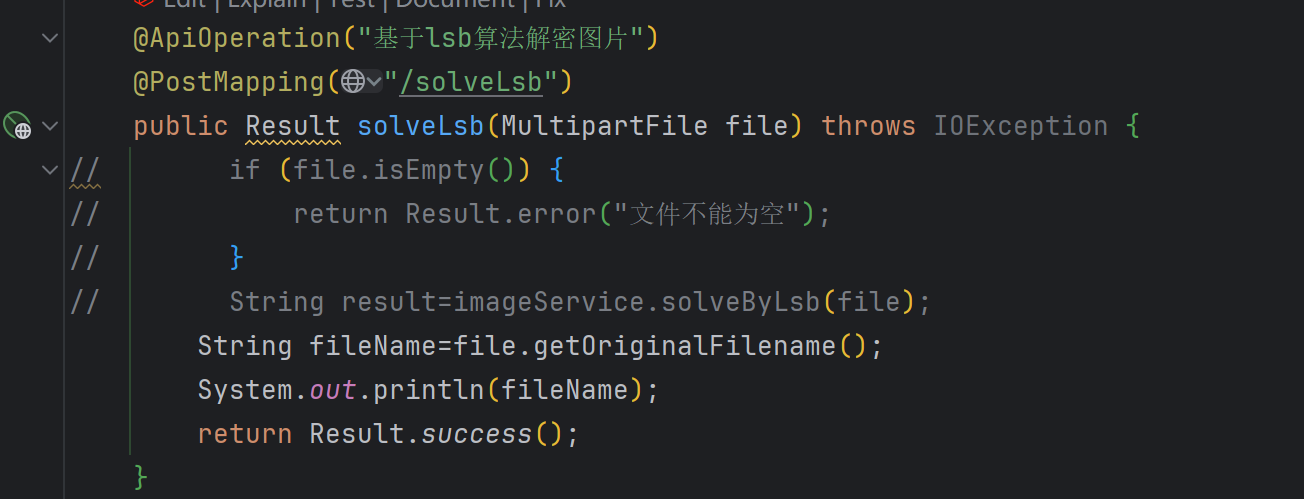
后端对应的处理函数
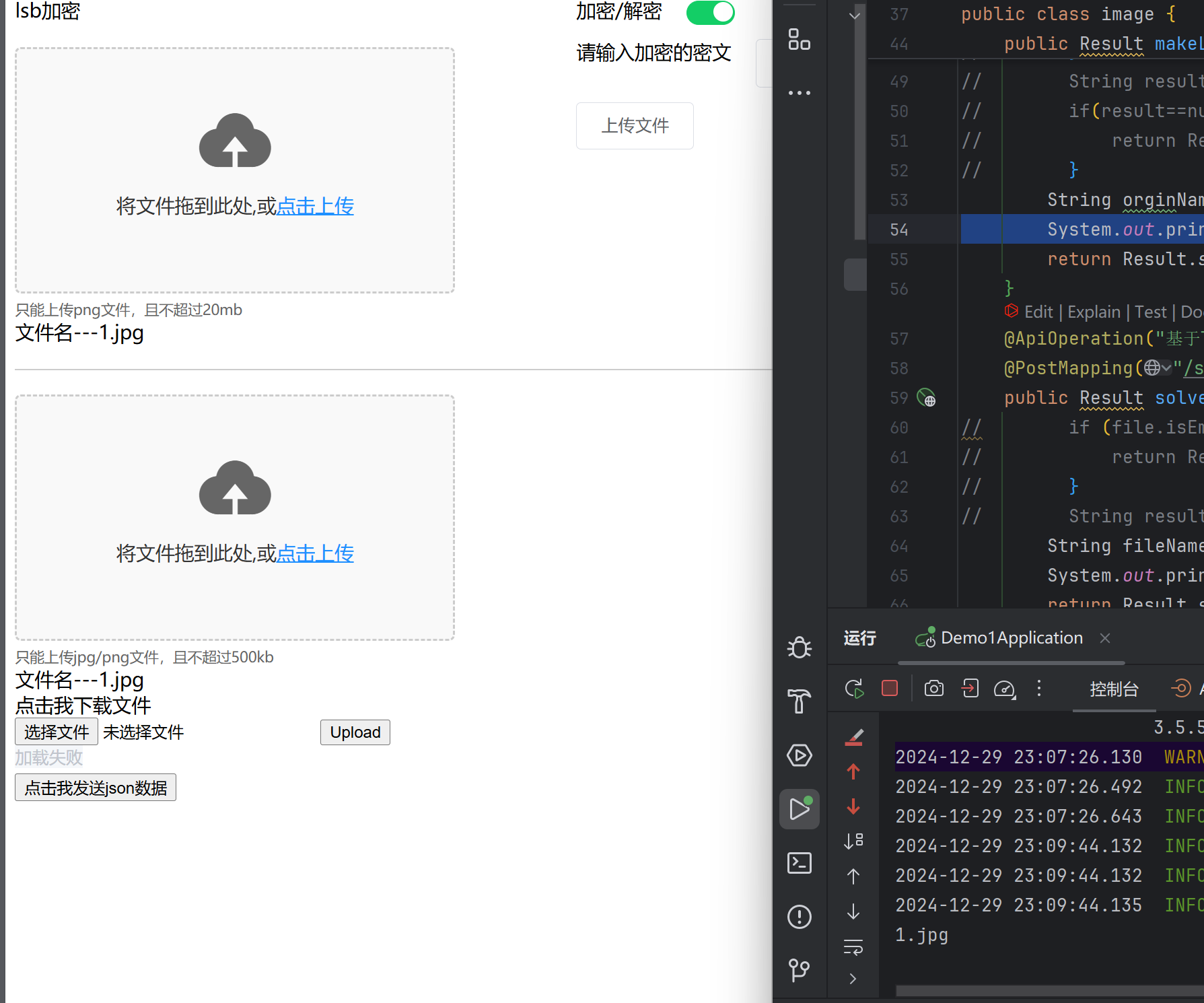
结果:
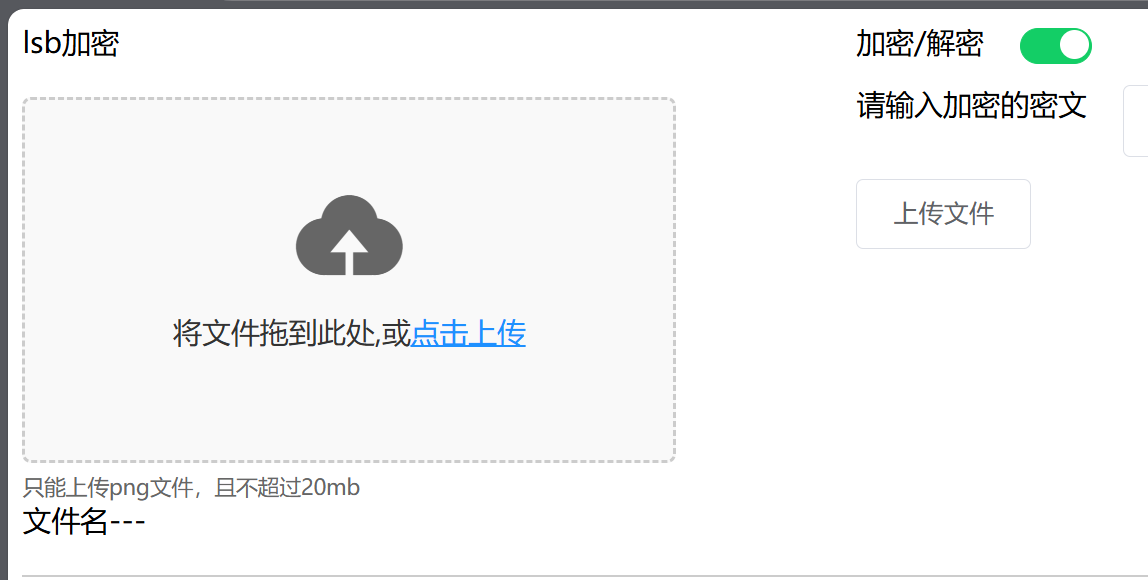
上传成功
下载文件
实际就是直接通过url访问对应的接口就可以实现文件的下载
dowload(){
 window.location.href='http://localhost:8081/image/download'
},

 浙公网安备 33010602011771号