
方法一:
通过使用Windows SDK v6.0A 自带的corflags.exe工具来查看。该工具通常位于%ProgramFiles%\Microsoft SDKs\Windows\v6.0A\Bin目录下面。
用法: Corflags.exe Assembly [options]
如果没有指定options,那么将显示所给assemply的当前flag状态。
Options可以是以下几种:
/ILONLY+ /ILONLY- Sets/clears the ILONLY flag
/32BIT+ /32BIT- Sets/clears the 32BIT flag
/UpgradeCLRHeader Upgrade the CLR Header to version 2.5
/RevertCLRHeader Revert the CLR Header to version 2.0
/Force Force an assembly update even if the image is strong name signed.
WARNING: Updating a strong name signed assembly will require the assembly to be resigned before it will execute properly.
/nologo Prevents corflags from displaying logo
/? or /help Display this usage message
更多关于corflags.exe参数的解释及应用的信息可以参考.NET SDK中CorFlags.exe的使用方法和64位windows中运行托管程序两篇文章
运行Corflags.exe Sample.exe结果如下,第一项Version就是我们需要的信息了。
Version : v2.0.50727
CLR Header: 2.5
PE : PE32
CorFlags : 1
ILONLY : 1
32BIT : 0
Signed : 0
方法二:
使用Assembly.ImageRuntimeVersion属性通过编程获得。默认情况下这个值就是编译程序集的CLR版本,但MSDN上说"However, it might have been set to another value at compile time",我还不太明白如何在编译时将它设置成其它值。
using System.Collections.Generic;
using System.Text;
using System.Reflection;
namespace GetVersionInfo
{
public class GetversionInfo
{
public static void Main(string[] args)
{
string assPath = args[0];
Assembly ass = Assembly.LoadFrom(assPath);
Console.WriteLine("CLR Version:{0}{1}",ass.ImageRuntimeVersion,Environment.NewLine);
}
}
}
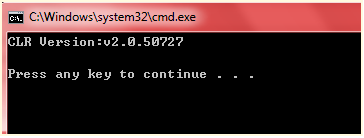
运行结果:

 浙公网安备 33010602011771号