

LNMP手动安装过程
Mysql的安装
cd /usr/local/src/ //进入下载目录
下载安装命令并解压:wget -c http://mirrors.sohu.com/mysql/MySQL-5.6/mysql-5.6.35-linux-glibc2.5-x86_64.tar.gz
tar zxvf mysql-5.6.35-linux-glibc2.5-x86_64.tar.gz
接下来就是初始化Mysql
mv mysql-5.6.35-linux-glibc2.5-x86_64  /usr/local/mysql //移动目录
useradd -M -s /sbin/nologin  mysql //创建Mysql用户
mkdir -p /data/mysql  //创建datadir目录,数据库文件放在里面
chown mysql /data/mysql  //更改权限
cd /usr/local/mysql
./scripts/mysql_install_db --user=mysql --datadir=/data/mysql  //初始化

cp support-files/my-large.cnf /etc/my.cnf  //复制配置文件下一行也是这种作用,但是这一行是旧版本的,下面一行是新版本的
cp support-files/my-default.cnf /etc/my.cnf //  vim /etc/my.cnf //进入修改脚本,如下
basedir = /usr/local/mysql
datadir = /data/mysql
port = 3306
socket = /tmp/mysql.sock
cp support-files/mysql.server /etc/init.d/mysqld //修改启动脚本
chmod 755 /etc/init.d/mysqld
vim /etc/init.d/mysqld   //修改
basedir=/usr/local/mysql
datadir=/data/mysql
启动服务
/etc/init.d/mysqld start //路径方式启动mysql
chkconfig --add mysqld //添加进service 列表,可用service 来启动。
chkconfig mysqld on  //服务默认开启
service mysqld start  //用 service 来启动

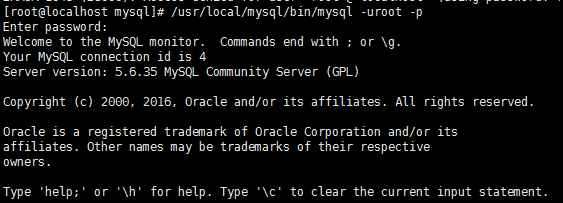
/usr/local/mysql/bin/mysql -uroot //进入mysql
mysql>set password = password('mypass');  //设置新密码
/usr/local/mysql/bin/mysql -uroot -p  //当你设置完密码时,下次登录需要这样子登录
安装PHP
安装需要的包:
64位系统选择:
rpm -ivh http://download.fedoraproject.org/pub/epel/6/x86_64/epel-release-6-8.noarch.rpm   //EPEL源

yum install -y gcc
yum install -y libxml2-devel
yum install -y openssl openssl-devel
yum install -y bzip2 bzip2-devel
yum install -y libpng libpng-devel
yum install -y libjpeg-turbo-devel
yum install -y freetype freetype-devel
yum install -y libcurl-devel
yum install -y libtool-ltdl-devel
yum install -y  libmcrypt-devel          // 这个需要安装epel源
yum -y install pcre-devel
cd /usr/local/src //进入安装目录
- 下载php
cd /usr/local/src
wget http://am1.php.net/distributions/php-5.3.27.tar.gz
- 解压php
tar zxf php-5.3.27.tar.gz
- 创建相关账户
useradd -s /sbin/nologin php-fpm
- 配置编译参数
cd php-5.3.27
./configure \
--prefix=/usr/local/php \
--with-config-file-path=/usr/local/php/etc \
--enable-fpm \
--with-fpm-user=php-fpm \
--with-fpm-group=php-fpm \
--with-mysql=/usr/local/mysql \
--with-mysql-sock=/tmp/mysql.sock \
--with-libxml-dir \
--with-gd \
--with-jpeg-dir \
--with-png-dir \
--with-freetype-dir \
--with-iconv-dir \
--with-zlib-dir \
--with-mcrypt \
--enable-soap \
--enable-gd-native-ttf \
--enable-ftp \
--enable-mbstring \
--enable-exif \
--enable-zend-multibyte \
--disable-ipv6 \
--with-pear \
--with-curl \
--with-openssl
- 编译php
make
echo $?  //检测是否正常
- 安装php
make install
echo $?  //照例检测
- 修改配置文件
cp php.ini-production /usr/local/php/etc/php.ini
vim /usr/local/php/etc/php-fpm.conf
把如下内容写入该文件:
[global]
pid = /usr/local/php/var/run/php-fpm.pid
error_log = /usr/local/php/var/log/php-fpm.log
[www]
listen = /tmp/php-fcgi.sock
user = php-fpm
group = php-fpm
pm = dynamic
pm.max_children = 50
pm.start_servers = 20
pm.min_spare_servers = 5
pm.max_spare_servers = 35
pm.max_requests = 500
rlimit_files = 1024
保存配置文件后,检验配置是否正确的方法为:
/usr/local/php/sbin/php-fpm -t
如果出现诸如 “test is successful” 字样,说明配置没有问题。
- 启动php-fpm
cp /usr/local/src/php-5.3.27/sapi/fpm/init.d.php-fpm /etc/init.d/php-fpm
chmod 755 /etc/init.d/php-fpm
service php-fpm start
如果想让它开机启动,执行:
chkconfig php-fpm on
检测是否启动:

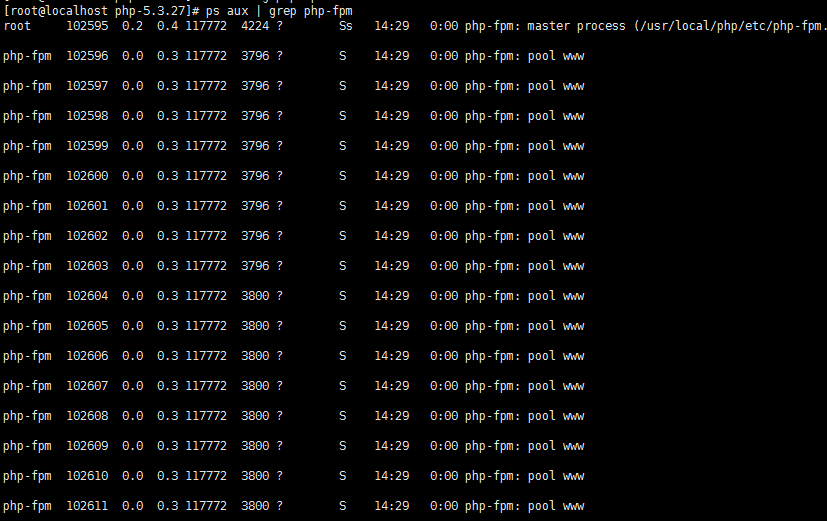
ps aux |grep php-fpm
看看是不是有很多个进程(大概20多个)。
安装Nginx
- 下载nginx
cd /usr/local/src/
wget http://nginx.org/download/nginx-1.4.4.tar.gz
- 解压nginx
tar zxvf nginx-1.4.4.tar.gz
- 配置编译参数
cd nginx-1.4.4
./configure \
--prefix=/usr/local/nginx \
--with-http_realip_module \
--with-http_sub_module \
--with-http_gzip_static_module \
--with-http_stub_status_module  \
--with-pcre
- 编译nginx
make
- 安装nginx
make install
因为nginx比较小,所以很快就会安装完,而且也不会出什么错误,如果出错了,到论坛(http://www.aminglinux.com/bbs/forum-40-1.html)发帖求助。
- 编写nginx启动脚本,并加入系统服务
vim /etc/init.d/nginx
写入如下内容:
#!/bin/bash
# chkconfig: - 30 21
# description: http service.
# Source Function Library
. /etc/init.d/functions
# Nginx Settings

NGINX_SBIN="/usr/local/nginx/sbin/nginx"
NGINX_CONF="/usr/local/nginx/conf/nginx.conf"
NGINX_PID="/usr/local/nginx/logs/nginx.pid"
RETVAL=0
prog="Nginx"

start() {
        echo -n $"Starting $prog: "
        mkdir -p /dev/shm/nginx_temp
        daemon $NGINX_SBIN -c $NGINX_CONF
        RETVAL=$?
        echo
        return $RETVAL
}

stop() {
        echo -n $"Stopping $prog: "
        killproc -p $NGINX_PID $NGINX_SBIN -TERM
        rm -rf /dev/shm/nginx_temp
        RETVAL=$?
        echo
        return $RETVAL
}

reload(){
        echo -n $"Reloading $prog: "
        killproc -p $NGINX_PID $NGINX_SBIN -HUP
        RETVAL=$?
        echo
        return $RETVAL
}

restart(){
        stop
        start
}

configtest(){
    $NGINX_SBIN -c $NGINX_CONF -t
    return 0
}

case "$1" in
  start)
        start
        ;;
  stop)
        stop
        ;;
  reload)
        reload
        ;;
  restart)
        restart
        ;;
  configtest)
        configtest
        ;;
  *)
        echo $"Usage: $0 {start|stop|reload|restart|configtest}"
        RETVAL=1
esac

exit $RETVAL
保存后,更改权限:
chmod 755 /etc/init.d/nginx
chkconfig --add nginx
如果想开机启动,请执行:
chkconfig nginx on
- 更改nginx配置
首先把原来的配置文件清空:
> /usr/local/nginx/conf/nginx.conf
“>” 这个符号为重定向的意思,单独用它,可以把一个文本文档快速清空。
vim /usr/local/nginx/conf/nginx.conf
写入如下内容:
user nobody nobody;
worker_processes 2;
error_log /usr/local/nginx/logs/nginx_error.log crit;
pid /usr/local/nginx/logs/nginx.pid;
worker_rlimit_nofile 51200;

events
{
    use epoll;
    worker_connections 6000;
}

http
{
    include mime.types;
    default_type application/octet-stream;
    server_names_hash_bucket_size 3526;
    server_names_hash_max_size 4096;
    log_format combined_realip '$remote_addr $http_x_forwarded_for [$time_local]'
    '$host "$request_uri" $status'
    '"$http_referer" "$http_user_agent"';
    sendfile on;
    tcp_nopush on;
    keepalive_timeout 30;
    client_header_timeout 3m;
    client_body_timeout 3m;
    send_timeout 3m;
    connection_pool_size 256;
    client_header_buffer_size 1k;
    large_client_header_buffers 8 4k;
    request_pool_size 4k;
    output_buffers 4 32k;
    postpone_output 1460;
    client_max_body_size 10m;
    client_body_buffer_size 256k;
    client_body_temp_path /usr/local/nginx/client_body_temp;
    proxy_temp_path /usr/local/nginx/proxy_temp;
    fastcgi_temp_path /usr/local/nginx/fastcgi_temp;
    fastcgi_intercept_errors on;
    tcp_nodelay on;
    gzip on;
    gzip_min_length 1k;
    gzip_buffers 4 8k;
    gzip_comp_level 5;
    gzip_http_version 1.1;
    gzip_types text/plain application/x-javascript text/css text/htm application/xml;

server
{
    listen 80;
    server_name localhost;
    index index.html index.htm index.php;
    root /usr/local/nginx/html;

    location ~ \.php$ {
        include fastcgi_params;
        fastcgi_pass unix:/tmp/php-fcgi.sock;
        fastcgi_index index.php;
        fastcgi_param SCRIPT_FILENAME /usr/local/nginx/html$fastcgi_script_name;
    }

}

}
保存配置后,先检验一下配置文件是否有错误存在:
/usr/local/nginx/sbin/nginx  -t
若出现下面这两行就是成功了,否则需要根据提示进行修改错误:

启动nginx:
service nginx start //会出现下面的图像

如果不能启动,请查看 “/usr/local/nginx/logs/error.log” 文件,检查nginx是否启动:
ps aux |grep nginx

看是否有进程。
测试是否解析php文件
创建测试文件:
vim /usr/local/nginx/html/2.php
内容如下:
<?php
    echo "测试php是否解析";
?>
测试:
[root@localhost nginx]# curl localhost/2.php
测试php是否解析[root@localhost nginx]#

本地浏览器访问的话需要再运行一句代码:iptables -F
这是为了清除系统默认的防火墙规则,放行80端口。

 浙公网安备 33010602011771号